







Content
Page Table of Contents
About the Author
Hot Topics
HP USB Disk Storage Format Tool has been widely used for years as a simple utility for formatting USB flash drives and creating bootable media. Its lightweight design and portability have made it a popular choice among Windows users. However, modern storage devices and workflows often require more than basic formatting capabilities. Features such as file system conversion, large-capacity FAT32 support, disk diagnostics, and partition management have become increasingly important, leading many users to look for more capable alternatives.
Why Do You Need an Alternative to HP USB Disk Storage Format Tool
HP USB Disk Storage Format Tool is a lightweight Windows utility originally developed by HP for formatting USB flash drives and creating DOS-bootable USB devices. It supports common file systems such as FAT, FAT32, and NTFS, and is primarily intended for removable storage devices such as USB flash drives. Due to its simplicity and ease of use, it became one of the most popular USB formatting tools for Windows users.
However, it only works with USB flash drives, requires elevated privileges to run, and offers minimal feedback and options compared to more comprehensive format tools. That's why you need an alternative offering powerful features and better device compatibility.
PROS
CONS
HP USB Disk Storage Format Tool remains a practical choice for users who need a simple, portable utility to format USB flash drives or create DOS-bootable media. Its lightweight design and straightforward workflow have helped it remain popular for many years.
Check our full guide to learn more about the reviews of HP USB Disk Storage Format Tool: HP USB Disk Storage Format Tool Review 2026 [Benefits and Drawbacks]
However, modern storage management often involves more than basic formatting. Tasks such as managing large-capacity drives, converting file systems without data loss, checking disk health, and repairing storage issues typically require a more comprehensive solution. For users who need these capabilities, a modern alternative such as EaseUS Partition Master can provide significantly greater flexibility and functionality.
Best Alternative to HP USB Disk Storage Format Tool
EaseUS Partition Master is a full-featured disk and partition management tool that supports a wide range of storage devices and use cases. It works not only with USB flash drives, but also with SSDs, HDDs, SD cards, external hard drives, system and non-system partitions. It is available in both portable-like usage scenarios and full desktop installation, making it flexible for different workflows.
- ✅Support low level format and high level format
- ✅Format a hard drive for free
Unlike basic formatting tools, it supports both standard formatting and advanced disk operations, and is fully compatible with Windows 11 and Windows 10. Beyond formatting, it also provides:
- File system conversion without data loss
- Logical disk error repair
- Sector-level disk scanning
- Advanced partition management
Key Features of EaseUS Partition Master
1. Free Disk and Partition Formatting
EaseUS Partition Master allows users to format partitions and storage devices for free, including USB drives, external disks, and internal drives. It supports FAT32, NTFS, and exFAT file systems.
2. Format Large Drives as FAT32
It supports formatting large-capacity drives as FAT32, including USB drives larger than 32GB, which is often restricted in standard Windows formatting tools. This makes it useful for devices such as game consoles, embedded systems, and older hardware that require FAT32 compatibility.
3. Convert File Systems Without Data Loss
Convert file systems without formatting the drive, helping avoid data backup and restore processes:
This improves flexibility when adapting storage devices to different systems.
4. Disk Surface Check and Error Handling
EaseUS Partition Master includes disk surface testing features that scan storage media for logical issues.
It can:
- Detect unstable or problematic sectors
- Help avoid using damaged areas of a disk
- Improve overall disk reliability
HP USB Disk Storage Format Tool vs. EaseUS Partition Master
Check the following table to compare HP USB Disk Storage Format Tool and EaseUS Partition Master:
| Features | HP USB Disk Storage Format Tool | EaseUS Partition Master |
|---|---|---|
| Device Compatibility | USB only | SSDs, HDDs, SD cards, external hard drives |
| Large FAT32 drives (>32GB) | Basic support | Full support |
| FAT32 to exFAT conversion | NO | Yes, no data loss |
| Partition management | NO | Yes |
| Disk surface scan | NO | Yes |
| Error repair tools | NO | Yes |
| Usage Mode | Portable USB formatting tool | Full desktop application with portable deployment support |
| Best For | Quick USB formatting | USB, SSD, HDD, and enterprise disk formatting and management |
While HP USB Disk Storage Format Tool remains a convenient option for quick USB formatting tasks, its scope is largely limited to removable media. EaseUS Partition Master extends beyond USB formatting by supporting a wider range of storage devices and advanced operations, including large FAT32 formatting, file system conversion without data loss, disk surface testing, and partition management. The choice ultimately depends on whether you need a dedicated USB formatting utility or a complete storage management solution.
Share this post to help more people who are looking for a reliable alternative to the HP USB Disk Storage Format Tool.

How to Format USB with EaseUS Partition Master
With EaseUS Partition Master, you can format SSD/HDD, external hard drive, USB flash drive, SD card to FAT32/exFAT/NTFS and ext2/3/4.
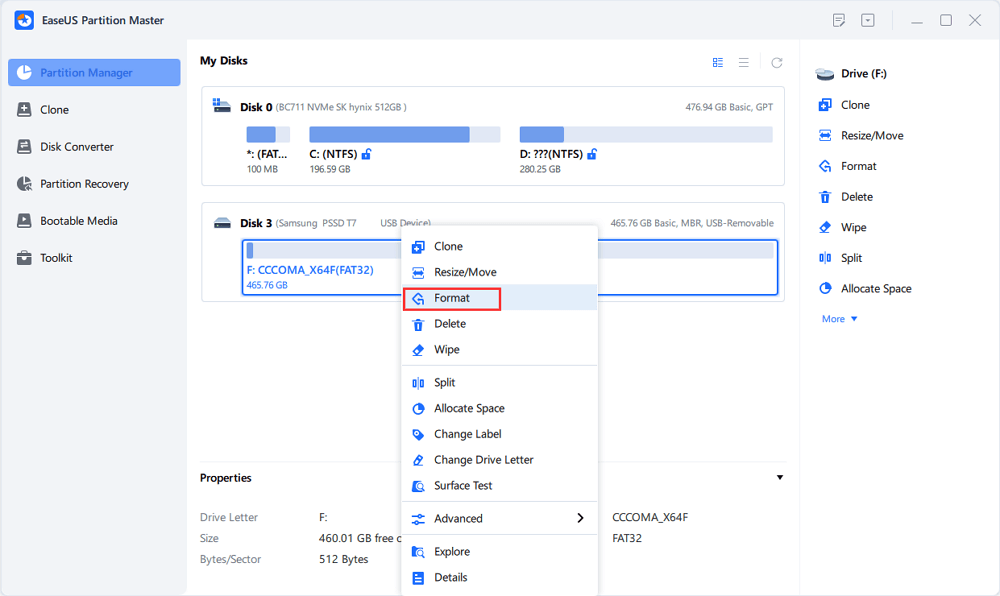
Step 1. Launch EaseUS Partition Master, right-click the partition on your external hard drive/USB/SD card which you want to format and choose the "Format" option.
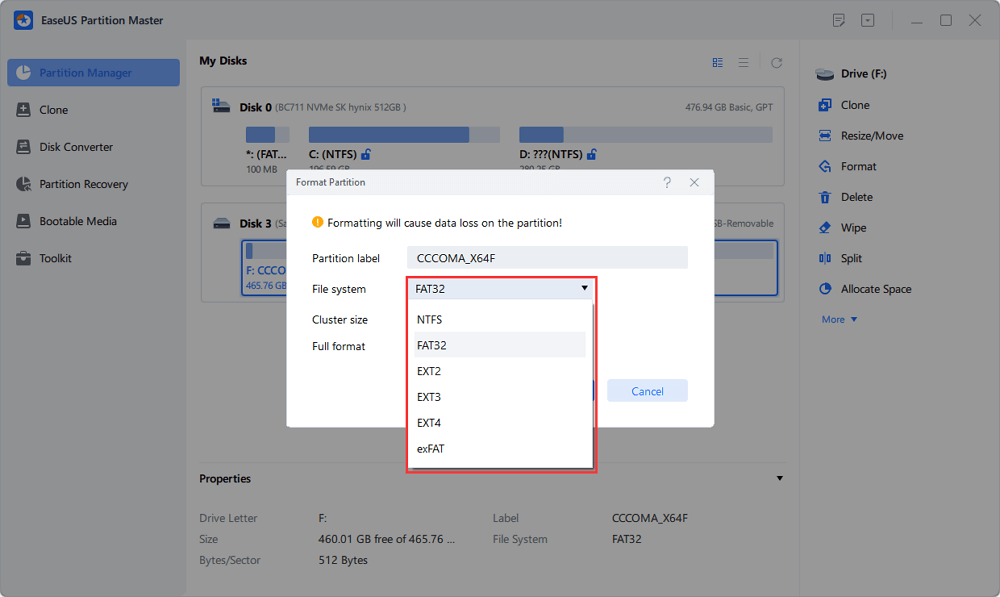
Step 2. Assign a new partition label, file system (NTFS/FAT32/EXT2/EXT3/EXT4/exFAT), and cluster size to the selected partition, then click "OK".
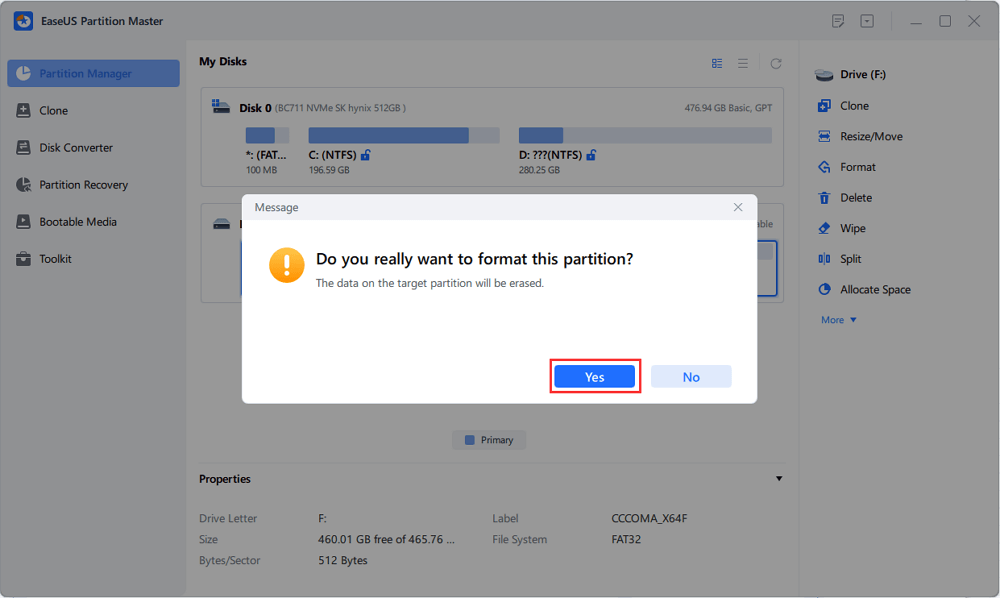
Step 3. In the Warning window, click "Yes" to continue.
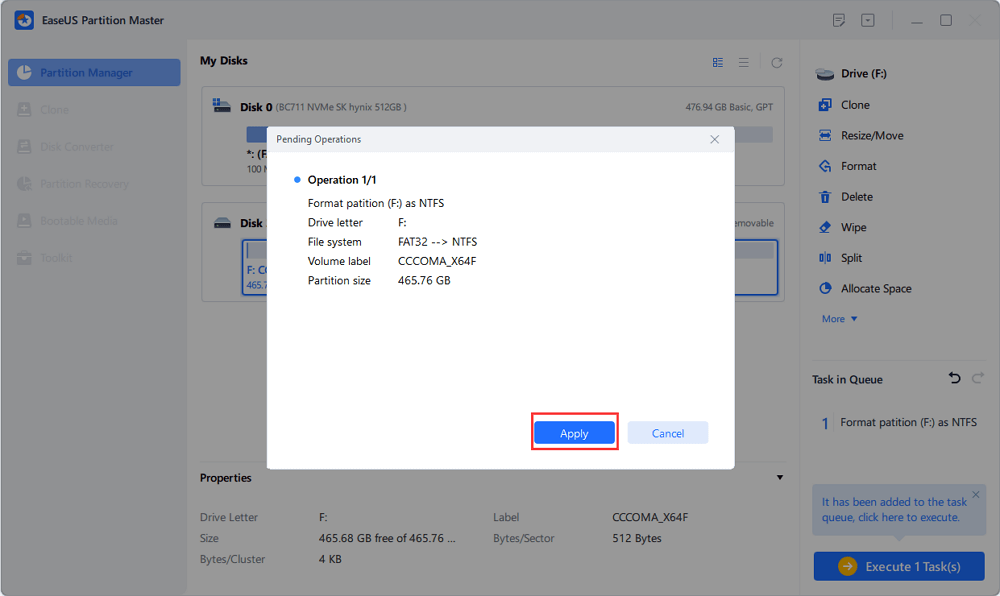
Step 4. Click the "Execute 1 Task(s)" button in the top-left corner to review the changes, then click "Apply" to start formatting your external hard drive/USB/SD card.
Conclusion
HP USB Disk Storage Format Tool remains a simple and lightweight utility for basic USB formatting tasks. However, its functionality is limited when compared to modern storage requirements. EaseUS Partition Master provides a more comprehensive solution with support for large-capacity FAT32 formatting, file system conversion without data loss, disk repair capabilities, and advanced partition management.
For users working with modern storage devices, it is a more flexible and reliable alternative.
FAQs About HP USB Disk Storage Format Tool & Its Alternative
1. What is HP USB Disk Storage Format Tool used for?
HP USB Disk Storage Format Tool is a lightweight Windows utility primarily used to format USB flash drives and create DOS-bootable USB devices. It supports FAT, FAT32, and NTFS file systems and is commonly used to erase, reformat, or prepare removable storage devices. While it remains useful for basic USB maintenance, it does not include advanced disk management or file system conversion features.
2. Is HP USB Disk Storage Format Tool still available?
Yes. HP USB Disk Storage Format Tool can still be found on various software download websites and is widely used by Windows users. However, the software has seen little development activity in recent years and is not regularly updated for modern storage technologies or Windows 11-specific features.
3. Does HP USB Disk Storage Format Tool work on Windows 11?
In many cases, yes. HP USB Disk Storage Format Tool can still run on Windows 11, especially when launched with administrator privileges. However, because it was originally developed for older Windows environments, some users may encounter compatibility limitations or missing functionality compared to newer disk management tools.
4. Can HP USB Disk Storage Format Tool format a USB drive larger than 32GB to FAT32?
It may work in some situations, depending on the USB drive and system configuration. However, support for large-capacity FAT32 formatting is not one of the tool's primary strengths. If you regularly need to format 64GB, 128GB, or larger drives as FAT32, a dedicated partition management tool such as EaseUS Partition Master generally provides a more flexible solution.
4. Can I convert FAT32 to exFAT without formatting the drive?
HP USB Disk Storage Format Tool does not support file system conversion. To change a drive from FAT32 to exFAT, users typically need to back up their data, reformat the drive, and restore the files afterward. Some disk management tools offer file system conversion features that can simplify this process and reduce the need for manual data migration.
5. What is the difference between formatting and file system conversion?
Formatting erases the existing file system and creates a new one, which usually removes all stored data. File system conversion changes the file system type while preserving existing files whenever possible. This makes conversion a more convenient option when users want to switch between FAT32, NTFS, and exFAT without starting from scratch.
6. Can HP USB Disk Storage Format Tool repair bad sectors?
No. HP USB Disk Storage Format Tool is designed for formatting and bootable USB creation rather than disk diagnostics. It does not include surface testing, bad sector detection, or repair features. If a USB drive or hard disk is showing signs of corruption or read/write errors, a dedicated disk management utility with diagnostic tools may be more appropriate.
How Can We Help You
About the Author

Sherly joined EaseUS in 2022 and she has always loved writing articles and enjoys the fun they bring. She receives professional training here, focusing on product performance and other relative knowledge. She has written over 200 articles to help people overcome computing issues.
Product Reviews
-
I love that the changes you make with EaseUS Partition Master Free aren't immediately applied to the disks. It makes it way easier to play out what will happen after you've made all the changes. I also think the overall look and feel of EaseUS Partition Master Free makes whatever you're doing with your computer's partitions easy.
Read More -
Partition Master Free can Resize, Move, Merge, Migrate, and Copy disks or partitions; convert to local, change label, defragment, check and explore partition; and much more. A premium upgrade adds free tech support and the ability to resize dynamic volumes.
Read More -
It won't hot image your drives or align them, but since it's coupled with a partition manager, it allows you do perform many tasks at once, instead of just cloning drives. You can move partitions around, resize them, defragment, and more, along with the other tools you'd expect from a cloning tool.
Read More
Related Articles
-
The Best 5 Hard Drive Cleaner for Windows [2026 Review] 🔥
![author icon]() Cici/2026/09/22
Cici/2026/09/22 -
Low Level Format Tool Download, 2026 Review [Pros & Cons]
![author icon]() Jean/2026/07/01
Jean/2026/07/01 -
Top 4 GParted Alternatives for Windows
![author icon]() Cici/2026/09/28
Cici/2026/09/28 -
MBR2GPT Alternatives Recommended for Windows
![author icon]() Cici/2026/09/28
Cici/2026/09/28
 Cici/2026/09/22
  Jean/2026/07/01









