







Content
Page Table of Contents
About the Author
Hot Topics
Disk problems happen sometimes. DiskGenius is a Windows tool that helps with disk management, disk cloning, and more. In this review, we will dig into DiskGenius, testing its capabilities and reading what real users have to say.
What Is DiskGenius
DiskGenius, developed by Eassos, is a popular disk management software. It helps users manage partitions, recover lost files, clone disks, and handle other storage-related tasks. It has been around for years and has built a reputation as a feature-rich tool for both basic and advanced users.
You can use DiskGenius to resize partitions, migrate a system to a new SSD, recover deleted files, back up important data, and repair disk issues. It’s a useful solution for users who want an all-in-one disk management tool.
Key Features of DiskGenius
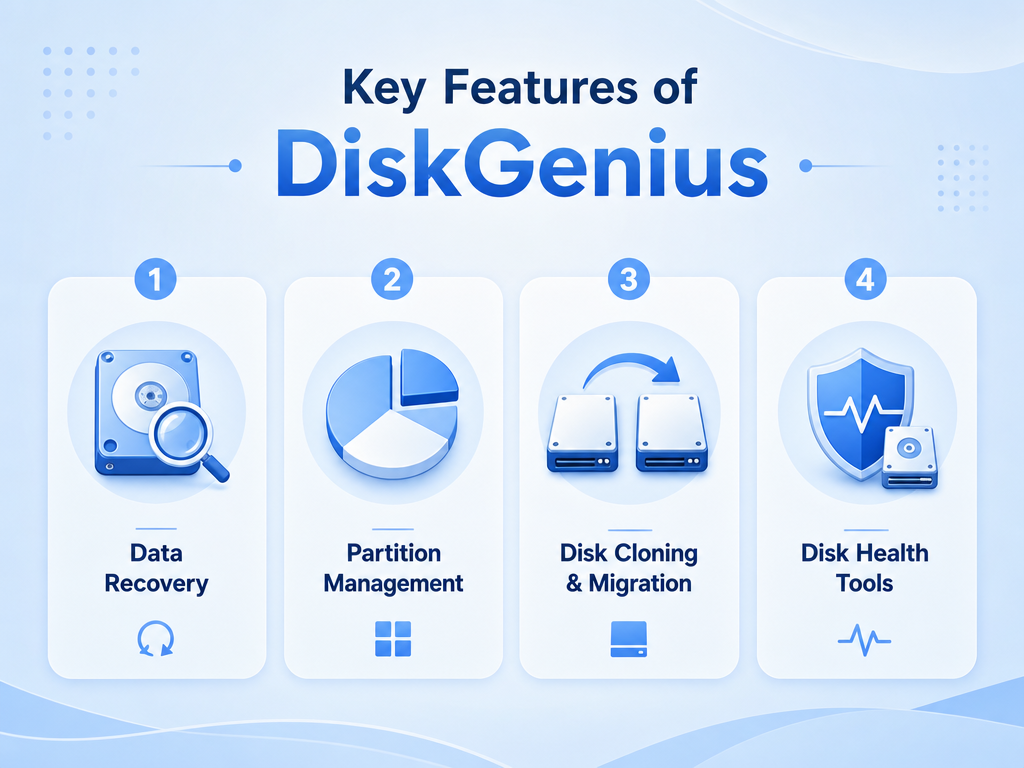
DiskGenius offers many features. This section will explain its core features.
1. Data Recovery
Data recovery is a core feature. DiskGenius can scan disks for deleted files, lost partitions, and inaccessible data. This is especially valuable after accidental deletion, formatting, or partition corruption.
Recovery allows users to restore important documents, photos, and other files. In tests, DiskGenius works well on large drives. But the success depends on how much the drive has been overwritten since the data loss.
2. Partition Management
DiskGenius helps create, delete, format, resize, move, split, or merge partitions. This is useful when you want to reorganize a drive, free up space, or prepare a disk for a new operating system installation. DiskGenius is useful when Windows Disk Management is too limited.
3. Disk Cloning and Migration
Another important feature is disk cloning. DiskGenius can clone a hard drive or SSD. It also helps with system migration, allowing users to move Windows to another disk.
4. Disk Health Tools
DiskGenius includes disk health tools. It helps users check disk health, repair bad sectors, and wipe data. It also displays detailed disk information, partition structure, and file system data.
How Do People Think of DiskGenius: Pros and Cons
Most users see DiskGenius as a powerful tool. It has many features, and it can handle many disk-related tasks in one program. But the software is not perfect. Some users feel that it is not very beginner-friendly. The interface can look technical, and some functions require careful reading before use.
✅Pros:
|
⚠️Cons:
|
How users say about DiskGenius:
📖Trustpilot review: A much more comprehensive version of Disk Management basically. Very good, would recommend.
📖Reddit User Case: Is DiskGenius safe for cloning? I've seen mixed reviews online and don't want to risk losing my data. Has anyone here used it before?
Is DiskGenius Safe
Yes, DiskGenius is a safe tool for managing drives and recovering files. It helps protect your important data and Windows system files from accidental deletion.
We ran it through a VirusTotal scan to check for any hidden malware. The scan came back clean. Zero detections from antivirus engines. We also ran a system scan after installing the program. There is nothing suspicious.
Note: If you are concerned about safety, please download DiskGenius from the official website and follow the prompts carefully.
How to Use DiskGenius
You can use DiskGenius to recover data, manage disks, and clone data. Here I will show you how to use this software.
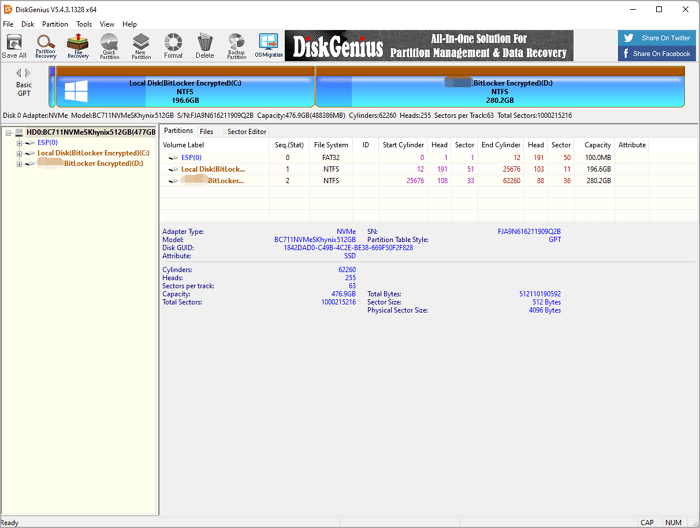
First, install and open the program. You will see your disks and partitions on the main screen.
- If you want to resize a partition, choose the partition, select the resize option, set the new size, and apply the change.
- If you want to recover files, choose the target disk, start a scan, and check the results. Then save the recovered files to a safe location.
- If you want to clone a disk, select the source drive and the target drive. Then follow the steps carefully. Always double-check before starting, because cloning can overwrite data on the destination drive.
The Best Alternative to DiskGenius
You might feel that DiskGenius's interface is not beginner-friendly. Then, you can consider EaseUS Partition Master as the best alternative to DiskGenius. EaseUS Partition Master is an all-in-one disk and partition manager. It handles resizing, cloning, OS migration, and basic recovery well, often with more guided workflows.
Why EaseUS Partition Master stands out, compared with DiskGenius:
- A cleaner, more modern interface.
- A broader toolkit, including boot repair, 4k alignment, and MBR rebuilding.
- More comprehensive disk management features.
- More hands-on control
If you want a cleaner interface and a smoother learning experience, EaseUS Partition Master is a reliable choice. Here is how to use EaseUS Partition Master to manage your disk:
Step 1. Launch EaseUS Partition Master to check for free space at the Partition Manager section.
- If your hard drive has unallocated space, jump to Step 3 to create partition.
- If the hard drive has no unallocated space, continue with Step 2.
Step 2. Shrink a disk partition to create unallocated space.
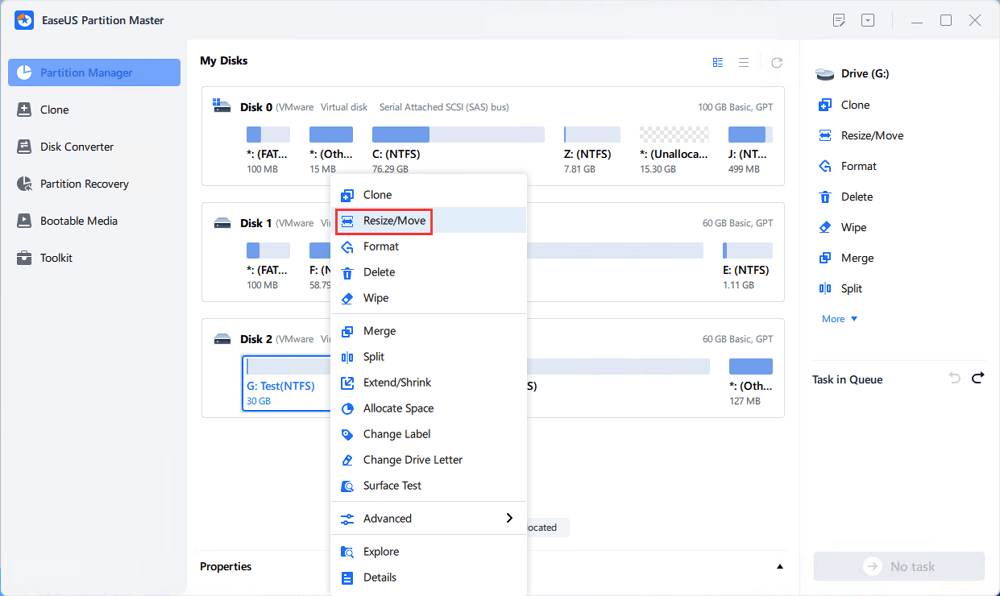
Right-click on the target drive partition with a lot free space and select "Resize/Move".
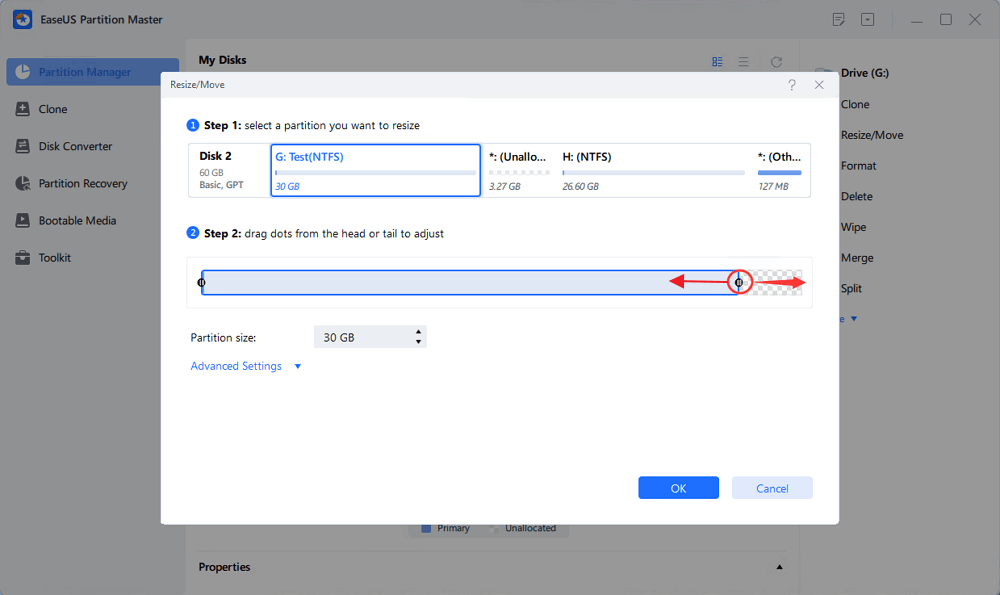
Drag either end of the partition rightwards or leftwards to shrink the partition size so as to get ample unallocated space. You can visually know how much space you've decreased in the "Size of partition" area. Click "OK".
Click "Execute xx Task" and then "Apply" to save all the changes.
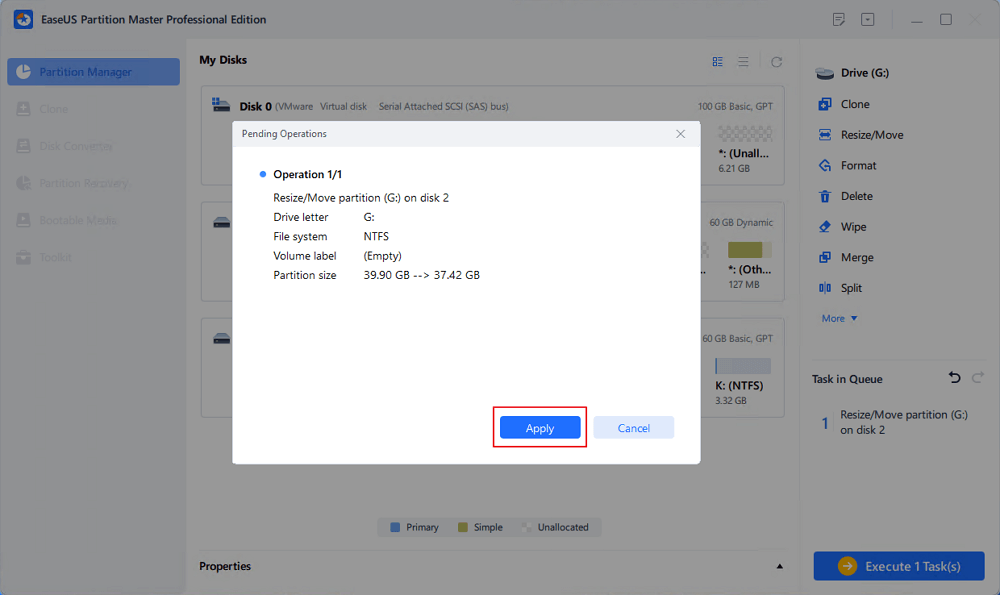
Go back to Partition Manager, there should be unallocated space appearing on the same disk and you can continue with the next step to create new partition on your hard drive.
Step 3. Create a new partition with unallocated space on the target hard drive.
Right-click on the unallocated space and choose "Create".
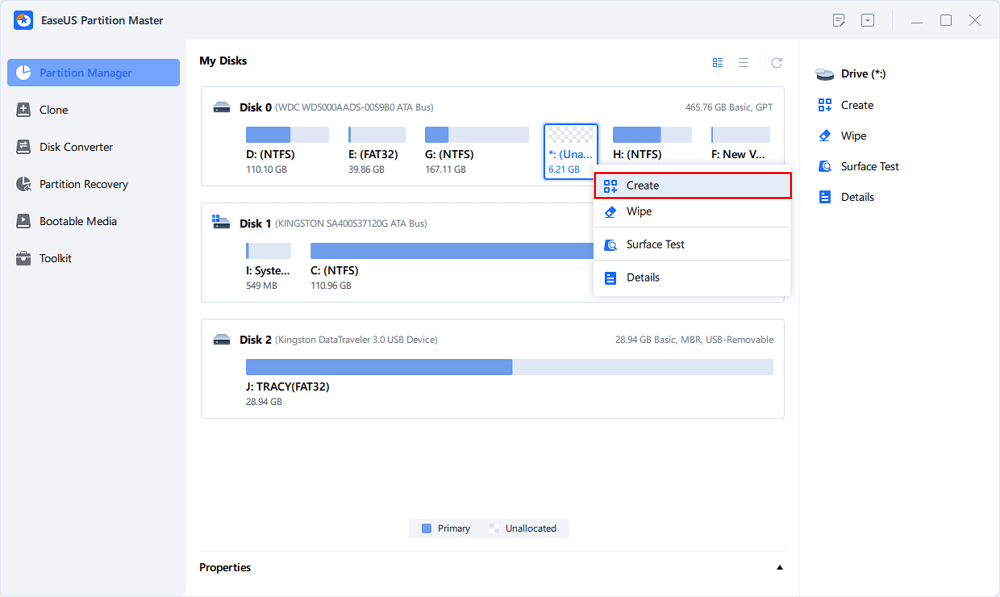
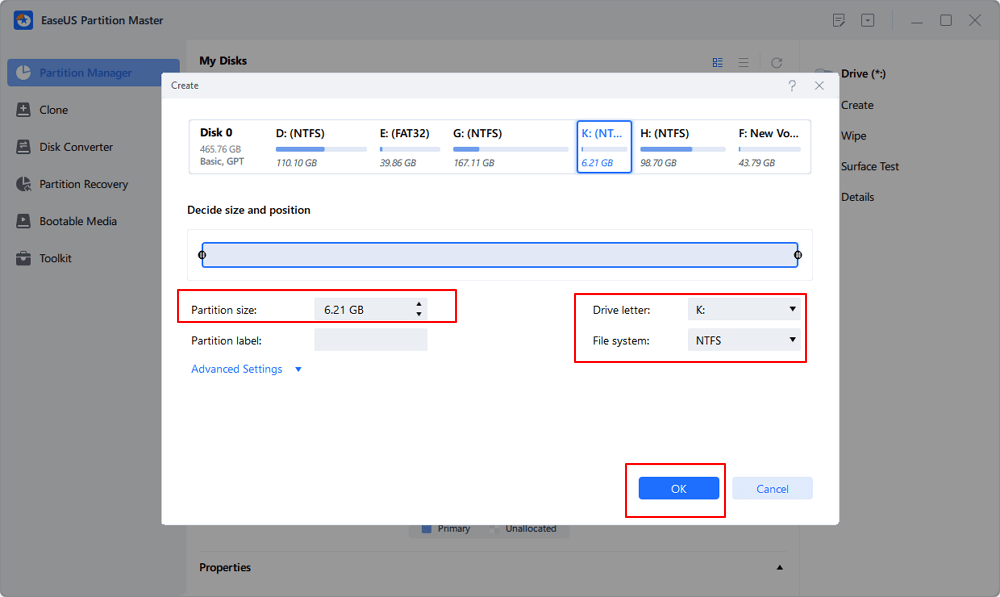
Customize the partition size, partition drive letter, partition label, file system (NTFS, FAT32, EXT2/3/4, exFAT) and more in the Advanced Settings. Click "OK".
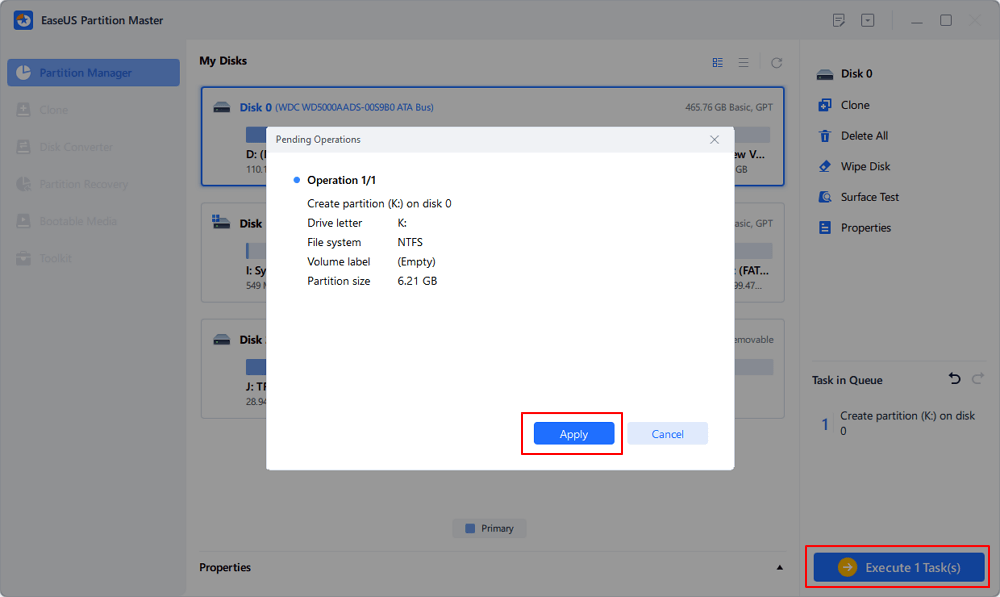
Finally, click "Execute * Task" and "Apply" to complete creating partition with the unallocated space on your disk. Repeat the steps to partition a hard drive and get many more partitions.
Conclusion
DiskGenius is a powerful disk utility. It can help with partition management, data recovery, disk cloning, and system migration. It is a good fit for users who want more control over their drives. It is also useful for technicians and advanced Windows users.
Still, it may feel a little technical for beginners. If you want something easier to use, EaseUS Partition Master is a better alternative.
More About DiskGenius
1. Is DiskGenius free?
Yes, but the free version has limits. Advanced features like full data recovery and some cloning functions require a paid version.
2. Is DiskGenius good for cloning?
Yes, DiskGenius is good for cloning. It supports disk cloning and system migration. You can copy a hard drive or SSD to another drive. Just double-check your source and target before starting.
3. What are DiskGenius alternatives?
Common alternatives include EaseUS Partition Master, Clonezilla, Rescuezilla, and TestDisk. EaseUS Partition Master is often easier for beginners.
Share it on:

How Can We Help You
About the Author

Sherly joined EaseUS in 2022 and she has always loved writing articles and enjoys the fun they bring. She receives professional training here, focusing on product performance and other relative knowledge. She has written over 200 articles to help people overcome computing issues.

Written by Joey Albert
Joey is an enthusiast of science and technology. With a passion for uncovering the latest tech innovations, she creates clear, engaging how-to guides that make technology accessible and enjoyable for all.
Product Reviews
-
I love that the changes you make with EaseUS Partition Master Free aren't immediately applied to the disks. It makes it way easier to play out what will happen after you've made all the changes. I also think the overall look and feel of EaseUS Partition Master Free makes whatever you're doing with your computer's partitions easy.
Read More -
Partition Master Free can Resize, Move, Merge, Migrate, and Copy disks or partitions; convert to local, change label, defragment, check and explore partition; and much more. A premium upgrade adds free tech support and the ability to resize dynamic volumes.
Read More -
It won't hot image your drives or align them, but since it's coupled with a partition manager, it allows you do perform many tasks at once, instead of just cloning drives. You can move partitions around, resize them, defragment, and more, along with the other tools you'd expect from a cloning tool.
Read More
Related Articles
-
Paragon Migrate OS to SSD 4.0 Free Alternative [2026 Guide]
![author icon]() Cici/2026/10/22
Cici/2026/10/22 -
DBAN Review 2026: Is Darik's Boot and Nuke Still Worth Using?
![author icon]() Sherly/2026/10/22
Sherly/2026/10/22 -
Paragon Hard Disk Manager Review: Features, Pros, Cons, and Pricing
![author icon]() Joey Albert/2026/10/22
Joey Albert/2026/10/22 -
CrystalDiskMark Review: Is It Worth Using for SSD and HDD Benchmark?
![author icon]() Joey Albert/2026/10/22
Joey Albert/2026/10/22
 Cici/2026/10/22









