







Content
Page Table of Contents
About the Author
Hot Topics
Erasing a solid-state drive (SSD) without a working Windows installation might seem challenging, but it's entirely possible with the right approach. Whether you want to securely erase data, prepare the SSD for resale, or start fresh with a new OS, there are effective ways to do it without Windows.
Why You Might Need to Wipe an SSD Without Windows
Wiping an SSD outside of Windows is often necessary in scenarios such as:
- Clean OS installation to prepare the drive for a fresh system.
- Protect sensitive data to ensure that deleted files cannot be recovered.
- Sell or repurpose to wipe all data from a PC before handing it over.
- Fixi corrupted drives to remove errors, malware, or misconfigurations.
- Traditional file deletion or formatting from within Windows may not fully erase data, especially on SSDs. A more thorough method is needed.
Method 1. Use EaseUS BitWiper🔥
Using a professional disk erasure tool is one of the most reliable solutions. These tools overwrite disk sectors to permanently remove data, making it difficult to recover. This is especially useful when preparing an SSD for resale, recycling, or secure disposal.
In this scenario, EaseUS BitWiper is designed to securely wipe disks, partitions, or files. It can erase SSD data using bootable media and supports multiple wiping standards, providing a simple way to safely clear storage devices.
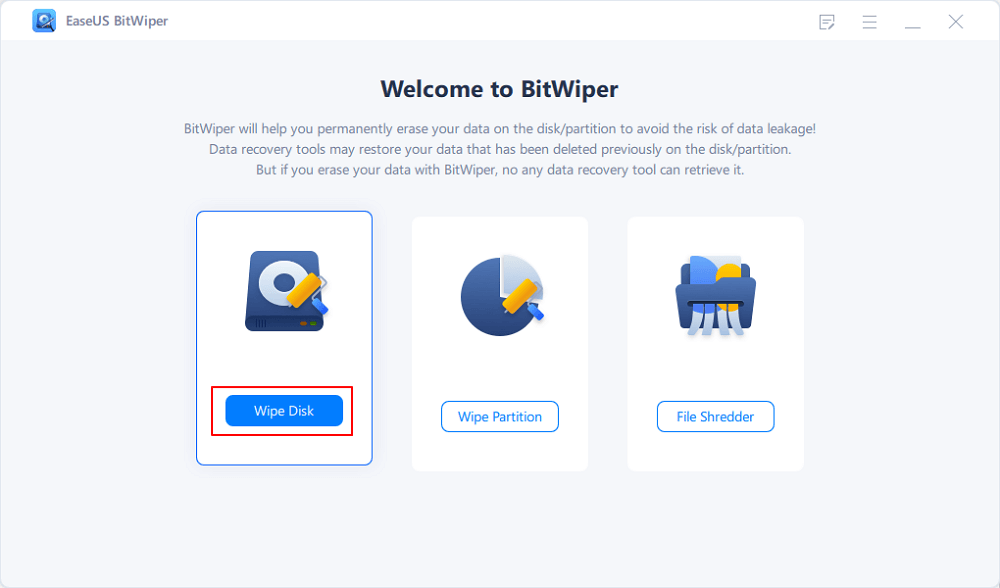
Step 1. Run EaseUS BitWiper. Click the "Wipe Disk" tab.
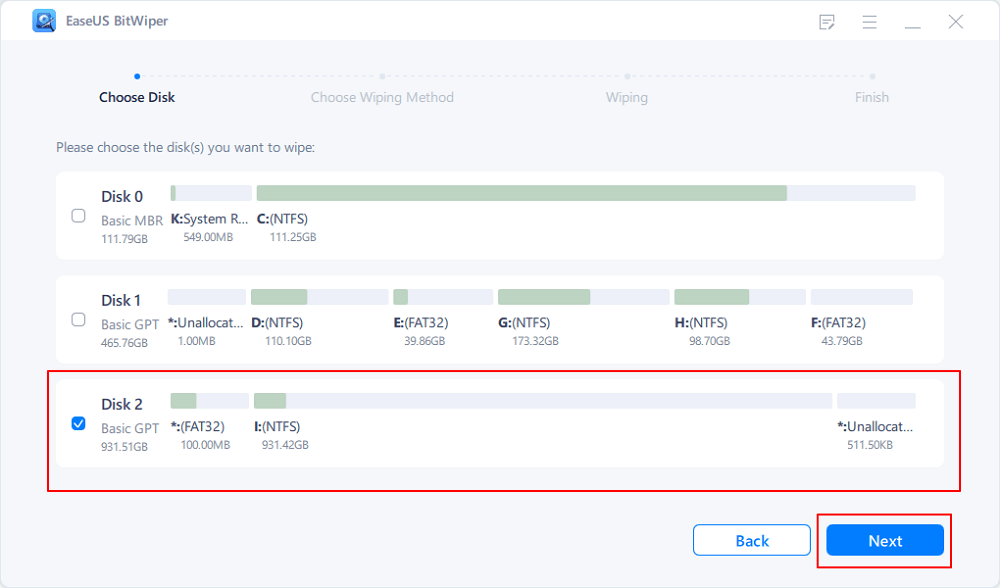
Step 2. Select the targeted HDD or SSD to wipe.
Notice: Please make sure you have chosen the correct HDD or SSD. Once the wiping starts, your data is irrecoverable.
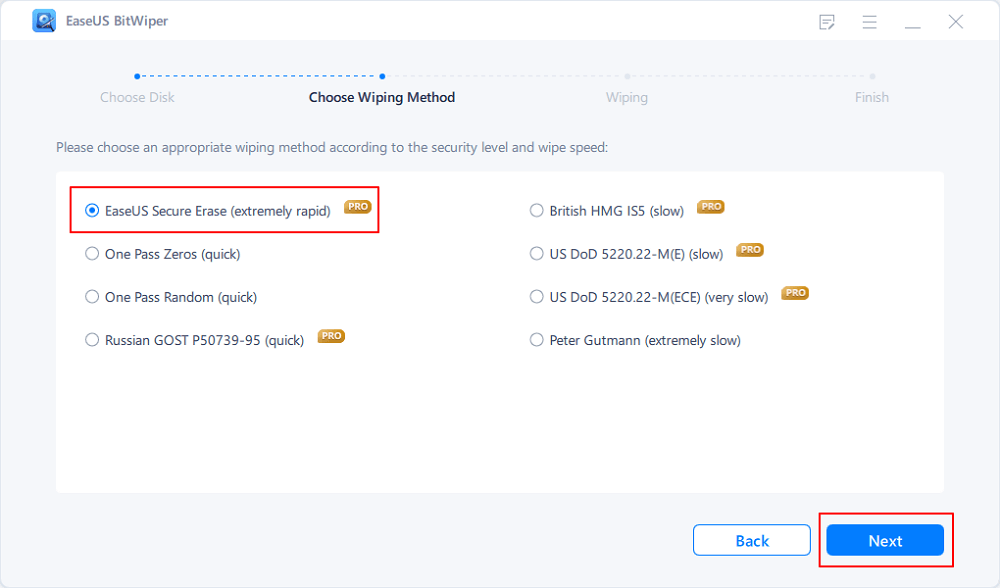
Step 3. Choose Wiping Method and click "Next".
Choose a suitable wiping method. Recommend EaseUS Secure Erase!
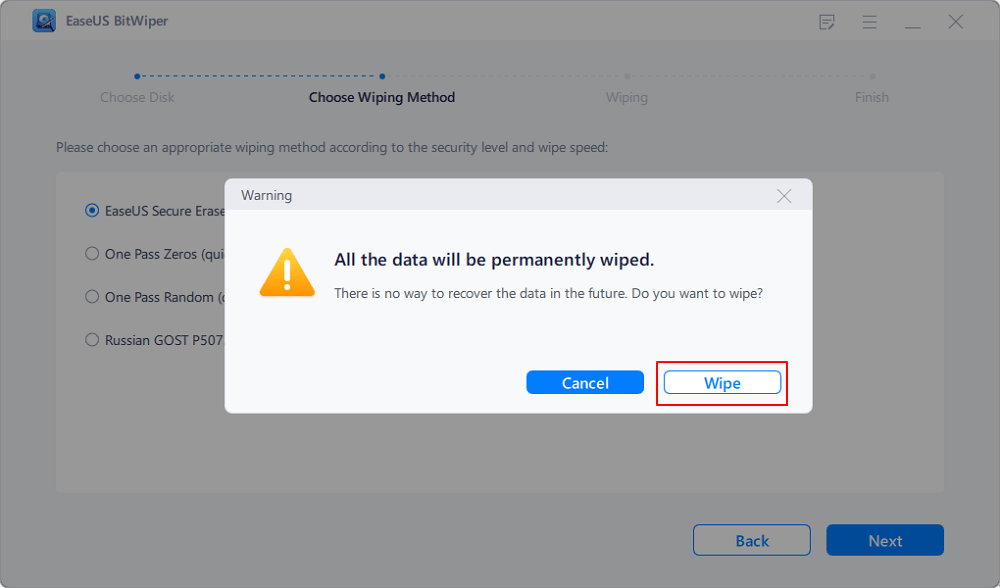
Step 4. Check the warning message and click "Wipe" to confirm.
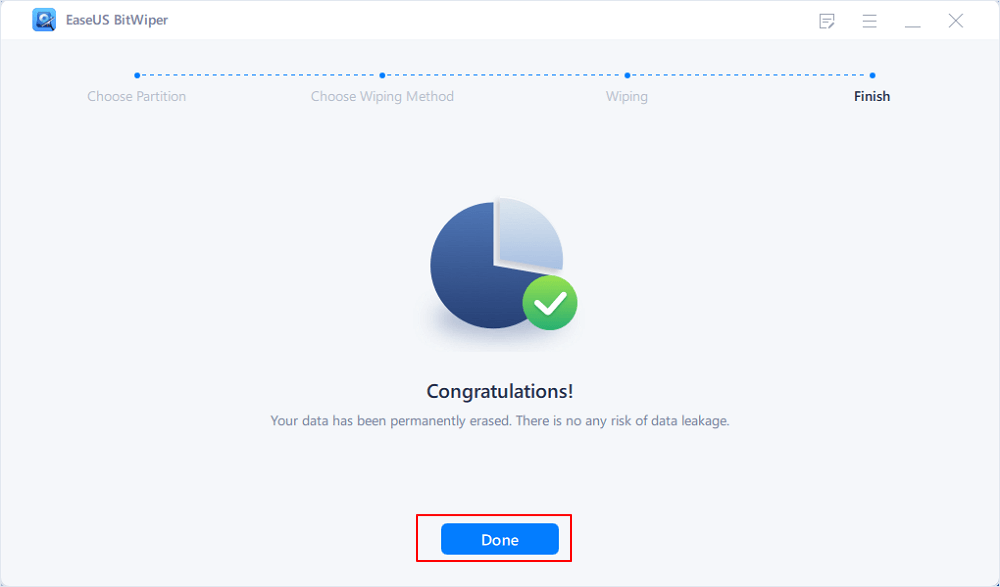
Step 5. Wait for wiping finish and click "Done".
Method 2. Use BIOS/UEFI Secure Erase
Many modern motherboards include a built-in Secure Erase utility in BIOS or UEFI settings. This feature communicates directly with the SSD's firmware to perform a deep erase operation. Because the command is executed at the hardware level, it can quickly and efficiently erase all stored data without requiring an operating system.
The following steps depict how to wipe SSD without Windows.
Step 1. Restart your computer > enter BIOS/UEFI setup (commonly by pressing F2, Del, Esc, or F10 during startup).
Step 2. Navigate to the Security, Advanced, or Storage section.
Step 3. Locate an option such as Secure Erase, Drive Erase, or SSD Erase.
Step 4. Select the SSD you want to wipe and confirm the operation.
Step 5. Once completed, the SSD will be cleared and ready for a new partition layout or operating system installation.
Conclusion
Wiping an SSD without Windows is possible using several reliable methods. You can use a dedicated tool, built-in BIOS/UEFI Secure Erase, or a bootable Linux environment to remove all data from the drive.
Among these options, EaseUS BitWiper provides a simple and secure solution to easily wipe an SSD and ensure the data is permanently erased before reinstalling a system, reselling, or reusing the drive.
FAQs
1. Can I wipe an SSD without Windows installed?
Yes, you can. You can use a third-party tool like EaseUS Partition Master, BIOS/UEFI Secure Erase, or a Linux live USB.
2. Will wiping an SSD damage the drive?
The answer is NO. Secure erase and wiping tools are designed for SSDs and will not harm the hardware when used correctly.
3. Does formatting an SSD remove all data?
Not entirely. Formatting often leaves data remnants. Secure erase, or multiple overwrites, are more reliable for complete removal.
4. How long does it take to wipe an SSD?
The duration depends on the SSD size and the chosen wiping method. Overwriting multiple times takes longer but increases security.
Please share this post to help more users easily wipe their SSDs without Windows!

How Can We Help You
About the Author

"I hope my articles can help solve your technical problems. If you are interested in other articles, you can check the articles at the bottom of this page. Similarly, you can also check my Twitter to get additional help."
Product Reviews
-
I love that the changes you make with EaseUS Partition Master Free aren't immediately applied to the disks. It makes it way easier to play out what will happen after you've made all the changes. I also think the overall look and feel of EaseUS Partition Master Free makes whatever you're doing with your computer's partitions easy.
Read More -
Partition Master Free can Resize, Move, Merge, Migrate, and Copy disks or partitions; convert to local, change label, defragment, check and explore partition; and much more. A premium upgrade adds free tech support and the ability to resize dynamic volumes.
Read More -
It won't hot image your drives or align them, but since it's coupled with a partition manager, it allows you do perform many tasks at once, instead of just cloning drives. You can move partitions around, resize them, defragment, and more, along with the other tools you'd expect from a cloning tool.
Read More
Related Articles
-
How to Unlock Your Surface Tablet When Forget the Password
![author icon]() Sherly/2026/06/17
Sherly/2026/06/17 -
How to Fix Windows 11 Black Screen with Cursor| 100% Works
![author icon]() Cici/2026/06/30
Cici/2026/06/30 -
How to Wipe Hard Drive From BIOS - 4 Safe Ways 💡
![author icon]() Sherly/2026/06/17
Sherly/2026/06/17 -
[FIXED]No Bootable Image Found, Notebook Will Be Shutdown
![author icon]() Cici/2026/06/17
Cici/2026/06/17
 Sherly/2026/06/17
  Cici/2026/06/30









