


Content
Page Table of Contents
About the Author
Hot Topics

Updated on Jun 17, 2026
Forgot your Windows 8 password? You may need to access important work files, school projects, or personal photos, only to find yourself locked out. A simple fix is to create a Windows 8 password reset USB. With a small USB flash drive and a few minutes of setup, you can avoid reinstalling the system or losing data. This guide shows you how to create a Windows 8 password reset USB. You can use a Windows built-in tool or a professional tool to reset passwords on any PC.
How do I bypass password on Windows 8
by u/Den_isle in WindowsHelp
What is a Windows 8 Password Reset USB?
A Windows 8 password reset USB is a bootable USB flash drive that lets you change or remove the password when you can't sign in. It acts as a recovery key for your PC. Once you create it, you can insert this USB when you forget your password, follow the on‑screen wizard, and set a new password without reinstalling Windows or deleting your files. A Windows 8 password reset USB helps a lot, such as:
- Avoids total lockout from forgotten Windows passwords.
- Faster and safer than reinstalling Windows.
- Keeps your files and apps safe.
- One-time setup works long-term.
- Simple wizard for easy use.
There are two Windows password reset tools. Before you start, here is a simple and clear comparison of them:
🚩Built-in Windows tool: Make a password reset USB before forgetting your Windows 8 password.
🚩EaseUS Partition Master: Create a Windows 8 password reset USB for any PC at any time.
Windows 8 Password Reset USB Free Download/Create
Windows includes a built‑in wizard that lets you create a Windows password-reset USB drive. This password reset USB can help reset Windows password when locked out. It works only for local accounts and must be created before you forget your password. So it is best to set it up as soon as possible on a working system. There are some requirements for using this tool to bypass the Windows 8 password.
- Requirements
- Local accounts, not Microsoft accounts
- Create password reset USB in advance
- Use the password reset USB on the same computer
If your situation meets these requirements, you can download and make a Windows 8 password reset USB. Make sure you sign in to the local account for which you want to create the reset disk. Then follow the steps to create a Windows 8 password reset USB drive.
Step 1. Plug a USB flash drive into the PC.
Step 2. Open Control Panel > User Accounts.
Step 3. Click "Create a password reset disk."
Step 4. The "Forgotten Password Wizard" will appear. Click "Next," select your USB drive, and follow the prompts.
Step 5. Enter your current account password. Then let the wizard finish writing the reset information to the USB.
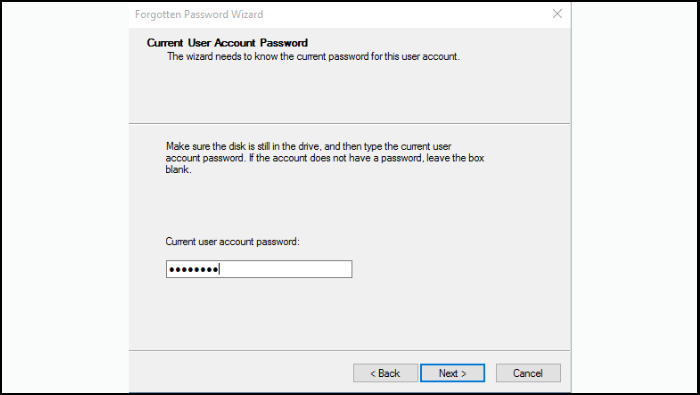
Now, a Windows 8 password reset USB is created. You can use it the next time you forget your Windows 8 password. If you later change your password, you do not need to recreate the disk. The existing USB will still work for that account.
If you need to use the password reset USB to reset Windows 8 password, follow the steps:
Step 1. Plug the Windows 8 password reset USB into the locked computer.
Step 2. At the Windows 8 sign-in screen, enter any incorrect password. It will display the Reset Password option.
Step 3. Click Reset Password to launch the Password Reset Wizard.
Step 4. Select the password reset USB.
Step 5. Set a new password.
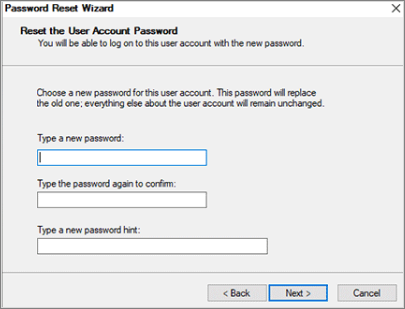
Windows 8 Password Reset USB Download For All PCs
If you are already locked out and don't create the password reset USB in advance, the above Windows tool can't help. You must use a bootable USB tool. In this section, EaseUS will provide a Windows password reset software that breaks the limitations of the built-in Windows tool.
EaseUS Partition Master is a reliable choice when you need a Windows 8 password reset USB that works on almost any PC. This password reset software helps you create a dedicated bootable USB drive. You can boot from this USB and reset Windows password. EaseUS Partition Master doesn't require you to create a password reset disk in advance. So, it's really helpful when you want to unlock your PC.
- ✔️Create Windows 8 password reset USB on the current PC or another PC.
- ✔️Create a Windows password reset disk on a USB/CD/DVD.
- ✔️Reset Windows 8 password without data loss.
- ✔️Works for local accounts, Microsoft accounts.
- ✔️Fix many boot issues, such as blue screen and system crash.
Free Windows 8 password reset disk download:
Beyond resetting passwords, it also helps you resize, move, and clone partitions safely, which means you get a long‑term disk management toolkit.
How to use EaseUS Windows password reset USB tool to reset Windows 8 password:
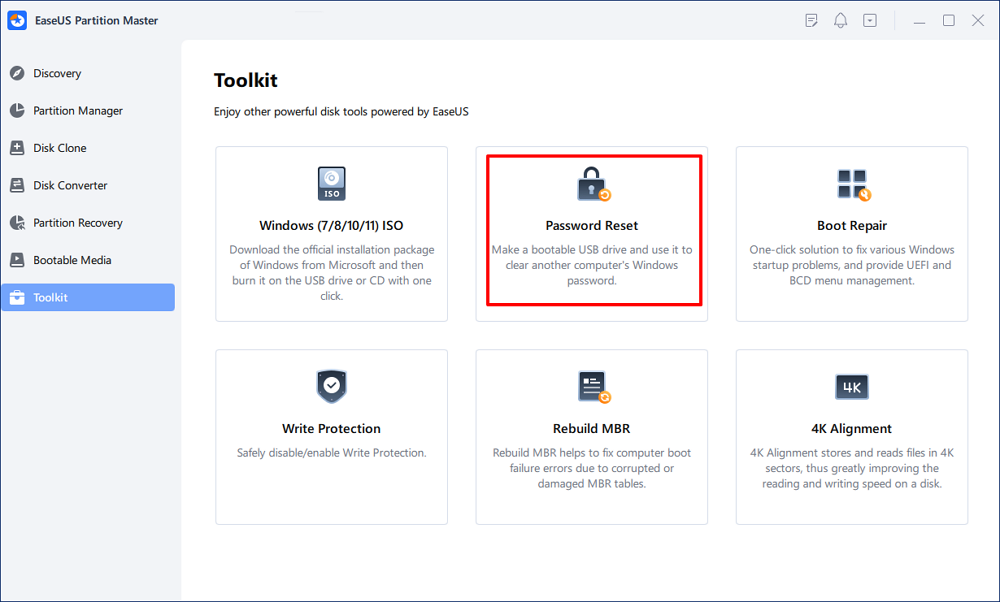
Step 1. Insert the target USB disk into the computer, download and run EaseUS Partition Master, and click "Toolkit" > "Password Reset."
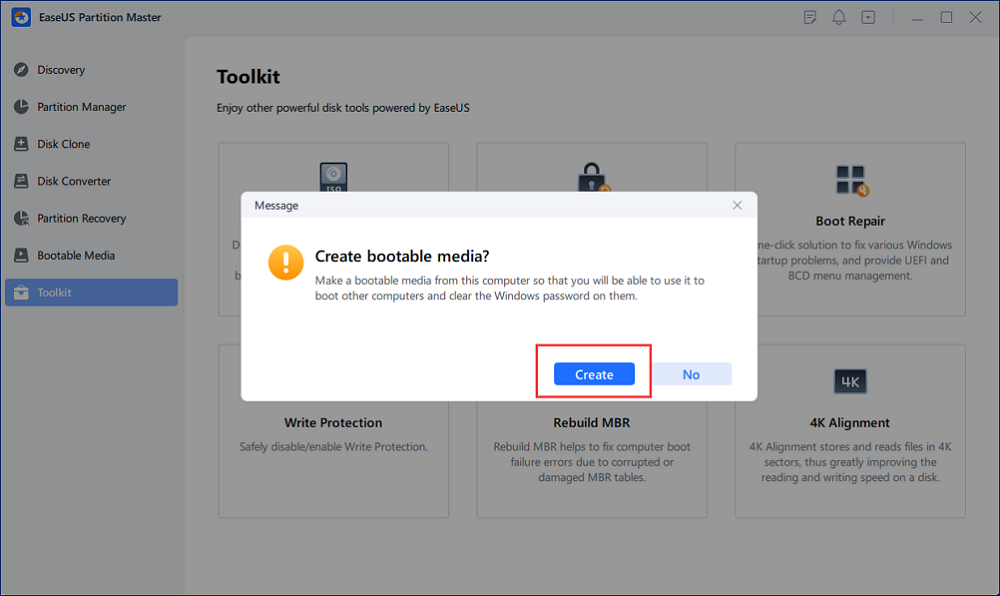
Step 2. A small window will pop up. After reading it carefully, click "Create".
Step 3. Select the correct USB flash drive or external mobile hard disk and click "Create" again. Wait patiently. After the password reset USB flash drive is created, click "Finish."
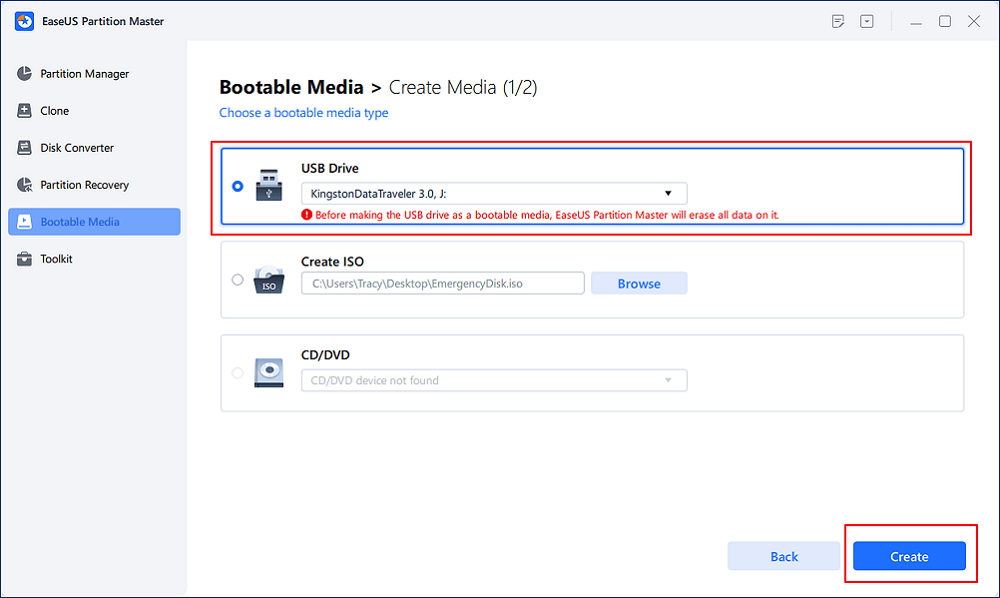
Step 4. Remove the password reset USB, insert it into the locked PC, and restart. You will be asked to change the boot drive to boot the PC from USB. Once completed, the system will automatically boot from USB.
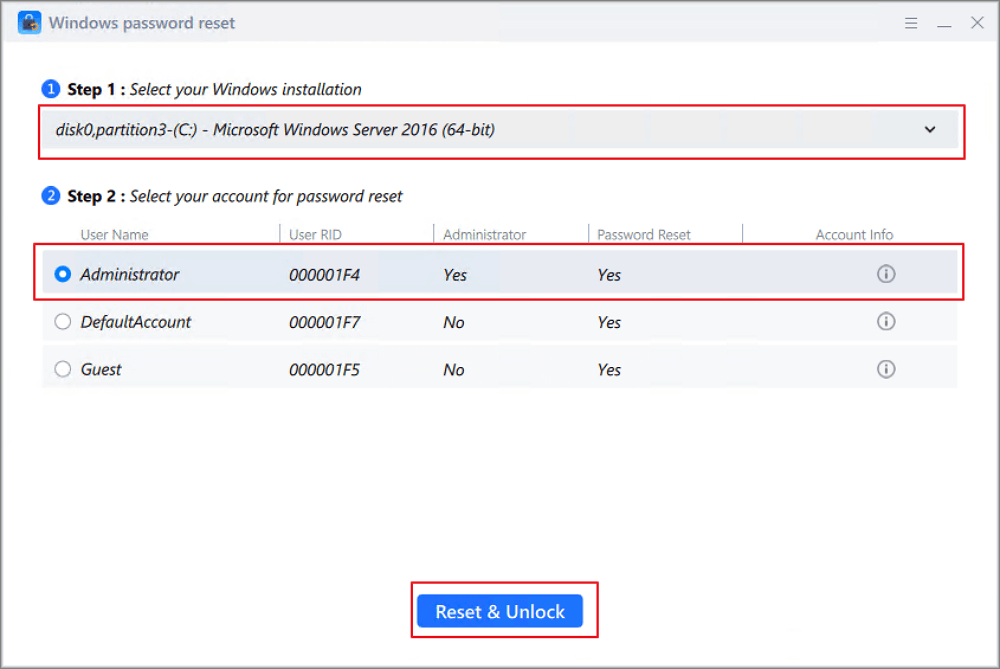
Step 5. After restarting, find EaseUS Partition Master again and go to "Password Reset." All accounts on the PC will be displayed in the interface; click on the target account and check "Reset & Unlock."
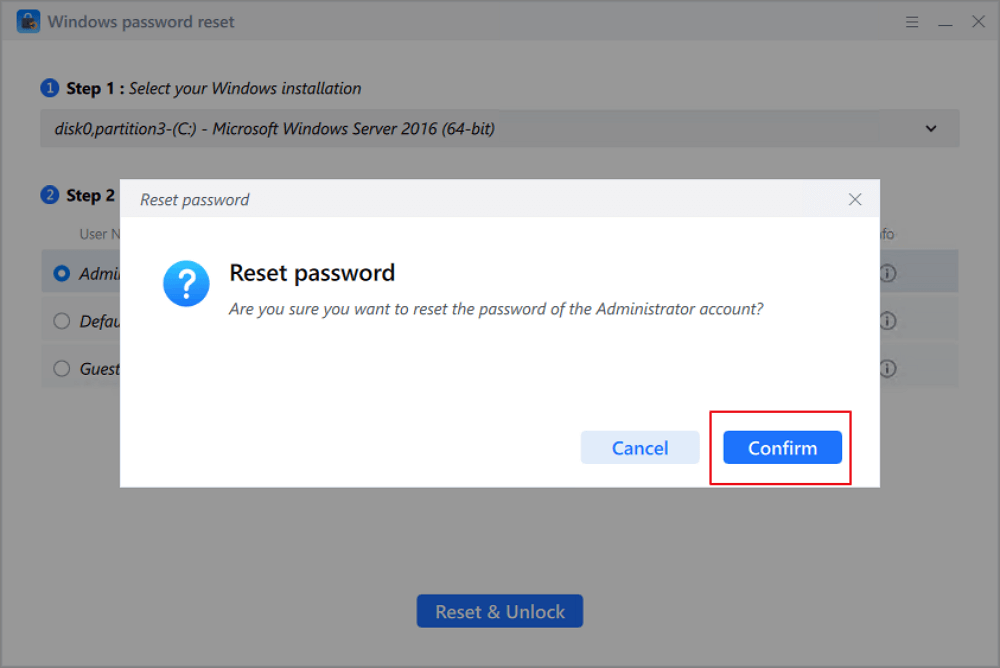
Step 6. When you receive this prompt, click "Confirm" to continue. Your password will be erased.
Conclusion
Creating a Windows 8 password reset USB helps bypass a forgotten Windows password. If you still have access to your account, you can use the built‑in Windows tool to create a Windows 8 password reset USB. If you are already locked out, a professional tool like EaseUS Partition Master offers a more flexible solution that can reset passwords on almost any PC.
FAQs
1. Can I Really Reset a Windows Password for Free?
In some cases, you can reset a Windows password for free. For example, if you create a Windows password reset USB in advance, you can use Windows built-in tools to reset your Windows password.
2. Can I download a ready‑made Windows 8 password-reset USB drive?
It's not recommended to download a Windows 8 password reset USB file from the internet. For security and compatibility, you should either create the disk using Windows' built-in wizard or use a trusted tool like EaseUS Partition Master to create a bootable USB drive on a computer.
3. Will resetting my Windows 8 password erase my data?
A proper password reset process should not delete your personal files. However, it is always wise to back up important data regularly. Avoid questionable or unverified tools that may damage user profiles or system partitions.
4. What if I use a Microsoft account to sign in to Windows 8?
If you use a Microsoft account to log in, go to the Microsoft account recovery page on another device and reset your online account password there. If you encounter issues, EaseUS Partition Master is a good way to help you reset Windows 8 password.
Is this guide helpful? Share it to let more users learn the Windows 8 password reset USB:

How Can We Help You
About the Author
Updated by Joey Albert
Joey is an enthusiast of science and technology. With a passion for uncovering the latest tech innovations, she creates clear, engaging how-to guides that make technology accessible and enjoyable for all.
Product Reviews
-
I love that the changes you make with EaseUS Partition Master Free aren't immediately applied to the disks. It makes it way easier to play out what will happen after you've made all the changes. I also think the overall look and feel of EaseUS Partition Master Free makes whatever you're doing with your computer's partitions easy.
Read More -
Partition Master Free can Resize, Move, Merge, Migrate, and Copy disks or partitions; convert to local, change label, defragment, check and explore partition; and much more. A premium upgrade adds free tech support and the ability to resize dynamic volumes.
Read More -
It won't hot image your drives or align them, but since it's coupled with a partition manager, it allows you do perform many tasks at once, instead of just cloning drives. You can move partitions around, resize them, defragment, and more, along with the other tools you'd expect from a cloning tool.
Read More
Related Articles
-
Blue Screen and Restart Windows 11 [Solutions HERE]
![author icon]() Oliver/2026/06/17
Oliver/2026/06/17 -
Windows 11/10 Boot Repair: Fix UEFI Boot Issue on Windows 11/10/8/7
![author icon]() Tracy King/2026/06/17
Tracy King/2026/06/17 -
How to Open Bitlocker-Encrypted USB on Mac - No Data Loss
![author icon]() Sherly/2026/06/17
Sherly/2026/06/17 -
How to Unlock Your Surface Tablet When Forget the Password
![author icon]() Sherly/2026/06/17
Sherly/2026/06/17
 Oliver/2026/06/17
  Tracy King/2026/06/17
  Sherly/2026/06/17









