

Content
Page Table of Contents
About the Author
Hot Topics
- Method 1. Reset Password Using Security Questions
- Method 2. Use a Password Reset Disk (Created in Advance)
- Method 3. Use Other Sign-in Options
- Method 4. Reset Password Using Another Administrator Account
- Method 5. Reset Windows Password Using Installation Media
- Method 6. Reset Windows Password via Command Prompt
- One-Click Unlock Windows PC When Locked Out – Easier Solution for Beginners
Forgot your Windows password and can't log in? No worry. Windows includes several built-in ways to reset or bypass a forgotten password without installing any third-party software. Depending on your account type and system configuration, you may be able to unlock, reset, or change your Windows password without using additional tools.
In this guide, you'll learn how to unlock Windows for free and six practical methods to reset a Windows 11/10 password without software, including options for Windows 10 and Windows 11 administrator accounts. We'll also cover an easier solution for beginners who are completely locked out of their PCs.
How to Reset Windows 11/10 Password Without Any Third-Party Software
If you're trying to reset a PC password without third-party tools, Windows already provides several built-in recovery options. Some methods work only if they were configured earlier, while others require administrative access or system recovery tools.
|
Before trying the solutions below, remember:
|
Start with the easiest methods first and move to the advanced ones only if necessary.
Method 1. Reset Password Using Security Questions
If you created a local account in Windows 10 or Windows 11, you may have set up security questions during account creation. These questions allow you to reset the password directly from the login screen without needing a disk or command prompt.
This is one of the simplest ways to reset a Windows password without software or logging in, as everything happens on the login interface.
Steps
- Enter the wrong password on the login screen to bring up the "Reset Password" option.
- Then, answer the security questions you set before.
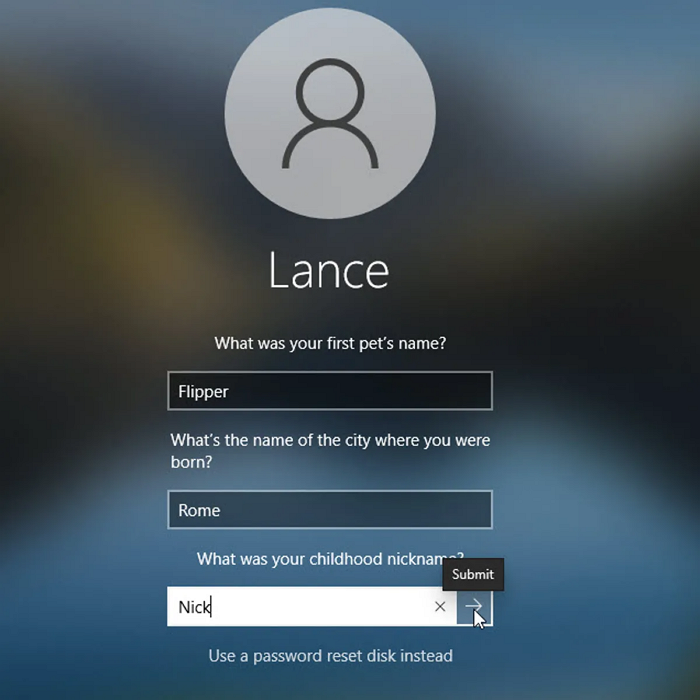
- Follow the prompts to create a new password and log in with the updated password.
Once completed, you can immediately unlock and access your Windows PC again. If this method works for you, consider sharing this guide to help others recover their Windows accounts.

Method 2. Use a Password Reset Disk (Created in Advance)
Windows allows users to create a password reset disk before forgetting their password. If you prepared one earlier, you can use it to reset the Windows password without installing any software.
| However, this method only works if the disk was created before the password was forgotten. If not, you'll need to try another approach. |
Steps
- Insert the password reset USB drive into the locked Windows PC.
- On the login screen, enter an incorrect password, and you can see the "Password Reset" option.
- Click Reset password to open the Password Reset Wizard.
- Follow the Password Reset Wizard, type and confirm your new password and the password hint, and click "Next" to create the new password.
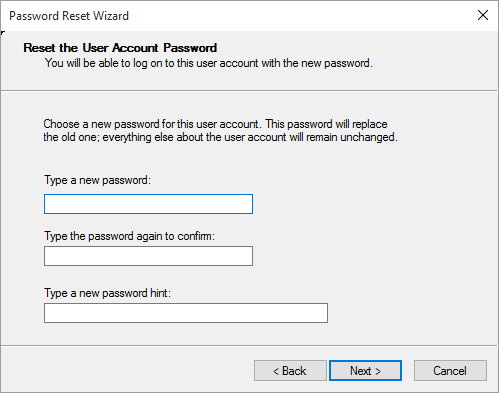
After the process finishes, you can unlock the computer and log in normally.
Method 3. Use Other Sign-in Options
Sometimes, the password you forgot is not the only sign-in method available. Windows may also allow login through PIN, Windows Hello, fingerprint, or picture password. If one of these options is enabled, you can bypass the password temporarily, log in, and then change or reset it inside system settings.
Steps
1. On the login screen, click Sign-in options.
2. Choose an alternative method such as:
- PIN
- Fingerprint
- Windows Hello
- Log into the system
3. Go to: Settings > Accounts > Sign-in options >Change or reset your password.
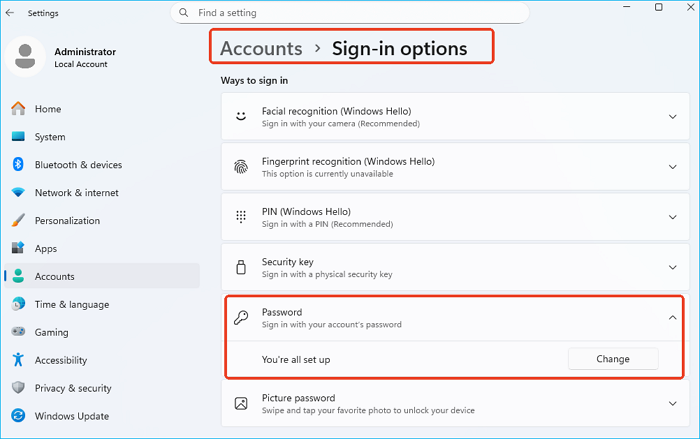
This method works well when the password is forgotten but other authentication options are still available.
Method 4. Reset Password Using Another Administrator Account
If there is another administrator account on the computer, you can reset your password through the Windows control panel.
This approach is often used in shared PCs, office computers, or family systems where multiple administrator accounts exist.
Here is how to remove the Windows password via another administrator account:
1. Log in using another administrator account.
2. Open the Control Panel by searching "Control Panel" in the search box.
3. Go to:
- User Accounts > Manage another account
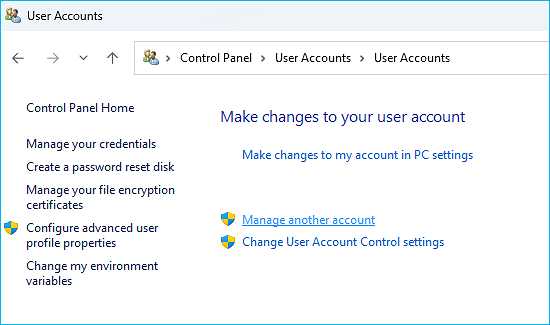
- Select the locked account
- Click Change the password
- Enter a new password and save
Once done, the locked user can sign in using the newly created password.
Method 5. Reset Windows Password Using Installation Media
If you're completely locked out and none of the previous options work, you may be able to use a Windows installation disk or recovery media to access system repair tools.
This approach modifies system utilities to open Command Prompt from the login screen, allowing you to reset the password.
|
⚠️Important warning This method involves system file replacement and should only be attempted by experienced users. Incorrect steps may cause startup issues. |
Here is how:
1. Connect a Windows installation media to the locked PC.
2. Restart your computer and access to its BIOS setup and change the boot order to set your computer to boot from the installation disk/USB.
3. Open Repair your computer > Access Command Prompt > Type the following commands:
- move c:\windows\system32\utilman.exe c:\ (Replace C: with your system drive letter. This command line moves the utilman.exe file to the root directory of the operating system drive to back it up.)
- copy c:\windows\system32\cmd.exe c:\windows\system32\utilman.exe (This will copy the cmd.exe file to the c:\windows\system32 directory and rename it to utilman.exe.)
4. Now, restart Windows 11/10 by entering "wpeutil reboot."
5. After the computer restarts, you are back at the Windows login screen. Now click the Accessibility icon to open a command prompt window. Then execute the command: net user
If you want to remove your Windows 10 password, you need to place the
After completing the process, you can unlock or change the Windows administrator password without third-party tools. If you find this guide useful, consider sharing it with others who may also be locked out of their PCs.
Method 6. Reset Windows Password via Command Prompt
If you are completely locked out and cannot log in, you can still reset the Windows password using Command Prompt from the Windows Recovery Environment (WinRE).
⚠️Warning:
This method involves modifying system files. If performed incorrectly, it may affect system stability. It is recommended for advanced users only.
Step 1. Enter Windows Recovery Environment
On the login screen, click the Power icon > Hold Shift and click Restart.
Select: Troubleshoot > Advanced options > Command Prompt
Step 2. Replace Utility Manager with Command Prompt
In Command Prompt, run the following commands:
- move c:\windows\system32\utilman.exe c:\windows\system32\utilman.exe.bak
- copy c:\windows\system32\cmd.exe c:\windows\system32\utilman.exe
Step 3. Restart the Computer
Type wpeutil reboot and press Enter to restart your PC.
Step 4. Reset the Password from Login Screen
On the login screen, click the Ease of Access (Accessibility) icon, and the Command Prompt will open.
Enter:
net user (Identify your account name)
Reset the password by using the command line: net user username newpassword
Example: net user Admin 123456
After pressing Enter, the system will confirm the password change. You can now unlock and log into Windows with the new password.
Step 5. Restore Original Utility Manager (Important)
After logging in successfully, open Command Prompt as administrator and restore the original file: copy c:\windows\system32\utilman.exe.bak c:\windows\system32\utilman.exe
This step ensures system integrity and security.
One-Click Unlock Windows PC When Locked Out – Easier Solution for Beginners
All the methods above can reset or bypass a Windows password without software, but many of them require technical knowledge or preconfigured recovery options. For beginners who are completely locked out of their computers, a simpler option is using EaseUS Partition Master.
This Windows password reset tool includes a Password Reset feature that allows you to:
- Create a bootable password reset disk from another computer
- Boot the locked PC using that disk
- Reset or remove the Windows password in one click
Unlike manual CMD methods, this approach avoids complex system modifications and reduces the risk of errors.
- ✔️Support Windows 11/10/8/7.
- ✔️Create a password reset USB on another PC after you are locked out.
- ✔️Easy to use for beginners, without entering any command lines.
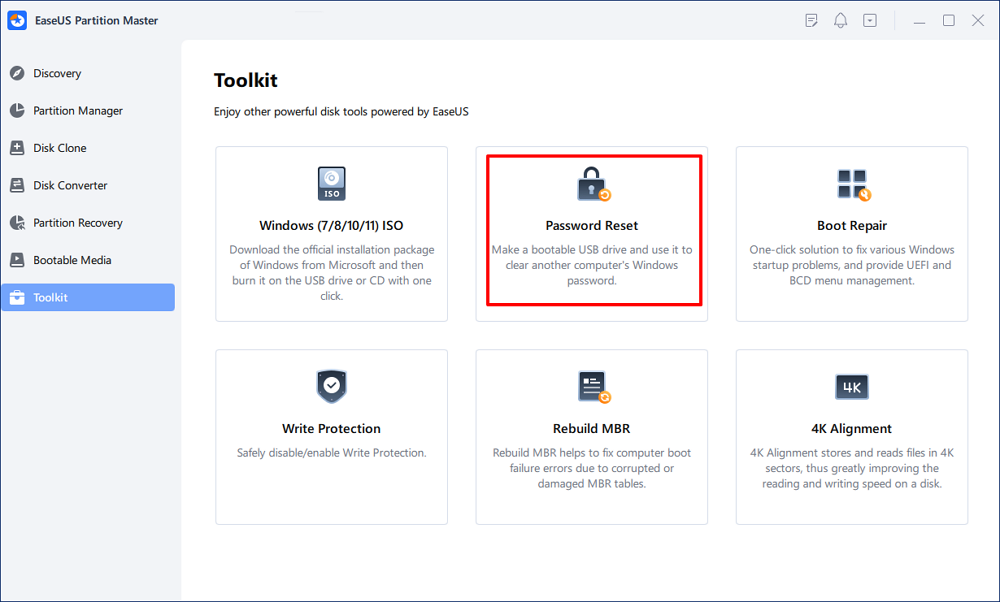
Step 1. Insert the target USB disk into the computer, download and run EaseUS Partition Master, and click "Toolkit" > "Password Reset."
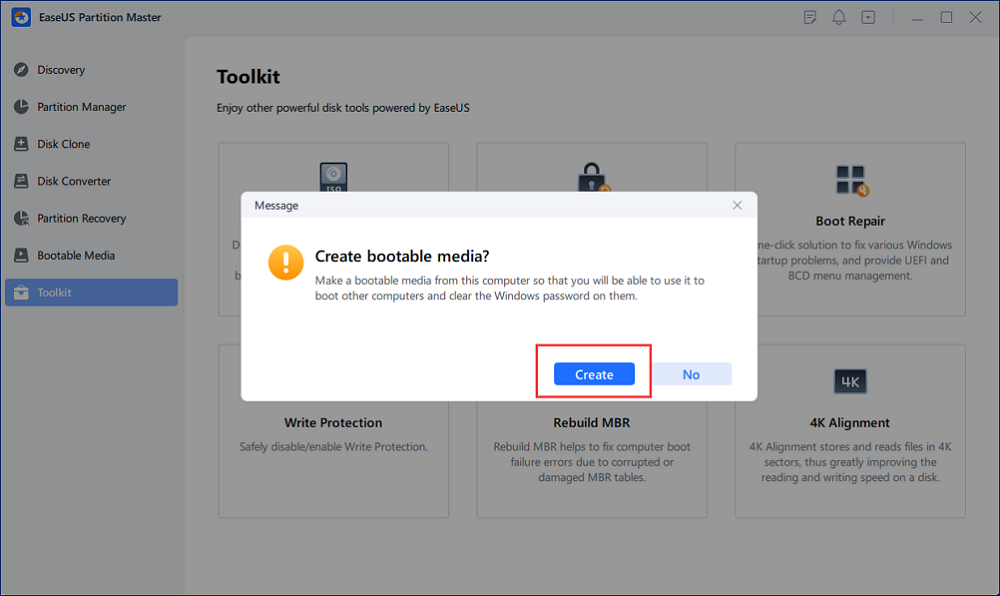
Step 2. A small window will pop up. After reading it carefully, click "Create".
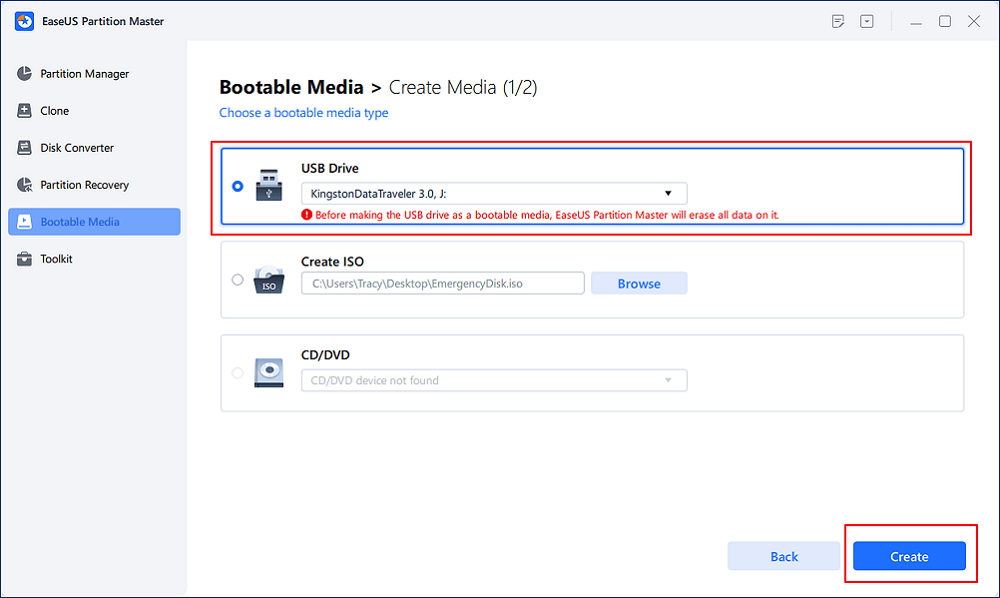
Step 3. Select the correct USB flash drive or external mobile hard disk and click "Create" again. Wait patiently. After the password reset USB flash drive is created, click "Finish."
Step 4. Remove the password reset USB, insert it into the locked PC, and restart. You will be asked to change the boot drive to boot the PC from USB. Once completed, the system will automatically boot from USB.
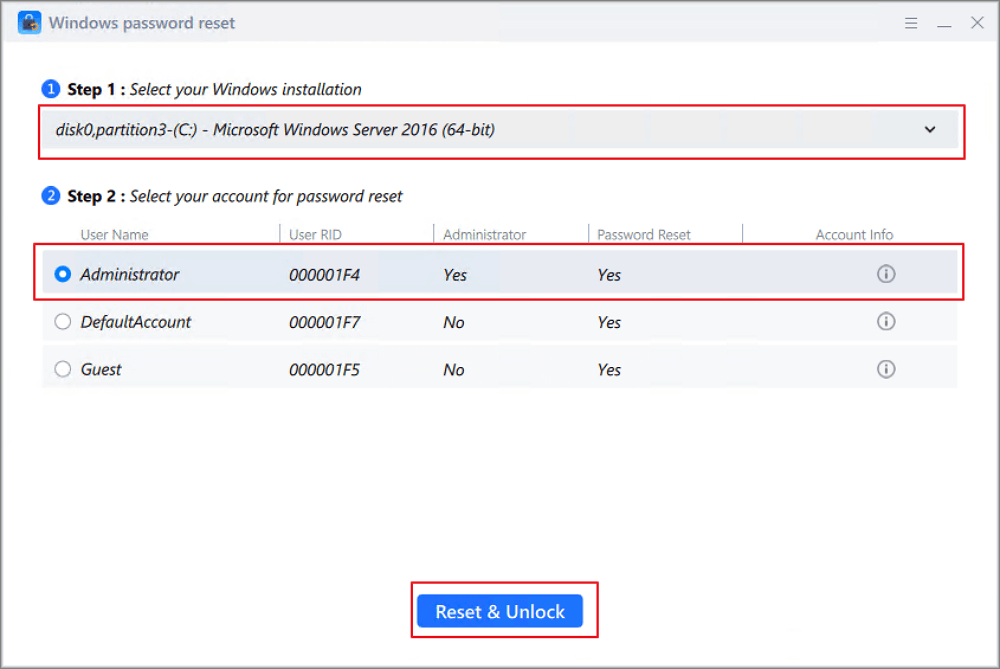
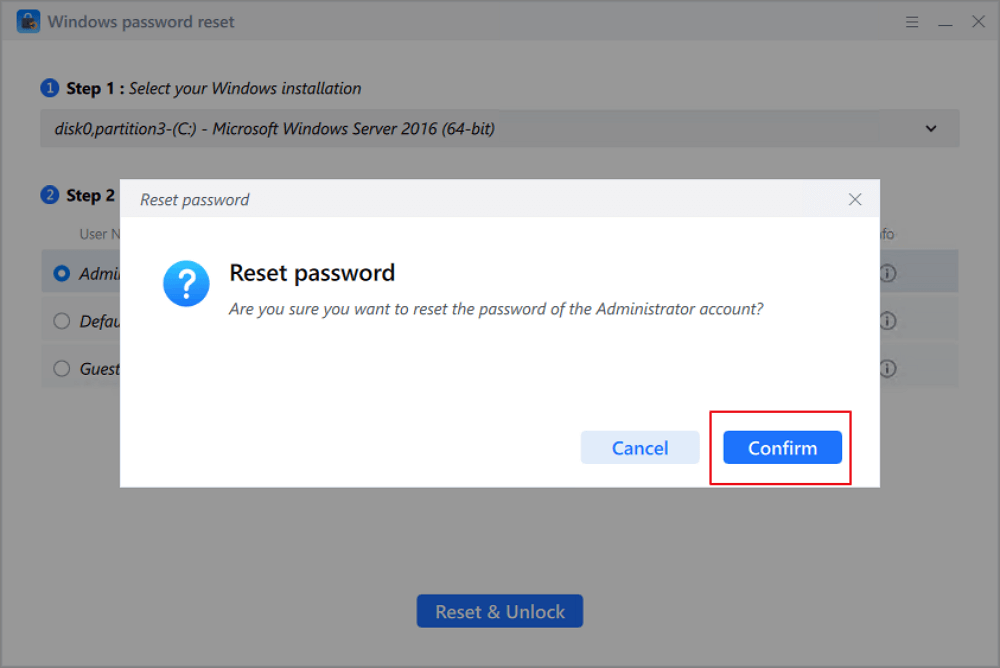
Step 5. After restarting, find EaseUS Partition Master again and go to "Password Reset." All accounts on the PC will be displayed in the interface; click on the target account and check "Reset & Unlock."
Step 6. When you receive this prompt, click "Confirm" to continue. Your password will be erased.
Conclusion
For users who forgot their login credentials, it is still possible to reset a Windows password without third-party software. Built-in solutions such as security questions, password reset disks, administrator accounts, and command prompt tools can help unlock a locked PC.
However, many of these methods depend on prior configuration or technical knowledge. If you're completely locked out or prefer a simpler solution, using a bootable password reset tool may save significant time.
Choosing the right method depends on your situation - whether you're trying to reset an administrator password in Windows 10 or Windows 11, bypass login restrictions, or unlock a PC without a disk or USB. You can learn more about Windows 11/10 password reset in the following video:
FAQs About Removing Windows 11/10 Password Without Any Software
1. Can I reset a Windows password without software?
Yes. Windows provides several built-in methods such as security questions, password reset disks, administrator accounts, and command prompt commands to reset or change a password without installing third-party tools.
2. How do I reset Windows password without logging in?
You can reset the password without logging in if:
- Security questions are configured
- A password reset disk exists
- Windows installation media is available
- Another administrator account can access the system
3. Can I reset a PC password without USB?
Yes, but only in certain situations. Methods like security questions, other sign-in options, or administrator accounts allow you to reset the password without USB or disk media. If none of these options are available, you may need installation media or a bootable reset tool.
4. How to reset the administrator password in Windows 11 without software?
You can reset the administrator password using:
- Command Prompt (net user)
- Another administrator account
- Windows recovery environment
- Security questions (for local accounts)
These methods work without installing third-party software.
5. What should I do if I'm completely locked out of Windows?
If you cannot access the system through any built-in method, you can:
- Use Windows installation media
- Create a bootable password reset disk
- Use a professional password recovery tool
These solutions allow you to unlock or bypass the Windows login screen.
How Can We Help You
About the Author

"I hope my articles can help solve your technical problems. If you are interested in other articles, you can check the articles at the bottom of this page. Similarly, you can also check my Twitter to get additional help."

Sherly joined EaseUS in 2022 and she has always loved writing articles and enjoys the fun they bring. She receives professional training here, focusing on product performance and other relative knowledge. She has written over 200 articles to help people overcome computing issues.
Product Reviews
-
I love that the changes you make with EaseUS Partition Master Free aren't immediately applied to the disks. It makes it way easier to play out what will happen after you've made all the changes. I also think the overall look and feel of EaseUS Partition Master Free makes whatever you're doing with your computer's partitions easy.
Read More -
Partition Master Free can Resize, Move, Merge, Migrate, and Copy disks or partitions; convert to local, change label, defragment, check and explore partition; and much more. A premium upgrade adds free tech support and the ability to resize dynamic volumes.
Read More -
It won't hot image your drives or align them, but since it's coupled with a partition manager, it allows you do perform many tasks at once, instead of just cloning drives. You can move partitions around, resize them, defragment, and more, along with the other tools you'd expect from a cloning tool.
Read More
Related Articles
-
Boot Repair Disk Free Download & Best Alternative | 2026
![author icon]() Sherly/2026/03/31
Sherly/2026/03/31 -
Fixed: Your Password Has Expired and Must Be Changed
![author icon]() Sherly/2026/03/31
Sherly/2026/03/31 -
Bootable USB Creator Free Download: Create a Bootable USB in Minutes
![author icon]() Joey Albert/2026/04/14
Joey Albert/2026/04/14 -
How to Create Bootable USB from DMG Mac🔥
![author icon]() Shelly/2026/03/31
Shelly/2026/03/31
 Joey Albert/2026/04/14
 Hot Topics








EaseUS Partition Master

Version 20.0 is here - full exFAT support, easier disk partitioning, and PC performance optimization.

