


Content
Page Table of Contents
About the Author
Hot Topics

Updated on Jun 30, 2026
If your Dell laptop powers on but the screen stays completely black, you have come to the right place. Dell users may sometimes encounter this issue across Dell Inspiron, XPS, G‑series, and Latitude models. For example, users sometimes find the fan spins, the power light glows, and the keyboard may light up, yet the display shows nothing.
In this guide, you'll learn how to diagnose and fix a Dell laptop black screen. Along the way, you'll also see how tools like EaseUS Partition Master can help protect your data at key stages, especially if you need to reinstall Windows or recover files from a failing drive.
Why Your Dell Laptop Turns On But Screen Is Black?
If your Dell laptop screen goes black, you might wonder if it's a software/system issue or if hardware components like the screen, graphics card, or motherboard have failed. A black screen on a Dell laptop is usually one of these issues:
1️⃣Software/driver issue
- A Windows update, a graphics driver change, or a driver conflict may cause a display issue.
- In many cases, the computer is actually running in the background.
2️⃣Display or power‑management issue
- The screen brightness is turned down to zero.
- The laptop is stuck in sleep mode or using the wrong display output.
- A temporary power issue freezes the boot process.
3️⃣Hardware failure
- Failing screen panel, damaged backlight, or loose display cable.
- A failing GPU or motherboard.
Please share this post if you find it helpful.

How to Fix a Dell Laptop That Turns On But Screen Is Black
Below is a practical, step‑by‑step method that helps fix a Dell laptop black screen. Work through each step in order, then move on only when the previous one clearly fails.
Method 1. Check the Basics
Even if your laptop looks "dead," start with the simplest checks first. Sometimes, it may be the screen brightness or a power issue.
Adjust brightness: If the screen suddenly appears, the brightness was turned all the way down. Repeat with the charger plugged in to confirm the change sticks.
Confirm the laptop is awake: If the laptop was closed for a while, open the lid and wait a few seconds. Wake the Dell laptop from sleep. If the keyboard backlight toggles with "Caps Lock", the motherboard is alive. Then, the problem is likely the display or video output.
Method 2. Perform a Hard Reset
A hard reset clears temporary power glitches and can resolve many black‑screen issues without touching a screwdriver.
How to hard reset a Dell laptop:
Step 1. Hold the "power button" for 10–15 seconds until the laptop turns off.
Step 2. Disconnect the charger and all USB devices, docking stations, and external monitors.
Step 3. Reconnect and power on.
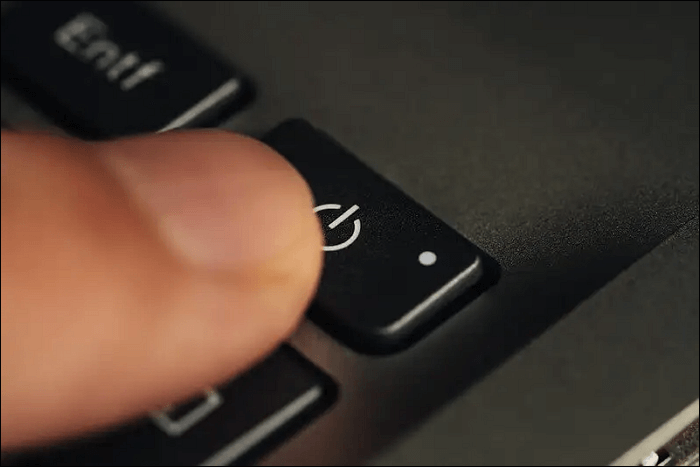
If the display now appears, the problem was likely a temporary power or driver glitch. If the Dell screen is still black, continue.
Method 3. Try Display Shortcuts and an External Monitor
If the Dell laptop powers on but the screen is black, the issue may be with the display output rather than the entire system.
Use display‑switch shortcuts:
- Press "Fn + F8" several times while the laptop is on.
- If the screen suddenly appears on an external monitor or on the laptop, the problem is usually with the display settings.
Test with an external monitor:
- Connect an HDMI cable to an external monitor.
- Turn the external display on first, then power on the laptop.
- If the external screen shows Windows, your GPU and system are working.
Method 4. Boot Into BIOS or Safe Mode
If the Dell laptop screen is black, check whether the laptop is actually booting. You can boot it into BIOS or safe mode.
Enter the BIOS
- Turn off the laptop.
- Press the "power button", then immediately start tapping "F2" repeatedly.
- If the BIOS screen appears, the hardware is working.
Boot into Safe Mode
- Turn off the laptop.
- Power it on and keep tapping "F8."
- Choose "Safe Mode with Networking".
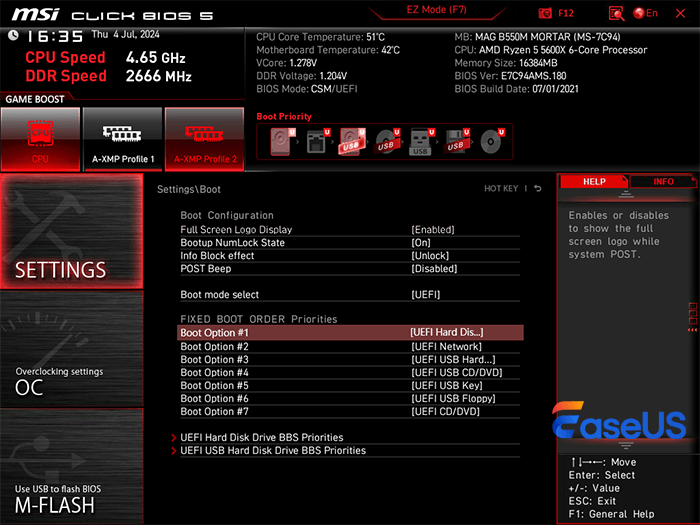
Different Dell laptops may have different keyboard shortcuts for specific operations. If the screen is no longer black in Safe Mode, the problem is almost certainly a graphics driver or software conflict. You can then update or roll back your graphics driver.
Method 5. Evaluate Hardware and Data Safety
If the screen remains black even in BIOS and on an external monitor, the issue is likely hardware‑related:
- Internal screen or backlight failure
- GPU or motherboard failure
At this stage, it's important to consider your data safety and recovery options before deciding whether to repair or replace the laptop.
All-in-one Dell Laptop Black Screen Repair Tool
From common Blue Screen of Death errors to a frozen screen, the situation becomes even more stressful when the system fails to boot at all. In these moments, EaseUS Partition Master is your good helper. This Windows repair tool helps you here as part of a complete black‑screen repair workflow. EaseUS Partition Master acts as an all‑in‑one support tool that eases both the black‑screen symptom and the underlying system or disk problems. It allows you to:
- Create a bootable disk to access your Dell laptop even when Windows won't start.
- Repair Windows startup problems, such as black‑screen boot failures, blue‑screen crashes, and Windows cannot start.
- Create a WinPE environment to run recovery tools.
- Manage and back up partitions before reinstalling or repairing the system.
If you encounter repair boot issues on a Dell laptop, please follow the guide to fix:
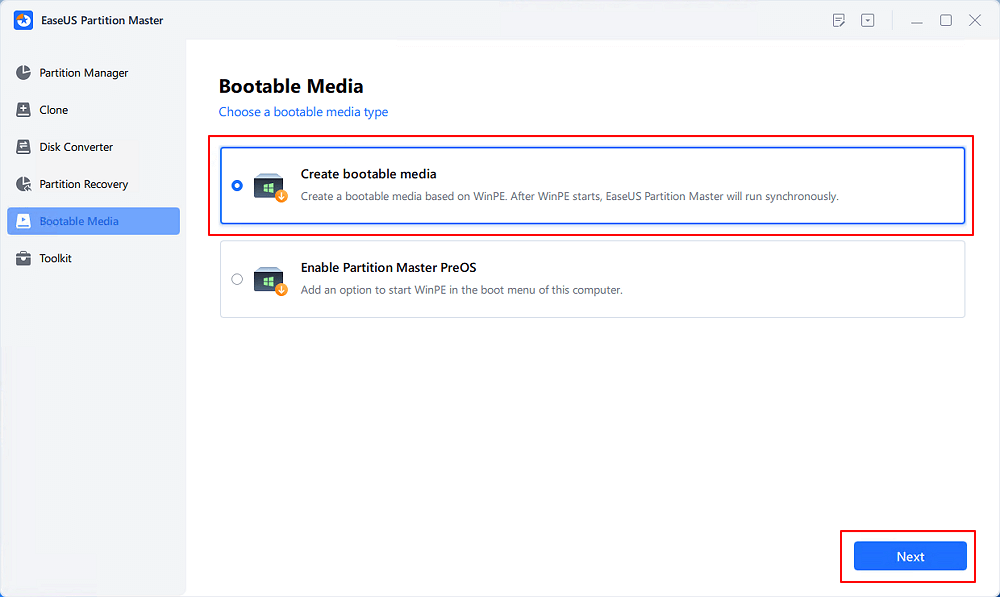
Step 1. Start EaseUS Partition Master after connecting the external drive/USB to your computer, go to "Bootable Media," and click "Create bootable media."
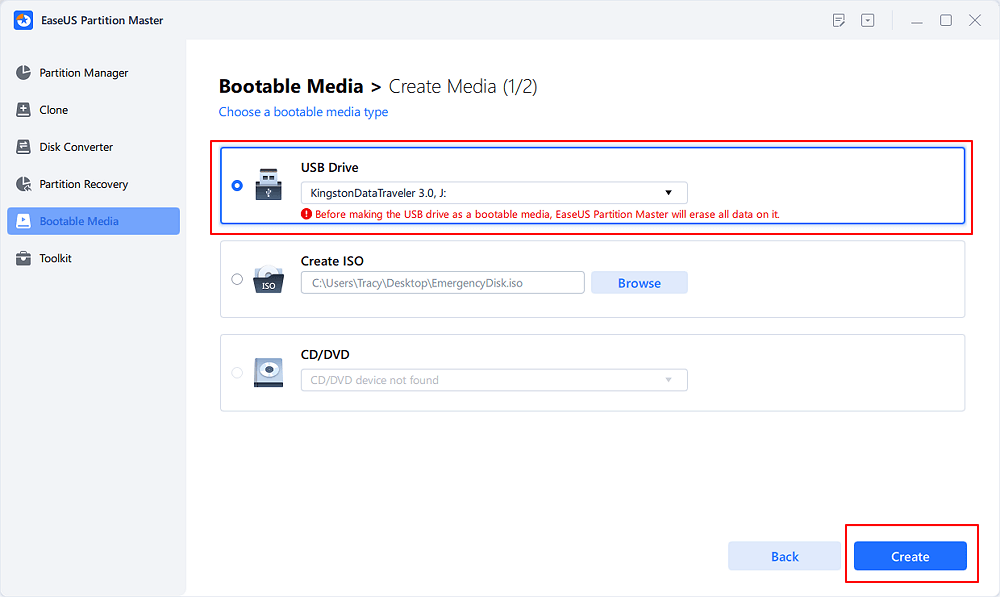
Step 2. Select an available USB Drive or CD/DVD and click "Create." You can also burn the Windows ISO file to the storage media.
Step 3. Connect the created bootable drive to the new computer and reboot the computer by pressing and holding F2/Del to enter the BIOS. Then, set the WinPE bootable drive as the boot disk and press F10 to exit.
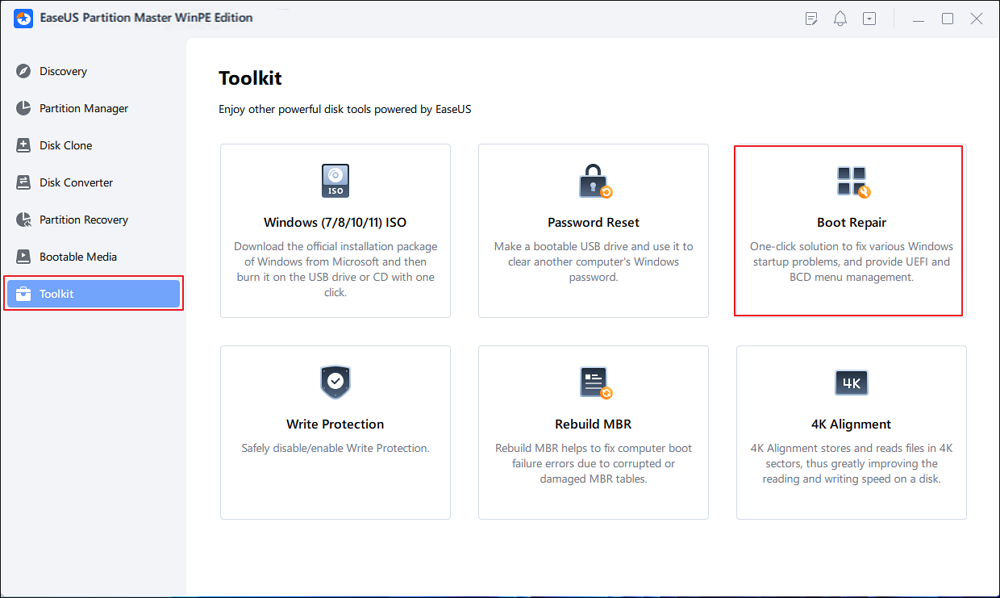
Step 4. Boot the computer again and enter the WinPE interface. Then, open EaseUS Partition Master and click "Boot Repair" under the "Toolkit" option.
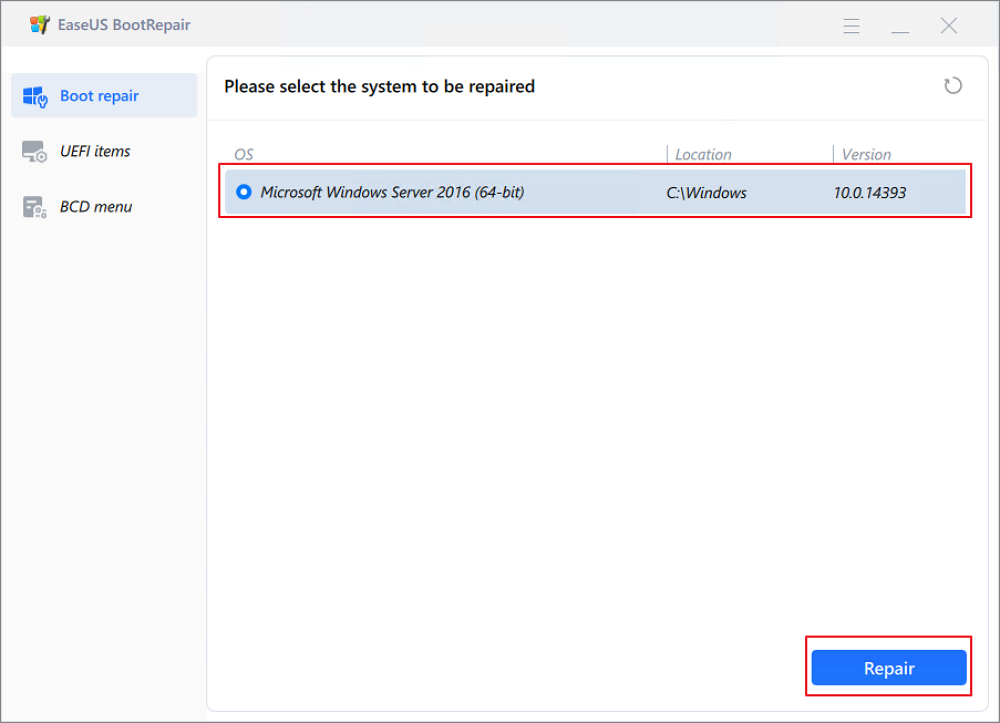
Step 5: Select the system you want to repair and click "Repair."
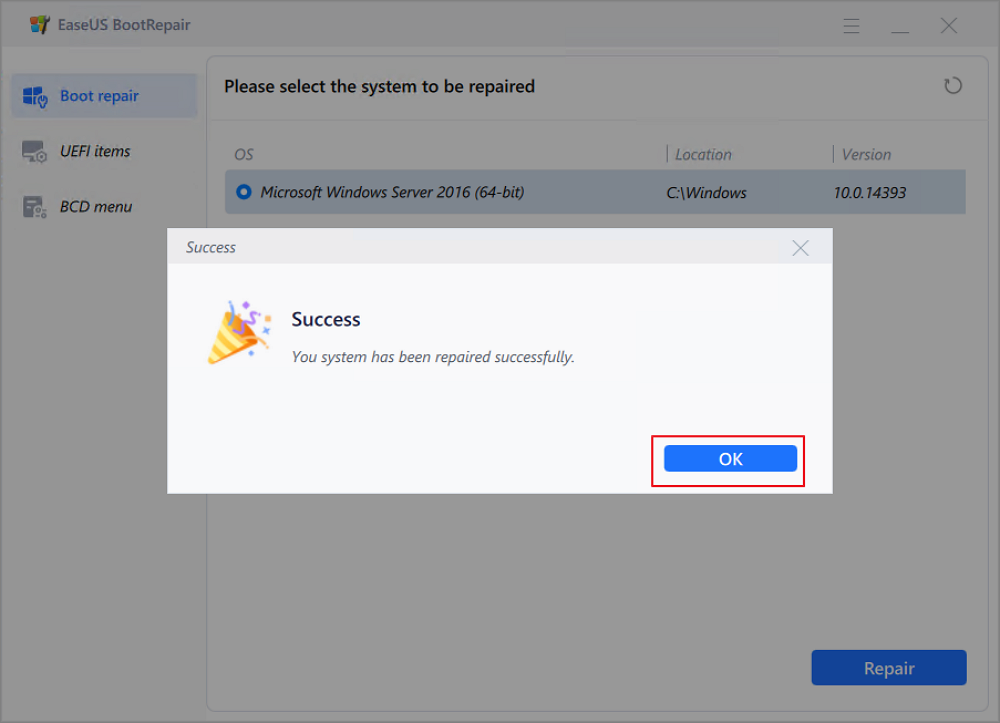
Step 6. Wait a moment, and you will receive an alert that the system has been successfully repaired. Click "OK" to complete the boot repair process.
Conclusion
Computer crashes come in many frustrating forms that can leave you feeling stuck. To fix a Dell laptop that turns on but shows a black screen, you can apply the methods in this guide. EaseUS Partition Master helps you create a bootable rescue disk, repair Windows startup errors, and safely manage or back up partitions. With this tool, you can both fix the black‑screen issue and keep your data safe and well‑organized on your Dell laptop.
FAQs on Dell Laptop Screen Black
1. How do I know if it's the screen or the motherboard?
If an external monitor works but the internal screen stays black, it's likely the screen or cable. If nothing appears on any display, including BIOS, the motherboard or GPU may be failing.
2. Should I reinstall Windows if the screen is black?
Only if you can access the system via an external monitor or if you're prepared to reinstall blindly. Use EaseUS Partition Master beforehand to back up partitions or prepare disk space to avoid data loss.
3. When should I take my Dell laptop to a service center?
If none of the methods can solve your problem, you can consider taking your Dell laptop to a service center. Some issues such as:
- The screen is physically cracked or badly damaged.
- No display appears in BIOS or on an external monitor.
- You're uncomfortable opening the laptop or replacing internal parts yourself.
How Can We Help You
About the Author
Updated by Joey Albert
Joey is an enthusiast of science and technology. With a passion for uncovering the latest tech innovations, she creates clear, engaging how-to guides that make technology accessible and enjoyable for all.
Product Reviews
-
I love that the changes you make with EaseUS Partition Master Free aren't immediately applied to the disks. It makes it way easier to play out what will happen after you've made all the changes. I also think the overall look and feel of EaseUS Partition Master Free makes whatever you're doing with your computer's partitions easy.
Read More -
Partition Master Free can Resize, Move, Merge, Migrate, and Copy disks or partitions; convert to local, change label, defragment, check and explore partition; and much more. A premium upgrade adds free tech support and the ability to resize dynamic volumes.
Read More -
It won't hot image your drives or align them, but since it's coupled with a partition manager, it allows you do perform many tasks at once, instead of just cloning drives. You can move partitions around, resize them, defragment, and more, along with the other tools you'd expect from a cloning tool.
Read More
Related Articles
-
Password Reset Disk Windows 7: How to Create and Use
![author icon]() Sherly/2026/06/17
Sherly/2026/06/17 -
How to Reset Windows Password When Locked Out🔥
![author icon]() Cici/2026/06/30
Cici/2026/06/30 -
How to Change Boot Drive Windows 11 [Beginner's Guide]
![author icon]() Oliver/2026/06/17
Oliver/2026/06/17 -
BitLocker Boot Loop: How to Fix It and Boot Properly
![author icon]() Sherly/2026/06/30
Sherly/2026/06/30
 Sherly/2026/06/17
  Cici/2026/06/30
  Oliver/2026/06/17









