


Content
Page Table of Contents
About the Author
Hot Topics
A computer that worked perfectly yesterday may suddenly refuse to boot today, leaving you stuck at a black screen, BSOD, automatic repair loop, or system error message.
Some of the most common Windows 11 boot problems include:
- Windows stuck in Automatic Repair loop (r/computers)
- Boot configuration data (BCD) errors (Microsoft)
- Corrupted MBR (Mcrosoft) or GPT boot records (r/pcmasterrace)
- Missing or damaged system partitions (Superuser)
- Black screen (r/computerhelp) or blue screen (r/windowshelp) during startup
- Windows fails to load after an update (r/windowshelp)
- Windows are stuck on logo or the loading screen (Microsoft)
- and more
When these issues occur, you often cannot access the desktop or run repair commands inside Windows. In such situations, a boot repair disk becomes essential. A boot repair disk is a bootable recovery environment that allows you to start a computer from external media and repair Windows without reinstalling the operating system or losing data, even when the operating system cannot load. The sections below explain how a boot repair disk works and how you can download and create one easily for Windows 11.
Boot Repair Disk Free Download
Boot-Repair-Disk is a free bootable rescue environment designed to fix computers that fail to boot properly. It is a lightweight Linux-based live system that automatically launches the Boot-Repair utility to diagnose and repair boot issues.
Instead of running inside Windows, Boot-Repair-Disk runs from a bootable CD/DVD or USB drive, allowing users to repair systems even when the operating system cannot start.
Boot-Repair-Disk Free Download Site: https://www.majorgeeks.com/files/details/boot_repair_disk_64_bit.html
The tool can automatically detect and fix common boot problems such as:
- Corrupted MBR (Master Boot Record)
- Missing or broken bootloaders
- GRUB errors in dual-boot systems
- Boot failures caused by partition or boot sector damage
Because it works outside the installed OS, Boot-Repair-Disk is often used as a last-resort recovery tool when Windows or Linux fails to boot normally.
1️⃣Key Features of Boot Repair Disk
Boot-Repair-Disk provides several built-in repair and diagnostic functions that make it useful for troubleshooting boot failures.
- Automatic boot repair – Detects and fixes common bootloader problems with one click
- MBR and boot sector repair – Restore corrupted boot records and boot sectors
- GRUB repair and reinstallation – Fix missing or damaged GRUB boot menus
- Dual-boot troubleshooting – Repair Windows-Linux dual-boot configurations
- Boot sector backup & restore – Protect or recover critical boot information
- Advanced configuration options – Customize GRUB parameters and boot settings
- Live boot environment – Runs from USB/CD without requiring a working OS
- Graphical interface – Simple GUI suitable for beginners while still offering advanced options for experts
- Open-source and free – No licensing cost for personal or commercial use
2️⃣Supported Systems
Boot-Repair-Disk is built on an Ubuntu-based live system and supports repairing multiple operating systems and boot environments.
Compatible environments include:
Supported Systems:
- Windows Windows 11 / 10 / 8 / 7
- Linux Ubuntu, Debian, Mint, and other distributions
Boot Types: BIOS / Legacy Boot / UEFI
Architecture: 32-bit and 64-bit systems
Because it operates from a bootable environment, it can repair systems even when the installed OS cannot start at all.
3️⃣Pros and Cons
| Pros | Cons |
|---|---|
|
|
Boot-Repair-Disk is a free tool that helps fix basic bootloader problems when a computer fails to start, such as MBR corruption or GRUB errors. However, its functionality is mainly limited to bootloader repair, and it lacks broader disk management capabilities.
For users who need a more complete solution, EaseUS Partition Master can be a better alternative. It provides a simple and user-friendly interface, making it easier for beginners to repair boot issues, while also offering advanced features such as partition management, disk repair, and OS migration in one integrated tool.
4️⃣Reviews: To learn more reviews about Boot Repair Disk, visit https://sourceforge.net/projects/boot-repair-cd/reviews/
Reliable Alternative to Boot Repair Disk
EaseUS Partition Master is a boot repair tool and can create a bootable repair disk and provide automated repair utilities. With it, you can boot a non-starting computer and repair critical boot components even if Windows can't boot. Compared with Boot Repair Disk, it offers a clear interface and more disk troubleshooting tools.
EaseUS Partition Master is a boot repair tool that can automatically fix Windows 11 Boot-Related Issues.
- ✔️Automatically fix Blue screen, black screen, stuck at the logo/loading screen, boot loop, automatic repair loop, etc.
- ✔️Create a Windows 11 boot repair disk for another PC
- ✔️Rebuild MBR for Windows without typing any command lines.
- ✔️Fix boot-related errors without knowing the causes or backgrounds, making it easy to use for beginners.
Learn more about the boot repair disk creation tool:
| Requirements |
|---|
|
Operating System: Windows 11, Windows 10, Windows 8.1, Windows 8, Windows 7, Windows Vista, Windows XP |
| Disk Space: Hard disk drive with 100MB of available space |
| CPU: At least with X86 or compatible CPU with main frequency 500 MHz |
| RAM: Equal or larger than 512MB |
How to Create a Boot Repair Disk and Repair Boot Issues
EaseUS Partition Master helps you create a bootable repair disk to fix Windows boot loops, startup freezes, system crashes, and resolve computers that won't start or fail to boot properly. It also solves issues like blue screens and black screens.
Things You need: a USB flash drive or external hard drive, a Windows PC running properly.
#1. Automatically Repair Windows 11 with Boot Repair Disk
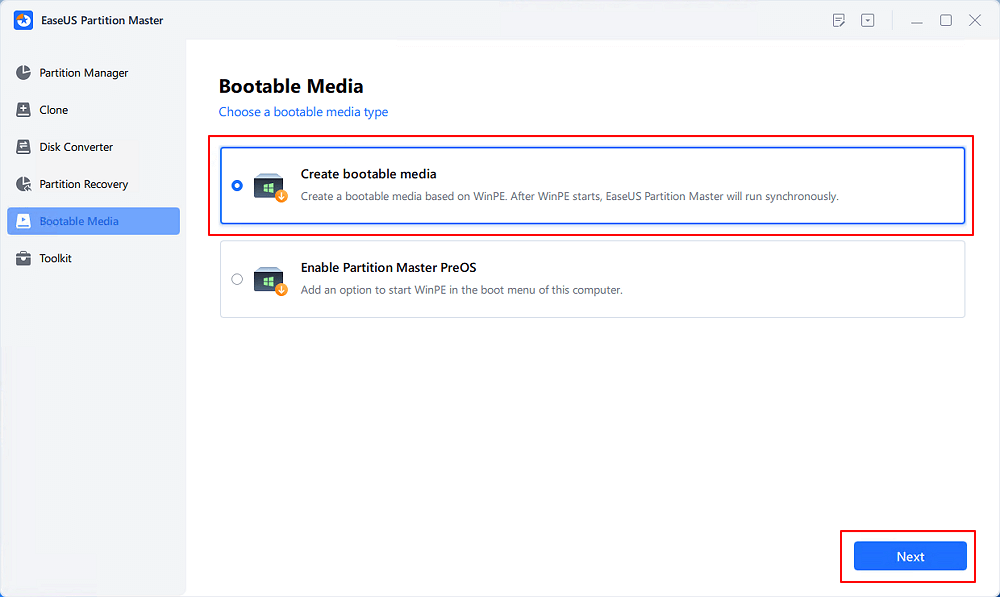
Step 1. Start EaseUS Partition Master after connecting the external drive/USB to your computer, go to "Bootable Media," and click "Create bootable media."
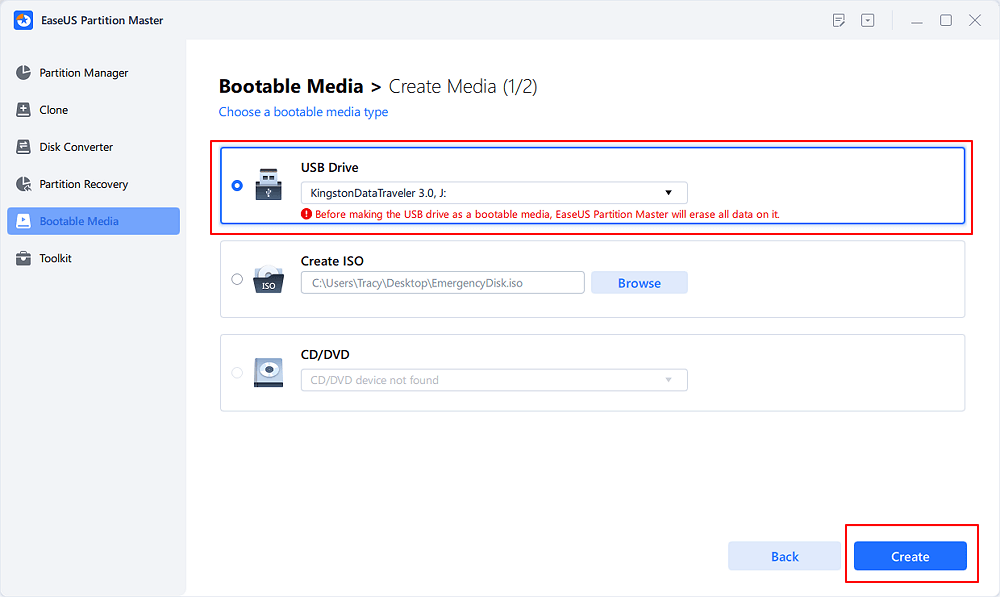
Step 2. Select an available USB Drive or CD/DVD and click "Create." You can also burn the Windows ISO file to the storage media.
Step 3. Connect the created bootable drive to the new computer and reboot the computer by pressing and holding F2/Del to enter the BIOS. Then, set the WinPE bootable drive as the boot disk and press F10 to exit.
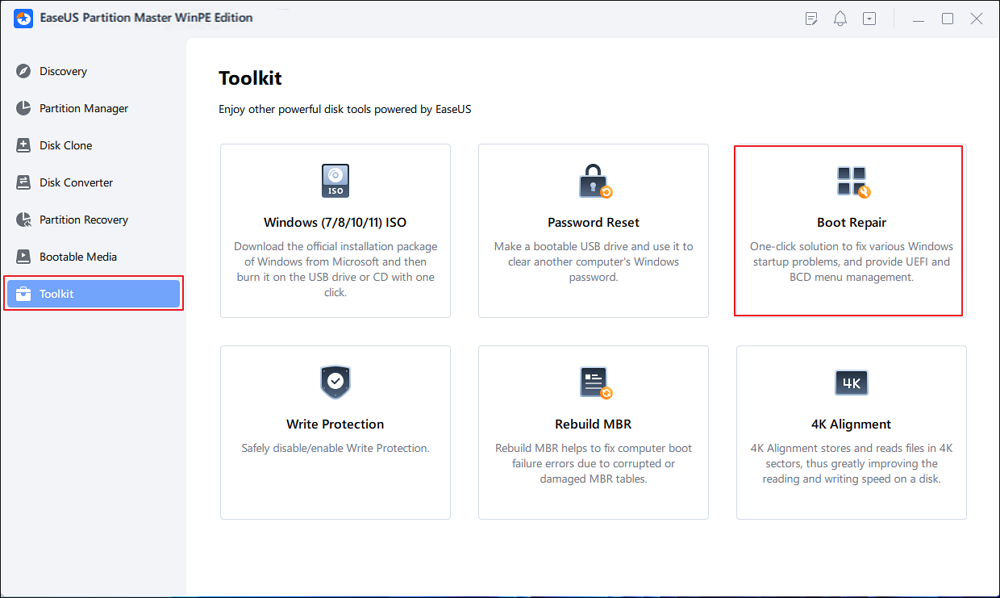
Step 4. Boot the computer again and enter the WinPE interface. Then, open EaseUS Partition Master and click "Boot Repair" under the "Toolkit" option.
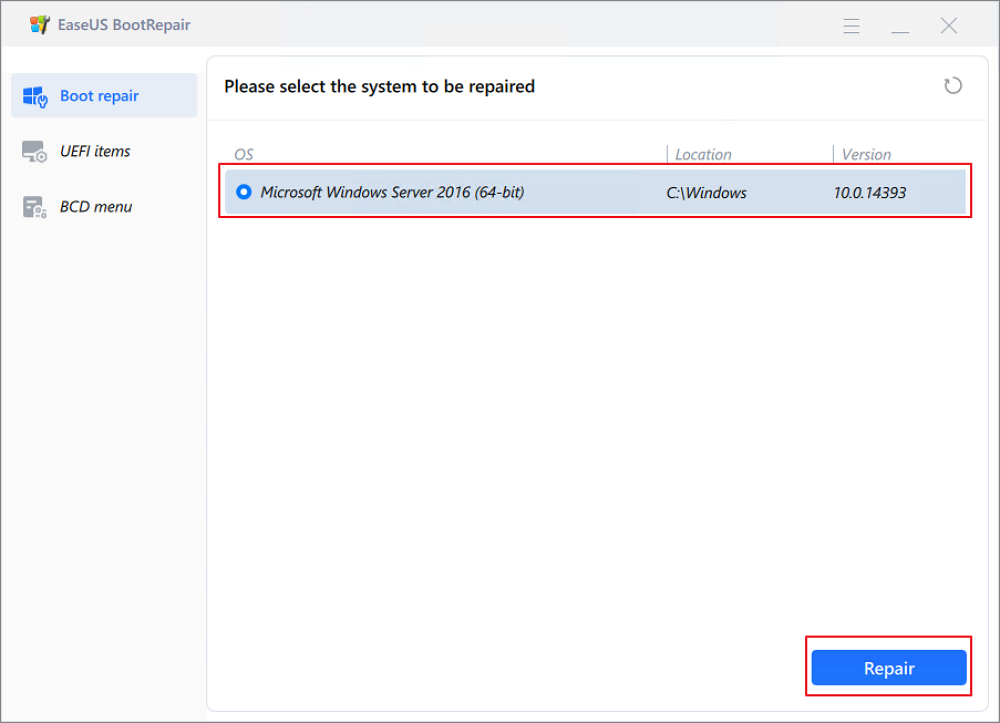
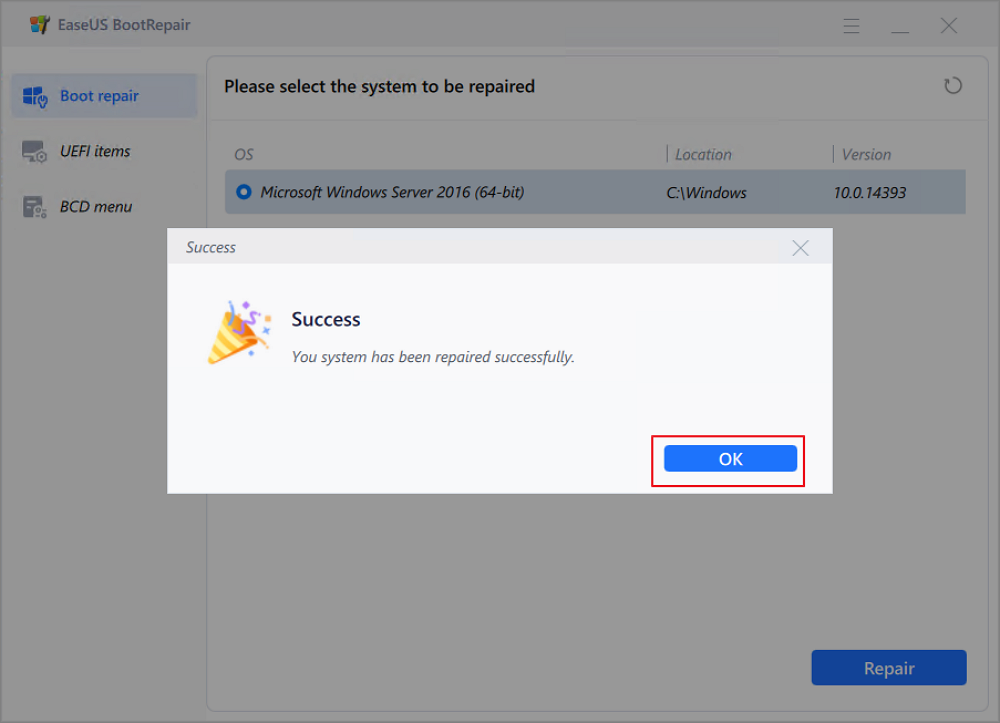
Step 5: Select the system you want to repair and click "Repair."
Step 6. Wait a moment, and you will receive an alert that the system has been successfully repaired. Click "OK" to complete the boot repair process.
If this helps, feel free to share this post and help more users learn about this boot repair tool for Windows 11.

#2. Rebuild MBR
Step 1. Create a WinPE bootable disk
- Launch EaseUS Partition Master, and click "Bootable Media" on the toolbar. Select "Create bootable media".
- Click "Next" to finish the process.
Step 2. Boot EaseUS Partition Master Bootable USB
- Connect the bootable USB or CD/DVD to your PC.
- Press F2 or Del when you restart the computer to enter the BIOS screen. Set and boot your computer from "Removable Devices" or "CD-ROM Drive". And then EaseUS Partition Master will run automatically.
Step 3. Rebuild MBR
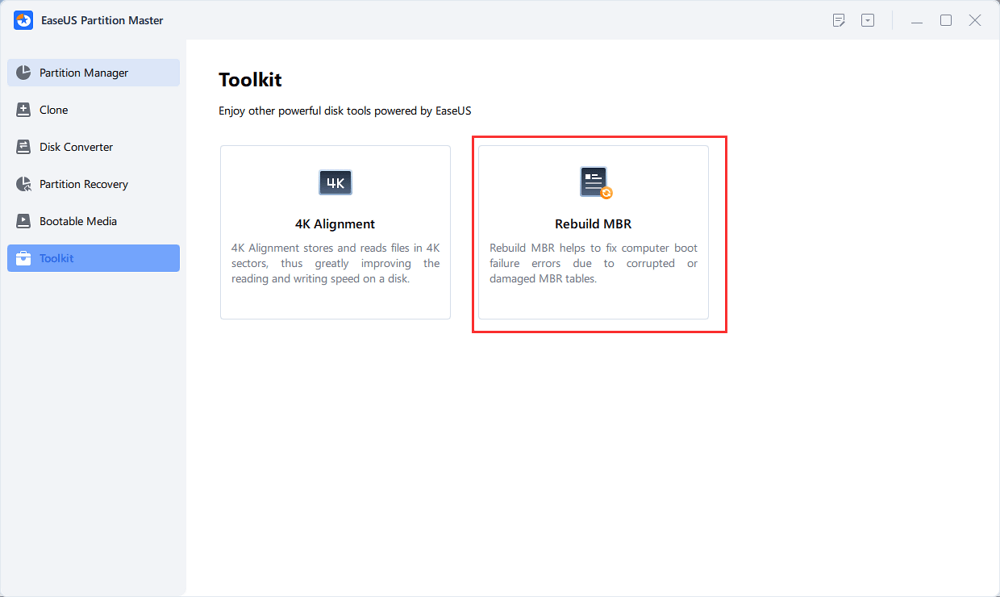
- Click "Toolkit" and choose "Rebuild MBR".
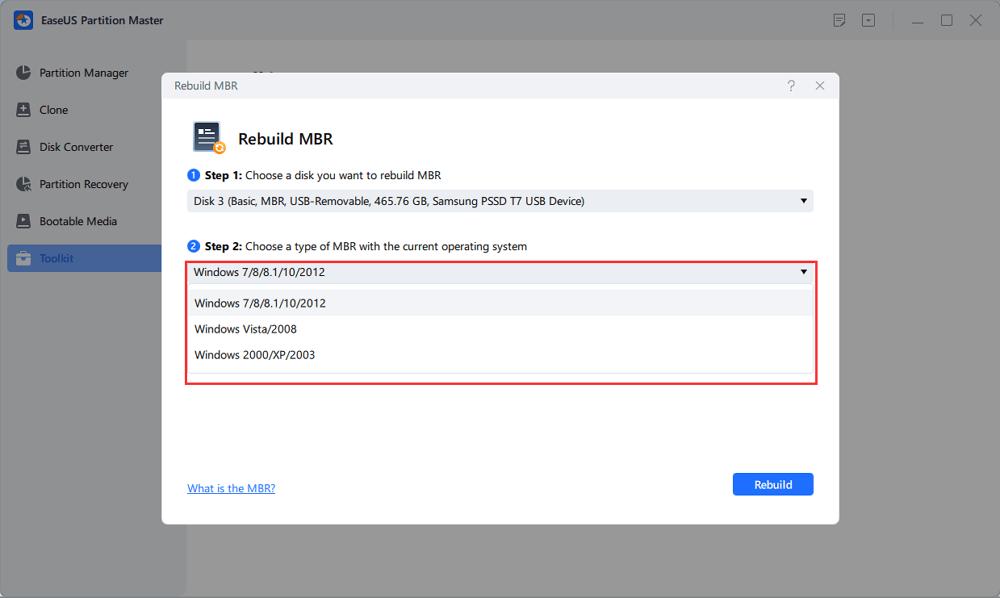
- Select the disk and the type of MBR. Then, click "Rebuild".
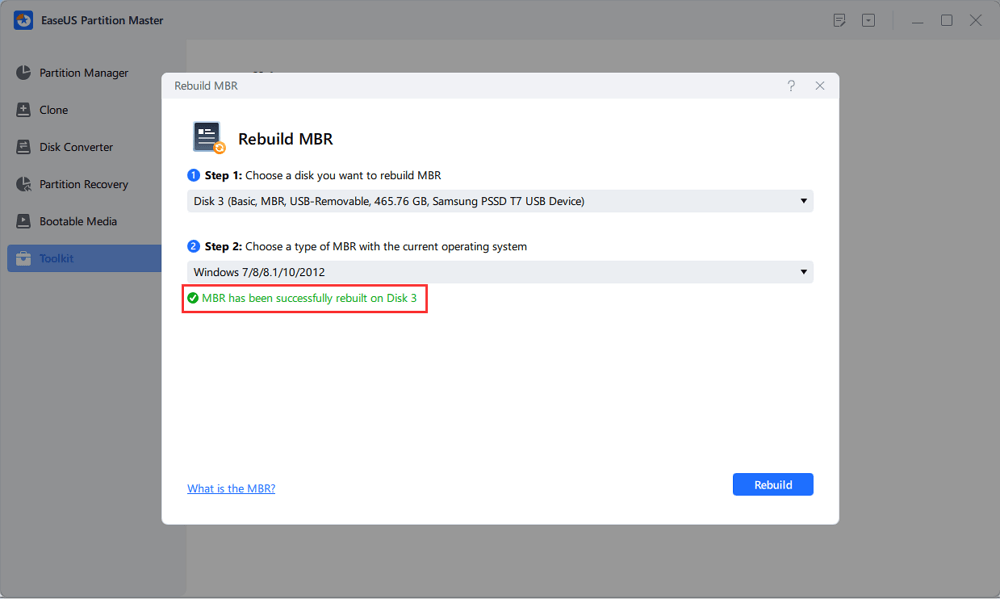
- After that, you can see "MBR has been successfully rebuilt on Disk X".
Conclusion
Issues such as blue screens, automatic repair loops, corrupted boot records, or missing system partitions may prevent Windows 11 from loading entirely. When this happens, standard troubleshooting inside the operating system is no longer possible.
A boot repair disk provides a practical solution. By creating a bootable USB repair disk, you can start a computer outside the damaged system environment and repair critical boot components such as the MBR, BCD, or system partitions.
Tools like EaseUS Partition Master make this process much easier by allowing users to create a Windows boot repair disk and automatically repair common startup errors without complicated command-line operations.
FAQs About Windows 11 Bootable Repair Disk
1. How do I create a boot repair disk for Windows 11?
One of the easiest ways to create a boot repair disk for Windows 11 is by using a dedicated bootable disk creator such as EaseUS Partition Master. It allows you to make a bootable USB repair disk that can start a computer even when Windows 11 fails to boot.
- Download and install EaseUS Partition Master on a working Windows computer.
- Insert a USB drive or external storage device.
- Open the software and select the "Rescue" section and click the "Create Bootable Emergency Disk" feature.
- Choose the USB drive as the destination and create the bootable repair disk.
- Insert the created USB into the computer that cannot boot and set the USB as the boot device in BIOS/UEFI.
- Boot from the repair disk and use the available tools to repair boot records, rebuild MBR, or fix startup issues.
2. What is a boot repair disk?
A boot repair disk is a bootable recovery environment that allows a computer to start from external media such as a USB drive or DVD. It provides repair tools that can fix startup problems like corrupted boot records, damaged BCD files, or missing system partitions when Windows cannot boot normally.
3. Can a boot repair disk fix Windows 11 that won't boot?
Yes. A boot repair disk can repair several common startup problems, including:
- Corrupted MBR or GPT boot records
- Damaged Boot Configuration Data (BCD)
- Windows boot loops or automatic repair loops
- Blue screen or black screen during startup
Because the repair disk runs outside Windows, it can fix these problems even if the operating system cannot load.
4. What tools can create a boot repair disk?
Several tools can be used to create a boot repair disk, including:
- Boot-Repair-Disk (Linux-based recovery environment)
- Windows installation media
- EaseUS Partition Master bootable disk creator
Among them, EaseUS Partition Master provides a simpler interface and additional disk repair tools for Windows users.
5. Do I need to reinstall Windows if the computer won't boot?
Not necessarily. Many boot problems can be fixed without reinstalling Windows. Using a boot repair disk, you can rebuild the MBR, repair the BCD configuration, and fix system partition errors to restore the normal startup process without data loss.
6. Is Boot-Repair-Disk safe to use?
Yes. Boot-Repair-Disk is generally considered safe to use. It is an open-source boot repair tool based on a Linux live environment and is widely used to fix bootloader issues such as corrupted MBR, damaged GRUB configurations, or boot failures in dual-boot systems.
However, because it modifies critical boot components, users should follow instructions carefully and create backups when possible before performing repairs.
How Can We Help You
About the Author

"I hope my articles can help solve your technical problems. If you are interested in other articles, you can check the articles at the bottom of this page. Similarly, you can also check my Twitter to get additional help."

Sherly joined EaseUS in 2022 and she has always loved writing articles and enjoys the fun they bring. She receives professional training here, focusing on product performance and other relative knowledge. She has written over 200 articles to help people overcome computing issues.
Product Reviews
-
I love that the changes you make with EaseUS Partition Master Free aren't immediately applied to the disks. It makes it way easier to play out what will happen after you've made all the changes. I also think the overall look and feel of EaseUS Partition Master Free makes whatever you're doing with your computer's partitions easy.
Read More -
Partition Master Free can Resize, Move, Merge, Migrate, and Copy disks or partitions; convert to local, change label, defragment, check and explore partition; and much more. A premium upgrade adds free tech support and the ability to resize dynamic volumes.
Read More -
It won't hot image your drives or align them, but since it's coupled with a partition manager, it allows you do perform many tasks at once, instead of just cloning drives. You can move partitions around, resize them, defragment, and more, along with the other tools you'd expect from a cloning tool.
Read More
Related Articles
-
How to Create EaseUS WinPE Bootable Disk in Windows 10/8/7
![author icon]() Daisy/2026/03/31
Daisy/2026/03/31 -
Windows 10 Won't Boot? Causes & 13 Fixes Here!
![author icon]() Sherly/2026/03/31
Sherly/2026/03/31 -
Windows 11 Password Reset USB Free Download - Unlock Now
![author icon]() Joey Albert/2026/03/31
Joey Albert/2026/03/31
 Daisy/2026/03/31
  Joey Albert/2026/03/31
 Hot Topics








EaseUS Partition Master

Version 20.0 is here - full exFAT support, easier disk partitioning, and PC performance optimization.


