





 About the Author
 Reviews and Awards
 Mac SD Card Recovery
What is Macintosh HD? Macintosh HD is the main system volume (startup disk) on your Mac. It stores macOS and essential system files required for your device to run.
Since macOS Catalina, Apple has separated your disk into two volumes:
- Macintosh HD: Read-only system files
- Macintosh HD - Data: Your personal files and apps
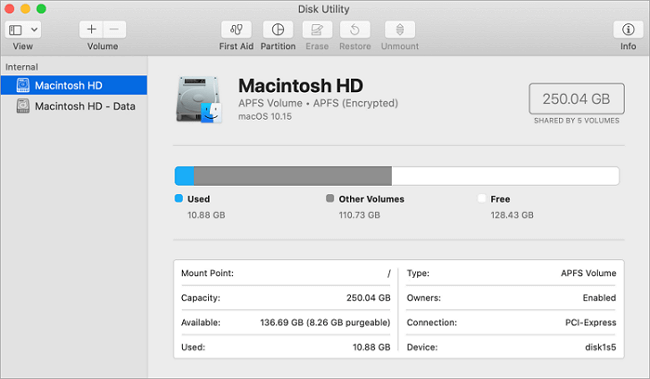
✒️Key Fact: Macintosh HD is not a downloadable file. It is automatically created when macOS is installed.
Can You Download Macintosh HD
No, you cannot download Macintosh HD. This is one of the most common misunderstandings among Mac users. Why?
- It is not software, ISO, or DMG
- It is a system volume created during macOS installation
- It only exists as part of your internal disk
✅Correct interpretation of "Macintosh HD download": Users actually want to reinstall macOS or restore a missing disk when a partition is not showing up.
How to "Download" Macintosh HD (2 Methods)
If you're trying to get Macintosh HD back, what you really need is to reinstall macOS.
Method 1. Reinstall macOS via Recovery Mode (Recommended)
Here are the steps:
- Step 1. Shut down your Mac.
- Step 2. Turn it on and hold "Command (⌘) + R".
- Step 3. Enter "macOS Utilities".
- Step 4. Select "Reinstall macOS".
- Step 5. Follow on-screen instructions.
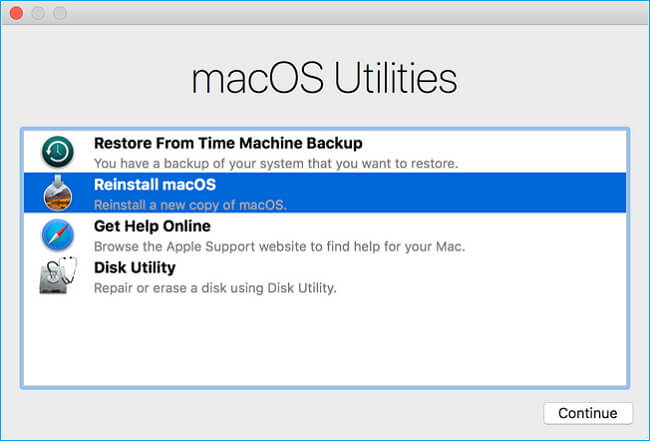
- Important
- Reinstalling macOS will automatically recreate the Macintosh HD volume.
Method 2. Internet Recovery (If Disk Is Missing)
Use this method if:
- Macintosh HD does not appear.
- The disk was erased or corrupted.
Here are the steps:
- Step 1. Restart your Mac.
- Step 2. Hold "Option + Command + R".
- Step 3. Connect to Wi-Fi.
- Step 4. Install macOS from Apple servers.

Macintosh HD Missing? 3 Ways to Fix It
If you can't find Macintosh HD, don't panic. This is a common issue:
- 🗑️Accidental deletion in Disk Utility
- ⚠️APFS volume corruption
- ❌macOS update failure
- 💾Disk formatting errors
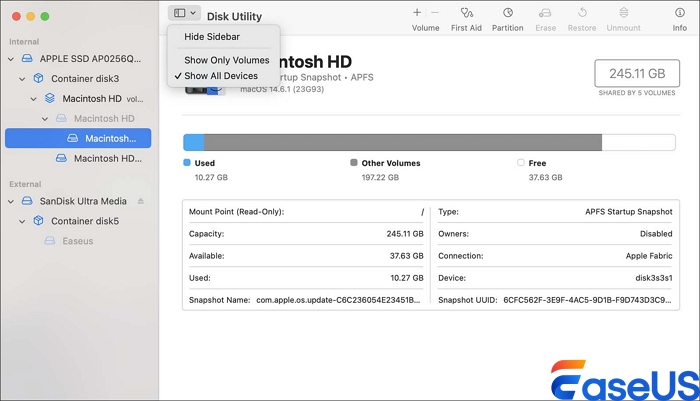
Fix 1. Show All Devices in Disk Utility
- Open "Disk Utility".
- Click "View > Show All Devices".
- Check if Macintosh HD appears
Fix 2. Run First Aid
- Select your disk.
- Click "First Aid".
- Repair errors.
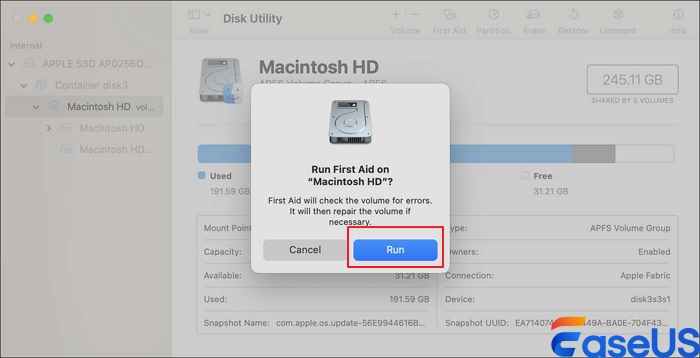
If First Aid couldn't complete successfully and you see the "First Aid process has failed" message, don't worry. There are specific steps to resolve it. Check out the guide below to fix the error and get your disk back on track.

First Aid Process Has Failed in Disk Utility
Follow this easy guide on how you can fix the error "the First Aid process has failed" in Disk Utility. It also tells the steps if you need to recover data. Read more >>
Fix 3. Recreate APFS Volume
If missing completely:
- Open Disk Utility.
- Select container.
- Click "+ Volume".
- Name it "Macintosh HD".
How to Recover Data from Macintosh HD
If your Macintosh HD is missing or corrupted, your data may still be recoverable. Where Your Data Actually Lives? Your files are usually stored in: Macintosh HD – Data.
Even if the system fails, your data may remain intact. Read on to learn the detailed steps to recover data from Macintosh HD - Data.
Recover Data with EaseUS Data Recovery Wizard
As professional Mac data recovery software, EaseUS Data Recovery Wizard for Mac continues to resolve data loss scenarios, including accidentally deleting files, formatting a Mac's internal or external hard drive by mistake, sudden power shutdowns during editing, and more.
Why choose EaseUS?
- Support data recovery when the Mac won't boot
- Recover data from a disk that is not accessible
- Recover permanently deleted files on a Mac
- Restore data from a formatted hard drive, SD card, USB drive, etc.
Check out the following steps to recover data using EaseUS Data Recovery Wizard for Mac:
Step 1. Search for lost files
Select the disk location to search for lost files (it can be an internal HDD/SSD or a removable storage device) on macOS Sierra, High Sierra, Mojave, Catalina, Big Sur, Monterey, Ventura, and the latest Sonoma. Click the "Search for lost files" button.

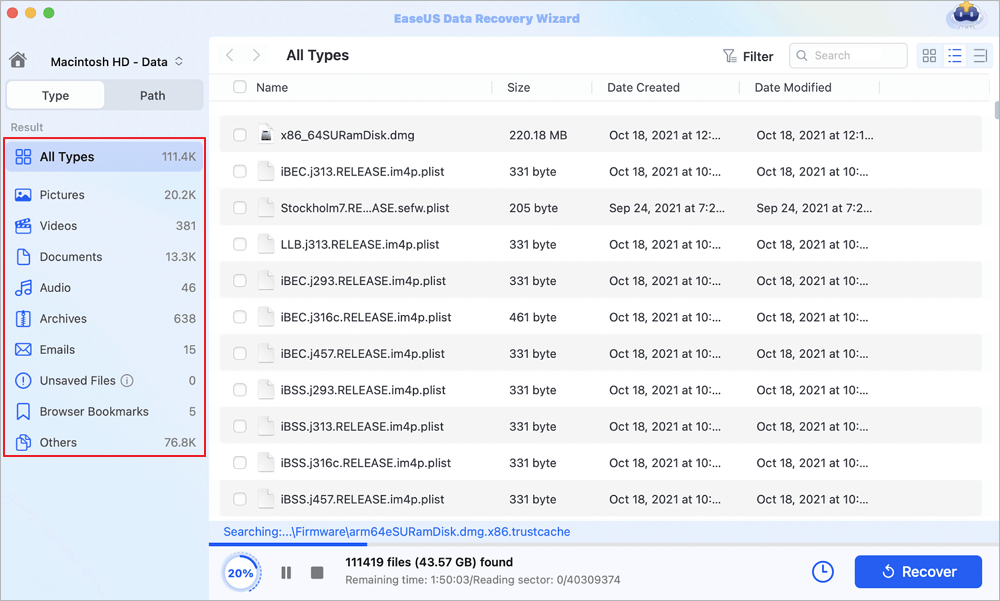
Step 2. Go through the scanning results
EaseUS Data Recovery Wizard for Mac will immediately scan your selected disk volume and display the scanning results.
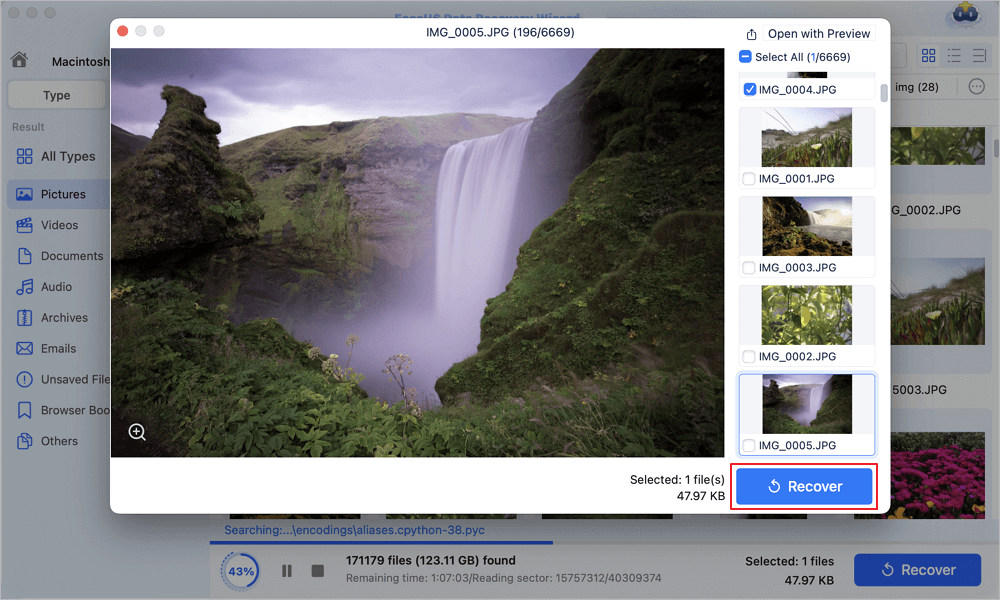
Step 3. Select the file(s) and recover
In the scan results, select the file(s) to preview and click the "Recover" button to have them back.
When Should You Reinstall vs Recover
Reinstall macOS if:
- System won't boot
- Macintosh HD missing
- macOS corrupted
Recover data if:
- Files are missing
- Disk was formatted
- Important data is at risk
👉Best practice: Recover data first, then reinstall macOS
Final Thoughts
Macintosh HD is not something you download. It is a system volume generated when macOS is installed.
If it's missing, corrupted, or inaccessible, consider reinstalling macOS to restore it. Or you can use professional tools, such as EaseUS Data Recovery Wizard for Mac, to recover lost data. Reinstallation fixes the system, and data recovery protects what matters most.
Macintosh HD download FAQs
1. Can I actually download Macintosh HD?
No, you cannot download Macintosh HD itself because it is your Mac's internal startup drive, not a file or software. However, you can create a backup or clone of Macintosh HD using Time Machine or third-party cloning tools. The term "download" in some guides refers to copying or backing up the entire drive contents.
2. What are the two methods to "download" Macintosh HD?
The two common methods are:
- 1. Using Time Machine – Automatically backs up all files, apps, and system settings to an external drive.
- 2. Using Disk Utility to create a disk image – Open Disk Utility, select Macintosh HD, then go to File > New Image > Image from Folder (or use hdiutil in Terminal) to create a compressed or read-only .dmg file of your drive contents.
3. What should I do if Macintosh HD is missing from Disk Utility or Finder?
Try these three fixes:
- Restart your Mac – Often temporary glitches are resolved by a simple reboot.
- Check Disk Utility in macOS Recovery – Restart with Command+R, open Disk Utility, and click View > Show All Devices to see if the internal drive appears (even if Macintosh HD is hidden).
- Run First Aid – Select the top-level physical drive (not just the volume) and run First Aid to repair directory errors that may hide the volume.
4. How can I recover data from Macintosh HD if it won't boot?
You can recover data using:
- Target Disk Mode – Connect your Mac to another Mac via Thunderbolt or USB-C, then restart your Mac holding T to use it as an external drive and copy files.
- Data recovery software – Tools like Disk Drill, EaseUS Data Recovery Wizard, or TestDisk can scan Macintosh HD for lost files.
- Time Machine backup – If you have a backup, restore individual files or the entire system from the backup drive.
5. When should I reinstall macOS vs recover data from Macintosh HD?
- Reinstall macOS – Do this when macOS is corrupted, unstable, or won't boot, but your personal files are still intact or already backed up. Reinstalling overwrites system files without erasing your data (in most cases).
- Recover data – Do this first if the drive is failing, accidentally formatted, or you can't access important files. Always recover data before reinstalling, because a reinstall may fail or overwrite recoverable data if the drive is physically damaged.
Was This Page Helpful?

Finley is interested in reading and writing articles about technical knowledge. Her articles mainly focus on file repair and data recovery.

Daisy is the Senior editor of the writing team for EaseUS. She has been working at EaseUS for over ten years, starting as a technical writer and moving on to being a team leader of the content group. As a professional author for over ten years, she writes a lot to help people overcome their tech troubles.
-
EaseUS Data Recovery Wizard is a powerful system recovery software, designed to enable you to recover files you’ve deleted accidentally, potentially lost to malware or an entire hard drive partition.
Read More -
EaseUS Data Recovery Wizard is the best we have seen. It's far from perfect, partly because today's advanced disk technology makes data-recovery more difficult than it was with the simpler technology of the past.
Read More -
EaseUS Data Recovery Wizard Pro has a reputation as one of the best data recovery software programs on the market. It comes with a selection of advanced features, including partition recovery, formatted drive restoration, and corrupted file repair.
Read More
Related Articles
-
Top 6 DiskWarrior Alternatives for Mac in 2026: Comprehensive Review
![author icon]() Jaden/Sep 22, 2026
Jaden/Sep 22, 2026 -
R-Studio for Mac: Ultimate Guide to R-Studio on macOS
![author icon]() Brithny/Sep 22, 2026
Brithny/Sep 22, 2026 -
Recover Data from M4 Mac | Apple Silicon M4
![author icon]() Dany/Sep 20, 2026
Dany/Sep 20, 2026 -
How to Recover Deleted Messages on Mac | Quick Guide
![author icon]() Tracy King/Sep 20, 2026
Tracy King/Sep 20, 2026
 Jaden/Sep 22, 2026
  Brithny/Sep 22, 2026
  Dany/Sep 20, 2026
  Tracy King/Sep 20, 2026

