Page Table of Contents

In this guide, you'll learn how to clone SD card to USB and boot from it on a Windows computer the right way. We will walk through when cloning is necessary, the best way to copy SD card to USB, what to prepare in advance, and the exact steps required to move everything, including boot records and hidden system reserved partitions, to your USB stick. By the end, you will be able to create a ready-to-use copy that can replace the original card for backup, migration, or emergency recovery purposes.
If your goal is a USB that works just like the source SD card, you're in the right place.
When You Need to Clone SD Card to USB
Cloning is required whenever you need more than just copying visible files. Below are the most typical situations where a full disk clone is the right solution.
- Create a Complete Backup of the SD Card
If the card stores an operating system, applications, or device configurations, losing it can mean hours of rebuilding. A sector-by-sector clone copies everything — boot records, partition structure, and hidden data — so the USB becomes an exact duplicate. This is extremely useful for system backup because the cloned drive can immediately replace the original one if it fails. It also works for Raspberry Pi users who want a ready-to-run spare.
- Boot or Run the System from a USB Drive
Sometimes the goal is to stop relying on the SD card and make the USB act as the new startup device. To clone bootable SD card, the target drive must contain the same boot information and system layout. Disk cloning ensures the USB can load the OS just like the source media.
I have a new Raspbery Pi 3 B+ which actually boots from a 8 Gb SD Card. Now I want to toggle to a 32 Gb USB flash drive, so I wanted to clone the SD Card.
- Upgrade Storage or Replace the Storage Device
SD cards wear out, fill up quickly, or may be slower than modern USB flash drives. Cloning allows you to migrate everything to a larger USB drive without reinstalling or reconfiguring anything.
The Best Way to Clone/Copy an SD Card
If you search for the way to duplicate an SD card, you will quickly find dozens of answers. Some people recommend copying files, others suggest command-line tools, and many propose creating an image first and restoring it later. The variety of methods can be confusing, especially if your card contains a bootable system.
When an SD card contains an operating system, recovery environment, or carefully configured setup, copying files to another device is rarely enough. Many users discover this the hard way: the USB drive looks fine, but it refuses to boot or certain partitions are missing.
Here is the key principle: If you need the new drive to work exactly like the old one, you need disk cloning, not a simple transfer.
- A simple file copy only transfers visible data. It does not reliably move boot sectors, partition tables, or hidden system areas. As a result, the target USB may not start, applications may fail, or space may be allocated incorrectly.
- Command tools such as dd command can achieve a perfect replica, but they are easy to misuse and one wrong selection can wipe the wrong disk.
- For most Windows users, the best balance between safety, simplicity, and reliability is a dedicated cloning utility. It automates sector-level copying, keeps the USB bootable, and reduces the risk of human error.
See also:
Clone Raspberry Pi OS SD Card to SSDHow to Clone Raspberry Pi SD Card Safely
Preparations Before Cloning SD Card to USB
Before you start the cloning process, spending a few minutes on preparation can prevent failures and data loss later.
- Make Sure the USB Is Large Enough. The destination drive should have at least as much capacity as the used space on the SD card. If it is smaller, the clone may fail unless the partitions are resized.
- Back Up Important Files on the USB. Cloning will overwrite the entire target disk. Any existing documents or partitions on the USB will be erased.
- Connect Devices Properly. Insert the SD card through a stable card reader and plug the USB directly into your computer. Avoid loose adapters or hubs that might interrupt the transfer.
- Close Running Programs. Applications accessing the SD card can interfere with the read process. Closing them ensures a clean, consistent clone.
- Download SD Card Cloning Software. EaseUS Disk Copy is a reliable, widely used Windows disk cloning tool that lets you clone an SD card with ease. It works with all types of SD cards and USB drives and includes a bit-for-bit copy feature, ensuring you can copy everything from the SD card to the USB drive, including the operating system, partitions, hidden partitions, and files.
 Free Download
Windows 11/10/8/7
Once these items are checked, you're ready to move on to the actual disk cloning steps.
How to Clone (Bootable) SD Card to USB: Step-by-Step
Important: While cloning, remember to choose the SD card as the source disk, and select the USB as the target disk.
Step 1. Prepare New Drive
- Backup data: If the target drive contains data, back it up before cloning because cloning will wipe all data on the target disk.
- Connect the disk to your PC: For desktops or laptops with more than one slot, install it internally. For laptops with only one slot, use an external disk enclosure or a SATA-to-USB adapter to connect the disk externally to the PC.
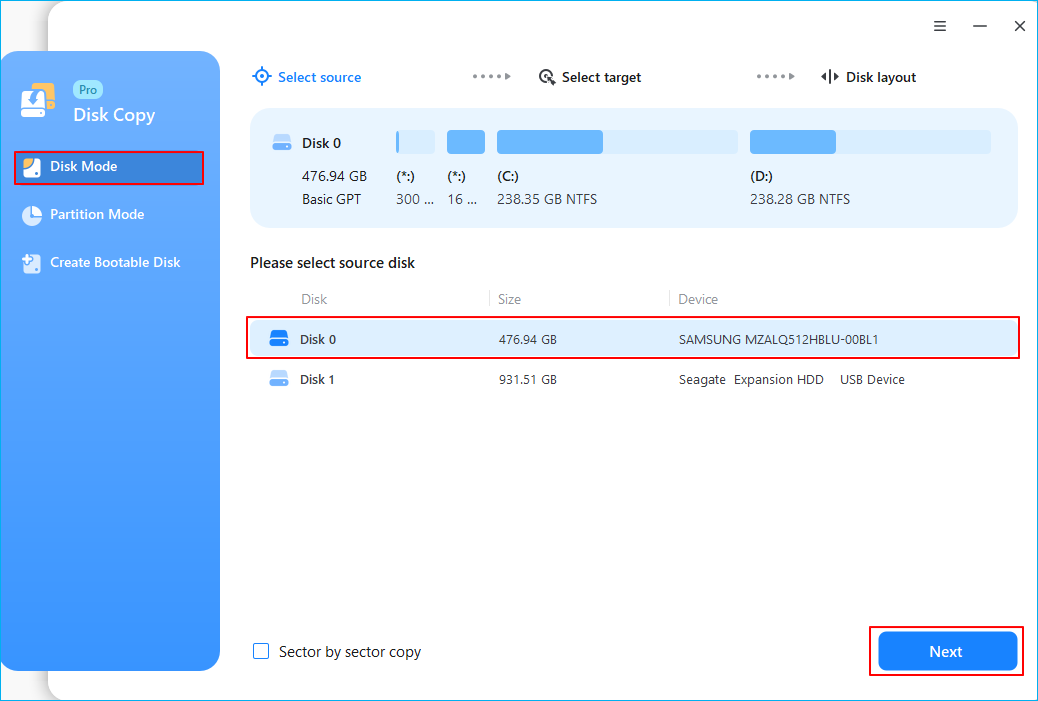
Step 2. Run Disk Cloning Software
- Download, install, and open EaseUS Disk Copy.
- Choose Disk Mode.
Step 3. Select Source and Target Drives
- Select the old disk as the source.
- Select the new disk as the destination.
- Check whether enabling the "Preview partition layout" box for the advanced feature.
Note: Adjust disk layout if necessary.
- Select "Autofit the disk" to make full use of the larger capacity on the destination disk.
- Select "Copy as the source" to use "Sector-by-sector copy" feature.
- Select "Edit disk layout" to manually resize the disk layout on destination drive.
Step 4. Start Cloning
- Confirm the warning message (data on the destination drive will be erased) and start cloning.
- Wait for the cloning process to be complete.
Share the blog on social media to help others clone an SD card to a USB easily.

Clone SD Card with Disk Cloning Software vs. Win32 Disk Imager
While looking for ways to clone an SD card, two solutions appear most often: using a dedicated disk cloning program or relying on a free imaging utility such as Win32 Disk Imager. Both can replicate data, but they differ greatly in workflow, flexibility, and risk.
| Disk Cloning Software | Win32 Disk Imager |
|
|
If you prefer a graphical, guided process, cloning software (EaseUS Disk Copy) is typically faster. If you are comfortable creating and restoring image files, Win32 Disk Imager can also work.
How to Clone SD Card to USB Using Win32 Disk Imager
Win32 Disk Imager cannot clone directly from one disk to another, so the process of cloning SD card with Win32 Disk Imager happens in two phases.
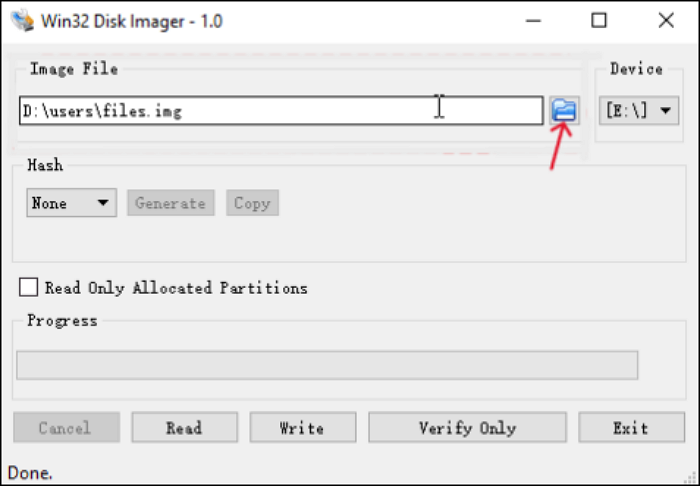
Phase 1. Create an Image from the SD Card
- Insert the SD card into your computer.
- Launch Win32 Disk Imager.
- Select the SD card device letter.
- Choose a location on your PC to save the image file.
- Click Read to create the image.
Phase 2. Write the Image to the USB
- Connect the USB flash drive.
- In Win32 Disk Imager, browse to the image you created.
- Select the USB as the target device.
- Click Write and confirm.
- After completion, the USB should contain the same data as the original SD card.
Share the blog on social media to help others clone an SD card to a USB easily.
Summary
Cloning an SD card to a USB drive is the safest way to preserve a working system, complete data structure, and boot information. Unlike file copy, disk cloning transfers hidden partitions, boot records, and configuration details so the new drive can immediately replace the failed SD card. With a professional tool like EaseUS Disk Copy, the process becomes simple, fast, and reliable, whether you are backing up, migrating, or upgrading storage.
Free Download
Windows 11/10/8/7
FAQs
1. How do I clone an SD card to a USB and keep it bootable?
To clone an SD card to a USB and keep it bootable, you must use disk cloning software that copies every sector of the drive, including boot records, partition tables, and hidden system areas. Simple file copy cannot transfer the information required for startup.、
2. Can I clone a Raspberry Pi SD card to a USB?
Yes. Disk cloning software can copy the entire Raspberry Pi SD card, including the operating system and boot files, to a USB drive. After cloning, you can use the USB as a replacement as long as the device supports USB boot.
3. Why is my cloned USB not booting?
Common causes include incorrect boot order, unsupported USB boot on the device, or an incomplete clone. Re-cloning the disk with a reliable sector-level tool usually resolves the problem.
4. Can I clone an SD card to a smaller USB?
It depends. The used data must fit within the capacity of the target drive. Some advanced cloning programs can shrink partitions, but many basic tools cannot.
5. How long does it take to clone an SD card?
Cloning time depends on the amount of data and the speed of your card reader and USB interface. Larger drives may take from minutes to several hours.
-
Updated by
![]()
Larissa
Larissa has rich experience in writing technical articles and is now a professional editor at EaseUS. She is good at writing articles about data recovery, disk cloning, disk partitioning, data backup, and other related knowledge. Her detailed and ultimate guides help users find effective solutions to their problems. She is fond of traveling, reading, and riding in her spare time.…Read full bio