Page Table of Contents

The Raspberry Pi is a versatile, credit-card-sized computer that has revolutionized DIY electronics, education, and lightweight computing. While its default boot media is typically a microSD card, users often seek to upgrade to faster and more reliable storage like SSDs or NVMe drives for enhanced performance and durability.
This comprehensive guide covers 3 proven methods to migrate your Raspberry Pi OS from SD card to SSD or NVMe storage, including detailed command-line instructions preferred by advanced users, using SD Card Copier, and cloning a Raspberry Pi SD card on a Windows device.
Why migrate Raspberry Pi OS from SD card to SSD/NVMe?
- 4-10x faster read/write speeds for dramatically improved performance
- 10x longer lifespan compared to SD cards
- Better reliability - SSDs don't suffer from SD card corruption issues
- Larger capacity options at lower costs per gigabyte
- Improved multitasking with sustained write speeds
Preparations for Migrating PPI SD Card to SSD
To ensure a smooth, successful cloning of your Raspberry Pi OS from an SD card to an SSD, adequate preparation is essential. You'll need to gather the necessary tools and complete several key steps beforehand.
Hardware requirements:
- Raspberry Pi: any model, preferably Pi 3B+/4/5, for best SSD support and to function correctly.
- A Micro SD card: contains the current OS installation.
- An SSD: SATA/NVMe with enough capacity, ensure it is compatible with Raspberry Pi.
- USB-to-SATA/NVMe adapter: used to connect an SSD to a Raspberry Pi.
- MicroSD card reader: useful when using Method 2 on Windows.
Critical Preparations:
- Back up important data before starting any cloning process
- Enable a stable power supply to avoid interruption during the cloning process.
With all the above preparations complete, you can now clone your Raspberry Pi OS SD card to an SSD using any of the methods below. Note that every method has its pros, cons, and target audience. Choose one that suits you before cloning.
Method 1. Clone Raspberry Pi OS SD Card with SD Card Copier
Best for: Beginners, users preferring graphical interfaces, and quick migrations.
SD Card Copier is Raspberry Pi's official cloning tool, pre-installed on recent OS versions. This intuitive graphical interface eliminates command-line complexity, guiding you through cloning with clear visual prompts. While lacking advanced customization, its seamless OS integration and foolproof operation make it ideal for first-time users seeking guaranteed success with minimal technical effort.
Step-by-Step Instructions:
Step 1. Connect the new SSD to the Raspberry Pi via USB-to-SATA/NVMe adapter.
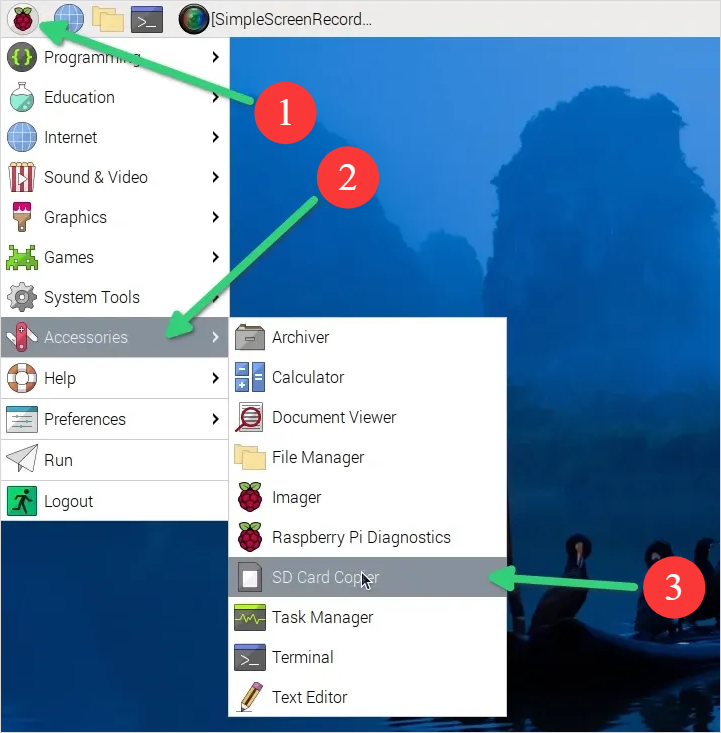
Step 2. Launch SD Card Copier: From the main menu: Accessories > SD Card Copier.
Step 3. Configure the clone options:
- Copy from device: Select the Micro SD card
- Copy to device: Select the SSD
- Check "New partition UUIDs" to avoid boot conflicts
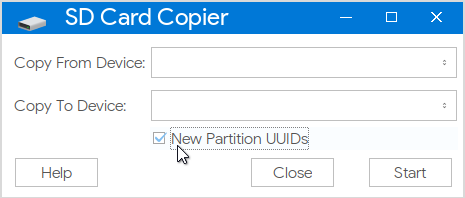
Step 4. Click "Start" and wait for completion.
Method 2. Clone Raspberry Pi SD Card to SSD via EaseUS Disk Copy
Best for: Windows users, cross-platform cloning, and advanced partition management
EaseUS Disk Copy provides a comprehensive professional solution for users who prefer working within the familiar Windows environment. This powerful software excels at cloning Raspberry Pi SD cards through a sophisticated yet user-friendly interface that brings enterprise-grade disk management capabilities to home users.
Beyond simple cloning, it offers advanced features like sector-by-sector cloning for perfect bit-for-bit copies, intelligent partition resizing to optimize larger SSD storage, and flexible copy options that accommodate various migration scenarios in Windows 11/10/8/7.
For Raspberry Pi enthusiasts who maintain their systems from Windows computers or need reliable disaster recovery options, EaseUS Disk Copy delivers professional results without requiring Linux command-line expertise.
Step-by-Step Instructions:
Step 1. Download EaseUS Disk Copy on your Windows computer and activate it.
 Free Download
Windows 11/10/8/7
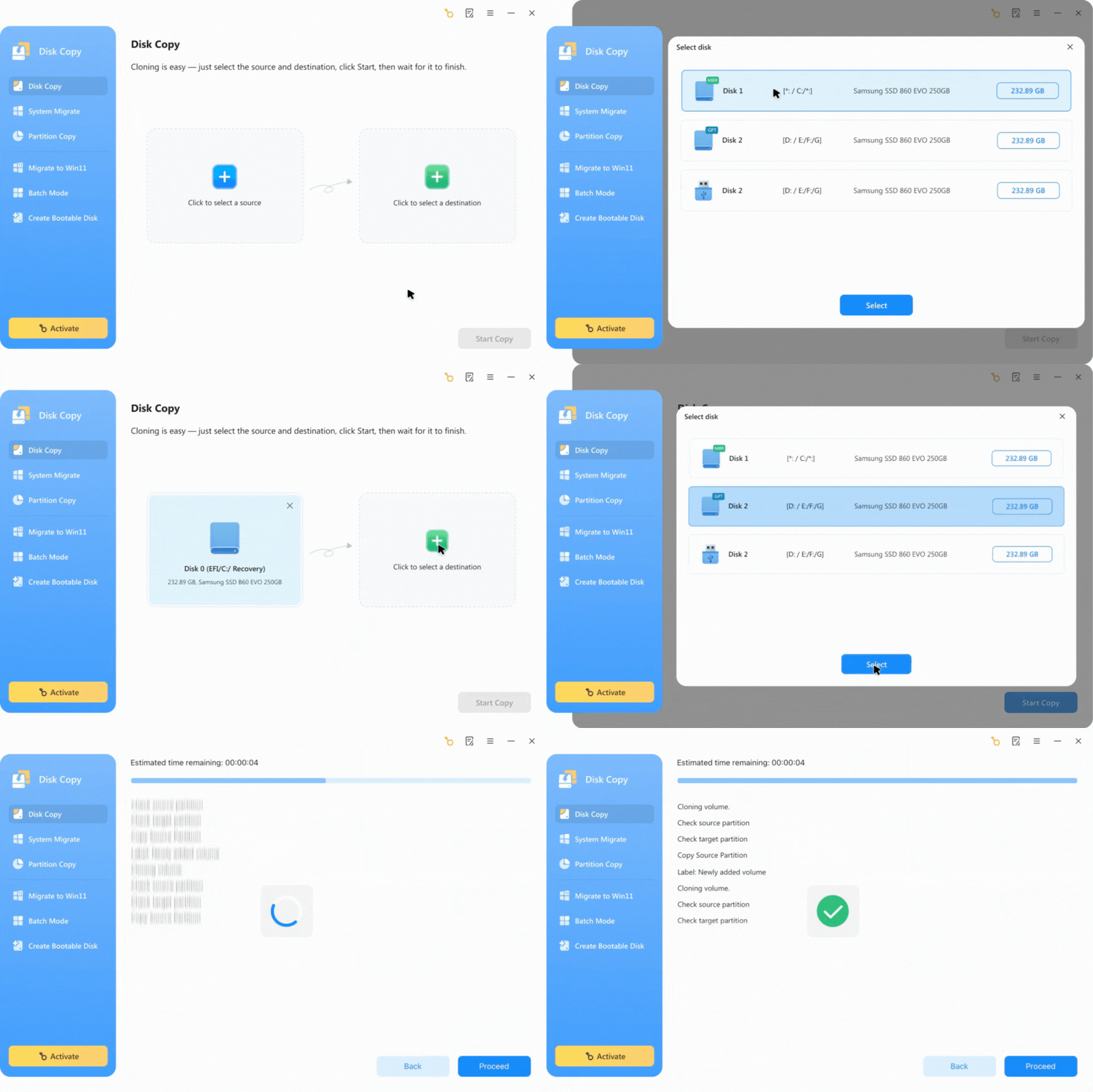
Step 2. Connect the SSD and the Micro SD card of the Raspberry Pi to your computer via adapter and SD card reader.
Step 3. Clone the Micro SD card to the SSD with the on-screen instructions.
- Select the Micro SD card as the source disk.
- Select SSD as the target disk.
Method 3. Raspberry Pi Clone SD Card to SSD with Command Line
Best for: Advanced users, automation, custom configurations, headless setups
Command line methods provide unparalleled precision and control, favored by experienced users for direct hardware access and scriptable automation. Cloning a Raspberry Pi SD card to an SSD via command line is best achieved using the rpi-clone tool for an active system, or dd for a block-level copy. We'll cover both here.
Option 1. Clone Raspberry Pi SD Card Using rpi-clone
Step 1. Install rpi-clone
sudo apt install git
git clone github.com
cd rpi-clone
sudo cp rpi-clone* /usr/local/sbin/
Step 2. Identify your SSD
lsblk
Step 3. Run the clone command
sudo rpi-clone sda -f
Step 4. Finalize
Follow the prompts to initialize and label the disk (e.g., "boot"). The script will handle unmounting.
Step 5. Shutdown and Boot
Shut down the Pi, remove the SD card, and boot from the cloned SSD.
Option 2. Clone Raspberry Pi SD Card Using dd
Warning: dd creates an exact byte-for-byte copy and is risky if the destination is smaller than the source.
Step1. Identify devices
lsblk
Step 2. Clone the card:
sudo dd if=/dev/mmcblk0 of=/dev/sda bs=4M status=progress
if is input (SD), of is output (SSD).
Step 3. Sync
Run sync to ensure all data is written before removing the drive.
Conclusion
Migrating your Raspberry Pi from SD card to SSD or NVMe is one of the most impactful upgrades you can make. Whether you choose the simplicity of SD Card Copier, the Windows-friendly EaseUS Disk Copy, or the powerful command line methods, you'll enjoy dramatically improved performance and reliability.
Final Recommendations:
- For most users: Start with Method 1 (SD Card Copier)
- For Windows environments, Method 2 (EaseUS Disk Copy) offers excellent features
- For power users: Method 3 provides ultimate flexibility
- For Raspberry Pi 5: Consider NVMe for maximum performance
Ready to upgrade? Start with backups, choose your method, and prepare for a significantly faster Raspberry Pi experience.
FAQs About Cloning Raspberry Pi SD Card to SSD
1. Can I clone my Raspberry Pi SD card to a smaller SSD?
Yes, but only if the used space on your SD card is less than the SSD's capacity. You'll need to either:
- Shrink your SD card partitions first
- Use EaseUS Disk Copy's partition resizing feature during cloning
2. Do I need to update the bootloader when cloning to NVMe?
For Raspberry Pi 4 and later models with NVMe boot capability, yes. Run:
sudo rpi-eeprom-update -d -a
Ensure your bootloader is from July 2023 or later for full NVMe support. For USB-attached SATA SSDs, usually no bootloader update is needed, but you may need to enable USB boot in raspi-config.
3. Why won't my Raspberry Pi boot from the cloned SSD?
Common solutions include:
- 1. Check boot order: Run sudo raspi-config > Advanced Options > Boot Order
- 2. Update PARTUUID: Use sudo blkid to get SSD's PARTUUID and update /boot/cmdline.txt
- 3. Power issues: Ensure SSD has adequate power via powered USB hub
- 4. Incompatible filesystem: Some SSDs need sudo fsck /dev/sda2 to repair
- 5. For NVMe: Verify PCIe adapter compatibility and firmware updates
-
Updated by
![]()
Larissa
Larissa has rich experience in writing technical articles and is now a professional editor at EaseUS. She is good at writing articles about data recovery, disk cloning, disk partitioning, data backup, and other related knowledge. Her detailed and ultimate guides help users find effective solutions to their problems. She is fond of traveling, reading, and riding in her spare time.…Read full bio