Page Table of Contents

Upgrading to a new SSD or replacing a failing hard drive often raises one big question: Windows installation. The old drive is where your system installs, and if you want to replace it, you need to install Windows on the new drive. To install Windows, you need to create a bootable medium, such as a USB drive, DVD, or CD. Can you install Windows without a USB if you have none available?
The good news is yes: you absolutely can. In this guide, we'll show you how to install Windows on a new drive without a USB drive, covering both a no-reinstall cloning method and a clean install using an ISO file. Whether you want to keep your system exactly as it is or start fresh, you'll find the right solution here.
Way 1. Transfer Windows to Different Drive via Cloning
If you want to install Windows on a different drive without a USB drive or reinstalling, disk cloning is the fastest and simplest solution, as cloning software can migrate your system to a new hard drive while leaving your data on the old drive.
Unfortunately, Windows does not have a cloning solution, so you must use third-party cloning software to migrate your Windows operating system. EaseUS Disk Copy is a top performer in this field.
EaseUS disk cloning software is perfect for SSD upgrades or disk replacement while keeping all programs, settings, and files. As one of the best OS cloning software, it can help you directly migrate your Windows operating system from one disk to another with a few simple clicks without any boot issues.
Download this disk cloning software to help you clone an OS to a new hard drive or upgrade your hard drive without reinstalling Windows!
 Free Download
Windows 11/10/8/7
Here is how to clone Windows OS to another drive using EaseUS Disk Copy:
Step 1. Connect the new disk
For laptops with only one slot, use a SATA-to-USB adapter or an external hard drive enclosure to connect the new drive externally; for desktops, install it internally.
Step 2. Run EaseUS OS clone software
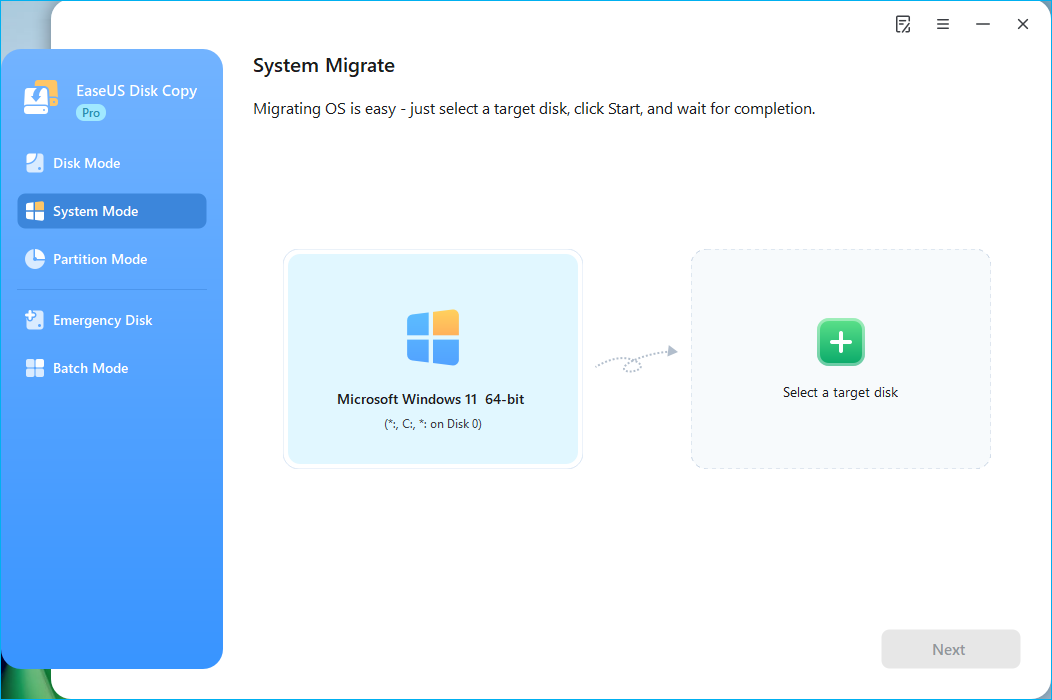
- Install and launch EaseUS Disk Copy, and select System Mode.
- The software will automatically choose the OS and its related partitions; you only need to select the target disk.
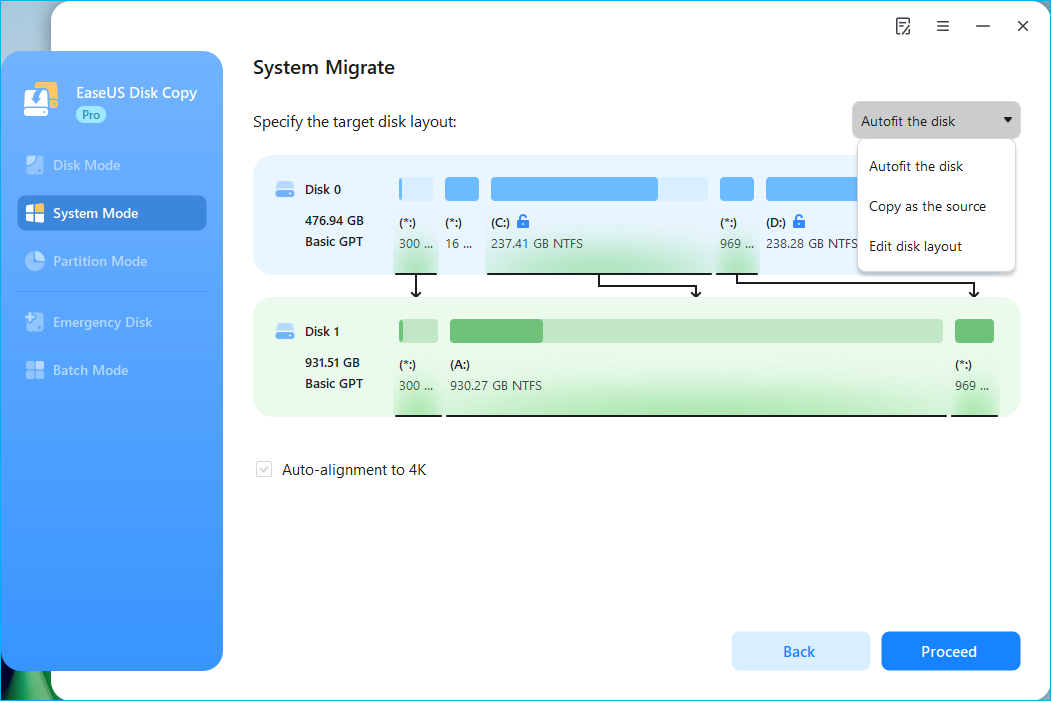
Adjust target disk layout if necessary.
- "Auto-fit the disk" ensures your Windows system makes optimal use of the target disk's capacity.
- "Copy as the source" creates a 1:1 copy of your source disk; the disk layout is identical to the source disk.
- "Edit disk layout" allows you to manually adjust the partition layout on the destination disk.
Step 3. Start cloning OS
Confirm the warning message, then start the OS cloning process; it will begin cloning Windows and its related partitions to the new disk.
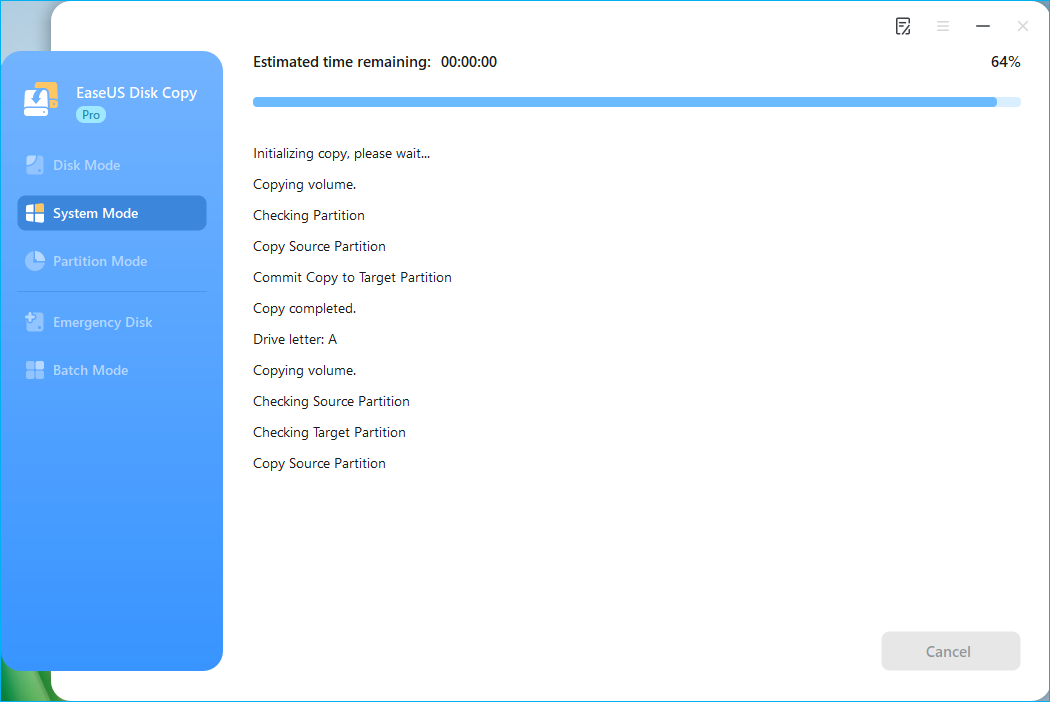
Step 4. Boot from the new drive
After cloning, shut down your computer, physically replace the old drive with the new one, restart, enter BIOS/UEFI (F2, Del, Esc, etc.), and set the new drive as the primary boot device. Save the changes and restart your computer.
If you have some issues when replacing the hard drive or booting from the new drive, refer to:
- Notice:
- If you want to migrate Windows, all your programs, and files to another drive, choose Disk Mode for a full disk transfer.
This video shows how to clone your current Windows installation to a new SSD using EaseUS Disk Copy:
Share this article on social media to help others fins a way to install Windows without using a USB drive!

Way 2. Clean Install Windows from ISO File Without USB
If you don't want to use a third-party tool to install Windows on a new hard drive without a USB, you can clean install Windows using an ISO file. For a clean install of Windows without the USB, mount the ISO and run setup.exe, select a custom install to the new drive.
Here is how to install Windows without using external media, using an ISO file instead:
Step 1. Go to the Microsoft official site and click Download now to download the Media Creation Tool setup.exe file.
Step 2. Double-click on the setup file to launch the Tool.
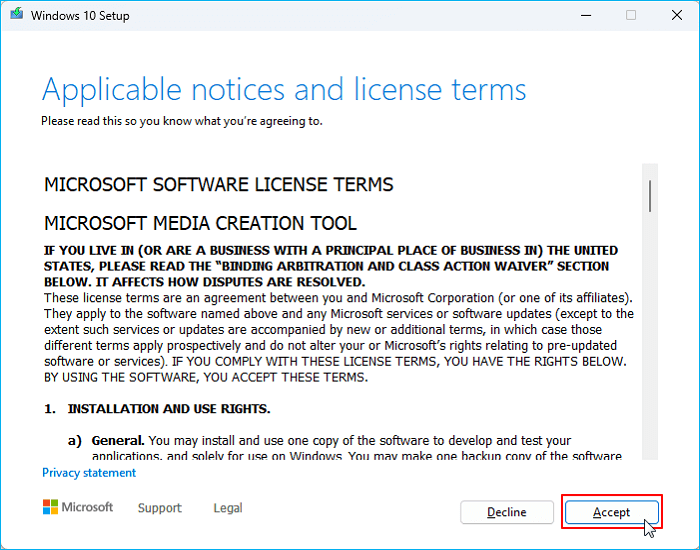
Step 3. Click Accept.
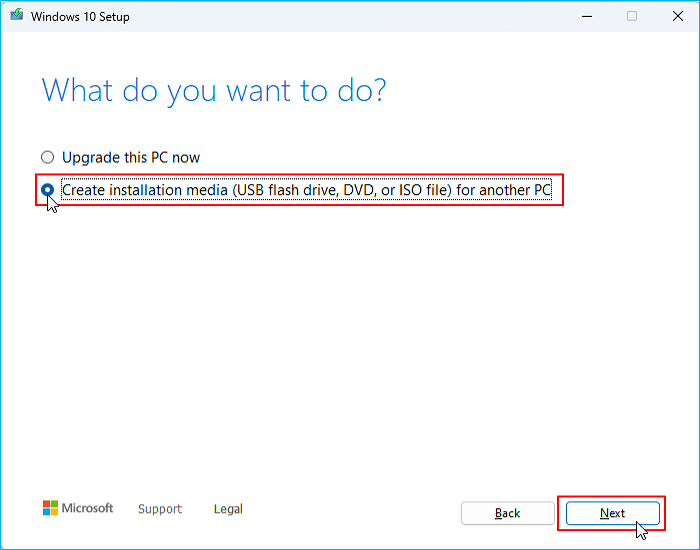
Step 4. Choose Create installation media for another PC.
Step 5. You can select Use the recommended options for this PC or customize the system's language, architecture, and edition.
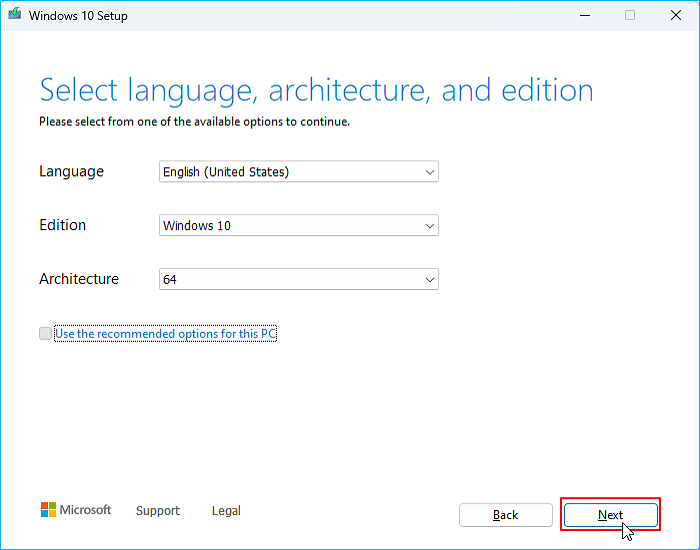
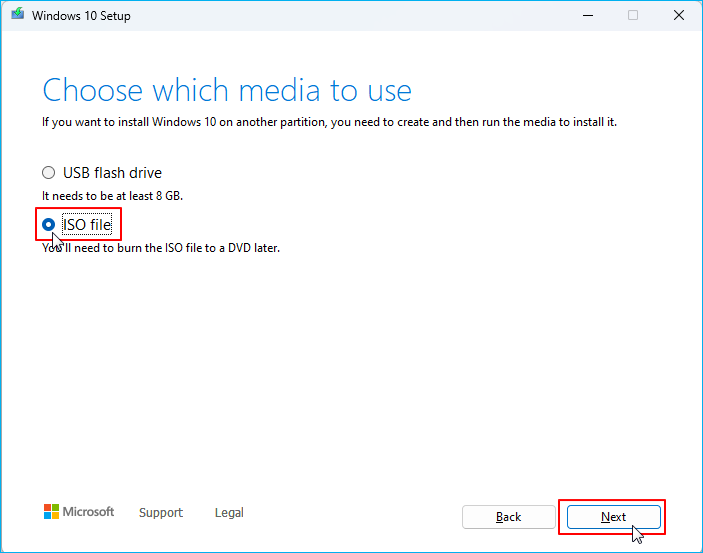
Step 6. Select ISO file. (You can connect the new hard drive to your PC and select it to store the ISO file.)
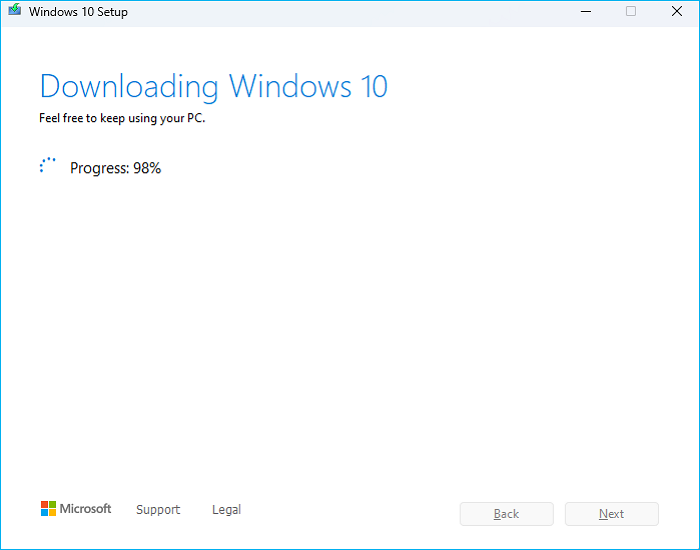
Step 7. The Media Creation Tool will download the Windows ISO file to the selected hard drive or the selected location on your PC.
Note: For Windows 11, you can download the Windows 11 ISO directly from the Windows download page.
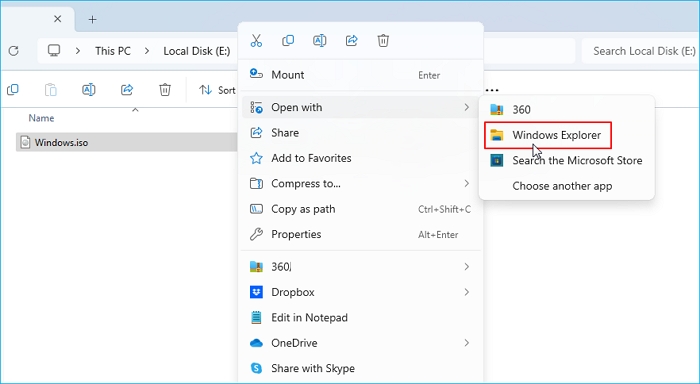
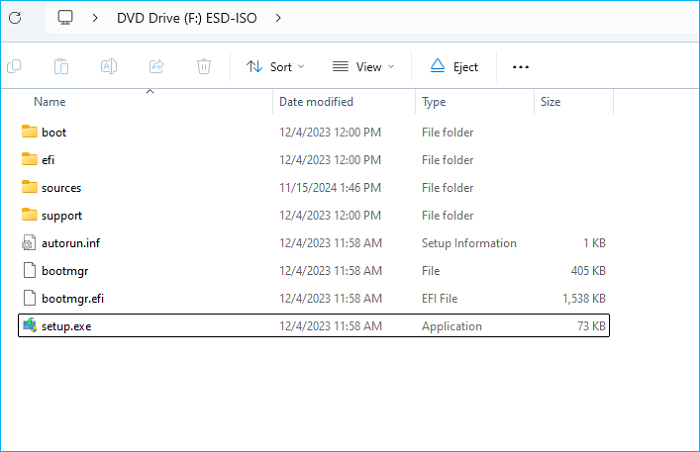
Step 8. Find the ISO file, right-click it, and open it with Windows Explorer.
Step 9. Double-click the setup.exe file to begin the Windows installation.
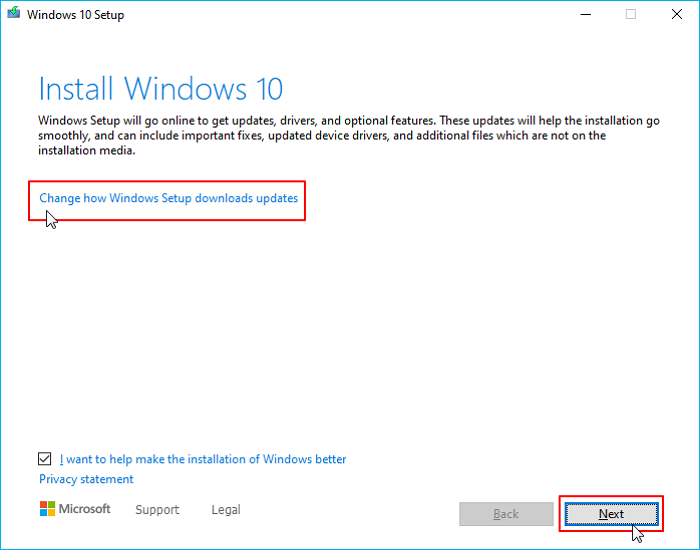
Step 10. Choose Change how Windows Setup downloads updates >> Not right now >> Next.
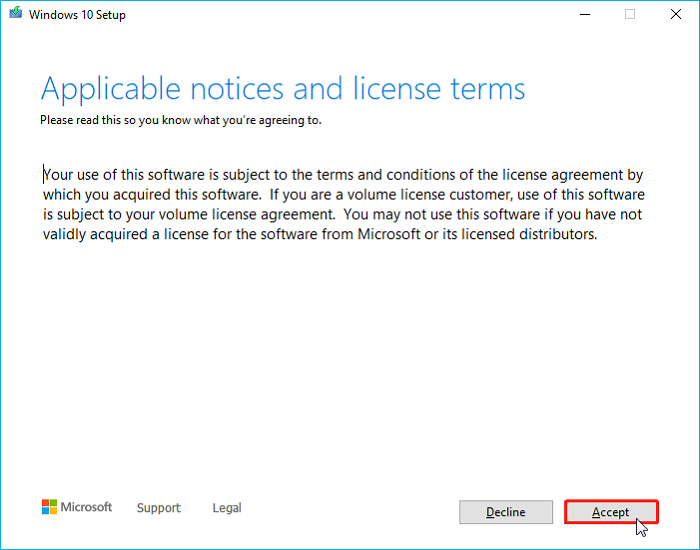
Step 11. Click Accept.
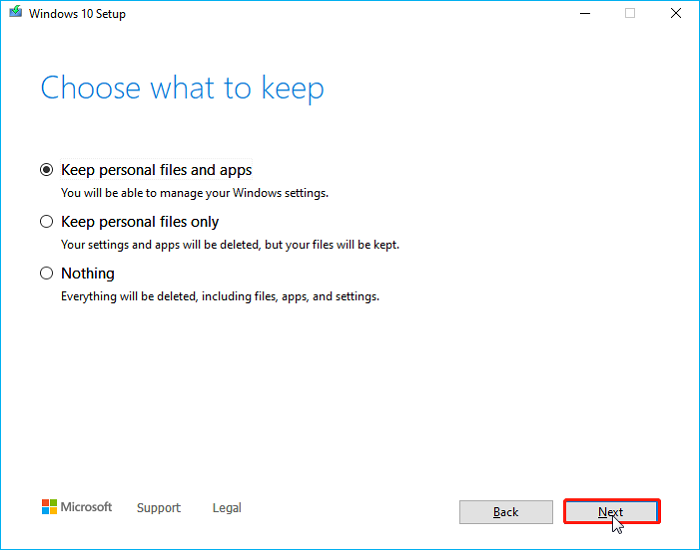
Step 12. Choose what you want to keep.
Step 13. Follow the on-screen instructions, then select the new drive for installation to complete the Windows installation process.
- Note:
- This method requires a valid Windows license and requires reinstalling all applications.
To Wrap Things Up
Installing Windows on a different hard drive without a USB is entirely feasible. For most users, we recommend cloning with EaseUS Disk Copy as it is simple, fast, and preserves all existing settings and data. A clean install from an ISO file is more suitable for users who want to start with a fresh system or whose current system has issues.
For SSD upgrades, disk failures, or system migrations, EaseUS Disk Copy offers the most reliable solution for both beginners and professionals. Just download and use it to clone a hard drive or migrate your OS to another drive without a USB drive!
Free Download
Windows 11/10/8/7
FAQs on Installing Windows on New Drive Without USB
1. Can you install Windows on a different drive without using a USB?
Yes, you can install Windows on a different drive without a USB by mounting the ISO and running setup.exe, and selecting a custom install to the new drive or by cloning your existing installation to the new drive using specialized software like EaseUS Disk Copy.
2. How can I clean install Windows 11 from Windows 10 without USB?
You can clean install Windows 11 directly from Windows 10 using either Microsoft's built-in installation methods (Windows Update or Installation Assistant) or by downloading the ISO file and mounting it.
3. Can I move Windows to a new SSD without reinstalling?
Yes. Using disk cloning software like EaseUS Disk Copy or Clonezilla, you can migrate Windows to a new SSD without reinstalling the OS or losing data.
4. Will Windows remain activated after cloning?
Yes, Windows usually remains activated after cloning if you keep the same motherboard, since activation is tied to the core hardware (CPU/motherboard), not the drive. Changing hardware, especially the motherboard, often requires reactivation. Cloning to a new drive in the same PC is generally fine and requires no Windows activation.
-
Updated by
![]()
Jerry
"I hope my articles can help solve your technical problems. If you are interested in other articles, you can check the articles at the bottom of this page, and you can also check my Facebook to get additional help."…Read full bio