Page Table of Contents

Cloning the Windows operating system to a new SSD is a wise choice to upgrade the hard drive without reinstalling the OS from scratch, and you can keep all files and settings on the new disk. However, while migrating the OS to the new SSD, most users choose to use third-party software to clone the OS since Windows donesn't come with an inbuilt disk cloning tool. Is there a way to clone Windows 10 TO SSD without software?
This post from EaseUS will give you an answer and tell you how to do it with step tutorials. Keep reading.
📚PAGE CONTENT:
Can I Clone Windows 10 to SSD Without Software
❓User Case: "How do I migrate or clone Windows 10 HDD or SSD without software and without data loss?" - post from Quora
Do you have the same question to clone hard drive without software? Is it possible?
❗ANSWER: There is no direct way to clone Windows 10 OS to SSD because Windows doesn't have a built-in disk cloning utility. But you can use Backup and Restore to create a system image on an external drive, and then restore system image Windows 10 to the new SSD.
Backup and Restore is a Windows utility that allows users to create a Windows system image and backup files/folders. It was first introduced in Windows 7, and also works on Windows 10 and 11.
🚀Tips: Using Backup and Restore to create a system image and restore it requires 2 main actions. If you want to make the process easier, cloning with professional software is the best option. We'll also show you how to do it safely and easily with EaseUS software in the following part.
Tutorial: Move Windows 10 to SSD with Backup and Restore
Now, follow the guide below to create a system image and restore it on SSD with Backup and Restore. Remember to prepare an external hard drive to save the system image, and connect it to your Windows 10 computer.
1️⃣Guide 1. How to Create a Windows 10 OS Image
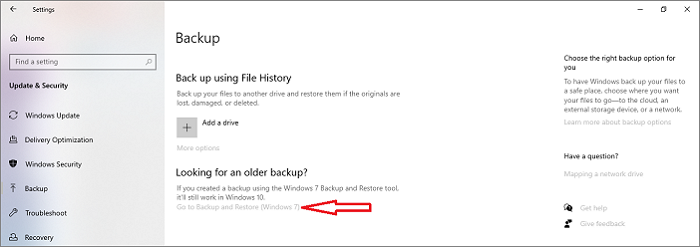
Step 1. Type Backup settings in the search bar and open it. Then click on Go to Backup and Restore(Windows 7).
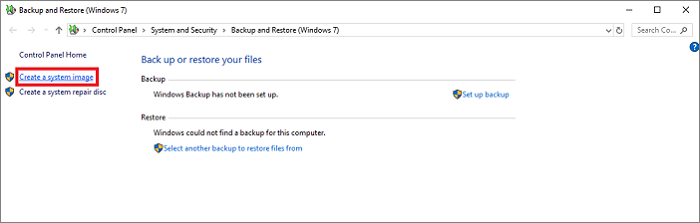
Step 2. Click on the Create system image on the left panel.
Step 3. The next window will let you choose a location for the backup image. You can choose a hard drive, DVD, USB, or Network location. After selecting a location, click Next. (You should browse and choose the external hard drive as the target location.)
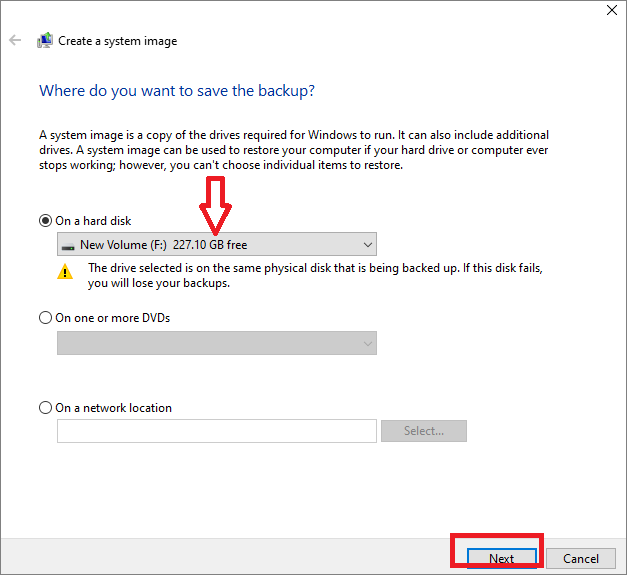
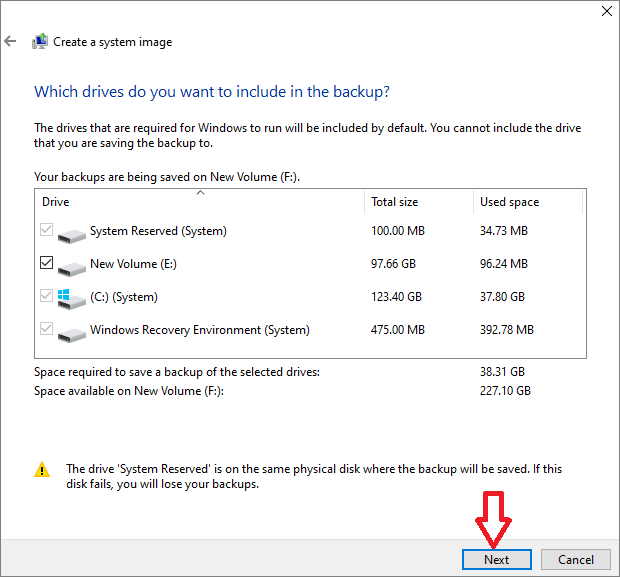
Step 4. On the next page, choose and check the drivers and partitions you want to include in the backup, and click Next.
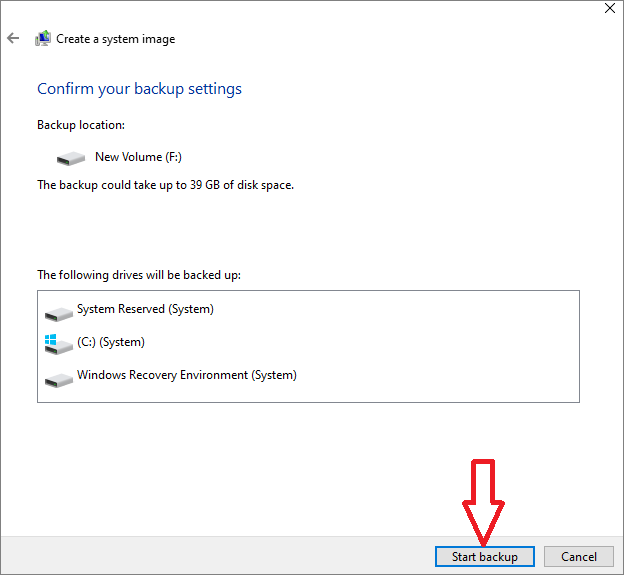
Step 5. Confirm the backup settings you've made, and click the Start backup button to start. When it is completed, you'll get a Windows 10 image backup on your external hard drive.
2️⃣Guide 2. How to Restore Windows 10 OS Image to SSD
Before doing this, turn off your computer, replace the old hard drive with the SSD, and make sure it can be recognized. Also, connect the backup external hard drive to your computer.
Step 1. Restart your computer and enter the BIOS settings by pressing F2/F8F12/Del.
Step 2. In the BIOS, set the external hard drive containing the recovery image as the primary boot drive, save the changes, and exit.
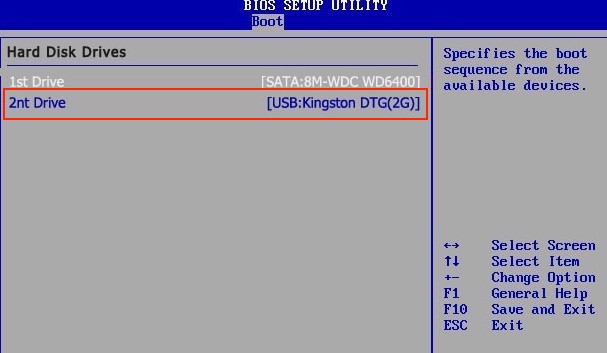
Step 3. Restart your computer and press F8 to access the Advanced Options windows when the system is booting.
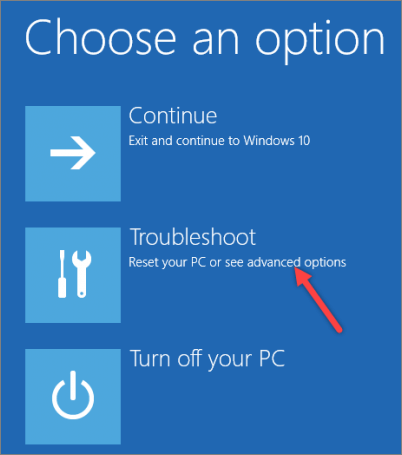
Step 4. Click Troubleshoot under the Choose an option windows.
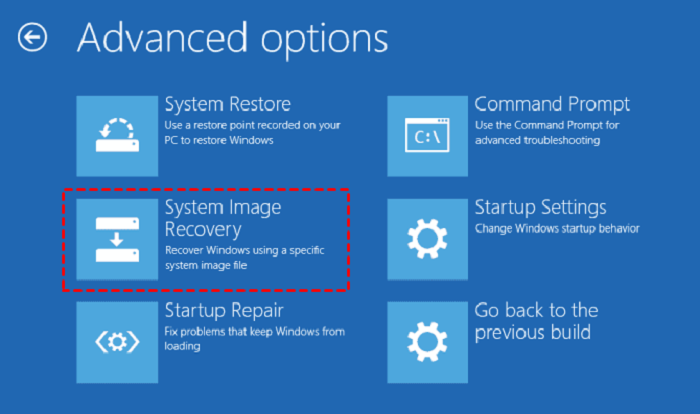
Step 5. Click System Image Recovery under the Advanced options window.
Step 6. Select Windows 10, and then tick Use the latest available system image, and click Next.
Step 7. Select Format and repartition disks, and then complete the system image restoration process by clicking on Next, followed by Finish, and then clicking on Yes.
Share the post on social media to help others clone Windows 10 easily.
Easy and Safe Way to Clone Windows 10 to SSD Without Reinstallation
As you can see above, using Backup and Restore to migrate Windows 10 to SSD requires many steps and is time-consuming. If you follow any of the steps by mistake, you may fail.
To make the process easier and ensure a smooth and safe Windows 10 OS migration, using professional disk cloning software is necessary. EaseUS Disk Copy is a reliable one that you can trust with confidence. This tool is specially designed to clone disks/partitions, migrate OS, and create bootable external hard drive. By using it, you can easily migrate Windows 10 to SSD without reinstalling or losing any data.
In addition, EaseU Disk Copy allows you to adjust the disk layout to your preference to maximize SSD performance. What are you waiting for? Download and use it now.
 Free Download
Windows 11/10/8/7
To clone Windows 10 to SSD with EaseUS Disk Copy only requires four simple clicks.
Before cloning:
- Install or connect the destination disk that you want to move OS to your computer, and make sure it can be appropriately recognized.
- Ensure the target HDD or SSD has enough capacity to accommodate your system files.
Step 1. Launch EaseUS Disk Copy and choose System Mode.
Install EaseUS Disk Copy system migration software on your computer, launch it, and choose System Mode. EaseUS Disk Copy will select the current system you use by default, including all system-related files and boot sectors.
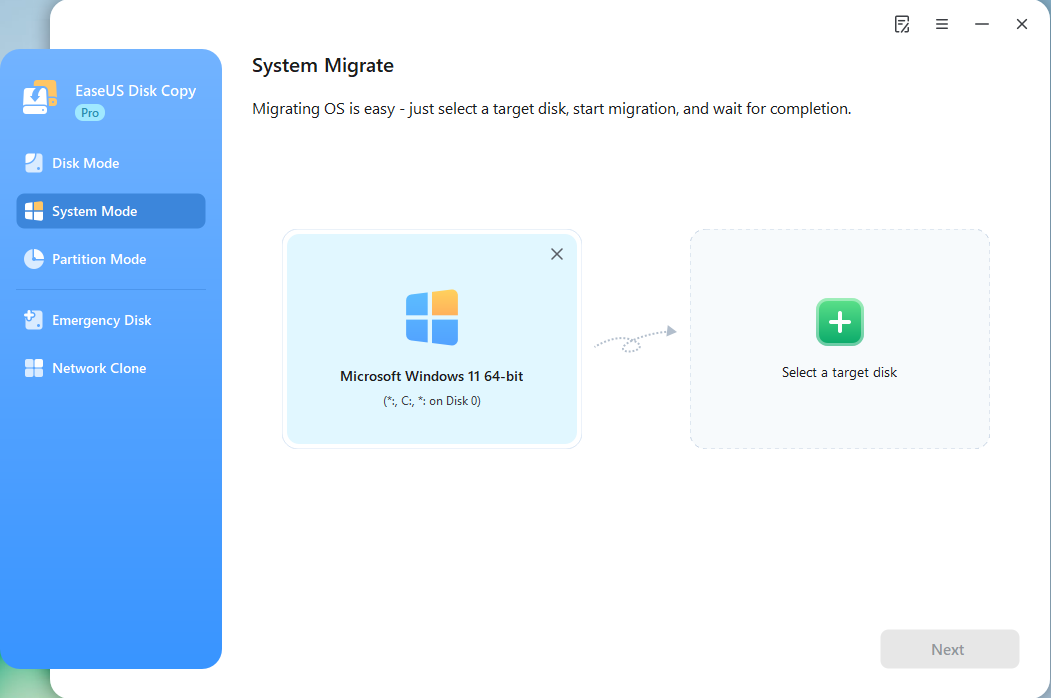
*If you apply dual-boot system, you can select another system by yourself.
Step 2. Select the target HDD/SSD.
Choose the destination HDD/SSD that you want to move OS to.
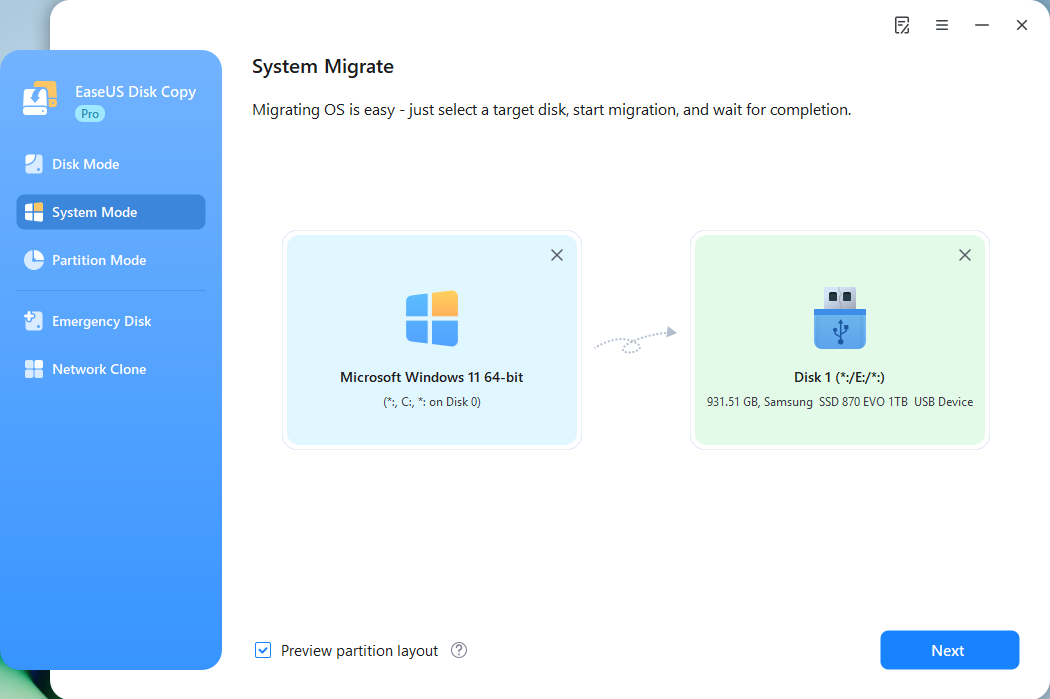
Step 3. Adjust target disk layout.
Specify the target layout as your preference. You can choose among:
- Autofit the disk: makes some changes by default on the destination disk layout so that it can work at its best.
- Copy as the source: create a 1-to-1 copy of your source disk, the layout is the same as the source disk.
- Edit disk layout: allows you to manually resize/move the partition layout on this destination disk.
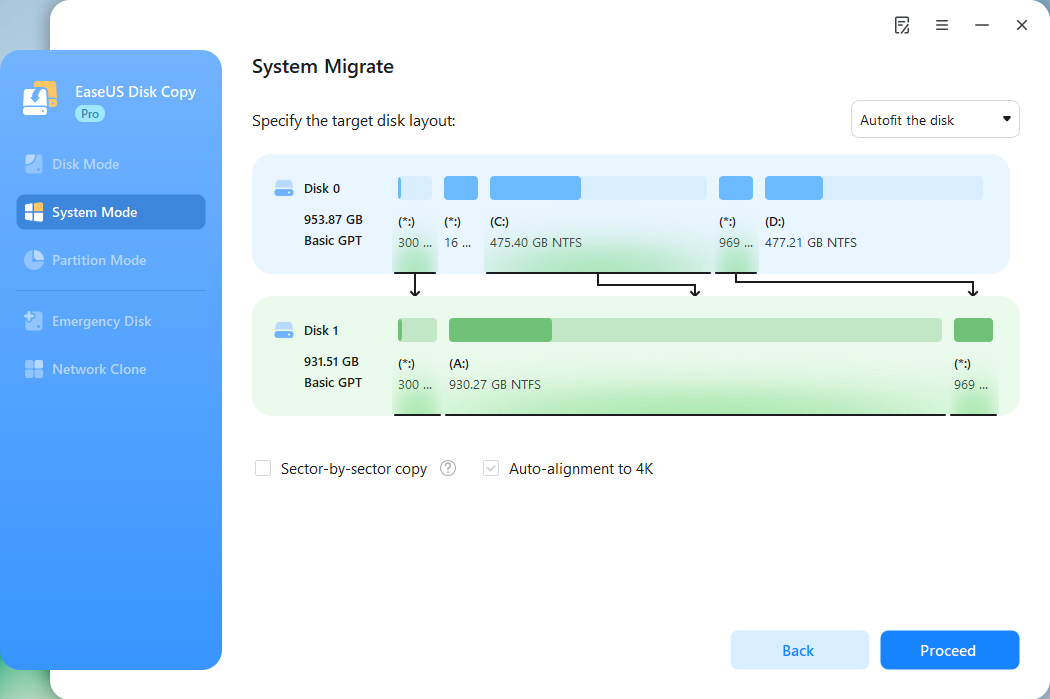
*The option Auto-alignment to 4K will be checked automatically to optimize the performance of your SSD.
Step 4. Start cloning OS.
Click Proceed, and a message will appear, warning you that data will be lost. Confirm the message by clicking Continue. Now, it will start cloning OS to the new disk.
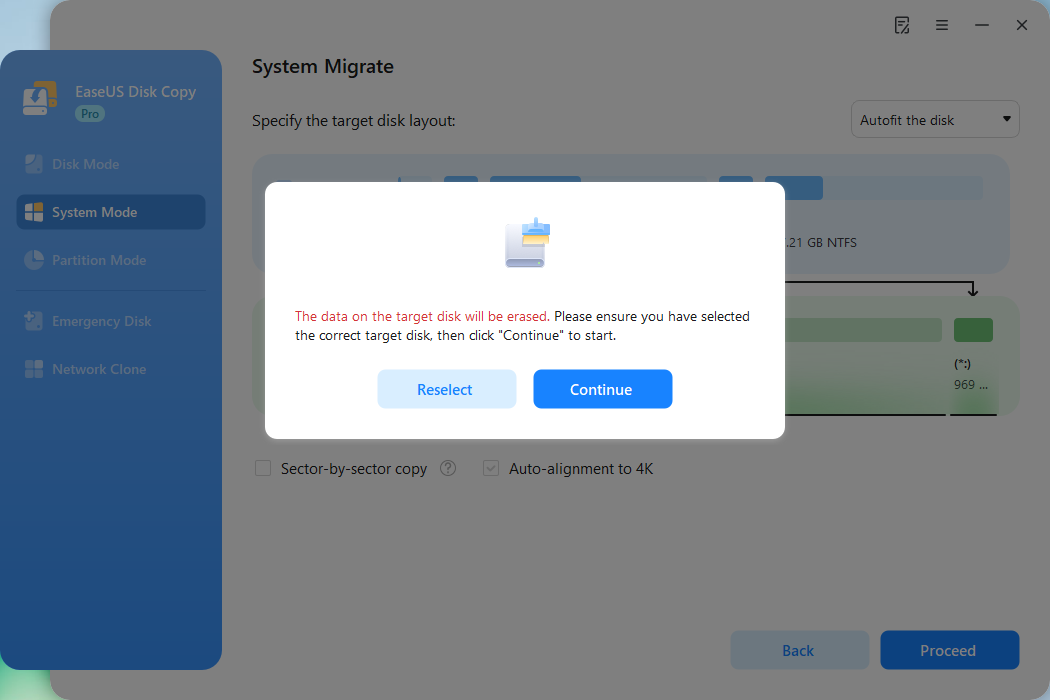
Now, it will start cloning OS to the new disk.
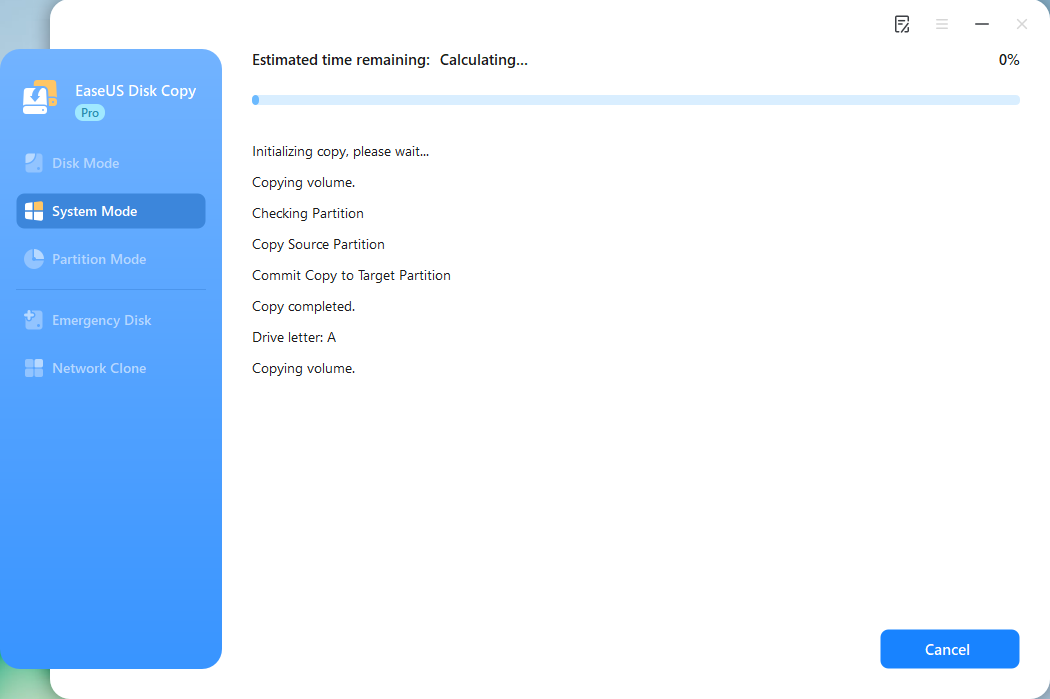
Share the post on social media to help others clone Windows 10 easily.
The Final Words
Although it is possible to clone Windows 10 to an SSD without using software such as Windows backup and restore, it is time-consuming, and has the risk of data loss during the complex procedure.
EaseUS Disk Copy provides a simple and efficient method for cloning your Windows 10 operating system to an SSD, ensuring a smooth and seamless transition. With its user-friendly interface and powerful features, EaseUS Disk is a reliable option for anyone looking to upgrade their system to an SSD without the hassle of complex procedures.
Free Download
Windows 11/10/8/7
FAQs About Cloning Windows 10 to SSD Without Software
1. How to clone Windows 10 to SSD without reinstallation and keep all files?
To safely clone Windows 10 to SSD without reinstallation and keep all files, you need a professional and reliable OS migration tool, and EaseUS Disk Copy is such one. You can clone Windows 10 to SSD with the steps below:
- Connect the SSD to your Windows 10 computer.
- Launch EaseUS Disk Copy, and it will pop up a window asking you if you want to migrate OS to the new drive.
- Click the Yes button, adjust the disk layout, and click Proceed to start cloning Windows 10 OS to SSD.
2. Is there a free tool to clone OS to SSD?
Yes, the free tools that can clone OS to SSD include Clonzilla, Rescuezilla, Samsung Data Migration, etc. However, these tools require certain experiences because of their complicated operation, and some have the limitations of SSD brands and models. If you are a beginner and want to make the process easier, you can try these paid ones, such as EaseUS Disk Copy, which can migrate OS to SSD with three simple clicks.
3. What to do before cloning SSD?
Before cloning SSD, you are supposed to:
- Prepare a new SSD that is compatible with your computer, and ensure it has enough storage to accommodate the source disk.
- Choose a reliable SSD cloning software to migrate all data without any loss.
- A USB-to-SATA cable or SSD adapter is used to connect the SSD to the computer.
-
Updated by
![]()
Larissa
Larissa has rich experience in writing technical articles and is now a professional editor at EaseUS. She is good at writing articles about data recovery, disk cloning, disk partitioning, data backup, and other related knowledge. Her detailed and ultimate guides help users find effective solutions to their problems. She is fond of traveling, reading, and riding in her spare time.…Read full bio