Page Table of Contents

A cloned bootable SD card is a useful tool that lets you install an operating system on another storage device, enabling it to boot on a host-compatible device. Whether you are troubleshooting, recovering data, or transferring an OS between devices, learning to clone bootable SD card is essential.
We will start by outlining the reasons that may demand cloning an SD card. We'll then list the preparations you need to make before initiating the process. After that, you'll learn about the most efficient tool for cloning your SD card to another. Keep reading.
| Key Takeaways: How to Clone a Bootable SD Card to Another |
|
1️⃣Step 1. Download & install EaseUS Disk Copy. 2️⃣Step 2. Connect both SD cards to the PC via SD card readers. 3️⃣Step 3. Launch EaseUS SD card clone software. 4️⃣Step 4. Select the source and target SD card in Disk Mode. 5️⃣Step 5. Click Proceed to transfer data from one SD card to another. |
Why Clone a Bootable SD Card
Cloning a bootable SD card is essential to ensure data integrity, system continuity, and ease of upgrades or replacements. Here's why cloning a bootable SD card is important:
1
Data Backup
Cloning is a fail-safe method that preserves all data, including configurations and boot attributes. This protects against risks like accidental deletions, formatting errors, or corruption, ensuring quick and comprehensive recovery.
2
Data Transfer to Another SD Card
Cloning simplifies migration to larger or better-performing cards as storage needs grow. It ensures the system and boot functionality remain intact, unlike manual copying, which may miss critical boot files.
3
Upgrading or Replacing the SD Card
SD cards wear out over time. They may develop insufficient storage over time. Cloning enables seamless transitions to new cards (such as Raspberry Pi SD cards) without losing data or functionality, saving time and effort.
4
Creating an Additional Bootable Card
For systems like Raspberry Pi that might need multiple identical setups, cloning guarantees that the new SD card mirrors the original in data and operational capabilities. In essence, cloning safeguards vital data and supports system efficiency and scalability.
Share this article on social media to help others find a way to clone a bootable SD card!
What to Do Before Cloning a Bootable SD Card
To make the cloning process smooth and error-free, you need to prepare. Here's what to do before cloning a bootable SD card:
- Backup data on the destination SD card: Cloning will overwrite all existing data on the target SD card. If the card's data contains important information, back it up so you won't lose it forever.
- Connect both SD cards to your computer: Use external SD card readers to connect the source and destination SD cards. Confirm that your computer recognizes both cards correctly.
- Check the storage capacity of the destination SD card: Ensure it has enough space to hold all data from the source card. It must match or exceed the storage capacity required by the source card's data.
- Download reliable SD card cloning software: Windows lacks built-in cloning tools, so you need to choose a reliable cloning software. Disk cloning tools like EaseUS Disk Copy can handle a wide range of storage devices and file systems, including NTFS, FAT32, and EXT4. Such software is handy for cloning HDDs, SSDs, or SD cards.
 Free Download
Windows 11/10/8/7
Completing these preparatory steps will set the stage for a successful and efficient cloning operation while safeguarding your data and system integrity.
How to Clone Bootable SD Card with EaseUS Disk Copy
EaseUS Disk Copy is the best disk clone software for disk cloning, partition migration, and operating system migration from a source disk. Besides this, it also supports numerous storage devices like hard drives, SSDs, USB drives, and SD cards.
This tool is efficient because it supports the sector-by-sector disk copy of the source SD card to the destination. It keeps the integrity of the data and maintains the bootable attribute. It's perfect for SD card upgrading, backing up, or migrating without file loss. What more? The tool offers an easy interface for beginners and advanced users alike.
Here is how to clone an SD card to another using EaseUS Disk Copy:
Before cloning:
- If your computer has only one slot, connect the target disk to your machine via a USB-to-SATA/NVMe adapter.
- If your computer has an extra slot, install the target disk into the empty slot properly, and make sure it is compatible.
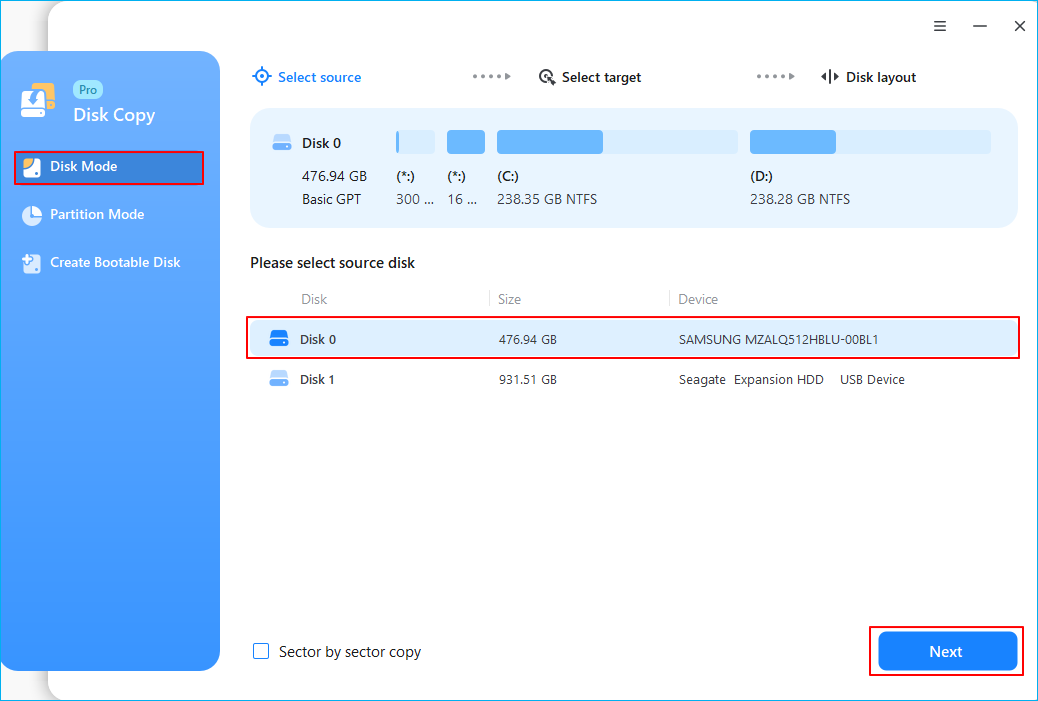
Step 1. Launch EaseUS Disk Copy and choose Disk Mode.
Install EaseUS Disk Copy cloning software on your Windows computer, then launch it and select Disk Mode from the left panel.

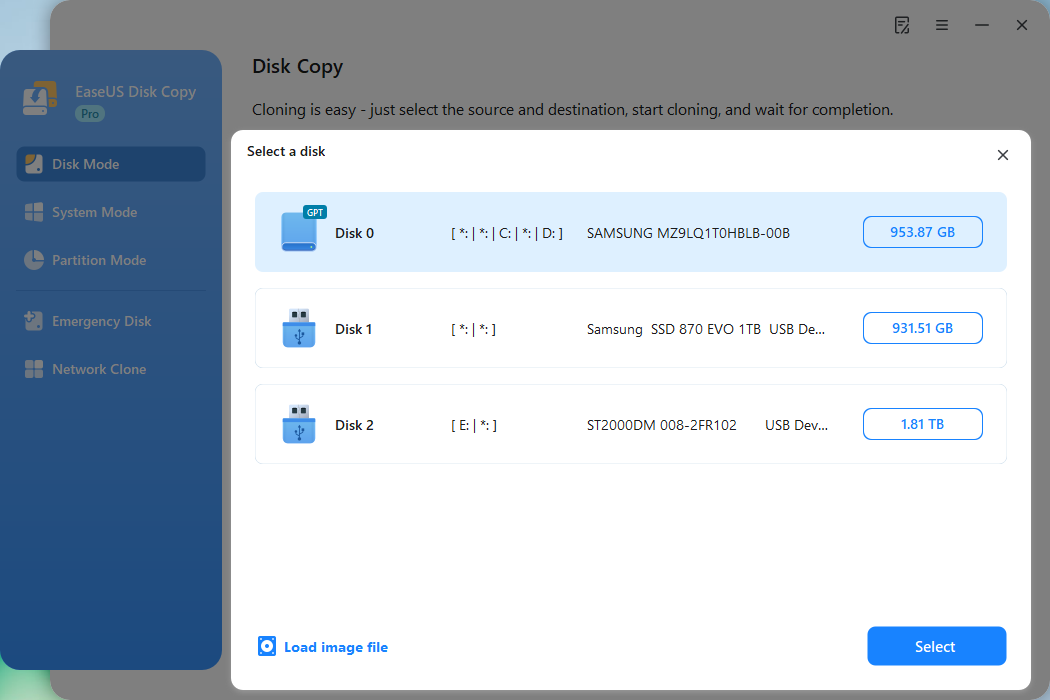
Step 2. Select the source drive.
Select the drive you want to copy, then click Select.
Step 3. Choose the target disk.
Choose the disk that you want to clone data to, and click Select. Note that the used space of the source disk should be less than the target disk capacity.
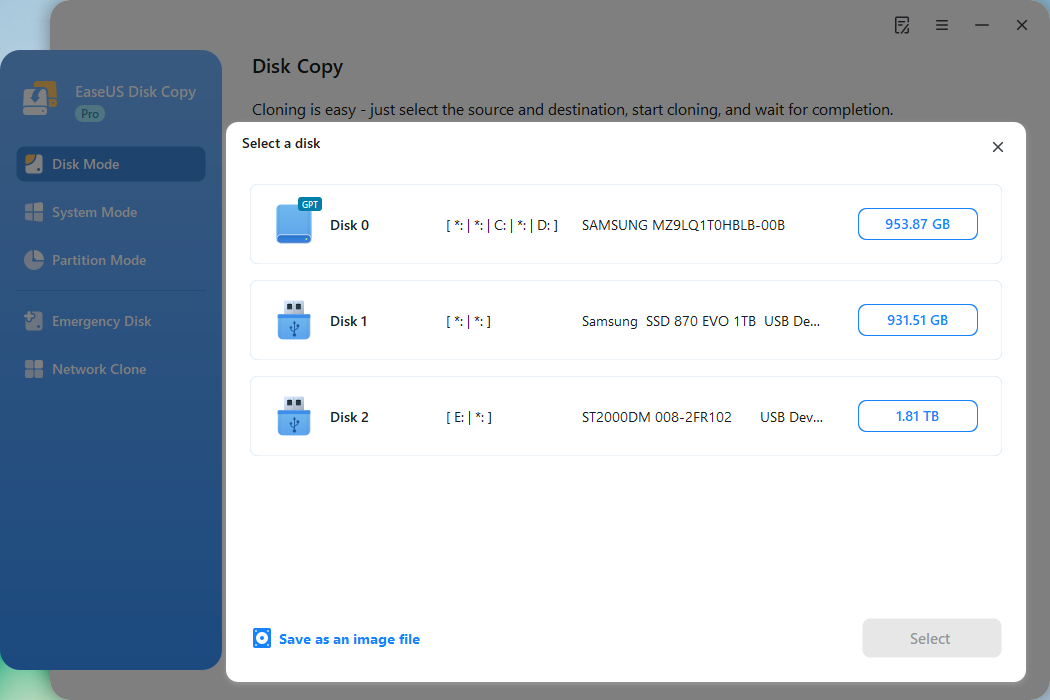
*At this step, you can also click the option "Save as an image file" to store your disk as a compressed image file, which can be restored without any data loss.
Step 4. Adjust disk layout.
Specify the target disk layout as your preference. You can choose among:
- Autofit the disk: makes some changes by default on the destination disk layout so that it can work at its best.
- Copy as the source: create a 1-to-1 copy of your source disk; the layout is the same as the source disk.
- Edit disk layout: allows you to manually resize/move the partition layout on this destination disk.
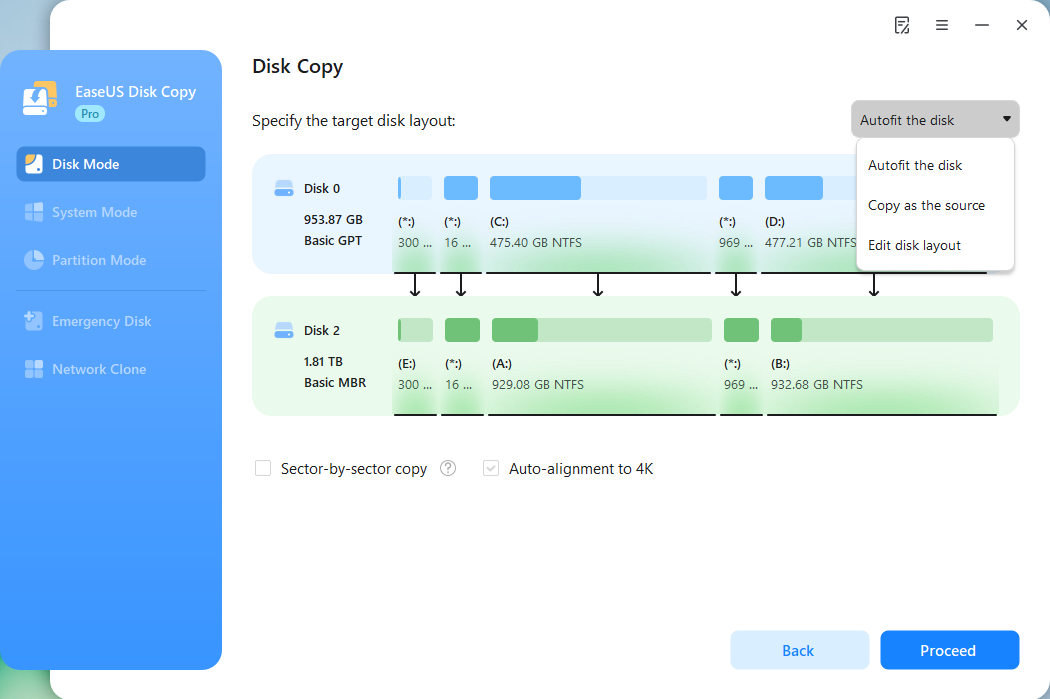
*If the target disk is an SSD, the option "Auto-alignment to 4K" will be checked automatically to optimize the performance of your SSD.
Step 5. Start cloning.
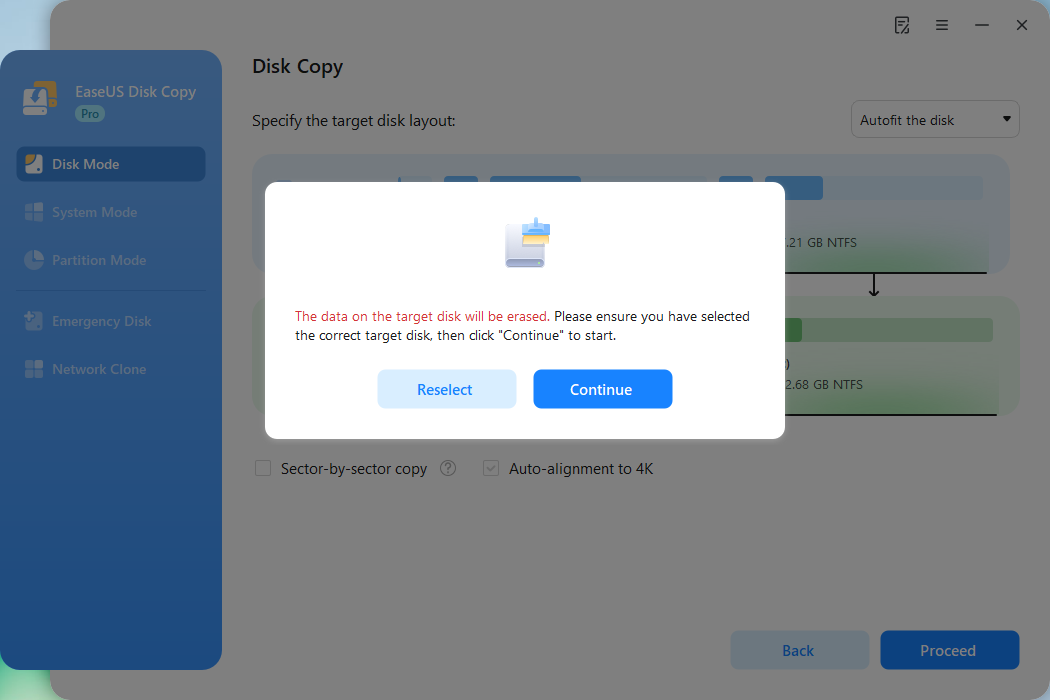
Click Proceed, and a message will appear, warning you that data will be lost. Confirm the message by clicking Continue.
Now, it will start executing the cloning task.
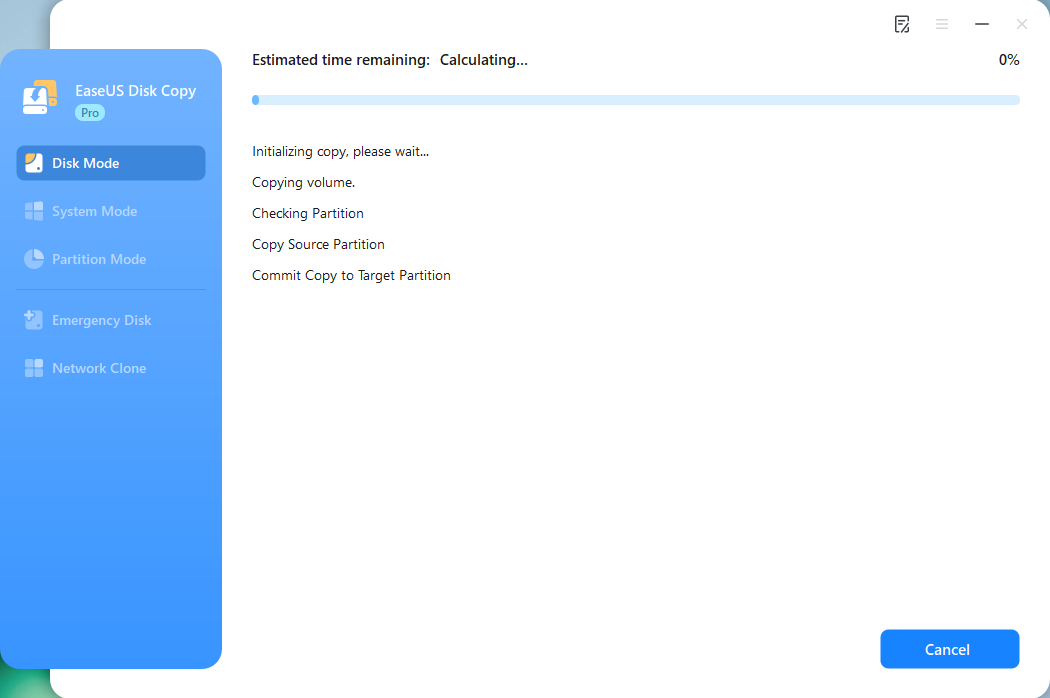
*The time it takes to clone a hard drive depends on how much data is on the source disk, and it will also be affected by the disk types, USB connection, etc.
Download the best disk cloning software to clone your SD cards!
Free Download
Windows 11/10/8/7
Bonus Tip: Other Ways to Clone Boot SD Card
To clone a bootable SD card, you can use dedicated cloning software like EaseUS Disk Copy, but you can also try tools like Win32 Disk Imager (Windows) or Linux command-line tools like dd to create a bit-for-bit copy from the original card to a new one. The process involves reading the source SD card into an image file and then writing that image file to the target SD card, using card readers to connect the cards to your computer.
Here is how to use Win32 Disk Imager to clone a bootable SD card:
Step 1. Insert Original Card: Connect the source SD card into your PC via the SD card reader.
Step 2. Create Image: Open Win32 Disk Imager, select the source SD card, choose a location to save the .img file, and click "Read" to create the image.
Step 3. Insert New Card: Eject the old SD card and insert the new or larger SD card.
Step 4. Write Image: Select the new card as the target, choose your saved .img file, and click "Write" to clone.
Here is how to use dd to clone a bootable SD card:
Step 1. Insert Source SD Card & Identify Device:
- Plug in the source SD card via the SD card reader.
- Open Terminal and run sudo fdisk -l (Linux) or diskutil list (macOS) to find its device name (e.g., /dev/sdb, /dev/disk2).
Step 2. Unmount the Source:
- sudo umount /dev/sdX1 (replace sdX1 with the actual partition, or unmount all partitions like sdX if unsure).
Step 3. Create the SD Card Image File (on your PC):
- sudo dd if=/dev/sdX of=~/sd-card-backup.img bs=4M status=progress (Use bs=4M for faster copies; status=progress shows activity).
Step 4. Insert Destination SD Card & Identify:
- Remove the source, insert the new, larger SD card into the PC.
- Run sudo fdisk -l or diskutil list again to find its device name (e.g., /dev/sdc, /dev/rdisk2).
Step 5. Write Image to New SD Card:
- sudo dd if=~/sd-card-backup.img of=/dev/sdY bs=4M status=progress && sync (Replace sdY with the new device; sync flushes data).
Share this article on social media to help others find a way to clone a bootable SD card!
Conclusion
This article explored how to clone bootable SD card to another. You may want to do this for backup purposes or to expand storage. You can also clone your bootable SD card to another one if you've discovered it's wearing out. Preparation is key before initiating the cloning process. Try EaseUS Disk Copy today to efficiently clone your bootable SD card.
The tool guarantees the safety of your files during and after the SD card cloning process. Its sector-by-sector cloning feature ensures you move all files from the source to the destination. It also supports different SD card brands. Download this tool now to clone your bootable SD card efficiently.
Free Download
Windows 11/10/8/7
FAQs About Cloning Bootable SD Card
1. Is It Possible to Clone Bootable SD Card?
The answer is YES. You can do that efficiently using a clone tool. Try EaseUS Disk Copy today to efficiently clone your bootable SD card to another. Cloning allows you to move all the contents of your bootable SD card to another without altering anything.
2. Can Rufus clone a SD card?
No, Rufus can't clone SD cards, but it can help image the SD card to another. If you want to create a copy of the original SD card, you can write the image to another SD card. But this is not cloning, as there are differences between them.
3. How to Make an SD Card Bootable?
You need special software like Rufus to boot up an SD card. Here's how:
- Step 1. Download your Windows 11/10 ISO file.
- Step 2. Download and run Rufus, the popular tool for creating bootable drives.
- Step 3. Choose the SD card from the list of devices. Pick FAT32 as your preferred file system.
- Step 4. Browse for the downloaded ISO image and select it.
- Step 5. Once you've set up everything, click the Start button to start burning the ISO file on your SD card. Once done, you'll have a bootable SD card.
4. How do I clone an SD card on a Mac?
To clone an SD card on a Mac, the methods involve using Disk Utility for a simple image/restore or the powerful Terminal with the dd command for a sector-by-sector copy, both creating an image file first and then writing it to a new SD card; you'll need an SD card reader and to identify your SD card's disk name using diskutil list before unmounting and copying the data.
-
Updated by
![]()
Jerry
"I hope my articles can help solve your technical problems. If you are interested in other articles, you can check the articles at the bottom of this page, and you can also check my Facebook to get additional help."…Read full bio