







Content
Page Table of Contents
About the Author
Hot Topics
Passwords protect your Windows computer and personal files, but forgetting the login password can lock you out of your system completely. This problem is still common for users running older systems such as Windows 7, especially on legacy laptops or office PCs.
When you forget Windows 7 password and are locked out of Windows 7, a password reset USB allows you to reset or remove the Windows password and regain access to the system.
In this guide, you will learn:
- How to download or create a Windows 7 password reset USB
- How to reset a Windows 7 password using a USB drive
- How to create a bootable password recovery USB for any PC
Before getting started, there are a few important things you should know.
- 🚩 A password reset disk created with the Windows built-in tool must be made before you forget your password.
- 🚩 You do not need to recreate the disk even if you change your Windows password later.
- 🚩 The built-in password reset USB only works on the computer where it was created.
If you need a Windows 7 password reset USB for another locked computer, you can use a professional tool like EaseUS Partition Master, which allows you to create a bootable password reset disk for any PC. You can jump to Part 3 to learn how it works.
Windows 7 Password Reset USB Free Download/Create
A Windows 7 password reset disk is a removable drive (USB flash drive or CD/DVD) that helps you reset your Windows login password when it is forgotten. Once you create the disk, it can be reused anytime you forget the password. This feature is built into Windows and can be created using the Forgot Password Wizard.
Below is the official method to create password reset USB on Windows 7.
Step 1. Insert a USB Flash Drive
- Connect a USB flash drive to your computer.
💡 Note: Creating a password reset disk normally will not format the USB drive, but it is still recommended to back up important files first.
Step 2. Open Create Password Reset Disk
- In the search box on the taskbar, type Control Panel, and then choose it from the list of results.
- In the Control Panel search box, type create password reset and select "Create a password reset disk". This will launch the Forgot Password Wizard.
Step 3. Select the USB Device
In the Password Reset Wizard:
- Click Next
- Select your USB flash drive
- Click Next
Step 4. Enter Your Current Password
- Type the current Windows 7 account password and click Next.
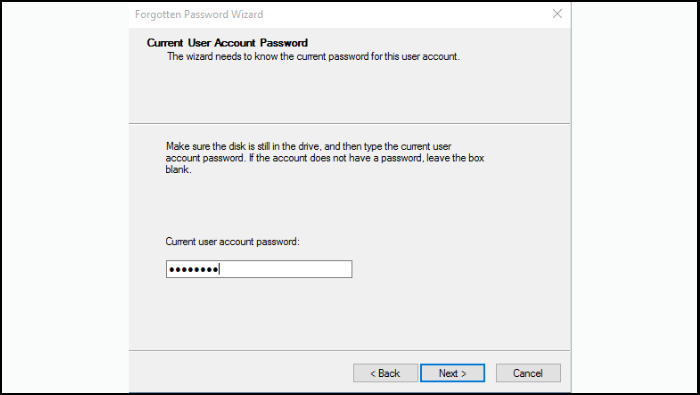
- Windows will create the password reset disk automatically.
Step 5. Finish the Process
When the progress reaches 100%, click Finish. Remove the USB drive and store it in a safe place. This USB can now be used as a Windows 7 password recovery disk.
If the Password Reset Wizard does not open, refer to this Microsoft post for help.
Share this post and let more users learn how to download a Windows 7 password reset USB for free.

How to Use a Windows 7 Password Reset USB
If you forget your Windows 7 password later, you can use the password reset USB to unlock your PC.
Follow these steps:
Step 1. Insert the Windows 7 password reset USB into the locked computer.
Step 2. On the login screen, enter an incorrect password. Windows 7 will display the Reset Password option.
Step 3. Click Reset Password to launch the Password Reset Wizard.
Step 4. Select the password reset USB and click Next.
Step 5. Enter a new password and password hint, then click Next. Then, click Finish to complete the process and log in with the new password.
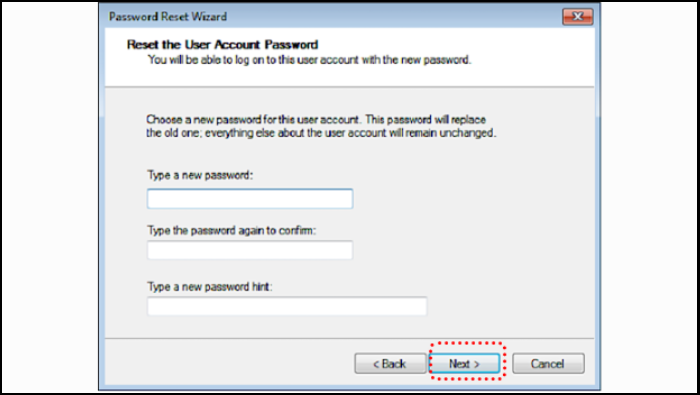
Create Windows 7 Password Reset USB for Any PC
The built-in Windows tool works well, but it has several limitations:
- The password reset disk must be created before the password is forgotten
- It only works on the same computer
- It cannot reset passwords on other locked Windows PCs
If you are already locked out of your PC or need to unlock another computer, a bootable password reset tool is a better solution. EaseUS Partition Master provides a feature called Password Reset, which allows users to create a bootable Windows password reset USB that works on multiple PCs.
With this method, you can reset, bypas, or remove passwords on Windows 7/8/10/11 systems, even if the computer is already locked. Here is how to create a password reset disk for any Windows PC:
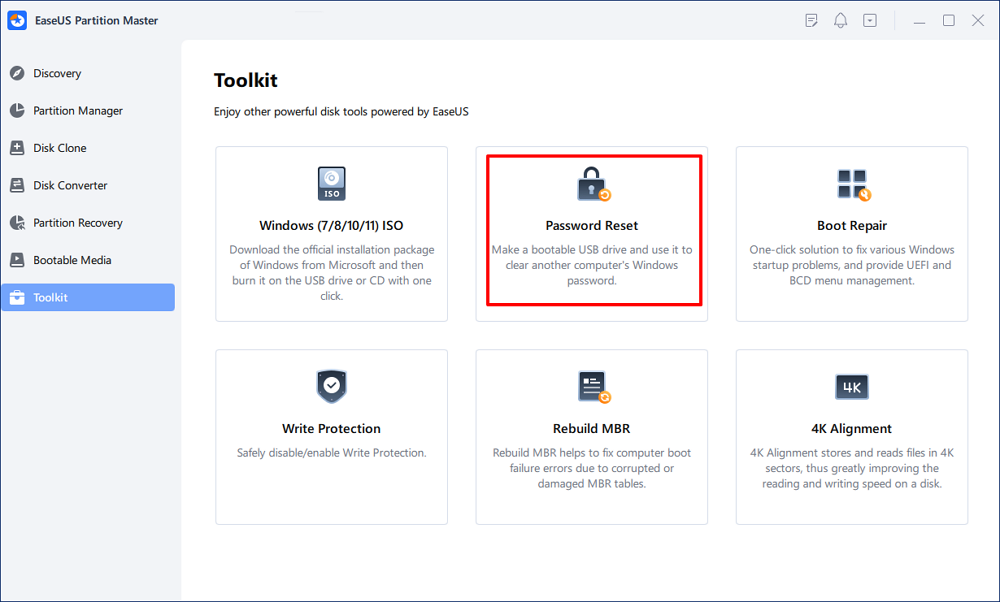
Step 1. Insert the target USB disk into the computer, download and run EaseUS Partition Master, and click "Toolkit" > "Password Reset."
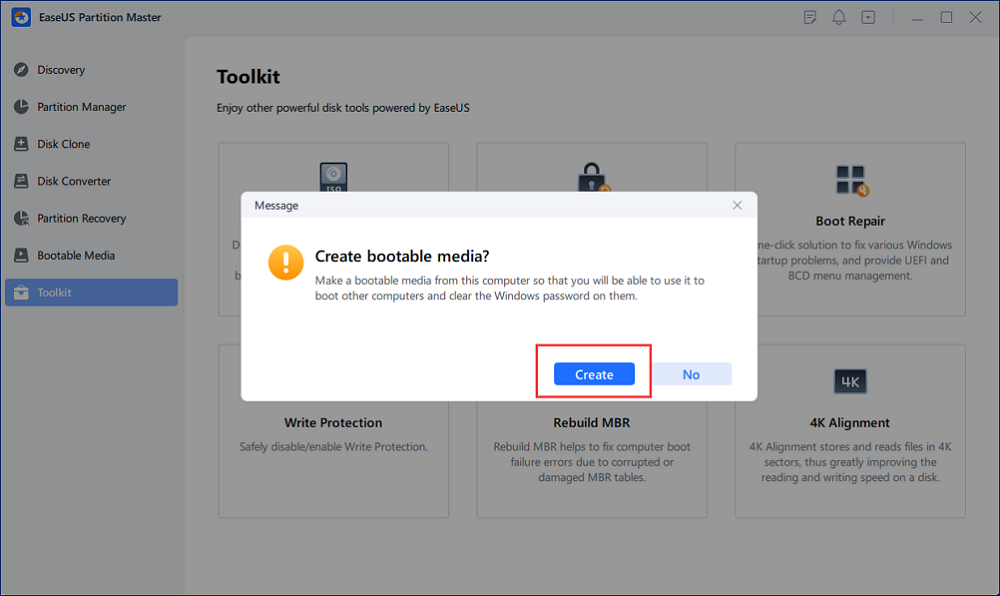
Step 2. A small window will pop up. After reading it carefully, click "Create".
Step 3. Select the correct USB flash drive or external mobile hard disk and click "Create" again. Wait patiently. After the password reset USB flash drive is created, click "Finish."
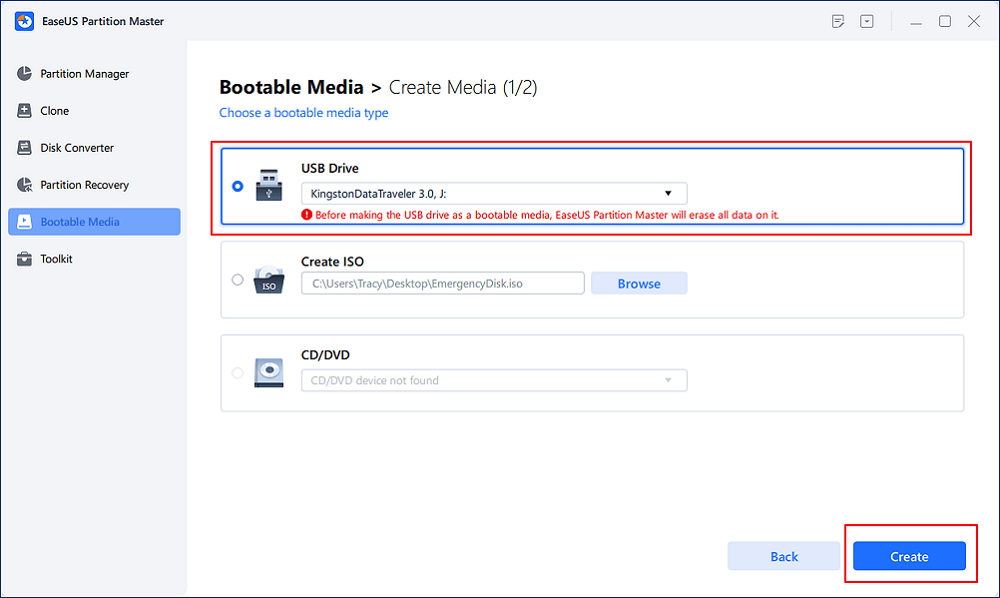
Step 4. Remove the password reset USB, insert it into the locked PC, and restart. You will be asked to change the boot drive to boot the PC from USB. Once completed, the system will automatically boot from USB.
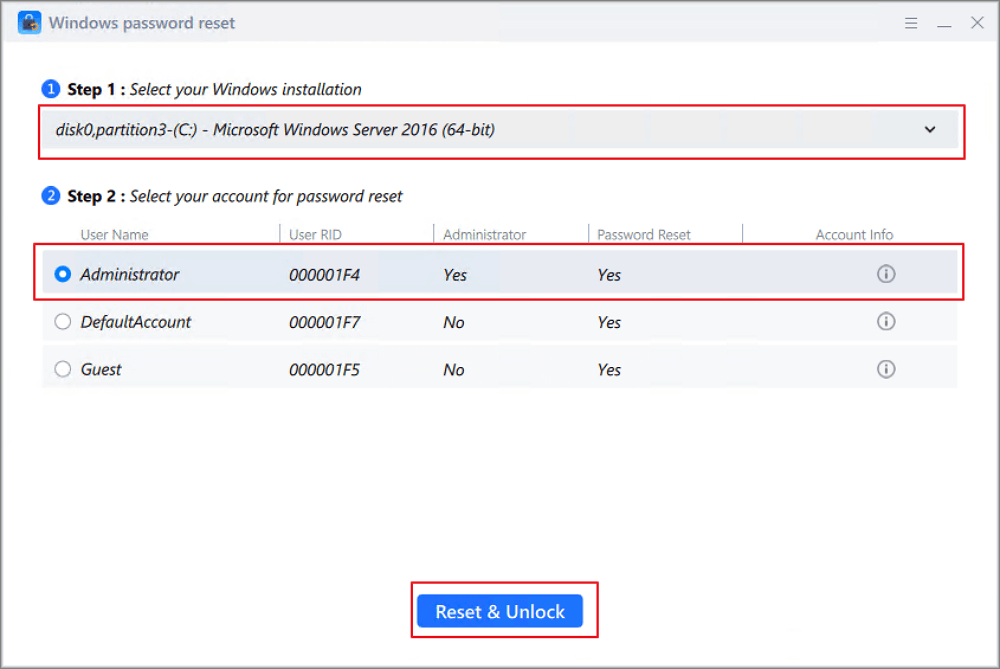
Step 5. After restarting, find EaseUS Partition Master again and go to "Password Reset." All accounts on the PC will be displayed in the interface; click on the target account and check "Reset & Unlock."
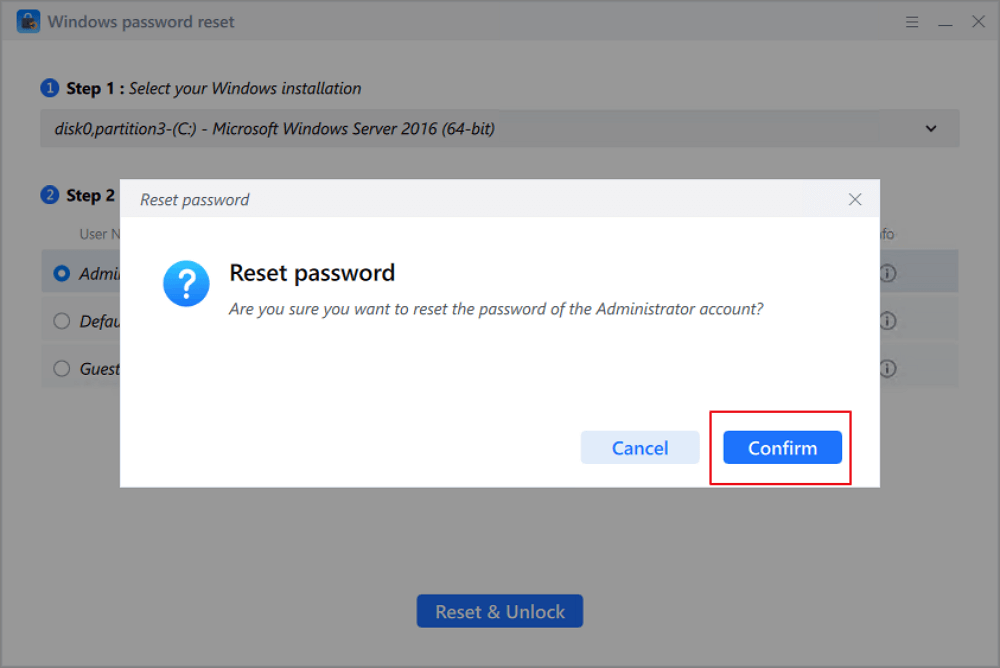
Step 6. When you receive this prompt, click "Confirm" to continue. Your password will be erased.
Conclusion
Creating a Windows 7 password reset USB is one of the easiest ways to regain access to your computer if you forget the login password. The built-in Windows password reset disk works well, but it must be created before the password is forgotten, and it only works on the original computer.
If you need a more flexible solution, tools like EaseUS Partition Master allow you to create a bootable Windows password reset USB that can unlock almost any PC. Preparing a password recovery disk in advance can save you a lot of time and prevent data loss when password issues occur.
More Questions About Windows 7 Password Reset USB
1. How do I reset my Windows 7 password if I forgot it?
If you forgot your Windows 7 password, you can reset it using several methods:
- Use a Windows 7 password reset disk
- Log in using another administrator account
- Use a bootable password reset USB
- Reset the password through Safe Mode with Command Prompt
If you don't have a reset disk prepared in advance, using a bootable password reset tool is often the easiest solution.
2. Can I create a Windows 7 password reset USB after forgetting the password?
No. The Windows built-in password reset disk tool must be created before the password is forgotten. If you are already locked out of the computer, you will need a third-party bootable Windows password reset USB created with another computer.
3. What is a Windows 7 password reset disk?
A Windows 7 password reset disk is a USB flash drive or removable media that stores encrypted information allowing you to reset the login password of a specific Windows account. Once created, the disk can be used multiple times, even if the password changes later.
4. Can I download a Windows 7 password reset USB?
Windows does not provide a direct password reset USB download. You must create one using:
- The Create Password Reset Disk feature in Control Panel
- A third-party bootable password reset tool
These tools generate a bootable recovery environment that can remove or reset Windows passwords.
5. Does a Windows 7 password reset disk erase data?
No. A password reset disk does not delete or modify your files. It only resets the login credentials associated with the Windows account, allowing you to access the system again.
6. Can I use the same password reset USB on another computer?
The built-in Windows password reset disk cannot be used on another computer because it contains account-specific encryption information.
However, bootable password reset software can create a USB that works on multiple PCs.
7. What USB size is needed for a Windows password reset disk?
A very small USB drive is enough. In most cases:
- 256 MB – 1 GB is sufficient for a password reset disk
- Bootable password reset tools may require 1–4 GB
Any standard USB flash drive should work.
How Can We Help You
About the Author

"I hope my articles can help solve your technical problems. If you are interested in other articles, you can check the articles at the bottom of this page. Similarly, you can also check my Twitter to get additional help."

Sherly joined EaseUS in 2022 and she has always loved writing articles and enjoys the fun they bring. She receives professional training here, focusing on product performance and other relative knowledge. She has written over 200 articles to help people overcome computing issues.
Product Reviews
-
I love that the changes you make with EaseUS Partition Master Free aren't immediately applied to the disks. It makes it way easier to play out what will happen after you've made all the changes. I also think the overall look and feel of EaseUS Partition Master Free makes whatever you're doing with your computer's partitions easy.
Read More -
Partition Master Free can Resize, Move, Merge, Migrate, and Copy disks or partitions; convert to local, change label, defragment, check and explore partition; and much more. A premium upgrade adds free tech support and the ability to resize dynamic volumes.
Read More -
It won't hot image your drives or align them, but since it's coupled with a partition manager, it allows you do perform many tasks at once, instead of just cloning drives. You can move partitions around, resize them, defragment, and more, along with the other tools you'd expect from a cloning tool.
Read More
Related Articles
-
Fixed: Your Password Has Expired and Must Be Changed
![author icon]() Sherly/2026/06/17
Sherly/2026/06/17 -
How to Fix Toshiba Laptop Black Screen | 100% Working
![author icon]() Cici/2026/06/30
Cici/2026/06/30 -
Surface Pro Stuck on Windows Logo - Reasons & Fixes
![author icon]() Sherly/2026/06/17
Sherly/2026/06/17 -
Fixed: We Couldn't Format the Selected Partition | 0x8004242d Error [2026 Tutorial]
![author icon]() Jean/2026/06/17
Jean/2026/06/17
 Cici/2026/06/30
  Jean/2026/06/17









