







Content
Page Table of Contents
About the Author
Hot Topics
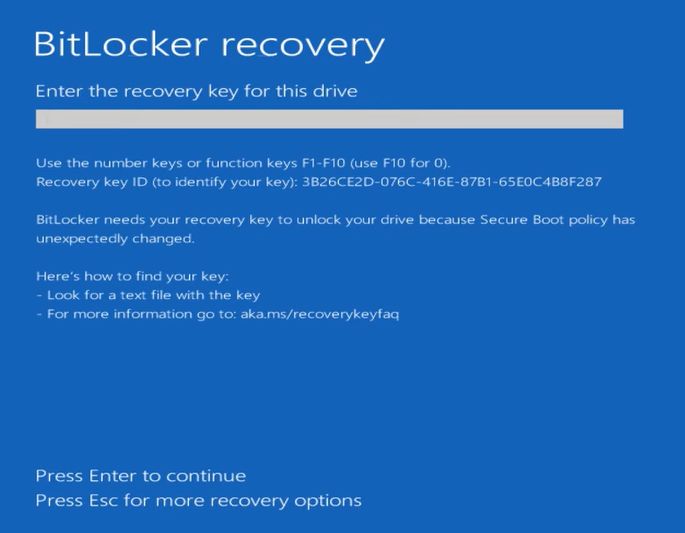 Can't Find BitLocker Recovery Key? No worries. This guide explains where BitLocker recovery keys are stored and shows two ways to retrieve a BitLocker recovery key on Windows 11/10, including situations where you cannot log into Windows. Continue reading if you can't find the BitLocker recovery key in your Microsoft account, get an error message "You don't have any BitLocker recovery keys uploaded to your Microsoft account", or are just unable to retrieve the recovery key from a USB flash drive, Active Directory, or Azure AD.
Where Can I Find the BitLocker Recovery Key?
A BitLocker recovery key is a unique 48-digit numerical password created when BitLocker encryption is enabled. It is used to unlock an encrypted drive when Windows cannot verify that the device is trusted.
Normally, BitLocker works silently in the background. However, if Windows detects a security-related change, such as a BIOS update, TPM issue, motherboard replacement, or system update, it may enter recovery mode and request the recovery key. The recovery key is different from your Windows login password. Your Windows password verifies your account, while the BitLocker recovery key unlocks the encrypted drive itself. Plus, this BitLocker troubleshooting center covers more BitLocker information you can follow to discover.
Where Can BitLocker Recovery Key Be Stored?
The BitLocker recovery key can be stored in several possible locations depending on how BitLocker was configured.
| Storage Location | When It Applies |
|---|---|
| Microsoft Account | Personal computers signed in with a Microsoft account |
| Microsoft Entra ID (Azure AD) | Organization-managed devices |
| Active Directory Domain Services | Domain-connected business computers |
| USB Flash Drive | When you manually saved the recovery key to USB |
| Printed Document | When you selected the print option during setup |
| Local TXT File | When you saved the key as a file |
| IT Administrator | Company-managed devices |
1. Microsoft Account
For many personal Windows 10 and Windows 11 devices, BitLocker recovery keys are automatically backed up to the Microsoft account used during setup.
However, some users report that the BitLocker recovery key is not in their Microsoft account. This can happen if:
- You signed in with a different Microsoft account.
- BitLocker was enabled manually.
- The recovery key was saved somewhere else.
- The device was configured by an organization.
2. Microsoft Entra ID (Azure AD)
For work or school devices, BitLocker recovery keys may be stored in Microsoft Entra ID (previously called Azure Active Directory). If your device belongs to an organization but the BitLocker recovery key is not in Azure AD or Entra ID, contact your IT administrator to check whether the key was backed up elsewhere.
3. Local Computer or External Storage
The recovery key may also exist as:
- A .TXT file
- A printed document
- A USB flash drive backup
- Another hard drive or cloud storage location
If you saved the key manually but cannot remember where, searching your files for terms like "BitLocker Recovery Key" or checking old backups may help. If you have checked every possible location but still can't find your BitLocker recovery key, don't give up. Some recovery tools can automatically search for saved recovery keys and help retrieve them. Continue reading to learn two ways to recover a missing BitLocker recovery key on Windows 11/10 and share this post if you find it helpful.

Unable to Find BitLocker Recovery Key on Windows 11/10? 2 Fixes Here!
When a BitLocker recovery key is missing, the best solution depends on whether you can still access Windows. If you can log into Windows normally, you can search your computer and Microsoft account for the recovery key. If BitLocker has locked your computer and Windows cannot start, you need another method to retrieve the key.
EaseUS Partition Master provides a simpler way to locate BitLocker recovery keys. It can help automatically search for recovery keys stored locally and check Microsoft account-related recovery information.
Even if you are completely locked out of Windows, you can utilize this BitLocker manager software to create a bootable USB drive on another working computer. Then, boot the locked PC from the USB drive and attempt to retrieve the BitLocker recovery key without logging into Windows.
Fix 1. Retrieve BitLocker Recovery Key from Microsoft Account and Computer
Apply to:
- Users who can still access Windows but need to find a BitLocker recovery key for an encrypted drive.
- If your computer starts normally, you can try locating the recovery key from Windows or your Microsoft account.
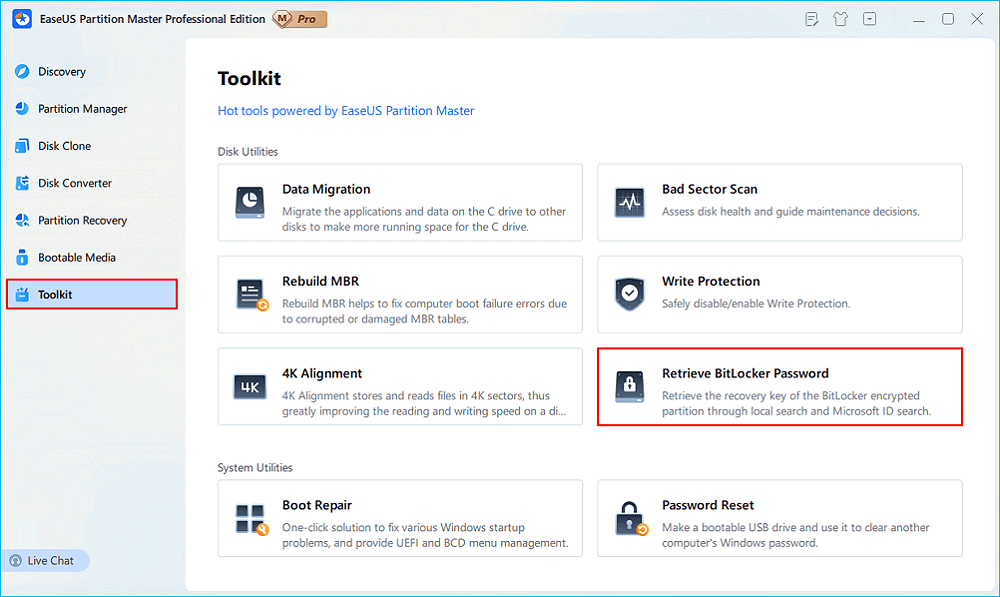
Step 1. Install and launch EaseUS Partition Master. Under the Toolkit tab, select the "Retrieve BitLocker Password" option.
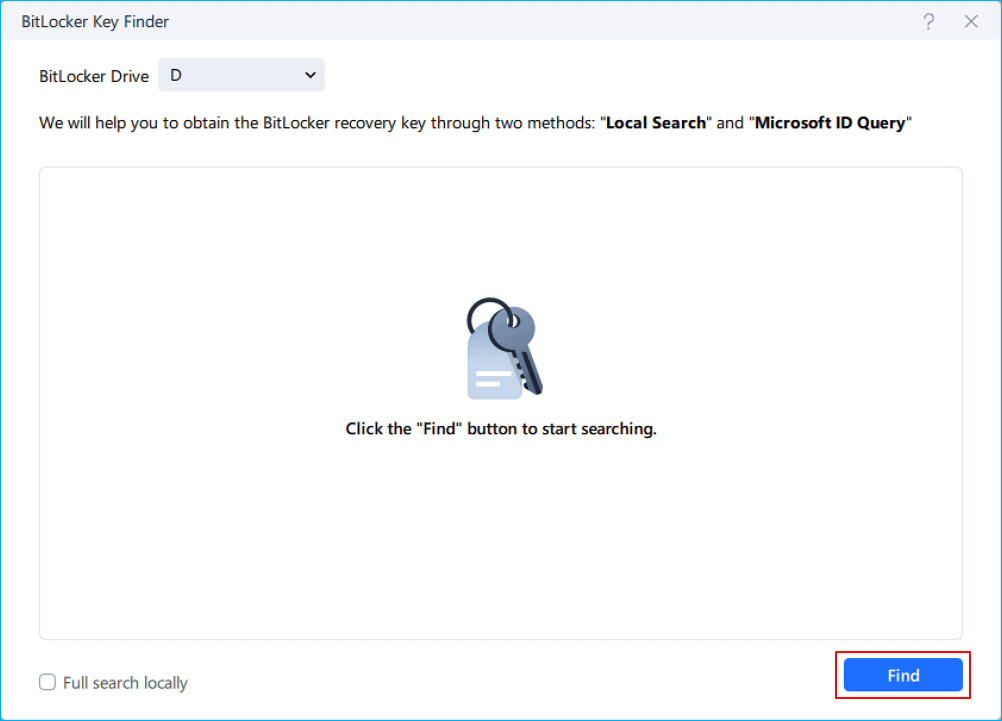
Step 2. It'll automatically detect your encrypted drive. Please click the "Find" button to search the BitLocker recovery key on your encrypted drive.
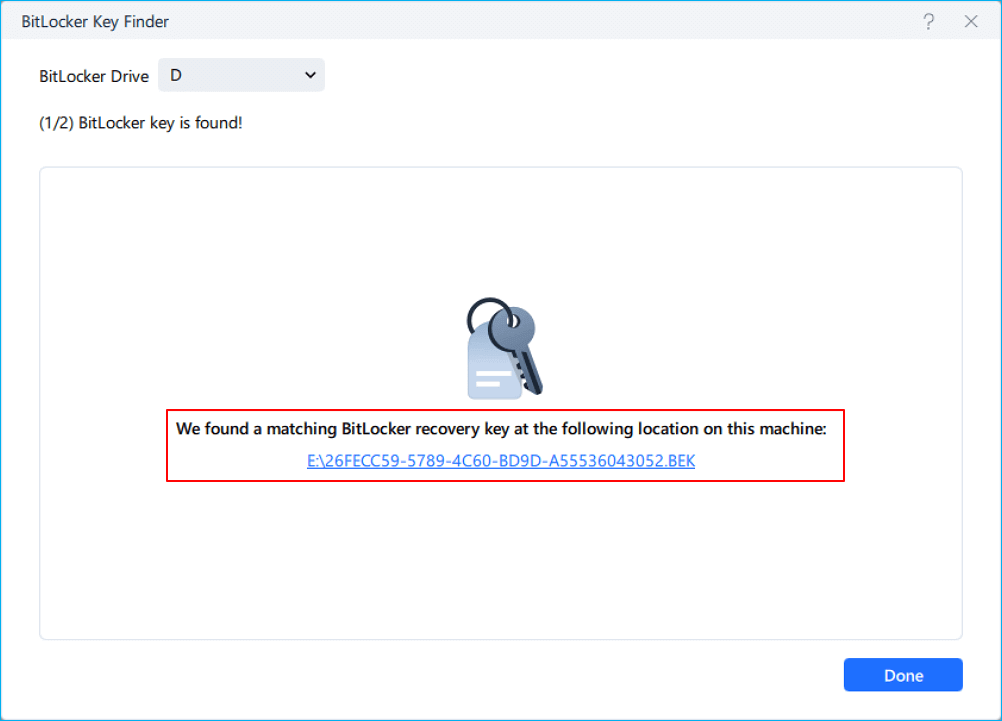
Step 3. In the next window, you'll see the retrieved BitLocker recovery key.
Fix 2. Retrieve BitLocker Recovery Key Without Logging In
Apply to:
- Users who are stuck on the BitLocker recovery screen and cannot access Windows, such as after a BIOS update, Windows update, hardware replacement, or system configuration change.
- If you cannot log into Windows, you can still attempt to retrieve the recovery key by using another working computer to create a bootable USB environment.
Preparations:
- A USB flash drive
- A working Windows computer
- The locked computer requiring the BitLocker recovery key
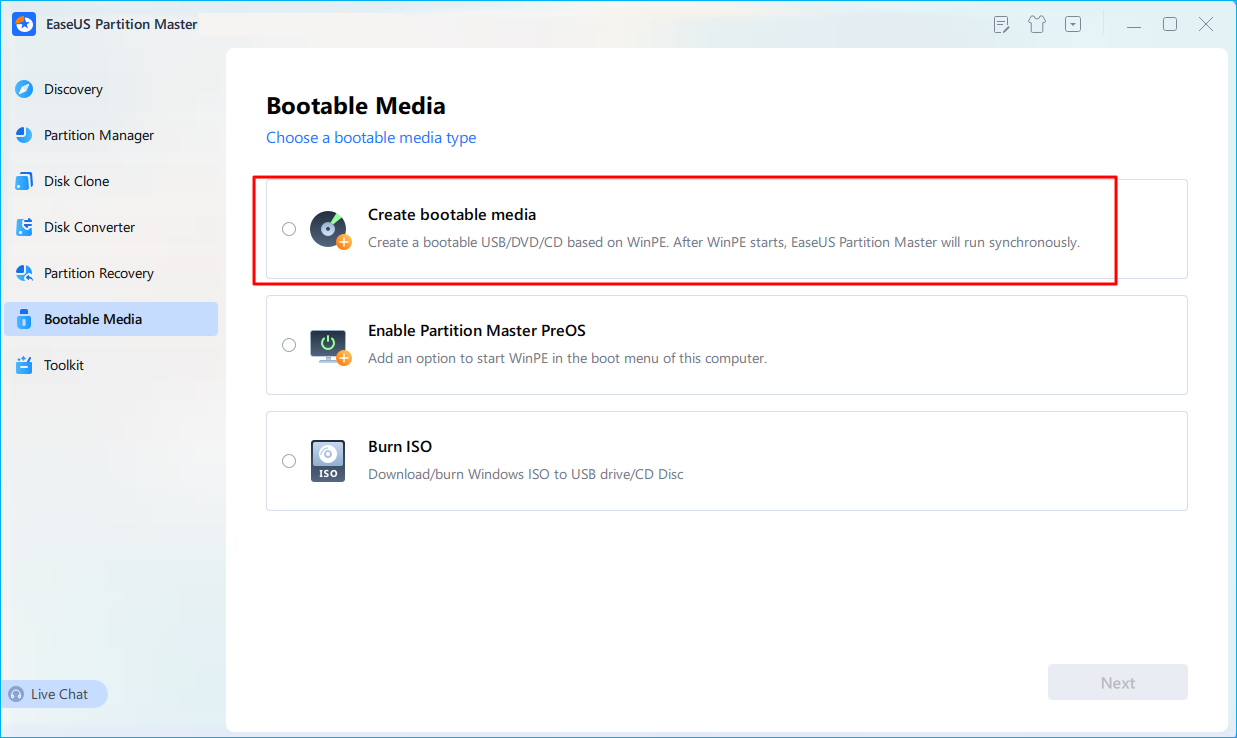
Step 1. First, connect a USB to the PC running properly. Launch EaseUS Partition Master, navigate to "Bootable Media" section, and click "Create bootable media" option. Click "Next" to continue.
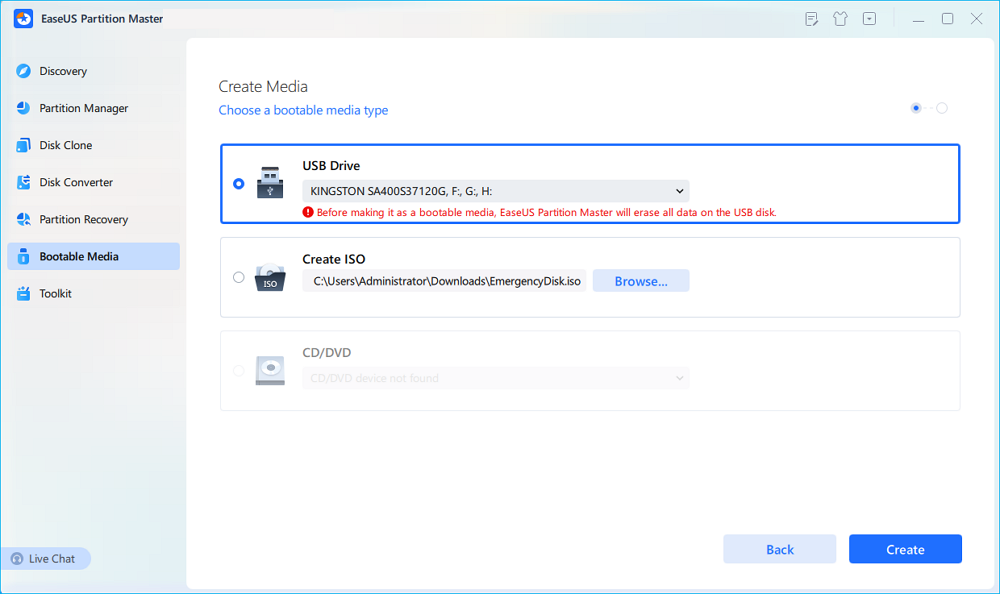
Step 2. Select the target USB drive and click "Create" to continue. Please back up your data in advance since this will erase all data on the USB drive. Then, click "yes" to confirm when you see the warning. Do not exit EaseUS Partition Master until it's done.
Step 3. Connect the bootable USB to the BitLocker encrypted PC and restart PC. During the reboot, press the BIOS key (F2/F8/F12/DEL/ESC) to access BIOS and set the bootable USB as the boot drive. This PC will automatically boot from the USB disk.
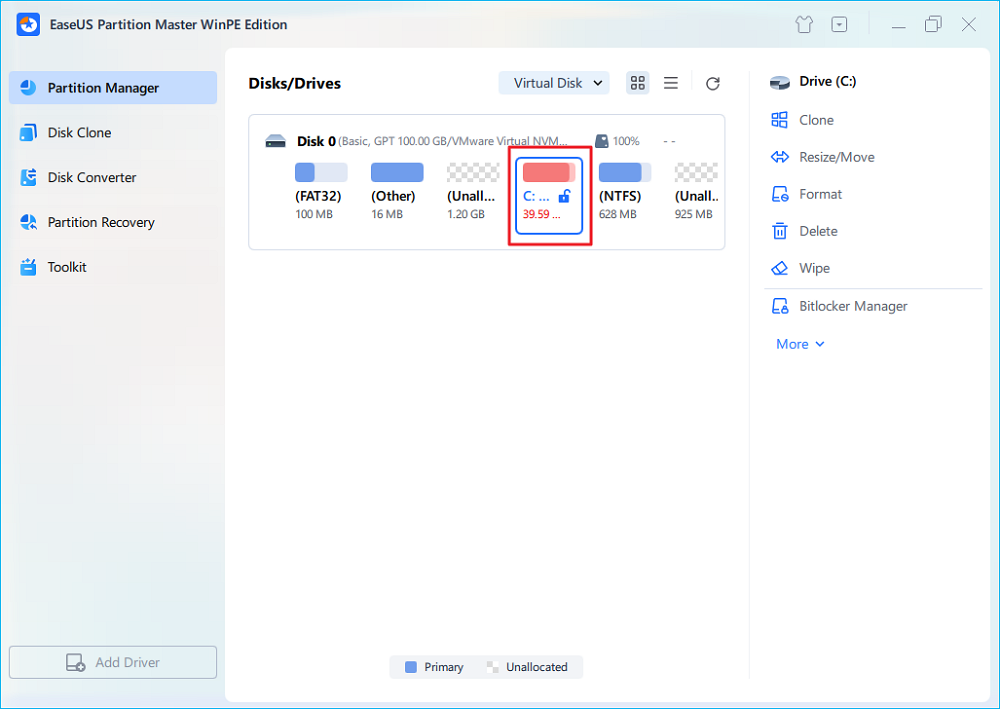
Step 4. EaseUS Partition Master will automatically unlock the BitLocker encrypted drive and you can see a "unlock" icon.
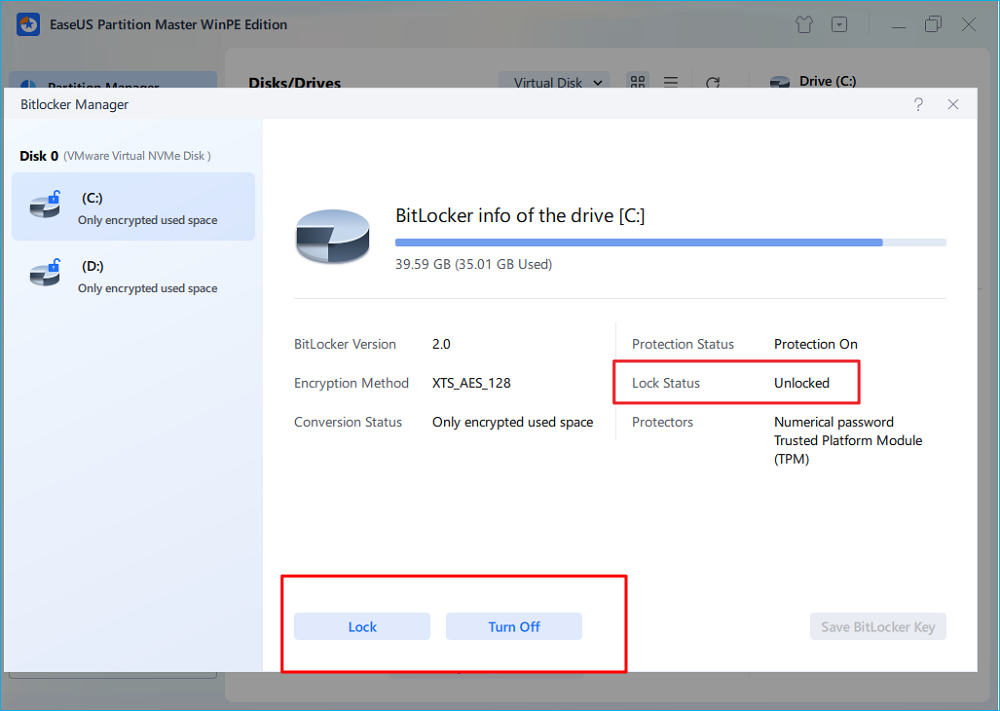
Step 5. Hover the mouse on the BitLocker partition; you can see more info of this partition and manage the BitLocker partition such as locking it or turning off BitLocker.
Alongside trying BitLocker recovery key software, you can also turn to some manual methods, such as getting BitLocker recovery key using PowerShell. However, if you are a non-tech person, the above two methods deserve your trust.
What Happens If I Can't Find the BitLocker Recovery Key?
If you can't find the BitLocker recovery key anywhere, Windows cannot unlock the encrypted drive. Microsoft does not provide a backdoor or bypass method for BitLocker encryption. Without the correct 48-digit recovery key or password, the encrypted data cannot be accessed.
Before resetting your PC, make sure you have checked every possible backup location, including your Microsoft account, USB devices, printed documents, and organization accounts. If no recovery key exists, the only remaining option may be to erase the encrypted drive and reinstall Windows, which will permanently remove the existing data.
Bonus Tips for Can't Find BitLocker Recovery Key:
Conclusion
A missing BitLocker recovery key can be stressful, especially when Windows suddenly blocks access to your files. However, the key is often not lost, it may simply be stored somewhere you have not checked.
When you can't find your BitLocker recovery key, start by checking your Microsoft account, Microsoft Entra ID, Active Directory, USB drives, and backup files. If those options do not work, a recovery tool like EaseUS Partition Master can help search for available recovery keys and provide solutions even when your computer cannot boot normally.
To avoid future problems, always back up your BitLocker recovery key in multiple secure locations after enabling encryption.
For a complete overview of BitLocker management, see our [BitLocker Management and Operations Guide].
Frequently Asked Questions About Unable to Find BitLocker Recovery Key
1. Why can't I find my BitLocker recovery key?
You may not find your BitLocker recovery key because it was saved to another Microsoft account, USB drive, local file, printed document, or organization account. If the key was never backed up during BitLocker setup, it may not exist in any online location.
2. Why is my BitLocker recovery key not in my Microsoft account?
A BitLocker recovery key is not always stored in a Microsoft account. It depends on how BitLocker was enabled and configured. The key may instead be stored locally, on a USB drive, in Microsoft Entra ID, Active Directory, or another backup location.
3. Can I recover a BitLocker recovery key from a locked computer?
Yes, if the recovery key still exists somewhere on the computer or in a connected account. If Windows cannot start, you can use another working PC to create a bootable USB environment and try to retrieve the recovery key without logging into Windows.
4. Can I unlock BitLocker without a recovery key?
No. BitLocker encryption cannot be bypassed without the correct recovery key or password. If no recovery key exists, the encrypted data cannot be recovered through official methods.
5. Does Windows automatically save the BitLocker recovery key?
Sometimes. Windows may automatically save the recovery key to a Microsoft account or organization account, but users can also choose to save it manually as a file, USB backup, or printed copy.
6. Is BitLocker recovery key the same as my Windows password?
No. A Windows password protects your user account, while a BitLocker recovery key is a separate 48-digit key used to unlock encrypted drives when BitLocker enters recovery mode.
How Can We Help You
About the Author

Updated by Tracy King
Tracy became a member of the EaseUS content team in 2013. Being a technical writer for over 10 years, she is enthusiastic about sharing tips to assist readers in resolving complex issues in disk management, file transfer, PC & Mac performance optimization, etc., like an expert.

Sherly joined EaseUS in 2022 and she has always loved writing articles and enjoys the fun they bring. She receives professional training here, focusing on product performance and other relative knowledge. She has written over 200 articles to help people overcome computing issues.
Product Reviews
-
I love that the changes you make with EaseUS Partition Master Free aren't immediately applied to the disks. It makes it way easier to play out what will happen after you've made all the changes. I also think the overall look and feel of EaseUS Partition Master Free makes whatever you're doing with your computer's partitions easy.
Read More -
Partition Master Free can Resize, Move, Merge, Migrate, and Copy disks or partitions; convert to local, change label, defragment, check and explore partition; and much more. A premium upgrade adds free tech support and the ability to resize dynamic volumes.
Read More -
It won't hot image your drives or align them, but since it's coupled with a partition manager, it allows you do perform many tasks at once, instead of just cloning drives. You can move partitions around, resize them, defragment, and more, along with the other tools you'd expect from a cloning tool.
Read More
Related Articles
-
How to Factory Reset Chromebook Without Password [2026 Guide]
![author icon]() Cici/2026/10/22
Cici/2026/10/22 -
Solved - Windows Not Booting After Installing New SSD
![author icon]() Sherly/2026/10/22
Sherly/2026/10/22 -
Windows 7 Repair Tool Free Download | Fix System Errors Easily
![author icon]() Joey Albert/2026/10/22
Joey Albert/2026/10/22 -
How to Reset Windows 11 Password Using Command Prompt
![author icon]() Sherly/2026/10/22
Sherly/2026/10/22
 Cici/2026/10/22
  Joey Albert/2026/10/22









