






Page Table of Contents

Updated on Nov 25, 2026
EaseUS Todo Backup offers both a Free edition and paid plans for users who need additional backup and recovery features. While the Free edition can be used without purchasing a license code, upgrading to a paid edition requires a valid license.
If you're looking for an EaseUS Todo Backup license, this guide explains how the license works, where to get an official code, and how to activate your software. You'll also learn the differences between the Free and Home editions so you can choose the version that fits your backup needs.
What's EaseUS Todo Backup License?
An EaseUS Todo Backup license is a unique code provided after purchasing a paid edition of the software. It is used to activate the corresponding edition and unlock its licensed features.
The Free edition does not require a paid license code. However, users who want to upgrade to EaseUS Todo Backup Home or Enterprise need to purchase the appropriate license.
After completing an order, the license code is typically sent to the email address associated with the purchase. Make sure you use a code that matches your software edition, as different editions have separate licensing requirements.
EaseUS Todo Backup Free vs Home: What's the Difference?
EaseUS Todo Backup offers a Free edition for users with basic backup needs and a Home edition for those who need additional features.
Secure Download
The Free edition can be used without purchasing a license code. If you need features that are only available in a paid plan, you can upgrade by purchasing a Home license.
Before choosing a version, it's worth checking which backup and recovery functions are included in each edition.
With a license, however, you can migrate OS, clone HDD/SSD, create a portable Windows USB, execute the smart backup auto task, and save backups to the cloud! Outlook email backup and recovery is also available in the premium EaseUS Todo Backup.
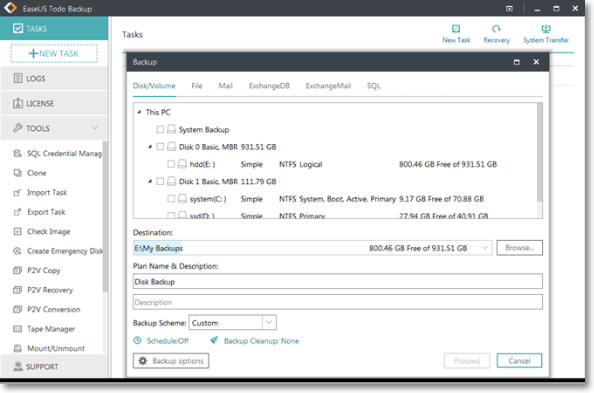
EaseUS Todo Backup Free includes several useful backup features that don't require a paid license. The following image highlights some of the features available in the Free edition.

How to Get an Official EaseUS Todo Backup
If you need more than the features included in EaseUS Todo Backup Free, you can upgrade to a paid edition by purchasing an official license.
Here's how to get your license code:
- Visit the official EaseUS Todo Backup purchase page.
- Review the available plans and choose the edition that matches your needs.
- Complete your purchase using the available payment methods.
- Check the order confirmation email for your license code.
- Keep the code and purchase information in a safe place in case you need to reactivate the software later.
EaseUS Todo Backup provides different licensing options for home and business users. Make sure you select the correct edition before purchasing.
How to Activate EaseUS Todo Backup
Once you have purchased an EaseUS Todo Backup license, you can activate the software by following these steps.
Step 1. Download and install EaseUS Todo Backup
Download the appropriate installer from the official EaseUS website. Make sure the installer matches the edition you purchased.
Step 2. Open the activation window
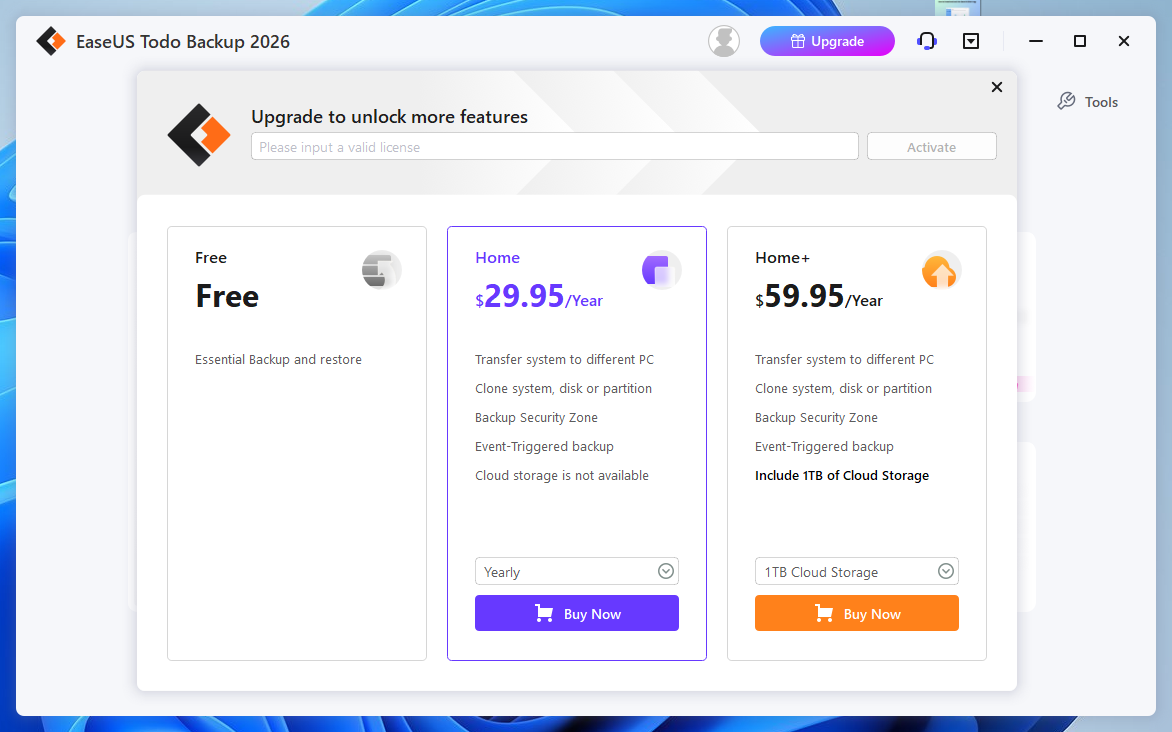
Launch EaseUS Todo Backup. Depending on your software version, click Upgrade in the interface to open the activation window.
Step 3. Enter your code
Enter the code received in your order confirmation email. Check the code carefully to avoid typing errors.
Step 4. Complete activation
Follow the on-screen instructions to connect to the activation server and complete the process.
Step 5. Verify Your Status
Check the license information in EaseUS Todo Backup to confirm that your Home edition is active. You should now be able to access the features included in your purchased plan.
How to Perform a Backup with EaseUS Todo Backup
Here is how to use this backup tool to back up your PC.
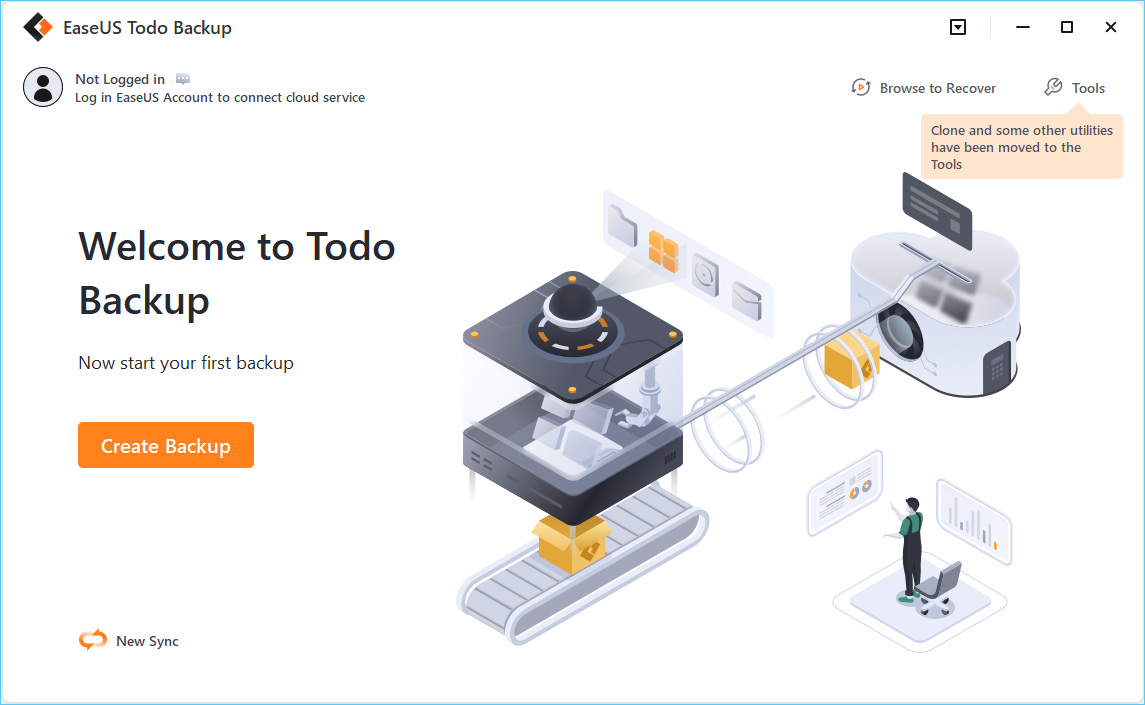
Step 1. Launch EaseUS Todo Backup on your computer, and click Create Backup on the home screen and then hit the big question mark to select backup contents.
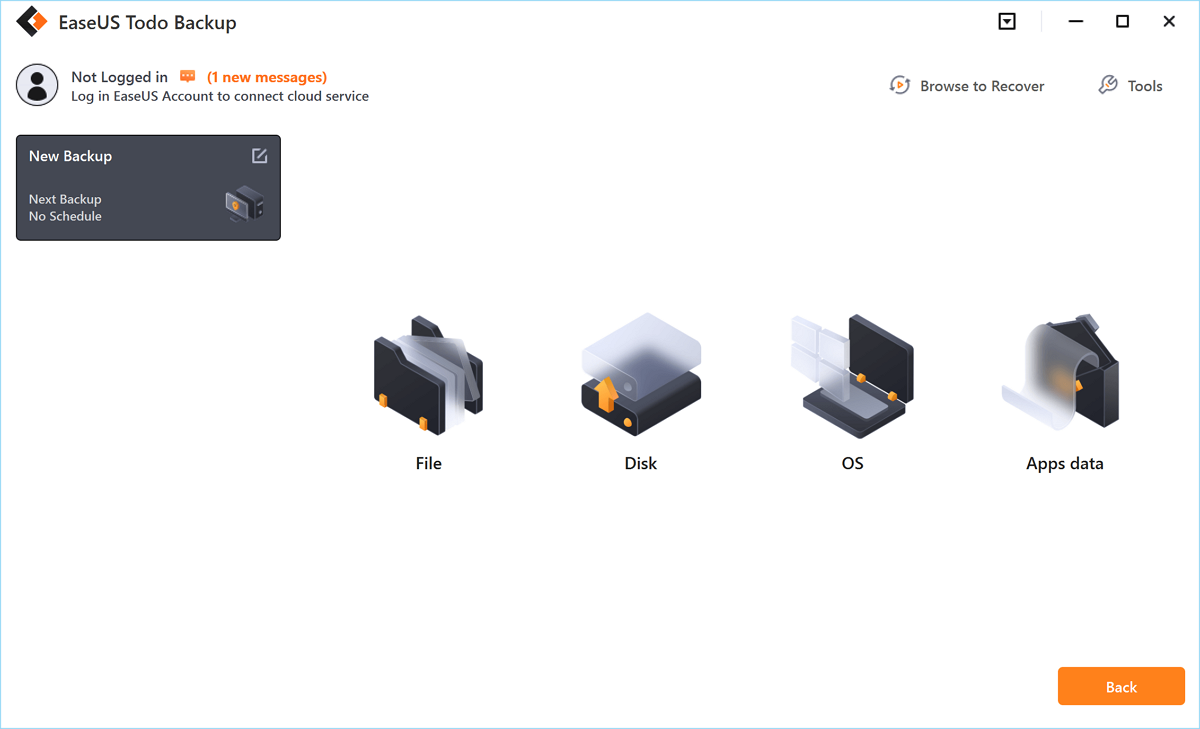
Step 2. To back up your Windows operating system, click "OS" to begin the backup task.
Step 3. Your Windows operating system information and all system related files and partitions will be automatically selected so you don't need to do any manual selection at this step. Next, you'll need to choose a location to save the system image backup by clicking the illustrated area.
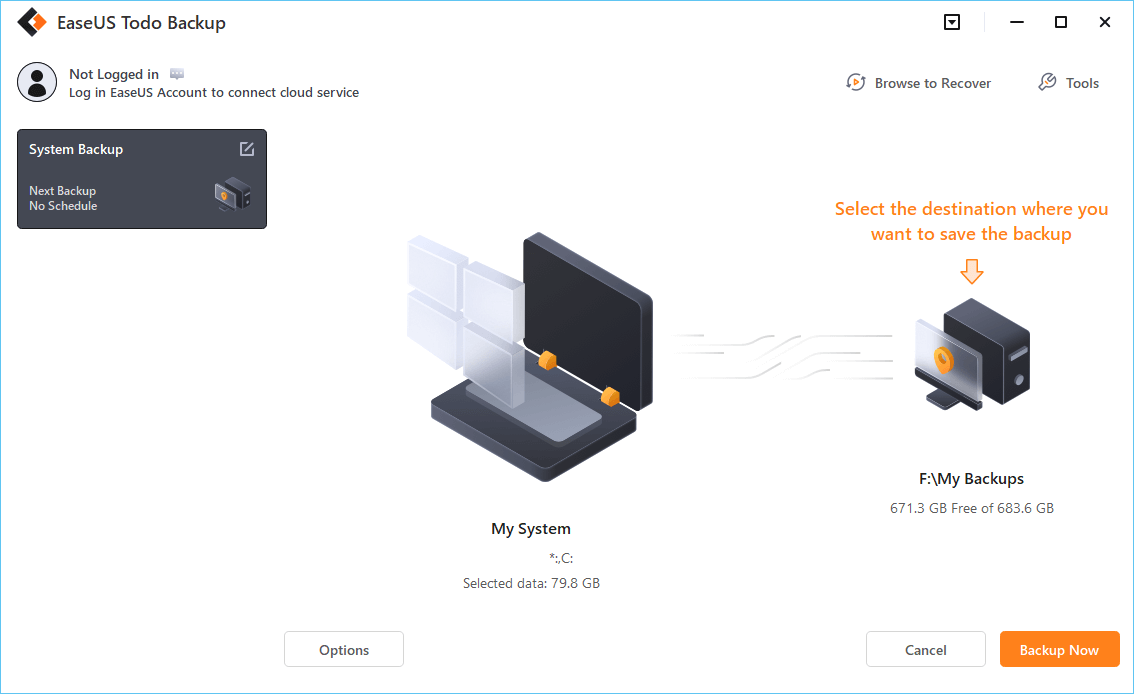
Step 4. The backup location can be another local drive on your computer, an external hard drive, network, cloud or NAS. Generally, we recommend you use an external physical drive or cloud to preserve the system backup files.
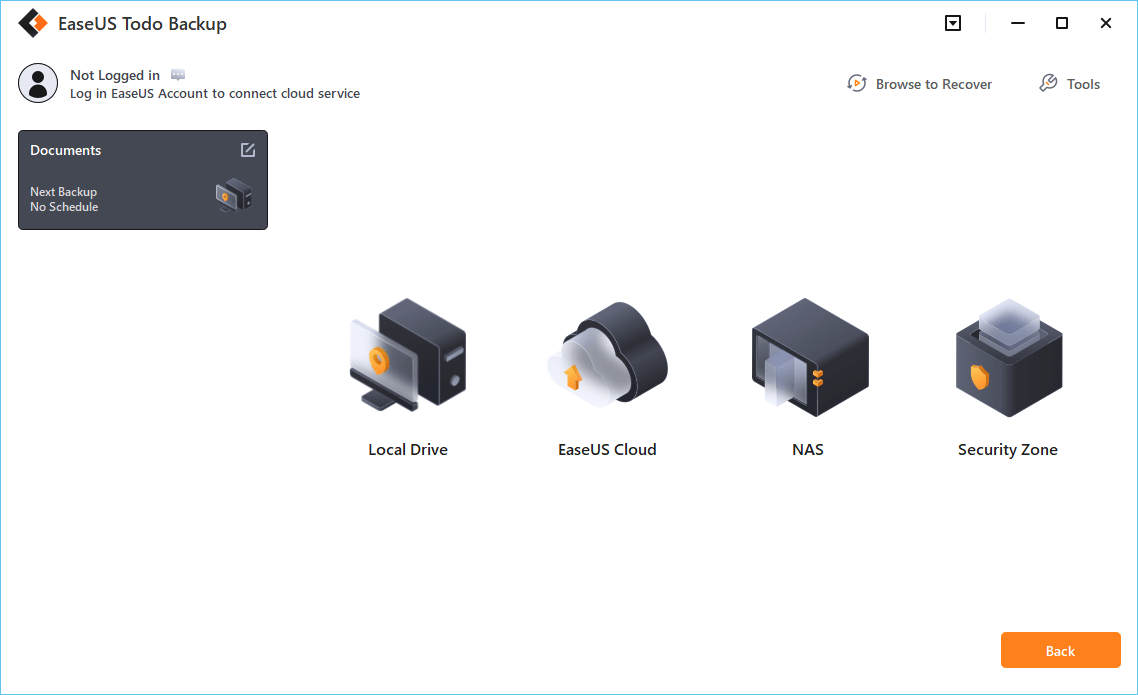
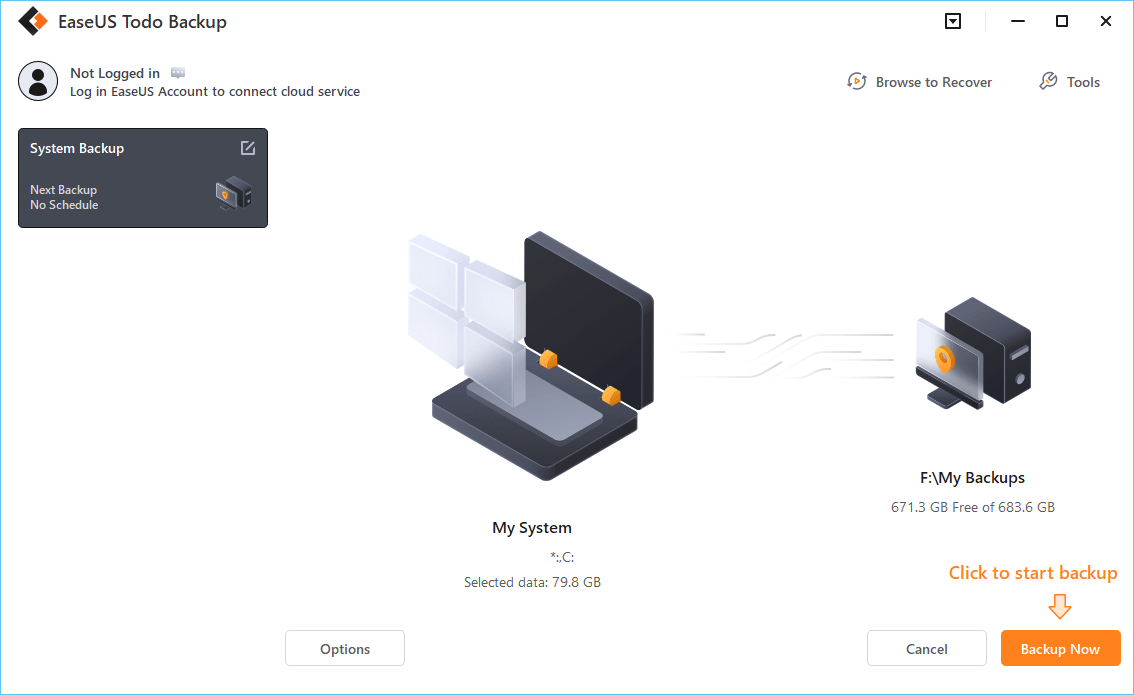
Step 5. Customiztion settings like enabling an automatic backup schedule in daily, weekly, monthly, or upon an event, and making a differential and incremental backup are available in the Options button if you're interested. Click "Backup Now", and the Windows system backup process will begin. The completed backup task will display on the left side in a card style.
Conclusion
The Free edition suits users with basic backup needs, while Home offers more advanced backup and recovery options. If you choose a paid edition, make sure to purchase a valid license and follow the official steps. This helps ensure you can use the software as intended and get support when needed.
FAQ on EaseUS Todo Backup Download
1. What Should I Do If My License Code Doesn't Work?
If your code doesn't work, first check whether you've downloaded the correct edition of the software. Make sure you entered the code correctly and haven't used it in a way that exceeds its license terms. If the problem continues, contact EaseUS support for assistance.
2. Is EaseUS Todo Backup good?
EaseUS Todo Backup is a good choice for backing up and restoring your data. It's easy to use and has a wide range of features.
Was this page helpful? Your support is truly important to us!
EaseUS Todo Backup
EaseUS Todo Backup is a dependable and professional data backup solution capable of backing up files, folders, drives, APP data and creating a system image. It also makes it easy to clone HDD/SSD, transfer the system to different hardware, and create bootable WinPE bootable disks.
Secure Download
-
Updated by
![Jerry]()
Jerry
I hope my articles can help solve your technical problems. If you are interested in other articles, you can check the articles at the bottom of this page, and you can also check my Facebook to get additional help.…Read full bio -
Written by
![Jean]()
Jean
Jean is recognized as one of the most professional writers at EaseUS. She has continually improved her writing skills over the past 10 years and has helped millions of readers solve tech problems on PC, Mac, and iOS devices. …Read full bio

Related Articles
![]() Top 4 Third-party Time Machine Alternatives for Windows 11/10/8/7
![]() The Best Disk Imaging Software for Windows 11
![]() USB External Hard Drive Not Showing Up in Windows 11
![]() How Much Space Does a Windows 10 Backup Take | Find Your Answer Here!
![]() ISO Is Corrupted| How to Fix a Corrupted ISO Files in Windows 11/10
![]() Can You Copy Windows 10 to a USB Drive and Boot From It? Yes! Here's How

Topic Clusters


Interesting Topics


