
-
![]() How to Recover Files from USB: Real-World USB Recovery Guide
How to Recover Files from USB: Real-World USB Recovery Guide September 22,2026
 6 min read
 -
![]() How to Fix a Pen Drive Without Formatting (Step-by-Step Guide)September 22,20266 min read
How to Fix a Pen Drive Without Formatting (Step-by-Step Guide)September 22,20266 min read -
![]()
-
![]() How to Recover Data from a Dead USB Drive: 5 Easy MethodsSeptember 22,20266 min read
How to Recover Data from a Dead USB Drive: 5 Easy MethodsSeptember 22,20266 min read -
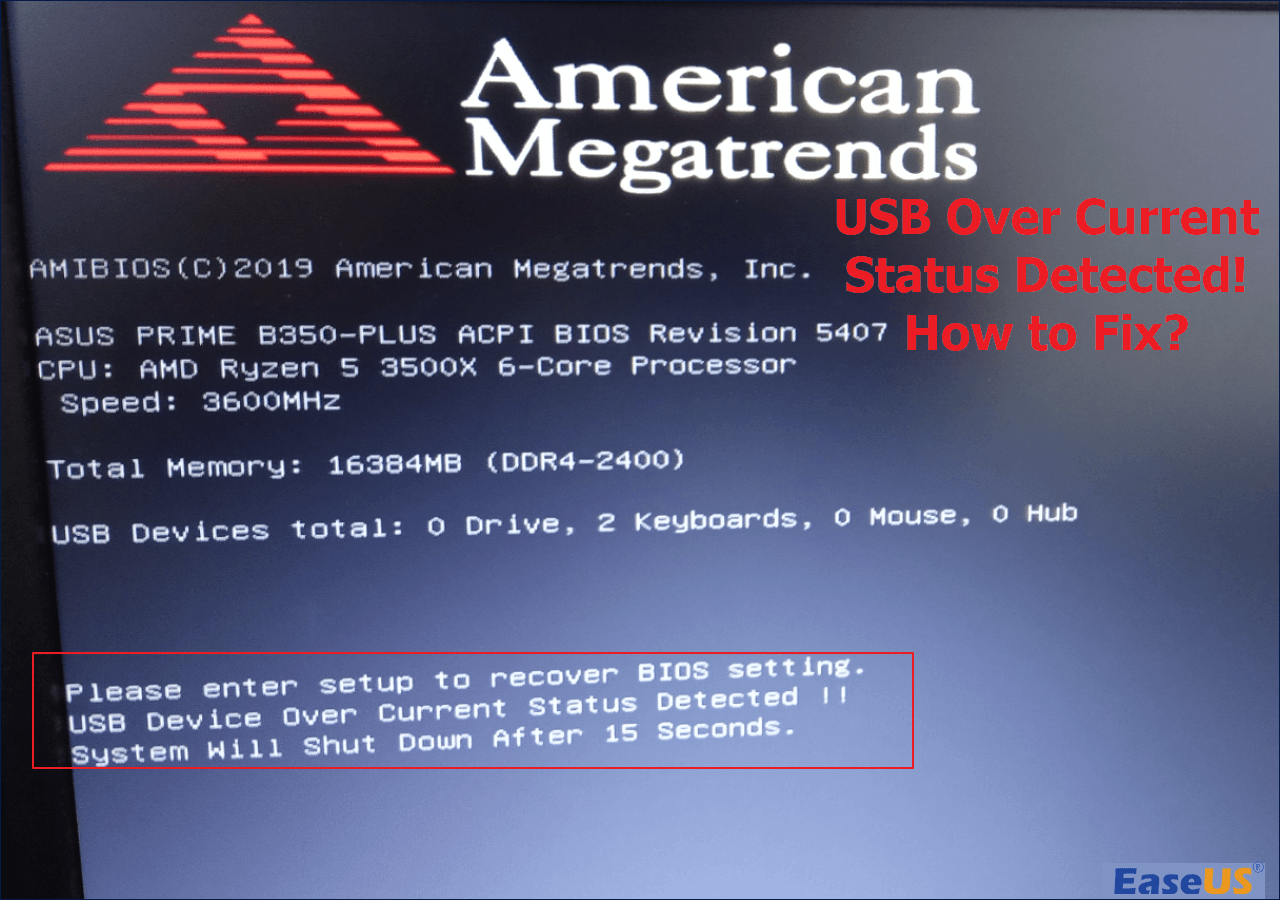
![]() USB Over Current Status Detected Error [Fixed in 5 Ways]September 22,20266 min read
USB Over Current Status Detected Error [Fixed in 5 Ways]September 22,20266 min read -
![]()
-
![]()
-
![]() USB Pen Drive Not Showing Data, Files, and Folders [Solved]September 22,20266 min read
USB Pen Drive Not Showing Data, Files, and Folders [Solved]September 22,20266 min read -
![]() Free | How to Recover Files from Formatted USB/Pen DriveSeptember 22,20266 min read
Free | How to Recover Files from Formatted USB/Pen DriveSeptember 22,20266 min read -
![]() Fix Virtual Disk Service Error: There Is No Media in the DeviceSeptember 22,20266 min read
Fix Virtual Disk Service Error: There Is No Media in the DeviceSeptember 22,20266 min read
Page Table of Contents
PAGE CONTENT:
USB Data Recovery: What It Is and How It Works
"Is it possible to retrieve a whole folder full of files that were accidentally deleted whilst I was deleting one file? Somehow, the entire folder was deleted! – from SanDisk Forums"
"My external USB drive suddenly got corrupted while using it. The data was not accessible; it was all in coded language. I tried to troubleshoot it using the Windows 10 recovery tool. A few seconds into recovery, I got a message that the drive was not accessible. – from Reddit"
"I went to format a USB drive and accidentally formatted my secondary hard drive. I thought I had a backup of the drive, but I didn't. What's the best software or way to recover the files on there? – from Reddit"
People run into USB data loss for all sorts of random reasons, and it can happen when you least expect it. The upside is that most of these issues don't wipe everything instantly. Your files usually stay on the drive for a while, and USB recovery is possible- as long as you stop using it the moment you notice something's wrong and don't save anything new that might overwrite the old stuff.
If you're just trying to get a basic idea of how USB data recovery works, simple step-by-step guides can be helpful. Before getting into any fixes, it's worth taking a quick look at the common situations where files disappear and what usually triggers them.
Common USB Data Loss Scenarios and Causes
USB issues come in many forms, and understanding the underlying cause helps you choose the right fix. Below are the most common situations users encounter:
- ⚠️Accidental deletion. Deleting the whole folder or wrong files by mistake can happen, and USB users may not know that deleting files from a USB flash drive on a Windows computer can cause permanent data loss because the deleted files will bypass the Recycle Bin.
- ⚠️Format the USB drive by mistake. USB logical errors can bring up messages like your USB needs to be formatted before use, and many users don't know that formatting can remove data on the USB flash drive.
- ⚠️Virus or malware infection. Malicious programs may hide, encrypt, or delete files on the USB. For the encrypted files on the USB drive, it's hard to decrypt and restore the data.
- ⚠️File system corruption. Improper ejection of the USB drive, sudden power loss of your computer, or system crashes can corrupt the file system of your USB drive and cause data loss.
- ⚠️Physical damage. Broken connectors, water exposure, internal chip failure, or other natural disasters can lead to unreadable data and permanent data loss on the USB drive.
- ⚠️Overheating or electrical issues. Power surges or overheating damage the USB controller and corrupt stored files.
After learning about various causes of data loss on a USB drive, let's figure out how to recover data from a USB flash drive.
How to Recover Data from a USB Flash Drive (All Methods Explained)
In this section, you'll learn different USB or pen drive data recovery methods based on various data loss situations. Pick a suitable one for your USB flash drive.
Here's a video about USB recovery that might help you learn more:
- 01:02 Recover Data from USB Using Data Recovery Tool
- 03:25 Restore Files from USB with Windows File History
1️⃣Recover Deleted Files from USB Flash Drive
Users frequently lose critical files due to unintentional deletions. When deleting files quickly, individuals might accidentally select entire folders instead. You may find the USB's deleted files not in the Recycle Bin because the files deleted from the USB or SD card will bypass the Recycle Bin folder.
It's easy to realize when you accidentally delete the wrong items on a USB drive; moving fast can make it more possible to recover deleted files from a pen drive.
Accidentally deleted files usually stand the best chance of recovery. You just need to follow these steps:
Step 1. Stop using the USB flash drive immediately after deletion.
Step 2. Check cloud & local backups (Google Drive, Dropbox, OneDrive, File History, etc.) to recover deleted files from USB drive pen drive.
Step 3. If you don't have backups available, use USB data recovery software to recover deleted files from pen drives. EaseUS Data Recovery Wizard is a clever choice, and this software is available on various file systems, including FAT, exFAT, and NTFS. Try it now to recover deleted photos, documents, videos, and audio files from your USB.
SanDisk, Samsung, PNY, Lexar, and Kingston recovery is supported by the EaseUS USB recovery tool. Some USB supporters also provide free data recovery software like SanDisk's RescuePro Data Recovery, but it only offers basic features. Professional USB recovery software like EaseUS even supports USB partition recovery.
Check the following recovery tutorial to learn detailed steps about USB and pen drive data recovery.

How to Recover Deleted Files from USB
How to recover deleted files from a USB flash drive without software? In this passage, you'll learn 5 ways to restore deleted USB files.
2️⃣Restore Data from a Formatted USB Drive
Formatting can happen due to a variety of reasons, whether it's to create a bootable installer or accidentally pressing the wrong button.
Sometimes the USB asks to format before use, and you accidentally click the "Format" button. While this seems catastrophic, most formatted drives still contain their original data. The following tutorial explaining the error where a USB drive asks to be formatted or how to format a USB without losing data is beneficial in this case.
A quick format looks destructive, but it's often more superficial than it seems. The main directory gets cleared, yet the underlying data tends to sit intact for a while.
That's why formatted USB data recovery frequently works as long as the drive hasn't been used much afterward. The best way to format a USB without losing data is backing up important files in advance.
You can check the following guide and learn how to unformat a USB drive, or how to undo something like an accidental ESD USB format without losing data.

Free | How to Recover Files from Formatted USB/Pen Drive
This tutorial shows you how to recover data from a formatted USB drive or a pen drive. Follow to see how to recover files or data from formatted USB flash drive. Read more >>
3️⃣Recover Data from Corrupted USB Flash Drives
Corruption and RAW errors are a different kind of headache. When a USB shows unreadable sectors or the file system collapses, the drive may still hold data - it's just the structure around it that's broken.
For a RAW partition or an unreadable USB, you can recover data from the USB drive with professional data recovery software. Software like EaseUS Data Recovery Wizard supports RAW USB recovery and can directly read/scan a RAW disk to recover data. This software can also skip the bad sectors and quickly scan the other functional parts.
To fix a corrupted USB with a logical failure, follow these steps:
Step 1. Check the physical connection to make sure it's not a cable or USB port issue that's preventing the USB device from showing up or being recognized in Windows.
Step 2. Recover data from a corrupted USB drive using professional USB recovery tools. Choose the software that can scan the RAW disk, no media USB, unallocated space, etc.
Step 3. Then, you can repair a corrupted USB with the CHKDSK command, Disk Check Tool, TestDisk, or other USB repair tools.
To learn more detailed solutions, read the following guide carefully and find the best way to fix your damaged USB without losing data.
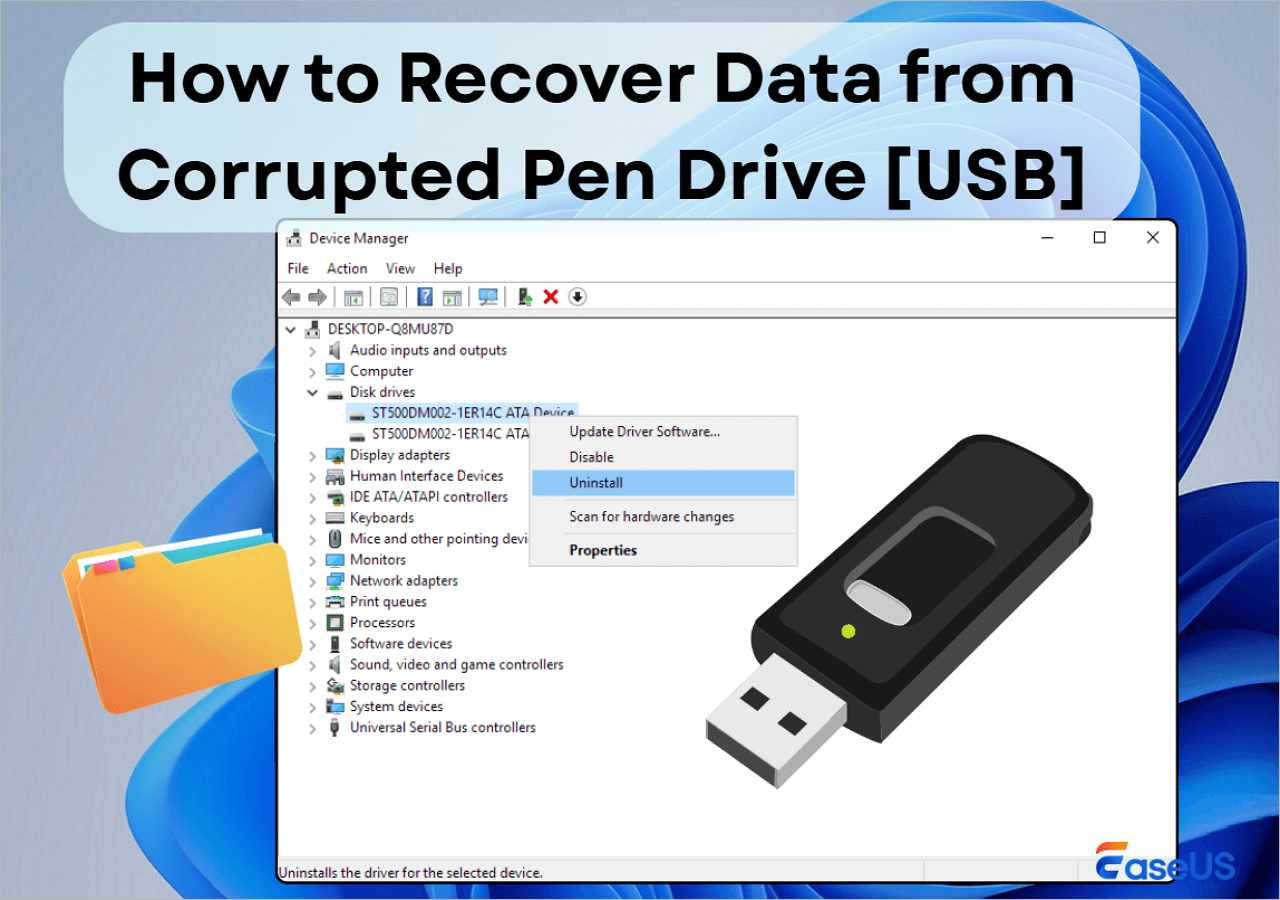
How to Recover Data from Corrupted USB Drive [Pen Drive]
Data Recovery is not a challenge anymore. EaseUS serves as a dependable data recovery application to retrieve lost data within simple clicks.
4️⃣Recover Files from a Virus-Affected USB Stick
Computer viruses and malware tend to hide files rather than wipe them outright. Users who encountered USB-based malware often think everything is gone when the folder appears empty, but in many cases, these missing files are just hidden.
Knowing how to show hidden files on a USB drive or reset the file attributes is usually enough to bring the content back.
5️⃣Recover Data from Encrypted USB Drive
To recover data from an encrypted or password-protected USB drive, you'll need the password or recovery key. In most cases, it's hard to recover data from these locked USBs without a password.
But EaseUS Data Recovery Wizard still offers a chance to unlock the USB drive without a password. How? The software can recover a lost or deleted BitLocker-protected partition on a USB drive and attempt to unlock the disk without a recovery key. It's not 100% but it's worth a try.
When you cannot fix the USB problem by yourself, it's also a good choice to ask for professional help, like official support of your USB brand, a local USB recovery lab, or online data recovery services. EaseUS also offers a 24-hour online diagnosis for free. Contact them if you are still in trouble.
Consult with EaseUS data recovery experts for one-on-one manual recovery service. We could offer the following services after a FREE diagnosis
- Repair corrupted RAID structure, unbootable Windows OS, and corrupted virtual disk files
- Recover/repair lost partitions and re-partitioned drives
- Unformat hard drives and repair RAW drives(BitLocker encrypted drives)
- Fix disks that become GPT-protected partitions
Best USB Data Recovery Tools to Use
Below are some of the most effective USB data recovery tools that can help you scan your drive, locate lost items, and restore them with minimal effort. You can learn some basic information about USB data recovery software and get to know which one is best recommended.
EaseUS Data Recovery Wizard [Highly Recommend]
EaseUS Data Recovery Wizard is particularly practical for everyday users who want a reliable way to pull files from a USB without diving into command-line utilities or low-level disk operations.
For USB users who encountered data loss issues, what makes EaseUS stand out?
- Perform data recovery in any situation, including accidental deletion, mistakenly formatting, file system corruption, and so on.
- Support USB partition recovery. It can help you recover lost or deleted partitions on a USB, and the software can even access the unallocated partitions.
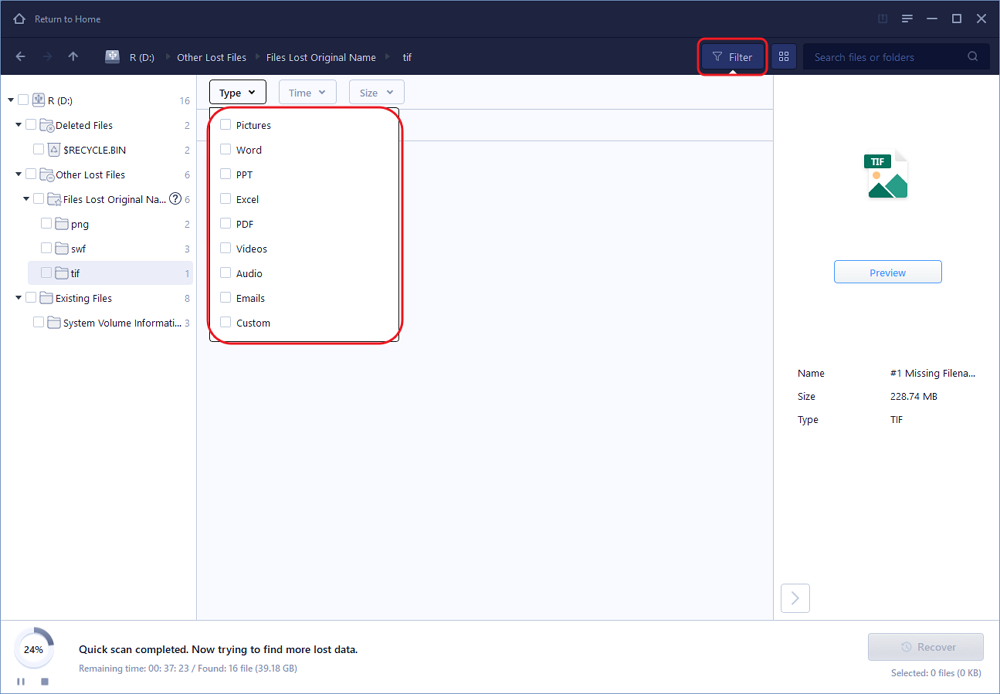
- Provide a simple interface and a straightforward recovery process. During USB recovery, users can filter and preview files if they want.
Top USB Recovery Software Recommended
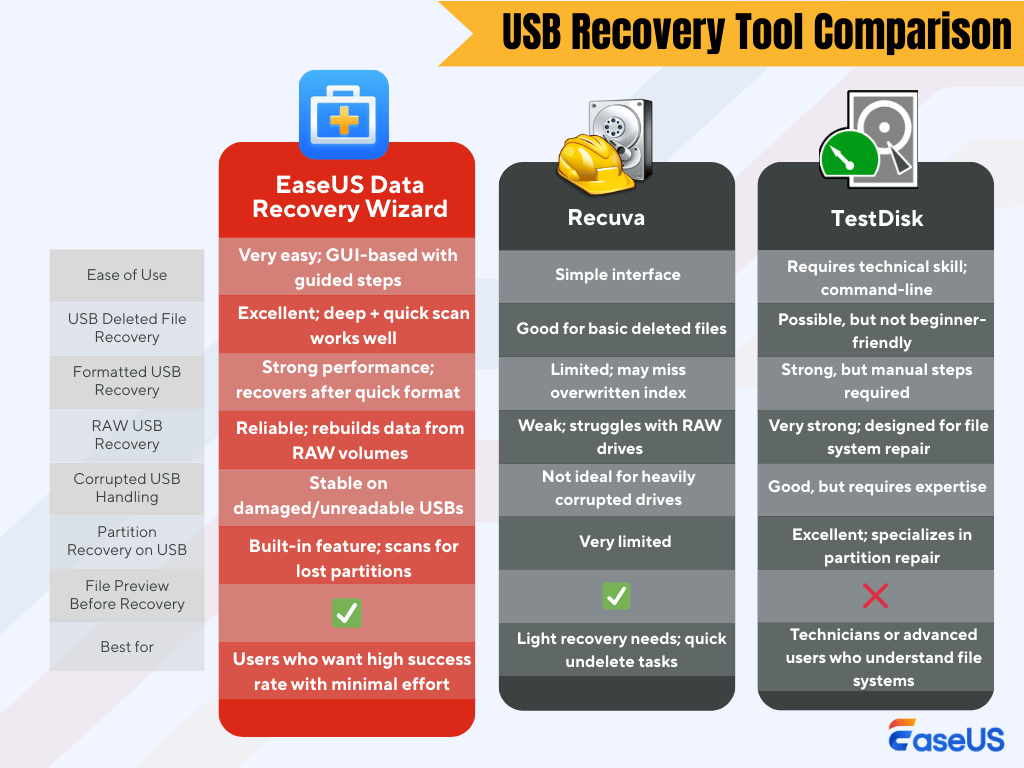
Besides EaseUS, there are other reliable pen drive data recovery software like Recuva, PhotoRec, TestDisk, etc, and Recuva and TestDisk are two popular choices.
✅Recuva: A lightweight and user-friendly data recovery tool designed to restore deleted files from USB flash drives, memory cards, and other removable storage. It scans quickly, identifies recoverable items, and offers both quick and deep scan modes. For USB users who need a simple, fast way to retrieve accidentally deleted photos, documents, or videos, Recuva delivers a straightforward recovery experience.
✅TestDisk: An open-source, command-line recovery utility known for its powerful ability to fix USB drive structure issues. It can rebuild damaged partition tables, repair file system errors, and recover lost partitions on removable drives. While it requires some technical comfort to use, TestDisk is extremely effective when a USB drive becomes unreadable, won't mount, or shows raw/unallocated space due to corruption.
To help you gather information quickly, here's a simple side-by-side look at how EaseUS stacks up against Recuva and TestDisk when handling USB issues:
We have also selected the top 10 free USB data recovery software in the following passage. Click to learn more if you are interested.

USB Data Recovery Software Free Download [2025]
The top free USB data recovery software is suggested in this post. Deleted files from USB drives and flash devices can be recovered using EaseUS Data Recovery Wizard. Read more >>
After comparing EaseUS with other reliable USB data recovery software, you may find that EaseUS is user-friendly and meets different needs.
Feel free to share this page on X, FB, and other platforms!

How to Troubleshoot USB Not Working Issues
If your USB is not working or acting weird, it's very likely to lead to data loss. You'll learn how to deal with the most common USB issues in the following content. Keep reading and find out detailed methods to repair your USB drive without losing data.
Situation 1: USB Becomes RAW / Not Accessible
A RAW USB usually indicates that the partition table or index has been damaged. You may see errors stating the drive is unreadable or that Windows cannot access it. The guide below that focuses on fixing an unreadable USB, repairing a damaged flash drive, or resolving errors where "the type of the file system is RAW" will help you recover both access and data.

How to Repair USB Drive Without Losing Data in 6 Ways
On this page, you can learn how to repair a USB flash drive or pen drive without losing data. EaseUS comes in handy when you need to recover lost data before starting to fix the USB drive. Read more >>
Situation 2: USB Not Showing / Not Recognized / No Media
Sometimes, the pen drive is not detected at all, not in File Explorer, not in other devices. This could be a loose connection, a driver issue, or sometimes a logical failure.

USB Drive Not Showing Up? Find Windows 10/11 Fixes Here
Can the computer not read or recognize the USB flash drive on the computer? Don't worry if your USB drive is not showing up or the flash drive is missing in Windows 10/8/7. Professional solutions are available here to help fix the USB drive not showing up. Read more >>
If a USB drive shows up in the Disk Management, but is not accessible and appears as USB no media 0 bytes, the issue may be related to drivers, logical failures, or partition loss.
Common fixes can be found in the following guide to fix issues like USB not showing up, not being recognized, not being detected, no media, or other driver-related issues, such as USB error code 43.
Situation 3: USB Files Hidden or Removed by Malware
Connecting USB drives to an unknown/unsafe computer can be dangerous. Malware and computer viruses can hide, move, encrypt, or delete your files on the USB flash drive,
Users often report that the pen drive data is not showing, even though the storage space appears occupied. In such cases, the files are typically still on the drive but have been assigned hidden or system attributes.
Situation 4: USB Is Write-Protected or Encrypted
If your USB disk is write-protected, you should figure out if it's encrypted or just in read-only mode. Wrong read & write settings or a physical lock switch on the USB can enable the read-only mode. Windows also offers BitLocker encryption to protect your data.
Users can unlock the drive in Windows by changing settings or entering the passwords to remove the write protection.
If your BitLocker recovery key is not working, you can recheck the 48-digit recovery key in your Microsoft account.
You can share all the causes and scenarios on social media and let more readers know!
USB Recovery FAQs
USB issues can vary widely, and the recovery methods also vary. If you have more questions about USB recovery, keep reading and try to find an answer in this final part:
1. How can I fix a Lexar USB drive?
Simply reconnecting the USB, changing USB ports, or computers may resolve the problem. If nothing works, you can try some Lexar USB repair tools to fix the problem.
2. Why is my pen drive showing empty, but it's full actually?
The Pen drive showing empty when full is usually caused by computer viruses or malware. File corruption or file system damage can also lead to this problem.
3. How can I fix the "there's no media in the device" error?
Actually, MBR (Master Boot Record) corruption, I/O device error, physical damage on the device, or the USB file system corruption can cause there is no media in the device. This is usually a virtual disk server error message. You can rebuild the MBR, update the driver, or apply repair tools to fix this problem.
4. How do I fix the "Please insert a disc into a USB drive" error?
When you see the error message "Please insert a disk into the USB drive" on the computer, that means your computer cannot recognize or lacks a driver to access your USB. To fix this, updating the driver in Device Manager is effective.
Was this page helpful?
-
Dany is an editor of EaseUS who lives and works in Chengdu, China. She focuses on writing articles about data recovery on Mac devices and PCs. She is devoted to improving her writing skills and enriching her professional knowledge. Dany also enjoys reading detective novels in her spare time. …

 Why Trust EaseUS
 Editor Reviews

20+
Years of experience

160+
Countries and regions

72 Million+
Downloads

4.9 +
Trustpilot Score