







Content
Page Table of Contents
About the Author
Hot Topics

Updated on Sep 11, 2026
You can format a new SSD in Windows 11 or 10 to prepare it for file storage. If the SSD is brand new, Windows may first ask you to initialize it or show it as Unallocated in Disk Management. You then need to create a partition before you can format it and use the drive.
This guide walks you through how to format a new SSD. You'll also learn which file system and partition style to choose, and what to check if Windows doesn't detect the new SSD.
Why Do You Need to Format a New SSD?
When you install a new SSD, you usually need to format it before you can use it for file storage. A new drive may not have a file system that Windows can use, or it may come with no partition at all. Formatting sets up the file system, while partitioning creates a usable storage volume on the drive.
Windows supports several file systems, including NTFS, exFAT, and FAT32. The right choice depends on how you plan to use the SSD. For most internal SSDs on Windows, NTFS is the standard choice. You may prefer exFAT for an external SSD that you use with different devices.
If the SSD is completely new, you may also need to initialize the disk and create a partition before formatting it. Once the partition has a file system and a drive letter, Windows can recognize it as a usable storage volume.
| SSD Status | What You Need to Do |
| SSD is Not Initialized | Initialize the SSD, then create and format a partition. |
| SSD shows as Unallocated | Create a partition and format it with NTFS, exFAT, or another suitable file system. |
| SSD already has a partition | Format the partition if you want to erase its existing data and start fresh. |
| SSD does not appear in Windows | Check the SSD connection and whether Windows or BIOS/UEFI detects the drive first. |
- Notice:
- Formatting erases the data on the selected partition. If the SSD already contains files, back them up before formatting.
How to Format a New SSD
You can format a new SSD with EaseUS Partition Master, Disk Management, or DiskPart. The three methods below cover different needs. If your SSD is completely new, check its status first. You may need to initialize the disk and create a partition before formatting it.
| Method | Best for | Key advantage |
| Users who want an easier way to set up and manage an SSD | Handles initialization, partitioning, formatting, and partition management in one place | |
| Basic SSD setup with built-in Windows tools | No extra software is required | |
| Advanced users who prefer command-line tools | Provides direct control over disk and partition operations |
Method 1. Format a New SSD with EaseUS Partition Master
- Suitable for
- Users who prefer a visual interface
- Manage unallocated space or resizing partitions
- Complete multiple SSD setup tasks in one tool
EaseUS Partition Master is a disk and partition management tool that can handle more than just formatting. It lets you initialize, partition, format, and manage a new SSD in one place. You can also handle unallocated space and adjust the partition layout without switching between different Windows tools.
This SSD formatter is useful when Windows shows a new SSD as Not Initialized or Unallocated. Instead of switching between different Windows tools, you can complete the basic SSD setup in one workflow.
Why use EaseUS Partition Master?
- Set up a new SSD: Initialize the disk, create partitions, and assign drive letters.
- Format partitions easily: Format an SSD to NTFS, exFAT, FAT32, and other supported file systems.
- Manage unallocated space: Create a partition or use unallocated space to extend an existing partition.
- Resize and move partitions: Adjust partition sizes or move partitions when the default disk layout does not fit your needs.
- Manage the whole disk in one place: You can complete multiple disk and partition tasks from the same interface.
- Support different disk layouts: The tool provides more partition management options than Windows Disk Management.
How to format a new SSD with EaseUS Partition Master:
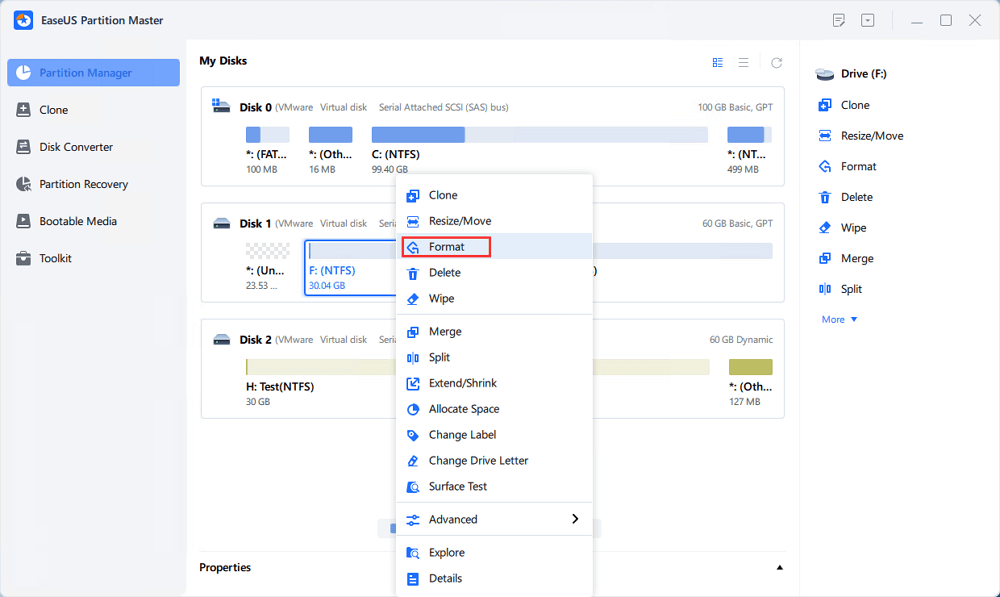
Step 1. Run EaseUS Partition Master, right-click the hard drive partition you intend to format and choose "Format".
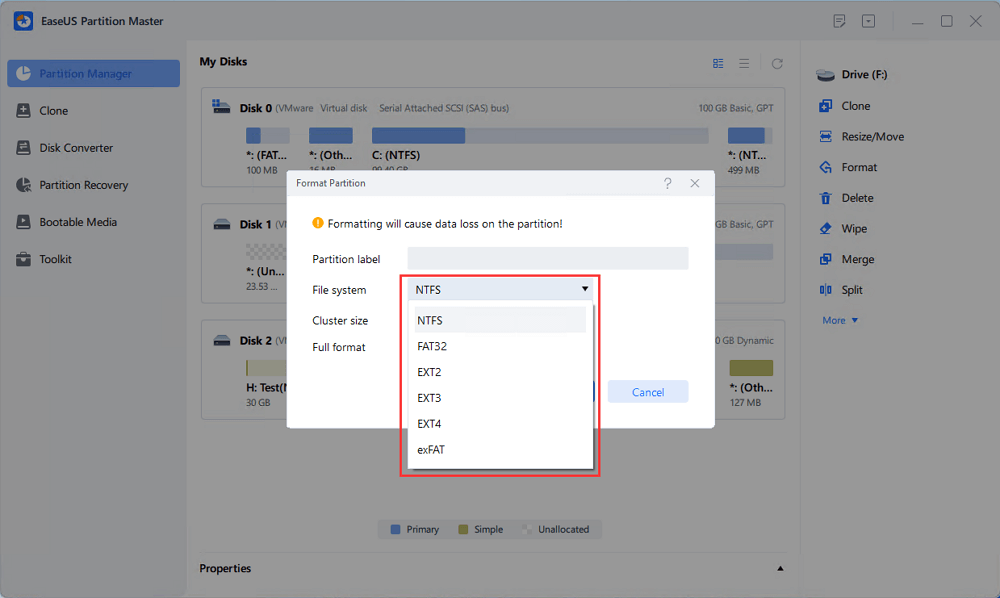
Step 2. In the new window, set the Partition label, File system (NTFS/FAT32/EXT2/EXT3/EXT4/exFAT), and Cluster size for the partition to be formatted, then click "OK".
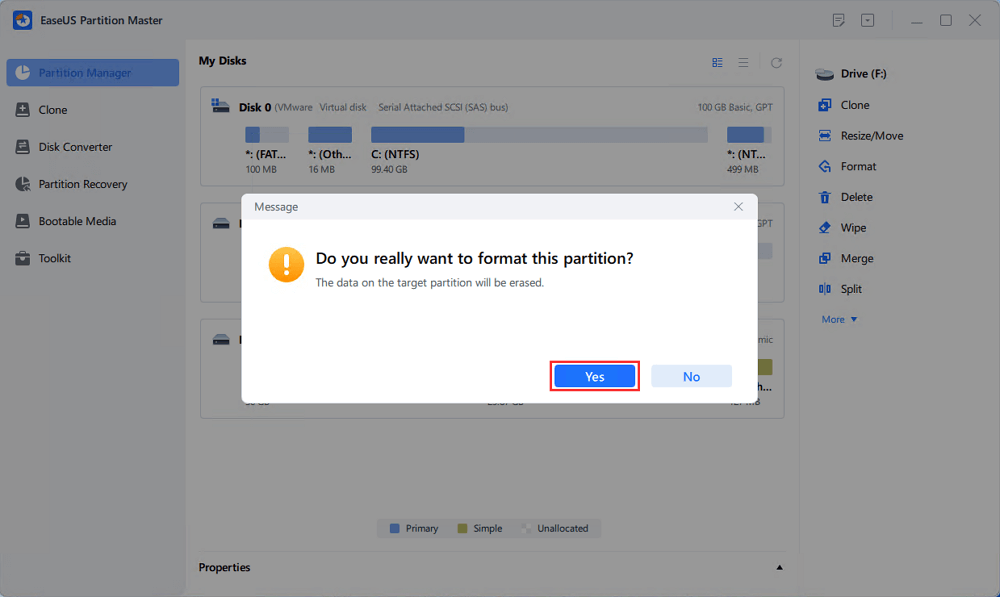
Step 3. Then you will see a warning window, click "Yes" in it to continue.
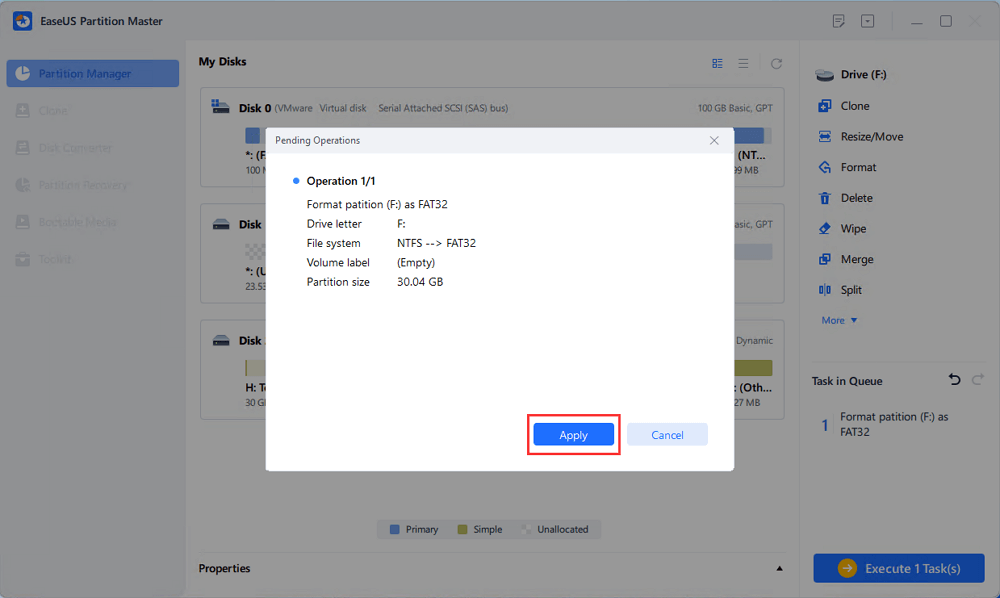
Step 4. Click the "Execute 1 Task(s)" button to review the changes, then click "Apply" to start formatting the partition on your hard drive.
Method 2. Format a New SSD with Disk Management
- Suitable for
- Basic SSD setup
- Users who prefer built-in Windows tools
- Format an SSD without software
Disk Management is a built-in Windows utility that lets you initialize the SSD, create a volume, format it, and assign a drive letter without installing software. It suits basic SSD setup and routine partition management.
Step 1. Press "Windows + X" and select Disk Management.
Step 2. Find the new SSD and check its capacity.
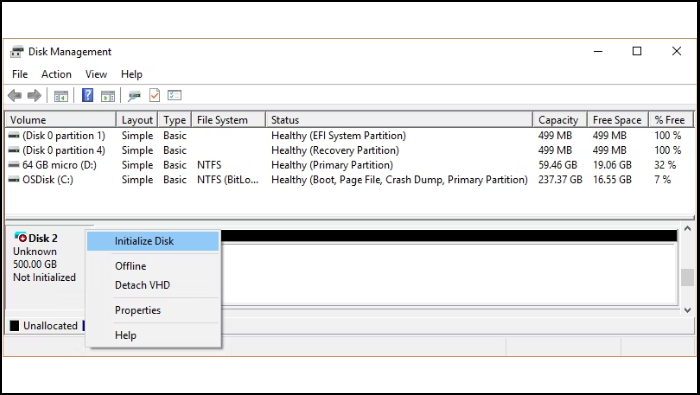
Step 3. If it shows "Not Initialized", right-click the disk and select "Initialize Disk". Choose GPT and click OK.
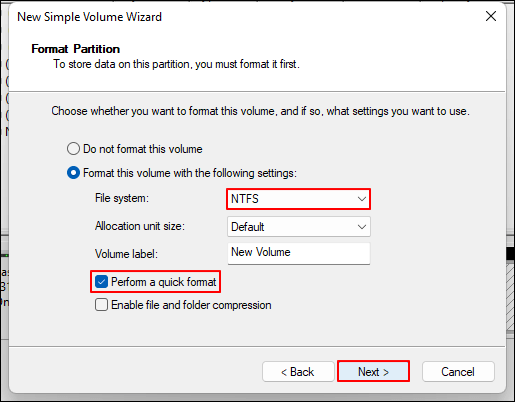
Step 4. Right-click the "Unallocated" space and select "New Simple Volume."
Step 5. Follow the wizard, choose "NTFS", select "Perform a quick format," and click "Finish."
Method 3. Format a New SSD with DiskPart
- Suitable for
- Advanced users
- Precise command-line control
- Situations where graphical tools are unavailable
DiskPart is a command-line tool included with Windows. It provides precise control over disk initialization, partition creation, formatting, and drive-letter assignment, making it useful for advanced users or situations where graphical tools are unavailable. However, you must identify the correct disk carefully before running any commands.
Step 1. Open Command Prompt as administrator and enter:
- diskpart
Step 2. List all disks:
- list disk
Step 3. Select the new SSD. Replace 0 with the correct disk number:
- select disk 0

Step 4. Create and select a partition:
- create partition primary
- select partition 1
Step 5. Format it as NTFS:
- format fs=ntfs quick
Step 6. Assign a drive letter and exit:
- assign
- exit
NTFS vs. exFAT: Which Format Should You Choose for a New SSD?
The best file system depends on how you plan to use the SSD.
NTFS is the standard choice for an internal SSD that you use mainly with Windows. It supports Windows file permissions and other Windows features and works well for everyday storage.
exFAT is useful for an external SSD that you want to use across different operating systems and devices.
FAT32 is still supported by many devices, but its 4 GB maximum file size makes it less practical for general SSD storage.
| File System | Best For | Main Consideration |
| NTFS | Internal SSDs and Windows storage | Best general choice for Windows |
| exFAT | External SSDs and cross-platform storage | Useful across different devices |
| FAT32 | Older devices and specific compatibility needs | Cannot store a single file larger than 4 GB |
Recommendations for File System
- Choose NTFS if you install the SSD inside a Windows PC and use it for files, games, applications, or general storage.
- Choose exFAT if the SSD is external and you regularly connect it to Windows, macOS, cameras, game consoles, or other devices that support exFAT.
- For most users setting up a new internal SSD on Windows 11 or Windows 10, NTFS is the simplest choice.
New SSD Won't Format? Try These Fixes
A new SSD may fail to format for several reasons. The disk may not be initialized, may have no partition, or may not be detected correctly by Windows. Check the SSD status first and use the fix that matches the problem.
Fix 1. Initialize the SSD
Windows cannot use a new SSD normally if it shows as Not Initialized. Open Disk Management and initialize the disk before creating a partition. Choose GPT for most modern Windows 10/11 PCs.
Fix 2. Create a Partition on the SSD
A new SSD can appear as Unallocated instead of a usable drive. Create a new partition from the unallocated space before you try to format it.
Fix 3. Bring the SSD Online
Windows cannot format a disk that is marked Offline. Check the SSD in Disk Management and set it to Online before formatting it again.
Fix 4. Check the SSD Connection
If the SSD does not appear in Disk Management, check the hardware connection first. Reconnect the SSD, try another port or cable, and check whether the drive appears in BIOS/UEFI.
Fix 5. Choose a Suitable File System
The wrong file system can also cause formatting problems. Choose the file system based on how you plan to use the SSD:
- NTFS: Best for most internal Windows SSDs.
- exFAT: Better for external SSDs used across Windows and other supported devices.
- FAT32: Useful for compatibility, but individual files are limited to 4 GB.
Fix 6. Format the SSD with EaseUS Partition Master
If Windows tools cannot format the SSD normally, EaseUS Partition Master gives you another way to set it up. The tool can handle the whole process from one interface, including initialization, partition creation, formatting, drive letter assignment, and unallocated space management.
You can also use it when the SSD needs more than a basic format. EaseUS Partition Master supports partition resizing, moving, creating, deleting, and other disk management tasks.
Conclusion
Formatting a new SSD gets the drive ready for file storage, but you may need to initialize the disk and create a partition first. For most modern Windows PCs, GPT is the preferred partition style, while NTFS is the usual file system for an internal SSD.
You can use Disk Management for a basic setup, DiskPart if you prefer command-line tools, or EaseUS Partition Master when you want a graphical way to manage formatting and partition operations.
If Windows cannot format the SSD, check its status first. An Offline, Not Initialized, or Unallocated drive needs a different step before formatting. If Windows does not detect the SSD at all, check the connection and BIOS/UEFI instead.
FAQs About Formatting a New SSD
1. Do I need to format a brand-new SSD?
Usually, you need to set up a completely new SSD before using it for storage. If Windows shows the SSD as Not Initialized or Unallocated, initialize the disk, create a partition, and format it. If the SSD already has a usable partition and drive letter, you can use it without formatting it again.
2. Should I format a new SSD as NTFS or exFAT?
Choose NTFS for most internal SSDs used with Windows. Choose exFAT for an external SSD that you need to use across Windows and other compatible devices.
3. Should I choose GPT or MBR for a new SSD?
Choose GPT for most modern Windows 10 and Windows 11 PCs. Use MBR when you need compatibility with an older system that relies on legacy BIOS.
4. Does formatting an SSD reduce its lifespan?
Normal formatting does not make an SSD unusable, but formatting writes data to the drive. You do not need to format an SSD repeatedly. Format it when you need to create or change a file system or prepare the drive for a new use.
How Can We Help You
About the Author
Updated by Joey Albert
Joey is an enthusiast of science and technology. With a passion for uncovering the latest tech innovations, she creates clear, engaging how-to guides that make technology accessible and enjoyable for all.
Product Reviews
-
I love that the changes you make with EaseUS Partition Master Free aren't immediately applied to the disks. It makes it way easier to play out what will happen after you've made all the changes. I also think the overall look and feel of EaseUS Partition Master Free makes whatever you're doing with your computer's partitions easy.
Read More -
Partition Master Free can Resize, Move, Merge, Migrate, and Copy disks or partitions; convert to local, change label, defragment, check and explore partition; and much more. A premium upgrade adds free tech support and the ability to resize dynamic volumes.
Read More -
It won't hot image your drives or align them, but since it's coupled with a partition manager, it allows you do perform many tasks at once, instead of just cloning drives. You can move partitions around, resize them, defragment, and more, along with the other tools you'd expect from a cloning tool.
Read More
Related Articles
-
SSD Health Check Software Free Download For Mac
![author icon]() Sherly/2026/06/17
Sherly/2026/06/17 -
MBR2GPT Cannot Find OS Partition? Feasible Fixes🔥
![author icon]() Tracy King/2026/08/13
Tracy King/2026/08/13 -
CHKDSK Cannot Continue in Read-only Mode: Get 5 Fixes for CHKDSK Read Only Mode
![author icon]() Brithny/2026/07/01
Brithny/2026/07/01 -
Free HDD to SSD Cloning Software Free Download [Top 4]
![author icon]() Cici/2026/08/13
Cici/2026/08/13
 Sherly/2026/06/17
  Tracy King/2026/08/13
  Brithny/2026/07/01
  Cici/2026/08/13









