







Content
Page Table of Contents
About the Author
Hot Topics
Is your Windows 11 PC constantly running low on disk space? A full hard drive can make it harder to install Windows updates, download large files, or keep enough free space for everyday tasks. Temporary files, browser caches, Windows update leftovers, logs, unused applications, and large personal files can gradually consume storage without you noticing.
A hard drive cleaner can help remove unnecessary files and reclaim storage space. However, not every cleaner works in the same way. Some focus on Windows junk files, while others clean browser traces, analyze disk usage, or help you deal with a C drive that remains full even after cleanup.
To find the most useful options, we tested and compared popular Windows 11 disk cleaning tools, including built-in Windows utilities and third-party hard drive cleaner software. This guide covers their key features, strengths, limitations, and the situations where each tool makes the most sense. Feel free to share this post if you found it helpful.

Is There a Free Hard Disk Cleaner Available for Windows 11?
Yes. Windows 11 already includes free disk cleaning tools, and there are also several free third-party options. For a basic cleanup, you do not necessarily need to download additional software. Windows 11 provides Disk Cleanup, Storage Sense, and Cleanup recommendations for identifying and removing certain unnecessary files. Microsoft says Storage Sense can automatically remove temporary files and Recycle Bin contents, while Cleanup recommendations can identify temporary files, large or unused files, cloud-synced files, and unused apps.
The limitation is that built-in tools are primarily designed for Windows storage management. They are not intended to solve every reason a hard drive or C drive becomes full.
For example, if your storage problem is caused by large personal files, duplicate files, application leftovers, or an incorrectly sized system partition, simply deleting temporary files may only provide short-term relief.
Windows 11 Hard Drive Cleaners vs. Third-Party Tools
We compared the following options based on common storage problems rather than simply counting how many features each program has.
| Tool | Junk File Cleanup | Browser/App Cleanup | Disk Space Analysis | Automatic Cleanup | Helps When C Drive Is Still Full | Ease of Use |
|---|---|---|---|---|---|---|
| EaseUS Partition Master | Excellent | Excellent | Excellent | Yes | Yes | Very Easy |
| Disk Cleanup | Good | Limited | No | No | Limited | Easy |
| Storage Sense | Good | Limited |
Basic |
Yes | Limited | Very Easy |
| BleachBit | Excellent | Excellent | Limited | Limited | No | Moderate |
| Wise Disk Cleaner | Excellent | Excellent | Limited | Yes | No | Easy |
| WizTree | No | No | Excellent | No | Indirectly | Easy |
Our takeaway: If you only need to delete Windows temporary files, the built-in tools are sufficient. If you want broader cleanup, a third-party cleaner can be more convenient. And if you cannot figure out what is consuming your storage, a disk space analyzer such as WizTree becomes useful.
Top 5 Hard Drive Cleaner Software for Windows 11 in 2026
Our 2026 checklist focuses on more than simply asking whether a program can delete junk files. We looked at cleanup coverage, disk space analysis, automation, ease of use, and whether the tool can address the underlying cause of low storage.
#1. EaseUS Partition Master
✅Best for: All-around hard drive cleanup and C drive space management
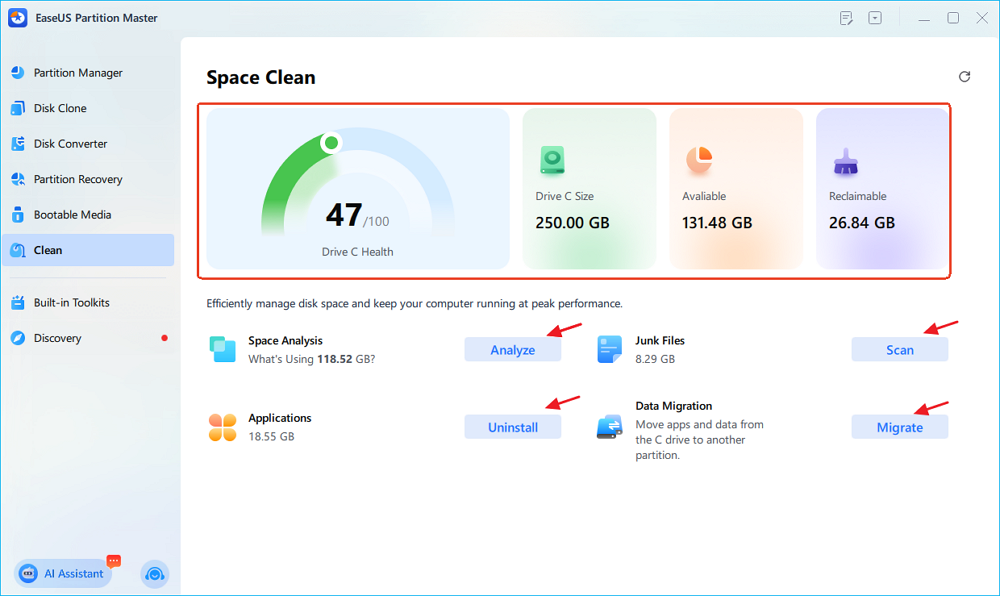
A hard drive can remain nearly full even after you remove temporary files. That is where EaseUS Partition Master takes a broader approach. Instead of treating disk cleanup as nothing more than deleting junk, it combines cleanup, disk space analysis, duplicate-file detection, and partition management in one application. Its dedicated Clean feature can scan for junk files and help identify where storage is being consumed. It can also locate duplicate files and analyze disk usage. More importantly, when deleting files is not enough to solve a low-space problem, Partition Master can extend the C drive by reallocating available space from other partitions.
That makes it particularly useful for Windows 11 users who see the familiar "C drive is full" warning but do not necessarily have enough removable junk to solve the problem.
Key Features
- One-click junk file cleanup to remove unnecessary files
- Disk space analysis to identify large files, folders, and storage usage
- Duplicate file finder to locate unnecessary copies
- C drive extension when deleting files is not enough
- Partition management and data migration for broader storage management
Pros and Cons
PROS
CONS
💡Editor's Review
- Best suited for: Users whose main problem is not simply junk files, but a C drive that keeps running out of space.
If you only want to remove browser cache once, a lightweight cleaner may be enough. But when the storage problem involves large files, duplicates, partitions, or insufficient C drive capacity, EaseUS Partition Master provides more ways to address the problem instead of repeatedly deleting temporary files.
- Verdict: 9.5/10 — Best overall choice for Windows 11 storage cleanup and management.
- Free Download:
#2. Built-in Windows 11 Hard Drive Cleaners
✅Best for: Safe, basic cleanup without downloading software
Before installing a third-party hard drive cleaner, Windows 11 users should check what is already available on their PC. Disk Cleanup and Storage Sense are built into Windows, so there is no download, installation, or additional software to manage.
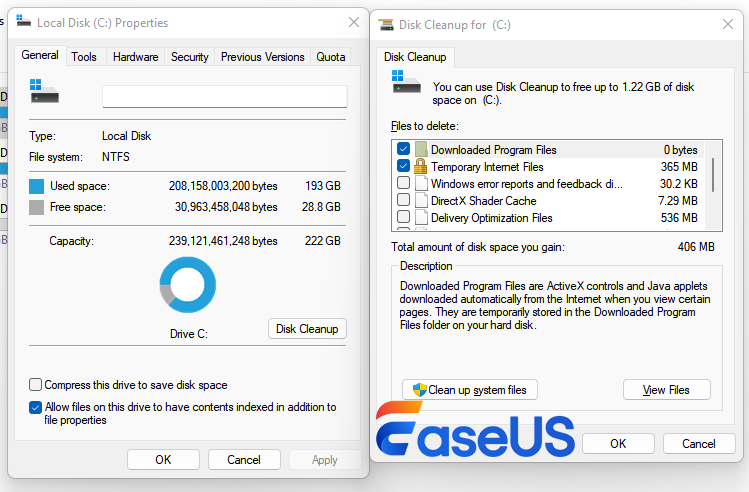
- Disk Cleanup: Disk Cleanup is the traditional Windows cleanup utility. It can remove temporary files and system files, and selecting Clean up system files can expose additional categories that can be removed. It is straightforward, but its interface and functionality are relatively basic compared with newer third-party tools.
- Storage Sense: Storage Sense takes a more automated approach. It can run according to a schedule and automatically remove selected temporary files and Recycle Bin contents. Microsoft notes that Storage Sense works on the Windows system drive by default, normally the C drive.
- Windows 11 also includes Cleanup recommendations, which can identify temporary files, large or unused files, cloud-synced files, and unused applications.
Key Features
- Disk Cleanup: Remove temporary and system files
- Storage Sense: Automatically clean selected unnecessary files
- Cleanup recommendations: Identify files and apps that may be removed
Pros and Cons
PROS
CONS
💡Editor's Review
- Best suited for: Users who want a safe and simple Windows 11 cleanup without installing additional software.
If your PC is only short on a few gigabytes because of temporary files, start here. There is little reason to download a third-party utility for such a basic task. However, if you repeatedly clean the drive but it becomes full again, you will probably need a tool that can analyze your disk usage or manage the partition layout.
- Verdict: 8.5/10 — The best no-download option for basic Windows cleanup.
- Free Download: No need to download; it comes with Windows 11
#3. BleachBit
✅Best for: Detailed junk and privacy cleanup
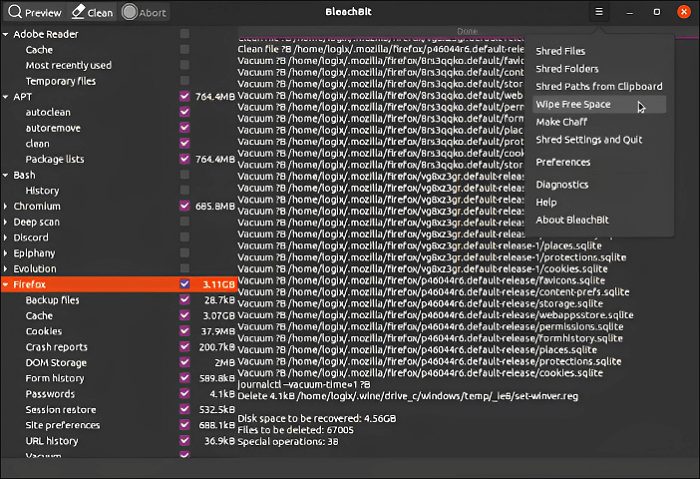
BleachBit takes a more granular approach than the standard Windows utilities. It is an open-source system cleaner that can remove temporary files, browser data, application leftovers, and other unnecessary information. Its strength is the amount of control it gives the user. You can preview selected cleanup categories before deleting them, and the software supports cleaners for applications such as Chrome, Edge, Firefox, VLC, and others. It also supports additional cleaner definitions through winapp2.ini.
The current Windows version has also added deeper browser-cookie cleaning and other improvements.
Key Features
- Open-source and free
- Cleans temporary files, caches, logs, and browser data
- Supports many third-party applications
- Preview before deletion
- Secure file shredding and free-space wiping
Pros and Cons
PROS
CONS
💡Editor's Review
- Best suited for: Users who want more control over exactly what gets cleaned, particularly browser traces, application caches, and privacy-related data.
BleachBit is a strong option for technically comfortable users. Its detailed cleaning categories are an advantage, but they also mean you should pay attention to what you select rather than blindly cleaning everything.
- Verdict: 8.5/10 — Excellent for users who want granular control over cleanup.
- Download Site: https://www.bleachbit.org/
#4. Wise Disk Cleaner
✅Best for: Lightweight, beginner-friendly disk cleanup
If BleachBit gives you a lot of control, Wise Disk Cleaner takes a more straightforward route. It focuses on removing junk files, browser traces, and other unnecessary data while keeping the interface relatively easy to navigate.
Wise Disk Cleaner supports Windows 11 and can clean temporary files, logs, browser caches, Windows update files, and other unwanted data. It also provides an automatic cleaning feature and supports HDD defragmentation and SSD TRIM-related optimization.
One useful aspect is the review step: after scanning, users can inspect the results and uncheck items they want to keep before starting the cleanup.

Key Features
- Cleans temporary and outdated junk files
- Removes browser cache, history, and other traces
- Automatic scheduled cleanup
- One-click cleanup
- HDD defragmentation and SSD optimization support
Pros and Cons
Pros and Cons
PROS
CONS
💡Editor's Review
- Best suited for: Users who want a lightweight alternative to Windows Disk Cleanup with more cleanup coverage and automation.
Wise Disk Cleaner is a good middle ground. It provides more cleanup options than the basic Windows utility without requiring users to deal with as many advanced controls as BleachBit.
- One caution: browser cookies, saved passwords, and similar privacy-related data should be reviewed before deletion. WiseCleaner itself recommends caution around these items because removing them can affect saved sessions and credentials.
- Verdict: 8/10 — A solid free cleaner for routine Windows 11 maintenance.
- Download Site: https://www.wisecleaner.com/wise-disk-cleaner.html
#5. WizTree
✅Best for: Finding what is actually consuming your hard drive
WizTree is the odd one out on this list, and that is intentional. It is not a traditional hard drive cleaner. Instead, it is a disk space analyzer designed to show exactly where your storage is going. That distinction matters because deleting junk files is not always the right answer to a full hard drive.
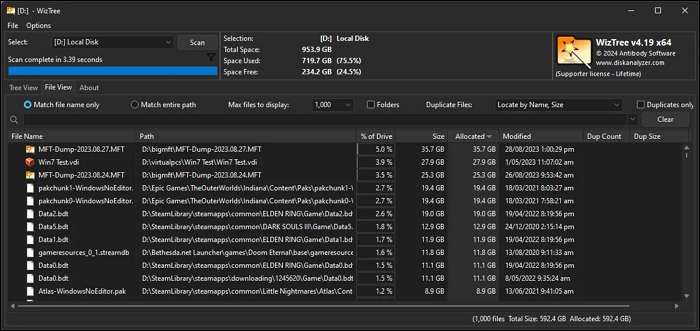
WizTree can scan NTFS drives extremely quickly by reading the Master File Table (MFT) directly. Its visual treemap makes large files and folders easy to spot, allowing you to decide what should be removed or moved.
Key Features
- Extremely fast disk space analysis
- Visual treemap for files and folders
- Quickly identifies large files and storage hogs
- Direct MFT reading for NTFS drives
- Free for personal use
Pros and Cons
PROS
CONS
💡Editor's Review
- Best suited for: Users asking "What is taking up all my hard drive space?"
If Windows reports that your drive is almost full but Disk Cleanup only recovers a small amount of space, WizTree can help you investigate the problem. You may discover that a large game, video folder, backup, virtual machine, or application data is responsible for most of the storage usage. It is therefore better viewed as a disk cleanup companion than a replacement for a hard drive cleaner.
- Verdict: 8/10 — One of the best choices for finding large files before deciding what to delete.
- Download Site: https://diskanalyzer.com/
Which Hard Drive Cleaner Should You Choose?
There is no single best disk cleaner for every Windows 11 user. The right choice depends on why your storage is running low.
| Your Situation | Recommended Tool | Why |
|---|---|---|
| You want the simplest built-in option | Windows Storage Sense | No download and automatic cleanup |
| You need basic Windows system cleanup | Disk Cleanup | Simple and built into Windows |
| You want an all-around storage management solution | EaseUS Partition Master | Cleanup + analysis + partition management |
| You want detailed application and privacy cleanup | BleachBit | Extensive cleaning control |
| You want a lightweight free cleaner | Wise Disk Cleaner | Easy interface and broad junk cleanup |
| You cannot find what is filling your drive | WizTree | Quickly identifies large files and folders |
| Your C drive stays full after cleanup | EaseUS Partition Master | Can analyze storage and extend the C drive |
| You want scheduled automatic cleanup | Storage Sense/Wise Disk Cleaner | Both support automated cleanup |
Final Verdict
A free hard drive cleaner for Windows 11 does not have to be complicated. For occasional cleanup, Windows 11's built-in Disk Cleanup and Storage Sense are perfectly reasonable starting points. But the situation changes when deleting temporary files does not solve the problem.
For users who want a more complete way to clean, analyze, and manage storage, EaseUS Partition Master is the strongest all-around option in our 2026 comparison. Its Clean feature addresses unnecessary files, while its disk analysis and partition-management capabilities can help when the underlying problem is more than just junk.
For privacy-focused cleanup, BleachBit is worth considering. Wise Disk Cleaner is a practical choice for routine maintenance, while WizTree is particularly useful when you need to find the files responsible for a rapidly filling hard drive.
In other words, the best hard drive cleaner is not necessarily the one that deletes the most files—it is the one that addresses why your storage is full in the first place.
FAQs About Hard Drive Cleaner Software for Windows 11
1. Is there a completely free hard drive cleaner for Windows 11?
Yes. Windows 11 includes free tools such as Disk Cleanup, Storage Sense, and Cleanup recommendations. Several third-party applications, including BleachBit and Wise Disk Cleaner, also offer free versions.
2. Does Windows 11 have a built-in hard drive cleaner?
Yes. Windows 11 includes Disk Cleanup and Storage Sense. Storage Sense can automatically remove selected temporary files and Recycle Bin contents, while Disk Cleanup provides manual cleanup of temporary and system files.
3. What is the best hard drive cleaner software for Windows 11?
It depends on the problem. For basic cleanup, Windows Storage Sense is sufficient. For broader storage management, EaseUS Partition Master is a stronger all-around choice because it combines junk cleanup, disk space analysis, duplicate-file detection, and partition management.
4. Can a hard drive cleaner make my Windows 11 PC faster?
Cleaning unnecessary files can help when low storage is affecting normal operation, but a disk cleaner should not be treated as a guaranteed performance booster. If a PC is slow because of insufficient RAM, failing hardware, excessive startup programs, or other system problems, cleaning junk files alone may not solve the issue.
5. Why is my C drive still full after using Disk Cleanup?
Disk Cleanup mainly targets specific categories of temporary and system files. If large applications, games, videos, downloads, duplicate files, or other personal data are consuming the space, deleting Windows junk may recover only a small amount.
A disk space analyzer can help identify the real storage hogs. If the partition itself is too small, resizing or extending the C drive may be a more appropriate solution.
6. Is BleachBit safe for Windows 11?
BleachBit is an open-source Windows cleaner that provides previews and selectable cleaning categories. It can remove temporary files, browser data, application leftovers, and other data.
As with any cleanup software, review the selected categories before deletion, particularly when cleaning browser data or privacy-related files.
7. Is WizTree a hard drive cleaner?
Not exactly. WizTree is primarily a disk space analyzer. It helps users quickly identify large files and folders consuming storage, but it does not function like a traditional junk-file cleaner. It is especially useful when you know your hard drive is full but do not know why.
How Can We Help You
About the Author

Sherly joined EaseUS in 2022 and she has always loved writing articles and enjoys the fun they bring. She receives professional training here, focusing on product performance and other relative knowledge. She has written over 200 articles to help people overcome computing issues.
Product Reviews
-
I love that the changes you make with EaseUS Partition Master Free aren't immediately applied to the disks. It makes it way easier to play out what will happen after you've made all the changes. I also think the overall look and feel of EaseUS Partition Master Free makes whatever you're doing with your computer's partitions easy.
Read More -
Partition Master Free can Resize, Move, Merge, Migrate, and Copy disks or partitions; convert to local, change label, defragment, check and explore partition; and much more. A premium upgrade adds free tech support and the ability to resize dynamic volumes.
Read More -
It won't hot image your drives or align them, but since it's coupled with a partition manager, it allows you do perform many tasks at once, instead of just cloning drives. You can move partitions around, resize them, defragment, and more, along with the other tools you'd expect from a cloning tool.
Read More
Related Articles
-
Clone USB to USB for Free with Simplest Tutorial Guide
![author icon]() Tracy King/2026/09/28
Tracy King/2026/09/28 -
How to Convert NTFS to FAT32 | NTFS to FAT32 Converter [No Data Loss]
![author icon]() Brithny/2026/09/21
Brithny/2026/09/21 -
Top 5 Best USB FAT32 Formatter [Free Download]
![author icon]() Tracy King/2026/09/23
Tracy King/2026/09/23 -
Format EXT4 on Windows 10,8,7 with Best EXT4 Format Freeware
![author icon]() Jean/2026/09/22
Jean/2026/09/22
 Tracy King/2026/09/28
  Brithny/2026/09/21
  Jean/2026/09/22









