







Content
Page Table of Contents
About the Author
Hot Topics

Updated on May 16, 2026
Clonezilla is a popular open‑source disk imaging and cloning tool. This review walks through what Clonezilla does, its strengths and limitations, performance, and use. Whether you want to upgrade an SSD or create backups, Clonezilla is a tool worth considering.
What Is Clonezilla
Clonezilla is a utility for disk imaging and cloning. It allows you to create and restore disk or partition images and perform block‑level clones. Clonezilla runs from a USB stick or CD and boots its own minimal Linux environment. It uses cloning tools to read and write disk data. It's a popular tool for system migration, disaster recovery, and mass deployment. When can you use Clonezilla:
- System migration: Move a Windows or Linux installation to a larger or faster drive (HDD > SSD, SATA > NVMe).
- Backup and restore: Create a full system image before updates or hardware changes.
- Mass deployment: Clone the same OS image to multiple machines on a network.
- Recovery: Create copies of drives for analysis or attempting to recover a failing drive.
Key Features of Clonezilla
Clonezilla focuses on core cloning functionality. Here is a table showing Clonezilla's key features.
| Feature | Description |
| Disk and Partition Imaging | Clonezilla can create images of an entire disk or a single partition. (useful for backup and recovery) |
| Disk Cloning | It supports direct disk-to-disk cloning, which is helpful when migrating to a new drive. |
| Multiple File System Support | Clonezilla works with common file systems such as NTFS, FAT, ext2/ext3/ext4, and more. |
| Compression Options | Users can compress backup images to save storage space. |
| Open Source | Clonezilla is free to use and open source. |
| Verification Tools | It can verify images after creation to reduce the risk of backup corruption. |
| Advanced Control | Clonezilla gives users detailed control over cloning options, which is useful for technical users and system administrators. |
Clonezilla Pricing
Clonezilla is completely free and open-source. You can download, use, and modify it without paying. Just download the ISO, create bootable media, and use all features without restrictions. Organizations that need guaranteed support or enterprise features often use other third-party cloning tools.
Clonezilla Pros and Cons
Like any software, Clonezilla has its pros and cons. Learning its pros and cons may help you decide whether you should use it.
✅Pros:
|
⚠️Cons:
|
How to Use Clonezilla to Clone a Disk
This section shows how to use Clonezilla on Windows. If you want to clone a disk with Clonezilla Live, please follow these steps:
Stage 1. Create a Bootable USB
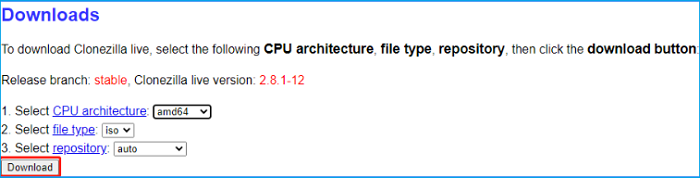
Step 1. Download the Clonezilla Live ISO file from the official website.
Step 2. Use a USB creation tool such as Rufus to write the ISO to a USB flash drive.
Step 3. After the process is finished, safely eject the USB drive.
Step 4. Insert the USB drive into your Windows PC and restart the computer.
Stage 2. Clone Hard Drive
Step 1. Boot your computer from the Clonezilla USB drive.
Step 2. On the Clonezilla boot menu, choose the default option. Then, select your language and keyboard layout.
Step 3. Choose "Start Clonezilla."
Step 4. Select device-device mode, which lets you clone one disk to another.
Step 5. Choose Beginner mode for the easiest setup.
Step 6. Select "disk_to_local_disk local_disk_to_local_disk_clone."
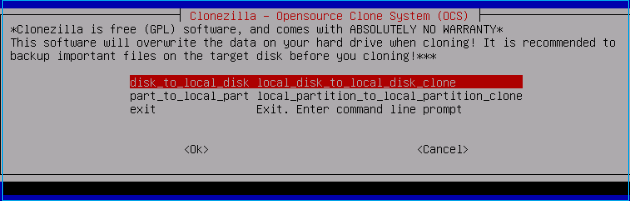
Step 7. Carefully choose the source disk and the target disk. The target disk will be overwritten.
Step 8. Confirm the warning messages, then press Y when prompted to start the cloning process.
Step 9. Wait until Clonezilla finishes cloning the disk.
Step 10. After cloning, shut down the computer and boot from the cloned drive to check whether Windows starts correctly.
Alternative Disk Clone Software
As you can see, the cloning steps of Clonezilla are complicated. Clonezilla might not be suitable for beginners. EaseUS Partition Master is a powerful Clonezilla alternative for cloning your disks and partitions.
If you want a full disk management suite, EaseUS Partition Master is a good choice. Its disk-cloning function is easy to use. It also gives you practical tools for partition resizing, disk migration, formatting, and general drive maintenance. EaseUS Partition Master is a convenient all-in-one option for both everyday users and more advanced Windows tasks.
- ✔️Migrate OS to SSD/HDD.
- ✔️Clone all data on the disk containing the Windows OS to another disk.
- ✔️Clone a data disk to another disk.
- ✔️ Cloned data from one partition to another partition.
How to clone a disk using EaseUS Partition Master:
Step 1. Select the source disk.
- Click the "Clone" from the left menu. Select the "Clone OS Disk" or "Clone Data Disk" and click "Next".
- Choose the source disk and click "Next".
Step 2. Select the target disk.
- Choose the wanted HDD/SSD as your destination and click "Next" to continue.
- Read Warning message and confirm "Yes" button.
Step 3. View the disk layout and edit the target disk partition size.
Then click "Continue" when the program warns it will wipe out all data on the target disk. (If you have valuable data on the target disk, back up it in advance.)
You can select "Autofit the disk", "Clone as the source" or "Edit disk layout" to customize your disk layout. (Select the last one if you want to leave more space for C drive.)
Step 4. Click "Start" to start the disk cloning process.
Conclusion
Clonezilla is excellent for anyone who needs free and reliable disk imaging and cloning. Its power and efficiency make it the right tool for technical users and deployment tasks. However, it lacks a friendly GUI and official support. If you value control, automation, and free tooling, Clonezilla is the right choice. If you want an easy, all-in-one tool, choose EaseUS Partition Master as the best disk cloning and management tool.
FAQs
1. Is Clonezilla safe for cloning a Windows system?
Yes, it's a trusted open-source tool. Clonezilla helps clone Windows systems, including boot partitions. But you'd better handle UEFI/EFI, BitLocker, and dynamic disks carefully and verify the image after creation.
2. How do I recover if my cloned system doesn't boot?
First, verify partitions and the bootloader, then use system repair tools to reinstall or fix the bootloader. Keep a backup of the original image before attempting risky repairs.
3. How long does Clonezilla take to clone a disk?
Cloning time varies depending on the amount of data used, drive speed, and compression settings. It might range from 30 minutes to several hours. Small SSDs may finish in 10-30 minutes.
Share it on:

How Can We Help You
About the Author
Updated by Joey Albert
Joey is an enthusiast of science and technology. With a passion for uncovering the latest tech innovations, she creates clear, engaging how-to guides that make technology accessible and enjoyable for all.
Product Reviews
-
I love that the changes you make with EaseUS Partition Master Free aren't immediately applied to the disks. It makes it way easier to play out what will happen after you've made all the changes. I also think the overall look and feel of EaseUS Partition Master Free makes whatever you're doing with your computer's partitions easy.
Read More -
Partition Master Free can Resize, Move, Merge, Migrate, and Copy disks or partitions; convert to local, change label, defragment, check and explore partition; and much more. A premium upgrade adds free tech support and the ability to resize dynamic volumes.
Read More -
It won't hot image your drives or align them, but since it's coupled with a partition manager, it allows you do perform many tasks at once, instead of just cloning drives. You can move partitions around, resize them, defragment, and more, along with the other tools you'd expect from a cloning tool.
Read More
Related Articles
-
Windows 10 Repair Tool Free Download | How-to Guide
![author icon]() Sherly/2026/01/29
Sherly/2026/01/29 -
Best Free GParted Windows Alternative Tool
![author icon]() Tracy King/2026/05/10
Tracy King/2026/05/10 -
How to Clone a Mac Hard Drive Using Terminal | Full Guide
![author icon]() Sherly/2026/01/29
Sherly/2026/01/29 -
How to Create A Bootable Installer for macOS - Full Steps
![author icon]() Oliver/2026/01/29
Oliver/2026/01/29
 Sherly/2026/01/29
  Tracy King/2026/05/10
  Oliver/2026/01/29
 Hot Topics








EaseUS Partition Master
Version 20.0 is here - full exFAT support, easier disk partitioning, and PC performance optimization.


