







Content
Page Table of Contents
About the Author
Hot Topics

Updated on May 20, 2026
Rufus is a popular tool for creating bootable USBs. It's open source, free, lightweight, and fast. But is it right for you? This comprehensive guide will walk you through what Rufus is, how it works, and how to use it to create a bootable USB drive.
What Is Rufus
Rufus is a free, open-source utility for formatting and creating a bootable USB drive. It's lightweight, portable, and works on Windows. Unlike Microsoft's Media Creation Tool, Rufus gives you more control. You can bypass Windows 11's TPM and Secure Boot requirements, choose partition schemes, and target BIOS or UEFI.
When will you need Rufus?
- Creating a bootable Windows installation USB.
- Installing or trying Linux distributions.
- Bypassing Windows 11 hardware requirements.
- Repairing or reinstalling Windows when your PC won't boot.
- Creating recovery or rescue disks for troubleshooting hardware issues.
- Running portable operating systems or live environments.
- Setting up dual-boot systems (Windows + Linux).
- Preparing USBs for clean OS installations.
📖 Further Reading: Rufus vs Ventoy
Key Features of Rufus
Rufus stands out because of its speed and flexibility. There are some key features of Rufus.
1. Create Bootable USB Drives from ISO Files
Rufus' core functionality is creating bootable USB ports. It can take an ISO file and write it directly to a USB drive. Once finished, the USB becomes bootable. You can plug it into any PC, boot from it, and install an operating system or run a live environment.
2. Bypass Windows 11 TPM and Secure Boot Requirements
When writing a Windows 11 ISO, Rufus helps modify the installation media. It removes the checks for TPM 2.0, Secure Boot, 4 GB RAM, and CPU generation. This allows Windows 11 to install on older computers.
3. Select Partition Scheme (GPT or MBR)
Rufus lets you choose how to partition the USB drive.
- GPT (GUID Partition Table): Used for modern computers with UEFI firmware.
- MBR (Master Boot Record): Used for older computers with traditional BIOS.
- This function ensures the USB matches the firmware of your target computer, preventing "No Boot Device" errors.
4. Scan USB Drive for Bad Blocks
Before writing data, Rufus can scan the USB drive for physical errors, such as bad blocks. This function reads every sector and marks any that are damaged. If errors are found, Rufus doesn't write data to those spots. This prevents installation failures or data corruption caused by a failing USB drive.
5. Extract Files from ISOs
Rufus includes a function to extract files directly from an ISO without burning it to a USB. You can browse the ISO contents, copy specific files (like drivers or installers) to your hard drive, and close the tool. This acts as a quick file extractor for disk images.
Rufus Download
Rufus is 100% free to use. You can download Rufus from its official website:
https://rufus.ie
- File Size: ~2 MB
- System Requirements: Windows 8 or later
- Supported Languages: 38
Rufus Pros and Cons
While Rufus is one of the most popular tools for creating bootable USB drives, it's not without its limitations. Here's a balanced overview of its pros and cons.
✅Pros:
|
⚠️Cons:
|
How to Use Rufus to Create Bootable USB
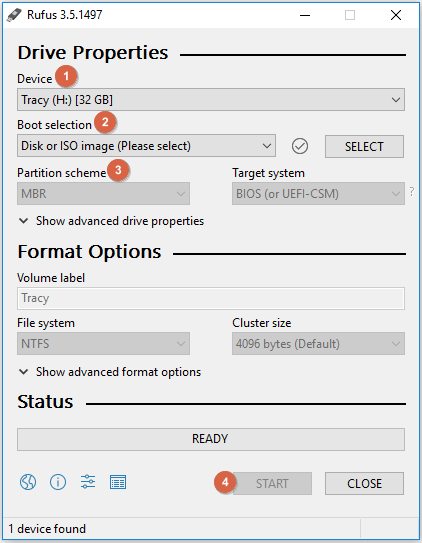
If you need to create USB installation media for Windows 11/10, you can follow these steps:
Step 1. Insert your USB drive (at least 8 GB for Windows 10/11).
Step 2. Download and run Rufus.
Step 3. Select your USB drive under "Device."
Step 4. Click "SELECT" and choose your ISO file.
Step 5. Choose partition scheme:
- For new PCs: GPT + UEFI (non-CSM)
- For older PCs: MBR + BIOS (or UEFI-CSM)
Step 6. Set the Volume label, File system, and Cluster size.
Step 7. Click "START" and wait for it to create a bootable USB.
Alternative: Use EaseUS Partition Master to Create Bootable USB
Rufus is powerful. But it has some limitations. For example, it only creates a bootable USB and won't manage the disk. If your Windows installation fails or your drive gets corrupted during the process, Rufus offers no help. Sometimes, you might encounter issues when using Rufus. If you want an all-in-one bootable tool and disk manager, EaseUS Partition Master is an excellent alternative. It's user-friendly with a modern interface, which makes creating bootable USB drives simple.
When to choose EaseUS Partition Master or Rufus? Here is a quick comparison.
| Feature | Rufus | EaseUS Partition Master |
| Bootable USB Creation | ✅ Yes | ✅ Yes (with Rescue Media Builder) |
| Disk Partitioning | ❌ No | ✅ Full support |
| Disk Cloning | ❌ No | ✅ Yes (SSD/HDD migration) |
| OS Migration | ❌ No | ✅ Yes (HDD to SSD) |
| Interface | Minimalist | Modern GUI with wizard |
| OS Support | Windows only | Windows only |
| Cost | Free | Free & Pro Version |
Here is how to use EaseUS Partition Master to create a bootable USB.
Step 1. To create a bootable disk of EaseUS Partition Master, you should prepare a storage media, like a USB drive, flash drive or a CD/DVD disc. Then, correctly connect the drive to your computer.
Step 2. Launch EaseUS Partition Master, and find the "Bootable Media" feature on the left. Click on it.
Step 3. You can choose the USB or CD/DVD when the drive is available. However, if you do not have a storage device at hand, you can also save the ISO file to a local drive, and later burn it to a storage media. Once made the option, click the "Create" button to begin.
- Check the Warning message and click "Yes".
Step 4. When the process finishes, you'll see a pop up window, asking if you want to restart computer from the bootable USB.
- Reboot Now: it means you want to restart the current PC and enter EaseUS Bootable Media to manage your disk partitions without OS.
- Done: it means you don't want to restart the current PC but to use the bootable USB on a new PC.
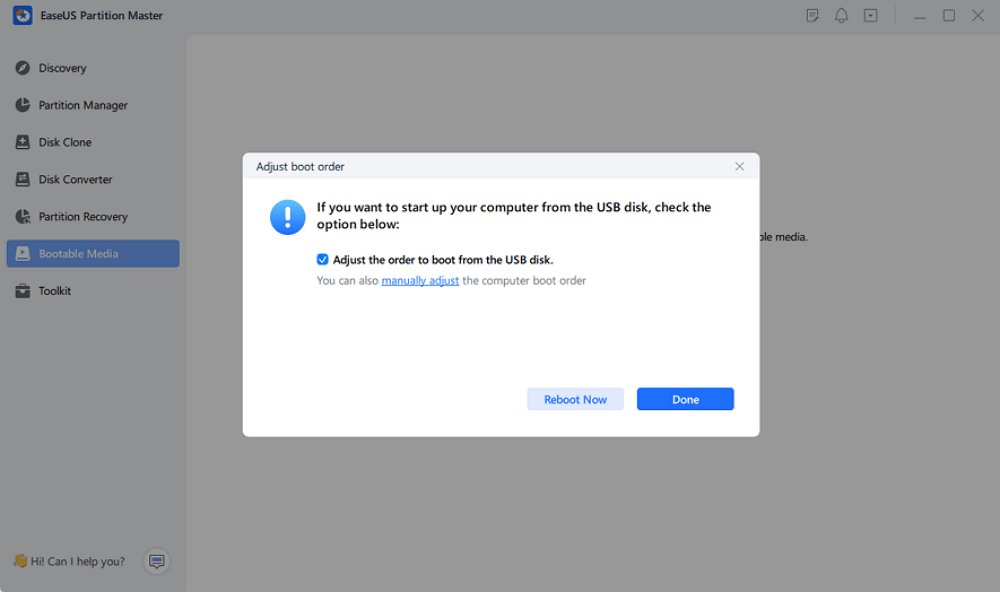
Note: To use the bootable disk on a new PC, you need to resart the target computer and press F2/F8/Del key to enter BIOS, and set the USB bootable disk as the first boot disk.
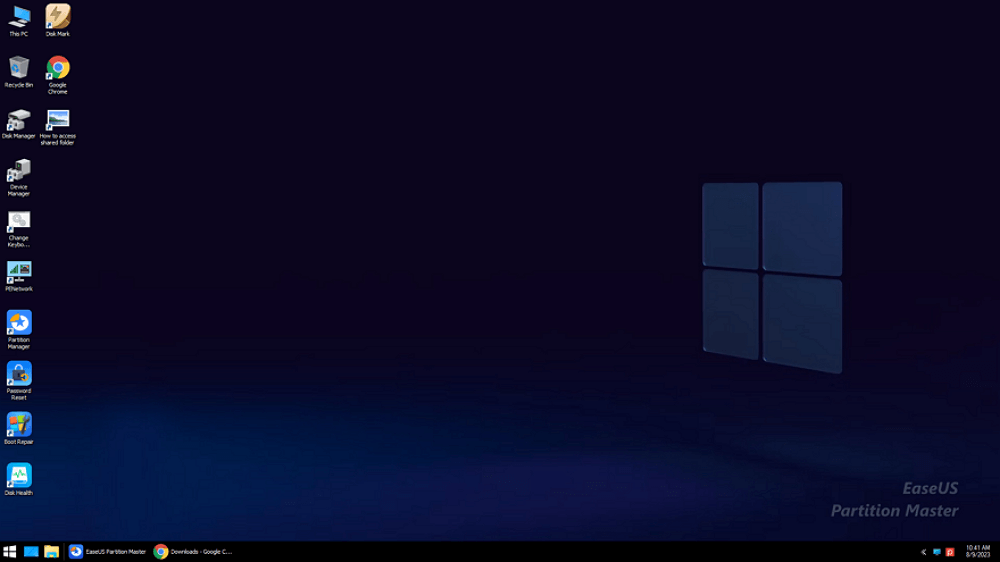
Wait patitiently and your computer will automatically boot up from the USB bootable media and enter EaseUS WinPE desktop.
Conclusion
Rufus is one of the best tools for creating bootable USB drives. Whether you're a power user installing custom Windows builds or a beginner setting up Linux for the first time, it gets the job done efficiently. If you only need to create a bootable USB drive, Rufus is the best tool. If you also need disk partitioning or OS migration, consider EaseUS Partition Master as a powerful alternative.
FAQs
1. Is Rufus safe?
Rufus is safe to use. It's open-source, malware-free, and widely trusted. Please always download it from the official site to avoid fake information.
2. Does Rufus work on macOS or Linux?
Rufus does not work on macOS or Linux. It's Windows-only. For macOS users, try alternatives such as EaseUS Partition Master for Mac or Ventoy.
3. How long does Rufus take to create a bootable tool?
The time depends on the ISO file size and USB speed. Usually, Rufus takes 2-5 minutes to create a bootable USB drive for a typical 4–5 GB Windows ISO on a USB 3.0 drive.
Share this Rufus review on:

How Can We Help You
About the Author
Updated by Joey Albert
Joey is an enthusiast of science and technology. With a passion for uncovering the latest tech innovations, she creates clear, engaging how-to guides that make technology accessible and enjoyable for all.
Product Reviews
-
I love that the changes you make with EaseUS Partition Master Free aren't immediately applied to the disks. It makes it way easier to play out what will happen after you've made all the changes. I also think the overall look and feel of EaseUS Partition Master Free makes whatever you're doing with your computer's partitions easy.
Read More -
Partition Master Free can Resize, Move, Merge, Migrate, and Copy disks or partitions; convert to local, change label, defragment, check and explore partition; and much more. A premium upgrade adds free tech support and the ability to resize dynamic volumes.
Read More -
It won't hot image your drives or align them, but since it's coupled with a partition manager, it allows you do perform many tasks at once, instead of just cloning drives. You can move partitions around, resize them, defragment, and more, along with the other tools you'd expect from a cloning tool.
Read More
Related Articles
-
Fix the Item Can Not Be Copied Because It Is Too Large for the Volume's Format
![author icon]() Cedric/2026/01/29
Cedric/2026/01/29 -
No Option to Turn Off BitLocker Windows 11 (Solved)
![author icon]() Oliver/2026/04/16
Oliver/2026/04/16 -
Fixed: Boot Drive Not Showing Up in BIOS | 2026 Best Tips🔥
![author icon]() Cici/2026/05/03
Cici/2026/05/03 -
How to Upgrade Windows 10 to Windows 11 25H2🔥
![author icon]() Shelly/2026/03/12
Shelly/2026/03/12
 Cedric/2026/01/29
  Oliver/2026/04/16
  Cici/2026/05/03
  Shelly/2026/03/12
 Hot Topics








EaseUS Partition Master

Version 20.0 is here - full exFAT support, easier disk partitioning, and PC performance optimization.


