







Content
Page Table of Contents
About the Author
Hot Topics
When you clone a disk or create a backup image, you may want to find an efficient cloning tool. Rescuezilla is popular because it's free, open‑source, and runs from a live environment. But as your needs grow, you may find its feature set and user experience limiting. That's where a Rescuezilla alternative comes in. This guide features five Rescuezilla alternatives to help you pick the right tool for your workflow.
Reddit User Case: What are the best (simplest) alternatives to Clonezilla for cloning an entire Windows 11 drive to a new SSD?
What is Rescuezilla & Why You Need a Rescuezilla Alternative
Rescuezilla is a free, open‑source disk imaging and cloning program that runs from a bootable environment. It's often described as a user‑friendly front‑end to Clonezilla, designed to make backup and restore tasks more approachable for non‑technical users.
Instead of installing software inside Windows or Linux, you boot from Rescuezilla's ISO. From there, you can image entire drives, clone disks to new hardware, or restore an existing image when your OS fails. This makes it useful for disaster recovery and system migration.
Key Features of Rescuezilla:
- Graphical user interface for disk imaging and cloning
- Runs from a bootable live environment rather than being installed on the OS
- Supports popular file systems and multiple operating systems
- Can back up and restore whole disks or partitions
- Free and open‑source, community‑driven project
|
😆Pros:
|
😦Cons:
|
Why You Need a Rescuezilla Alternative:
- You need regular, automated backups inside Windows rather than occasional manual imaging.
- Your environment is complex, with multiple machines, servers, or virtual machines.
- You prefer a more user-friendly interface with guided wizards.
- You require advanced features such as differential backups or business‑grade support.
- You want a tool that combines partition management, cloning, and system backup in one suite.
Top 5 Rescuezilla Alternatives
This section introduces 5 Rescuezilla alternatives to help you choose the right tool. You will know the functions, features, pros and cons. First, let's have an overview of these Rescuezilla alternatives.
| Product | Platform | Interface Type | Main Use Case | Price |
| Rescuezilla | Windows, Linux, Mac | GUI, bootable ISO | Disk imaging & cloning for recovery | Free |
| EaseUS Partition Master | Windows, Mac, Portable | GUI, installed app | Partition management & disk cloning | Free & Pro |
| Clonezilla | Windows, Linux, Mac | Text‑based, bootable | Advanced disk cloning & deployment | Free |
| Hiren's BootCD PE | Windows (PE environment) | GUI desktop (PE) | Multi‑tool repair & backup toolkit | Free |
| Acronis True Image | Windows, Mac | GUI, installed app | Full backup solution with scheduling | Paid |
| Hasleo Backup Suite | Windows | GUI, installed app | System/disk backup and cloning | Free & Pro |
1. EaseUS Partition Master
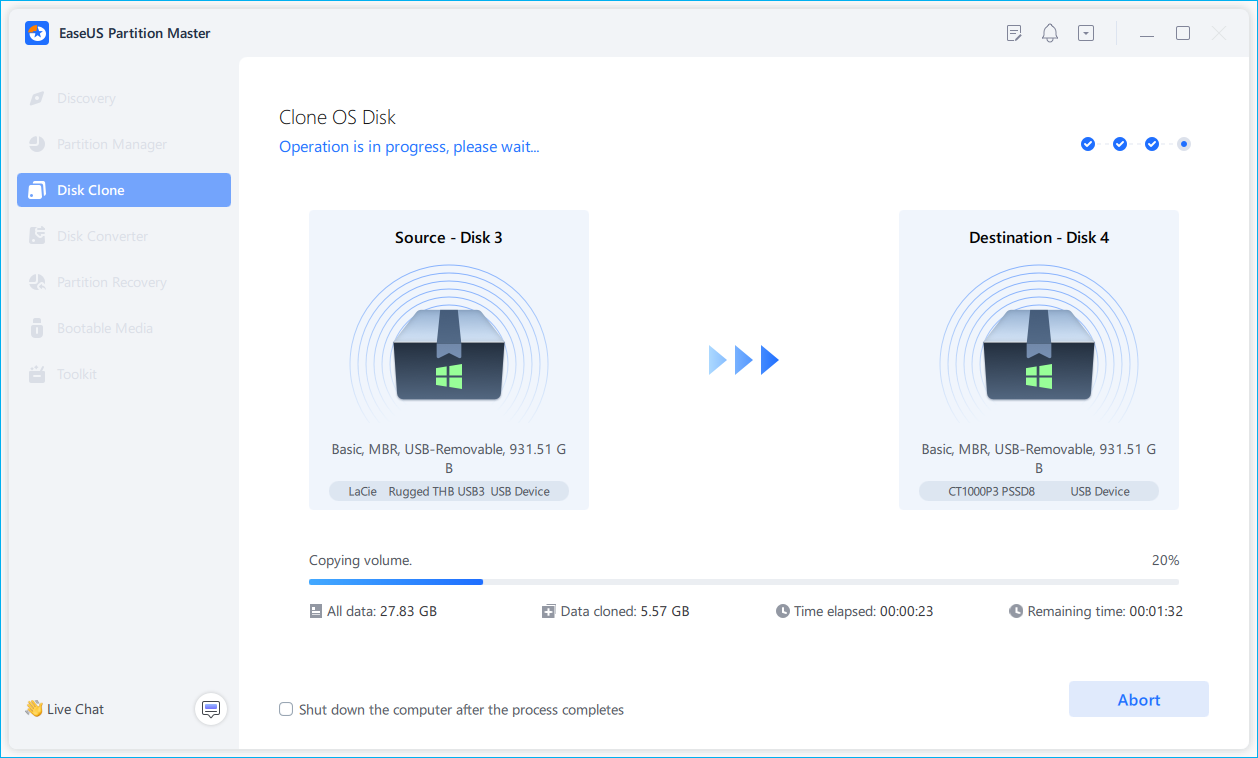
EaseUS Partition Master is a powerful disk and partition manager. It also offers strong disk cloning and migration features. It runs on Windows, with a modern interface and clear wizards, which guide you through tasks such as resizing partitions, converting file systems, and moving your OS to an SSD.
It's especially practical if you want one tool to manage partitions and handle most of your cloning needs. EaseUS Partition Master provides a balance between usability and advanced options.
Key Features
- Disk and partition management (resize, move, merge, split)
- Disk cloning and OS migration to SSD or larger drive
- Support for MBR and GPT disks and large drive capacities
- Simple GUI with step‑by‑step wizards
- WinPE bootable media for offline operations
|
😆Pros:
|
😦Cons:
|
Rescuezilla Alternative Free Download:
2. Clonezilla
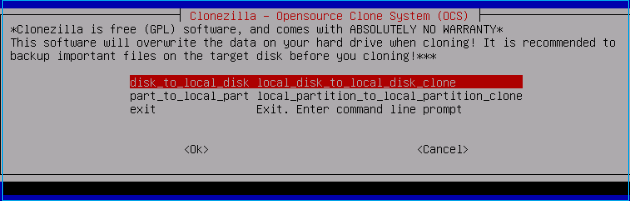
Clonezilla is one of the most famous open‑source disk cloning tools. Clonezilla and Rescuezilla are similar in some ways. The biggest distinction between Rescuezilla and Clonezilla is the interface. Clonezilla relies more on text‑based menus and scripts. It's powerful, flexible, and designed with experienced users in mind.
If you are comfortable with a more technical interface, Clonezilla is a strong alternative. It's suitable for batch operations, multiple machines, and advanced configurations.
Key Features
- Backup and restore for disks and partitions.
- Runs from a bootable environment without installing on the OS.
- Supports a wide range of file systems and operating systems.
- Can clone one disk to another or to image files on external storage.
- Offers tools for mass deployment in larger environments.
|
😆Pros:
|
😦Cons:
|
3. Hiren's BootCD PE
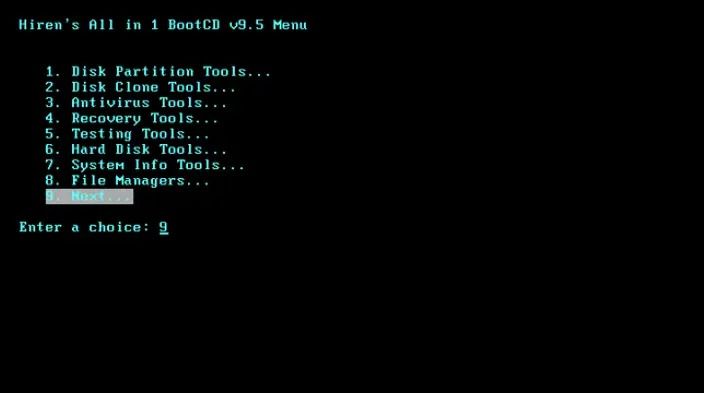
Hiren's BootCD PE is a bootable Windows PE environment that shows many tools in a single image. Instead of only cloning software, it includes disk utilities, backup tools, antivirus, password recovery, and more.
As a Rescuezilla alternative, Hiren's BootCD PE stands out because it gives you multiple backup and disk tools in one environment. It's ideal for technicians who repair PCs, recover data, and handle problems regularly.
Key Features
- Bootable Windows PE environment with a familiar desktop.
- Includes multiple disk imaging and backup utilities.
- Offers partition managers, file recovery tools, and hardware diagnostics.
- Can be run from USB for on‑site repair jobs.
- Useful for both backup and broader troubleshooting tasks.
|
😆Pros:
|
😦Cons:
|
4. Acronis True Image
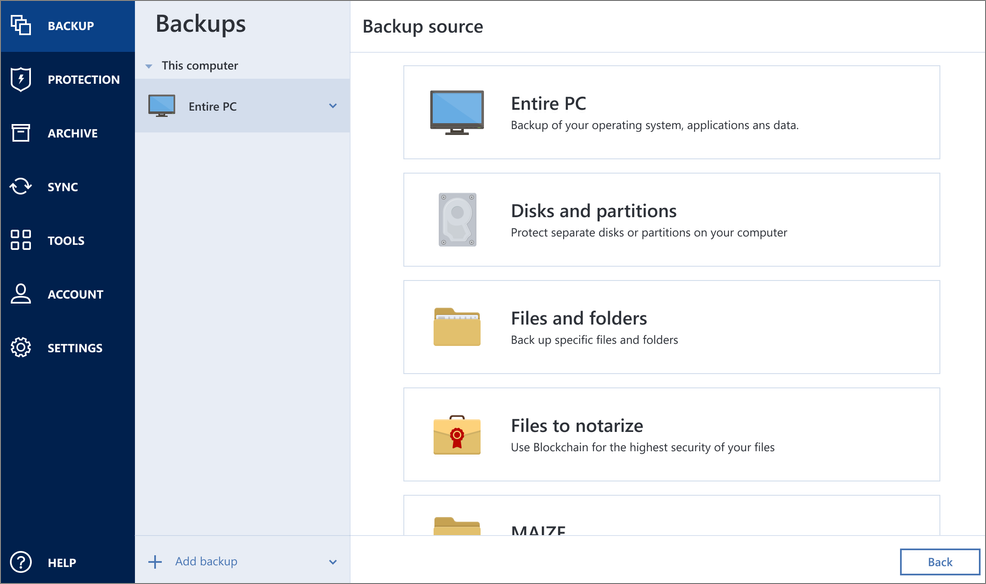
Acronis True Image is a backup and recovery suite. It targets users who want a simple interface but professional‑grade features, like scheduled backups, disk imaging, and cloud backup.
Compared with Rescuezilla, Acronis focuses on ongoing protection. If you want continuous backups, strong recovery options, and official support, this is a strong candidate.
Key Features
- Full system image backup and restore.
- File‑level backup with scheduling and automation.
- Cloud backup support and off‑site storage options.
- Extra protection features like ransomware defense in newer versions.
|
😆Pros:
|
😦Cons:
|
5. Hasleo Backup Suite
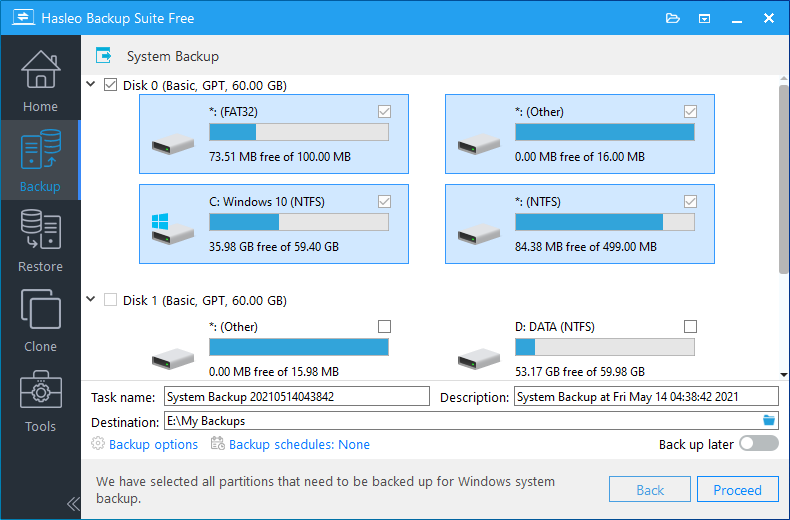
Hasleo Backup Suite is a modern backup and cloning solution that offers robust features. It supports system backup, disk imaging, file backup, and disk cloning, with a friendly GUI that runs inside Windows.
For users who want something more advanced than simple cloning but less complex or expensive than big commercial suites, Hasleo can be a good middle ground.
Key Features
- System backup and restore.
- Disk and partition backup and cloning.
- Support for incremental and differential backups in many editions.
- Bootable media creation for offline restore when Windows fails.
|
😆Pros:
|
😦Cons:
|
Conclusion
Rescuezilla is still a solid free imaging tool, but it won't fit every workflow. If you want a simple Windows migration, EaseUS Partition Master or Hasleo Backup Suite is a better choice. For more control and advanced deployments, Clonezilla and Hiren's BootCD PE work well for experienced users. When you need scheduled backups, cloud storage, and strong support, Acronis True Image offers a more complete long‑term solution.
FAQs
1. Is Rescuezilla still a good choice for simple cloning?
Yes. If you only need to clone a disk or create a one‑time image from a bootable environment, Rescuezilla is still very practical. It’s free, reasonably easy to use, and works across different systems.
2. Which Rescuezilla alternative is best for beginners on Windows?
EaseUS Partition Master and Hasleo Backup Suite are often better fits for beginners on Windows. Both provide clear graphical interfaces and guided wizards, making migrations and backups much easier to understand.
3. Will cloning my disk affect my data or installed programs?
If the clone is done correctly, your data and programs should stay intact and work on the new drive as before. Problems usually come from user errors, like choosing the wrong source/target disk, so double‑check disk labels and sizes before you run the clone.
If you find it helpful, share it on:

How Can We Help You
About the Author

Sherly joined EaseUS in 2022 and she has always loved writing articles and enjoys the fun they bring. She receives professional training here, focusing on product performance and other relative knowledge. She has written over 200 articles to help people overcome computing issues.

Written by Joey Albert
Joey is an enthusiast of science and technology. With a passion for uncovering the latest tech innovations, she creates clear, engaging how-to guides that make technology accessible and enjoyable for all.
Product Reviews
-
I love that the changes you make with EaseUS Partition Master Free aren't immediately applied to the disks. It makes it way easier to play out what will happen after you've made all the changes. I also think the overall look and feel of EaseUS Partition Master Free makes whatever you're doing with your computer's partitions easy.
Read More -
Partition Master Free can Resize, Move, Merge, Migrate, and Copy disks or partitions; convert to local, change label, defragment, check and explore partition; and much more. A premium upgrade adds free tech support and the ability to resize dynamic volumes.
Read More -
It won't hot image your drives or align them, but since it's coupled with a partition manager, it allows you do perform many tasks at once, instead of just cloning drives. You can move partitions around, resize them, defragment, and more, along with the other tools you'd expect from a cloning tool.
Read More
Related Articles
-
Newest Partition Magic Server Software Review and Download in 2026
![author icon]() Tracy King/2026/10/22
Tracy King/2026/10/22 -
HDD Regenerator Review and Its Best Alternative 2026 NEW💡
![author icon]() Sherly/2026/10/22
Sherly/2026/10/22 -
HDD Low Level Format Tool Alternative: 4 Best Alternatives
![author icon]() Sherly/2026/10/22
Sherly/2026/10/22 -
Best Alternative to HP USB Disk Storage Format Tool | Free Download
![author icon]() Sherly/2026/10/22
Sherly/2026/10/22
 Tracy King/2026/10/22









