







Content
Page Table of Contents
About the Author
Hot Topics
Key Takeaways
◾This guide covers causes: updates, bloatware, temp files, small C drives that fill Windows 11 storage, and more.
◾Solves Windows 11 running out of space: From instant cleanup (Disk Cleanup, Storage Sense) to permanent fixes (partition resize, SSD upgrade).
◾Complete how-to guide: Quick tips + Reliable tools for safe C drive extension + long-term prevention habits.
Many users complain Windows 11 running out of disk space. There are different warnings, like "running out of space" or "low disk space" warnings. These messages look simple, but the real problem is serious. Low disk space slows the system, breaks updates, and can even cause crashes. Take a look at how community users are discussing this issue.
|
We have a number of machines that are running Windows 11 24H2 that are running out of disk space. It appears to be Windows patches that are taking up all the space. Disk Cleanup and other built-in Windows tools aren't cleaning it up. - From r/sysadmin |
|
So I do not have installed heavy big size softwares. There is noth on my c drive. All the other files I save in different drives. So, what the hell is consuming that 100gb storage. This is windows 11. - From r/WindowsHelp |
This guide identifies the cause and offers clear steps to resolve the issue. By combining quick cleanup tips with deeper system fixes, you can regain control of your storage and keep your PC smooth for the long run.
Why Windows 11 Keeps Running Out of Space
A computer with Windows 11 may run out of space for several reasons. Most of them build up slowly over time, so you may not notice until the drive is almost full.
1️⃣Large apps, Bloatware, and user data
Big games, creative tools, office suites, and bloatware need a lot of storage. Video projects, raw photos, virtual machines, and downloads can fill a drive fast. Users often forget old files in the Downloads folder.
2️⃣System and update files
Windows updates download many files. Old update files often remain on the disk. System components such as the WinSxS folder and Windows Installer folder also keep growing.
3️⃣Windows.old and upgrade leftovers
After a major upgrade, Windows may keep a copy of the old system in a folder called Windows.old. This folder can use tens of gigabytes. It stays there until you remove it with the right tool.
4️⃣Temporary files, caches, and logs
Windows and apps create temporary files all the time. Browsers save cache files. Installers leave setup files behind. System logs can also grow very large if you never clean them.
5️⃣Small or poorly planned system partition
Many PCs ship with a small C drive. The vendor may split a single disk into several partitions. The system partition then fills up while another partition stays almost empty.
Share this post to help more users learn about "the Windows 11 running out of space" issue.

Quick Tips to Free Up Space in Minutes
If you need fast results, start with these simple actions. They are easy, safe, and can free several gigabytes in just a few minutes. If there is low disk space error on Windows 11, follow the tips to free up space:
1. Find What Is Taking Up Space
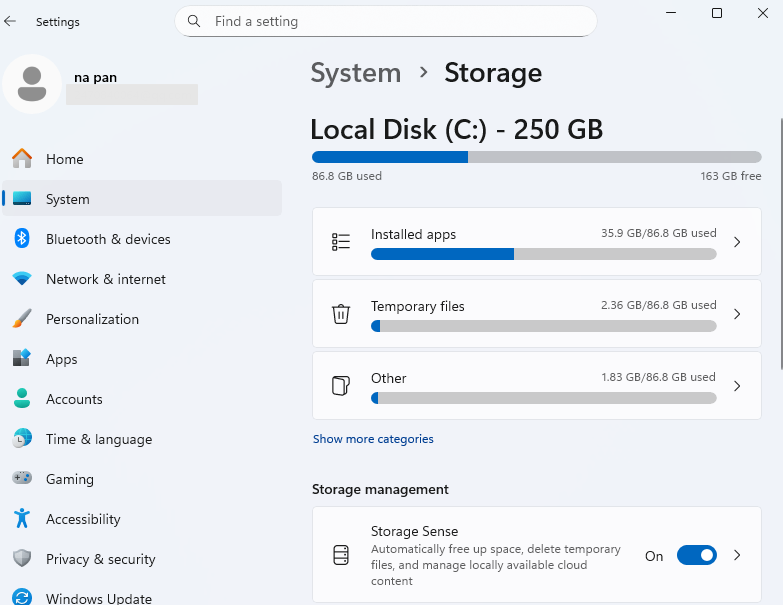
You should first find what is taking up the most space. Guessing usually fails. Windows 11 includes a helpful storage view.
- Open Settings > Select System > Click Storage
The Storage page shows a bar for each drive. It breaks down usage by category. You can see Apps & features, Temporary files, System & reserved, and more. Click a category to see more details. For example, Apps & features show the largest apps.
2. Run Disk Cleanup
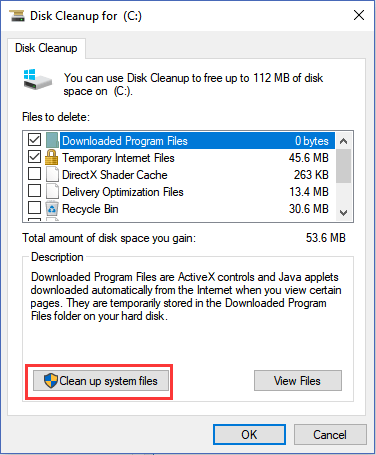
Type "Disk Cleanup" in the Start menu, run it as administrator, and select your system drive. Click "Clean up system files", then tick Windows Update Cleanup, Temporary files, Recycle Bin, and Previous Windows installation if it appears, and confirm.
3. Clear Temporary files
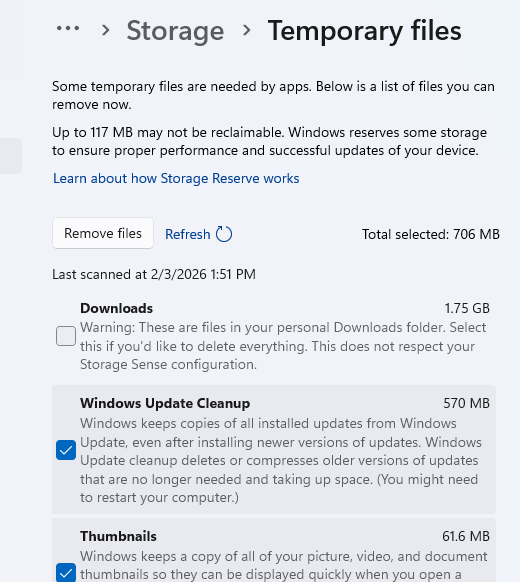
In Settings > System > Storage > Temporary files, select items you no longer need and click Remove files. This is one of the quickest ways to reclaim space from old updates and temp data.
4. Empty Recycle Bin
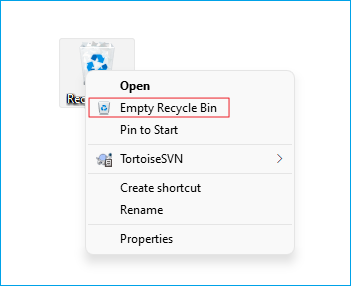
Right‑click the Recycle Bin icon on the desktop and choose Empty Recycle Bin. Deleted files still occupy space until you do this.
Advanced Fixes to Windows 11 Running Out of Space
The above quick tips may not be enough to solve your problem. You need deeper fixes that target partitions, system files and storage layout.
1. Resize or Extend the System Partition
When the disk encounters the "low disk space" error, one of the most efficient ways is to extend the system partition. A full system drive can cause Windows 11 to run out of space. You may need to change the partition layout:
- If there is unallocated space next to C, you can extend C using Disk Management.
- If another partition has free space but C is full, you can shrink that partition and then extend C drive with EaseUS Partition Master.
EaseUS Partition Master offers a safe way to expand your full C drive. It merges unallocated space or shrinks other partitions without data loss. What it can do:
- Resize/extend partition without data loss
- Shrink adjacent partitions to create unallocated space
- Merge unallocated space into C drive
- Check disk health and bad sectors
- Supports Windows 11 GPT/MBR partition
How to increase C drive with EaseUS Partition Master:
Step 1: Free up unallocated space for C drive.
If there is no unallocated space on the system disk, go to Partition Manager and right-click on a partition next to the C: drive and select "Resize/Move".
Drag left panel of the partition to shrink and leave unallocated space behind the system C: drive and click "OK".
Step 2: Increase C drive space.
1. Right-click on C: drive and select "Resize/Move".
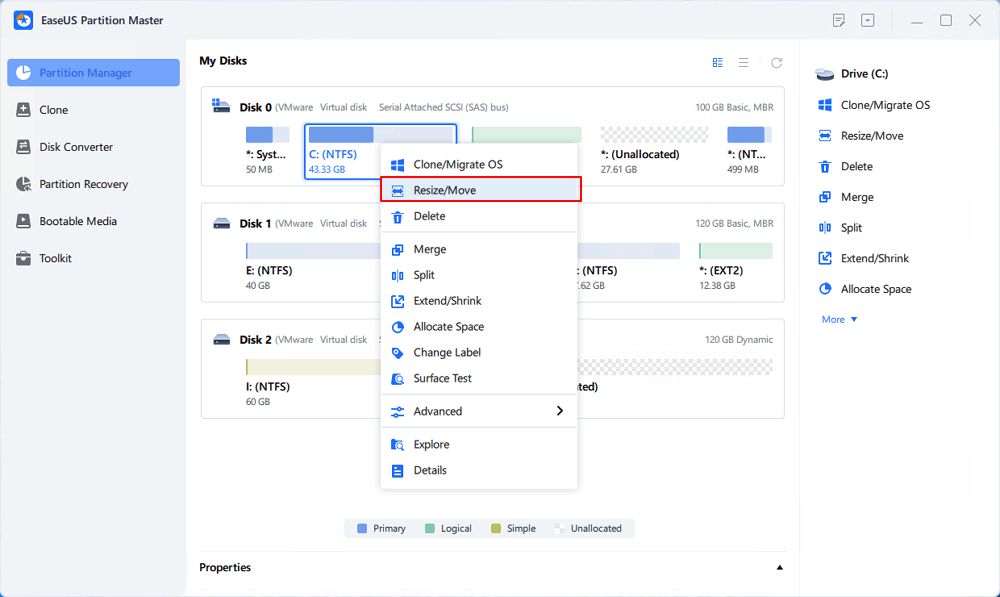
2. Drag the system partition end into unallocated space so to add space to C: drive, or click the "fill in all unallocated" and click "OK".
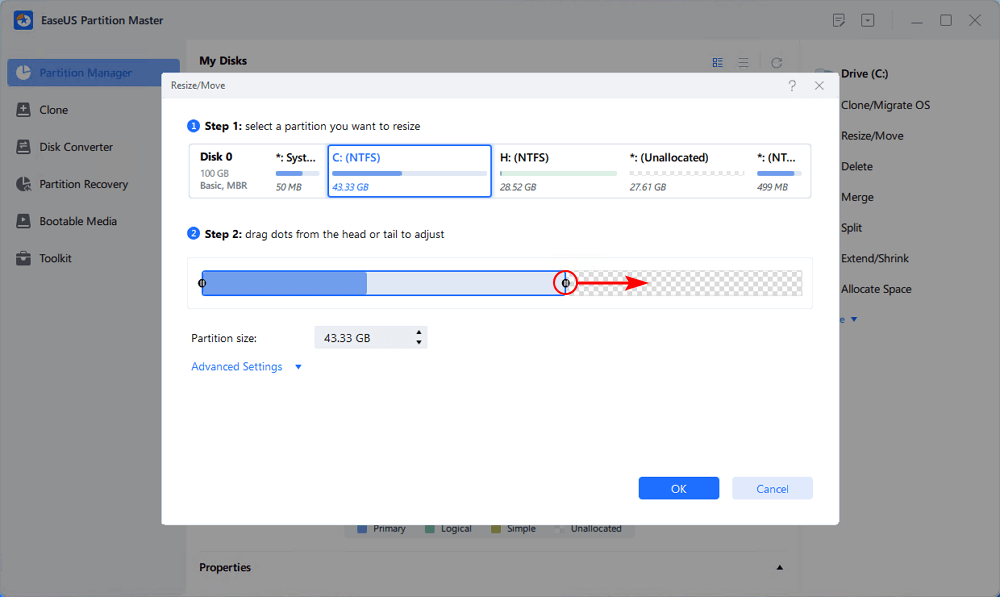
Step 3: Keep all changes to extend C: drive.
Click the "Execute Task" and click "Apply" to keep all changes so to extend the system C: drive.
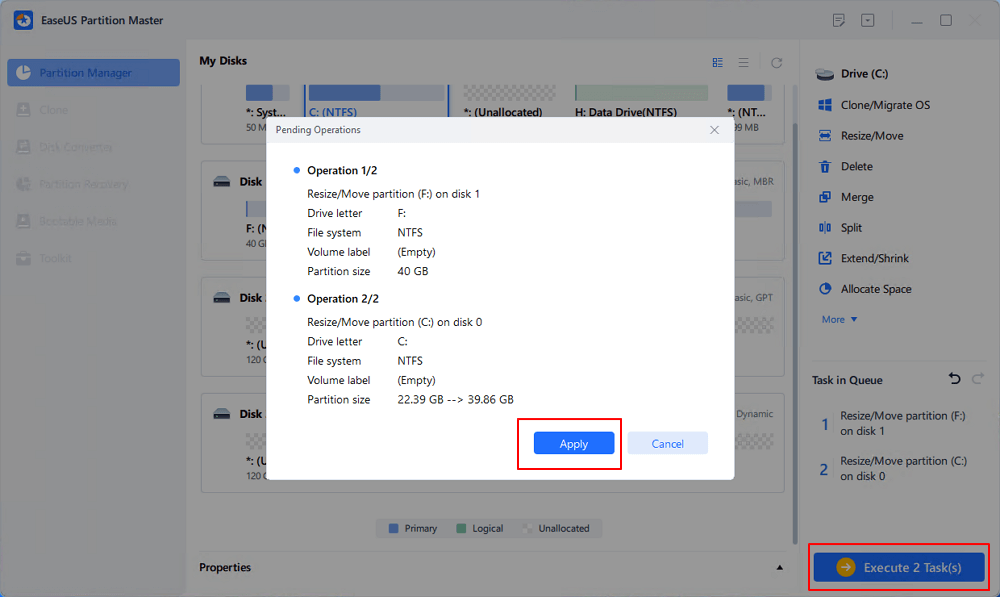
2. Remove Bloatware from Windows 11
Many new Windows 11 PCs come with preinstalled apps that you never use. These apps take up disk space, run background processes, and sometimes show unwanted notifications. Removing this bloatware frees storage and makes the system feel lighter. Here is how to do:
Step 1. Go to Settings > Apps > Installed apps.
Step 2. Find the preinstalled apps and uninstall them.
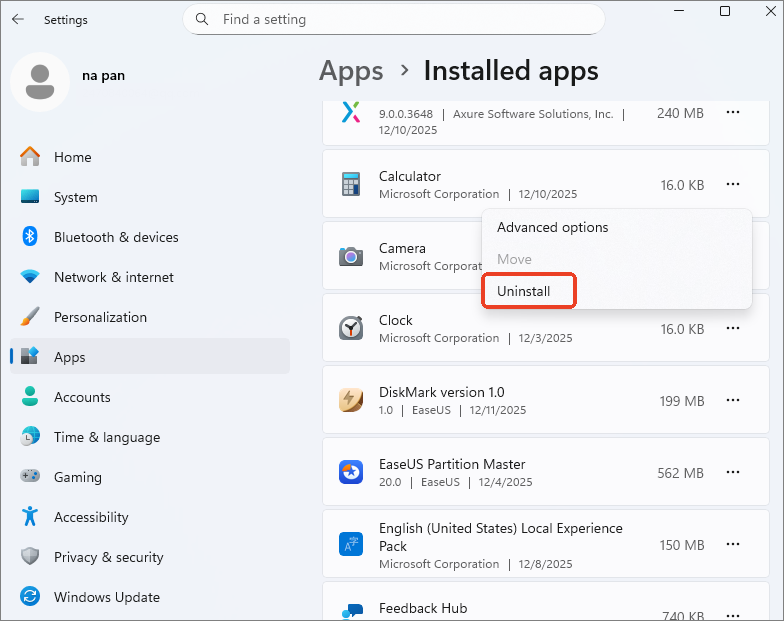
Sometimes, you can't uninstall apps through Settings. You can also remove bloatware form Control Panel:
Step 1. Open Control Panel.
Step 2. Go to Programs > Programs and Features.
Step 3. Select the programs you want to uninstall.
Step 4. Click Uninstall.
- Notice:
- Do not remove apps from Microsoft or your hardware vendor if you are unsure of their purpose. For more information, refer to the full guide on bloatware removal.
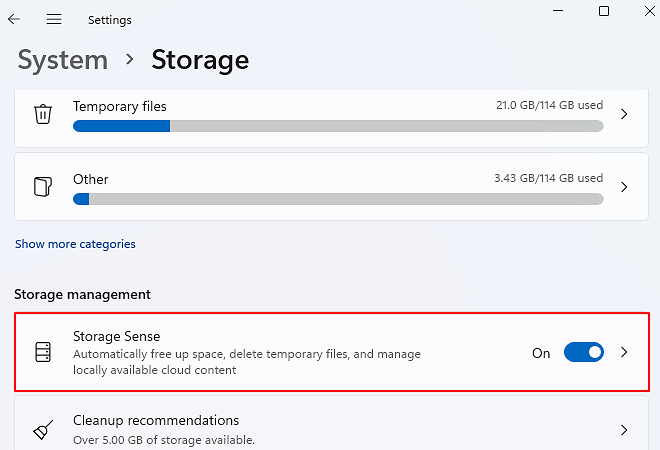
3. Use Storage Sense for Automatic Maintenance
Storage Sense is built into Windows 11. With Storage Sense configured, Windows will silently clean up behind the scenes and reduce the chance of sudden low‑space warnings. Here is how to turn on Storage Sense.
Step 1. Go to Settings > System > Storage.
Step 2. Turn on Storage Sense.
Step 3. Open its configuration page and set how often it runs.
Step 4. Choose rules for temporary files, Recycle Bin, and Downloads.
4. Clean Up Windows.old and System Files Safely
The Windows.old folder is a directory located in the C: drive containing backup files from a previous Windows installation. It is created after upgrades or major updates. You can clean up Windows.old with Disk Cleanup. It helps remove leftover system backups and free a large amount of space without damaging your installation.
Step 1. Open Disk Cleanup.
Step 2. Select your C drive and click "Clean up system files".
Step 3. Check Previous Windows installation(s), Windows Update Cleanup, and other large items.
5. Move Data to Another Location
If one drive doesn't have enough storage, you can move files to another location, like another partition or an external drive.
How to move files to external storage:
Step 1. Connect an external drive to the Windows 11 computer.
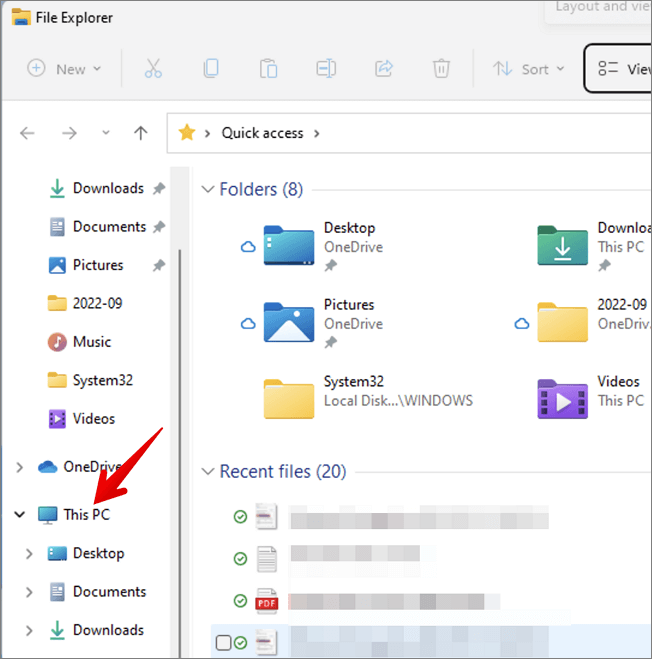
Step 2. Open File Explorer.
Step 3. Click "This PC" and choose the items you want to move.
Step 4. Press the "Ctrl+X" keys to cut it
Step 5. Open the external drive and press "Ctrl+V" to paste these items.
6. Upgrade or Add Storage
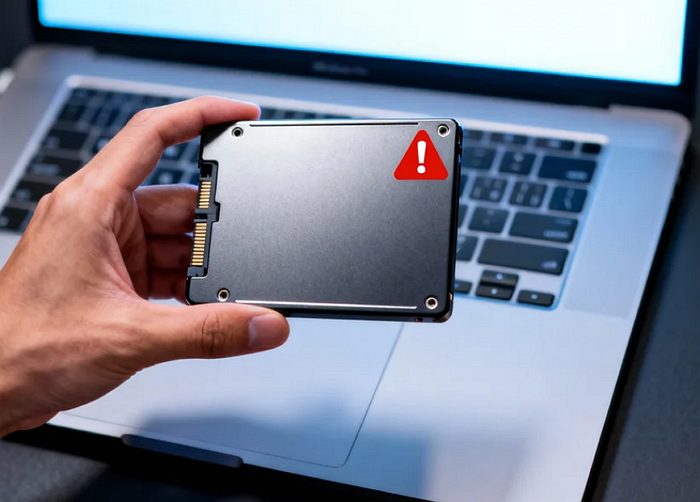
If the problem is about hardware, you may want to upgrade or add storage. With a larger system drive, Windows 11 has enough room for updates, apps, and future growth.
- Add SSD: Add a second internal SSD or HDD if your PC has an open slot. Install large games and store media files there.
- Replace SSD: a small 128 GB or 256 GB SSD with a larger drive, and clone the old disk to the new one using migration software, like EaseUS Partition Master.
Long‑Term Habits to Avoid Running Out of Space Warnings
Once you free up space on the computer, good habits keep your system healthy. Think of storage like a workspace: if you never tidy it, it will always feel cramped and slow.
- Keep Storage Sense enabled and check Storage settings regularly.
- Plan before installing large games, virtual machines, or creative tools. Choose a data drive instead of C whenever possible.
- Maintain 15-20% free space on the system drive.
- Avoid installing everything to the system drive and limit programs.
- archive old projects, videos, and backups to external drives, NAS, or cloud storage.
- Upgrade storage capacity if your PC is always full.
Conclusion
If your Windows 11 is running out of space, take quick actions Disk Cleanup, Temporary files removal, and app uninstallations can give immediate relief. Advanced steps like resizing partitions, moving data, and upgrading your SSD offer deeper cleanup. With a few smart habits, your system will have better performance.
It is recommended to use EaseUS Partition Master to extend your C drive. This professional disk manager offers an all-in-one solution for PC performance optimization.
FAQs
1. Can I move Windows 11 user folders to another drive?
Yes, you can move folders like Documents, Downloads, Pictures, Videos, and Music. Right-click the folder in C:\Users\YourName. Go to Properties > Location tab > Move. Pick a new folder on D: drive. Windows moves files automatically. Back up first. Never move the entire Users folder. It holds system files.
2. Is 256 GB enough for Windows 11?
It depends on your needs. Windows 11 uses 20-30 GB. Updates add 20 GB more. Apps and files fill the rest fast. Games or videos make it worse. It's recommended to aim for 512 GB. Keep 50-100 GB free always. Add a second drive for data.
3. Why is my Windows 11 C drive always full?
Windows 11 C drive gets full by many reasons. Temporary files, hibernation files, and update files can always occupy the storage. Check Settings > System > Storage to know what takes up your Windows 11 C drive.
How Can We Help You
About the Author

Sherly joined EaseUS in 2022 and she has always loved writing articles and enjoys the fun they bring. She receives professional training here, focusing on product performance and other relative knowledge. She has written over 200 articles to help people overcome computing issues.

Written by Joey Albert
Joey is an enthusiast of science and technology. With a passion for uncovering the latest tech innovations, she creates clear, engaging how-to guides that make technology accessible and enjoyable for all.
Product Reviews
-
I love that the changes you make with EaseUS Partition Master Free aren't immediately applied to the disks. It makes it way easier to play out what will happen after you've made all the changes. I also think the overall look and feel of EaseUS Partition Master Free makes whatever you're doing with your computer's partitions easy.
Read More -
Partition Master Free can Resize, Move, Merge, Migrate, and Copy disks or partitions; convert to local, change label, defragment, check and explore partition; and much more. A premium upgrade adds free tech support and the ability to resize dynamic volumes.
Read More -
It won't hot image your drives or align them, but since it's coupled with a partition manager, it allows you do perform many tasks at once, instead of just cloning drives. You can move partitions around, resize them, defragment, and more, along with the other tools you'd expect from a cloning tool.
Read More
Related Articles
-
Fix SSD SMART Status Bad Error [2026 Easiest Guide]
![author icon]() Tracy King/2026/10/22
Tracy King/2026/10/22 -
How to Check Disk Read/Write Speed on Mac | SSD/HDD
![author icon]() Sherly/2026/10/22
Sherly/2026/10/22 -
How to Check Samsung SSD Health on Windows [100% Working Solutions]
![author icon]() Cici/2026/10/22
Cici/2026/10/22 -
How to Format PS4 Hard Drive on PC in Windows [Your Full Guide Here]
![author icon]() Jean/2026/10/22
Jean/2026/10/22
 Tracy King/2026/10/22
  Cici/2026/10/22
  Jean/2026/10/22









