







Content
Page Table of Contents
About the Author
Hot Topics
Can't uninstall apps Windows 11? This common issue could be caused by corrupted files, broken uninstallers, or built-in system restrictions. Stubborn apps may take up space, slow performance, or cause errors. In this guide from EaseUS Software, you'll learn why apps won't uninstall on Windows 11 and how to remove them safely and effectively.
Why Can't Uninstall Apps on Windows 11
I'm trying to uninstall EverQuest on my grandma's Windows 11 laptop, and I get the error. This Application has requested the runtime to terminate it in an unusual way. Please contact the applications support team for more information. Can I have some help on this, please?
- from the Reddit Community
It's been at least a year since I uninstalled the game. For some reason, it still shows up in the Apps & Features menu. It's annoying me simply because the directory no longer exists, the program no longer exists, yet I can't purge it from the menu at all. How to remove non-existent programs from the Apps & Features menu?
- from the Super User
"Why can't I uninstall an app on Windows 11?" Many factors are responsible for this question. Below, let's take a closer look at the most common reasons for this issue before we fix it.
💻App running in the background: One of the most common reasons apps won't uninstall on Windows 11 is that the program or its related services are still running in the background.
✔️Permission issues: Apps installed with elevated or administrator privileges often require admin access to be uninstalled successfully.
❎Corrupted Uninstaller: The app's built-in uninstaller file (such as unins000.exe) may be missing or damaged, causing the uninstall process to fail.
⚡UWP app provisioning issues: Microsoft Store (UWP) apps can remain partially installed, leaving residual AppData files, especially when the app is shared across multiple user accounts.
‼️System protection restrictions: Core Windows system apps and pre-installed bloatware are protected by the operating system and cannot be removed easily because they are essential to system stability.
How To Uninstall Apps That Won't Uninstall in Windows 11
Now that you understand the possible reasons apps won't uninstall, let's learn how to uninstall programs on Windows 11 that cannot be uninstalled.
Fix 1. End the process in Task Manager and uninstall it
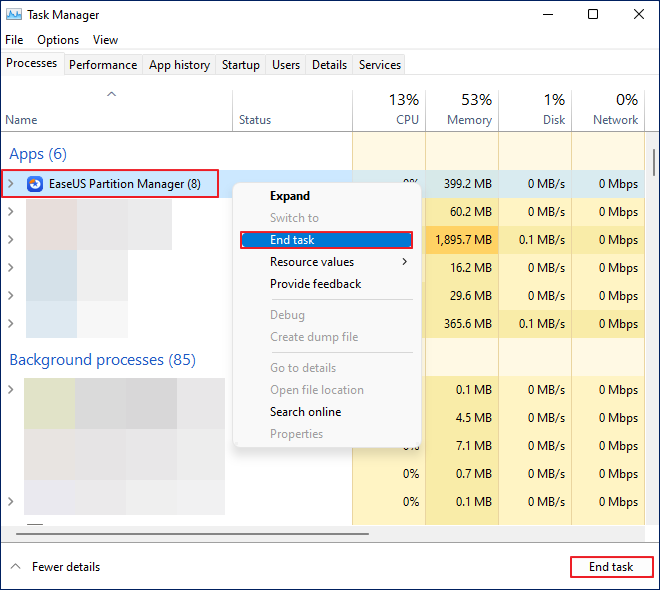
If you can't uninstall apps Windows 11, you can end their processes in Task Manager because this built-in Windows tool can help you monitor system performance, view running apps and background processes, and end unresponsive programs to improve Windows 11 performance and stability. Then uninstall it from the Start button.
Step 1. Please press Win + X > select Task Manager to open it.
Step 2. Locate the app you want to close. As shown in the following picture, I select EaseUS Partition Master, right-click it > click End task. Or select EaseUS Partition Master directly > click End task.
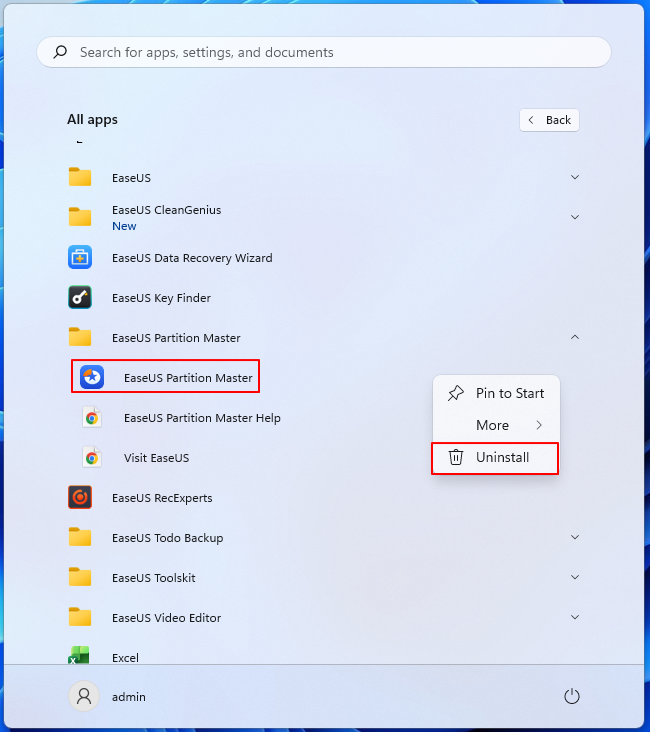
Step 3. Click the Start button > click All apps > right-click on EaseUS Partition Master > select Uninstall to remove it from your Windows 11.
Fix 2. Uninstall apps in Control Panel
The Windows Control Panel lets you manage installed applications, particularly traditional desktop (Win32) programs, via the Programs and Features (or Uninstall a program) option. How to uninstall apps that won't uninstall in Windows 11? With the help of the Control Panel, you can easily view, uninstall, or modify installed software.
- Notice:
- Please note that Modern Microsoft Store apps may not appear in this list and require alternative methods for removal.
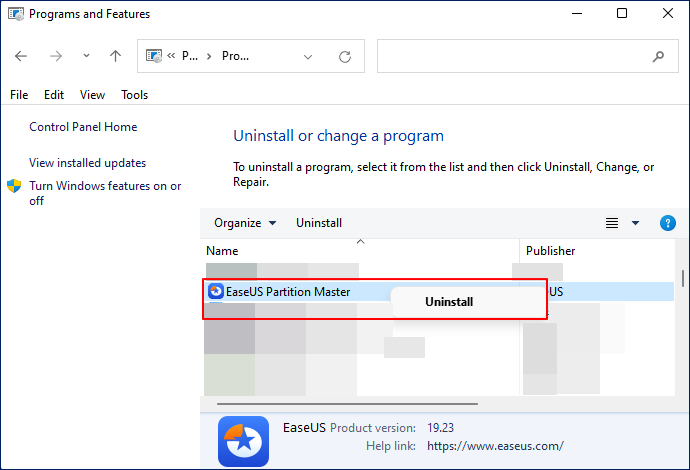
Step 1. Type Control Panel in the search bar > click it to open it.
Step 2. Go to Programs > Programs and Features > Uninstall a program > right-click on your unwanted software > click Uninstall. Here, I also take EaseUS Partition Master as an example.
Fix 3. Uninstall apps using Windows Terminal
If the above easy fixes can't help you uninstall apps on Windows 11, you can try to use Windows Terminal (Admin) because Windows Terminal with administrator privileges is a powerful tool for removing stubborn or malicious software. It is also useful for automating the removal of multiple apps using PowerShell or WMIC.
Step 1. Type PowerShell in the search bar > click Run as Administrator to open the Windows PowerShell window.
Step 2. Type Get-AppxPackage to list apps and copy the PackageFullName of the app you want to remove.
Step 3. Type Remove-AppxPackage
Fix 4. Uninstall apps via EaseUS CleanGenius🔥
Built-in EaseUS Partition Master, EaseUS CleanGenius is a powerful cross-platform PC and Mac cleaning software that optimizes system performance by deleting junk files, cleaning invalid registry entries, and fixing the low disk space issue. With its features of uninstalling applications, removing duplicate files, and cleaning up browser cache, it effectively accelerates slow Windows and macOS computers.
Please follow these steps below to uninstall apps with EaseUS CleanGenius.
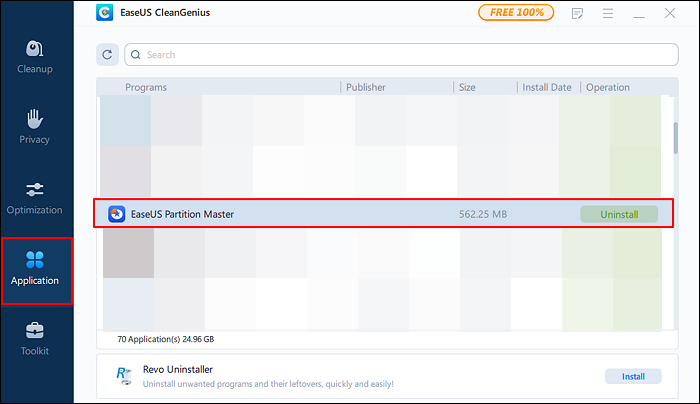
Step 1. Launch EaseUS Partition Master > click More > click Discovery > select CleanGenius to run.
Step 2. After clicking the Application tab, you'll see all your installed applications. Then, locate the software you want to remove > click Uninstall.
Fix 5. Uninstall apps via Revo Uninstaller
If you still can't uninstall apps Windows 11, Revo Uninstaller might be your top choice, as this powerful third-party uninstaller is designed to completely remove unwanted and stubborn programs. It works by launching the built-in uninstaller, then scanning for residual files, folders, and registry entries to ensure a clean uninstall and improve system performance.
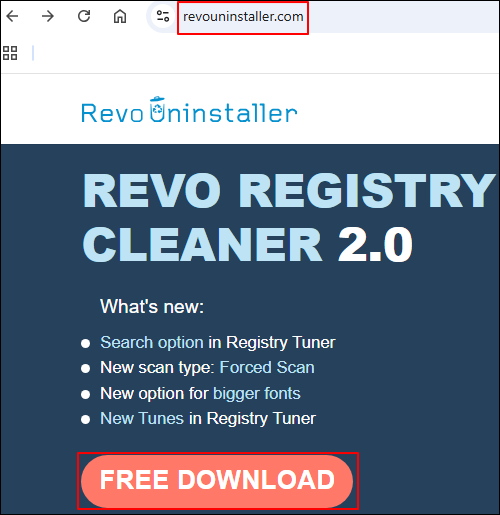
Step 1. Go to https://www.revouninstaller.com/ > click FREE DOWNLOAD > check different versions of Revo Uninstaller> select the free version > click Free Download.
Step 2. After downloading, install it on your Windows. Then double-click the Revo Uninstaller icon to launch it.
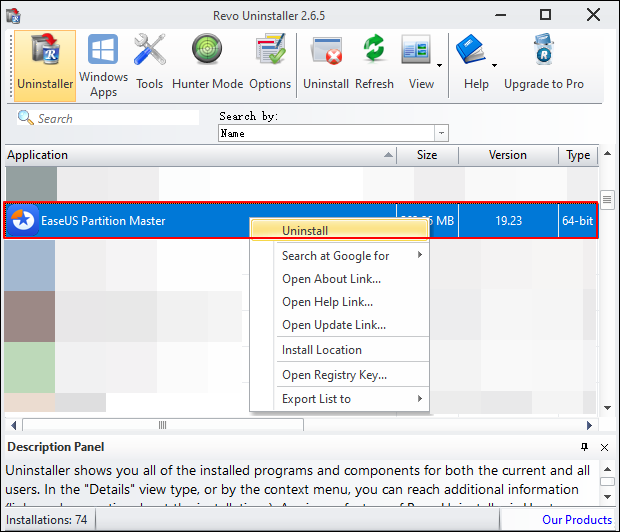
Step 3. Once entered the main interface, find the program you don't want > right-click on it > select Uninstall.
Please share this post across your social media to help your friends uninstall apps on Windows 11!

Bonus tips: How do I increase C drive space in Windows 11
After removing unnecessary programs, some users are seeking ways to extend the C drive. If you're in the same situation, scroll down to find effective solutions to increase C drive space and optimize system storage.
1️⃣Extend volume using Disk Management: If the Unallocated space is on the right of your system drive, Disk Management is easy enough to work for you. Please right-click on the C drive and select Extend Volume. Then, follow the on-screen instructions to extend the C drive volume.
2️⃣Extend volume via EaseUS Partition Master: If the Unallocated space is not adjacent, EaseUS Partition Master seems as your second-to-none choice.
3️⃣Run Disk Cleanup: Press Win + E to open File Explorer > right-click on the C drive > click Properties > click Disk Cleanup > under the Files to delete tab, choose the files you want to remove.
4️⃣Delete temp files: Press Win + R to open the Run window > type %temp% > click OK or hit Enter to open it > select all the temporary files to delete or select your unwanted temp files to delete.
Conclusion
If you can't uninstall apps Windows 11, it's often due to corrupted files or system restrictions. While Windows Settings can remove most programs, stubborn apps may leave residual files behind. Using trusted tools like EaseUS EaseUS Partition ensures complete uninstallation, frees up disk space, and keeps your PC running smoothly.
FAQs
Additionally, this section provides several related tips on this topic. Check them out below for more helpful guidance.
1. How to uninstall apps on Windows 11 that won't uninstall?
Struggling to uninstall stubborn apps on Windows 11? End their processes in Task Manager and try Settings or Control Panel. If that fails, use Microsoft's Troubleshooter or trusted tools such as EaseUS Partition Master or Revo Uninstaller to quickly remove leftover files and registry entries.
2. How do I uninstall an app that refuses to uninstall?
To remove an app that won't uninstall, start with basic steps like restarting your device, force-stopping the app, and clearing its cache or data. On Android, check for Device Admin permissions, while on Windows, try built-in troubleshooters or Safe Mode. If the app still won't uninstall, use a trusted third-party tool such as EaseUS Partition Master to completely remove any leftover files and registry entries.
3. Why is the uninstall button not working?
If the uninstall button is grayed out, it's often because the program is still running in the background. Make sure to close all instances, including those in the taskbar or system tray. If the issue persists, additional solutions are available to help you fully remove the program.
Please share this post across your social media to help your friends uninstall apps on Windows 11!
How Can We Help You
About the Author

Updated by Tracy King
Tracy became a member of the EaseUS content team in 2013. Being a technical writer for over 10 years, she is enthusiastic about sharing tips to assist readers in resolving complex issues in disk management, file transfer, PC & Mac performance optimization, etc., like an expert.

Cici is the junior editor of the writing team of EaseUS. She accepted the systematic training on computers at EaseUS for over one year. Now, she wrote a lot of professional articles to help people resolve the issues of hard drive corruption, computer boot errors, and disk partition problems.
Product Reviews
-
I love that the changes you make with EaseUS Partition Master Free aren't immediately applied to the disks. It makes it way easier to play out what will happen after you've made all the changes. I also think the overall look and feel of EaseUS Partition Master Free makes whatever you're doing with your computer's partitions easy.
Read More -
Partition Master Free can Resize, Move, Merge, Migrate, and Copy disks or partitions; convert to local, change label, defragment, check and explore partition; and much more. A premium upgrade adds free tech support and the ability to resize dynamic volumes.
Read More -
It won't hot image your drives or align them, but since it's coupled with a partition manager, it allows you do perform many tasks at once, instead of just cloning drives. You can move partitions around, resize them, defragment, and more, along with the other tools you'd expect from a cloning tool.
Read More
Related Articles
-
How to Migrate Windows 11 to New SSD [Complete Guide 2026]
![author icon]() Tracy King/2026/06/30
Tracy King/2026/06/30 -
How to Use D Drive in Windows 10 [Quick & Easy]
![author icon]() Cici/2026/06/17
Cici/2026/06/17 -
What Is the Best MBR to GPT Convert Tool? Your Checklist Here
![author icon]() Tracy King/2026/08/14
Tracy King/2026/08/14 -
How to Combine Two SSD Drives [Complete Guide in 2026]
![author icon]() Brithny/2026/06/30
Brithny/2026/06/30
 Brithny/2026/06/30









