







Content
Page Table of Contents
About the Author
Hot Topics

Updated on Oct 22, 2026
Did part of your SSD suddenly become unallocated? If you recently deleted a partition or reduced its size, the answer is probably simple. It's because the space was released and is now waiting to be used. You can put it back to work by creating a new partition or extending an existing one.
It is a different story if the space used to belong to a partition with your files. When a partition disappears and Windows shows the area as Unallocated without you making any changes, a partition or disk problem could be involved. In this case, don't rush to format the space.
The good news is that most unallocated-space problems have a way forward. You can use Windows Disk Management or DiskPart for basic tasks, while EaseUS Partition Master can help when the disk layout makes the built-in tools difficult to use.
What Does Unallocated Space on an SSD Mean?
Unallocated space is disk space that has not been assigned to a partition. The unallocated space exists on the drive. But Windows does not currently recognize it as part of a usable volume. In Disk Management, Windows usually shows it as a black bar labeled "Unallocated." There is no volume or file system using it, so you cannot save files to it through File Explorer.
Unallocated space commonly appears after:
- Installing a new SSD
- Cloning a smaller hard drive or SSD to a larger one
- Deleting a partition
- Shrinking a partition
- Repartitioning the drive
- Reinstalling Windows
This does not usually mean that the SSD is damaged. It means that the space has not been partitioned or formatted for normal use.
However, if a partition that previously contained important files suddenly shows as unallocated, don't format the space or create a new partition right away. The partition information may have been damaged or deleted, and writing new data to the drive can make recovery more difficult.
Ssd has unallocated space
by u/IntelligentBus2495 in pchelp
Why Does an SSD Have Unallocated Space?
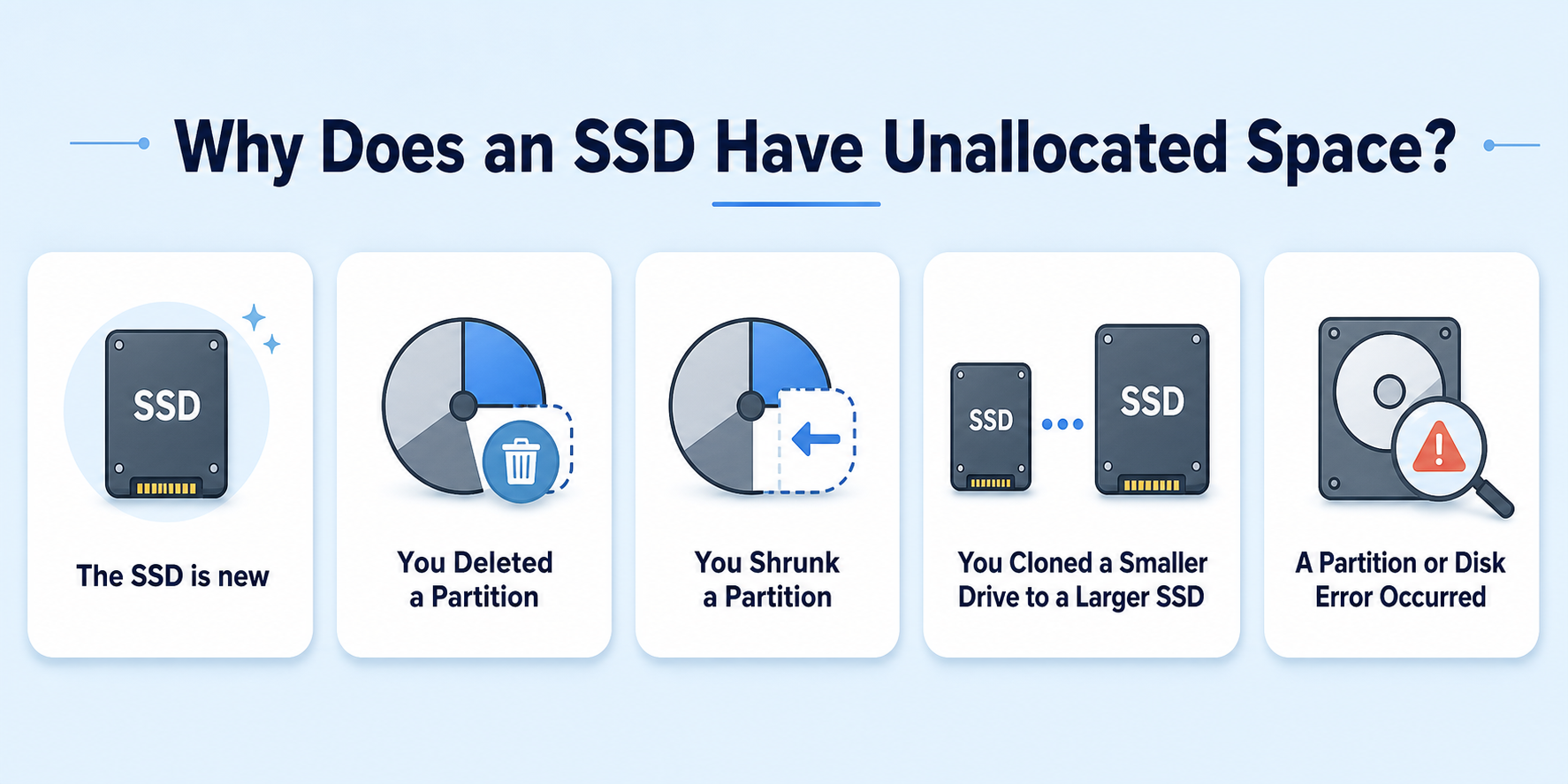
There are several reasons why an SSD may show unallocated space in Windows. Some are completely normal, while others can point to a partition or disk problem. Some common reasons:
1. You Deleted a Partition
When you delete a partition, Windows marks the space it occupied as unallocated. This is normal if you intentionally removed the partition and backed up the files first. You can later use the space to create a new partition or extend another volume.
2. You Shrunk a Partition
Shrinking a partition frees up part of its capacity and turns that space into unallocated space. For example, if you shrink a 500GB partition by 100GB, Windows will show the 100GB as unallocated. You can use it for another partition or add it back to an existing volume when the disk layout allows it.
3. You Cloned a Smaller Drive to a Larger SSD
This often happens when upgrading to a larger SSD. If you clone a 500GB drive to a 1TB SSD, the original partitions may still use only 500GB, leaving the remaining capacity unallocated. You can use the extra space after the cloning process is complete.
4. A Partition or Disk Error Occurred
If a partition suddenly becomes unallocated even though you didn't delete or resize it, don't assume the space is simply free. Damage to the partition information can prevent Windows from recognizing the original volume. If important files are involved, avoid formatting or creating a new partition until you have checked whether the data can be recovered.
How to Fix SSD Unallocated Space
How you fix unallocated space depends on what you want to do with it. If the space is unused, you can create a new partition or add it to an existing one. If you want to use it as a separate drive, formatting the new volume is another option.
- Tip
- Before you start, open Disk Management and check the SSD layout. This helps you choose the right method and avoid changing a partition that contains important data.
Method 1. Create a New Partition
👍Apply when:
- The unallocated space is not next to the partition you want to extend.
- You don't need to increase the size of C: or another existing partition.
Creating a new partition is a good choice when you don't need to add the unallocated space to C drive or another existing volume. For example, if you have a 1TB SSD with a 500GB C drive and 500GB of unallocated space, you can turn the unused space into a new D drive.
This is also useful after cloning a smaller SSD to a larger one. Instead of changing your existing Windows partition, you can keep the unallocated space as a separate storage area.
Step 1. Press "Windows + X" and select Disk Management.
Step 2. Find your SSD and locate the space marked Unallocated.
Step 3. Right-click the unallocated space and select New Simple Volume.
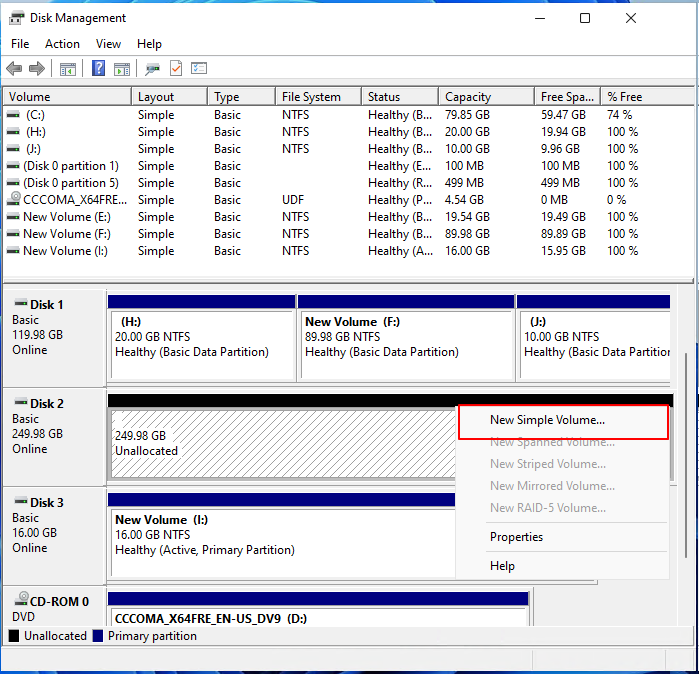
Step 4. Enter the amount of space you want to use for the new partition.
Step 5. Assign a drive letter.
Step 6. Select NTFS as the file system and complete the wizard.
Method 2. Extend an Existing Partition
👍Apply when:
- You want to increase the size of C: or another existing partition.
- The unallocated space is immediately to the right of the target partition.
- You want to use Windows Disk Management without additional software.
If you would rather give the unallocated space to C drive or another existing partition, you can use Extend Volume in Windows Disk Management. This is a convenient option when the unallocated space is already directly next to the partition you want to expand.
Step 1. Open Disk Management.
Step 2. Find the partition you want to make larger, such as the C: drive.
Step 3. Right-click the partition and select Extend Volume.
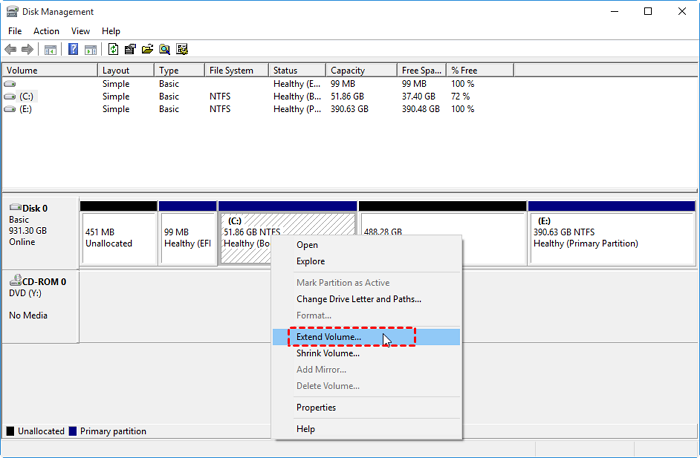
Step 4. Enter the amount of unallocated space you want to add to the partition.
Step 5. Click Next and then Finish to complete the operation.
Method 3. Format the Unallocated SSD
👍Apply when:
- The unallocated space is genuinely unused.
- You want to create a new storage volume.
- You need to format the new partition with NTFS or another suitable file system.
If the unallocated space is unused and you want to prepare it for storing files, you can create a new volume and format it with a suitable file system. Afterward, the new partition will appear in File Explorer as a normal drive.
Step 1. Open Disk Management.
Step 2. Find the unallocated area on your SSD.
Step 3. Right-click it and select New Simple Volume.
Step 4. Choose the volume size and assign a drive letter.
Step 5. Select NTFS as the file system and enter a volume label if needed.
Step 6. Click Finish to create and format the new volume.
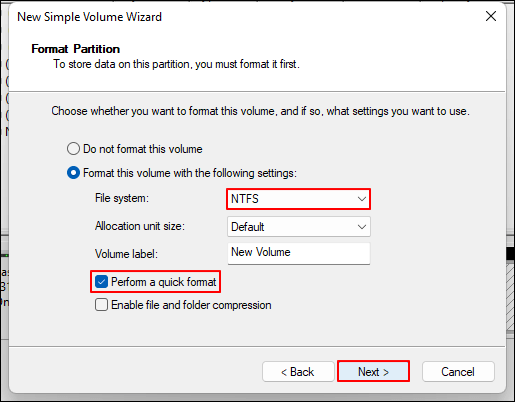
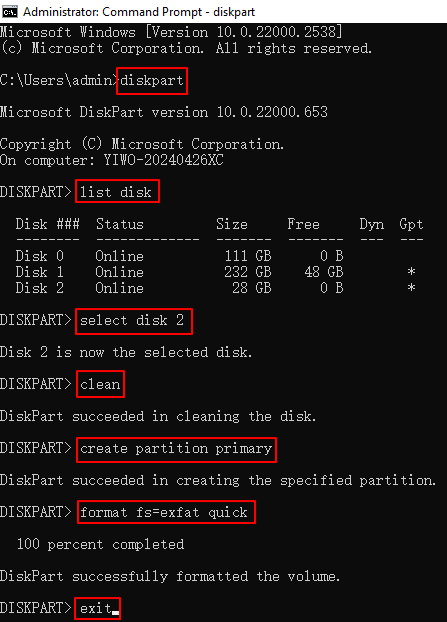
You can also use DiskPart to format and use unallocated SSD space:
Step 1. Open Command Prompt as administrator.
Step 2. Type "diskpart" and press Enter to launch the DiskPart utility.
Step 3. Type "list disk" and press Enter to see all disks connected to your computer.
Step 4. Type "select disk X" and replace X with the number of the SSD containing the unallocated space.
Step 5. Type the following commands and press Enter:
- clean
- create partition primary
- format fs=exfat quick
- assign letter=D
- exit
- Notice:
- If a partition that previously contained important files suddenly appears as unallocated, don't format the space. Check the partition or disk problem first to avoid making data recovery more difficult.
Method 4. Move Unallocated Space with EaseUS Partition Master
👍Apply when:
- Extend Volume is greyed out in Disk Management.
- The unallocated space is separated from C: by another partition.
- You want to move or resize a partition before extending another one.
- You prefer a graphical partition management tool instead of DiskPart commands.
Windows Disk Management works well for simple partition layouts. But it has a limitation when the unallocated space isn't next to the partition you want to extend. In this situation, EaseUS Partition Master gives you more flexibility. EaseUS Partition Master is a dedicated partition management tool that gives you more control over SSD space than Windows Disk Management. For fixing unallocated space, its main advantages include:
- Extend partitions: Use unallocated space even when it isn't directly next to the target partition.
- Move and resize partitions: Rearrange partitions without deleting them first.
- Disk management: Manage partitions through a simple visual interface.
- Multiple partition tools: Create, format, merge, split, and delete partitions.
- SSD support: Includes SSD features such as 4K alignment and disk health checks.
- Disk cloning: Clone disks or partitions when upgrading to a larger SSD.
Here is how to use SSD unallocated space with EaseUS Partition Master.
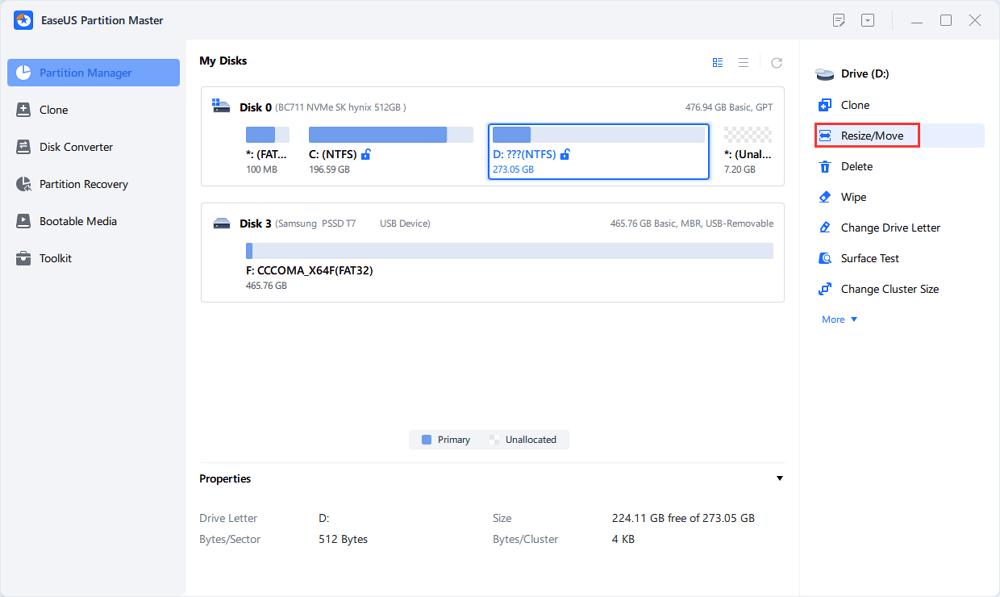
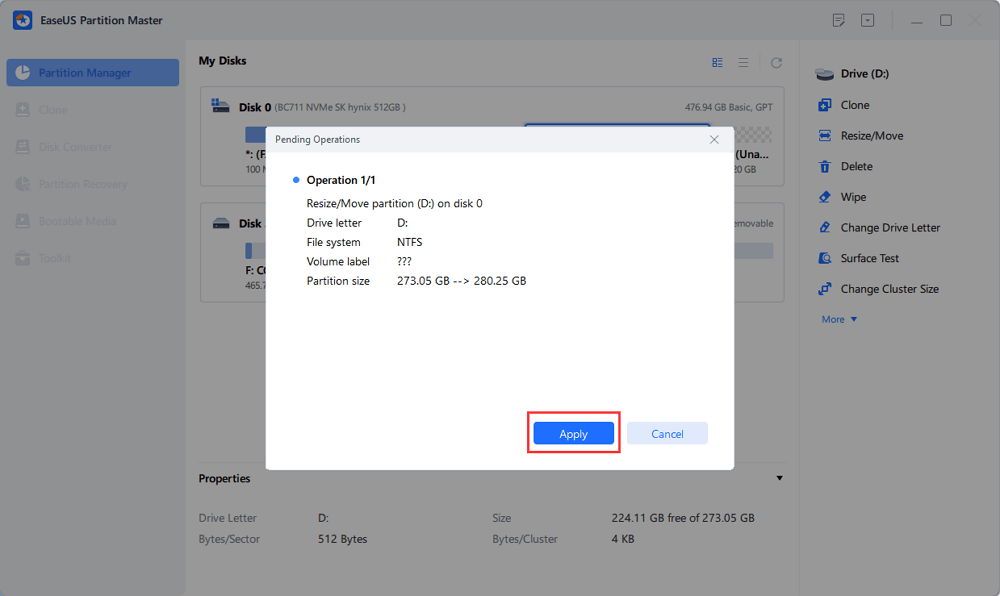
Step 1. Select the partition next to the unallocated space, select "Resize/Move".
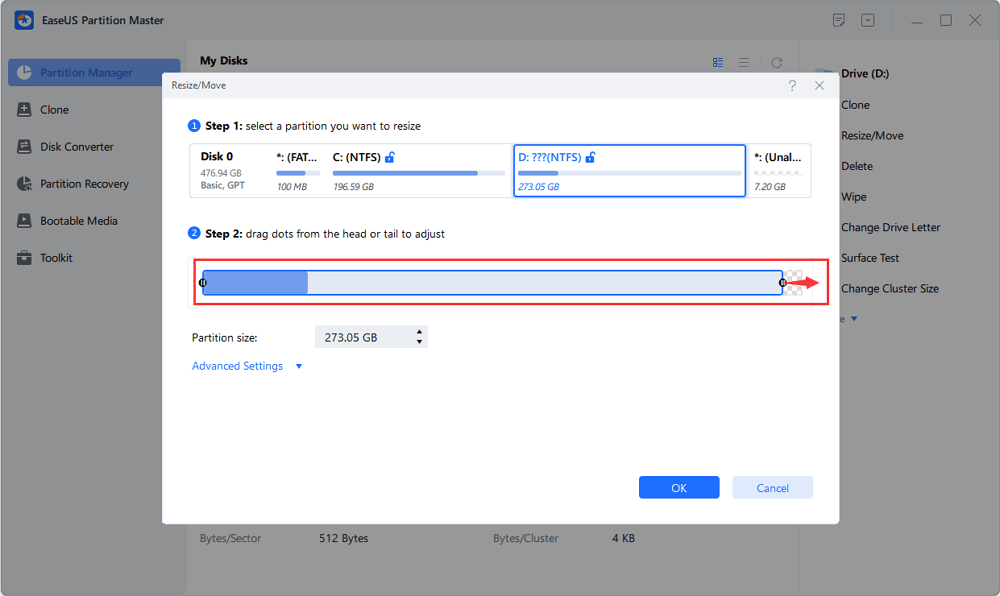
Step 2. Click on the partition and use the mouse to drag it to the left or right to move the unallocated space.
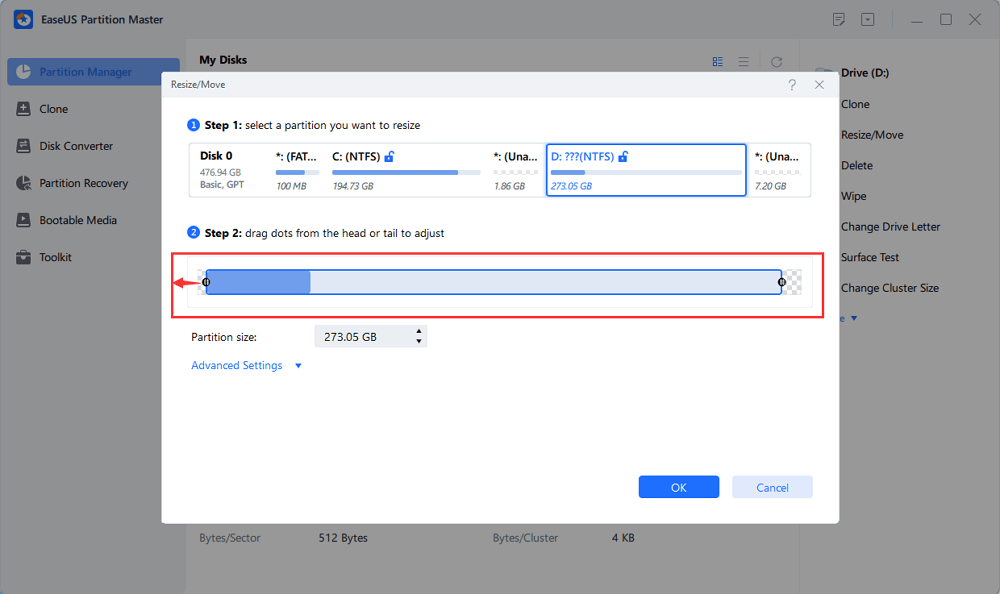
You can repeat Step 1 and 2 to move the unallocated space to the desired location.
Step 3. Click "Execute Task" and "Apply", it will execute the operations to add the unallocated space into the target partition eventually.
Conclusion
In this guide, we covered several ways to fix unallocated space on an SSD. You can create a new partition when you want to use the unallocated space as a separate drive, or extend an existing partition when you want to add the space to C: or another volume. If Extend Volume is greyed out because the unallocated space is not adjacent to the target partition, EaseUS Partition Master gives you more flexibility to move and resize partitions.
EaseUS Partition Master provides a more convenient way to manage SSD partitions through a graphical interface, especially for complex disk layouts. Try it to easily resize, move, extend, and manage your SSD partitions!
FAQs
1. How do I add unallocated space to C drive?
Open Disk Management, right-click the C drive, and select Extend Volume if the unallocated space is directly to the right of the C drive. If another partition is between C drive and the unallocated space, Windows cannot extend C drive directly. This time, you can use EaseUS Partition Master to move non-adjacent space to your C drive.
2. Can I merge unallocated space with C?
Yes. You can extend C: into the unallocated space when the two areas are adjacent. If another partition separates them, you need to change the partition layout first.
3. Is unallocated space the same as free space?
No. Free space is unused capacity inside an existing partition, while unallocated space doesn't belong to any partition. Free space can be used immediately for files, while unallocated space must first be assigned to a partition or volume.
How Can We Help You
About the Author
Updated by Joey Albert
Joey is an enthusiast of science and technology. With a passion for uncovering the latest tech innovations, she creates clear, engaging how-to guides that make technology accessible and enjoyable for all.
Product Reviews
-
I love that the changes you make with EaseUS Partition Master Free aren't immediately applied to the disks. It makes it way easier to play out what will happen after you've made all the changes. I also think the overall look and feel of EaseUS Partition Master Free makes whatever you're doing with your computer's partitions easy.
Read More -
Partition Master Free can Resize, Move, Merge, Migrate, and Copy disks or partitions; convert to local, change label, defragment, check and explore partition; and much more. A premium upgrade adds free tech support and the ability to resize dynamic volumes.
Read More -
It won't hot image your drives or align them, but since it's coupled with a partition manager, it allows you do perform many tasks at once, instead of just cloning drives. You can move partitions around, resize them, defragment, and more, along with the other tools you'd expect from a cloning tool.
Read More
Related Articles
-
EaseUS Partition Master 16.0 Crack 2026 | Get EaseUS Partition Master Crack License Key
![author icon]() Tracy King/2026/10/22
Tracy King/2026/10/22 -
How to Fix Kingston SSD Not Detected
![author icon]() Cici/2026/10/22
Cici/2026/10/22 -
How to Install Windows 11 26H2 With Low Storage - 4 Ways
![author icon]() Joey Albert/2026/10/22
Joey Albert/2026/10/22 -
[Fixed] Can't Save Files to USB Flash Drive - 100% Working Guides
![author icon]() Jean/2026/10/22
Jean/2026/10/22
 Tracy King/2026/10/22
  Cici/2026/10/22
  Jean/2026/10/22









