







Content
Page Table of Contents
About the Author
Hot Topics
SSDs have become the preferred storage choice for many computers because they offer stable and fast performance. However, an SSD's condition may change with extended use. For example, your SSD's speed may decrease. With SSD prices continuing to rise, many users are thinking twice before replacing a drive that still works.
If you are noticing slower performance, unexpected freezes, file errors, or simply want to check an aging SSD, an SSD health checker can help you see what is happening with the drive.
What Is an SSD Health Checker?
An SSD health checker is a software tool that reads information reported by an SSD and uses it to show the drive's current condition. Most health-checking tools rely on S.M.A.R.T. and other drive-reported information. Unlike an SSD speed test, which focuses on read and write performance, an SSD health check looks for signs of wear or potential hardware problems.
A good SSD health checker can help you answer questions such as:
- Is my SSD still in good condition?
- How much has the SSD been used?
- Is the SSD running too hot?
- Are there SMART warnings or abnormal indicators?
- Does the drive show signs of wear or possible failure?
- Should I back up my data or consider replacing the SSD?
SSD Health Checker Free Download
If you want a straightforward SSD health checker for Windows, EaseUS Partition Master Free is a practical option. It checks the drive's SMART information and displays key health indicators in one place.
This SSD health checker also goes beyond a basic health report. If the health check suggests a problem, EaseUS Partition Master can help you continue troubleshooting with features such as Surface Test for checking bad sectors and disk-related errors.
SSD Health Checker Free Download:
What EaseUS Partition Master Can Help Check SSD:
| Feature | What It Helps Check |
| SSD Health & SMART Check | Overall SSD health, SMART status, temperature, power-on time, and wear indicators |
| File System Check | File system errors, RAW status, corrupted file structures, and access problems |
| Bad Sector Check | Bad sectors, unreadable areas, and potential read/write errors |
| Disk Speed Test | SSD read/write speeds, transfer performance, and unusual speed drops |
| Low Disk Space Check & Cleanup | Low disk space, available space, large files, unnecessary files, and storage that can be freed up |
EaseUS Partition Master Review from Experts & Users:
📖Cybernews Review: EaseUS Partition Master, as one of the reliable Windows disk management software, stands out for offering a smart, safe, and reliable service to help global Windows users maximize disk value and extend disk lifespan.
📖BestBackupReviews Review: Partition Master is a powerful suite of disk management tools from PC utility software experts, EaseUS.
📖Trustpilot Review: EaseUS Partition Master Fixes Disk Space Issues and Boosts PC Speed Instantly solved my low disk space issue.
How to Check SSD Health
Checking your SSD health regularly helps you find potential problems before they affect your system performance. You do not need to wait until the SSD becomes slow, starts showing errors, or suddenly stops working. With a reliable SSD health checker, you can check the drive's health status, SMART information, file system, bad sectors, and read/write speed in one place.
EaseUS Partition Master provides several disk-checking features for Windows users.
1. Check SSD Health
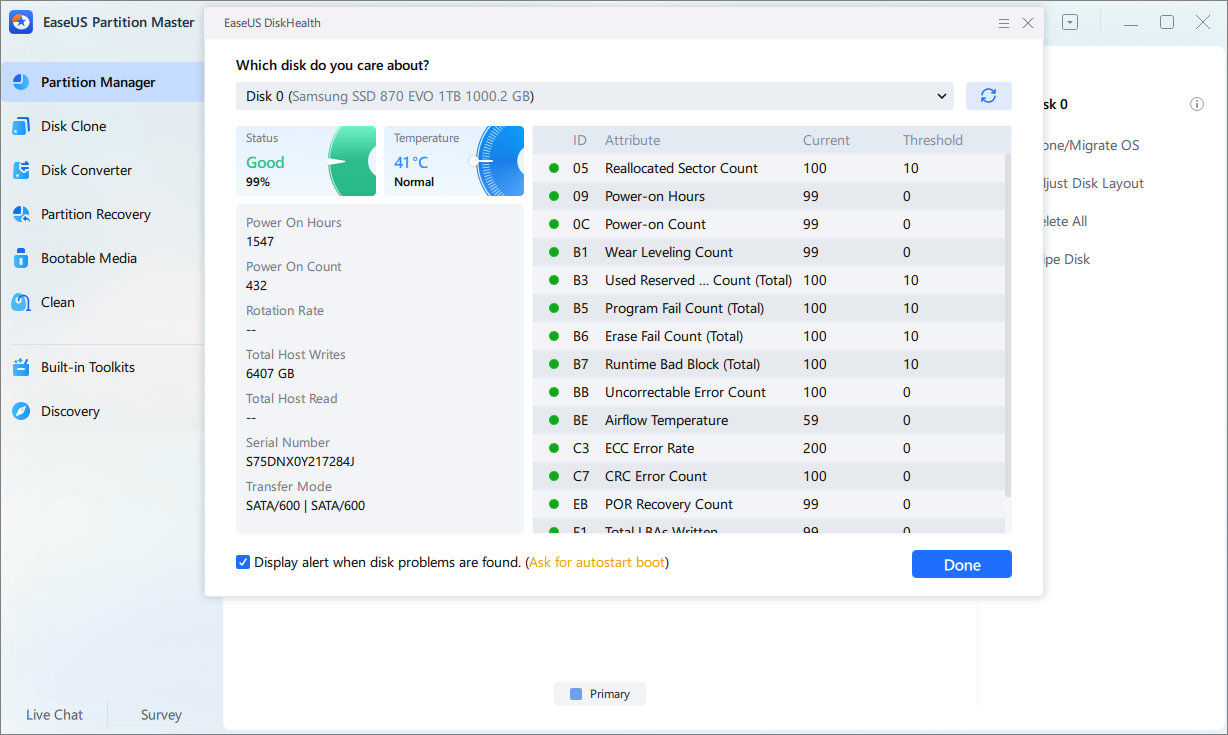
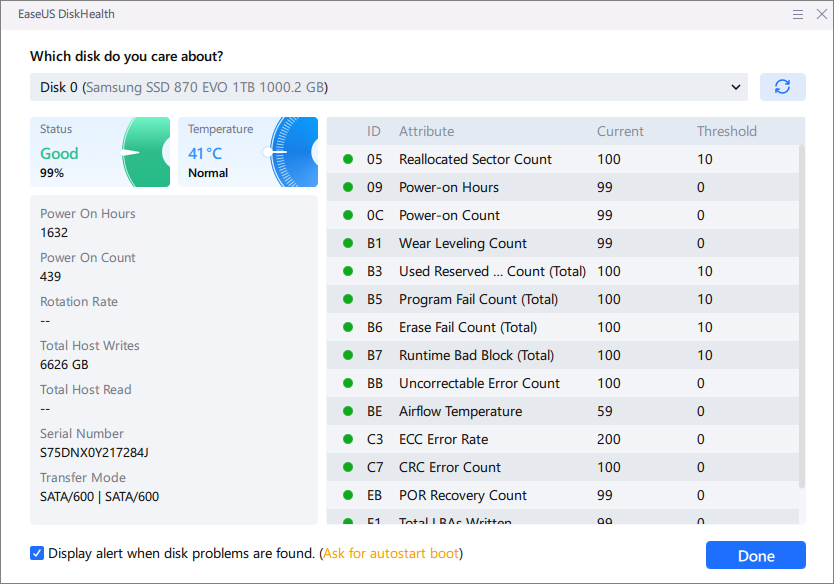
You can check overall SSD health, SSD status, temperature, and rotation rate.
Step 1. Download and open EaseUS Partition Master on your Windows PC.
Step 2. Find your SSD and click the disk icon at the top right.
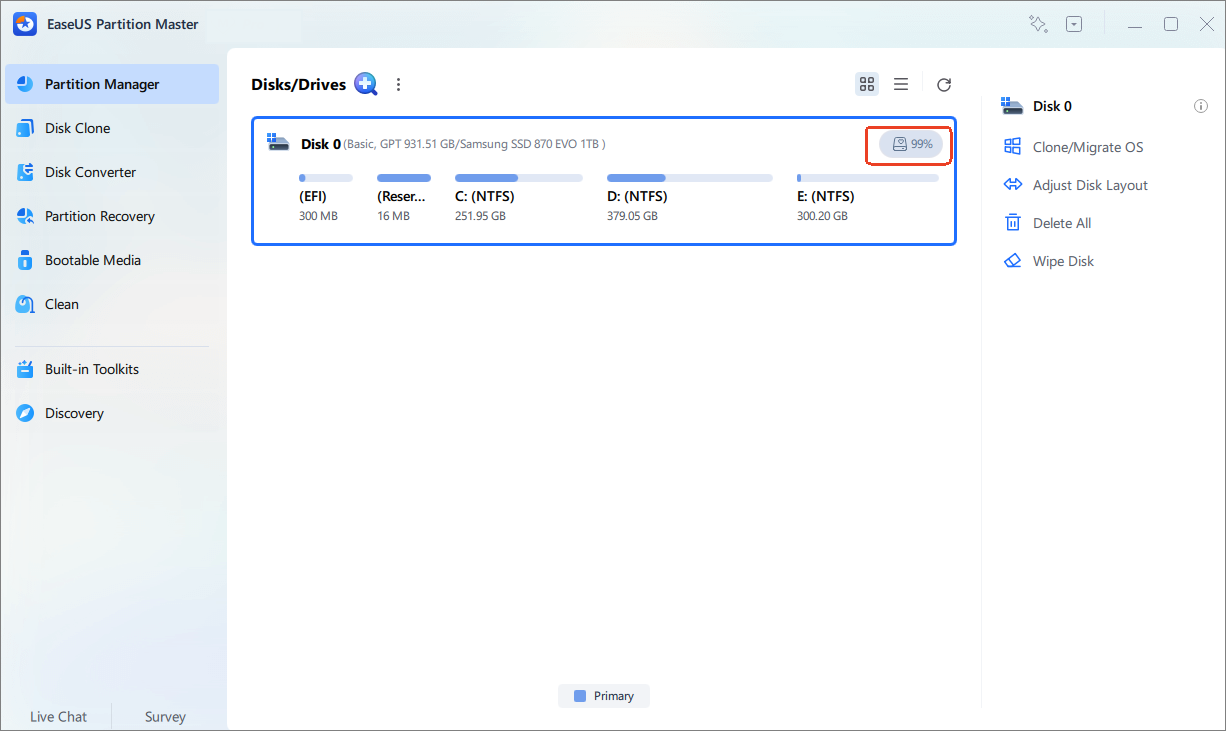
Step 3. Here, you can review the reported health condition and available SMART information.
2. Smart Diagnostics
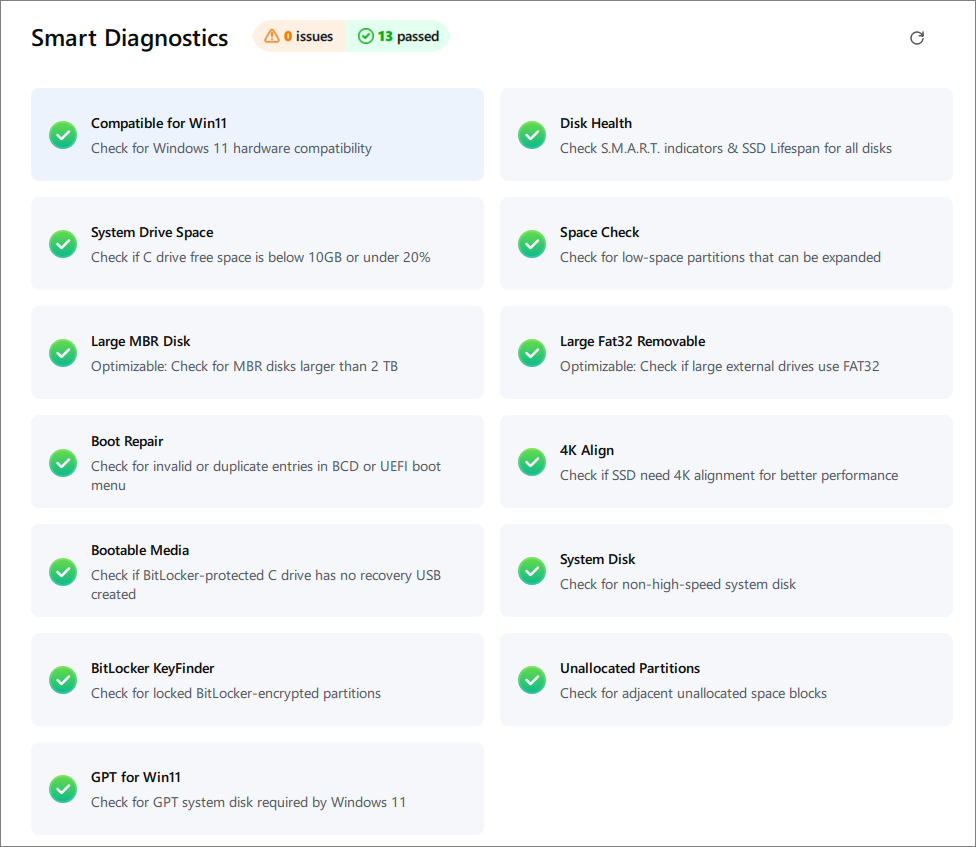
EaseUS Partition Master introduces Smart Diagnostics, a one-click feature that checks 13 common disk and system conditions in one place.
How to use Smart Diagnostics to check your SSD health:
Step 1. Download and open EaseUS Partition Master.
Step 2. In the "Partition Manager" tab, find the Smart Diagnostics icon near your disk.
Step 3. Here, Smart Diagnostics scans 13 common conditions in a single click.
- Disk Health
- Boot Issues
- Low Disk Space
- External Drive Checks
- BitLocker Protection
- Recommended Solutions
3. Test Disk Speed
Use this SSD health checker to check your SSD speed.
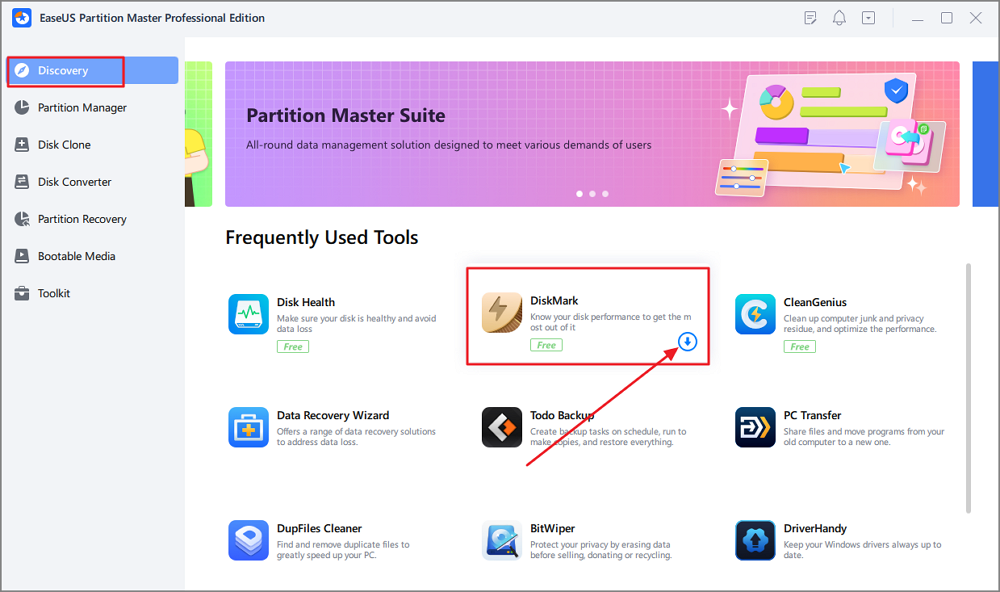
Step 1. Launch EaseUS Partition Master. And click the download button to activate the "DiskMark" feature under the "Discovery" section.
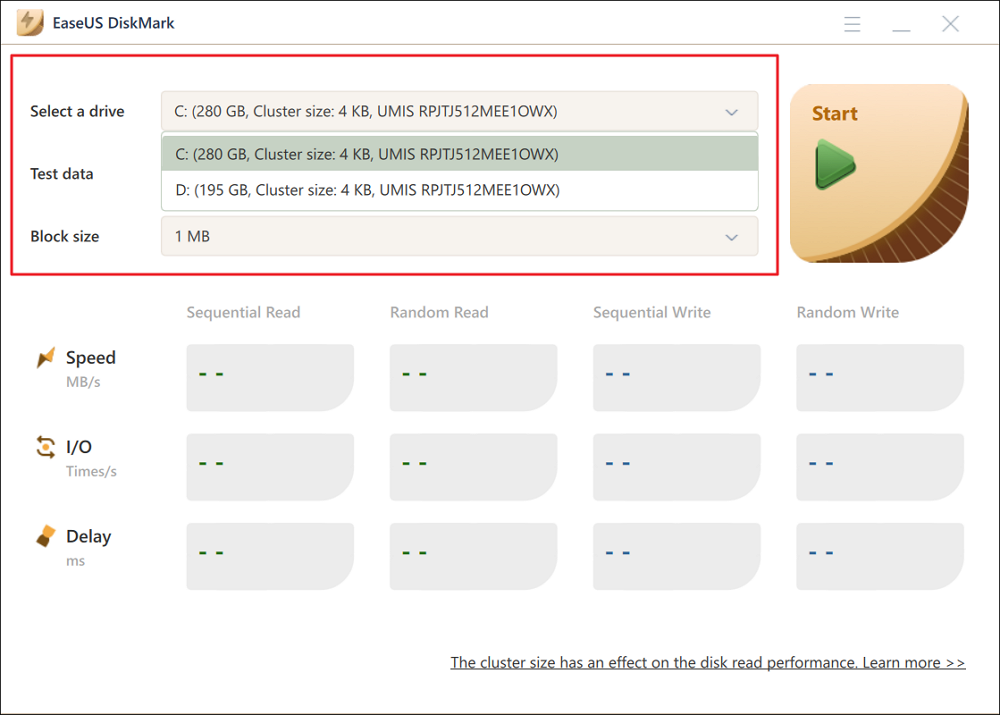
Step 2. Click on the drop-down box to choose the target drive, test data, and block size.
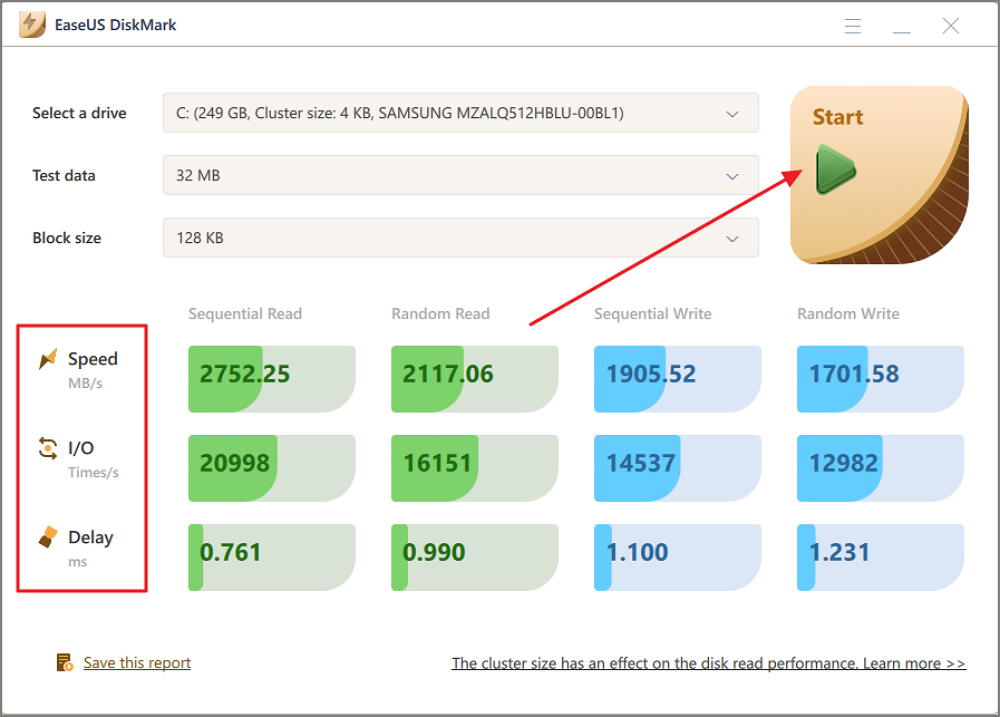
Step 3. Once everything is configured, click "Start" to begin the disk test. Then, you can see the Sequential or Random read/write speed, I/O, and Delay data.
What Should You Do If Your SSD Is Failing?
If your SSD health checker reports a warning, don't ignore it. The next step depends on the type and severity of the problem. Start by protecting your data, then check the drive more carefully before deciding whether to replace it.
Here are some steps you can take:
- Back up important files: Move important documents, photos, projects, and other data to another drive or a reliable backup location.
- Check the SSD for errors: Run a file system check and bad sector scan to see whether the drive has logical errors or unreadable areas.
- Check the SSD temperature: If the drive is running unusually hot, improve airflow or check the cooling setup to reduce thermal issues.
- Check available storage space: A nearly full SSD can affect system performance. Remove unnecessary files or free up space when storage is running low.
- Monitor the SSD health: Run another health check after some time and watch for changes in SMART data, health status, temperature, or error indicators.
- Clone the SSD if necessary: If the drive shows serious problems but is still accessible, clone important data to a new SSD before the condition worsens.
- Replace the SSD when needed: If the drive repeatedly shows critical warnings, develops frequent errors, or becomes unstable, replacing it is the safer option.
If you find the post helpful, share it to help more users learn the SSD health checker:

Conclusion
An SSD health checker is useful for more than checking a green or red status. It can help you monitor SMART information, temperature, wear indicators, and other signs that an SSD may be developing problems.
EaseUS Partition Master offers an easy way to check SSD health through its Disk Health feature. You can review the drive's available SMART information, investigate possible problems with a surface test, and use the same tool for other disk-management tasks.
Want to make sure your hard disk is working as expected? Follow these [Disk Health and Diagnostic Checks] to identify potential issues early.
FAQs
1. What is the best free SSD health checker?
For Windows users looking for an easy-to-use option, EaseUS Partition Master Free provides a Disk Health feature for checking SSD health and SMART information. It also provides additional disk-management and diagnostic features when you need to investigate a storage problem.
2. How often should I check my SSD health?
For most users, checking your SSD health monthly is sufficient under normal conditions. However, the ideal frequency depends on your usage pattern and the drive's age.
3. Does EaseUS Partition Master support Windows 11?
Yes. EaseUS Partition Master supports Windows 11, Windows 10, Windows 8.1, Windows 8, Windows 7, Windows Vista, Windows Server, and Windows XP.
4. What file systems does EaseUS Partition Master support?
EaseUS Partition Master supports NTFS, EXT2/3/4, FAT12/16/32, ReFS, and exFAT file systems.
How Can We Help You
About the Author

Sherly joined EaseUS in 2022 and she has always loved writing articles and enjoys the fun they bring. She receives professional training here, focusing on product performance and other relative knowledge. She has written over 200 articles to help people overcome computing issues.

Written by Joey Albert
Joey is an enthusiast of science and technology. With a passion for uncovering the latest tech innovations, she creates clear, engaging how-to guides that make technology accessible and enjoyable for all.
Product Reviews
-
I love that the changes you make with EaseUS Partition Master Free aren't immediately applied to the disks. It makes it way easier to play out what will happen after you've made all the changes. I also think the overall look and feel of EaseUS Partition Master Free makes whatever you're doing with your computer's partitions easy.
Read More -
Partition Master Free can Resize, Move, Merge, Migrate, and Copy disks or partitions; convert to local, change label, defragment, check and explore partition; and much more. A premium upgrade adds free tech support and the ability to resize dynamic volumes.
Read More -
It won't hot image your drives or align them, but since it's coupled with a partition manager, it allows you do perform many tasks at once, instead of just cloning drives. You can move partitions around, resize them, defragment, and more, along with the other tools you'd expect from a cloning tool.
Read More
Related Articles
-
5 Blackmagic Disk Speed Test Alternatives for Mac
![author icon]() Oliver/2026/08/14
Oliver/2026/08/14 -
SSD System Reserved: How to Remove System Reserved Partition
![author icon]() Daisy/2026/08/14
Daisy/2026/08/14 -
Resolve 100% Disk Usage in Windows 11
![author icon]() Tracy King/2026/09/14
Tracy King/2026/09/14 -
How to Delete Large Files on Windows 10 | Way 1 Works Best
![author icon]() Tracy King/2026/09/17
Tracy King/2026/09/17
 Oliver/2026/08/14
  Daisy/2026/08/14
  Tracy King/2026/09/14









