







Content
Page Table of Contents
About the Author
Hot Topics
- What Should You Check on a New SSD or HDD
- How to Check New SSD & HDD Health
- How to Check a New SSD or HDD for Problems
- How to Verify a New Drive's Capacity
- How to Check the Performance of a New SSD or HDD
- How to Monitor a New SSD or HDD
- What Do New SSD & HDD Health Results Mean
- What to Do If a New SSD or HDD Fails a Health Check
- Best Tools to Check and Diagnose a New SSD or HDD
A new SSD or HDD may appear perfectly fine as soon as Windows recognizes it, but being detected is only the first step. A drive can be connected correctly and still have unexpected health readings, lower-than-expected performance, incorrect capacity, or other signs that are worth checking before you rely on it for important files.
This is especially useful when you have just purchased a new drive, installed an SSD as a system disk, or added a hard drive for storage. A few basic checks can confirm that the drive is operating as expected and give you a useful baseline for future reference.
This guide brings together the key ways to check, test, and monitor SSD and HDD health. You can use it to verify a new drive, investigate unusual results, understand diagnostic information, and decide when further troubleshooting may be necessary.
What Should You Check on a New SSD or HDD?
There is no single number that can tell you whether a drive is completely healthy. SSDs and HDDs use different technologies, and even two drives of the same type may report different health information depending on their controller, firmware, interface, and workload.
For a newly installed drive, however, a few checks provide a useful starting point. You do not necessarily need to run every available diagnostic test. The goal is to establish whether the drive is recognized correctly, reports a normal health status, delivers reasonable performance, and shows no obvious errors.
| What to Check | What It Can Tell You |
|---|---|
| Drive health | Whether the drive reports any health or wear concerns |
| SMART status | Whether the drive has recorded potentially important diagnostic information |
| Capacity | Whether the reported capacity is consistent with the drive you purchased |
| Read/write speed | Whether performance is broadly in line with the drive's specifications |
| Bad sectors | Whether the drive contains sectors that cannot be read or written reliably |
| Temperature | Whether the drive is operating within a reasonable temperature range |
| File system | Whether the drive has a usable and appropriate file system |
| Disk errors | Whether Windows or the drive has reported read, write, or file-system problems |
These checks are not meant to prove that a drive will never fail. Instead, they help you catch obvious problems early and give you a reference point for the drive's condition when it is new. Feel free to share this full guide to help more people learn about new disk health diagnostics.

How to Check New SSD & HDD Health
Checking drive health is one of the simplest ways to establish whether an SSD or HDD is reporting a normal condition. The information available can vary considerably between manufacturers, particularly for SSDs, so health percentages should not be treated as a universal measurement across every model.
For a new drive, the most useful approach is to look at the overall health status together with SMART information, temperature, and any reported errors. If everything looks normal, you have a baseline that can be compared against later checks.
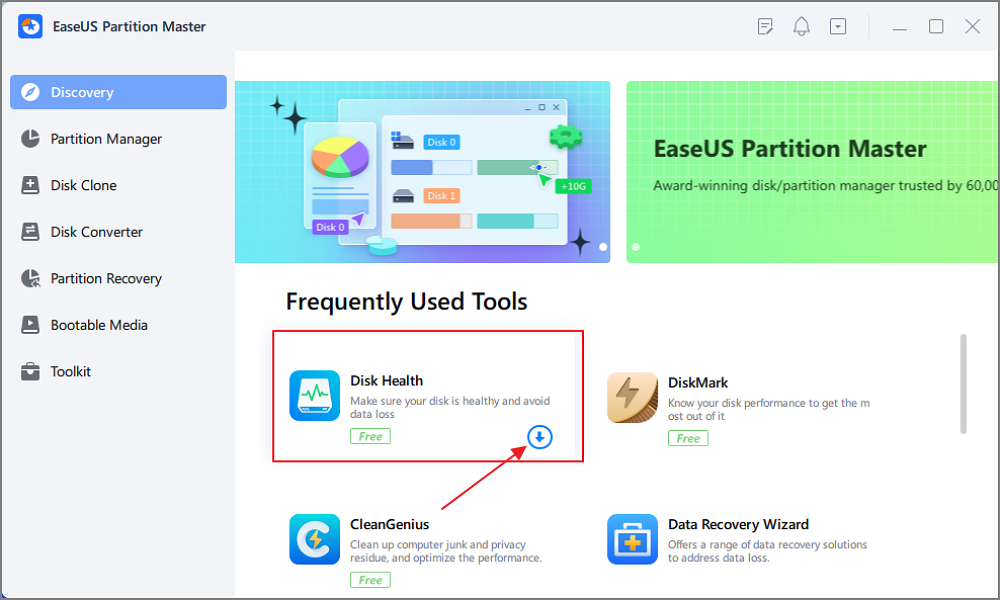
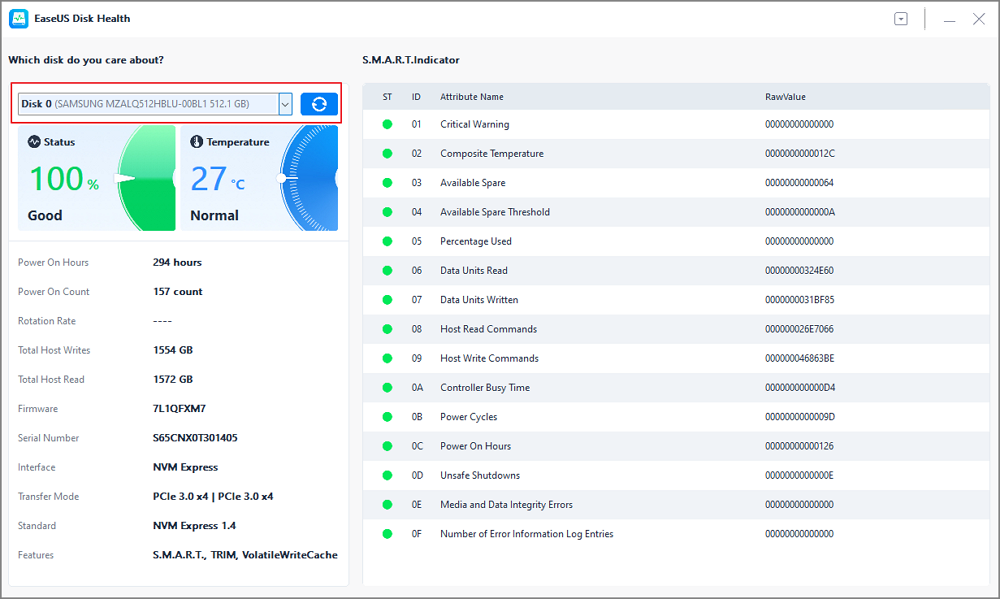
EaseUS Partition Master comes with a Disk Health checking feature, allowing you to quickly judge the health status of the new disk:
Step 1. Launch EaseUS Partition Master and click the blue arrow to activate the "Disk Health" feature under the "Discovery" section.
Step 2. Select the target disk and click the "Refresh" button. Then, you can see the health condition of your disk.
How to Check a New SSD or HDD for Problems
A new drive should normally be checked for more than just its reported health percentage. Some problems may not appear in a basic health summary, particularly when the issue involves sectors, the file system, or a specific read/write operation.
Running targeted diagnostic checks gives you another layer of verification. This is particularly worthwhile before moving a large amount of important data to a newly purchased drive.
Check a New SSD for Bad Sectors
Although SSDs do not use magnetic platters like HDDs, they can still encounter blocks or areas that cannot reliably store or retrieve data. Diagnostic software may therefore provide a way to scan the drive for problematic sectors or blocks.
A bad-sector result on a new SSD deserves attention rather than being dismissed simply because the drive is new.
Related guide: How to Check SSD for Bad Sectors
Check File System Errors
A drive can be physically healthy while its file system has problems. File-system errors may occur after interrupted operations, improper shutdowns, or other software-related events.
Checking the file system is therefore a useful complement to hardware-oriented diagnostics, especially when Windows reports that a newly prepared drive needs to be scanned or repaired.
Related guide: How to Check File System Errors
How to Verify a New Drive's Capacity
Capacity is one of the easiest things to overlook when installing a new drive. A 1 TB SSD, for example, will not normally appear as exactly 1,000 GB of usable space in Windows. Manufacturers and operating systems use different methods to calculate storage capacity, and formatting also consumes some space.
That said, there is a difference between normal capacity reporting and a genuinely incorrect capacity. Verifying the drive helps you understand whether the reported size is reasonable and whether the entire disk is available for use.
Why Does a New 1TB SSD Show Less Than 1TB?
Drive manufacturers generally describe capacity using decimal units, while Windows commonly displays storage using values that can make the available capacity appear smaller.
A difference between the advertised capacity and the capacity shown in Windows is therefore normal. The important question is whether the difference falls within a reasonable range.
How to Check the Actual Capacity of an SSD or HDD
Disk Management and other disk utilities can show the disk’s total capacity, partitions, unallocated space, and file systems. Checking these details can help determine whether apparently missing space is actually being used by a partition or simply being reported differently.
How to Verify a New Drive Is Using Its Full Capacity
A newly installed drive may contain unallocated space or partitions that are not immediately visible in File Explorer. Before assuming that the drive has the wrong capacity, check its complete disk layout.
This is particularly important after cloning, partitioning, or migrating an operating system, when the disk may contain unused space that has not yet been assigned to a partition.
How to Check the Performance of a New SSD or HDD
Performance should be considered alongside health rather than as a replacement for it. A drive can have excellent benchmark numbers and still develop problems later; similarly, a healthy drive may not reach its advertised peak speed because of system limitations.
For a new drive, the most useful goal is not to chase the highest benchmark score. It is to determine whether the result makes sense for the hardware and configuration you are using.
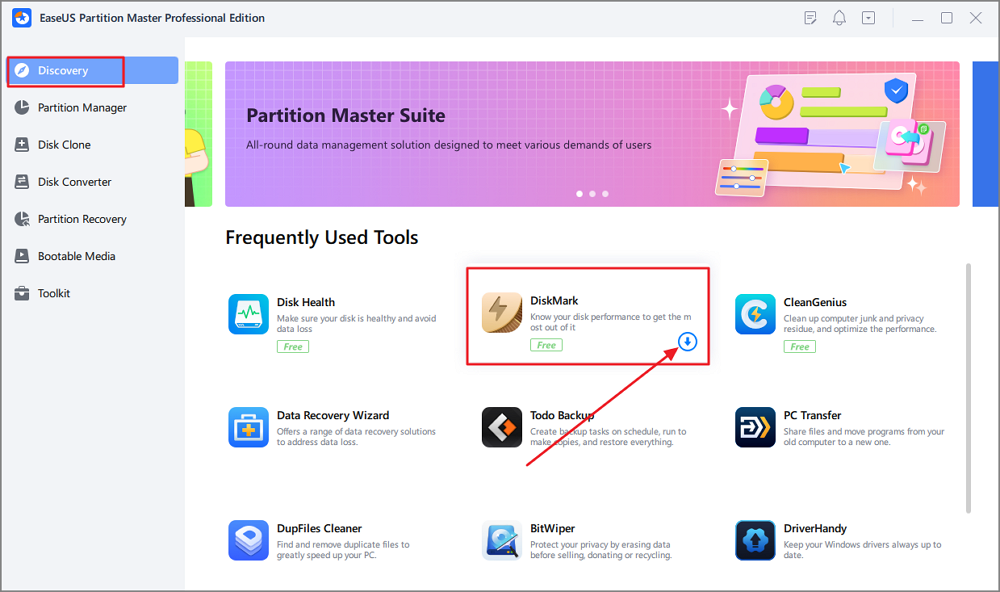
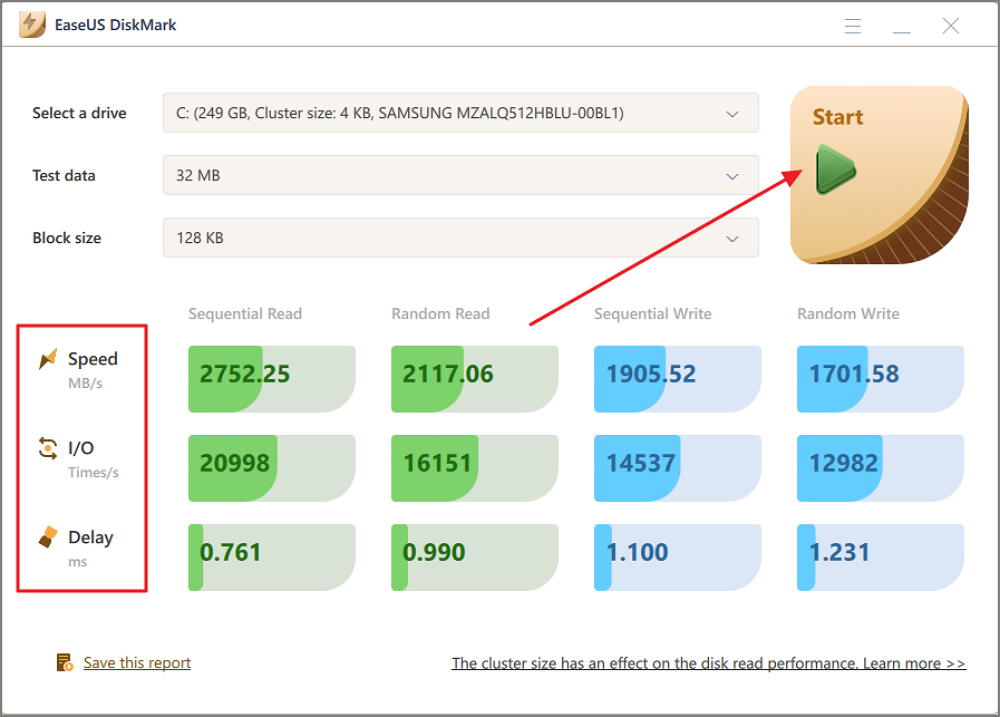
Here is how to check disk speed with EaseUS Partition Master:
Step 1. Launch EaseUS Partition Master. And click the download button to activate the "DiskMark" feature under the "Discovery" section.
Step 2. Click on the drop-down box to choose the target drive, test data, and block size.
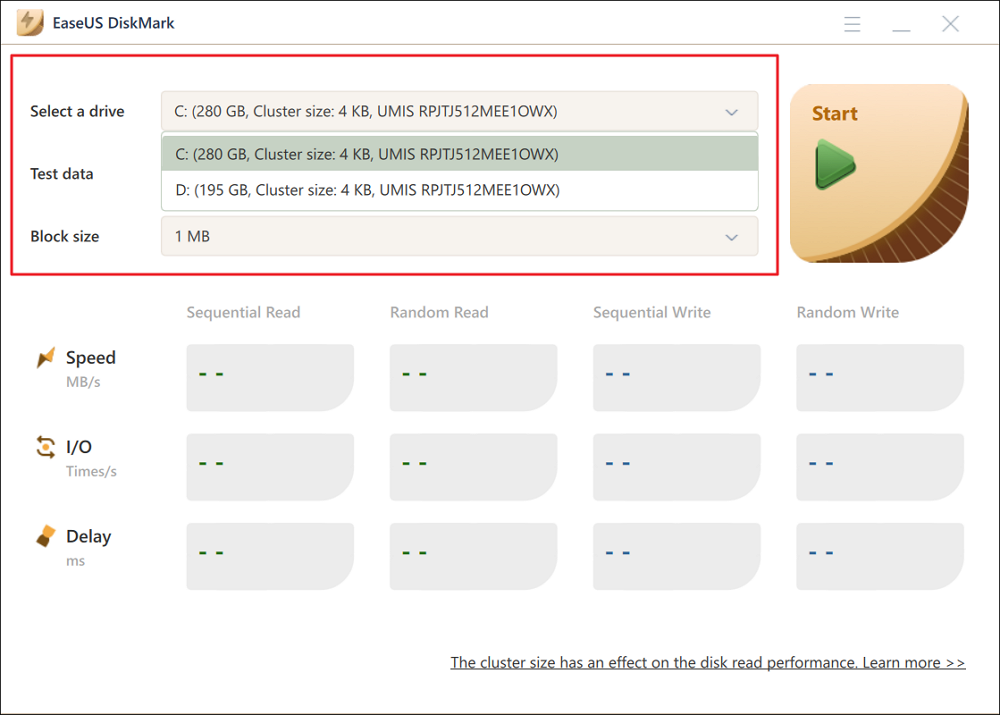
Step 3. Once everything is configured, click "Start" to begin the disk test. Then, you can see the Sequential or Random read/write speed, I/O, and Delay data.
What SSD Read/Write Speed Should You Expect?
Expected SSD performance depends heavily on the interface. SATA SSDs, PCIe 3.0 NVMe drives, PCIe 4.0 drives, and newer PCIe generations have very different performance ceilings.
When evaluating a new SSD, compare its results with the manufacturer’s specifications while taking your computer’s hardware into account.
What HDD Read/Write Speed Should You Expect?
HDD performance varies with rotational speed, recording technology, capacity, workload, and the location of data on the platters. Sequential performance is generally more consistent than random access performance.
A new HDD that performs somewhat differently from a manufacturer’s advertised figure is not automatically defective. Look for a meaningful and repeatable difference rather than relying on a single test.
Why Is a New SSD Slower Than Its Advertised Speed?
Several factors can reduce SSD performance, including an incompatible PCIe slot, an older interface, thermal throttling, background processes, insufficient free space, or different benchmark conditions.
Before returning a new SSD because of a disappointing benchmark, verify the connection and test conditions first. If the drive remains substantially below expectations after those factors have been ruled out, further diagnosis may be appropriate.
What Affects SSD and HDD Performance?
Drive performance can be influenced by much more than the storage device itself. The motherboard, interface, controller, firmware, temperature, operating system, workload, and available free space can all play a role.
Understanding these variables prevents a common mistake: treating a benchmark number as a simple pass-or-fail measurement.
How to Monitor a New SSD or HDD
A health check performed immediately after installation gives you a useful starting point, but it is only a snapshot. Drive condition and operating characteristics can change with use, particularly as an SSD accumulates writes or an HDD experiences increasing mechanical wear.
You do not need to constantly monitor a healthy consumer drive. Periodic checks are generally more practical, especially for drives that contain important files or serve as primary system storage.
1️⃣Monitor SSD Health
Keep an eye on the health indicators provided by the SSD manufacturer or diagnostic software. For many SSDs, wear level, total bytes written, temperature, and SMART information are more informative than a single health percentage.
2️⃣Monitor HDD Health
For HDDs, SMART attributes such as reallocated sectors, pending sectors, and uncorrectable errors can be useful indicators. Unusual noises, repeated read errors, or sudden performance changes should also be taken seriously.
3️⃣Monitor SSD/HDD Temperature
Temperature monitoring can help identify thermal problems before they become persistent. This is particularly relevant for NVMe SSDs operating under sustained workloads and HDDs installed in enclosed systems.
4️⃣Monitor SMART Information
SMART data is most useful when viewed over time. A single reading provides a snapshot, while changes in important attributes can reveal a developing issue.
For this reason, keeping a baseline from when the drive is new can make future diagnostic results easier to interpret.
What Do New SSD & HDD Health Results Mean?
Getting a diagnostic result is only half the job. The next challenge is understanding what that result actually says about the drive.
Not every warning means imminent failure, and not every “100% health” reading guarantees that a drive will never have a problem. Diagnostic information needs to be interpreted according to the drive type, manufacturer, and specific attribute being reported.
What Does 100% SSD Health Mean?
A 100% health reading generally indicates that the SSD’s reported wear or remaining-life indicator has not reached a level considered significant by the manufacturer.
It does not mean the SSD has been tested for every possible hardware or file-system problem. SMART data, temperature, performance, and error information can still provide useful additional context.
What Does SSD Health Percentage Mean?
There is no single industry-wide formula that makes every SSD health percentage directly comparable. Manufacturers may calculate or display health using different attributes.
Use the health percentage as one indicator rather than treating it as a universal score.
What Does a Good HDD SMART Status Look Like?
A normal SMART status generally means that the drive has not detected a condition serious enough to trigger its overall SMART warning threshold.
For a more complete assessment, however, look at individual attributes and whether they are changing over time. Reallocated or pending sectors, for example, can be more informative than the overall status alone.
What Do Reallocated or Pending Sectors Mean?
These attributes are particularly important when diagnosing HDDs. Reallocated sectors indicate that the drive has moved data away from a problematic area, while pending sectors are areas that the drive has identified as potentially problematic but has not yet successfully remapped.
A new HDD reporting unexpected sector-related values should be investigated rather than ignored.
What Does SSD TBW Mean?
TBW, or Total Bytes Written, describes the amount of data an SSD is rated to withstand under the manufacturer’s endurance specification. It is useful for understanding SSD endurance, but it should not be treated as a precise expiration point.
Actual SSD longevity depends on the drive, NAND type, controller, workload, temperature, and other factors.
What to Do If a New SSD or HDD Fails a Health Check
A failed or abnormal diagnostic result does not always have the same meaning. A drive that is not detected at all presents a different problem from a drive that is detected but reports an unusual SMART attribute. Likewise, a lower benchmark result is not necessarily evidence of hardware failure.
The next step should therefore depend on the symptom and the diagnostic result. Check the connection and configuration first when appropriate, then use more targeted troubleshooting tools if the problem persists.
New SSD/HDD Has Bad Sectors
If a newly purchased drive reports bad sectors, repeat the diagnostic test with a reliable tool and check whether the result is consistent.
If significant or repeated errors remain, avoid treating the drive as trustworthy storage for important data. For a genuinely new drive, contacting the seller or manufacturer may be more appropriate than attempting to repair a suspected hardware defect.
New SSD/HDD Is Not Detected
A missing drive is usually a troubleshooting issue rather than a health-diagnostics issue. Check the physical connection, BIOS/UEFI detection, Disk Management, initialization status, and interface compatibility.
Related Hub: New SSD & HDD Common Problems and Troubleshooting
New SSD/HDD Shows Errors
Determine whether the error comes from the drive, file system, connection, or operating system. Repeated I/O errors or SMART warnings deserve more attention than a one-time Windows notification.
New Drive Is Slower Than Expected
Start by checking the interface, connection, PCIe generation or SATA mode, temperature, and benchmark conditions. If performance remains abnormally low after configuration issues have been excluded, continue with targeted troubleshooting.
Should You Return or Replace a New Drive?
A new storage device should not require extensive repair work simply to become reliable. If it consistently reports hardware-related warnings, bad sectors, abnormal SMART values, severe performance problems, or repeated read/write errors, consider contacting the retailer or manufacturer while the return or warranty period is still available.
Best Tools to Check and Diagnose a New SSD or HDD
A new SSD or HDD does not require a dozen diagnostic utilities, but different tools are designed to answer different questions. One program may tell you whether the drive is reporting a healthy SMART status, while another can measure read and write performance or check the file system for errors.
For a newly installed drive, it is usually more useful to combine a few targeted checks than to run every test available. Start with basic drive information and health status, then move to performance or error testing if something looks unusual.
The following tools cover the most common ways to check a new SSD or HDD on Windows.
Common SSD & HDD Health and Diagnostic Tools
| Tool Type | Common Tools | Main Function | What It Helps You Check |
|---|---|---|---|
| Windows Built-in Health Tools | Windows Settings, PowerShell | View basic drive health information and system-reported status | Whether Windows detects the drive correctly and reports obvious health issues |
| Disk Management Tools | Disk Management | View disks, partitions, file systems, and unallocated space | Whether the new drive has been initialized, partitioned, and assigned correctly |
| SMART Health Monitoring | CrystalDiskInfo, Hard Disk Sentinel | Read and interpret SMART data | Drive health, temperature, power-on information, wear indicators, and SMART warnings |
| Manufacturer SSD Tools | Samsung Magician, Crucial Storage Executive, Kingston SSD Manager, WD Dashboard | Monitor and manage supported SSDs | SSD health, firmware, temperature, performance, and manufacturer-specific information |
| Manufacturer HDD Diagnostic Tools | Seagate SeaTools, Western Digital diagnostic tools | Run drive-specific diagnostics | SMART status, self-tests, and hardware-related diagnostic results |
| Disk Benchmark Tools | CrystalDiskMark, ATTO Disk Benchmark | Measure storage performance | Sequential/random read and write speeds and whether performance is broadly as expected |
| Bad-Sector/Surface Testing Tools | EaseUS Partition Master, HDDScan, Victoria | Scan storage areas for read/write problems | Potential bad sectors, unreadable areas, and disk surface issues |
| File System Checking Tools | CHKDSK | Check the file system and file system metadata | Logical file-system errors and certain disk-related errors reported by Windows |
| All-in-One Disk Management Tools | EaseUS Partition Master | Combine disk information, health checks, diagnostics, and management functions | Drive health, disk errors, bad sectors, performance, partitions, and storage configuration |
The table is intentionally organized by purpose rather than popularity. A SMART monitoring tool and a file-system checker do not perform the same job, even though both may be described broadly as "disk diagnostic tools." CrystalDiskInfo, for example, is designed to read HDD/SSD information and supports SMART-related health monitoring, while CrystalDiskMark is a separate benchmarking utility for measuring storage performance.
EaseUS Partition Master can be useful when you want to combine several common disk checks and management tasks in one application. Depending on the version and supported features, it can provide disk information, health-related checks, bad-sector detection, performance testing, and partition management without requiring you to switch between several separate utilities.
FAQs About New SSD & HDD Health
1. Should I Check a New SSD Before Using It?
It is a good practice to perform a basic health, capacity, and performance check before storing important data on a new SSD. This gives you a baseline and may reveal an obvious problem while the drive is still new.
2. Should I Test a New HDD Before Storing Data?
Yes. A basic health check, SMART review, capacity check, and bad-sector scan can help verify that a new HDD is behaving normally before you depend on it for important files.
3. Can a Brand-New SSD Have Bad Sectors?
A new SSD can potentially report problematic blocks or errors, although this should not be considered normal. If a new SSD repeatedly reports significant errors, investigate the result and consider contacting the manufacturer or seller.
4. Can a New HDD Have Bad Sectors?
It is possible, although a new HDD with significant bad-sector problems should be treated cautiously. Repeated sector errors or abnormal SMART attributes may indicate that the drive should be replaced rather than relied upon for important data.
5. How Do I Know If My New SSD Is Healthy?
Check its overall health information, SMART status, temperature, capacity, performance, and error information. No single metric provides a complete assessment.
6. How Do I Know If My New HDD Is Healthy?
Check its SMART status and relevant attributes, then look for bad sectors, abnormal temperatures, read/write errors, and unusual performance or mechanical behavior.
How Can We Help You
About the Author

Sherly joined EaseUS in 2022 and she has always loved writing articles and enjoys the fun they bring. She receives professional training here, focusing on product performance and other relative knowledge. She has written over 200 articles to help people overcome computing issues.
Product Reviews
-
I love that the changes you make with EaseUS Partition Master Free aren't immediately applied to the disks. It makes it way easier to play out what will happen after you've made all the changes. I also think the overall look and feel of EaseUS Partition Master Free makes whatever you're doing with your computer's partitions easy.
Read More -
Partition Master Free can Resize, Move, Merge, Migrate, and Copy disks or partitions; convert to local, change label, defragment, check and explore partition; and much more. A premium upgrade adds free tech support and the ability to resize dynamic volumes.
Read More -
It won't hot image your drives or align them, but since it's coupled with a partition manager, it allows you do perform many tasks at once, instead of just cloning drives. You can move partitions around, resize them, defragment, and more, along with the other tools you'd expect from a cloning tool.
Read More
Related Articles
-
WD External Hard Drive Won't Format? How to Fix?
![Sherly]() Sherly/2026/10/29
Sherly/2026/10/29 -
Solved: Windows Cannot Be Installed to This Disk MBR
![Tracy King]() Tracy King/2026/10/29
Tracy King/2026/10/29 -
How to Remove PIN from Windows 11 - Easy Steps
![Oliver]() Oliver/2026/10/29
Oliver/2026/10/29 -
Not Enough Space to Upgrade to Windows 11 26H2? How to Free Up Space
![Sherly]() Sherly/2026/10/29
Sherly/2026/10/29
 Tracy King/2026/10/29
  Oliver/2026/10/29









