







Content
Page Table of Contents
About the Author
Hot Topics
Reddit, one user described spending hours running "disk optimization" tools hoping to boost performance on an older SSD—only to find no measurable improvement and even increased wear on the drive. This highlights a common problem: not all optimization techniques actually help—and some can even do more harm than good.
In this article, we'll explore disk optimization tips that don't really help improve old disk performance, explain why they fall short, and recommend a more reliable approach with EaseUS Partition Master.
Why Some Disk Optimization Tips Don't Improve Old Disk Performance
Many traditional disk tuning tips were developed for spinning hard drives (HDDs), not modern solid-state drives (SSDs) or aging storage systems. Here's why some common practices are ineffective—or even counterproductive:
- Defragmenting SSDs: Defragmentation rearranges file fragments to improve access times on HDDs. But SSDs use flash memory with no moving parts, so fragmentation doesn't slow them down. Worse, excessive defragmentation adds unnecessary writes, shortening SSD lifespan.
- Manual "Optimization" Tools: Many third-party optimization utilities promise faster disks by tweaking system settings, but they often deliver minimal benefit. Some may delete files or change registry values that don't affect real disk performance, leading to a false sense of improvement or unstable systems.
- Disabling System Services: Some guides suggest turning off services like Superfetch to speed up disk performance. In reality, these services have little impact on storage throughput and may actually help with caching and load times.
- Excessive Cleanup without Targeted Strategy: While cleaning temporary files and uninstalling apps free up space (which can help performance), random cleanup isn't real optimization. Removing cache and temporary files doesn't improve how quickly the disk reads and writes core data.
- Disabling Built-in SSD Features: Modern operating systems include automatic maintenance like TRIM for SSDs, which helps with efficient garbage collection and sustained performance. Trying to "optimize" these features manually often does nothing or interferes.
Use EaseUS Partition Master🔥
Instead of chasing ineffective tips, consider EaseUS Partition Master, a reliable tool for optimizing older disks that actually impacts performance and capacity:
- Reallocate free space: If your disk has partitions with unused space, you can redistribute it where it's needed most.
- Resize and merge partitions: Combine small partitions or expand the system partition to reduce disk space usage and improve performance.
- Improve data access: Balanced partitions can reduce fragmentation and improve file organization.
Many older systems slow down simply because their primary partition, the one with the OS and key files, is nearly full. Traditional "cleanup" might temporarily free space, but intelligently rearranging space ensures the system can use the disk more efficiently, reducing disk thrashing and slow response times.
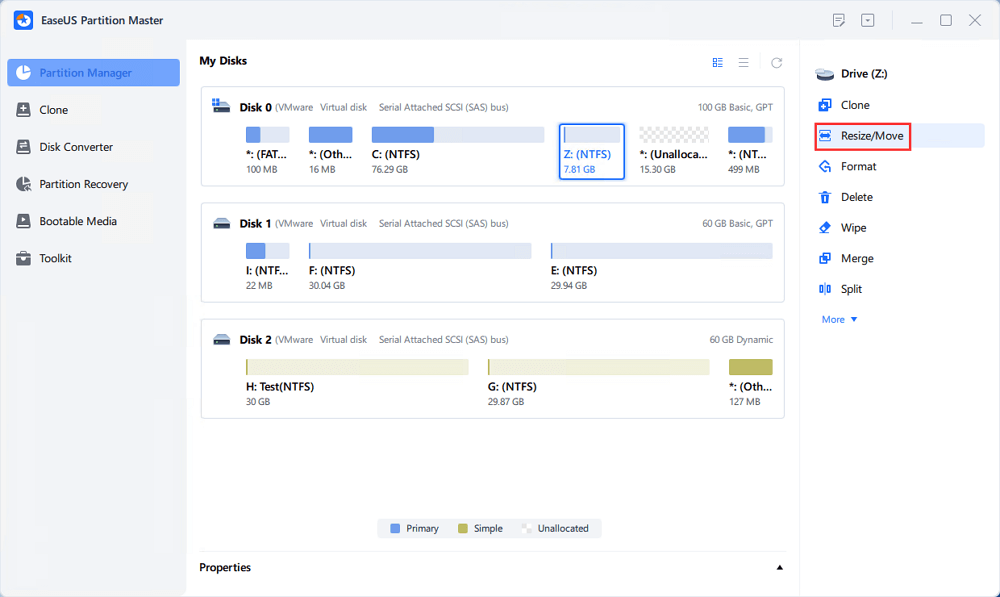
Step 1. Locate the Target Partition.
Go to Partition Manager, locate the target partition and select "Resize/Move".
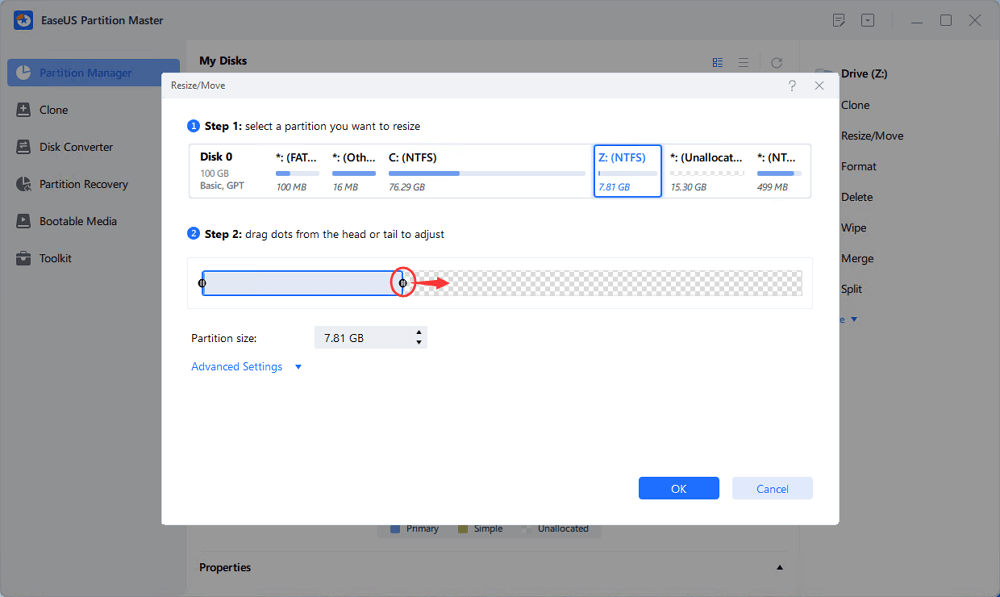
Step 2. Extend the Target Partition.
Drag the partition panel rightward or leftward to add the unallocated space into your current partition, or you can click click "fill in all unallocated" to allocate all space to the target partition. Then, click "OK" to confirm.
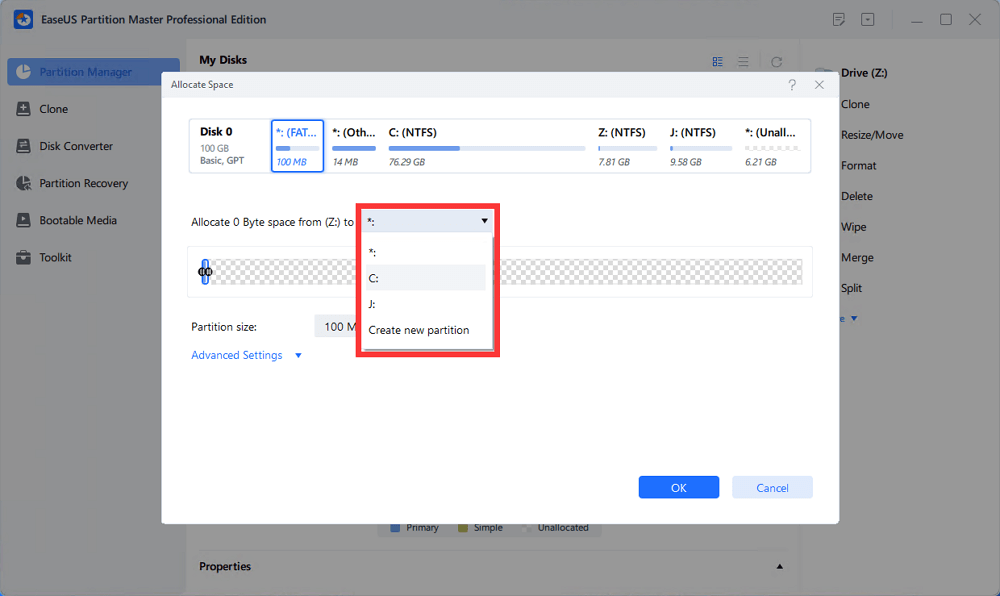
Extra Option: Get Space from Another Drive
If there is not enough unallocated space on your disk, right-click on a big partition with enough free space, select "Allocate space".
Then select the target partition that you want to extend at the allocate space to column.
Step 3. Execute Operations to Extend Partition.
Drag the dots of the target partition into the unallocated space and click "OK".
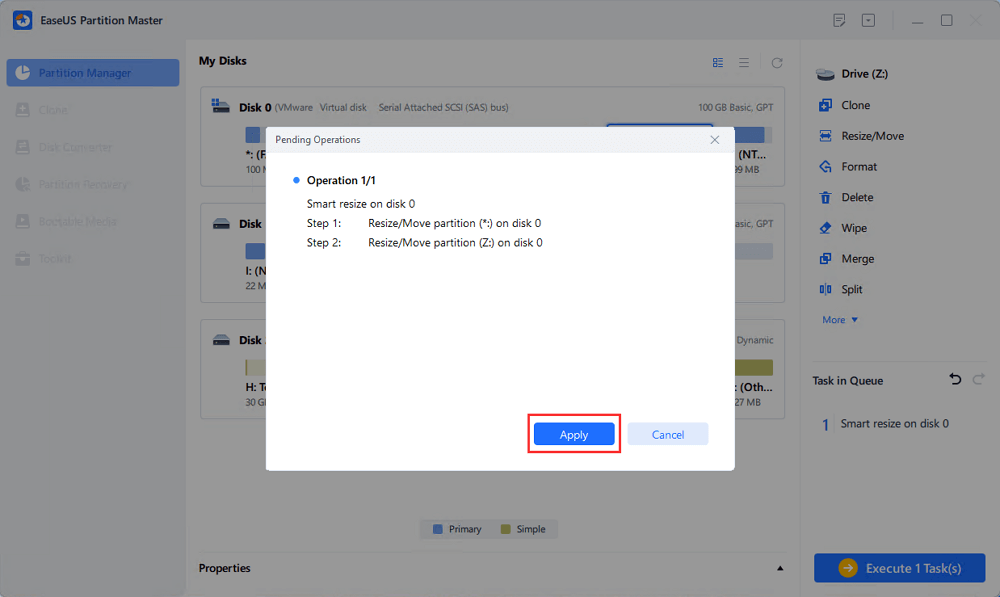
Then Click the "Execute Task" button and click "Apply" to keep all the changes.
Tip: When you need to change your disk setup, this guide covers several common tasks, including upgrades, migration, and storage space management.
Conclusion
While traditional disk optimization tips like defragmentation or "system tweakers" might seem useful, they often don't improve performance on old disks, especially SSDs, and can even cause harm. Modern storage technology requires smarter strategies. Tools like EaseUS Partition Master help reorganize and balance disk space, offering a more effective way to improve performance on aging systems.
FAQs
At the same time, this section also lists several tips about disk optimization.
1. Does defragmenting an SSD help performance?
No. SSDs access data electronically rather than mechanically, so defragmentation offers no speed benefit and can reduce SSD lifespan.
2. Will deleting temporary files speed up my old disk?
Deleting junk can free space, which may help marginally, but it does not optimize how the disk reads and writes data.
3. What's the most effective way to keep an SSD performing well?
Ensure TRIM is enabled, keep firmware and OS updated, avoid unnecessary writes, and consider intelligent partition management.
How Can We Help You
About the Author

Sherly joined EaseUS in 2022 and she has always loved writing articles and enjoys the fun they bring. She receives professional training here, focusing on product performance and other relative knowledge. She has written over 200 articles to help people overcome computing issues.

Cici is the junior editor of the writing team of EaseUS. She accepted the systematic training on computers at EaseUS for over one year. Now, she wrote a lot of professional articles to help people resolve the issues of hard drive corruption, computer boot errors, and disk partition problems.
Product Reviews
-
I love that the changes you make with EaseUS Partition Master Free aren't immediately applied to the disks. It makes it way easier to play out what will happen after you've made all the changes. I also think the overall look and feel of EaseUS Partition Master Free makes whatever you're doing with your computer's partitions easy.
Read More -
Partition Master Free can Resize, Move, Merge, Migrate, and Copy disks or partitions; convert to local, change label, defragment, check and explore partition; and much more. A premium upgrade adds free tech support and the ability to resize dynamic volumes.
Read More -
It won't hot image your drives or align them, but since it's coupled with a partition manager, it allows you do perform many tasks at once, instead of just cloning drives. You can move partitions around, resize them, defragment, and more, along with the other tools you'd expect from a cloning tool.
Read More
Related Articles
-
Best Hard Disk Speed Test Software Free Download for Windows 11/10 in 2026
![author icon]() Tracy King/2026/09/23
Tracy King/2026/09/23 -
How to Unlock A Locked Computer - Windows (Easy & Fast)
![author icon]() Oliver/2026/09/24
Oliver/2026/09/24 -
Top 5 Best Disk Space Analyzer for Windows 11 [2026 Review]
![author icon]() Tracy King/2026/06/17
Tracy King/2026/06/17 -
Fixed: The Disk Is Write Protected Windows 11
![author icon]() Tracy King/2026/09/23
Tracy King/2026/09/23
 Tracy King/2026/09/23
  Oliver/2026/09/24









