
Content
Page Table of Contents
About the Author
Hot Topics
Does your SSD show No Media in Disk Management or DiskPart, with a capacity of 0 MB or 0 Bytes? This usually means Windows detects the storage device but cannot access its actual storage capacity. As a result, you may be unable to initialize, partition, or format the SSD.
The problem may come from a loose connection, insufficient USB power, an incompatible enclosure, file system corruption, or an internal hardware failure. Before replacing the drive, try these 7 solutions to identify the cause and determine whether your SSD can be recovered.
SSD Saying No Media
by in pchelp
What Does SSD No Media Mean?
When an SSD shows No Media in Windows, the operating system detects a storage device but cannot access its storage capacity. You may see Disk 1 – Removable – No Media in Disk Management or find that DiskPart reports 0 bytes when you run list disk.
This is different from an uninitialized or unallocated disk. A healthy new SSD should display its actual capacity, even if it has no partition or file system yet.
Common causes include:
- Loose or faulty connections: A damaged USB cable, loose SATA connection, or improperly seated M.2 SSD can interrupt communication.
- Insufficient USB power: An external SSD may not receive enough power through a USB hub or certain USB ports.
- Incompatible USB enclosure: An enclosure may not support the SSD's interface, such as NVMe or SATA.
- Firmware or controller issues: SSD firmware problems or controller failures may prevent Windows from accessing the NAND flash memory.
- NAND flash damage or bad blocks: Severe flash memory problems may affect the SSD's ability to provide usable storage capacity.
- File system corruption: Logical file system errors can make an accessible SSD partition unreadable, although they do not typically cause a genuine No Media + 0 Bytes condition.
Share this post and let more users learn what to do when SSD says no media.

How to Fix SSD Saying No Media in Windows
Before trying advanced fixes, check whether the SSD contains important files. If it does, avoid initializing, formatting, or wiping the drive. These operations will not repair a hardware-level No Media problem and may make data recovery more difficult.
Try the following solutions in order, starting with basic connection checks.
Fix 1. Check the SSD Connection and USB Power
A poor connection or insufficient power can prevent Windows from communicating with an external SSD. This is especially worth checking if you use a USB-to-SATA adapter, an NVMe enclosure, or a USB hub.
- Disconnect the SSD. Shut down your computer first if it is an internal drive.
- For a SATA SSD, check both the SATA data and power cables. For an M.2 SSD, reseat it in the slot according to the manufacturer's instructions.
- For an external SSD, reconnect the USB cable or try another compatible cable.
- Connect it directly to a USB 3.0 port on your computer instead of using a passive USB hub.
- If the drive has a separate power adapter, make sure it is connected properly.
Note: Power off your computer before reseating an internal SSD. Never force an SSD or connector into a slot.
Fix 2. Try Another USB Port, Enclosure, or Computer
If the SSD still shows No Media, test it with another connection to determine whether the problem comes from the computer, cable, or SSD itself.
- Connect the external SSD to another USB port, preferably one directly connected to the motherboard.
- If possible, try a different compatible USB enclosure or adapter.
- Connect the SSD to another Windows computer.
- Open Disk Management and check whether Windows displays the correct SSD capacity.
If the SSD works on another computer, the original computer's USB port, driver, or configuration may be responsible. If it continues to show No Media and 0 bytes across different systems and compatible connections, an SSD hardware or firmware problem becomes more likely.
Note: Make sure the enclosure supports your SSD's interface. M.2 SATA and M.2 NVMe drives are not interchangeable in every enclosure.
Fix 3. Check Whether the SSD Is Detected in BIOS/UEFI
BIOS/UEFI detection helps determine whether an internal SSD is recognized at the hardware level. If the drive is missing there, Windows troubleshooting commands are unlikely to solve the problem.
- Restart your computer and press the BIOS key during startup (commonly F2, F10, F12, or Del, depending on the manufacturer).
- Open the Storage, NVMe Configuration, or SATA Information section.
- Check whether the SSD model is listed.
- If it is missing, check the SSD connection, motherboard slot compatibility, and supported storage configuration.
If the SSD is detected in BIOS but shows No Media in Windows, continue with the Windows-side checks below.
Note: BIOS menus vary by computer. An external USB SSD may not appear as an internal storage device in BIOS, so use another computer and enclosure to test it instead.
Fix 4. Check for Bad Sectors
Bad sectors may lead to disk errors. You can use EaseUS Partition Master to run a disk surface test and locate the bad sectors on the SSD. Without typing any command lines, you can check the disk for bad sectors and errors.
Step 1. Open EaseUS Partition Master. Go to Toolkit and select "Bad Sector Scan."
Step 2. Tick "Scan Disk" and choose the target disk from the drop-down menu.
Step 3. Click "Scan" to apply the bad sector scaning process.
Wait for the process to finish and check whether the SSD can be accessed normally.
Note: Bad Sector Scan detects problematic sectors but does not repair physically damaged NAND flash.
Fix 5. Rescan Disks in Disk Management
Windows may occasionally fail to refresh its storage device information. Rescanning disks is a simple way to check whether the SSD can be detected correctly again.
- Press Win + X and select Disk Management.
- Click Action in the top menu.
- Select Rescan Disks.
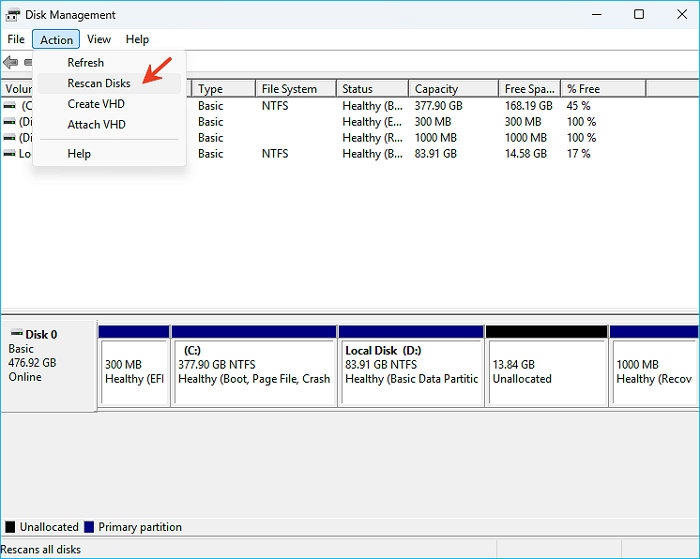
- Wait for Windows to refresh the connected storage devices.
- Check whether the SSD's correct capacity appears.
If the SSD still shows No Media or 0 MB, move on to the next check.
Fix 6. Check the SSD with DiskPart
DiskPart can help confirm whether Windows recognizes the SSD's actual capacity. However, it cannot repair a drive that is not communicating with its internal storage.
- Type cmd in the Windows search box.
- Right-click Command Prompt and select Run as administrator.
- Enter the following commands one at a time:
diskpart
list disk
- Find the SSD in the disk list and check its reported capacity.
What if DiskPart shows 0 Bytes or No Media?
1️⃣If the SSD reports 0 bytes or No Media, commands such as clean, create partition, and format generally cannot work because Windows has no usable storage capacity to operate on. Do not repeatedly run these commands. If the SSD contains important data, stop here and consider professional data recovery.
2️⃣If DiskPart displays the correct capacity, continue with the next solution to check for possible disk and file system problems.
Fix 7. Update SSD Firmware or Contact the Manufacturer
If the SSD still reports No Media after testing different connections and computers, the issue may involve its firmware or internal hardware.
- Visit the SSD manufacturer's official support website.
- Find the firmware update tool for your exact SSD model.
- Check whether a firmware update or diagnostic utility is available.
- Follow the manufacturer's instructions before applying any update.
- If the SSD remains inaccessible, contact the manufacturer for warranty service or replacement.
If the SSD contains important files, do not attempt firmware updates, repeated formatting, or other write operations before consulting a data recovery specialist.
What If the SSD Still Shows No Media?
If none of the above methods works and the SSD continues to report 0 MB or 0 Bytes on multiple computers, the problem is likely beyond ordinary Windows partition or file system repair.
The SSD controller may have failed, its firmware may be corrupted, or the internal flash memory may no longer be accessible. In this situation, Windows tools such as Disk Management, DiskPart, and CHKDSK cannot restore the missing storage capacity.
If the SSD is new, contact the seller or manufacturer for a warranty replacement. If it contains important data, stop troubleshooting and seek professional SSD data recovery services.
FAQs About SSD Saying No Media
1. Why does my SSD show No Media and 0 Bytes?
This usually means Windows can detect the storage device but cannot access its actual storage capacity. Common causes include a faulty cable, insufficient USB power, an incompatible enclosure, firmware problems, or internal SSD hardware failure.
2. Can I fix an SSD showing No Media without losing data?
It depends on the cause. If the problem comes from a loose connection, faulty cable, or incompatible enclosure, correcting the connection may restore access without affecting your files. However, if the SSD controller or flash memory has failed, professional data recovery may be necessary.
3. Why can't I format my SSD when it shows No Media?
Formatting requires Windows to access the SSD's storage capacity. When the drive reports No Media or 0 Bytes, Windows has no usable storage space to format, so Disk Management and DiskPart formatting commands generally fail.
4. Will DiskPart clean fix the SSD No Media error?
Usually not. The clean command removes partition information from a disk, but it cannot repair a failed SSD controller or restore communication with the flash memory. It also removes partition information from a working disk, so do not use it on a drive containing important data.
5. Can bad sectors cause an SSD to show No Media?
Bad blocks in an SSD can cause read/write errors and storage problems. In severe cases, NAND flash damage or related controller issues may prevent Windows from accessing the drive, potentially resulting in a No Media or 0 Bytes error. However, a few bad blocks alone do not typically cause this issue.
6. Is an SSD showing No Media dead?
Not necessarily. A faulty USB cable, enclosure, port, or power supply can cause similar symptoms. However, if the SSD continues to report No Media and 0 bytes after testing it on another computer with a compatible connection, internal hardware or firmware failure is more likely.
How Can We Help You
About the Author

Sherly joined EaseUS in 2022 and she has always loved writing articles and enjoys the fun they bring. She receives professional training here, focusing on product performance and other relative knowledge. She has written over 200 articles to help people overcome computing issues.
Product Reviews
-
I love that the changes you make with EaseUS Partition Master Free aren't immediately applied to the disks. It makes it way easier to play out what will happen after you've made all the changes. I also think the overall look and feel of EaseUS Partition Master Free makes whatever you're doing with your computer's partitions easy.
Read More -
Partition Master Free can Resize, Move, Merge, Migrate, and Copy disks or partitions; convert to local, change label, defragment, check and explore partition; and much more. A premium upgrade adds free tech support and the ability to resize dynamic volumes.
Read More -
It won't hot image your drives or align them, but since it's coupled with a partition manager, it allows you do perform many tasks at once, instead of just cloning drives. You can move partitions around, resize them, defragment, and more, along with the other tools you'd expect from a cloning tool.
Read More
Related Articles
-
How to Run Disk I/O Test on Windows | Your Solutions Here!
![Cici]() Cici/2026/10/30
-
MBR2GPT Cannot Find Room for the EFI System Partition
![Cici]() Cici/2026/10/30
-
Unable to Install Windows 10 on Dynamic Disk? 3 Fixes 💡
![Sherly]() Sherly/2026/10/30
-
How to Format EFI System Partition as FAT32? Your Guide Here 2026
![Tracy King]() Tracy King/2026/10/30
 Cici/2026/10/30
 Tracy King/2026/10/30