







Content
Page Table of Contents
About the Author
Hot Topics
SD cards are helpful in storing and transferring data. You may format an SD card to exFAT when you store large files, such as 4K videos or high-resolution photos. exFAT works well across Windows and Mac computers. It also supports bigger files than the older FAT32 format.
This guide shows you how to format an SD Card to exFAT on Windows and Mac. Always back up your data first. Formatting erases everything on the card. Let's dive into the guide.
What to Prepare Before Formatting an SD Card
Before you start, take a few minutes to prepare. Formatting erases all data on the SD card, so it's essential to back up important files.
- Back up your data: Copy all photos, videos, or files from the SD card to your computer or cloud storage.
- Check the SD card size: Ensure your card is at least 64GB if you're planning to use exFAT. Cards smaller than 32GB usually use FAT32.
- Insert the SD card properly: Use an SD card reader or built-in slot and confirm the card is recognized by the system.
- Check for write protection: If your SD card has a physical lock switch, make sure it's in the unlocked position.
- Download tools if needed: On Windows, third-party tools like EaseUS Partition Master can help if standard utilities fail.
Once you complete these steps, you're ready to format your SD card safely. Share this post if you find it helpful!

How to Format SD Card to exFAT on Windows
If you want to format SD card to exFAT on Windows, you can use the following four methods. Windows built-in tools include Disk Management, File Explorer, and Diskpart CMD. EaseUS Partition Master is an all-in-one tool to do this.
Method 1. EaseUS Partition Master
If you want to format an SD card on Windows, you can use some built-in Windows tools. However, you may encounter some issues when using these tools. For example, the SD card might not appear in File Explorer. The exFAT option could be missing. Or the system may show an error saying the format cannot be completed. In such cases, using a professional partition manager like EaseUS Partition Master can help you format the SD card safely and efficiently.
EaseUS Partition Master is a reliable tool for formatting SD cards to exFAT. It provides a clear interface and fast performance. The software supports all major storage devices and ensures data safety during operations. It is a practical choice for users who want a smooth and stable way to format SD cards to exFAT.
Here is how to format SD card to exFAT with EaseUS Partition Master.
Step 1. Find your SD card and right-click the partition you want to format and choose "Format".
Step 2. Set a new partition label, file system (NTFS/FAT32/EXT2/EXT3/EXT4/exFAT), and cluster size to the selected partition, then click "OK".
Step 3. Click "Yes" on the pop-up window to continue.
Step 4. Click the "Execute 1 Task(s)" button on the toolbar, then click "Apply" to start formatting your SD card.
Why EaseUS Partition Master stands out as a memory card format software:
- Supports various file systems, like exFAT, NTFS, and FAT32.
- Allows users to create, delete, resize, move, and merge partitions.
- Enables quick formatting of SD cards, USB drives, and external disks without data loss.
- Includes advanced disk management tools such as disk cloning.
Method 2. Disk Management
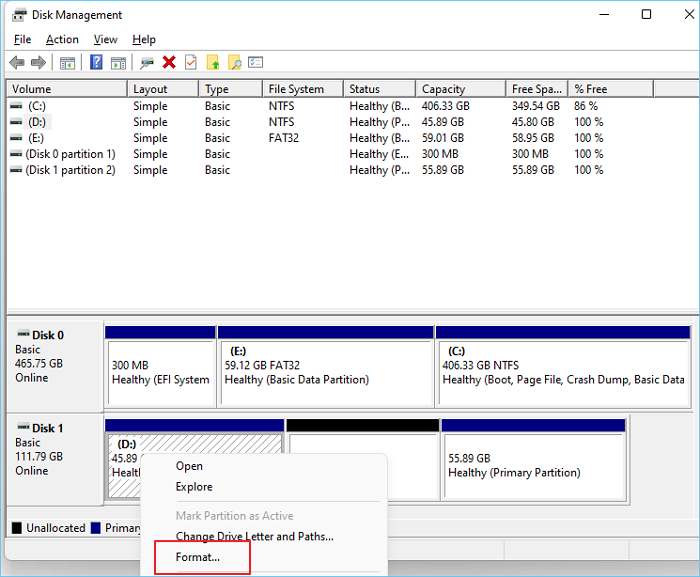
If you prefer a built-in Windows tool, Disk Management is reliable. It shows all your drives and partitions in a list and graph view. Use it to format drives, create new partitions, or shrink/expand volumes. Here is how to reformat an SD card to exFAT with Disk Management.
Step 1. Right-click Start and choose Disk Management.
Step 2. Locate your SD card from the drive list. Ensure you select the right one to avoid deleting other disks.
Step 3. Right-click the SD card partition and choose Format.
Step 4. Set the File System to exFAT and type a Volume label (optional).
Step 5. Uncheck "Perform a quick format" if you want a complete format.
Step 6. Click OK to confirm.
Method 3. File Explorer
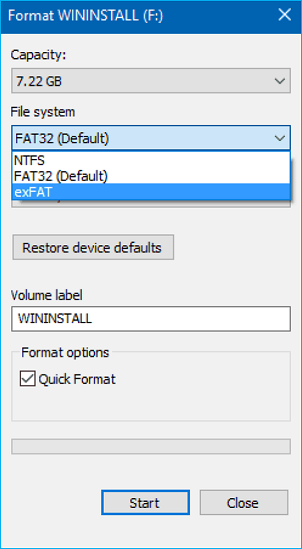
File Explorer is the everyday file browser in Windows. It's a quick way to format removable drives like SD cards. Here is how to format an SD card in File Explorer.
Step 1. Insert the SD card into your PC.
Step 2. Open This PC, then right-click the SD card drive.
Step 3. Choose Format from the menu.
Step 4. Select exFAT under the File System dropdown.
Step 5. Click Start and wait a moment.
Method 4. Diskpart CMD
For advanced users, DiskPart provides direct command-line control. Use it only if you're comfortable with CMD since it can erase the wrong disk if misused.
Here are the steps to format an SD card to exFAT in Diskpart.
Step 1. Press "Windows + R" key and type "cmd". Hit Enter.
Step 2. Type the following commands step by step, pressing Enter after each:
- diskpart
- list disk
- select disk X (replace X with your disk number)
- list volume
- select volume Y (replace Y with your volume number)
- format fs=exfat quick
- exit
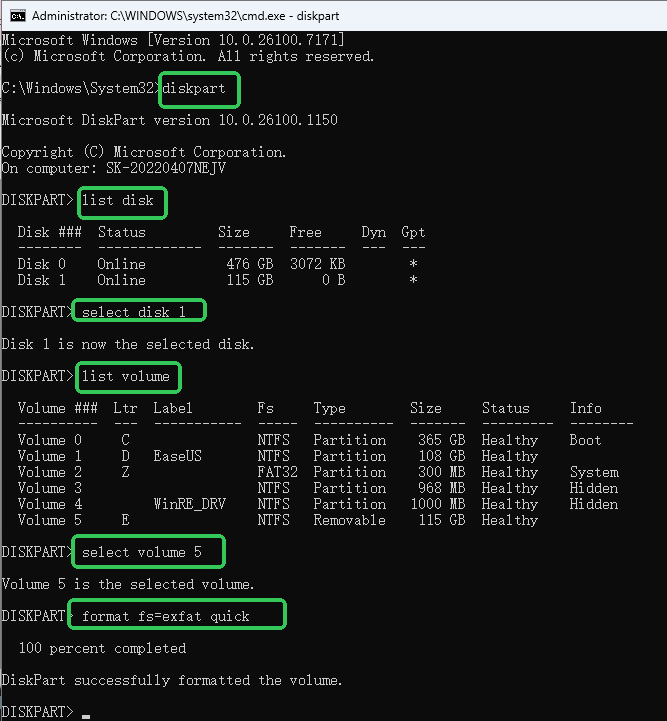
This will delete all partitions and format the card to exFAT. Diskpart is powerful for fixing damaged SD cards or removing write protection issues.
How to Format SD Card to exFAT on Mac
If your SD card isn't working properly on your Mac, formatting it to exFAT is the best solution. The exFAT file system supports large files and works seamlessly across different platforms. In this section, you'll learn how to format an SD card to exFAT on Mac using the built-in Disk Utility.
Step 1. Connect the SD card to your Mac via the built-in slot or an external reader.
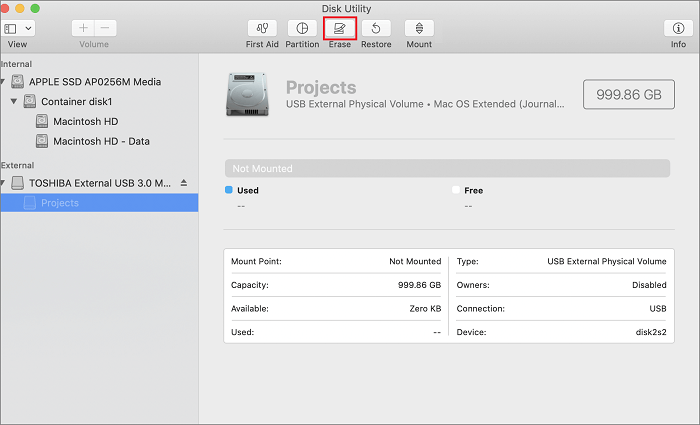
Step 2. Open Disk Utility (in Applications > Utilities).
Step 3. In the sidebar, choose your SD card (not the individual volume).
Step 4. Click Erase at the top.
Step 5. Under Format, select exFAT.
Step 6. Optionally, name your card in the Name field.
Step 7. Click Erase to confirm.
Why Do You Format an SD Card to exFAT
Formatting an SD card to exFAT is a common solution for users who need a balance between compatibility and flexibility. The exFAT file system is ideal for high-capacity SD cards, cameras, and portable devices.
1️⃣SD card error
When you encounter issues using an SD card, you may consider formatting it. Formatting can repair logical errors or corrupted structures on the SD card. It rebuilds the file system and clears broken indexes. Sometimes SD cards show errors. They might say "corrupted" or not read properly. Formatting fixes this. It clears bad sectors and starts fresh. If your card acts up in a camera or phone, try formatting it to exFAT.
2️⃣exFAT vs FAT32
The main reason to choose exFAT over FAT32 is file size and capacity. Here is a table of their difference.
| Feature | exFAT | FAT32 |
| Max file size | 16 EB | 4 GB |
| Max partition size | 128 PB | 32 GB (on Windows) |
| Compatibility | Windows, macOS, cameras, consoles | Widely compatible but limited with large files |
| Speed | Faster with modern devices | Slower on large partitions |
| Ideal use | 64GB+ SD cards, 4K video, backups | 32GB or smaller devices |
Conclusion
exFAT gives you better support for large files and works across platforms. Before you format your SD card to exFAT, remember to back up first. Choose the method that fits your setup. On Windows, EaseUS Partition Master is the most efficient way to format SD cards. With it, your exFAT-formatted SD card will perform smoothly on most modern devices.
FAQs on How to Format SD Card to exFAT
1. Which file systems does SD Card support?
Most SD cards can use FAT32, exFAT, or NTFS on Windows, and exFAT or APFS on Mac. For universal compatibility, exFAT is the best choice for cards larger than 32GB.
2. How do I format SD card to FAT32?
On Windows, you can use Disk Management, File Explorer, or third-party tools like EaseUS Partition Master. For larger cards (64GB+), Windows might not show FAT32, but third-party tools can still force that format.
3. Does formatting an SD card delete all data?
Yes, formatting erases all files. Always back up before starting. After formatting, data becomes difficult to recover, though tools like EaseUS Data Recovery Wizard can sometimes restore lost files.
4. What if my device doesn't support exFAT?
Older devices, such as early cameras or MP3 players, may not recognize exFAT. In that case, reformat the card to FAT32 using a smaller capacity or compatibility mode.
Share these exFAT formatting methods on:
How Can We Help You
About the Author

Sherly joined EaseUS in 2022 and she has always loved writing articles and enjoys the fun they bring. She receives professional training here, focusing on product performance and other relative knowledge. She has written over 200 articles to help people overcome computing issues.

Written by Joey Albert
Joey is an enthusiast of science and technology. With a passion for uncovering the latest tech innovations, she creates clear, engaging how-to guides that make technology accessible and enjoyable for all.
Product Reviews
-
I love that the changes you make with EaseUS Partition Master Free aren't immediately applied to the disks. It makes it way easier to play out what will happen after you've made all the changes. I also think the overall look and feel of EaseUS Partition Master Free makes whatever you're doing with your computer's partitions easy.
Read More -
Partition Master Free can Resize, Move, Merge, Migrate, and Copy disks or partitions; convert to local, change label, defragment, check and explore partition; and much more. A premium upgrade adds free tech support and the ability to resize dynamic volumes.
Read More -
It won't hot image your drives or align them, but since it's coupled with a partition manager, it allows you do perform many tasks at once, instead of just cloning drives. You can move partitions around, resize them, defragment, and more, along with the other tools you'd expect from a cloning tool.
Read More
Related Articles
-
Three Ways to Convert MBR to GPT Disk on Windows 11/10 [2026]
![author icon]() Jean/2026/07/08
Jean/2026/07/08 -
Top 5 SSD Optimizer for Windows | Get Peak SSD Performance
![author icon]() Sherly/2026/09/24
Sherly/2026/09/24 -
How to Boot Acer Laptop From USB on Windows 10/11
![author icon]() Sherly/2026/09/23
Sherly/2026/09/23 -
[Solved] Secure Boot Violation Invalid Signature Detected
![author icon]() Oliver/2026/09/23
Oliver/2026/09/23
 Jean/2026/07/08
  Oliver/2026/09/23









