







Content
Page Table of Contents
About the Author
Hot Topics
- Can You Extend the Life of an Old Hard Drive?
- 1. Check Your Old Hard Drive's Health First
- 2. Free Up and Make Better Use of Disk Space
- 3. Deal With Bad Sectors on an Old Hard Drive
- 4. Improve the Performance of an Old Hard Drive
- 5. Protect Your Old Hard Drive From Further Damage
- 6. Migrate Your Data Before the Drive Fails
- 7. Know When to Replace an Old Hard Drive
- 8. Old Hard Drive Maintenance Checklist
- FAQs About Extending the Lifespan of an Old Disk
An old hard drive does not necessarily need to be replaced just because it has been in use for several years. If the drive is still healthy, proper maintenance can help you make better use of its storage, reduce unnecessary workload, and keep performance from deteriorating too quickly.
However, there is an important distinction between extending the useful life of a drive and repairing a failing drive. Software can help you manage space, check disk health, identify bad sectors, and optimize partitions, but it cannot restore physically damaged hardware.
This guide explains how to maintain an aging hard drive, what warning signs to watch for, and when it is safer to migrate your data to a new drive.
Can You Extend the Life of an Old Hard Drive?
Yes, to some extent. A hard drive naturally wears over time, particularly an HDD with moving mechanical components. The goal of maintenance is not to make an old drive new again. Instead, it is to reduce unnecessary stress, keep storage organized, detect problems early, and avoid using a drive beyond its reliable lifespan.
If your drive is healthy but has become cluttered or poorly organized, simple maintenance may make a noticeable difference.
If the drive is already showing serious signs of physical failure, however, maintenance should no longer be your priority. Back up or migrate your data first.
A practical approach is:
Check → Clean → Optimize → Protect → Monitor → Migrate → Replace
1. Check Your Old Hard Drive's Health First
Before trying to improve an old drive, find out whether it is actually healthy. A drive that feels slow is not necessarily failing. It could simply be running out of free space, dealing with file system errors, or handling too many background tasks. On the other hand, repeated read/write errors or a growing number of bad sectors may indicate a more serious problem.
Check for Signs of Drive Problems
Pay attention to:
- S.M.A.R.T. warnings
- Increasing bad sectors
- Frequent read or write errors
- File corruption
- Unexpected system crashes
- Very slow file access
- Frequent drive disconnects
- Unusual clicking, grinding, or other mechanical noises
- Excessive operating temperatures
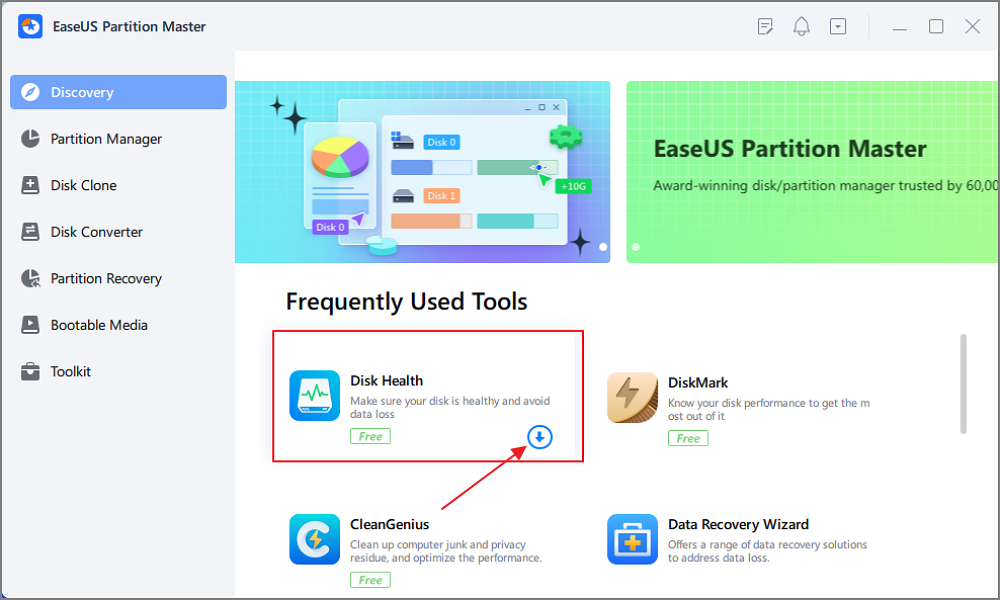
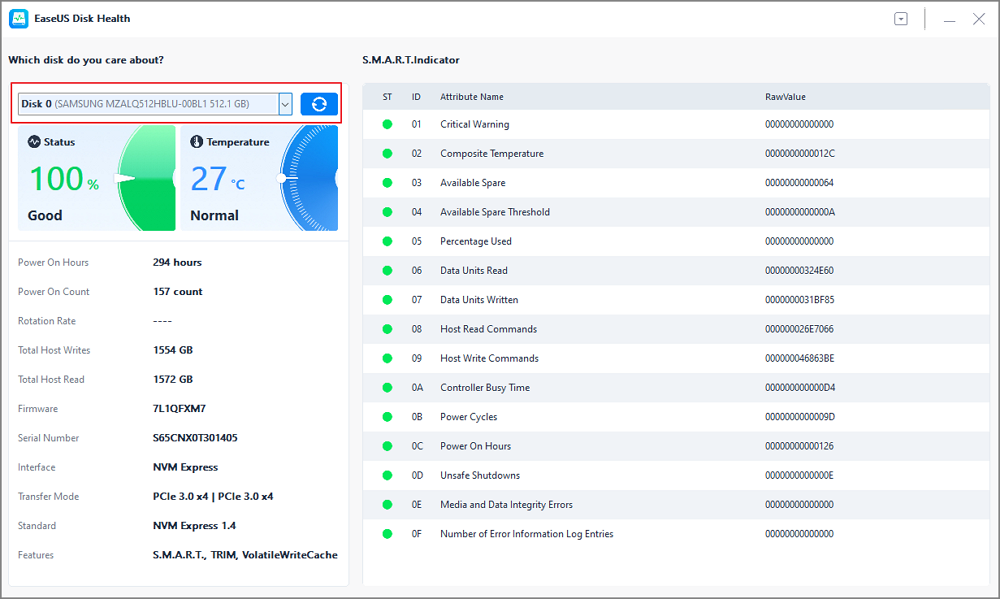
You can also check the drive's available space and run a surface test to look for problematic areas. If you are not sure where to start, a comprehensive diagnostic scan can be more convenient than checking individual items one by one. EaseUS Partition Master includes Smart Diagnostics, which can efficiently check disk health.
Step 1. Launch EaseUS Partition Master and click the blue arrow to activate the "Disk Health" feature under the "Discovery" section.
Step 2. Select the target disk and click the "Refresh" button. Then, you can see the health condition of your disk.
2. Free Up and Make Better Use of Disk Space
Running out of storage does not necessarily mean that you need a larger hard drive. An aging drive can often become difficult to manage simply because it has accumulated years of temporary files, applications, downloads, backups, and other data. Keeping some free space available also makes it easier for Windows and applications to operate normally.
Remove Unnecessary Files
Start with the obvious sources of wasted space:
- Temporary files
- Windows update leftovers
- Recycle Bin contents
- Unused applications
- Old installation files
- Large files you no longer need
- Unnecessary downloads
- Duplicate files and outdated backups
Do not blindly delete files simply because they look large. First determine what they are and whether you still need them.
Instead of checking different locations to find files and applications you no longer need, you can use EaseUS Partition Master's Clean feature to manage C drive space in one place. It combines space analysis, junk file cleanup, app removal, and data migration in a single workflow.
You can use EaseUS Partition Master to find and free up C drive space without manually checking multiple locations.
- Open EaseUS Partition Master and select Clean.
- Use Space Analysis to identify what is taking up the most space.
- Scan for and remove unnecessary junk files.
- Find and uninstall large or unwanted applications.
- Use Data Migration to move supported large apps or files from C drive to another drive, such as D drive.
- Check the available C drive space again after cleanup.
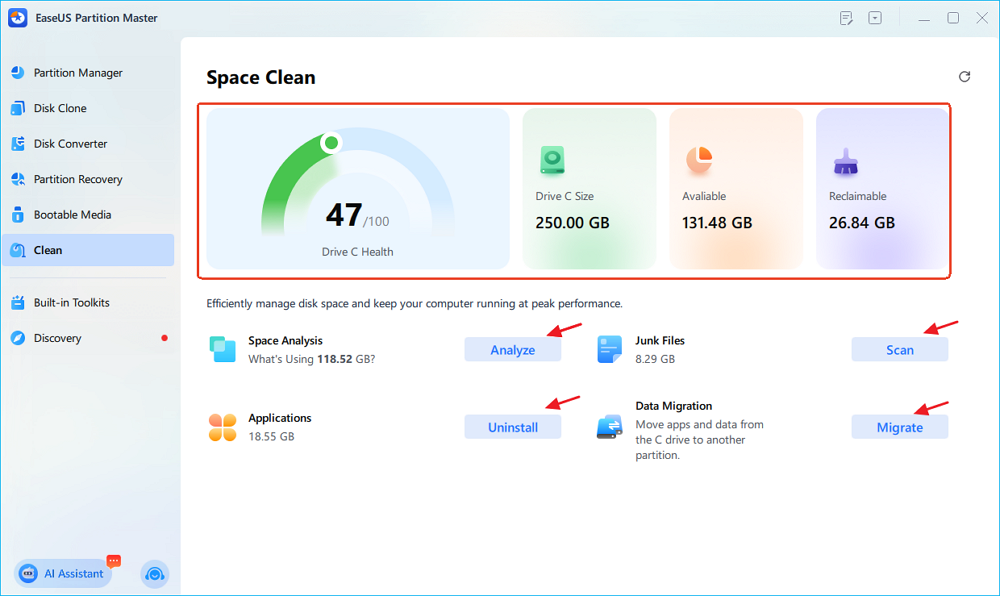
This feature lets you analyze disk usage and free up space through cleanup, app removal, and data migration from a single interface.
Find Out What Is Taking Up Space
A disk space analyzer can make this process much easier. Instead of browsing through folders manually, analyze the drive to identify what is taking up the disk space:
- Large files
- Large folders
- Frequently overlooked storage consumers
- Applications taking up significant space
- Partitions with very little free space
This gives you a clearer picture of where your storage is going before you start deleting or moving anything.
Reorganize Partition Space
Sometimes the problem is not a lack of total storage but an inefficient partition layout. For example, your C: drive may be nearly full while another partition on the same physical disk still has plenty of unused space. In this situation, resizing or reorganizing partitions may allow you to make better use of the existing drive.
Depending on the partition layout, you may be able to:
- Extend a partition
- Shrink a partition
- Move partitions
- Merge partitions
- Allocate unallocated space
This can be a practical way to solve a storage problem without immediately replacing the entire drive.
3. Deal With Bad Sectors on an Old Hard Drive
Bad sectors are one of the most important issues to watch for on an aging hard drive.
A bad sector is a portion of the disk that can no longer reliably store or retrieve data. Some errors are logical and may be corrected by the operating system or disk utilities. Physical damage, however, cannot simply be repaired by software.
What Causes Bad Sectors?
Bad sectors can appear for several reasons, including:
- Physical wear
- Surface damage
- Unexpected power loss
- Physical impact
- Aging hardware
- File system problems
A small number of bad sectors does not always mean that a drive will fail immediately. The more important question is whether the problem is stable or getting worse.
Scan the Drive for Bad Sectors
A surface test can help identify areas that are taking unusually long to read or cannot be read reliably. If you notice bad sectors, monitor the drive rather than assuming that one scan tells the whole story. Increasing bad sectors are a much stronger warning sign than a small, stable number.
Step 1. Open EaseUS Partition Master. Go to Toolkit and select "Bad Sector Scan."
Step 2. Tick "Scan Disk" and choose the target disk from the drop-down menu.
Step 3. Click "Scan" to apply the bad sector scaning process.
Can Bad Sectors Be Repaired?
This depends on what caused the problem. Logical disk errors may sometimes be corrected through file system repair. A physically damaged sector, however, cannot be restored to perfect physical condition with software.
Modern drives may also remap damaged sectors internally. This can allow the drive to continue working, but it does not mean the underlying hardware has become healthy again.
Can You Isolate Bad Sectors?
In some situations, problematic areas can be isolated so that the operating system avoids using them. For example, partition boundaries can sometimes be adjusted to keep an unreliable section outside an active partition. However, this should be treated as a risk-management measure, not a permanent repair.
If bad sectors continue to increase, do not rely on partitioning tricks to keep the drive alive indefinitely. Back up your important files and prepare a replacement drive.
4. Improve the Performance of an Old Hard Drive
An old drive may feel slow long before it becomes unusable. Fortunately, not every performance problem is caused by hardware degradation.
Keep Enough Free Space
A drive that is almost completely full can become difficult to manage, especially when the system needs temporary storage. Freeing unnecessary files and keeping a reasonable amount of available space can help reduce storage pressure.
Check the File System
File system errors can cause unexpected behavior and contribute to poor performance. If Windows reports disk errors, files become inaccessible, or applications repeatedly encounter read/write problems, check the file system before assuming that the hardware itself is failing.
Optimize the Partition Layout
An inefficient partition layout can also make storage management harder. If one partition is constantly full while another has plenty of unused capacity, reallocating available space may be more useful than simply deleting more files.
Defragment an HDD When Appropriate
Traditional hard disk drives can become fragmented as files are repeatedly created, modified, and deleted. Windows includes automatic drive optimization, which can handle routine HDD optimization in most cases. You generally do not need to run third-party defragmentation tools constantly.
Keep in mind that HDDs and SSDs should not be treated the same way. Traditional defragmentation is relevant to HDDs, while SSDs use different optimization mechanisms.
Consider an SSD Upgrade
If an old HDD is mechanically healthy but still feels slow, replacing it with an SSD is often a much more meaningful performance improvement than repeatedly optimizing the HDD. You do not necessarily have to reinstall Windows from scratch. You can migrate the existing operating system and data to a new SSD, then use the SSD as the system drive.
5. Protect Your Old Hard Drive From Further Damage
Good maintenance is also about avoiding unnecessary stress.
Avoid Keeping the Drive Nearly Full
A drive with very little free space becomes harder to manage and can contribute to performance problems. Regularly review your storage usage instead of waiting until Windows displays a low-space warning.
Avoid Unnecessary Forced Shutdowns
Repeatedly cutting power while the system is writing data can lead to file system problems and, in some circumstances, data corruption. Whenever possible, shut down Windows normally.
Protect HDDs From Physical Shock
Unlike SSDs, HDDs contain moving mechanical components. If you use an external HDD, avoid:
- Dropping it
- Moving it while actively operating
- Excessive vibration
- Poor-quality or unstable power connections
Physical damage can turn an otherwise usable drive into an unreliable one very quickly.
Monitor Temperature
Excessive heat is undesirable for storage devices. Make sure the drive has adequate airflow, particularly in desktops, external enclosures, and other environments where heat can accumulate.
Do Not Ignore Strange Noises
A clicking or grinding HDD should not be treated as a normal aging symptom.
If a drive suddenly starts making unusual mechanical noises, prioritize your data. Avoid unnecessary scans, repairs, or write operations until important files have been backed up or migrated.
6. Migrate Your Data Before the Drive Fails
The most important part of extending the life of an old drive is knowing when not to extend it anymore. If the drive is becoming unreliable, your priority should shift from optimization to data protection.
When Should You Migrate Data?
Consider migrating your data if you notice:
- Increasing bad sectors
- S.M.A.R.T. warnings
- Repeated read/write errors
- File corruption
- Frequent system crashes
- Unexpected drive disconnections
- Unusual mechanical sounds
- Severe and persistent performance degradation
Do not wait for the drive to stop working completely.
Choose the Right Migration Method
The best method depends on what you want to move.
| Situation | Recommended Method |
|---|---|
| Move a few personal files | File copy |
| Move the entire drive | Disk cloning |
| Move Windows to a new SSD | OS migration |
| Replace a system drive | Disk cloning or OS migration |
| Drive is becoming unreliable | Migrate important data as soon as possible |
Clone an Old Hard Drive to a New Drive
Disk cloning creates a copy of the source drive on another drive. This can be useful when you want to replace an aging HDD while preserving your existing files, partitions, and system environment. For example, you could clone an old HDD to a larger HDD or SSD with EaseUS Partition Master and then use the new drive as the replacement.
Step 1. Select the source disk.
- Click "Clone" from the left menu. Select "Clone OS Disk" or "Clone Data Disk" and click "Next".
- Choose the source disk and click "Next".
Step 2. Select the target disk.
- Choose the desired HDD/SSD as your destination and click "Next" to continue.
- Read the warning message and click the "Yes" button.
Step 3. View the disk layout and edit the target disk partition size.
Then click "Continue" when the program warns that it will wipe out all data on the target disk. (If you have valuable data on the target disk, back up it in advance.)
You can select "Autofit the disk", "Clone as the source," or "Edit disk layout" to customize your disk layout. (Select the last one if you want to leave more space for C drive.)
Step 4. Click "Start" to start the disk cloning process.
Migrate Windows From HDD to SSD
If your main complaint is system performance, moving Windows from an old HDD to an SSD can provide a much larger improvement than cleaning up the HDD alone. A dedicated OS migration tool can move the operating system to the new drive without requiring you to rebuild your entire Windows environment from scratch.
Steps to migrate OS to HDD/SSD:
- Run EaseUS Partition Master and select "Clone" from the left menu.
- Check "Migrate OS" and click "Next".
- Select the SSD or HDD as the destination disk and click "Next".
- Check Warning: the data and partitions on the target disk will be deleted. Make sure that you've backed up important data in advance. If not, do it now.
- Then click "Yes".
- Preview the layout of your target disk. Then click "Start" to start migrating your OS to a new disk.
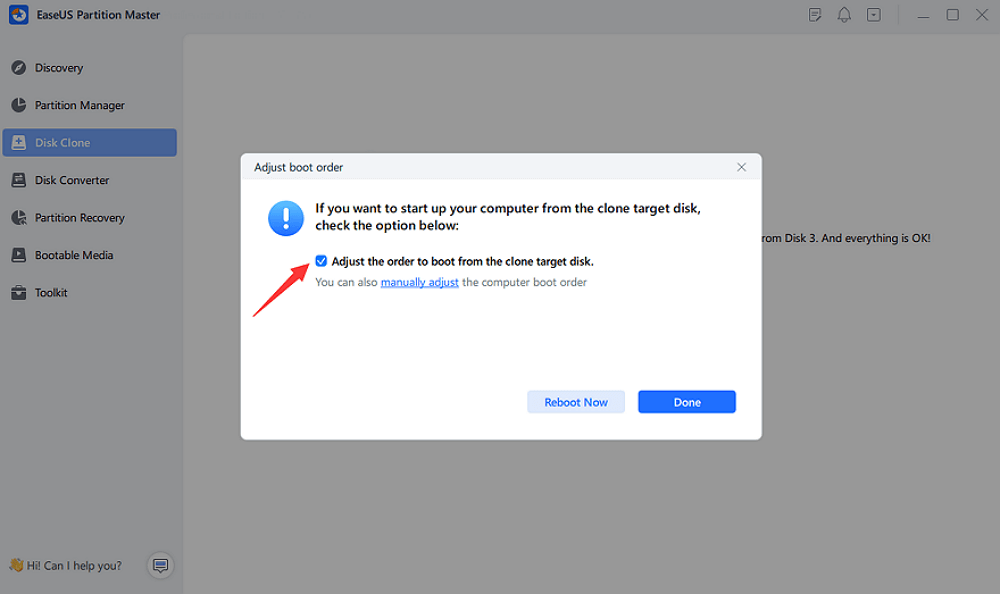
- After this, click "Reboot Now" or "Done" to determine if you want to reboot the computer from the new disk immediately.
"Reboot Now" means to keep the changes instantly, while "Done" means you need to restart the computer later manually.
🟢Note: Migrating the OS to an SSD or HDD will delete existing partitions and data on your target disk if there isn't enough unallocated space. If you saved important data there, back it up to an external hard drive in advance.
7. Know When to Replace an Old Hard Drive
No maintenance strategy can make a physically failing hard drive reliable again.
You should seriously consider replacement when:
- Bad sectors are increasing
- S.M.A.R.T. reports critical warnings
- Files repeatedly become corrupted
- The drive frequently disconnects
- Read/write errors continue to occur
- The drive produces unusual mechanical noises
- Performance becomes unstable
- Windows repeatedly reports disk problems
At this point, trying to squeeze a few more months out of the drive may create more risk than value. If a drive is physically failing, replacement is safer than trying to extend its life.
The old drive can still potentially be kept as a secondary device if its condition is verified and its role is appropriate, but important data should not depend on it.
8. Old Hard Drive Maintenance Checklist
Use the following routine to keep an aging drive under control.
Regularly
- Check available storage space.
- Remove unnecessary files.
- Review large folders and applications.
- Monitor disk health and temperature.
- Watch for unusual performance or system behavior.
When You Notice Problems
- Run a disk health check.
- Scan for bad sectors.
- Check the file system.
- Back up important files.
- Avoid unnecessary write operations if the drive appears unstable.
- Prepare a replacement drive if the condition is deteriorating.
Before Replacing the Drive
- Back up critical files.
- Choose between file migration, disk cloning, or OS migration.
- Verify that the new drive has enough capacity.
- Confirm that important files can be accessed from the new drive.
- Only then retire or repurpose the old drive.
Conclusion
An old hard drive does not have to be replaced simply because it is old. If it is still healthy, you can often get more useful life out of it by keeping enough free space, removing unnecessary data, maintaining the file system, monitoring disk health, and avoiding unnecessary physical or operational stress. Bad sectors and other warning signs require more caution. Isolating a problematic area may reduce the immediate risk, but it does not repair physically damaged hardware.
Most importantly, know when to stop optimizing and start migrating. When an aging drive begins showing repeated errors, increasing bad sectors, S.M.A.R.T. warnings, or other signs of physical failure, protecting your data should take priority over extending the drive’s lifespan.
The goal is not to keep an old drive running forever. It is to use it safely while it remains reliable, detect problems before they become data loss, and move your data to a new drive at the right time.
FAQs About Extending the Lifespan of an Old Disk
1. Can you extend the life of an old hard drive?
Yes, if the drive is still healthy. Freeing up storage space, checking disk health, monitoring bad sectors, maintaining the file system, and avoiding physical damage can help you get more reliable use from an aging drive. However, these measures cannot reverse physical hardware damage.
2. How can I make an old hard drive last longer?
Keep enough free space, remove unnecessary files, avoid excessive heat and physical shocks, check the drive for errors and bad sectors regularly, and monitor its overall health. If the drive starts showing serious warning signs, back up or migrate your data instead of continuing to rely on it.
3. Can bad sectors on an old hard drive be repaired?
Some logical disk errors can be repaired, but physically damaged sectors cannot be restored through software. A disk utility may detect bad sectors or help isolate affected areas, but increasing numbers of bad sectors usually indicate that the drive is deteriorating and should be replaced.
4. Does freeing up space make an old hard drive faster?
It can help, particularly when the drive is nearly full. Removing unnecessary files gives the system more available storage space and can make disk management easier. However, freeing up space cannot restore the performance of a mechanically degraded hard drive.
5. When should I replace an old hard drive?
Consider replacing the drive when you see increasing bad sectors, S.M.A.R.T. warnings, repeated read/write errors, file corruption, frequent disconnections, unusual mechanical noises, or increasingly unstable performance. If important data is stored on the drive, migrate or back it up before the drive fails completely.
How Can We Help You
About the Author

Sherly joined EaseUS in 2022 and she has always loved writing articles and enjoys the fun they bring. She receives professional training here, focusing on product performance and other relative knowledge. She has written over 200 articles to help people overcome computing issues.
Product Reviews
-
I love that the changes you make with EaseUS Partition Master Free aren't immediately applied to the disks. It makes it way easier to play out what will happen after you've made all the changes. I also think the overall look and feel of EaseUS Partition Master Free makes whatever you're doing with your computer's partitions easy.
Read More -
Partition Master Free can Resize, Move, Merge, Migrate, and Copy disks or partitions; convert to local, change label, defragment, check and explore partition; and much more. A premium upgrade adds free tech support and the ability to resize dynamic volumes.
Read More -
It won't hot image your drives or align them, but since it's coupled with a partition manager, it allows you do perform many tasks at once, instead of just cloning drives. You can move partitions around, resize them, defragment, and more, along with the other tools you'd expect from a cloning tool.
Read More
Related Articles
-
Solution: How to Securely Wipe Free Space on SSD
![author icon]() Jean/2026/09/22
Jean/2026/09/22 -
Quick Format VS Full Format, Which Should I Use? Check The Answer Here
![author icon]() Tracy King/2026/09/23
Tracy King/2026/09/23 -
How to Install Windows 11 24H2 with Low Storage - 3 Methods
![author icon]() Sherly/2026/09/28
Sherly/2026/09/28 -
How to Resize Partitions with Windows XP Partition Manager Software
![author icon]() Tracy King/2026/09/22
Tracy King/2026/09/22
 Jean/2026/09/22
  Tracy King/2026/09/23









