





 About the Author
 Reviews and Awards
 Mac SD Card Recovery
In the wake of upgrading to macOS Tahoe, many users are encountering a frustrating, productivity-halting issue: Microsoft Word repeatedly crashes upon launch or while working on a document after updating macOS. Don't panic! Word crashing repeatedly after macOS Tahoe is often a symptom of compatibility conflicts between the new operating system and existing software configurations. Read on to learn how to fix it!
I upgraded my Macbook just yesterday, and while working on a Word file I've had no problems with before now, Word just keeps unceremoniously shutting down with no warning and not even a report of a crash. - r/Office365 in Reddit Forum
This article guides you through a series of practical solutions to fix "Word crashing repeatedly after macOS Tahoe", ranging from quick checks to in-depth system fixes, to restore stability to your Word application. We will explore multiple strategies for diagnosing and resolving crashes, and, importantly, how to recover unsaved documents if a crash causes data loss.
3 Quick Fixes to Solve Word Crashing Repeatedly after macOS Tahoe
Before diving into more involved troubleshooting, try these three immediate actions that can resolve common post-upgrade issues.
1️⃣ Update Microsoft Word: Outdated software is a primary culprit. Open Word, go to "Help > Check for Updates" in the menu bar, and install any available updates. Microsoft frequently releases patches for new macOS versions.
2️⃣ Restart Your Mac: A simple restart can clear temporary system glitches and conflicting processes that may be causing Word to crash.
3️⃣ Update macOS Tahoe (If on a Beta Version): If you are running a beta or early release of macOS Tahoe, consider updating to the latest public stable version. Apple's official updates often include critical bug fixes and compatibility improvements that can resolve application crashes.
4 Ways to Fix Word Crashing Repeatedly on macOS Tahoe
If the quick fixes don't work, the following methods address deeper software conflicts. These solutions are compiled from common and effective troubleshooting steps.
| Methods | Best For |
| Fix crashes caused by corrupted settings or customizations. | |
| Clear AutoRecovery | Fix crashes when opening specific Word documents or on startup. |
| Safe Mode Test | Diagnose whether third-party software conflicts cause the crash. |
| Run First Aid | Address underlying file system errors or disk issues that may affect all applications. |
Fix 1. Reset Word's Preferences
Corrupted preference files can cause Word to malfunction, such as Microsoft Word quitting unexpectedly. Resetting them forces Word to create new, clean default files.
Step 1. Quit Word completely, then open Finder.
Step 2. Press "Shift + Command + G". Copy and paste this path:
| ~/Library/Containers/com.microsoft.Word/Data/Library/Preferences/ |
Step 3. Locate and move the "com.microsoft.Word.plist" file to your Desktop.
Step 4. Restart Word. If the problem persists, you can move the file back; if it's solved, you can delete the old file.
Fix 2. Clear the AutoRecovery Folder
The AutoRecovery folder stores temporary saves of your documents. A corrupted file here can trigger crashes.
Step 1. Press "Shift + Command + G" in Finder, and paste this path:
| ~/Library/Containers/com.microsoft.Word/Data/Library/Preferences/AutoRecovery/ |
Step 2. Delete all files within this folder.
Don't worry, this only removes temporary recovery data, not your original saved documents.
Fix 3. Run Word in Safe Mode
Safe Mode loads macOS with only essential software, helping you determine if the crash is caused by Word itself or a third-party conflict.
Step 1. Shut down your Mac.
Step 2. Turn it on and immediately press and hold the "Shift" key until you see the login window.
Step 3. Log in (you may need to log in twice) and then try opening Word.

Fix 4. Check and Repair Disk Permissions
Although less common on modern macOS, disk errors can affect application stability.
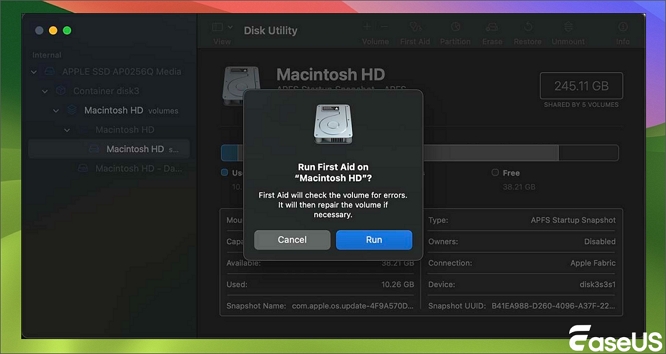
Step 1. Go to "Applications > Utilities" and open Disk Utility.
Step 2. Select your main startup disk (usually "Macintosh HD") and click the "First Aid" button.
Step 3. Click "Run" to allow the system to verify and repair the disk.
The table below summarizes these four core solutions to help you choose the best starting point.
Don't forget to share this post with your friends and help more people learn how to fix Microsoft Word crashing repeatedly after macOS Tahoe.

Restore Unsaved/Missing Word Documents on macOS Tahoe
A sudden Word crash often leads to the most stressful outcome; you can't save the Word documents when editing, and lose unsaved work. Fortunately, tools like EaseUS Data Recovery Wizard for Mac, which is a powerful utility that scans your storage drive to find traces of lost, deleted, or unsaved files, are designed specifically for these scenarios.
- Unsaved Word document recovery on Mac.
- A Word document file becomes corrupted and unopenable.
- Recover deleted Word documents even after an emptied Trash bin folder.
You Can Trust EaseUS Data Recovery Software
EaseUS Data Recovery Wizard has acquired an extensive technical base in data recovery and trusted by billions of users since 2005. Check out reviews on G2.
Its advantages include a user-friendly interface, support for a wide range of file types (including Word documents, Excel sheets, and PowerPoint presentations), and the ability to perform deep scans to find files that are not immediately visible in the file system.
The process is straightforward: you select the drive where the document was lost, the software scans for recoverable data, and then allows you to preview and restore the needed files to a secure location.
Step 1. Select the disk
Launch EaseUS Data Recovery Wizard for Mac, hover the mouse over the device where you lost an unsaved file, and click "Search for lost files".

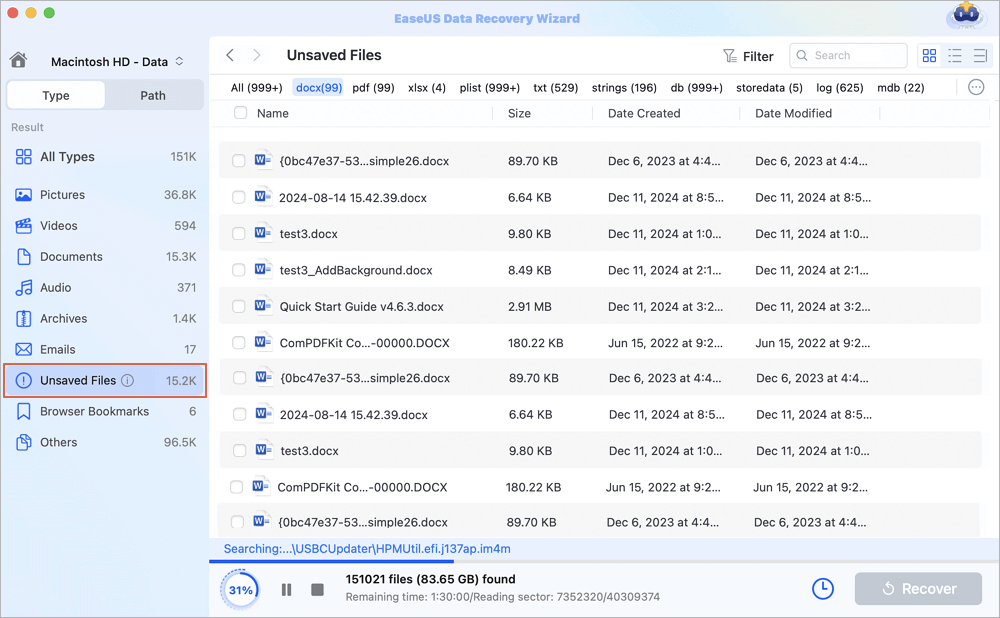
Step 2. Choose unsaved documents
After the scan, click "Type", and expand "Unsaved Documents". Click the exact file type - Word, Excel, Powerpoint, Keynote, Pages, or Numbers you lost without saving.
Step 3. Preview and recover unsaved files
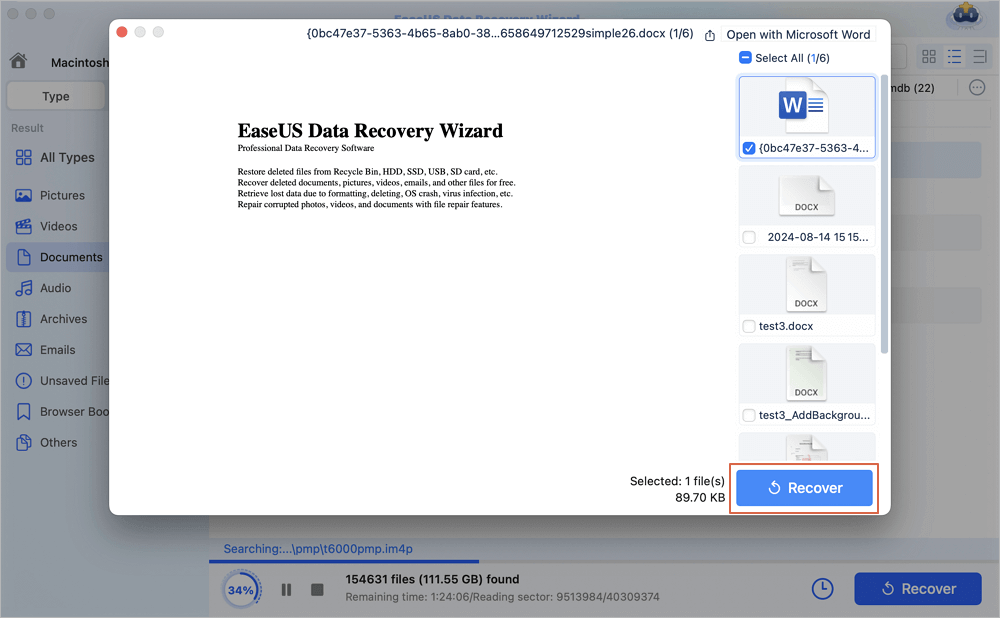
Double-click to preview your unsaved file, select the right version and click "Recover" to save the file to another secure location on Mac.
Conclusion
Persistent Word crashes on macOS Tahoe are a disruptive but solvable problem. The issue typically stems from software incompatibility or corrupted files following an OS update. By systematically applying the solutions outlined, from updating software and resetting preferences to using Safe Mode for diagnosis, you can successfully restore Word's stability.
For the critical task of recovering lost data from a crash, professional data recovery software, like EaseUS Data Recovery Wizard, provides a reliable safety net. With patience and the right steps, you can resolve these crashes and return to a seamless workflow.
Word Crashing Repeatedly after macOS Tahoe FAQ
Here are the questions people frequently ask:
1. Why does Word keep crashing on my Mac after updating to macOS Tahoe?
The most common reasons why Word documents crash on Mac are compatibility issues between the new operating system and your current version of Word, or corrupted application support files (like preferences or temporary files) from the previous OS that conflict with Tahoe. Font conflicts have also been known to cause problems in Office applications on macOS.
2. How can I prevent Word from crashing on my Mac in the future?
- Keep software updated: Regularly update both macOS and Microsoft Word through their official channels.
- Install Word correctly: Always download Office applications from the official Microsoft website and install them on your primary startup disk.
- Practice safe file management: Avoid force-quitting Word or shutting down your Mac while Word is running in the background.
3. Can I use temporary Word files on my Mac to recover my work?
Yes. macOS stores temporary (.tmp) files for unsaved documents. You can often find them by opening the Terminal and typing open $TMPDIR, then navigating to the TemporaryItems folder. Opening these files in Word may allow you to recover some unsaved content.
4. Are there built-in Mac tools to recover overwritten Word documents?
Yes, if you had Time Machine backups enabled, you can use it to restore a previous version of a file. Additionally, for documents saved to iCloud Drive, you may be able to restore previous versions directly through the Files app or iCloud.com.
Was This Page Helpful?

Finley is interested in reading and writing articles about technical knowledge. Her articles mainly focus on file repair and data recovery.

Brithny is a technology enthusiast, aiming to make readers' tech lives easy and enjoyable. She loves exploring new technologies and writing technical how-to tips. In her spare time, she loves sharing things about her game experience on Facebook or Twitter.
-
EaseUS Data Recovery Wizard is a powerful system recovery software, designed to enable you to recover files you’ve deleted accidentally, potentially lost to malware or an entire hard drive partition.
Read More -
EaseUS Data Recovery Wizard is the best we have seen. It's far from perfect, partly because today's advanced disk technology makes data-recovery more difficult than it was with the simpler technology of the past.
Read More -
EaseUS Data Recovery Wizard Pro has a reputation as one of the best data recovery software programs on the market. It comes with a selection of advanced features, including partition recovery, formatted drive restoration, and corrupted file repair.
Read More
Related Articles
-
How to Recover Previous Versions of Word Documents on Mac [Solved]
![author icon]() Tracy King/Sep 27, 2026
Tracy King/Sep 27, 2026 -
Where Is My Documents Folder Mac: Restore Folder Missing
![author icon]() Brithny/Sep 28, 2026
Brithny/Sep 28, 2026 -
How to Recover an Unsaved Word Document on Mac (2026 Guide)
![author icon]() Tracy King/Sep 20, 2026
Tracy King/Sep 20, 2026 -
![author icon]() Dany/Sep 14, 2026
Dany/Sep 14, 2026
 Tracy King/Sep 27, 2026
  Dany/Sep 14, 2026

