Page Table of Contents

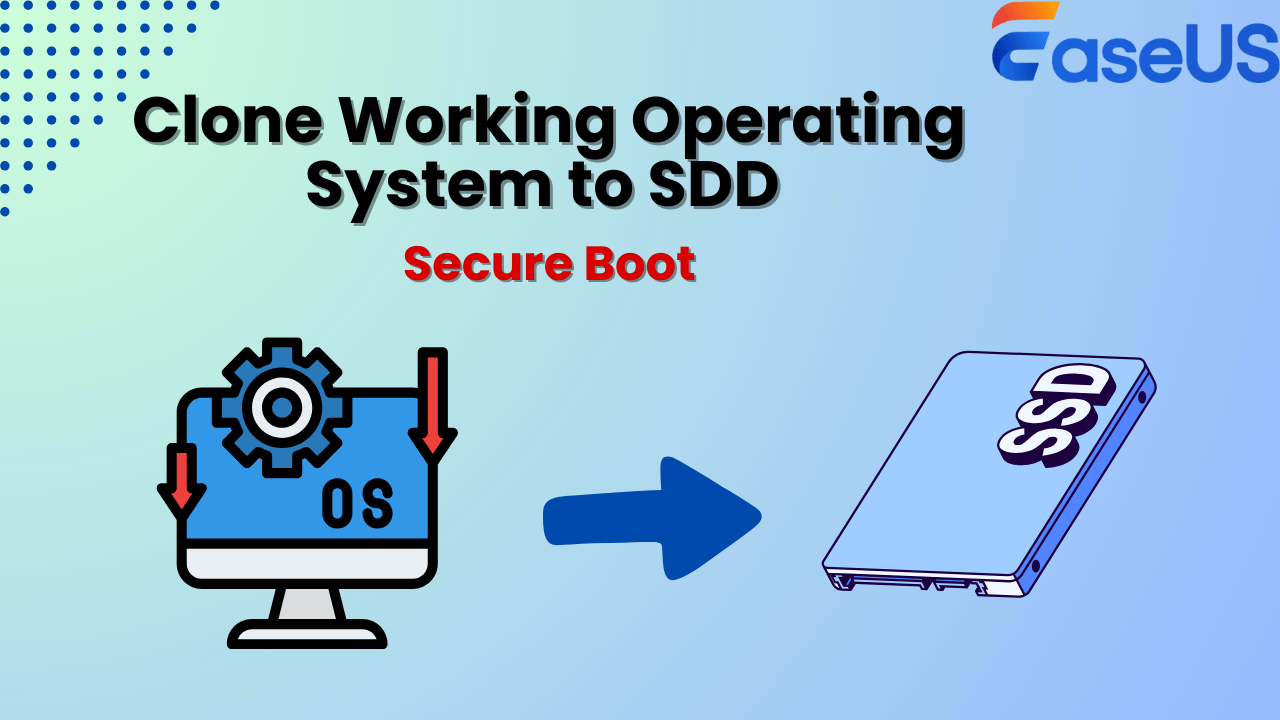
🚀Quick Answer: How to Clone the Working Operating System to SSD
- 1️⃣Connect the SSD to the computer where you want to clone the OS.
- 2️⃣Launch EaseUS Disk Copy and select System Mode from the left panel to select all data related to the operating system.
- 3️⃣Adjust the SSD disk layout to fit into the new SSD.
- 4️⃣Click proceed to start cloning the operating system to SSD.
PAGE CONTENT:
Does Cloning the Working Operating System Cause Data Loss
"I plan to clone my Windows 11 operating system from the current 512 GB SATA SSD to a 1TB NVMe SSD; I wonder if I can clone the working OS to the SSD without any data loss. I'm worried that some data can't be copied to the SSD successfully when I use the OS during the cloning process. Is it possible to clone the working operating system to SSD without any data loss?"
⁉️ANSWER: Yes, you can clone a working operating system to another drive using a reliable OS migration tool, which will enable transferring all system-related files and data to the new drive smoothly, and you can boot from it without any issue.
Choose the Best OS Migration Tool to Clone the Working Operating System
Before cloning, choosing a reliable OS migration tool is essential, which is the key to ensuring a successful OS transfer. Tons of tools are available out there, including open-source tools like Clonezilla and paid third-party ones. How do you decide on one that is suitable for your situation? Here are some of the criteria you can refer to while selecting:
- ⚙️Compatibility: Choose a tool that is compatible with your current operating system and hSSD to ensure a successful cloning process without any compatibility issues.
- 🎗️User-Friendly Interface and Easy Operation: Select a user-friendly tool with a user-friendly interface and clear instructions to simplify the cloning process.
- ⏰Fast Speed: A good migration tool should be able to transfer the operating system to new SSD quickly and efficiently, minimizing downtime during the migration process.
- 🧑🔧Technical Support: Choose a tool that provides good technical support, including tutorials, documentation, and customer service, in case you encounter any issues during the cloning process.
Based on the above standards, we strongly recommend EaseUS Disk Copy, a professional disk cloning tool with a system cloning feature that allows you to clone the operating system to SSD seamlessly, and you can boot from it without any issue. Designed with a simple UI and supported by advanced technology, you can use it to clone a hard drive or copy OS with only a few simple clicks. If you have any trouble in using it, its 24/7 technical support service will assist you in solving the problem easily.
What are you waiting for? Download this awesome OS migration software right now and transfer the working operating system with the following guide.
 Free Download
Windows 11/10/8/7
Share the blog on social media to help others clone the working operating system without any data loss or boot issues.
How to Clone the Working OS to SSD Without Boot Issue
Now that you have downloaded and installed the best OS migration tool, EaseUS Disk Copy, on your device, it's time to clone the operating system to SSD. Here is a step-by-step instruction you can refer to while cloning.
❤️Note: Before cloning, properly connect the SSD to your laptop or desktop. If your device comes with an extra SSD slot, you can install the SSD into the slot and make sure the computer recognize it.
Before cloning:
- Install or connect the destination disk that you want to move OS to your computer, and make sure it can be appropriately recognized.
- Ensure the target HDD or SSD has enough capacity to accommodate your system files.
Step 1. Launch EaseUS Disk Copy and choose System Mode.
Install EaseUS Disk Copy system migration software on your computer, launch it, and choose System Mode. EaseUS Disk Copy will select the current system you use by default, including all system-related files and boot sectors.
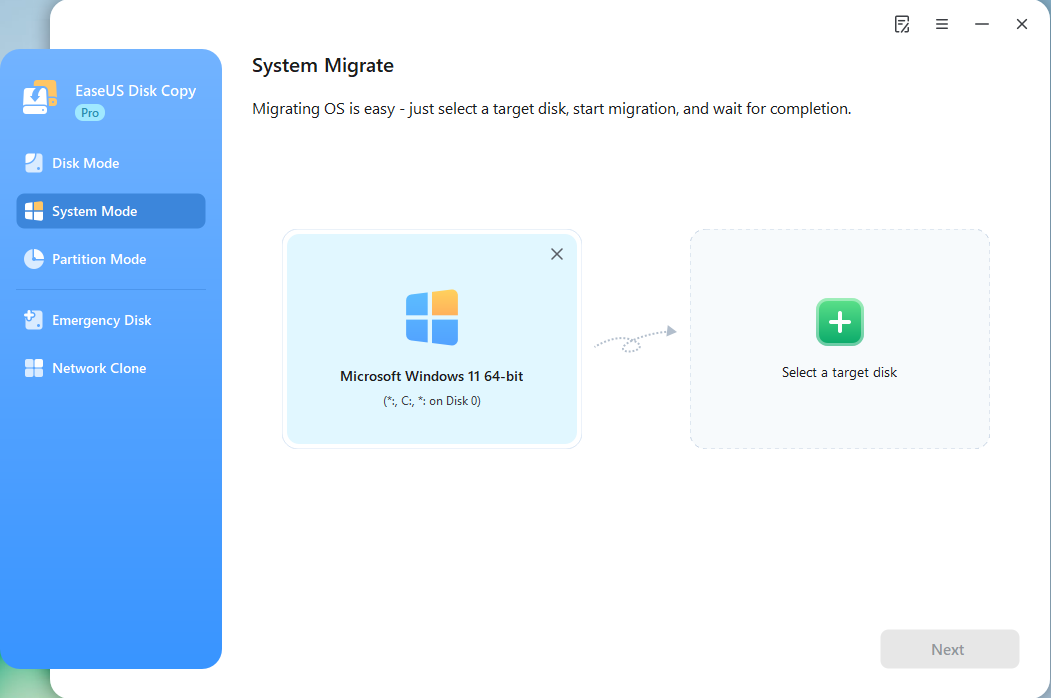
*If you apply dual-boot system, you can select another system by yourself.
Step 2. Select the target HDD/SSD.
Choose the destination HDD/SSD that you want to move OS to.
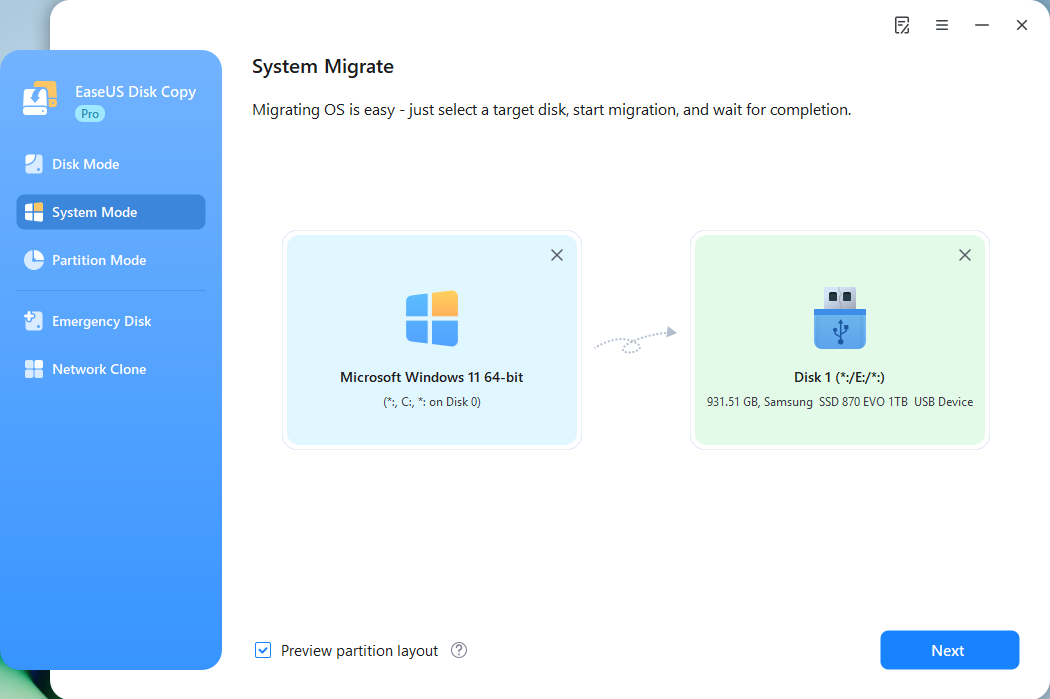
Step 3. Adjust target disk layout.
Specify the target layout as your preference. You can choose among:
- Autofit the disk: makes some changes by default on the destination disk layout so that it can work at its best.
- Copy as the source: create a 1-to-1 copy of your source disk, the layout is the same as the source disk.
- Edit disk layout: allows you to manually resize/move the partition layout on this destination disk.
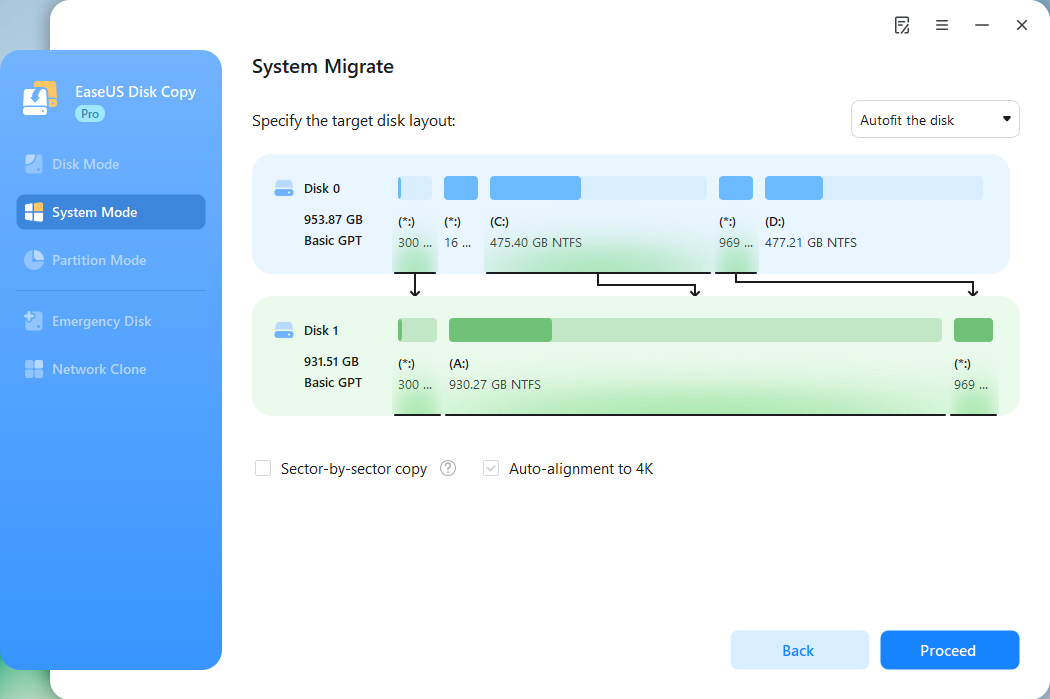
*The option Auto-alignment to 4K will be checked automatically to optimize the performance of your SSD.
Step 4. Start cloning OS.
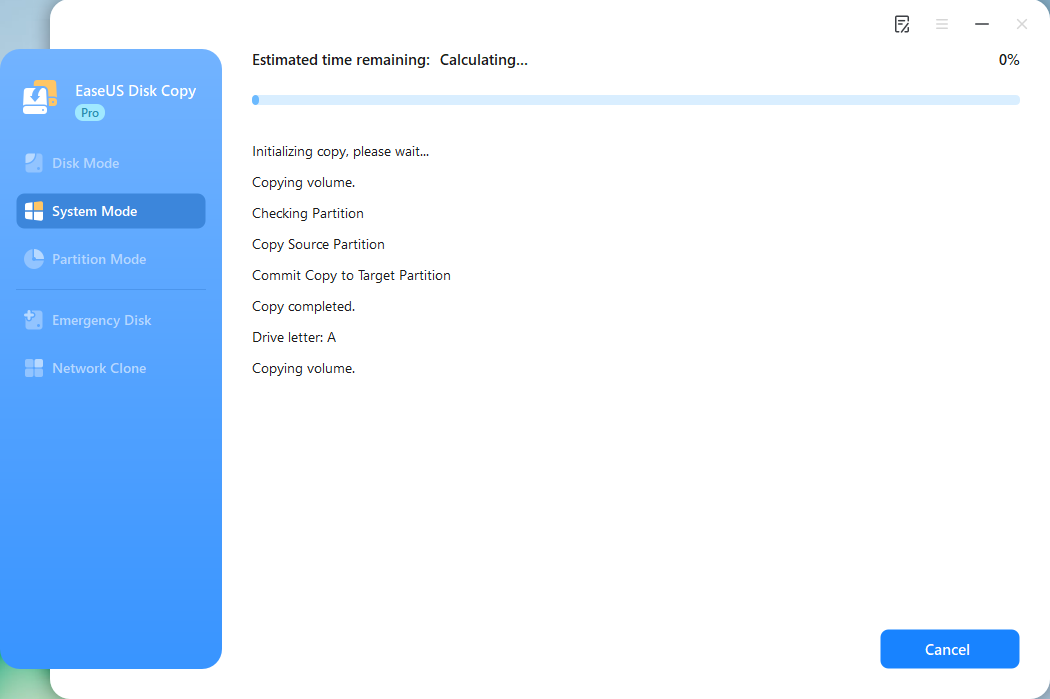
Click Proceed, and a message will appear, warning you that data will be lost. Confirm the message by clicking Continue. Now, it will start cloning OS to the new disk.
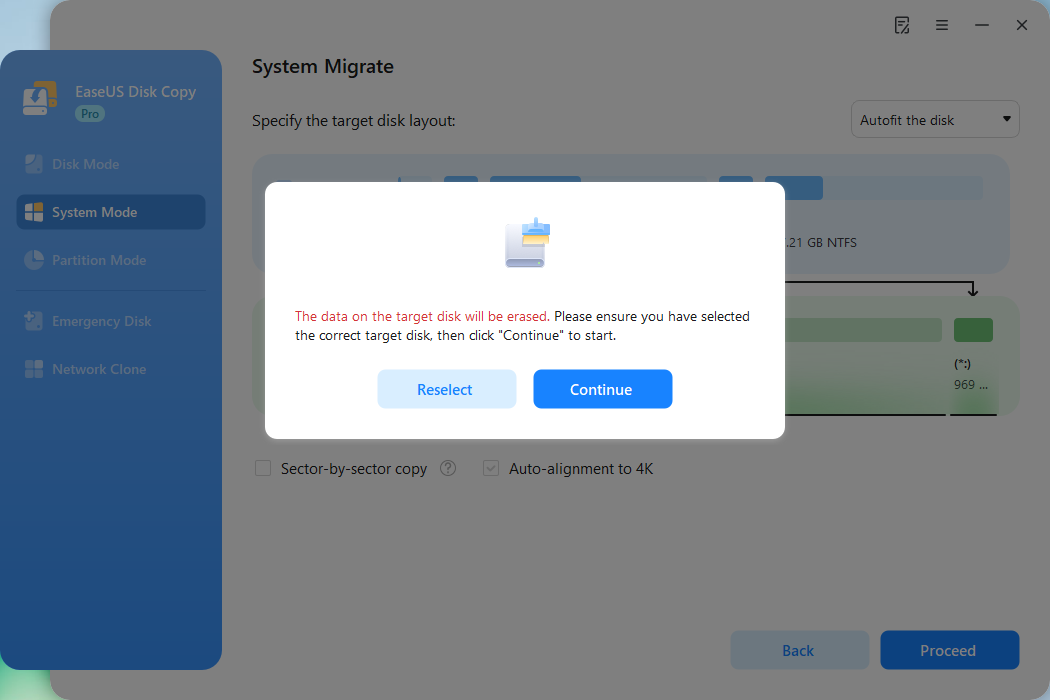
Now, it will start cloning OS to the new disk.
Share the blog on social media to help others clone the working operating system without any data loss or boot issues.
To Wrap Up
Cloning a working operating system to an SSD is a convenient way to improve system performance and speed without reinstalling the OS from scratch. EaseUS Disk Copy stands out as the best option when choosing an OS migration tool for this purpose.
With its reputation for reliability, user-friendly interface, fast cloning speed, compatibility with various disks, and excellent technical support, EaseUS Disk Copy provides a seamless and secure cloning experience. By using this tool, users can successfully clone their operating system to an SSD without any data loss or boot issues, ensuring a smooth transition to a faster storage solution.
Free Download
Windows 11/10/8/7
FAQs about Cloning Operating System to SSD
1. Can I clone just the operating system?
Yes, it is possible to clone just the operating system using specialized software like Clonezilla or EaseUS Disk Copy. This process involves creating an exact copy of the operating system files, settings, boot sectors, and configurations without cloning the entire system. This can be useful for creating backups or transferring the OS to a new hard drive without affecting other data on the system.
2. Does cloning drive copy everything?
Yes, when you clone a drive, it creates a complete copy of everything saved on that drive, including the operating system, software, files, settings, and partitions. This means that all data and configurations will be replicated exactly as they are on the original drive. It's important to note that cloning will duplicate everything, so make sure to back up any important data before initiating the cloning process.
3. What is the difference between disk clone and system clone?
The main difference is the scope of the cloning data. Disk clone creates an exact copy of an entire disk, including all partitions, files, and data stored on the disk. It replicates everything on the disk, not just the operating system. On the other hand, the system clone only copies the operating system, system files, and configurations without duplicating other data or partitions on the disk. It allows the OS to be transferred to a new drive while keeping other data intact.
-
Updated by
>Larissa has rich experience in writing technical articles and is now a professional editor at EaseUS. She is good at writing articles about data recovery, disk cloning, disk partitioning, data backup, and other related knowledge. Her detailed and ultimate guides help users find effective solutions to their problems. She is fond of traveling, reading, and riding in her spare time.…Read full bio