Page Table of Contents

Moving your Windows system to an SSD can involve several scenarios:
- Migrating from an old HDD to an SSD for faster performance
- Transferring to a larger SSD to gain extra storage
- Replacing a failing disk to prevent data loss
Each situation brings unique challenges, and a common question arises: Should you clone your existing system or perform a clean installation? Users often worry about preserving their software, settings, and personal files, while also aiming for optimal performance and system stability. By exploring real-life experiences shared by Reddit users, this guide offers practical insights to help you make informed decisions for your SSD transition.
Understanding the Options: Cloning vs. Clean Install
The debate between "cloning Windows and clean install" has been widely discussed across forums, with users expressing diverse perspectives. But what exactly distinguishes the two approaches, and what are the advantages and disadvantages of each? Here, we'll examine both methods in detail, drawing on real user experiences to provide a clear understanding of their implications for system performance, stability, and convenience.
Cloning Windows: The Quick and Familiar Route
Cloning involves creating an exact copy of your existing hard drive, including the operating system, applications, and files, and transferring it to the new SSD. This method is appealing for its speed and convenience, allowing users to maintain their current setup without the need to reinstall software or reconfigure settings.
| ✅Pros | ❌Cons |
|
|
User Experiences with Cloning
Many users have opted to clone SSD to new SSD. For instance, u/turn0search1 shares their experience:
I've never seen any performance loss from cloning, and reinstalling and configuring software can take much longer.
This sentiment is echoed by others who appreciate the convenience of cloning. However, it's crucial to ensure that the current system is free from issues to avoid transferring potential problems to the new SSD.
Clean Install: Starting Fresh
A clean install involves wiping the new SSD and installing a fresh copy of Windows. This method ensures that the operating system is free from any previous issues and is optimized for the new hardware.
| ✅Pros | ❌Cons |
|
|
User Experiences with Clean Install
Conversely, some users advocate for a clean install to ensure optimal performance and system stability. For example, u/dall89115 notes:
A clean install gets rid of all of those registry errors, and other glitches that can slow a system down.
While this approach requires more time and effort, it can ultimately lead to a more reliable and efficient system.
Insights from Reddit Users: What to Do When Upgrading SSD
When upgrading to an SSD, performance is a key factor. A clean install can ensure that Windows is configured to take full advantage of the SSD's capabilities. However, cloning can also yield satisfactory results if the existing system is in good condition.
It's important to note that SSDs require specific drivers and settings to operate optimally. A clean install ensures that these are correctly configured, whereas cloning may not always align with best practices for SSD optimization.
Reddit users have shared a wealth of experiences regarding this decision. Their insights can provide valuable guidance:
- u/InsertMolexToSATA emphasizes the reliability of cloning:
"Cloning is foolproof, anyone getting 'weird issues' from it botched it impressively."
- u/dall89115 highlights the benefits of a clean install:
"A clean install gets rid of all of those registry errors, and other glitches that can slow a system down."
- u/turn0search1 suggests a balanced approach:
"A fresh install would definitely be a lot easier and less hassle. You could first try cloning it over, if it doesn't work then just do a fresh install."
These perspectives underscore the importance of considering your current system's health and your willingness to invest time in setting up a fresh environment.
Share the post on social media to help others know how to choose between cloning Windows and a fresh install.

How to Clone Windows to a New SSD
When cloning Windows to a new SSD, choosing reliable cloning software is the key to a seamless migration. A trusted tool ensures that your operating system, applications, and personal data transfer without errors or downtime.
EaseUS Disk Copy stands out for its straightforward interface and sector-by-sector cloning, which keeps partitions, boot files, and hidden data intact. Whether you are moving from an HDD, replacing a failing SSD, or expanding to a larger drive, this software minimizes risk and saves time by creating an exact replica of your system, so your new SSD boots and runs exactly like the original.
 Free Download
Windows 11/10/8/7
Before cloning:
- Install or connect the destination disk that you want to move OS to your computer, and make sure it can be appropriately recognized.
- Ensure the target HDD or SSD has enough capacity to accommodate your system files.
Step 1. Launch EaseUS Disk Copy and choose System Mode.
Install EaseUS Disk Copy system migration software on your computer, launch it, and choose System Mode. EaseUS Disk Copy will select the current system you use by default, including all system-related files and boot sectors.
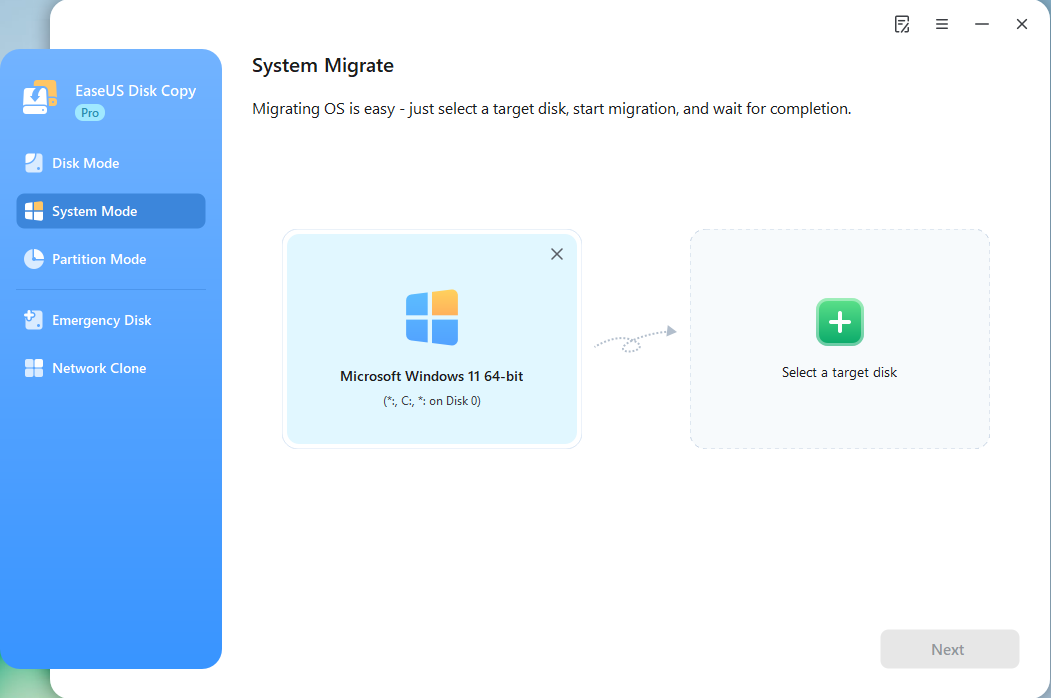
*If you apply dual-boot system, you can select another system by yourself.
Step 2. Select the target HDD/SSD.
Choose the destination HDD/SSD that you want to move OS to.
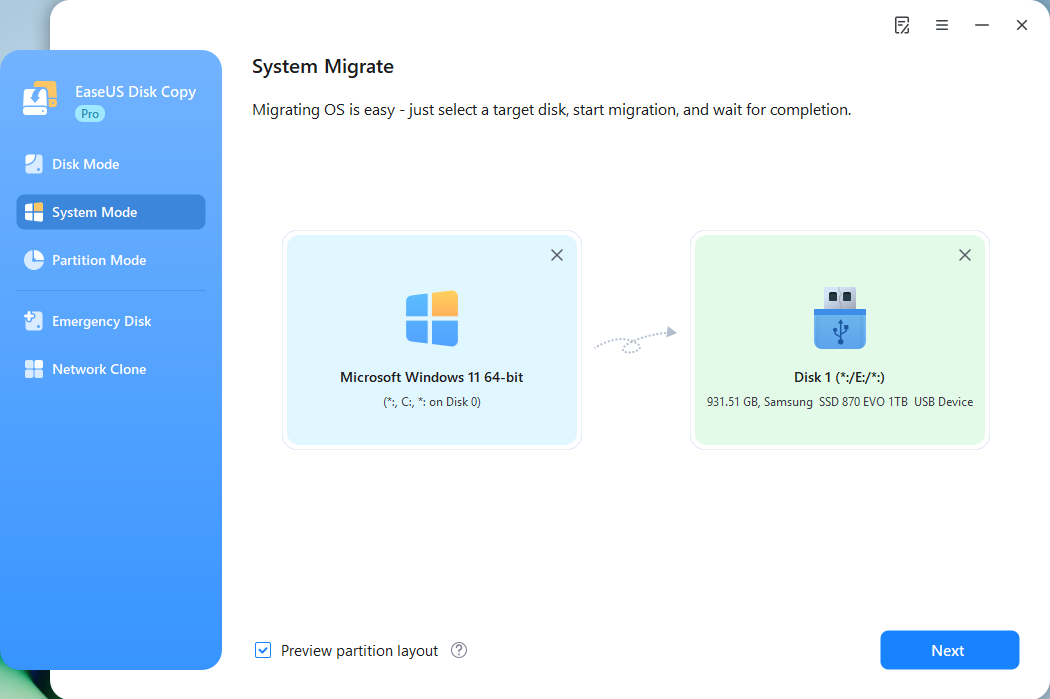
Step 3. Adjust target disk layout.
Specify the target layout as your preference. You can choose among:
- Autofit the disk: makes some changes by default on the destination disk layout so that it can work at its best.
- Copy as the source: create a 1-to-1 copy of your source disk, the layout is the same as the source disk.
- Edit disk layout: allows you to manually resize/move the partition layout on this destination disk.
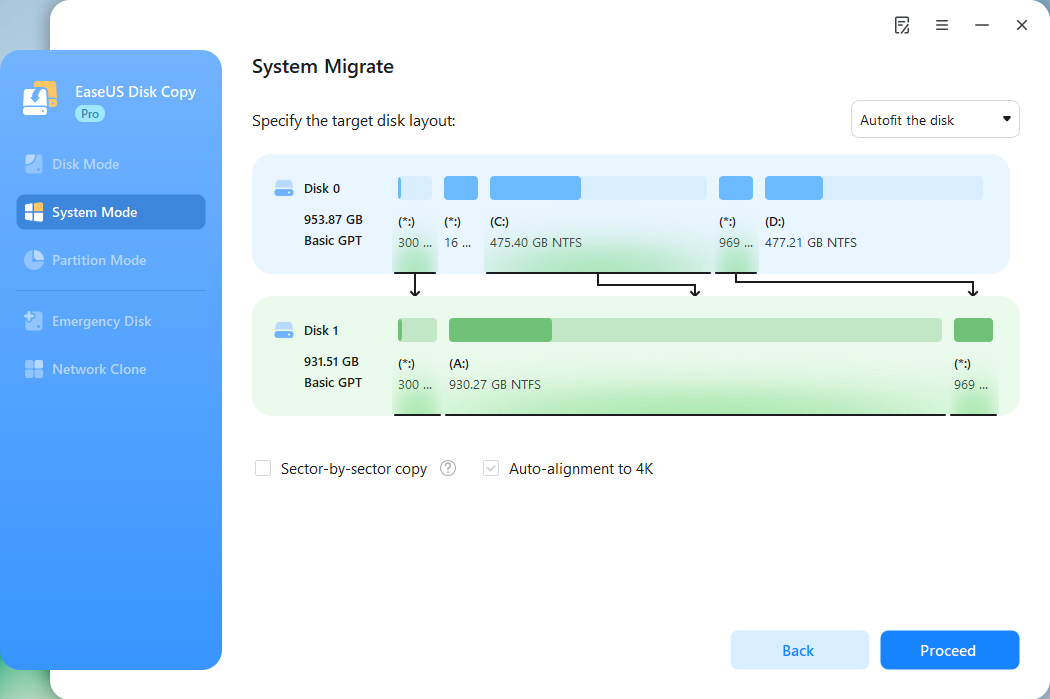
*The option Auto-alignment to 4K will be checked automatically to optimize the performance of your SSD.
Step 4. Start cloning OS.
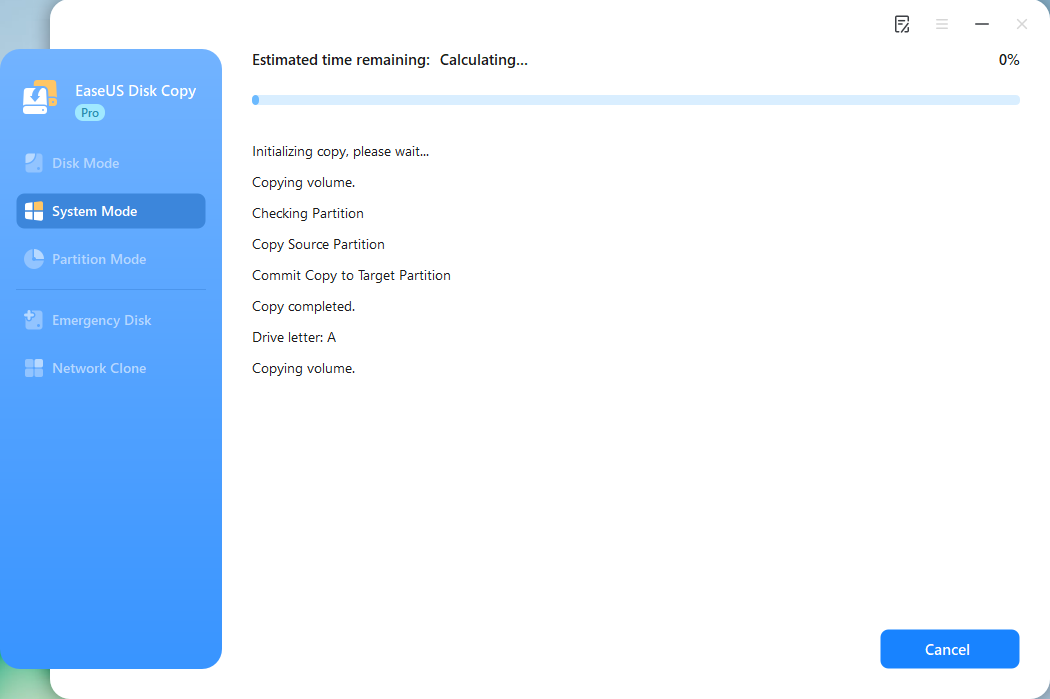
Click Proceed, and a message will appear, warning you that data will be lost. Confirm the message by clicking Continue. Now, it will start cloning OS to the new disk.
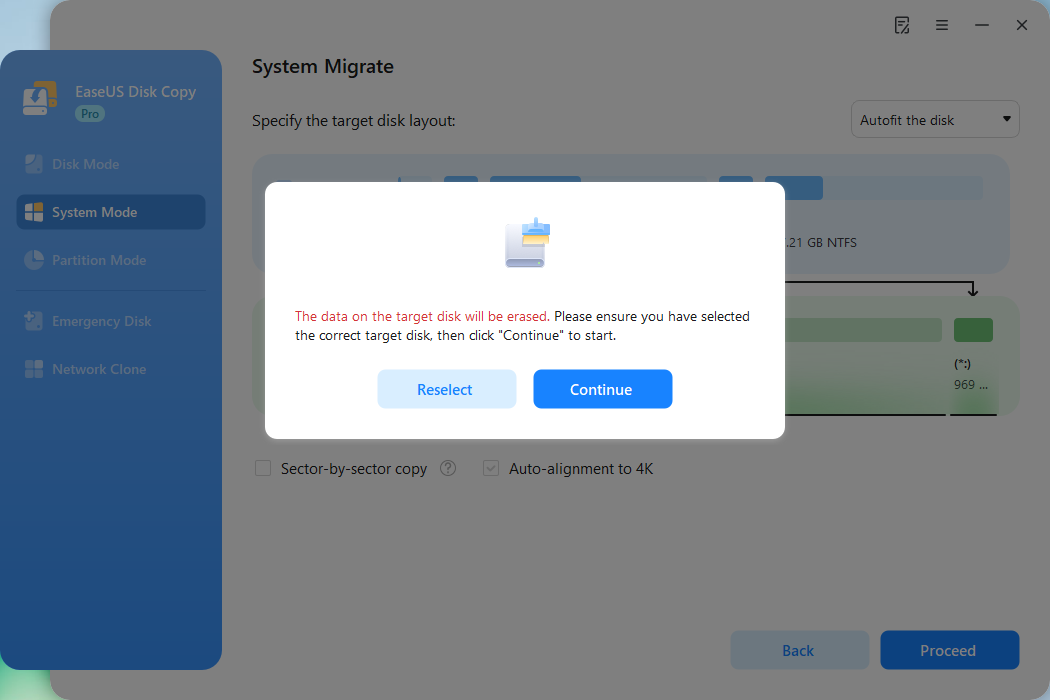
Now, it will start cloning OS to the new disk.
How to Fresh Install Windows from Scratch
A clean installation gives your system a completely fresh start, eliminating old registry errors, unwanted software, and hidden issues that might slow performance. Here are the steps to clean install Windows on a new SSD(take Windows 10 as example), which include 3 Parts:
- Part 1. Create Windows 10 Installation Media
- Part 2. Boot from Windows 10 Installation Media
- Part 3. Install Windows on New Hard Drive
Part 1. Create Windows 10 Installation Media
Before installing Windows 10, you need a bootable installation drive. The simplest and most common method is to create a bootable USB. Use Microsoft’s Media Creation Tool to download the latest Windows 10 image and write it to a USB drive (at least 8 GB). This USB will serve as the installation media for reinstalling or performing a clean installation on the new drive.
Part 2. Boot from Windows 10 Installation Media
Follow these steps to start your computer from the bootable USB:
- Insert the Windows 10 bootable USB into the computer that has the new hard drive installed.
- Power on the machine and immediately press the BIOS/UEFI key (often F2, Del, F10, or F12, depending on the manufacturer) until the BIOS menu appears.
- In the Boot Manager or Boot Order section, set the USB drive as the first boot device.
- Save the changes and exit. The system will restart and boot directly from the USB drive.
Part 3. Install Windows on New Hard Drive
- When the system restarts, Windows Setup will launch automatically. Choose your language, time, and keyboard preferences, then click Next.
- Select Install Now.
- If prompted for a product key, click I don’t have a product key. Windows 10 can activate automatically once installation is complete.
- Accept the license terms and click Next.
- Choose Custom: Install Windows only (advanced).
- Highlight the unallocated space on the new drive, click New, then Apply, and press Next.
- Setup will create the necessary partitions. Select the primary partition and click Next again.
- Wait while Windows copies files and completes the installation.
After the installation finishes, reinstall your applications and restore your personal files from the backup to get your system fully operational.
Final Recommendations
Based on user experiences and technical considerations, here are some recommendations:
- Assess your current system: If your existing system is running smoothly without issues, cloning can be a convenient option.
- Consider a clean install if: Your system has performance problems, malware, or if you're upgrading to significantly different hardware.
- Backup your data: Regardless of the method chosen, ensure that all important files are backed up before proceeding.
- Use reliable tools: If cloning, utilize reputable software like Macrium Reflect or Clonezilla.
- Prepare for reinstallation: If opting for a clean install, have installation media and product keys ready.
The decision to clone or perform a clean install when upgrading to an SSD depends on various factors, including your current system's condition, your technical proficiency, and the time you're willing to invest. By considering the insights shared by Reddit users and evaluating your specific situation, you can make an informed choice that best suits your needs.
Remember, both methods have their advantages and potential drawbacks. Weighing these carefully will help ensure a smooth transition to your new SSD, enhancing your computer's performance and longevity.
Share the post on social media to help others know how to choose between cloning Windows and a fresh install.
FAQs About SSD Clone vs. Clean Install
- 1. Will cloning my Windows drive reduce performance compared to a clean install?
-
Not if your current system is healthy. A properly executed clone delivers the same speed as a fresh install, but any existing bloatware or registry issues will carry over.
- 2. When is a clean install better than cloning?
-
Choose a clean install if you’re replacing a failing drive, changing major hardware (motherboard/CPU), or want to remove old software and hidden errors for a truly fresh start.
- 3. Do I need to reactivate Windows after cloning?
-
Usually no. Windows 10/11 activation is tied to your hardware ID, so if only the drive changes, it typically stays activated automatically.
- 4. Which method takes less time?
-
Cloning is faster because it copies everything at once, letting you boot from the new SSD immediately. A clean install requires reinstalling Windows, drivers, and applications, which can take several hours.
-
Updated by
![]()
Larissa
Larissa has rich experience in writing technical articles and is now a professional editor at EaseUS. She is good at writing articles about data recovery, disk cloning, disk partitioning, data backup, and other related knowledge. Her detailed and ultimate guides help users find effective solutions to their problems. She is fond of traveling, reading, and riding in her spare time.…Read full bio