Page Table of Contents

When it comes to portable disk cloning software, there are usually two different meanings.
- 1️⃣One stands for that the software is portable, meaning it doesn't require installation and can be run directly from a USB drive or external storage. This is especially useful for IT professionals or technicians who need a flexible, plug-and-play solution across multiple systems.
- 2️⃣The other meaning refers to software that enables users to clone a disk to a portable drive, such as an external SSD, HDD, or USB flash drive. In this context, the goal is to create a backup or bootable copy of a system or data drive on a portable medium that can be carried and used elsewhere.
Both interpretations are valid, and a well-designed disk cloning tool should ideally support both: being portable in form and capable of handling portable storage devices efficiently. This article from EaseUS will tell you the best way to transfer data from one hard drive to another with the best portable disk cloning software. Let's see how!
Why You Need Portable Hard Drive Clone Software
Windows includes built-in backup tools, such as Backup and Restore, File History, and the Windows Backup app. These tools allow Windows users to create a system image and back up their hard drives or files. However, when one wants to migrate OS to another drive and use this drive as the boot drive, these tools are of no effect.
This is what disk cloning software is for. Cloning can help you migrate data from one drive to another easily and quickly; all you need to do is connect your portable disk to your PC via a drive enclosure or USB-to-SATA adapter. Portable hard drive clone software serves two key purposes.
- First, its portable version allows users to run the tool directly from a USB drive without installation, making it ideal for IT technicians and system recovery scenarios.
- Second, it enables users to clone internal disks to portable drives like external SSDs or USB hard drives. This is essential for creating bootable backups, migrating systems, or safeguarding data on the go.
Whether you need deployment flexibility or reliable disk-to-portable cloning, this software offers a lightweight yet powerful solution for both professionals and home users.
Best Portable Disk Clone Software for Windows
As an efficient and reliable disk clone program, EaseUS Disk Copy supports both meanings of portable disk cloning software, making it a versatile solution for various use cases.
EaseUS Disk Copy offers a WinPE-based portable version, allowing users to create a bootable USB drive and run the software without installation. This is especially useful in system recovery or disk replacement scenarios where the operating system isn't accessible. Simply boot the target computer into the WinPE environment and start cloning.
What's more, EaseUS Disk Copy fully supports cloning internal disks to external portable drives, such as USB-connected HDDs, SSDs, or even NVMe drives in enclosures. This makes it ideal for creating portable backups or bootable system copies that can be carried and used on other machines. With support for sector-by-sector cloning, UEFI/MBR compatibility, and various file systems, the EaseUS disk cloning tool ensures that both personal and professional users can perform flexible, efficient, and secure disk cloning in portable environments.
 Free Download
Windows 11/10/8/7
EaseUS cloning software lets you upgrade to a larger disk on your Windows PCs, and if you buy a new computer, it can help you transfer data from the old hard drive to the new PC without a hitch. The following are some highlights of this portable hard drive clone software:
- A simple interface with fast cloning speed
- Copy a hard drive bit for bit or sector by sector
- Create a WinPE bootable drive to boot a new PC
- Clone HDD to SSD with different sizes quickly
- Adjust the disk partition during the cloning process
EaseUS disk cloner can meet your various needs, whether you want to clone a hard drive, upgrade a disk, or replace a hard drive with an SSD. It can also help you ignore bad sectors when cloning a disk. Download its portable version on your PC to clone your HDD or SSD with ease.
Is this post helpful? Share it on your social platforms to help more people find a reliable disk clone tool!

How to Clone Hard Drive to Portable Disk with EaseUS Disk Copy
After you download the EaseUS disk clone software on your PC or laptop, you can perform the steps below to help you clone a hard drive to another drive.
Before cloning:
- If your computer has only one slot, connect the target disk to your machine via a USB-to-SATA/NVMe adapter.
- If your computer has an extra slot, install the target disk into the empty slot properly, and make sure it is compatible.
Step 1. Launch EaseUS Disk Copy and choose Disk Mode.
Install EaseUS Disk Copy cloning software on your Windows computer, then launch it and select Disk Mode from the left panel.

Step 2. Select the source drive.
Select the drive you want to copy, then click Select.
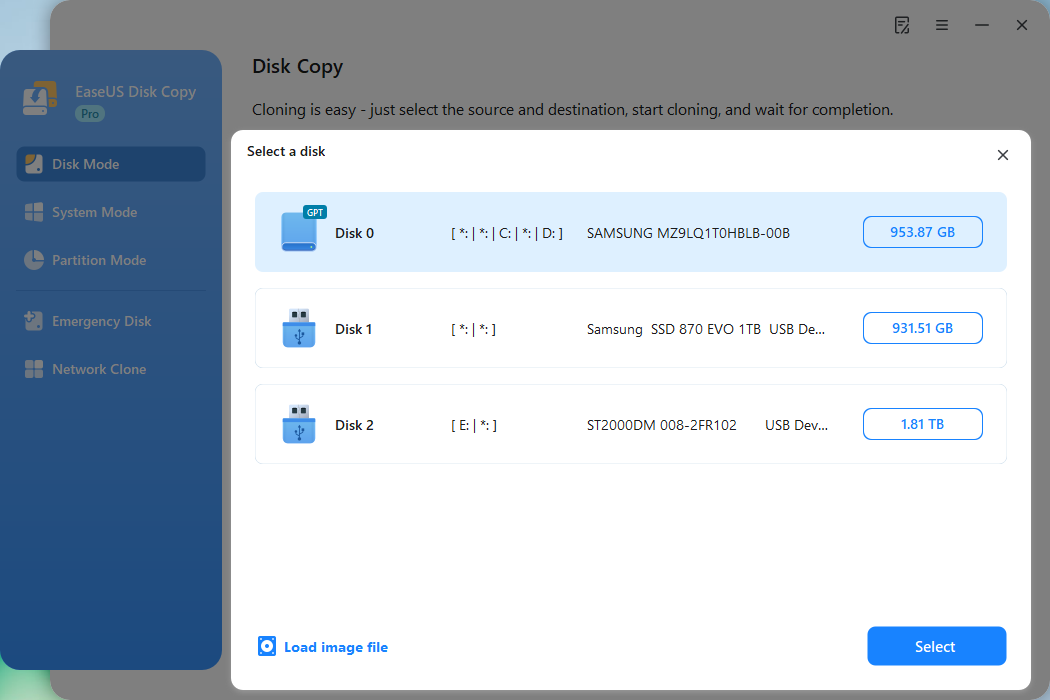
Step 3. Choose the target disk.
Choose the disk that you want to clone data to, and click Select. Note that the used space of the source disk should be less than the target disk capacity.
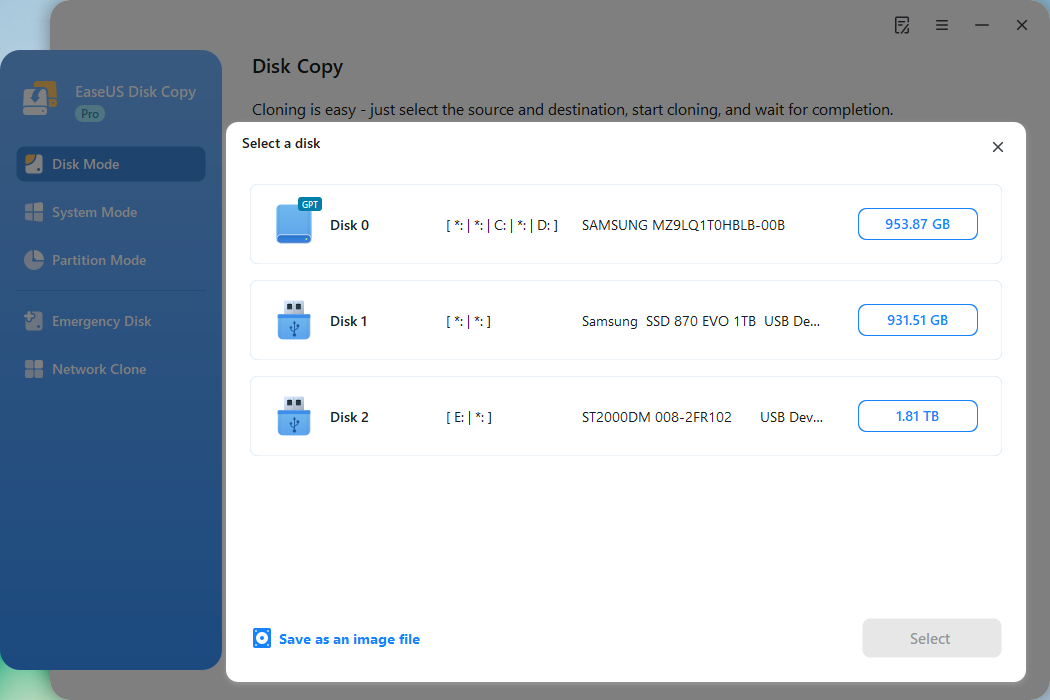
*At this step, you can also click the option "Save as an image file" to store your disk as a compressed image file, which can be restored without any data loss.
Step 4. Adjust disk layout.
Specify the target disk layout as your preference. You can choose among:
- Autofit the disk: makes some changes by default on the destination disk layout so that it can work at its best.
- Copy as the source: create a 1-to-1 copy of your source disk; the layout is the same as the source disk.
- Edit disk layout: allows you to manually resize/move the partition layout on this destination disk.
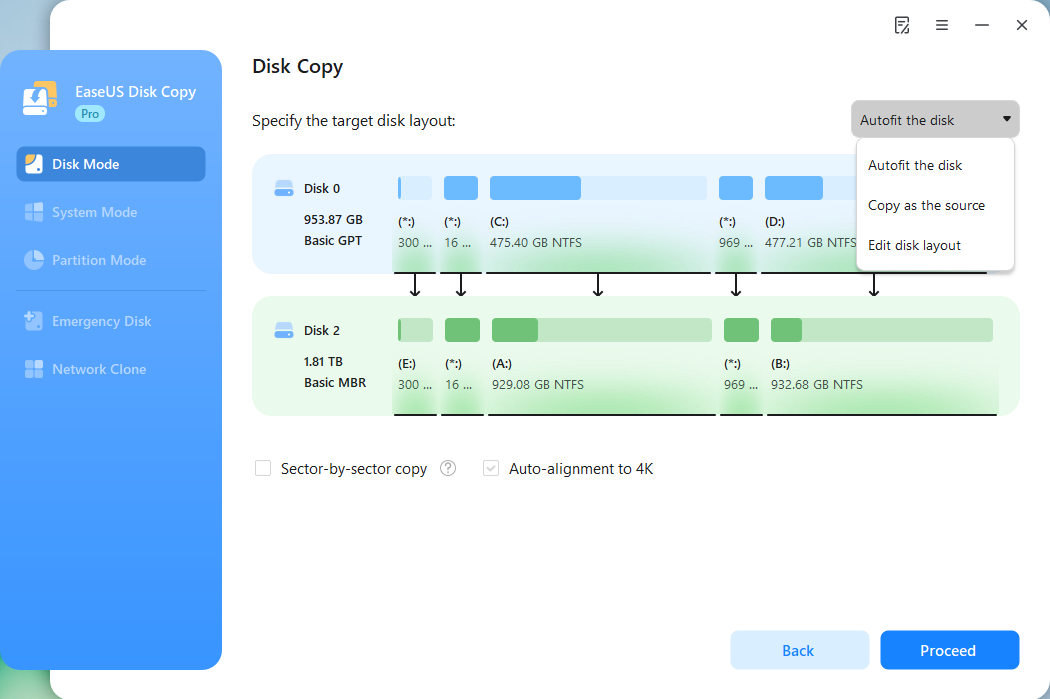
*If the target disk is an SSD, the option "Auto-alignment to 4K" will be checked automatically to optimize the performance of your SSD.
Step 5. Start cloning.
Click Proceed, and a message will appear, warning you that data will be lost. Confirm the message by clicking Continue.
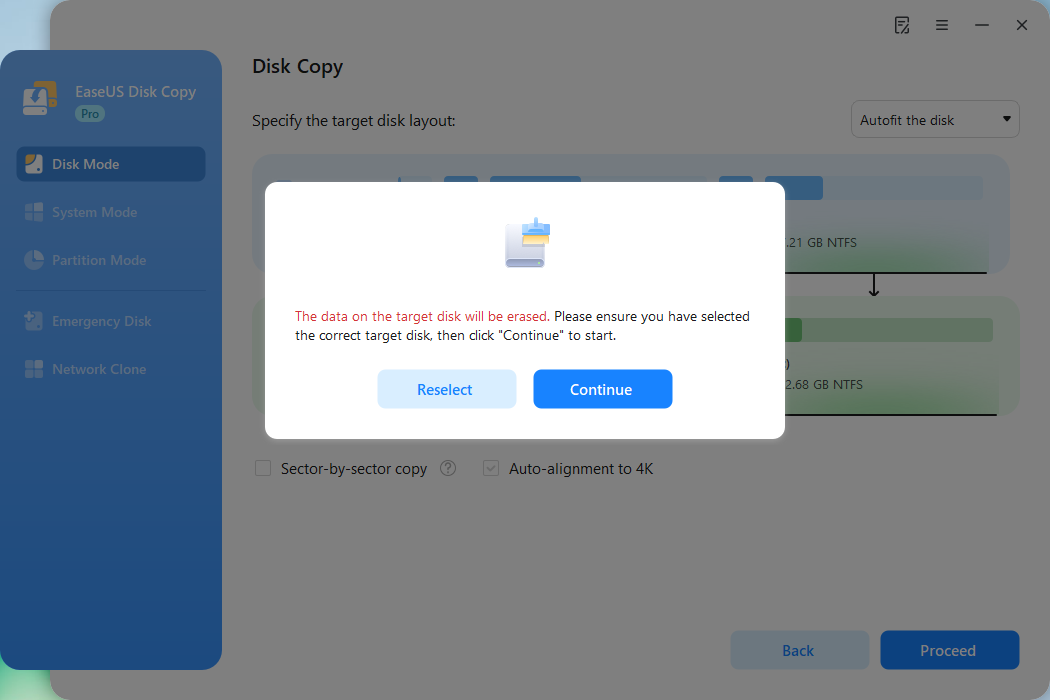
Now, it will start executing the cloning task.
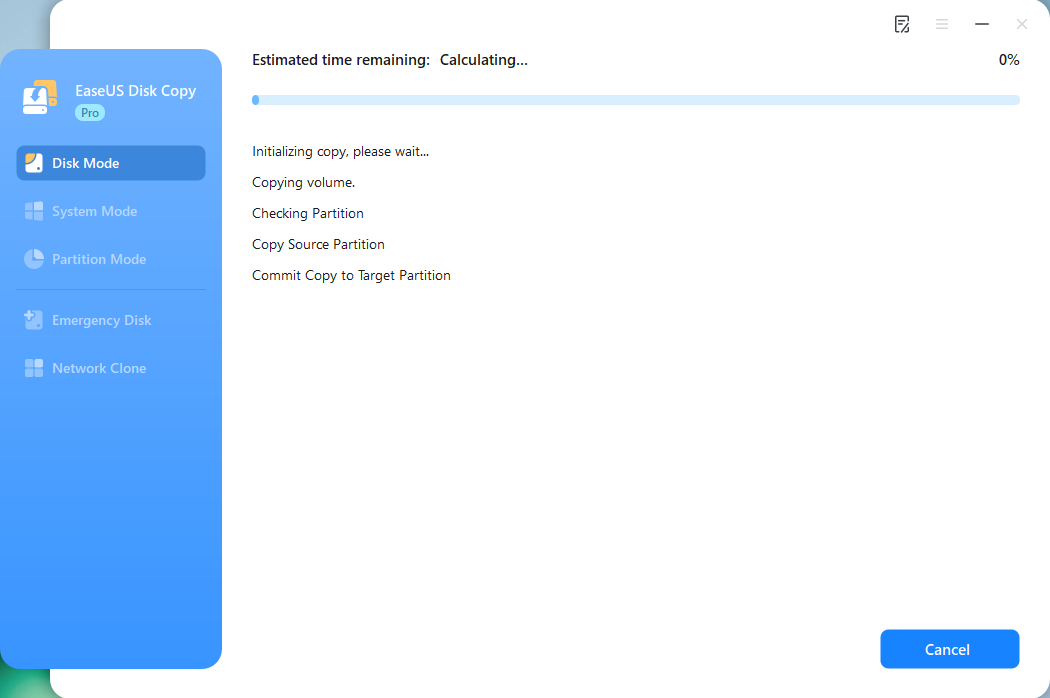
*The time it takes to clone a hard drive depends on how much data is on the source disk, and it will also be affected by the disk types, USB connection, etc.
How to Create Portable WinPE Bootable Disk
If you want a portable cloning software to create a bootable USB to boot the same system on other computer, here are the steps.
Preparations:
- Prepare a USB to create a bootable media.
- Prepare another working computer to clone the disk.
Step 1. Create a EaseUS Disk Copy bootable USB.
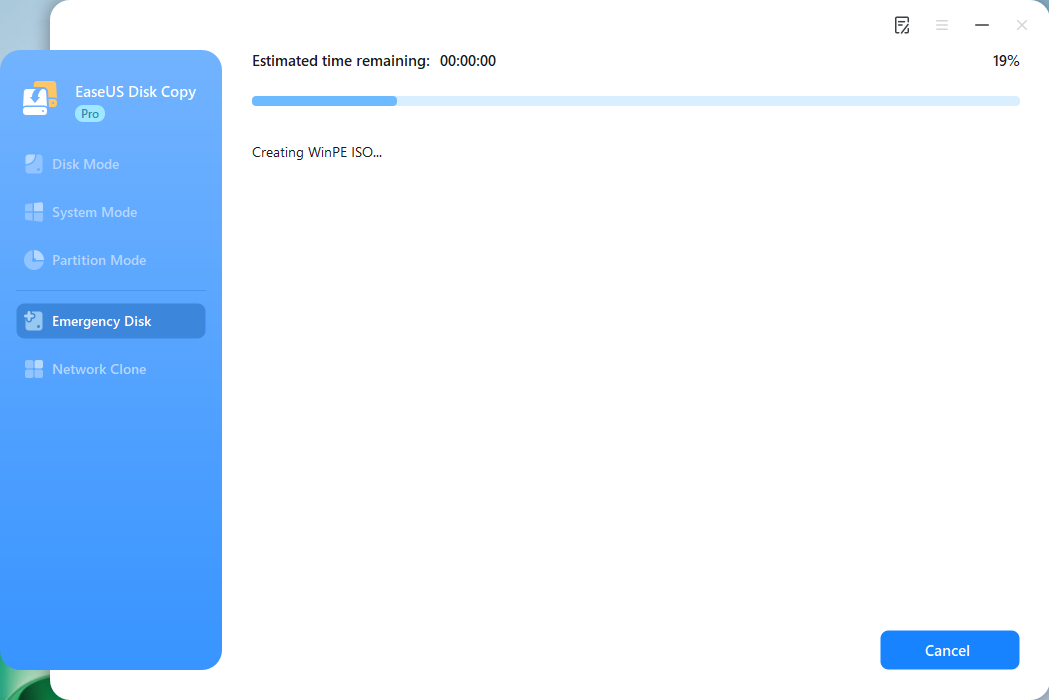
Download and install EaseUS Disk Copy on your Windows computer, launch it, and choose Emergency Disk.
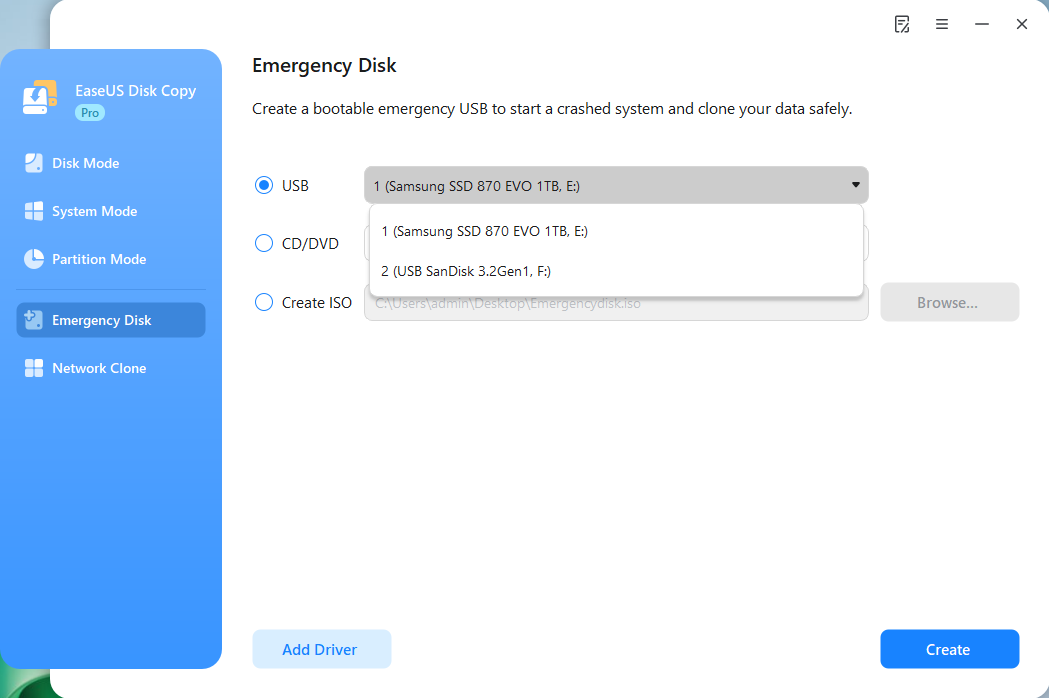
Click Create, wait for the process to complete, and then you'll get a bootable USB media.
Step 2. Boot another computer from the emergency USB.
Connect the bootable disk USB and a new SSD/HDD to the computer on which you want to clone the disk, and set the computer to boot from the bootable disk by changing the boot order in BIOS.
Step 3. Launch EaseUS Disk Copy and select Disk Mode.
Locate and launch EaseUS Disk Copy on the USB-booted computer, and click Disk Mode.
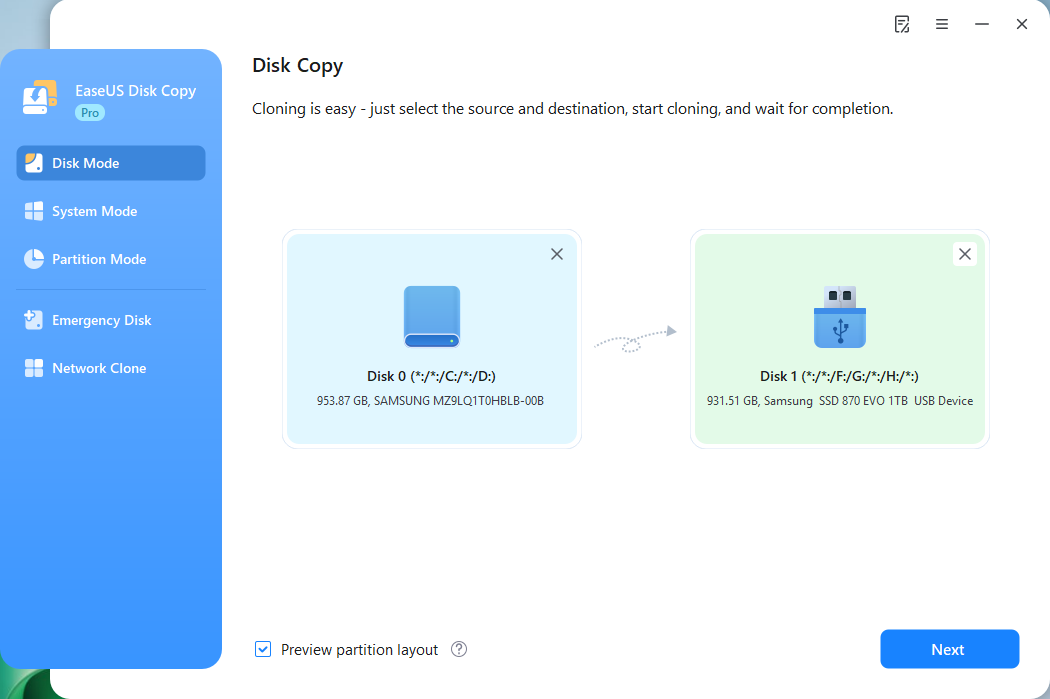
Step 4. Select source and target disks.
- Source - the disk you want to make a copy.
- Destination - the disk that you want to clone data to.
*Note that the used space of the source partition should be less than the target partition capacity.
Step 5. Adjust target disk layout.
Specify the target disk layout as your preference. You can choose among:
- Autofit the disk: makes some changes by default on the destination disk layout so that it can work at its best.
- Copy as the source: create a 1-to-1 copy of your source disk; the layout is the same as the source disk.
- Edit disk layout: allows you to resize/move the layout on this destination disk manually.

Step 6. Start cloning.
Click Proceed, and a message will appear, warning you that data will be lost. Confirm the message by clicking Continue.

Now, it will start disk cloning.
Is this post helpful? Share it on your social platforms to help more people find a reliable disk clone tool!
To Sum Up
This article describes how to get the best portable disk cloning software for Windows 10/11/8/7. A disk clone software can help you protect your hard drive in an easy and safe way. EaseUS Disk Copy, a dedicated cloning utility, can suit your everything when it comes to cloning a hard drive. Its effectiveness and functionality will never let you down. Just download this excellent external hard drive cloning software to make everything go smoothly!
Free Download
Windows 11/10/8/7
FAQs on Portable Disk Clone Software
1. Is there truly free disk cloning software?
Yes, there is a truly free disk cloning tool. It is called Clonezilla and is a free, open-source disk cloning tool. However, this disk-cloning software is a command-line tool, which requires a steep learning curve. Worse still, you may find that Clonezilla fails to clone bad sectors, or that the system becomes unbootable after cloning the disk with Clonezilla. Therefore, it is better to use a professional disk cloner - EaseUS Disk Copy.
2. Can I boot from a cloned portable drive?
You can boot from a cloned portable drive if the drive is properly cloned with the system and boot partitions. Make sure your BIOS or UEFI settings allow booting from external USB devices, and the cloned drive matches the system’s boot mode (UEFI or Legacy).
3. Does portable software support SSD to SSD clone?
Yes, most portable disk cloning software supports SSD to SSD cloning, including SATA and NVMe drives. The key is hardware compatibility and ensuring the destination SSD is equal or larger in capacity than the source drive. Portable tools like EaseUS Disk Copy support this process without installation.
-
Updated by
![]()
Jerry
"I hope my articles can help solve your technical problems. If you are interested in other articles, you can check the articles at the bottom of this page, and you can also check my Facebook to get additional help."…Read full bio