Page Table of Contents

Upgrading a dual boot system from a traditional hard disk drive (HDD) to a solid-state drive (SSD) can dramatically improve performance for both operating systems. However, cloning a dual boot setup is more complex than cloning a single-OS drive, as it involves multiple partitions, bootloaders, and system files that must be perfectly preserved. This guide will walk you through how to clone dual boot HDD to SSD without losing data or functionality.
Why Cloning a Dual-Boot Drive Is More Complex
Cloning a dual-boot drive presents unique challenges that don't exist with single-OS systems:
- Multiple Partitions: Dual-boot systems contain separate partitions for each operating system, plus essential boot, recovery, and sometimes EFI system partitions. Missing any of these during cloning can render one or both OSes unbootable.
- Bootloader Complications: The bootloader (such as Windows Boot Manager or GRUB for Linux) determines which operating system starts. This bootloader must be copied and reconfigured correctly on the new drive locations.
- Firmware Compatibility Issues: Your system might use legacy BIOS (with MBR partitioning) or modern UEFI (with GPT partitioning). The cloning process must ensure compatibility between the source and target drives.
- System Identity Conflicts: Windows uses unique disk identifiers. If these aren't handled properly during cloning, the system might become confused about which drive to boot from.
Share this article on social media to help others clone a dual-boot system from HDD to SSD!

Best Clone Software for Dual Boot Cloning on Windows
If you want to clone Windows dual boot drive or perform an SSD upgrade for dual boot system, you must use third-party disk cloning software, as Windows lacks built-in cloning solutions to clone a drive. EaseUS Disk Copy stands out as an excellent choice for migrating a dual-boot system to a larger SSD.
EaseUS Disk Copy can help you clone a disk with 2 Windows operating systems installed and clone HDD to SSD with different sizes. If your SSD is a different size from your HDD, the software can intelligently resize partitions to fit the new drive.
Best Software to Migrate Dual-Boot System from HDD to SSD
- Simple UI: Extremely streamlined interface to clone a disk.
- Disk Mode: Clone disk to disk or clone disk to an image.
- System Mode: Transfer Windows system to SSD for migration.
- Win11 Upgrade: Upgrade to Windows 11 on a larger hard drive.
- SSD Alignment: Auto-4K SSD alignment for SSD performance.
 Free Download
Windows 11/10/8/7
EaseUS cloning software has different modes to help you clone dual boot from HDD to SSD. You can use the Disk Mode to clone the whole disk to another, and you will get a dual boot disk as a result. You can also use System Mode to migrate your system one by one to another, but this will only migrate your system and related partitions, and your data will remain on the old HDD. Free download the software to help you clone a hard drive or migrate dual boot HDD to SSD!
How to Clone Dual Boot Drive to SSD Using Disk Copy
Here is how to clone a dual boot hard drive using EaseUS Disk Copy:
Step 1. Prepare Drives
- Backup data: If the SSD contains data, back it up before cloning because cloning will erase all data on the target disk.
- Connect the SSD to your PC: For desktops, install it internally. For a laptop with only one slot, use a SATA-to-USB adapter to connect the new SSD externally to the PC.
- Run a surface test on the SSD: Even a new SSD can contain bad sectors; you'd better run a surface test on it, since bad sectors can block disk cloning.
Step 2. Run Cloning Software
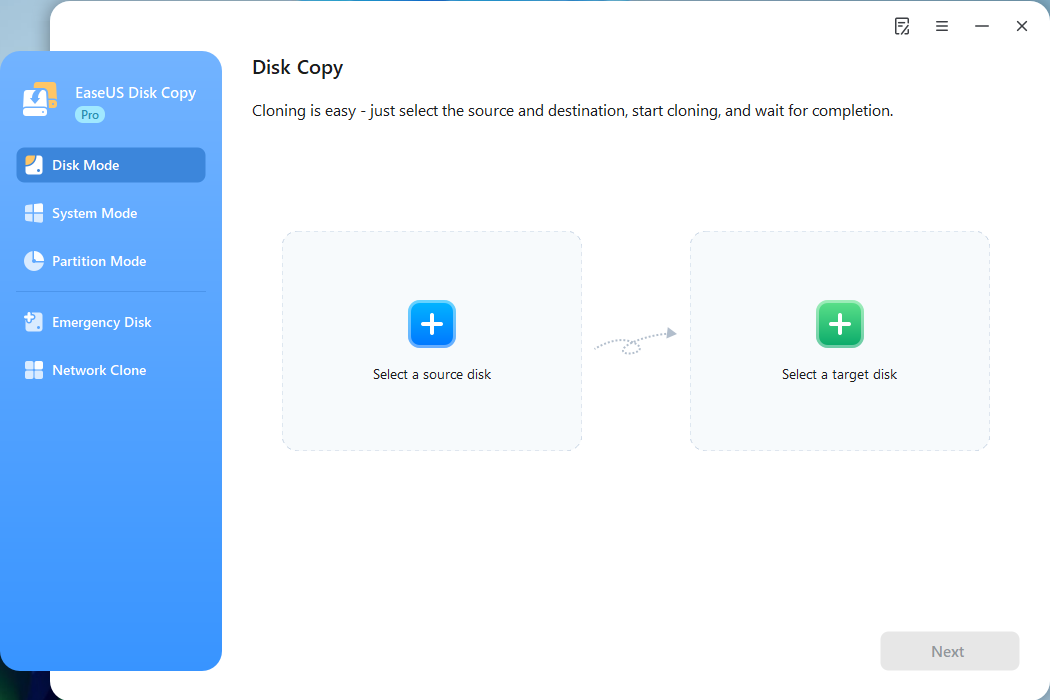
- Download and open EaseUS Disk Copy.
- Select Disk Mode.
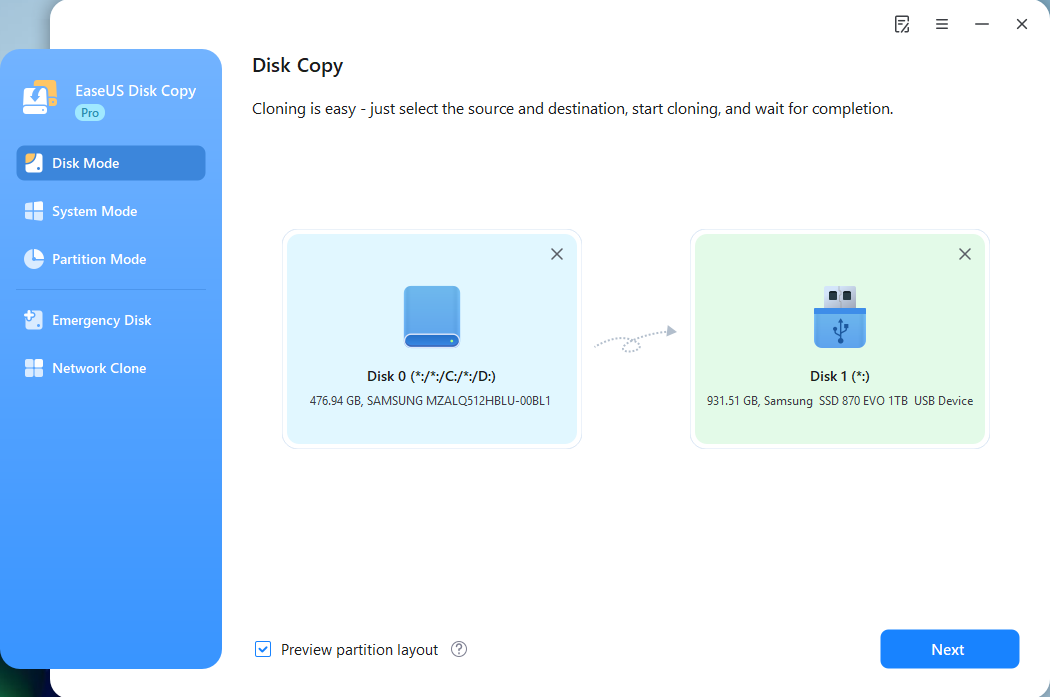
Step 3. Select Source and Target Disks
- Select your old dual boot drive as the source.
- Select the SSD as the destination.
- Enable "Preview partition layout" to access the advanced feature.
Step 4. Start Cloning
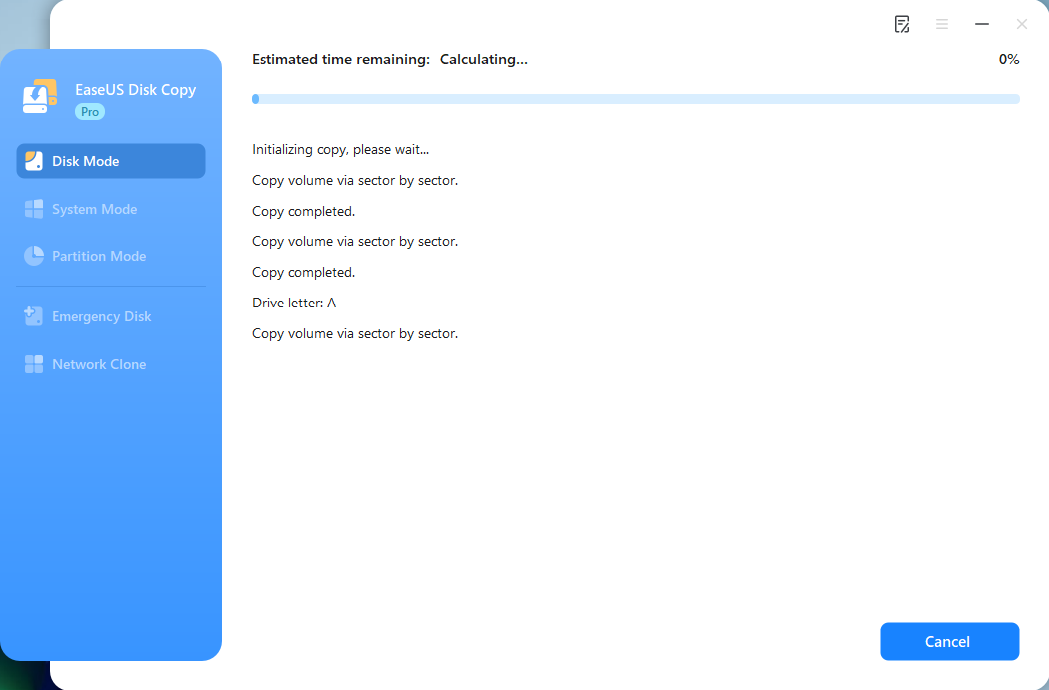
- Confirm the warning message (data on the target drive will be erased) and start cloning HDD to SSD.
- Wait for the cloning process to be complete.
Step 5. Replace Dual Boot HDD with SSD
Once finished, shut down the computer and physically replace the HDD with the SSD. Open the casing with a screwdriver, remove the old boot drive, and install the new SSD in its place.
Step 6. Boot from the New SSD
- Power on your PC. It should now boot from the new SSD, with everything the same as on your old one.
- If the PC doesn't boot from the new SSD, enter the BIOS or UEFI settings by pressing a key, like F1, F2, Del, F10, or Esc during startup, and change the boot order to set the new SSD as the primary boot device.
Share this article on social media to help others clone a dual-boot system from HDD to SSD!
This video provides a tutorial on how to clone a hard drive to an SSD using EaseUS Disk Copy.
To Wrap Things Up
Migrating a dual boot system from HDD to SSD doesn't require reinstalling both operating systems from scratch. With the right tool like EaseUS Disk Copy, you can clone your entire dual boot system to an SSD, preserving all your applications, settings, and files for both operating systems. Download the software and follow this step-by-step guide to enjoy the benefits of SSD speed while maintaining your familiar dual boot environment.
Free Download
Windows 11/10/8/7
FAQs on How to Clone Dual Boot Hard Drive to SSD
1. Why can't I just copy and paste files to clone a dual boot drive?
Unlike regular files, a dual boot setup contains multiple system partitions, bootloaders, and hidden recovery sections that aren't accessible through simple copy-paste. Specialized cloning software like EaseUS Disk Copy is required to replicate the exact structure and ensure both operating systems remain bootable.
2. My SSD is smaller than my HDD. Can I still clone my dual boot drive?
Yes, but only if the used space on your HDD is less than the SSD's total capacity. Most cloning software, including EaseUS Disk Copy, allows you to resize partitions during cloning. Before starting, clean up unnecessary files on both operating systems to reduce disk usage. If your HDD's used space exceeds the SSD's capacity, you'll need to either delete data, use a larger SSD, or consider a fresh installation.
3. Will cloning affect my data, files, or installed programs?
No, if done correctly, cloning creates an exact copy. All your files, applications, settings, and user profiles should remain intact on both operating systems. This is the primary advantage over a clean installation.
-
Updated by
![]()
Jerry
>"I hope my articles can help solve your technical problems. If you are interested in other articles, you can check the articles at the bottom of this page, and you can also check my Facebook to get additional help."…Read full bio