-
![]() EaseUS Data Recovery Wizard Free Download in 2026
EaseUS Data Recovery Wizard Free Download in 2026 September 20,2026
 6 min read
 -
![]() PhotoRec for Mac - File Recovery Software Review [Free Download]September 20,20266 min read
PhotoRec for Mac - File Recovery Software Review [Free Download]September 20,20266 min read -
![]() M3 BitLocker Recovery Alternative - BitLocker Data Recovery Without Recovery KeySeptember 20,20266 min read
M3 BitLocker Recovery Alternative - BitLocker Data Recovery Without Recovery KeySeptember 20,20266 min read -
![]() Top R-Studio Alternatives for Windows: Complete ReviewSeptember 20,20266 min read
Top R-Studio Alternatives for Windows: Complete ReviewSeptember 20,20266 min read -
![]() R-Studio vs EaseUS Data Recovery Wizard: Full Comparison & ReviewAugust 14,20266 min read
R-Studio vs EaseUS Data Recovery Wizard: Full Comparison & ReviewAugust 14,20266 min read -
![]() Top 4 Disk Drill Alternatives in 2026 [Free Download]September 20,20266 min read
Top 4 Disk Drill Alternatives in 2026 [Free Download]September 20,20266 min read -
![]() Stellar Data Recovery vs EaseUS Data Recovery Wizard: Full Comparison & ReviewSeptember 20,20266 min read
Stellar Data Recovery vs EaseUS Data Recovery Wizard: Full Comparison & ReviewSeptember 20,20266 min read -
![]() DMDE Review: Evaluation of the Data Recovery SolutionSeptember 20,20266 min read
DMDE Review: Evaluation of the Data Recovery SolutionSeptember 20,20266 min read -
![]() 6 Best Free Disk Drill Alternatives for Mac Data Recovery in 2026September 20,20266 min read
6 Best Free Disk Drill Alternatives for Mac Data Recovery in 2026September 20,20266 min read -
![]() Top 10 Photo Recovery Software for Free [Easily & Safely]September 20,20266 min read
Top 10 Photo Recovery Software for Free [Easily & Safely]September 20,20266 min read
Page Table of Contents
PAGE CONTENT:
Choosing between TestDisk and EaseUS Data Recovery Wizard can be difficult—they represent two completely different philosophies in data recovery. One is a free, open-source, command-line tool for technical users; the other is a paid, GUI-based consumer solution. This review explains how they compare in recovery performance, features, ease of use, pricing, and real-world results.
Summary (TL;DR)
- EaseUS Data Recovery Wizard: Best overall recovery performance, especially for formatted SD cards, RAW photos, 4K/8K videos, lost partitions, and crashed OS. Works out of the box with a modern interface. Paid but worth it for important data.
- TestDisk: Free, powerful, but command-line only. Excellent for repairing partition tables and undeleting files from FAT/NTFS. Completely unusable for most home users. No photo/video preview or file-type carving.
- For most users (photos, videos, documents): EaseUS recovers more usable data with zero technical headache.
- For IT professionals or Linux users comfortable with command line: TestDisk is a free lifesaver for partition repair.
What Are These Tools
EaseUS Data Recovery Wizard
A full-featured data recovery software for Windows & macOS. Designed for recovering deleted files, formatted drives, RAW partitions, corrupted SD cards, and lost partitions. Includes advanced video reconstruction, RAW photo support, and bootable media for crashed systems. User-friendly with preview and filters.
TestDisk
A free, open-source command-line tool primarily designed to repair partition tables and recover deleted partitions. Created by Christophe Grenier (CG Security). Also includes PhotoRec (a file-carving tool) for recovering files without a file system. No GUI, no preview, requires typing commands. Works on Windows, macOS, Linux, and even DOS.
Feature-by-Feature Deep Comparison
Testing Methodology
To ensure objective comparison, both tools were tested under identical conditions:
Devices tested:
- 64GB SanDisk SD card (formatted)
- 1TB Samsung SSD (lost partition)
- GoPro Hero 11 (4K/5K fragmented video)
- Canon EOS R6 (CR3 RAW photos)
- 256GB USB flash drive (accidental deletion)
Test Scenarios:
- Deleted files
- Formatted media
- RAW images
- Fragmented video files
- Partition loss
- Corrupted MBR/GPT
Feature Comparison Table
| Feature | EaseUS Data Recovery | TestDisk |
|---|---|---|
| Recovery Success Rate | ★★★★★ | ★★★☆☆ (partition repair only) |
| Interface | Modern GUI with preview | Command-line (no mouse) |
| Learning Curve | Very low | Very steep |
| Deep Scan Quality | Advanced, sector-level carving | Basic (via PhotoRec) |
| Formatted SD Card Recovery | Excellent | Poor (PhotoRec recovers without names/folders) |
| RAW Photo Formats (CR2/CR3/NEF/ARW) | Strong support with preview | No preview, generic carving |
| Video Recovery (4K/8K, GoPro, DJI) | Very strong (fragmentation auto-repair) | Weak – recovers fragments as raw data |
| Lost Partition Recovery | Yes – rebuilds and recovers | Yes – TestDisk's specialty |
| File System Support | NTFS, FAT, exFAT, HFS+, APFS | NTFS, FAT, exFAT, HFS+, ext2/3/4, many more |
| Preserves File Names & Folders | Yes | No (PhotoRec only recovers by file type, generic names) |
| Preview Before Recovery | Yes (images, videos, docs) | No |
| Free Version | 2GB recovery | Completely free – unlimited |
| OS Support | Windows + Mac | Windows + Mac + Linux + DOS |
| Bootable Media | Yes (crashed OS recovery) | Yes (via Linux live CD) |
| Best For | Complex cases, formatted drives, photos/videos | Partition table repair, technical users |
Key Differences Explained
EaseUS scans the drive, finds deleted files with their original names and folder structures, lets you preview them, and recovers what you need. Works like a modern application.
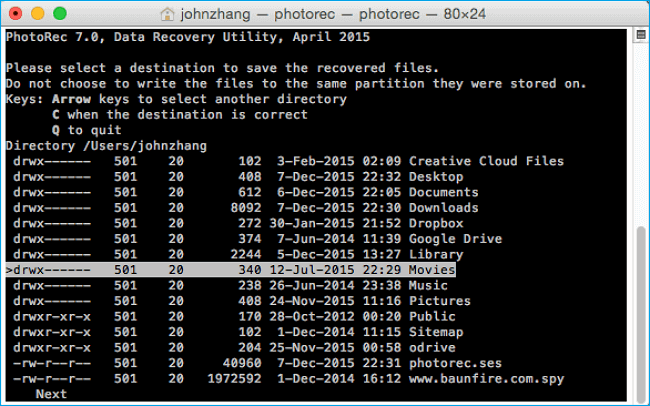
TestDisk is a command-line tool. You type commands like sudo testdisk /dev/sdb, navigate with keyboard arrows, and choose options like [Analyse] > [Quick Search] > [Write]. If you make a mistake, you can destroy data. PhotoRec (its companion) recovers files by scanning raw data – but you get files named f1234567.jpg with no folder structure.
Real-World Recovery Results – Scenario-Based Comparison
Deleted File Recovery
| Tool | Success Rate | Scan Time | File Names & Folders Preserved? |
| EaseUS | ~92% | 5–15 min | Yes – complete structure |
| TestDisk | ~50% (undelete) | Fast | Partial – limited to FAT/NTFS undelete |
Verdict: EaseUS wins. TestDisk's undelete feature works only on FAT/NTFS and requires command-line expertise. Most users cannot figure it out.
Formatted SD Card Recovery (Camera)
| Tool | Success Rate | RAW Photo Support | Folder Structure |
| EaseUS | ~90% | Excellent – preview CR2/CR3/NEF | Preserved |
| TestDisk | ~60–70% | Recovers raw files but no preview | None – generic filenames |
Verdict: EaseUS significantly stronger. PhotoRec recovers files but you get thousands of f12345678.jpg files. Good luck finding that one vacation photo.
RAW Photo Recovery (CR2/CR3/NEF/ARW)
| Format | EaseUS | TestDisk (PhotoRec) |
| NEF | Excellent | Recovers but no preview |
| ARW | Excellent | Recovers but no preview |
| DNG | Very good | Basic |
Verdict: EaseUS is the clear choice for photographers. TestDisk/PhotoRec cannot preview RAW files before recovery – you recover everything and sort through thousands of files manually.
Lost Partition Recovery
| Tool | Recover Partitions? | Recover Files? | Preserves Structure? |
|---|---|---|---|
| EaseUS | Yes – scans and rebuilds | Yes – recovers all files | Yes |
| TestDisk | Yes – specialty | After partition repair, files appear normally | Yes |
Verdict: This is TestDisk's strongest area. If you deleted a partition and didn't overwrite it, TestDisk can often rewrite the partition table in seconds – completely free. EaseUS can do this, too, but TestDisk is excellent here for technical users.
Fragmented Video Recovery (4K/8K GoPro footage)
| Tool | Recovered Usable Videos | Notes |
|---|---|---|
| EaseUS | ~80% | Automatically reconstructs fragmented video |
| TestDisk/PhotoRec | ~20–30% | Recovers fragments as separate corrupt files |
Verdict: EaseUS wins due to advanced video fragmentation reconstruction. TestDisk has no video recovery intelligence.
Crashed OS Recovery (Windows won't boot)
| Tool | Result | Bootable Media |
|---|---|---|
| EaseUS | Successful partition reconstruction | Yes – create bootable USB on another PC |
| TestDisk | Possible but requires Linux live CD | Yes – but requires command-line expertise |
Verdict: EaseUS wins for regular users. Creating a bootable EaseUS drive takes 2 clicks. TestDisk requires burning a Linux ISO, booting from it, mounting drives, and typing commands.
Corrupted MBR/GPT (Drive shows as RAW)
| Tool | Success Rate | Difficulty |
|---|---|---|
| EaseUS | ~85% – rebuilds and recovers files | Easy |
| TestDisk | ~90% – rewrites partition table | Hard – command-line |
Verdict: TestDisk is excellent for partition table repair – it's what the tool was built for. But you need to know what you're doing. One wrong command and your data is gone.
Pricing Comparison
| Tool | Free Version | Paid Version | Best For |
|---|---|---|---|
| EaseUS Data Recovery | 2GB recovery | 69.95–69.95–149.95 | Users with important data who want a working solution |
| TestDisk + PhotoRec | Completely free – unlimited | $0 | Technical users are comfortable with the command line |
Price notes:
- TestDisk is open-source and completely free. No limits, no watermarks, no hidden fees.
- EaseUS costs money but saves time and frustration. For the average user, the $70 is worth avoiding hours of command-line confusion.
- PhotoRec has no file size limits – recover terabytes for free. But you'll spend hours sorting through recovered files.
Pros & Cons
EaseUS Data Recovery Wizard
Pros:
- Top-tier recovery success rate for photos, videos, and formatted drives
- Modern GUI with file preview – see your photos before recovering
- Preserves original file names and folder structure
- Excellent for RAW photos (CR2/CR3/NEF/ARW) & 4K/8K videos
- Strong for formatted drives & lost partitions
- Bootable media for crashed OS
- Windows + Mac
- Free 2GB recovery to test before buying
Cons:
- Paid version required for recoveries over 2GB
- Deep scan can be slow on large drives (hours)
- Pricing may feel high if you only need recovery once
TestDisk (with PhotoRec)
Pros:
- Completely free – no cost, no limits
- Excellent for partition table repair – best-in-class for this specific task
- Runs on Windows, Mac, Linux, and even DOS
- Very lightweight (a few MB)
- PhotoRec carves files by type without needing a file system
- Supports more file systems than most commercial tools (ext2/3/4, etc.)
- Trusted by IT professionals for decades
Cons:
- Command-line only – no mouse, no GUI, intimidating for normal users
- No preview – you cannot see files before recovery
- PhotoRec recovers files without original names or folder structure
- Steep learning curve – you can destroy data if you make a mistake
- No video fragmentation reconstruction
- Poor results on formatted or overwritten drives
- No technical support – relies on documentation and forums
Which Is Better? EaseUS vs TestDisk
| Your Situation | Recommended Tool | Why |
|---|---|---|
| You deleted photos from an SD card and want them back | EaseUS | TestDisk/PhotoRec will recover files but you'll get thousands of generic f12345678.jpg files. EaseUS preserves original names and folders. |
| You formatted your camera's SD card | EaseUS | TestDisk cannot recover from formatted media with original structure. |
| You lost a partition (drive shows as unallocated) | TestDisk (if technical) or EaseUS (if not) | TestDisk can rewrite the partition table in seconds for free. But if you're not comfortable with command line, EaseUS does the same with a GUI. |
| You have a corrupted MBR and drive shows as RAW | TestDisk (if technical) | TestDisk is excellent for partition table repair. But again – command line. |
| Your GoPro 4K video is corrupted/fragmented | EaseUS | TestDisk has no video fragmentation recovery. You'll get broken files. |
| You're a professional photographer with RAW files | EaseUS | Preview, metadata, folder structure – EaseUS is built for this. |
| You're an IT pro or Linux user | TestDisk | Free, powerful, and you already know the commands. |
| You need to recover from a Linux ext4 drive | TestDisk | EaseUS supports ext4, but TestDisk is native and free. |
| Your computer won't boot and you need files | EaseUS (bootable media) | TestDisk requires creating a Linux live USB and command-line recovery. |
| You have zero budget | TestDisk | Free is free. But be prepared to learn and spend time sorting files. |
Final Verdict:
-
Choose EaseUS Data Recovery Wizard if: your files matter, you want original folder structures, you need to preview files before recovery, you're recovering photos/videos from formatted SD cards, or you're not comfortable with command-line tools. EaseUS works out of the box and consistently recovers more usable data in real-world testing.
-
Choose TestDisk if: you're a technical user (IT professional, Linux user, developer), you need to repair a partition table, you're recovering from an ext2/3/4 drive, you have zero budget, and you're comfortable typing commands without a safety net. TestDisk is an excellent free tool – for the right user.
Was this page helpful?



 Why Trust EaseUS
 Editor Reviews