





-
![]() PhotoRec Review: Still Capable of Recovery in 2026 [Complete Review]
PhotoRec Review: Still Capable of Recovery in 2026 [Complete Review] October 14,2026
 6 min read
 -
![]() Data Rescue vs EaseUS Data Recovery: Full Comparison & 2026 ReviewOctober 14,20266 min read
Data Rescue vs EaseUS Data Recovery: Full Comparison & 2026 ReviewOctober 14,20266 min read -
![]() Top R-Studio Alternatives for Windows: Complete ReviewOctober 14,20266 min read
Top R-Studio Alternatives for Windows: Complete ReviewOctober 14,20266 min read -
![]() EaseUS Data Recovery Wizard Free Version Safe Download (2026)October 14,20266 min read
EaseUS Data Recovery Wizard Free Version Safe Download (2026)October 14,20266 min read -
![]() TestDisk Review, Is TestDisk Completely FreeOctober 14,20266 min read
TestDisk Review, Is TestDisk Completely FreeOctober 14,20266 min read -
![]()
-
![]() Recuva for Mac Free Download - Recover Deleted Files!September 22,20266 min read
Recuva for Mac Free Download - Recover Deleted Files!September 22,20266 min read -
![]() EaseUS Data Recovery Wizard for Mac Review [Update in 2026]October 13,20266 min read
EaseUS Data Recovery Wizard for Mac Review [Update in 2026]October 13,20266 min read -
![]() IUWEshare Mac Data Recovery Wizard [Professional Alternative Available]October 13,20266 min read
IUWEshare Mac Data Recovery Wizard [Professional Alternative Available]October 13,20266 min read -
![]() Recuva Review: Features, Pros & Cons, and Real Recovery ResultsOctober 14,20266 min read
Recuva Review: Features, Pros & Cons, and Real Recovery ResultsOctober 14,20266 min read
Page Table of Contents
PAGE CONTENT:
Unexpected data loss occurs. The fear is genuine - whether due to accidental deletion, formatting errors, system crashes, or malware attacks. You have probably found DMDE while looking for a solution. In technical forums, this name is frequently discussed.
But does it live up to its reputation? In this comprehensive review, we'll take a deep dive into DMDE, evaluating its features, usability, value, and real-world performance. By the end of this analysis, you'll have a clear understanding of whether DMDE is the right tool for your data recovery needs.
What Is DMDE
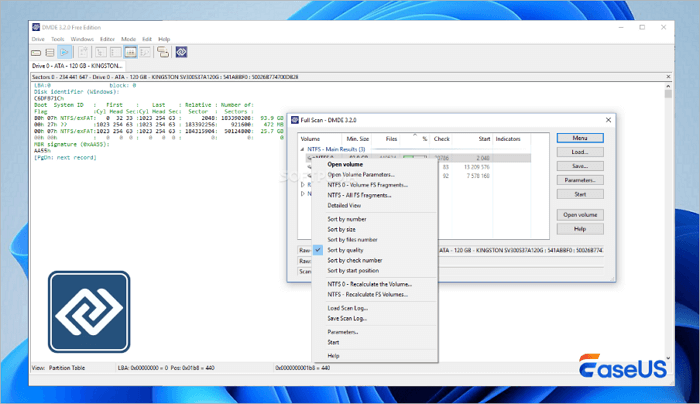
DMDE, short for DM Disk Editor, is a sophisticated data recovery and disk management software developed by the DMDE team. Unlike consumer-focused tools with flashy interfaces, DMDE is designed with a strong emphasis on technical depth, precision, and low-level access to storage devices. It supports a wide range of file systems, including NTFS, FAT, exFAT, and EXT, and can recover data from hard drives, SSDs, USB drives, memory cards, and even RAID arrays.
Initially built for IT professionals and data recovery specialists, DMDE has gradually gained traction among advanced home users due to its effectiveness and affordability. It operates at the sector level, allowing it to bypass operating-system limitations and read raw disk data directly. This makes it particularly useful when standard recovery tools fail. Now that we've established what DMDE is, let's explore its core capabilities in detail.
Features: What is DMDE Recovery Used for
DMDE boasts extensive compatibility across operating systems and file systems. It runs natively on Windows, but can also recover data from Linux (EXT series) and macOS (HFS+) partitions. This cross-platform capability is rare in mid-tier recovery tools and gives DMDE a significant edge.
🗂️Support for Systems and File Types
It supports recovery of hundreds of file types, from standard documents (DOCX, PDF, XLSX) and media files (JPEG, MP4, MP3) to specialized formats used in engineering, design, and development. Whether you're dealing with a corrupted USB drive or a failed system partition, DMDE can identify and restore a vast array of file formats with high accuracy.

Camera Photo Recovery: Restore Lost Photos from Any Camera or SD Card
In this page, you will learn about digital camera photo recovery and how to recover lost digital photos, pictures, images, and videos from a memory card.

🎯Scanning Ability and Recovery Success Rate
Where DMDE truly shines is in its scanning engine. It offers multiple scan modes:
- Quick Scan: Ideal for recently deleted files or minor corruption.
- Deep Scan: Performs a sector-by-sector analysis, capable of recovering data from heavily damaged or reformatted drives.
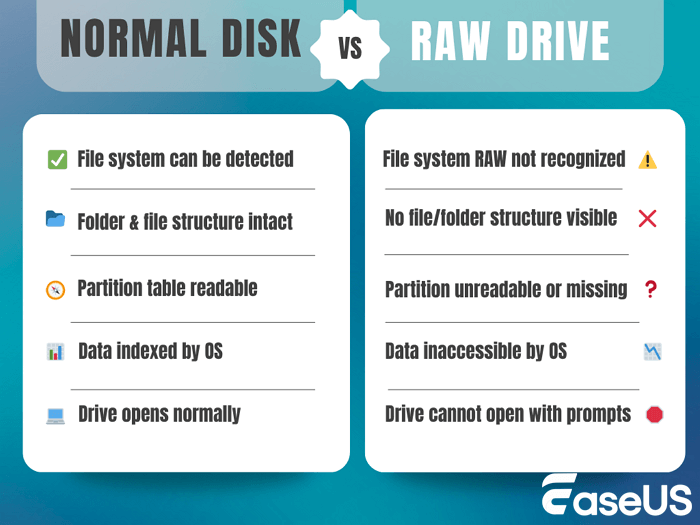
- Raw Recovery: Extracts file content based on signatures, applicable when file system structures are lost.

What Is RAW Drive Recovery? How to Recover Data?
What to do when your hard drive becomes RAW, and how to recover data from the RAW drive? This page explains how to use EaseUS RAW drive recovery software to recover data from a RAW drive.
In real-world testing, DMDE achieved a recovery success rate exceeding 90% on moderately damaged drives and, even on severely corrupted media, outperformed many competitors. Its ability to detect and reconstruct fragmented files - especially on NTFS volumes - is awe-inspiring.
That said, power comes with complexity - let's examine how user-friendly DMDE really is.
💻User Experience, and Target User Group
DMDE's interface is functional but not intuitive for beginners. It resembles a hex editor, with a tree-view file structure and technical metadata displays. While this is ideal for professionals who need granular control, it can be overwhelming for average users.
Key UX aspects:
No drag-and-drop recovery - users must manually mark files and choose export locations.
Limited visual cues: file status is indicated by text and color codes.
Preview functionality is available for images and text files, but not for all formats.
As a result, DMDE is best suited for:
IT administrators
Data recovery technicians
Power users comfortable with disk-level operations.
Users recovering from complex scenarios (e.g., RAID, encrypted volumes)
While it lacks the simplicity of tools like Recuva or EaseUS, its depth compensates for the learning curve.
If you find this information helpful, please share it with others on social media to assist them in overcoming this common challenge.
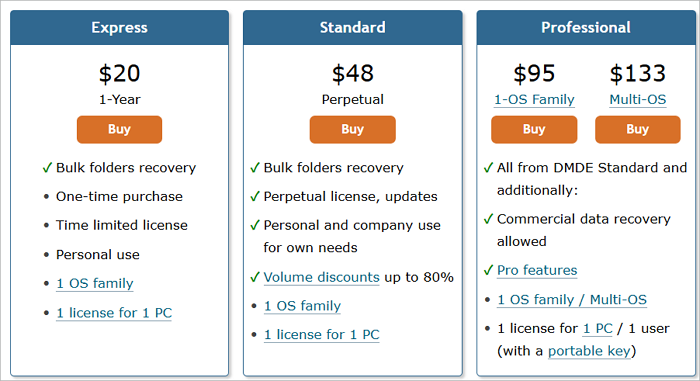
Price: Is DMDE Worth It
Product Reputation and User Feedback
DMDE enjoys a strong reputation in technical communities, including forums such as Ten Forums, BleepingComputer, and Stack Overflow. Users frequently praise its ability to recover data where other tools fail, especially in cases involving:
- Corrupted boot sectors
- Reformatted drives
- Lost partitions after failed OS installations
Professional reviewers and data recovery labs often recommend DMDE as a secondary or emergency tool, citing its low cost and high success rate in niche scenarios. However, some users note that the absence of a modern UI and limited customer support are drawbacks.
Comparison: DMDE and Alternative Free Data Recovery Software
EaseUS Data Recovery Wizard may be a reliable alternative to DMDE due to its advanced recovery features, intuitive interface, and high success rate. In contrast to DMDE, this EaseUS data recovery program offers several noteworthy features across multiple areas to meet diverse data recovery requirements.
- Easy to use, cross-platform compatibility (Windows/MacOS), and a large free recovery limit (2 GB) are key selling points.
- Focuses on "foolproof recovery" for user experience, assisting non-technical users.
- Long brand history and high level of trust.
Step 1. Choose the exact file location and then click the "Search for Lost Data" button to continue.
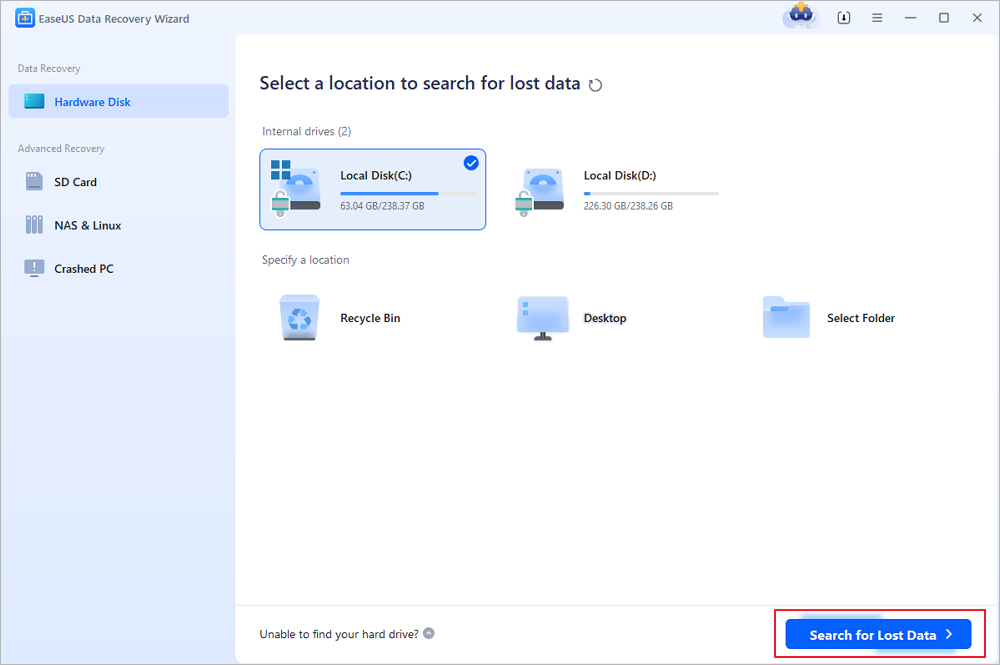
Step 2. After the process, locate the deleted or lost files in the left panel using the "Path" or "Type" feature. Or, you can apply the "Filter" feature to find the deleted files.
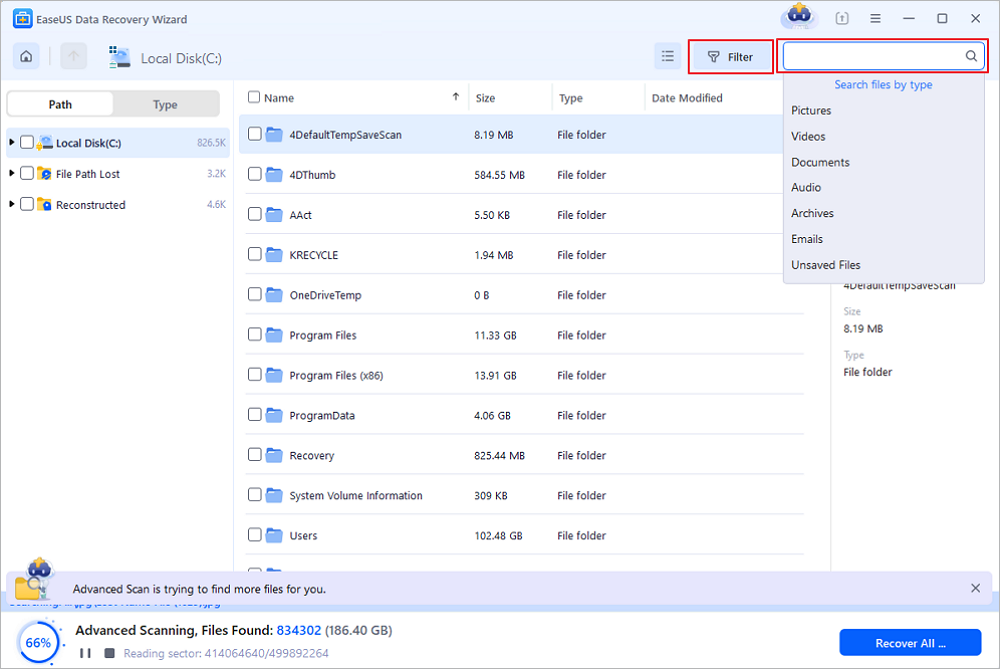
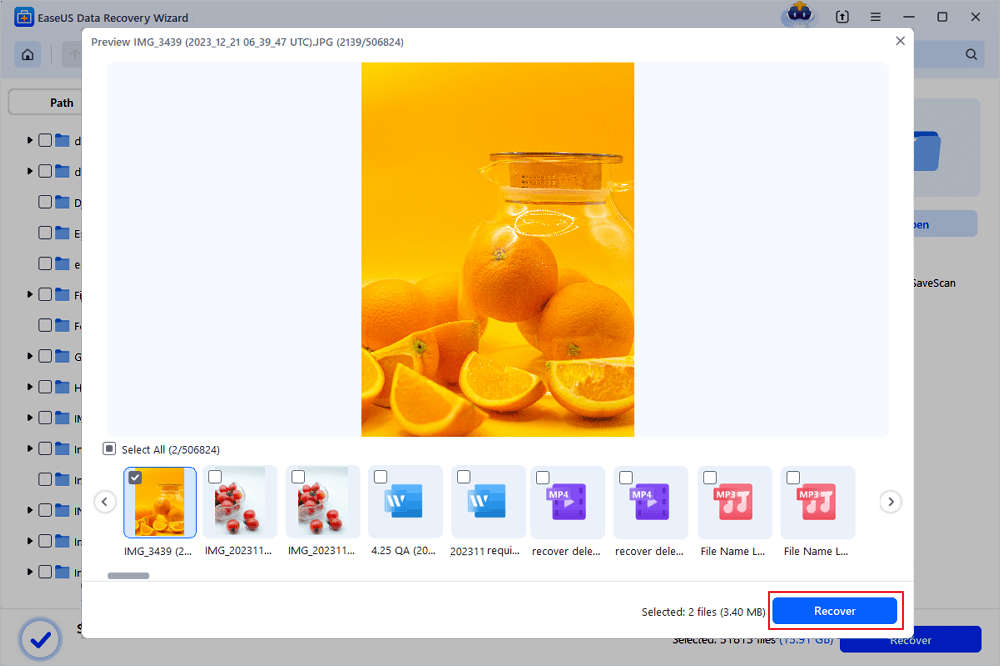
Step 3. Click the "Recover" button and save the restored files – ideally, it should be different from the original one. You can choose a cloud storage, such as OneDrive, Google Drive, etc., and click "Save" to save your recovered files.
Conclusion
DMDE stands out in the data recovery landscape as a powerful, affordable, and technically deep solution. While its interface may intimidate beginners, its capabilities more than justify the learning curve - especially for IT professionals, system administrators, and users facing complex data loss scenarios.
Was this page helpful?




 Why Trust EaseUS
 Editor Reviews

20+
Years of experience

160+
Countries and regions

72 Million+
Downloads

4.9 +
Trustpilot Score





