





-
![]() EaseUS Data Recovery Wizard Free Version Safe Download (2026)
EaseUS Data Recovery Wizard Free Version Safe Download (2026) October 23,2026
 6 min read
 -
![]() EaseUS Data Recovery Wizard 20.1 vs 20.0: Savior for Old DevicesOctober 22,20266 min read
EaseUS Data Recovery Wizard 20.1 vs 20.0: Savior for Old DevicesOctober 22,20266 min read -
![]() Stellar Data Recovery Review: Performance, Pros & ConsOctober 23,20266 min read
Stellar Data Recovery Review: Performance, Pros & ConsOctober 23,20266 min read -
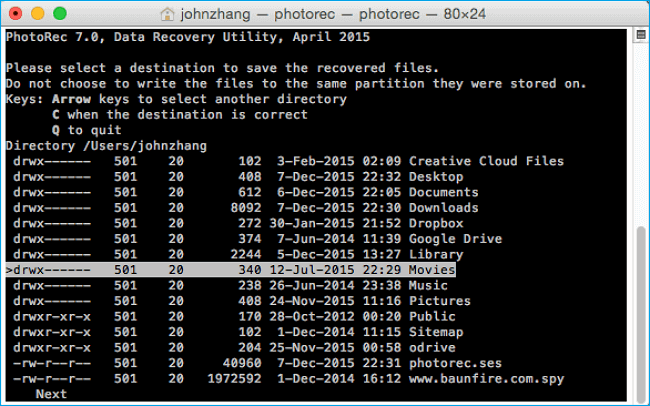
![]() 6 Best Free Disk Drill Alternatives for Mac Data Recovery in 2026October 23,20266 min read
6 Best Free Disk Drill Alternatives for Mac Data Recovery in 2026October 23,20266 min read -
![]() Best Data Rescue Alternative Ever [Free Download]October 22,20266 min read
Best Data Rescue Alternative Ever [Free Download]October 22,20266 min read -
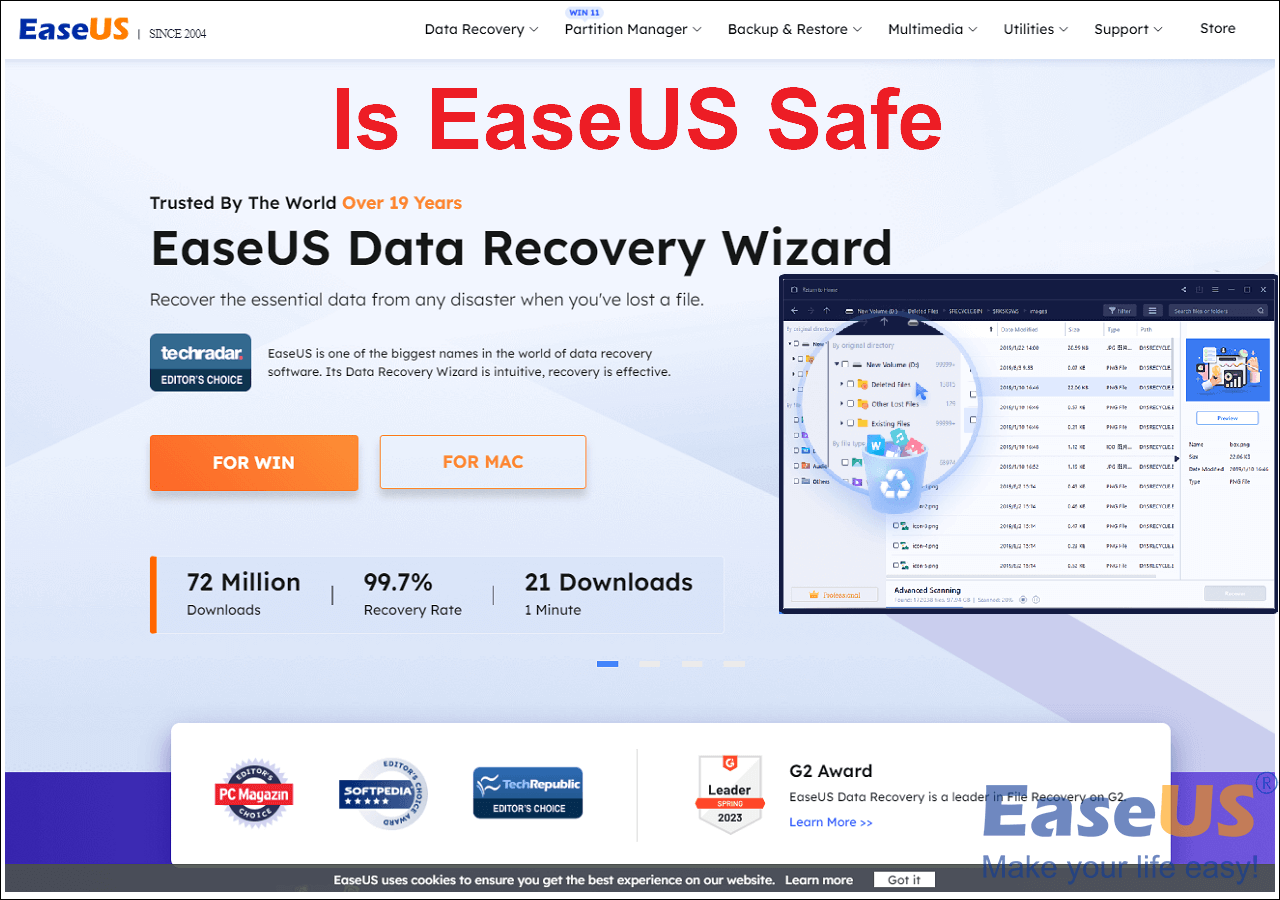
![]() Is EaseUS Safe | Is EaseUS Data Recovery Safe [True Review on EaseUS]October 23,20266 min read
Is EaseUS Safe | Is EaseUS Data Recovery Safe [True Review on EaseUS]October 23,20266 min read -
![]() Data Rescue vs EaseUS Data Recovery: Full Comparison & 2026 ReviewOctober 22,20266 min read
Data Rescue vs EaseUS Data Recovery: Full Comparison & 2026 ReviewOctober 22,20266 min read -
![]() What Are the Best Alternatives to EaseUS Data RecoveryOctober 22,20266 min read
What Are the Best Alternatives to EaseUS Data RecoveryOctober 22,20266 min read -
![]() Recuva for Mac Free Download - Recover Deleted Files!September 22,20266 min read
Recuva for Mac Free Download - Recover Deleted Files!September 22,20266 min read -
![]() R-Studio for Mac: Ultimate Guide to R-Studio on macOSOctober 23,20266 min read
R-Studio for Mac: Ultimate Guide to R-Studio on macOSOctober 23,20266 min read
Page Table of Contents
PAGE CONTENT:
EaseUS Data Recovery Wizard consistently recognized for its effectiveness in retrieving deleted and lost files, even from a formatted drive. It is praised for its user-friendly interface, strong performance with NTFS systems, and decent recovery rates for common data loss scenarios, making it great for beginners.
EaseUS released Data Recovery Wizard 20.1.0 in January 2026, which is designed to handle a wide range of data loss scenarios, from simple accidental deletions to more complex issues such as formatting, partition loss, or system crashes. In addition, compared to earlier versions, EaseUS Data Recovery Wizard 20.1 enhanced its ability to rebuild sections with the SSR (SmartSector Rebuild) Engine.
In this post, we will show you the big changes of EaseUS Data Recovery Wizard 20.1: what's new, What Users and Experts Say, Pros and Cons, and our verdict. Read on to learn the full EaseUS Data Recovery Wizard 20.1 review!
What's New in EaseUS Data Recovery Wizard 20.1
Compared to the EaseUS Data Recovery Wizard's last version, in addition to recovery speed, supported file types, etc., the new 20.1 has enhancements in two major aspects:
- 1. Enhance data recovery ability on long-term used storage devices
- 2. SmartSector Rebuild (SSR) Engine
In addition, targeting the cluster chain loss issue, the fragment recovery algorithm in EaseUS Data Recovery Wizard has been fully optimized - a pivotal upgrade for FAT32/EXFAT fragment data recovery, boosting the success rate by 30% by the enhanced algorithm. It delivers more reliable outcomes for users tackling complex data loss scenarios, such as RAW drive data recovery.
Download and install this reliable data recovery software on your Windows PC to recover deleted files in clicks!

How to Recover Permanently Deleted Files/Videos/Photos
This article discusses effective ways to recover permanently deleted files, including videos and photos, even after the Recycle Bin has been emptied. Read more >>
EaseUS Data Recovery Wizard 20.1 Review: Users & Experts Say
Users consistently commend its ease of use and high success rate in common recovery tasks. Phrases like operation is quite simple and good recovery results are common. Industry experts have noted it as "one of the most powerful file recovery programs we've used". Feedback from various platforms paints EaseUS Data Recovery Wizard 20.1 as a reliable tool:
EaseUS to Unveil Data Recovery Wizard 20.1.0 with Breakthrough SSR Technology, Setting a New Standard for Fragmented File Recovery!
Powered by SSR, EaseUS Data Recovery Wizard 20.1.0 has increased its recovery success rate by 30% on FAT32, exFAT, and other external and internal devices, especially on those devices that are frequently used over a long period of time.
EaseUS Data Recovery Wizard 20.1.0 gains a new recovery engine that can improve results on USB drives, SD cards, and external hard drives that have seen years of repeated use.
SmartSector Rebuild (or SSR for short) can reconstruct files that have been split across storage sectors over time, a condition that often prevents standard recovery tools from restoring usable data.
The software has been ranked highly in comparative data recovery reviews. One 2026 roundup rated it among the top data recovery tools, particularly noting its balance between professional-grade recovery and user-friendliness.
Don't forget to share this post with your friends to help them learn the full EaseUS Data Recovery Wizard 20.1 review and how to restore deleted files using it!

EaseUS Data Recovery Wizard 20.1 Pros & Cons
Here's pros and cons of EaseUS Data Recovery Wizard 20.1:
| ✅Pros | ❌Cons |
|---|---|
| Intuitive, beginner-friendly interface | The scanning process can be slow, especially for deep scans on large drives |
| High recovery success rate for common data loss scenarios | The free version has a recovery limit (e.g., 2GB), which is common but still a constraint |
| Broad device and file format support | Professional licenses are considered expensive by some users compared to alternatives |
| Crucial file preview feature before recovery | Recovery success is not guaranteed and depends heavily on the specific condition of the storage device |
How to Use EaseUS Data Recovery Wizard 20.1
Since EaseUS Data Recovery Wizard 20.1 has so many enhancements, updating to the latest version can effectively increase your data recovery probability. So don't hesitate to get 20.1, the strongest version available! Download and install the EaseUS Data Recovery Wizard 20.1 from the EaseUS official site, or click the download button below:
Check out the following steps to restore deleted files using EaseUS Data Recovery Wizard 20.1:
Note: To guarantee a high data recovery chance, install EaseUS data recovery software on another disk instead of the original disk where you lost files.
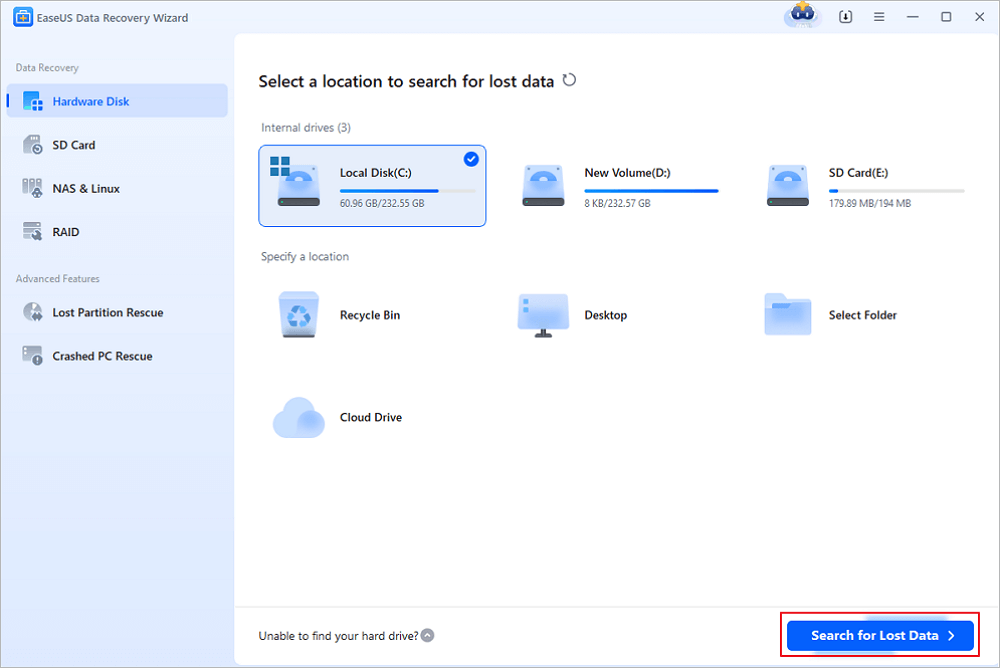
Step 1. Launch EaseUS Data Recovery Wizard on your Windows 11, Windows 10, Windows 8, or Windows 7 computer. Select the disk partition or storage location where you lost data and click "Search for Lost Data".
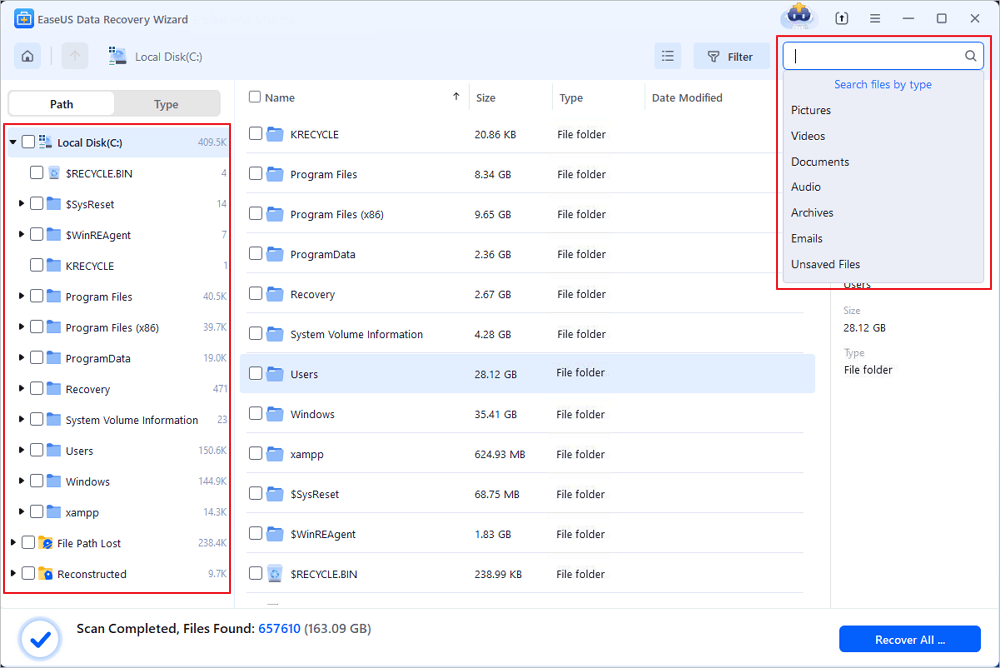
Step 2. This recovery software will start scanning the disk to find all lost and deleted files. When the scan process completes, click "Filter" > "Type" to specify lost file types. If you remember the file name, you can also search in the search box, which is the fastest way to find the target file.
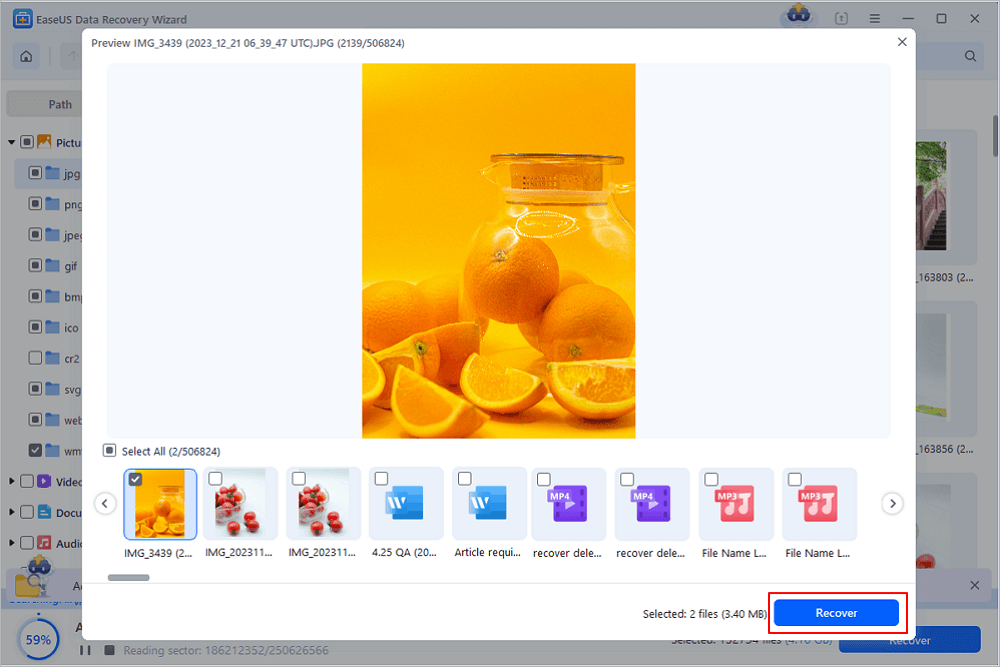
Step 3. Preview and restore lost Windows files. You can double-click to preview the scanned files. Then, select the target data and click the "Recover" button to save them to another safe spot in the PC or Cloud drive.
Share this post to help more people learn how to use EaseUS professional data recovery software!
Our Verdict
EaseUS Data Recovery Wizard has cemented its reputation as a robust and dependable data recovery solution. Its primary strength lies in making powerful recovery techniques accessible to everyday users without requiring technical expertise. While it may not always be the absolute fastest tool, its high success rate and straightforward process make it an excellent choice for most consumers and professionals facing data loss emergencies.
For potential users, the best approach is to download the free version first. This allows you to scan your affected drive, preview the lost files it finds, and verify that your specific data is recoverable before committing to a purchase. This functionally risk-free trial is a significant advantage in choosing a recovery tool.
EaseUS Data Recovery Wizard 20.1 Review FAQs
1. What's new in EaseUS Data Recovery Wizard 20.1?
EaseUS Data Recovery Wizard 20.1's major update introduces the SmartSector Rebuild (SSR) Engine, a new technology focused on recovering fragmented files from frequently used storage like SD cards, USB drives, and HDDs, boosting success rates by up to 30% for photos/videos on these devices, and enhancing overall performance in various data loss scenarios.
2. Can EaseUS Data Recovery Wizard 20.1 recover data from old hard drives?
Yes, EaseUS Data Recovery Wizard 20.1 is specifically designed to recover data from old, heavily used hard drives, introducing SmartSector Rebuild (SSR) technology to significantly improve success rates for fragmented files often found on such devices. The new version boosts recovery for older storage (HDDs, SSDs, USBs) by intelligently reconstructing split data, making it more effective than previous versions for challenging data loss scenarios.
3. What is SmartSector Rebuild (SSR) Engine?
SmartSector Rebuild (SSR): Rebuilding Fragmented Files on SD Card with Precision. The newly developed SmartSector Rebuild (SSR) Engine in EaseUS Data Recovery Wizard 20.1. 0 is specifically designed to recover fragmented photos and videos from SD cards.
4. How to get EaseUS Data Recovery Wizard 20.1?
To get EaseUS Data Recovery Wizard 20.1, download the free version from the official EaseUS website, then install it; existing users can update via the in-app feature or visit the upgrade page for the latest version, which includes new fragmented file recovery technology for challenging data loss scenarios.
5. Is EaseUS Data Recovery Wizard 20.1 safe to use?
Yes, EaseUS Data Recovery Wizard 20.1 is generally considered safe and reliable for recovering data, provided you download it from the official EaseUS website to avoid malware, with recent updates focusing on better fragmented file recovery and local processing for privacy.
Read more frequently asked questions >>✨EaseUS Data Recovery Wizard 20.1 FAQ
Was this page helpful?

 Why Trust EaseUS
 Editor Reviews

20+
Years of experience

160+
Countries and regions

72 Million+
Downloads

4.9 +
Trustpilot Score





