





-
![]() PhotoRec Review: Still Capable of Recovery in 2026 [Complete Review]
PhotoRec Review: Still Capable of Recovery in 2026 [Complete Review] October 29,2026
 6 min read
 -
![]() [Free] TestDisk for Mac - File Recovery Software ReviewOctober 29,20266 min read
[Free] TestDisk for Mac - File Recovery Software ReviewOctober 29,20266 min read -
![]() Disk Drill vs EaseUS: Features, and Recovery Performance ComparedOctober 29,20266 min read
Disk Drill vs EaseUS: Features, and Recovery Performance ComparedOctober 29,20266 min read -
![]() Best Data Rescue Alternative Ever [Free Download]October 29,20266 min read
Best Data Rescue Alternative Ever [Free Download]October 29,20266 min read -
![]() Data Rescue vs EaseUS Data Recovery: Full Comparison & 2026 ReviewOctober 29,20266 min read
Data Rescue vs EaseUS Data Recovery: Full Comparison & 2026 ReviewOctober 29,20266 min read -
![]() EaseUS Data Recovery Wizard Review [Latest Info in 2026]October 29,20266 min read
EaseUS Data Recovery Wizard Review [Latest Info in 2026]October 29,20266 min read -
![]() EaseUS Data Recovery Wizard for Mac Review [Update in 2026]October 29,20266 min read
EaseUS Data Recovery Wizard for Mac Review [Update in 2026]October 29,20266 min read -
![]() Top 4 Disk Drill Alternatives in 2026 [Free Download]October 29,20266 min read
Top 4 Disk Drill Alternatives in 2026 [Free Download]October 29,20266 min read -
![]() Top 10 Best Free Data Recovery Software [Experts Reviewed]October 29,20266 min read
Top 10 Best Free Data Recovery Software [Experts Reviewed]October 29,20266 min read -
![]() 6 Best Free Disk Drill Alternatives for Mac Data Recovery in 2026October 29,20266 min read
6 Best Free Disk Drill Alternatives for Mac Data Recovery in 2026October 29,20266 min read
Page Table of Contents
R-Studio's complex user interface and technical parameters make it difficult for average Windows users facing accidental data loss. Windows users seeking an R-Studio alternative require software that balances high recovery success rates with modern drive scanning features. This guide includes EaseUS Data Recovery Wizard, Recuva, Stellar Data Recovery, DMDE, and TestDisk.
PAGE CONTENT:
Whether caused by accidental deletion, partition formatting, drive corruption, malware attacks, or sudden system crashes, losing valuable personal files creates panic. For years, R-Studio has been recognized as a heavily featured disk utility for raw data extraction and file system analysis.
Despite its technical power, R-Studio is far from user-friendly. The software presents a legacy interface that easily confuses non-technical users. For everyday Windows users who simply want to recover deleted documents, formatted photos, or missing partition content, modern consumer recovery software offers a much smoother experience.
Top R-Studio Alternatives for Windows Reviewed
The following detailed reviews highlight the best software tools available on Windows to replace R-Studio, covering both commercial applications and open source tools.
1. EaseUS Data Recovery Wizard
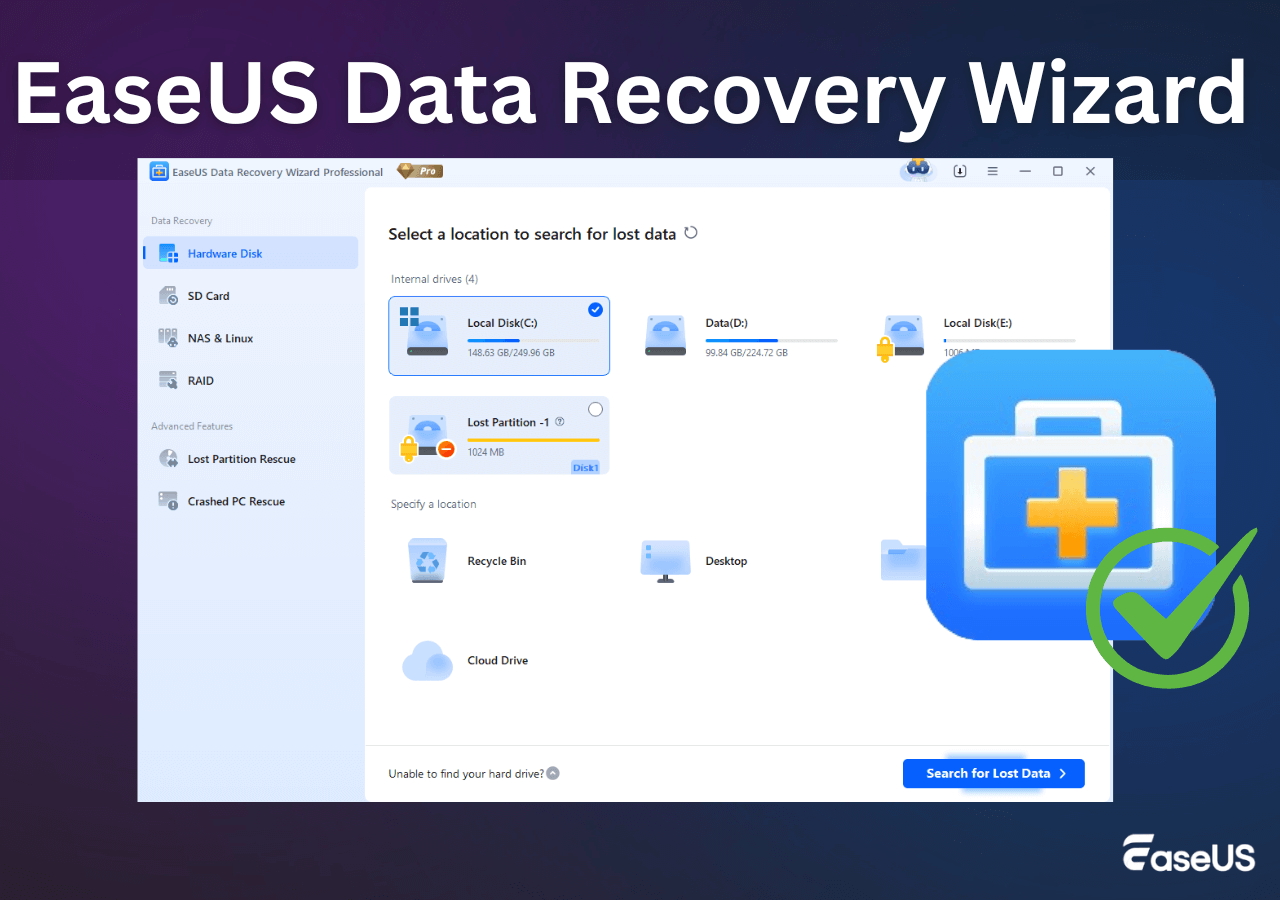
EaseUS Data Recovery Wizard for Windows is widely regarded as the ultimate replacement for R-Studio on Microsoft Windows environments. It bridges the gap between deep industrial scanning power and absolute user simplicity. Unlike R-Studio, which forces users to interpret raw sector logs, EaseUS automatically identifies lost files, corrupted partitions, and formatted drives behind a sleek visual interface.
EaseUS Data Recovery Wizard for Windows fully supports all primary Windows file systems including NTFS, FAT12, FAT16, FAT32, exFAT, and ReFS, while also handling external drives formatted for cross-platform use. It easily restores data from SSDs, HDDs, external USB drives, SD cards, and hardware RAID arrays.
PROS
✔
Exceptional recovery success rate across formatted, corrupted, and RAW drives on Windows.
✔
Extremely intuitive interface suitable for absolute beginners and IT professionals.
✔
Includes automated document and media repair tools during file extraction.
CONS
●
Free edition requires sharing the tool on social media.
2. Recuva
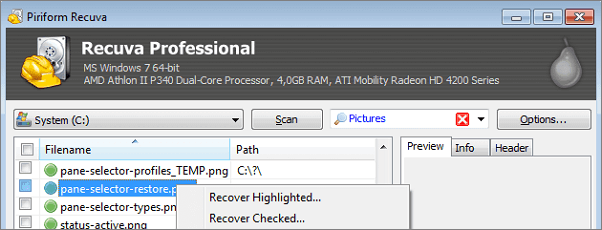
Recuva, developed by CCleaner creator Piriform, is a lightweight recovery application designed for Windows systems. It serves as a minimalist alternative for users who find R-Studio far too complicated for basic accidental file deletion scenarios.
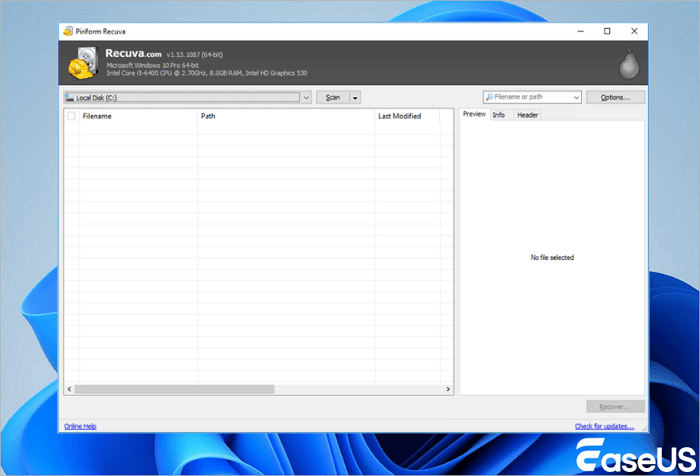
Recuva offers a fast wizard mode that asks simple questions about file location and file type before launching a scan. It works well for retrieving recently deleted files from the Windows Recycle Bin or formatted flash memory cards. However, Recuva lacks the deep sector parsing power necessary to handle severely corrupted raw partitions or complex hardware RAID structures.
PROS
✔
Extremely lightweight software footprint with negligible system resource usage.
✔
Offers a fully free basic version without strict file size restoration caps.
CONS
●
Outdated visual interface that has received few major updates in recent years.
●
Lower success rate on severely damaged, formatted, or unmountable RAW volumes.
3. Stellar Data Recovery for Windows
Stellar Data Recovery for Windows is a comprehensive commercial software package capable of handling complex data loss scenarios. It presents a modular interface that breaks recovery tasks down into selectable categories such as documents, photos, or emails.
Stellar handles unmountable drives, formatted partitions, and lost storage volumes across all standard Windows platforms. Higher-tier editions of Stellar also include drive cloning functions and video file repair features. While it provides strong technical performance, the scanning phase can occasionally consume high levels of computer CPU and memory resources.
PROS
✔
Strong file recovery capabilities across damaged Windows partitions.
✔
Higher tier editions include specialized video and photo repair capabilities.
CONS
●
Scanning phase can significantly slow down system responsiveness on older PC hardware.
●
Advanced features require subscribing to more expensive software tiers.
4. DMDE (DM Disk Editor and Data Recovery Software)
DMDE is a powerful raw disk editing and data recovery tool that caters directly to users who appreciate R-Studio's low-level technical approach but want a lighter, portable utility. DMDE provides direct sector access, raw hex editing, partition management, and disk cloning tools.
PROS
✔
Extremely fast raw scanning and low level sector editing features.
✔
Affordable pricing model with free basic usage options for small file recoveries.
CONS
●
Intimidating user interface that requires deep technical knowledge of drive geometry.
●
No guided recovery wizard, creating a high risk of user mistake during extraction.
5. TestDisk and PhotoRec
TestDisk focuses on repairing lost partition tables and fixing corrupted boot sectors, while PhotoRec is a dedicated raw file signature scanner that extracts data while bypassing broken file systems entirely.
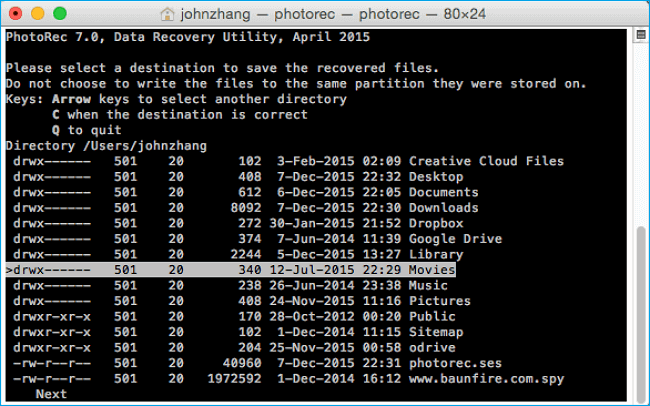
Because TestDisk and PhotoRec operate entirely through a command-line text interface on Windows, they lack any mouse control or graphical previews. They are completely free and offer powerful deep scanning, but the text interface requires careful reading of command prompts to avoid misconfigurations.
PROS
✔
Completely free open source software without data limits or commercial licenses.
✔
Incredible raw signature scanning for damaged flash media and corrupted drives.
CONS
●
Command line interface lacks graphical menus, mouse support, and image previews.
●
Recovered files lose their original filenames and folder tree structures.
Comparison Table of R-Studio Alternatives for Windows
The table below presents a clear side-by-side breakdown comparing the top R-Studio alternatives for Windows based on user friendliness, deep scanning power, primary strengths, and target user audience.
| Software Name | User Friendliness | Deep Scan Power | Standout Feature | Best Target Audience |
| EaseUS Data Recovery Wizard | Excellent | Professional Level | Automated file repair paired with three-step wizard interface | All Windows users seeking maximum recovery success without complexity |
| Recuva | High | Basic | Lightweight footprint with free quick file undelete | Casual users needing fast deletion reversal from Recycle Bin |
| Stellar Data Recovery | Moderate | Strong | Modular scan options with built-in video repair tools | Small business owners and creative professionals on Windows |
| DMDE | Low | Professional Level | Portable hex disk editor and direct sector partition tool | Technicians seeking low-level control at minimal software cost |
| TestDisk and PhotoRec | Low | Professional Level | Free open source signature scanner operating without file limits | Advanced users comfortable with command line operations |
How to Recover Lost Files with EaseUS Data Recovery Wizard
Switching from a complex software tool like R-Studio to an intuitive application like EaseUS Data Recovery Wizard makes file restoration effortless. Follow the straightforward three-step process below to rescue your missing data on Windows.
Note: To guarantee a high data recovery chance, install EaseUS data recovery software on another disk instead of the original disk where you lost files.
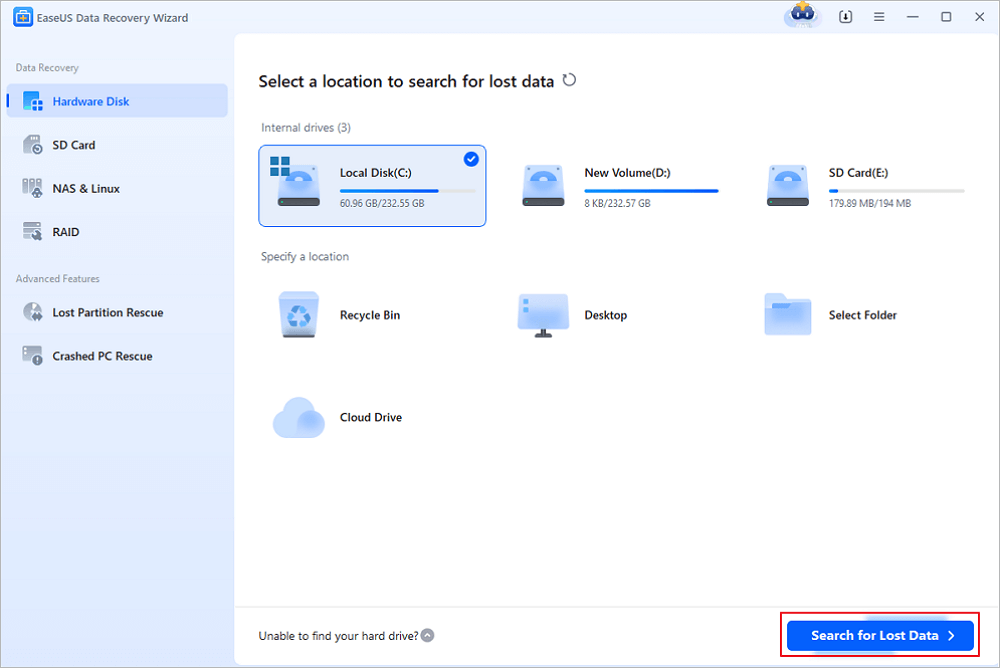
Step 1. Launch EaseUS Data Recovery Wizard on your Windows 11, Windows 10, Windows 8, or Windows 7 computer. Select the disk partition or storage location where you lost data and click "Search for Lost Data".
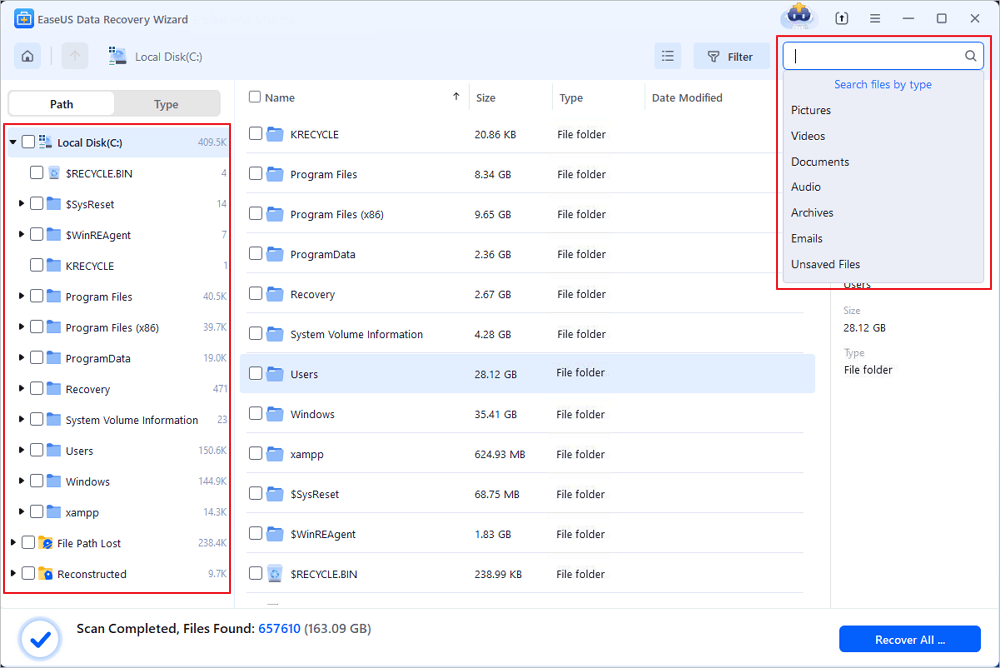
Step 2. This recovery software will start scanning the disk to find all lost and deleted files. When the scan process completes, click "Filter" > "Type" to specify lost file types. If you remember the file name, you can also search in the search box, which is the fastest way to find the target file.
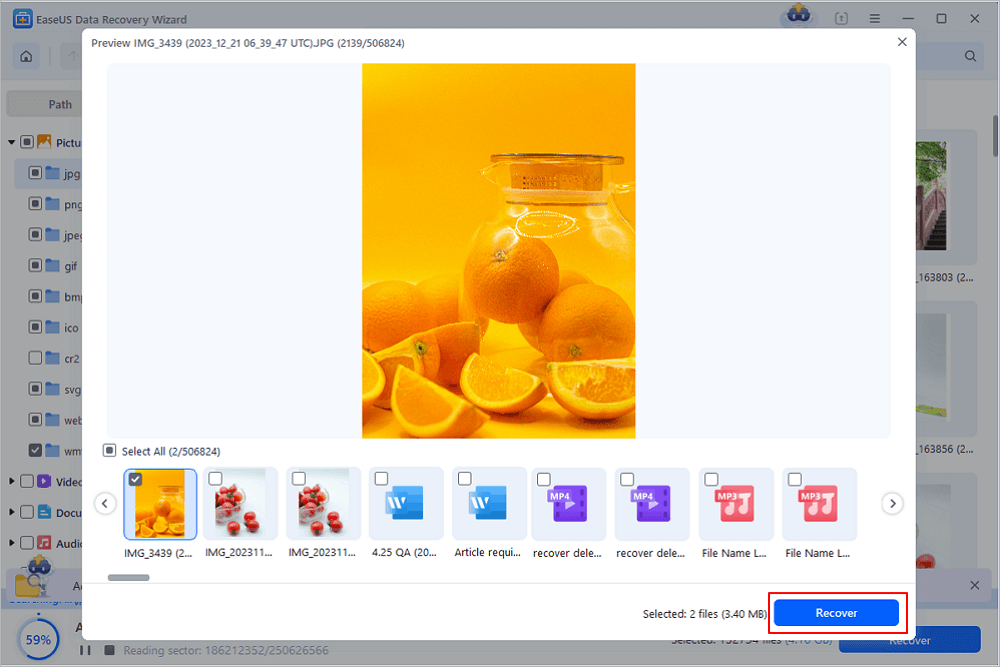
Step 3. Preview and restore lost Windows files. You can double-click to preview the scanned files. Then, select the target data and click the "Recover" button to save them to another safe spot in the PC or Cloud drive.
If you find this information helpful, please share it with others on social media to assist them in overcoming this common challenge.
Conclusion
When selecting a modern alternative on Windows, EaseUS Data Recovery Wizard stands out as the ultimate overall choice. By merging industrial-grade deep sector scanning algorithms with an intuitive step-by-step workflow, automated media repair capabilities, and broad file system compatibility, EaseUS allows Windows users to recover lost data quickly and safely without needing a degree in computer science.
R-Studio Alternatives FAQs
The following answers address the most common queries from Windows users seeking file restoration solutions.
1. Is EaseUS Data Recovery Wizard as effective as R-Studio?
EaseUS Data Recovery Wizard provides matching or superior recovery performance for standard file restoration scenarios such as formatted drives, deleted files, and corrupted partitions. While R-Studio offers low-level manual parameter controls for forensic technicians, EaseUS automates these complex background tasks, achieving high recovery success rates through an intuitive automated engine.
2. Can I recover data from a RAW partition without R-Studio?
Yes, modern alternatives like EaseUS Data Recovery Wizard excel at reading unformatted or corrupted RAW partitions on Windows. EaseUS bypasses damaged partition file systems to read underlying data sectors directly, allowing users to extract files from RAW drives without manual hex editing.
3. Why is R-Studio considered difficult for average computer users?
R-Studio presents a dense interface filled with technical jargon, raw sector addresses, offset numbers, and manual scanning parameters. It lacks a guided step-by-step wizard, which means non-technical users can easily become confused by the options or accidentally misconfigure settings during recovery.
Was this page helpful?

 Why Trust EaseUS
 Editor Reviews

20+
Years of experience

160+
Countries and regions

72 Million+
Downloads

4.9 +
Trustpilot Score





