





-
![]() PhotoRec Review: Still Capable of Recovery in 2026 [Complete Review]
PhotoRec Review: Still Capable of Recovery in 2026 [Complete Review] October 23,2026
 6 min read
 -
![]()
-
![]() Top 4 Disk Drill Alternatives in 2026 [Free Download]October 22,20266 min read
Top 4 Disk Drill Alternatives in 2026 [Free Download]October 22,20266 min read -
![]() Recuva Review: Features, Pros & Cons, and Real Recovery ResultsOctober 23,20266 min read
Recuva Review: Features, Pros & Cons, and Real Recovery ResultsOctober 23,20266 min read -
TestDisk vs EaseUS Data Recovery: Full Comparison & 2025 ReviewOctober 22,20266 min read
-
![]() What Are the Best Alternatives to EaseUS Data RecoveryOctober 22,20266 min read
What Are the Best Alternatives to EaseUS Data RecoveryOctober 22,20266 min read -
![]() Data Recovery Software Review Hub | Tests, VS & Top PicksOctober 22,20266 min read
Data Recovery Software Review Hub | Tests, VS & Top PicksOctober 22,20266 min read -
![]() Is EaseUS Safe | Is EaseUS Data Recovery Safe [True Review on EaseUS]October 22,20266 min read
Is EaseUS Safe | Is EaseUS Data Recovery Safe [True Review on EaseUS]October 22,20266 min read -
![]() PhotoRec vs EaseUS Data Recovery: Full Comparison & 2026 ReviewOctober 22,20266 min read
PhotoRec vs EaseUS Data Recovery: Full Comparison & 2026 ReviewOctober 22,20266 min read -
![]() M3 BitLocker Recovery Alternative Free DownloadOctober 23,20266 min read
M3 BitLocker Recovery Alternative Free DownloadOctober 23,20266 min read
Page Table of Contents
Accidental file deletion or data loss due to hard drive failure, virus attack, malware infection, etc., can feel like a disaster. For Mac users seeking a powerful solution, R-Studio for Mac is professional-grade data recovery software.
This comprehensive guide will walk you through what R-Studio for Mac is, how to use R-Studio on your Mac, and introduce a top-rated alternative. Read on to learn more detailed information!
PAGE CONTENT:
What is R-Studio
R-Studio is a sophisticated, cost-effective family of data recovery and undeletion software. It employs unique recovery technologies to provide a wide range of solutions for retrieving files from various file systems, including those commonly used by Windows, Linux, and macOS. Its capabilities extend to handling complex scenarios, such as RAID recovery, reassembling broken RAID arrays, etc.
A common source of confusion is its name, which is identical to that of a popular integrated development environment (IDE) for the R programming language. It's crucial to distinguish between the two: the R-Studio discussed here is exclusively for data recovery.
Despite its long-standing reputation in the tech community, many users still question: Does R-Studio support macOS? R-Studio is compatible with different operating systems, so the answer is a definitive yes. R-Studio for Mac is a dedicated version designed to navigate the intricacies of Apple's file systems and hardware.
How to Get R-Studio for Mac
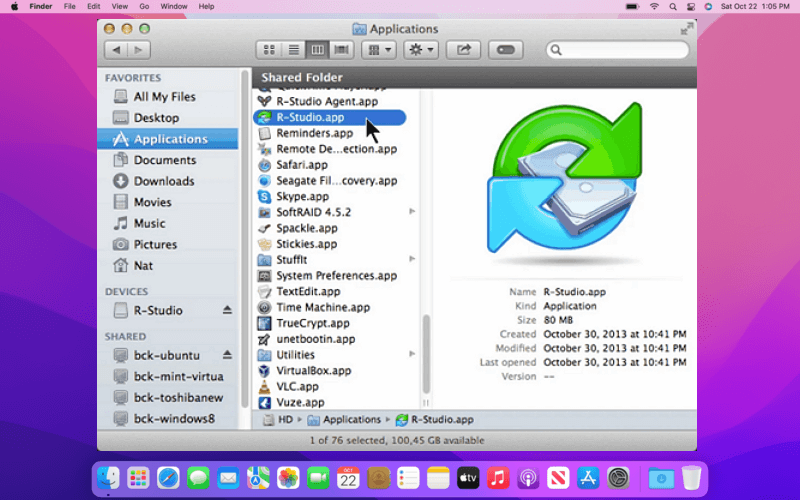
Acquiring R-Studio for Mac is straightforward. You can download the demo version directly from the official R-TT website to evaluate its effectiveness for your specific data loss situation.
Key Details for Installation:
- Download Size: Approximately 152.65 MB for the standard version.
- System Requirements: The software is compatible with a wide range of Macs, from older Intel-based models to newer Apple Silicon machines.
| Component | Minimum Requirement |
|---|---|
| Processor | Compatible Intel 64-bit or Apple M1 chip |
| macOS | 10.14 Mojave to 12 Monterey (Standard version) |
| Older macOS | A separate download supports versions from OS X 10.4 Tiger to 10.14 Mojave |
| RAM | At least 256 MB |
The demo version is fully functional but limits file recovery to files smaller than 1 MB (1024 KB). It allows you to scan and preview recoverable files, including large ones, to verify their integrity before purchasing a license.
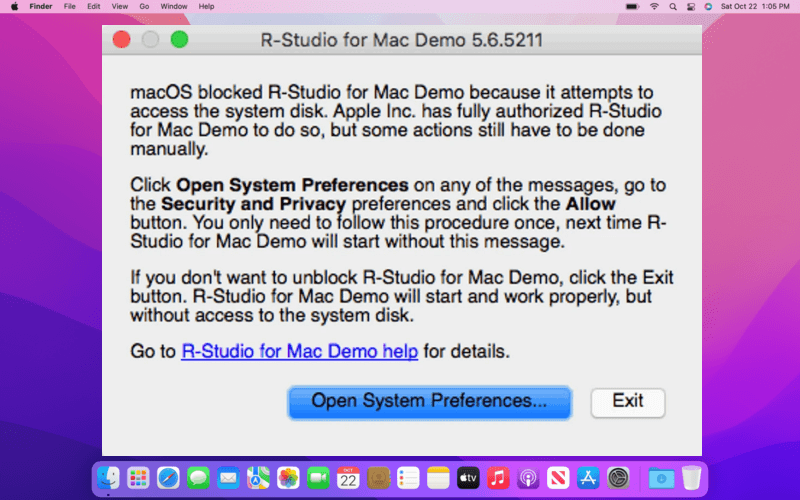
In addition, as you see in this table, if your Mac is running OS Monterey (macOS 12) or later, you can't use R-Studio on your Mac. In this case, check for the best alternative to R-Studio.
How to Use R-Studio for Mac
Using R-Studio for Mac, one of the best Mac data recovery software, involves a systematic process to safely locate and restore your lost data.
Step 1. Launch and Select the Scan Location
After installation, open R-Studio. The main interface will display all connected drives. Carefully select the disk or partition from which you lost files.
Step 2. Initiate the Scan
Click the "Scan" button. You can often adjust scan settings for a more targeted search. R-Studio will meticulously analyze the drive's sectors for recoverable data. The time required depends on the drive's capacity and health.
Step 3. Preview and Recover Files
Once the scan is complete, R-Studio presents the found files in a structured list, often reconstructing original folder hierarchies. This is where the preview function is vital—you can double-click files like documents, images, and videos to confirm they are intact before recovery.
- For the demo version, you can preview any file. If you attempt to recover a file larger than 1MB, you will be prompted to purchase and register the software.
- Check the boxes next to the files you wish to restore. Critically, you must choose a safe recovery destination—a different physical drive from the source, to avoid overwriting the lost data.
Share this post with your friends on SNS and help more people learn what R-Studio for Mac is, how to download and use it for Mac file recovery.

Best Alternative to R-Studio on Mac
While R-Studio is powerful, EaseUS Data Recovery Wizard for Mac is frequently ranked as a top alternative and is considered one of the best file recovery software options for Mac users. It is particularly praised for balancing a user-friendly interface with professional-grade recovery capabilities.
Here's why EaseUS is a compelling alternative:
| Feature | EaseUS Data Recovery Wizard for Mac Advantage |
|---|---|
| User Experience | Features an intuitive, three-step "Select > Scan > Recover" that is suitable for non-technical users. |
| Free Recovery Allowance | Offers a more generous free tier, allowing up to 2GB of data to be recovered without purchase. |
| macOS Integration | Boasts specialized compatibility, including claimed support for recovering data from Macs with the Apple T2 Security Chip. |
| File Preview & Filtering | Includes robust filtering and search tools to quickly sift through scan results, as well as previews for various file types. |
| Additional Tools | Comes with extra utilities like disk monitoring and the ability to create a bootable recovery USB drive. |
EaseUS supports recovery from various scenarios like accidental deletion, formatting, system crashes, and partition loss, and can restore over 1,000 different file types. Experts note it "combines a user-friendly approach with a convenient set of features" for recovering accidentally deleted files.
Check out the following steps to recover deleted files on a Mac after emptied Mac Trash folder:
Step 1. Search for lost files
Select the disk location to search for lost files (it can be an internal HDD/SSD or a removable storage device) on macOS Sierra, High Sierra, Mojave, Catalina, Big Sur, Monterey, Ventura, and the latest Sonoma. Click the "Search for lost files" button.

Step 2. Go through the scanning results
EaseUS Data Recovery Wizard for Mac will immediately scan your selected disk volume and display the scanning results.
Step 3. Select the file(s) and recover
In the scan results, select the file(s) to preview and click the "Recover" button to have them back.
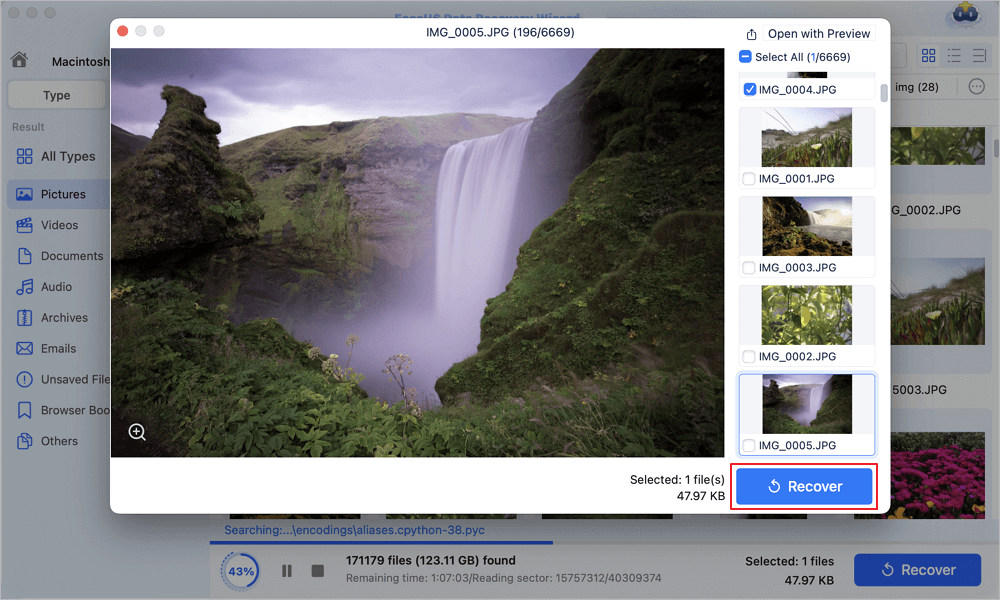
Here's a full comparison and data recovery software review of R-Studio and EaseUS Data Recovery Wizard. Take a look to choose the one that works best for you.
R-Studio vs EaseUS Data Recovery Wizard: Full Comparison
While both R-Studio and EaseUS Data Recovery Wizard are potent tools for recovering deleted or lost files, EaseUS consistently delivers more stable recovery, a more intuitive interface, and higher success rates, particularly in complex cases such as BitLocker drives. Read more >>
Conclusion
R-Studio for Mac remains a powerful and highly capable tool for complex data recovery tasks, especially for users comfortable with its detailed interface. You can test its efficacy on your specific data loss scenario through its fully functional demo.
For many Mac users, however, EaseUS Data Recovery Wizard for Mac presents a strong alternative, offering a simpler recovery process, a more substantial free recovery quota, and excellent success rates. The best choice ultimately depends on your technical comfort level and the specific nature of your data loss emergency.
R-Studio for Mac FAQs
1. Is RStudio available for Mac?
RStudio is available in open source and commercial editions and runs on the desktop on Windows, Mac, and Linux.
2. Is RStudio no longer free?
RStudio Desktop and RStudio Server are both available in free and fee-based (commercial) editions.
3. How to recover permanently deleted files from the Mac Trash Bin?
To recover permanently deleted files from a Mac's emptied Trash, the best methods are restoring from a Time Machine backup, checking iCloud Drive's Recently Deleted, or using specialized data recovery software, such as EaseUS Data Recovery Wizard.
Was this page helpful?
-
Dany is an editor of EaseUS who lives and works in Chengdu, China. She focuses on writing articles about data recovery on Mac devices and PCs. She is devoted to improving her writing skills and enriching her professional knowledge. Dany also enjoys reading detective novels in her spare time. …



 Why Trust EaseUS
 Editor Reviews

20+
Years of experience

160+
Countries and regions

72 Million+
Downloads

4.9 +
Trustpilot Score





