





-
![]() Solved: Windows 11 Safe Mode Not Working | 5 Solutions
Solved: Windows 11 Safe Mode Not Working | 5 Solutions October 14,2026
 6 min read
 -
![]()
-
![]() How to Fix Corrupted HTML File Recovery Solutions (Online & Offline)October 14,20266 min read
How to Fix Corrupted HTML File Recovery Solutions (Online & Offline)October 14,20266 min read -
![]() Fix Error 0x80070490 in Windows Update, Mail App, and Xbox [Full Guide in 2026]October 14,20266 min read
Fix Error 0x80070490 in Windows Update, Mail App, and Xbox [Full Guide in 2026]October 14,20266 min read -
![]()
-
![]() Atomic Heart Save File Location on a PC [2026 Tips]October 14,20266 min read
Atomic Heart Save File Location on a PC [2026 Tips]October 14,20266 min read -
![]() How to Fix 0x4005(16389) Error | Windows Update FailedOctober 14,20266 min read
How to Fix 0x4005(16389) Error | Windows Update FailedOctober 14,20266 min read -
![]() What Is Dynamic Disk | Everything About Windows Dynamic Disk You Should KnowOctober 14,20266 min read
What Is Dynamic Disk | Everything About Windows Dynamic Disk You Should KnowOctober 14,20266 min read -
![]() 4 Methods | How to Convert RAW to FAT32 for Micro SD Card/USBOctober 14,20266 min read
4 Methods | How to Convert RAW to FAT32 for Micro SD Card/USBOctober 14,20266 min read -
![]()
Page Table of Contents
PAGE CONTENT:
OpenClaw is an open-source, local-first, self-hostable autonomous AI agent and automation platform. Its core is to enable AI to "perform tasks" directly on your device using natural-language commands, rather than just provide dialogue replies like chatbots. Many users deeply integrate OpenClaw with Claude, leveraging Claude's large model capabilities to achieve automated tasks such as code writing, file organization, and task scheduling. However, in practice, frequent file loss incidents have left many users frustrated.
I was having the Claude CLI clean up my packages in an old repo, and it nuked my whole Mac! What the hell? Has anyone ever had this happen? I'm trying to figure out if this is even reversible. So much work lost.. from Reddit
In fact, file loss when using the OpenClaw+Claude combination is not a technical failure of a single platform. Instead, it results from the interplay of multiple factors, including Claude's operational logic, OpenClaw's deployment configuration, and operational details of tool integration. In most cases, lost files are not completely destroyed and can still be recovered.
Causes of File Loss with OpenClaw
As an AI assistant "scheduling framework", OpenClaw does not directly perform file operations. Instead, it transmits user instructions to associated AI models, such as Claude, via gateways and channels, then feeds the execution results back to local devices. File loss essentially occurs in four links: instruction transmission, model execution, local implementation, and storage management. Among these, Claude's execution logic and OpenClaw's deployment configuration are the two primary triggers.
1. Claude Side: Operational Risks of Model Execution
This is the most common cause of file loss and the most frequently reported scenario by users. All issues relate to Claude's functional characteristics and are unrelated to OpenClaw integration, but they are amplified by OpenClaw's automated execution:
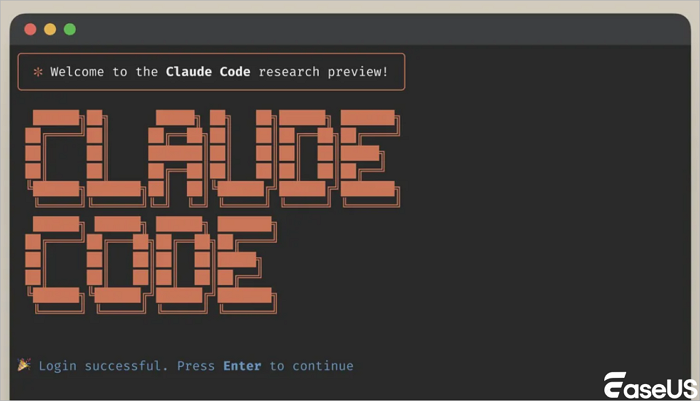
- Unauthorized execution of destructive commands by Claude Code. When users send non-deletion instructions, such as file copying, moving, or organizing to Claude via OpenClaw, Claude Code may independently append deletion commands like rm -rf (Linux/Mac) or del (Windows) to "optimize paths" or "clean up redundancies" without seeking user confirmation.
- If the local device (such as Windows) has a case-insensitive file system, there is a high risk of accidentally deleting target folders.
- OpenClaw's automated execution feature directly runs this command without manual review, further increasing the probability of file loss.
2. Tool Integration: Operational Oversights Between OpenClaw/Claude and Local Editors
File operations with OpenClaw+Claude often integrate with local code editors (VS Code, Cursor) and office software. Many instances of file loss result from human operational oversights rather than model execution errors, but are attributed to AI platform issues:
- Disabled local editor history feature: Tools like VS Code and Cursor include a built-in "local history" function to record all file modification traces. However, most users do not enable this feature. When the AI recommends deleting redundant code/files and the user confirms the operation by mistake, or the model executes an incorrect deletion command, files cannot be recovered through the history records.
- Improper operation of SD cards/external storage: If files are stored on external devices such as SD cards or mobile hard disks, failure to safely eject the device while OpenClaw+Claude performs file operations can cause file system corruption, resulting in inaccessible or missing files.

SD Card Data Recovery
A complete SD card data recovery guide covering deleted files, formatted cards, corrupted or RAW SD cards. Read more >>
How to Recover OpenClaw Deleted Files/Directory
When facing file loss with the OpenClaw+Claude combination, avoid further read/write operations on local storage devices. Overwriting residual data from lost files will reduce the chances of recovery. The following methods are arranged in order of "low operational difficulty and high recovery success rate".
1. Recover Recently Lost Files Due to Editor Errors
If files were just deleted and the local editor remains open without any read/write operations on the device, prioritize these immediate recovery methods with a success rate close to 100%:
- One-click undo in the editor: In editors like VS Code or Cursor, press Ctrl+Z (Windows) or Cmd+Z (Mac) to undo the last operation executed by the AI and directly recover accidentally deleted files. If multiple undoes are ineffective, use the editor's "Edit → Undo History" to locate and restore the specific deletion operation.
- Reject pending OpenClaw instructions: If you discover Claude has generated a destructive deletion command that OpenClaw has not yet executed, immediately terminate the task in OpenClaw's gateway backend or directly close the OpenClaw process to prevent command execution.
2. Retrieve Deleted/Corrupted Files with Local Tools
If files were deleted some time ago or the editor cache has been cleared, use local version control tools and built-in system features for recovery – suitable for users with basic operational habits:
- System-built file history/Time Machine: Windows users can use the "File History" feature to find and restore backup versions of files before they are lost. Mac users can use Time Machine to revert to a file's state at a specific point in time and recover accidentally deleted files.
- File system corruption repair: If files become inaccessible or missing due to improper operation of external devices or model execution errors, Windows users can run the CHKDSK command (chkdsk drive letter: /f /r) to repair the file system. Mac users can use Disk Utility's "First Aid" feature. Files that were previously inaccessible will likely return to normal after repair.
3. Retrieve Deeply Deleted Files with Data Recovery Software
If the above methods fail, it indicates that the file's directory structure has been deleted or that minor data overwriting has occurred. Use professional data recovery software to scan residual data on local devices and recover lost files, suitable for office documents, videos, images, and code files without version control:
EaseUS Data Recovery Wizard is recommended. This tool can scan various storage devices, including hard disks, SD cards, and mobile hard disks. It supports recovery of deleted, formatted, or corrupted files and allows previewing recovery results to avoid restoring invalid files.
Here are the steps:
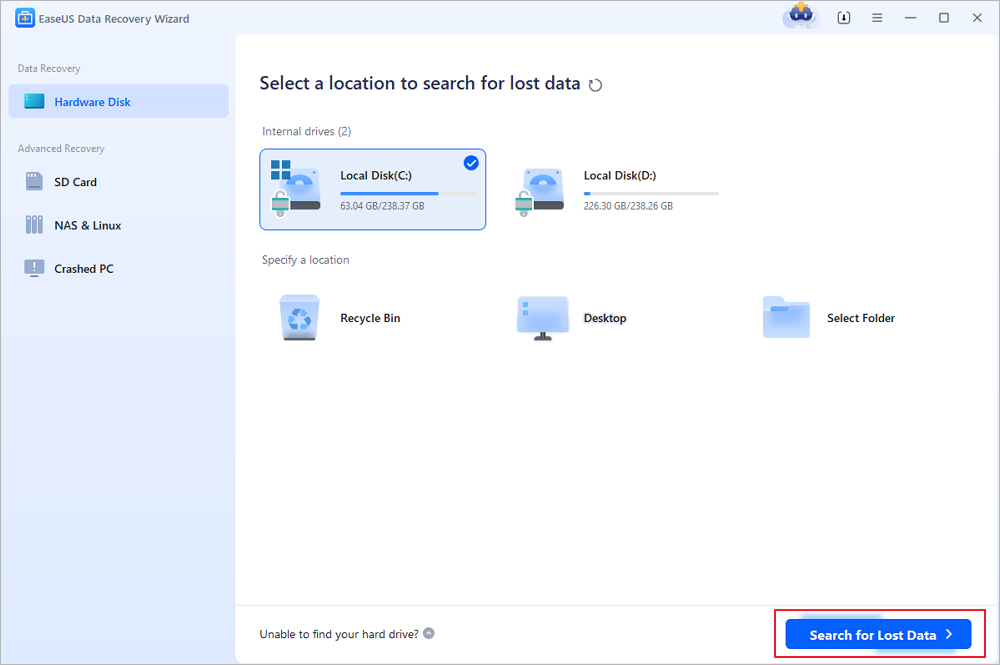
Step 1. Choose the exact file location and then click the "Search for Lost Data" button to continue.
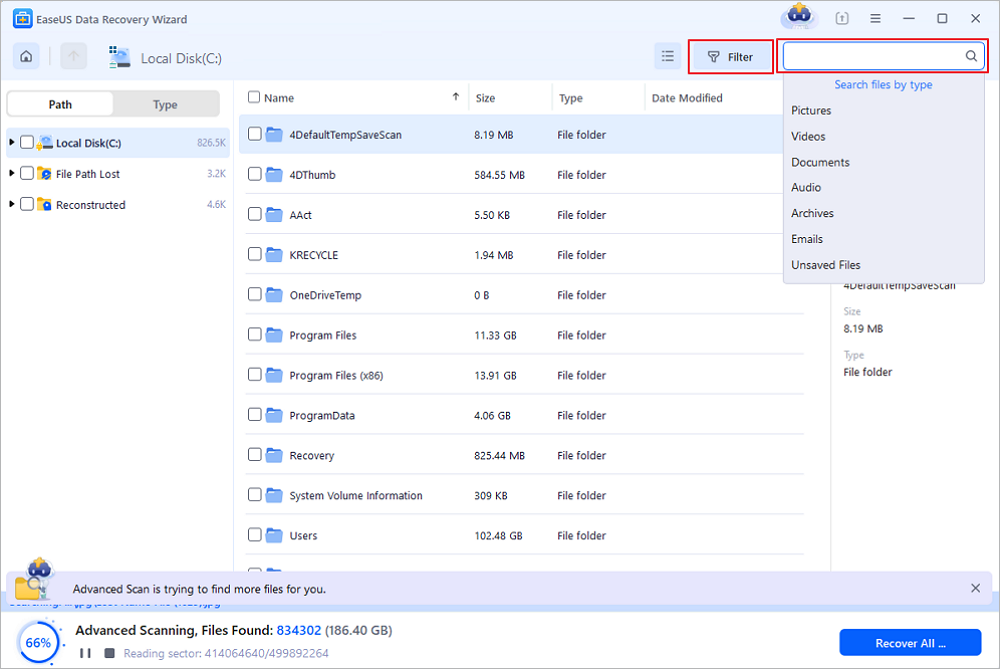
Step 2. After the process, locate the deleted or lost files in the left panel using the "Path" or "Type" feature. Or, you can apply the "Filter" feature to find the deleted files.
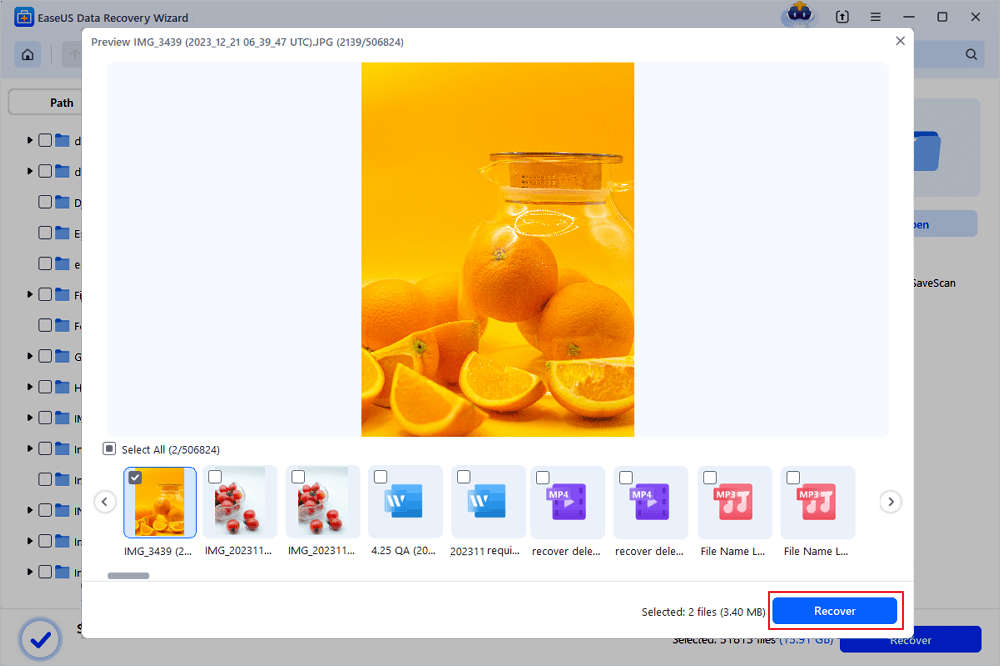
Step 3. Click the "Recover" button and save the restored files – ideally, it should be different from the original one. You can choose a cloud storage, such as OneDrive, Google Drive, etc., and click "Save" to save your recovered files.
Strategies to Avoid File Loss with OpenClaw+Claude
Prevention is more effective than recovery. Combining OpenClaw's self-hosted characteristics and Claude's execution logic, implementing three key measures – permission control, instruction standardization, and full backup.
- Restrict Claude's command execution permissions: When configuring Claude agents in OpenClaw, disable the automatic execution of system commands and enable "manual confirmation before command execution". Clearly prohibit executing deletion commands in instructions. For example, when sending file operation instructions, add "Only perform the specified operation. Do not add any destructive commands such as rm, del, or formatting."
- Reduce OpenClaw's local system permissions: Deploy OpenClaw under a non-administrator account and grant it only read/write permissions to the specified folders. Prohibit access to the root directories of system disks and important data disks. Even if the model makes an execution error, it will only affect the specified folder without causing large-scale file loss.
- Standardize external storage operations: When OpenClaw+Claude performs file operations on SD cards or mobile hard disks, avoid hot-swapping devices. After completing operations, remove the device using the system's built-in "safe eject" feature to prevent file system corruption.
Conclusion
As a new generation self-hosted AI agent platform, OpenClaw's flexibility and customization capabilities are undeniable. Claude's large model capabilities also provide core support for automated workflows. Integration of the two represents an important trend in the future use of AI tools. By implementing strict permission control, standardized instructions, and full backup, you can maximize the advantages of both platforms while avoiding file management risks.
Was this page helpful?



 Why Trust EaseUS
 Editor Reviews

20+
Years of experience

160+
Countries and regions

72 Million+
Downloads

4.9 +
Trustpilot Score





