







Content
Page Table of Contents
About the Author
Hot Topics

Updated on Sep 09, 2026
Do you want to know whether your disk uses MBR or GPT? Maybe you are installing Windows, upgrading to Windows 11, or replacing an old HDD or SSD. Choosing the wrong partition style can cause boot errors, installation failures, or compatibility problems with UEFI and Legacy BIOS.
Fortunately, you can check the partition style in Windows without formatting the disk or deleting your files. This guide explains five ways to check if a disk is MBR or GPT. It also explains the difference between MBR and GPT and what to know before converting between them.
How to Check If a Disk Is MBR or GPT
Windows provides several ways to view a disk's partition style. Disk Management is the simplest method for most users, while DiskPart and PowerShell suit users who prefer command-line tools. A disk management program can also display the MBR or GPT information in a more convenient interface.
| Method | Best for | Key advantage |
| Users who want a basic Windows check | Easy to check the partition style | |
| Users who need to check multiple disks quickly | Shows all disks in one list | |
| Users who prefer command-line tools | Quickly displays disk information | |
| Users who cannot access Windows | Works before Windows starts | |
| Users who want to check MBR/GPT and manage or convert disks in one tool | Check, manage, and convert disks in one tool |
Method 1. Check MBR or GPT via Disk Management
Disk Management is the easiest way to check a disk's partition style because it uses a graphical interface. You only need to open the disk properties; no settings will be changed.
Step 1. Press "Windows + X" and select "Disk Management."
Step 2. Locate the disk you want to check in the lower section of the window.
Step 3. Right-click the disk label, such as "Disk 0" or "Disk 1."
Step 4. Select "Properties."
Step 5. Open the "Volumes" tab.
Step 6. Find "Partition style" to see whether the disk uses Master Boot Record (MBR) or GUID Partition Table (GPT).
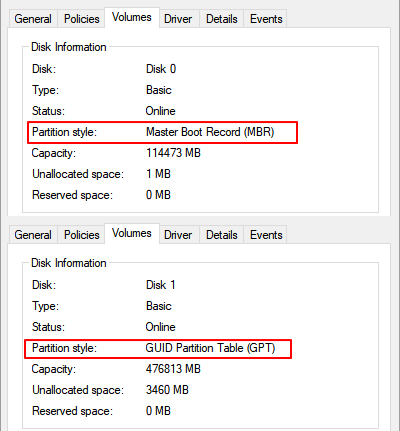
Pro tip: Make sure you right-click the disk label rather than a partition such as C: or D:. MBR or GPT is a property of the entire disk, not an individual partition.
Method 2. Check MBR or GPT Using DiskPart
DiskPart is a built-in Windows command-line utility that can display all connected disks and their partition styles at the same time. It is useful when you need to check multiple HDDs or SSDs quickly.
Step 1. Press "Windows + R", type "diskpart", and press Enter.
Step 2. Select Yes if Windows asks for administrator permission.
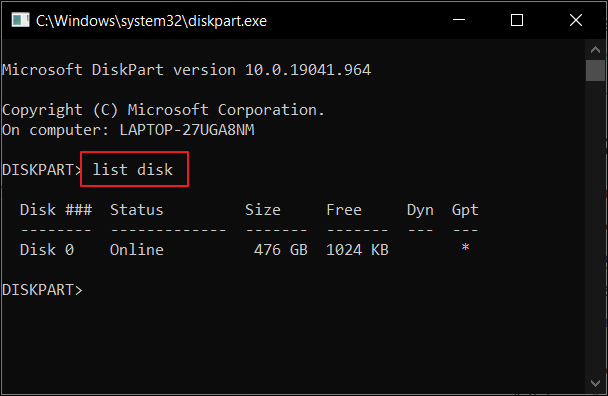
Step 3. Type the command "list disk" and press Enter.
Step 4. Check the GPT column in the results.
- A star (*) in the GPT column means the disk uses GPT.
- An empty GPT column means the disk uses MBR.
Method 3. Check MBR or GPT Using PowerShell
PowerShell provides another quick way to view the partition style of every disk connected to your computer. This method is convenient if you already use Windows Terminal or need to manage several drives.
Step 1. Search for "PowerShell" and run it as an administrator.
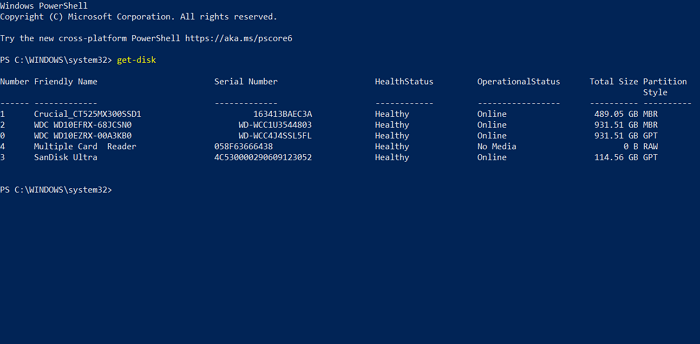
Step 2. Type the command "Get-Disk" and press Enter.
Step 3. Check the Partition Style column in the results.
PowerShell may display:
- GPT for a GUID Partition Table disk
- MBR for a Master Boot Record disk
- RAW if Windows cannot identify a valid partition style
Pro tip: If a disk appears as RAW, it may be uninitialized, damaged, or using a file system or partition structure that Windows cannot read. Avoid formatting it until you confirm that you do not need the data stored on it.
Method 4. Check MBR or GPT in BIOS/UEFI
You can also check the MBR or GPT partition style from BIOS. BIOS/UEFI does not always show the partition style directly. The available information depends on the motherboard and firmware. Some BIOS/UEFI interfaces show storage or boot information that can help you identify whether a system is using UEFI or Legacy BIOS, but they may not explicitly label a disk as MBR or GPT.

How to Check MBR or GPT in BIOS
Learn how to check if your hard drive uses MBR or GPT in BIOS with this guide. Follow simple steps to identify your partition style.
Step 1. Restart your computer and enter the BIOS/UEFI setup. The required key varies by manufacturer and may include F2, Delete, F10, or Esc.
Step 2. Look for sections such as Boot, Storage, NVMe Configuration, or System Information.
Step 3. Check whether the system is configured for UEFI or Legacy/CSM boot.
Step 4. Look for disk or boot information that identifies the partition style, if your firmware provides it.
If your BIOS/UEFI does not show MBR or GPT directly, use Disk Management, DiskPart, or PowerShell after Windows starts.
Pro tip: UEFI is normally used with GPT, while Legacy BIOS is commonly used with MBR. However, boot mode alone does not always prove the partition style of every disk connected to the computer.
Method 5. Check MBR or GPT With EaseUS Partition Master
The easiest way to check MBR or GPT is using EaseUS Partition Master. It shows your disk information in one interface, so you can quickly identify whether your hard drive uses MBR or GPT. This tool simplifies the process and provides accurate information.
EaseUS Partition Master also lets you manage the disk after checking its partition style. You can also use it to resize partitions, clone disks, migrate Windows, and convert MBR to GPT.
Here is how to check if a disk is MBR or GPT:
Step 1. Download and install EaseUS Partition Master on your Windows PC.
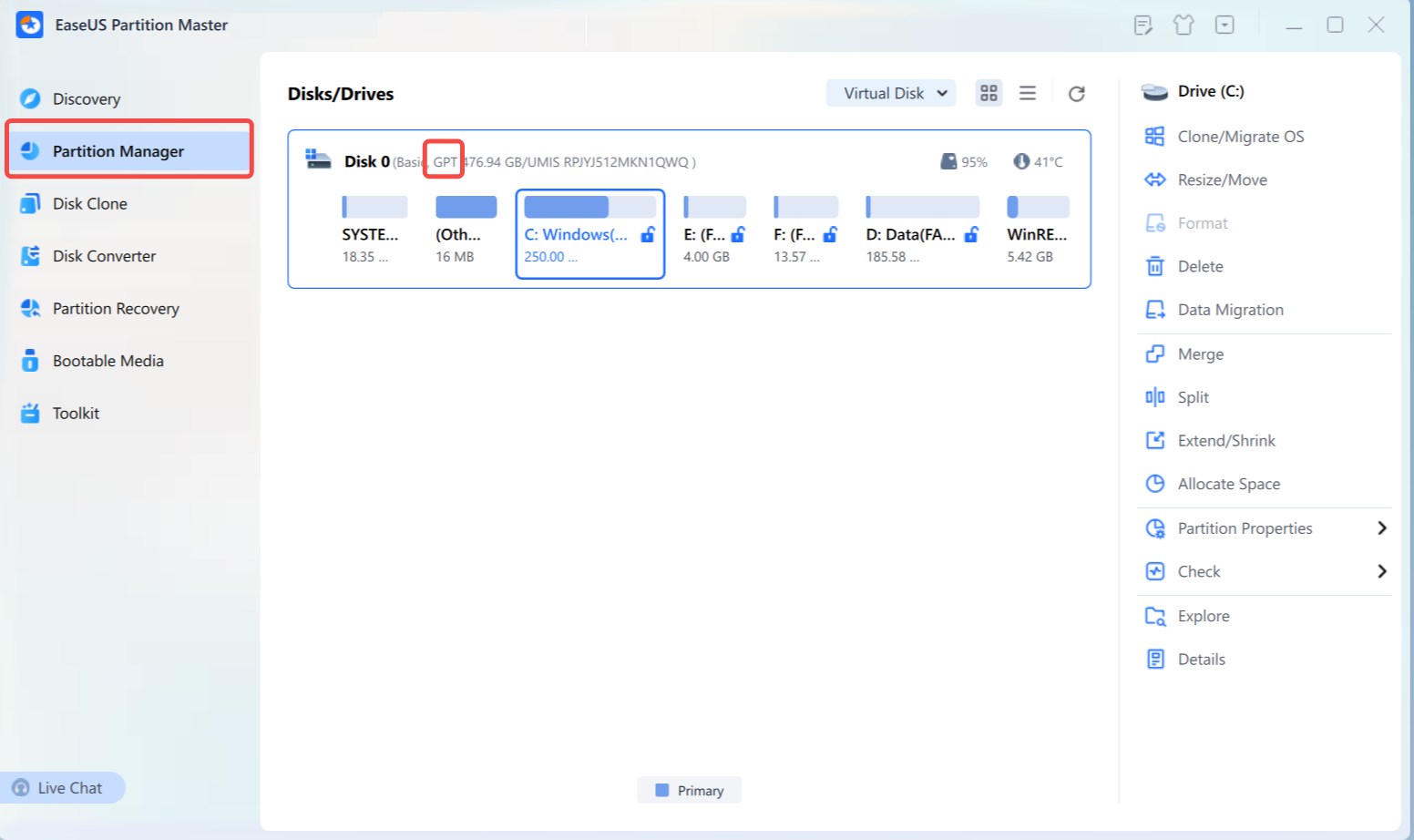
Step 2. Open the program and find the disk you want to check.
Step 3. You can view the disk's partition style directly.
MBR vs. GPT: What's the Difference
MBR (Master Boot Record) is an older partition style used to organize partitions on a storage device. MBR works with Legacy BIOS and supports drives up to about 2 TB when using standard 512-byte sectors. It also supports up to four primary partitions on a disk.
GPT (GUID Partition Table) is a newer partition style that replaces many of MBR's limitations. GPT works with UEFI and supports much larger drives and more partitions. It is the standard choice for most modern Windows computers.
MBR and GPT are partition styles that define how partitions are organized on a storage device. They differ in disk capacity, partition limits, boot mode, and compatibility with modern computers.
| Feature | MBR | GPT |
| Full name | Master Boot Record | GUID Partition Table |
| Typical boot mode | Legacy BIOS | UEFI |
| Maximum disk size | About 2 TB with standard 512-byte sectors | Much larger capacity |
| Maximum primary partitions | 4 | Usually 128 in Windows |
| Modern Windows PCs | Less common | Recommended |
| Windows 11 | Not the preferred setup | Recommended with UEFI |
If you find this guide helpful, share it to help more users know MBR and GPT.

How to Convert MBR to GPT
MBR and GPT are two partition styles used to organize data on a storage disk. While MBR is compatible with older BIOS-based systems, GPT is better suited to modern computers. This chapter explains why you may need the conversion and how to convert MBR to GPT.
Why Convert MBR to GPT?
- To install Windows 11: GPT supports the UEFI setup required for Windows 11.
- To use UEFI: GPT works with UEFI, while MBR is commonly used with Legacy BIOS.
- To use larger drives: GPT supports drives larger than the MBR 2 TB limit.
- To create more partitions: GPT supports more primary partitions than MBR.
- To upgrade an old PC: GPT helps older systems move from Legacy BIOS to UEFI.
EaseUS Partition Master provides a graphical way to convert an MBR disk to GPT. This option can be more convenient if you want to manage partitions and convert from the same interface.
Here is how to convert MBR to GPT using EaseUS Partition Master:
- Tip
- Back up important data before applying the conversion. If you are converting the system disk, confirm that your computer supports UEFI and check the boot settings after the conversion.
Step 1. Download and launch EaseUS Partition Master on your computer.
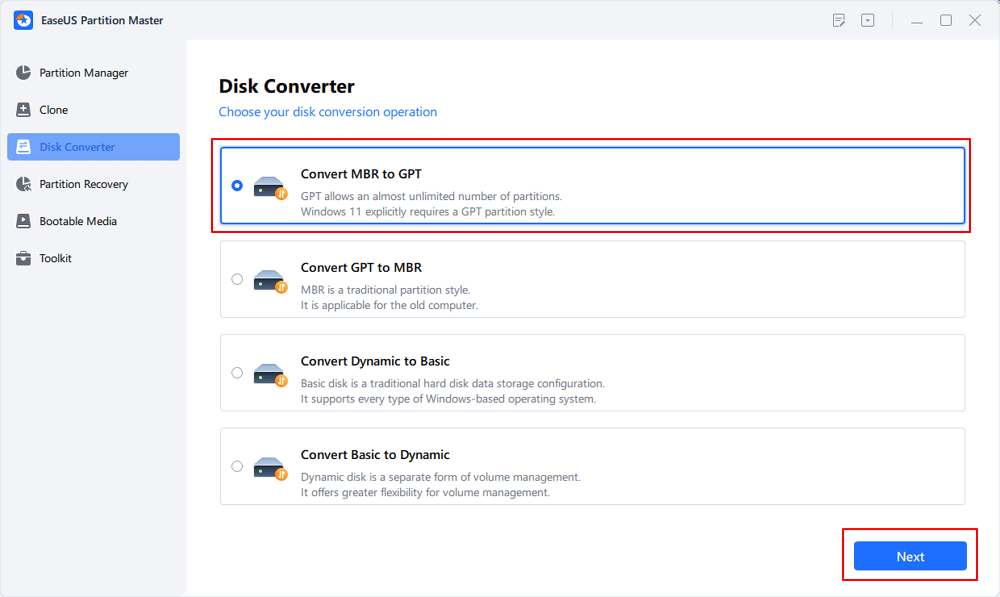
Step 2. Go to Disk Converter, select "MBR => GPT" and click "Next" to continue.
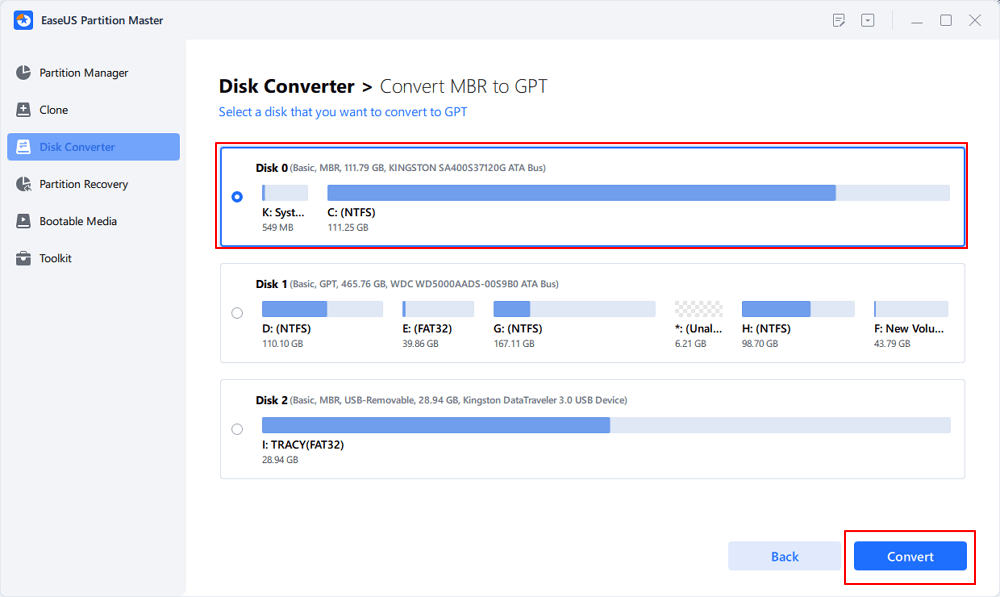
Step 3. Select the target MBR disk that you tend to convert to GPT, and click "Convert" to start the conversion.
Conclusion
You can check whether a disk is MBR or GPT in several ways on Windows. Disk Management is the simplest option, while DiskPart and PowerShell are useful for checking multiple disks. BIOS/UEFI can also provide useful information when Windows cannot start. EaseUS Partition Master offers a simpler option if you also need to manage or convert the disk.
If your disk uses MBR and you need GPT for UEFI, Windows 11, or a larger-capacity drive, you can convert MBR to GPT with EaseUS Partition Master easily. Always check your disk and back up important data before making changes.
FAQs
1. How do I know if my SSD is MBR or GPT?
You can check your SSD in Disk Management. Right-click the disk, select Properties, open the Volumes tab, and check Partition style. You can also use DiskPart with the list disk command or PowerShell with the Get-Disk command.
2. Can I check MBR or GPT without losing data?
Yes. Checking the partition style does not delete files or change the disk. Disk Management, DiskPart, and PowerShell can show whether a disk uses MBR or GPT without formatting it.
3. Can I convert MBR to GPT without reinstalling Windows?
Yes. EaseUS Partition Master can convert MBR to GPT without requiring you to reinstall Windows in supported situations. But always back up important data before converting the disk.
4. Is GPT better than MBR?
GPT is generally a better choice for modern computers because it supports larger drives, more partitions, and UEFI. MBR is still useful on older computers that use Legacy BIOS. The right choice depends on your hardware, boot mode, and Windows setup.
How Can We Help You
About the Author
Updated by Joey Albert
Joey is an enthusiast of science and technology. With a passion for uncovering the latest tech innovations, she creates clear, engaging how-to guides that make technology accessible and enjoyable for all.
Product Reviews
-
I love that the changes you make with EaseUS Partition Master Free aren't immediately applied to the disks. It makes it way easier to play out what will happen after you've made all the changes. I also think the overall look and feel of EaseUS Partition Master Free makes whatever you're doing with your computer's partitions easy.
Read More -
Partition Master Free can Resize, Move, Merge, Migrate, and Copy disks or partitions; convert to local, change label, defragment, check and explore partition; and much more. A premium upgrade adds free tech support and the ability to resize dynamic volumes.
Read More -
It won't hot image your drives or align them, but since it's coupled with a partition manager, it allows you do perform many tasks at once, instead of just cloning drives. You can move partitions around, resize them, defragment, and more, along with the other tools you'd expect from a cloning tool.
Read More
Related Articles
-
How to Remove USB Partition on Windows 10/11
![author icon]() Tracy King/2026/07/02
Tracy King/2026/07/02 -
How to Add Laptop Storage without Adding a New SSD
![author icon]() Cici/2026/08/13
Cici/2026/08/13 -
How to Fix MSI Laptop Black Screen Efficiently [Tutorial]
![author icon]() Sherly/2026/06/17
Sherly/2026/06/17 -
Windows 11 Gets/Adds a Watermark on Unsupported Hardware, How to Remove It
![author icon]() Tracy King/2026/06/17
Tracy King/2026/06/17
 Tracy King/2026/07/02
  Cici/2026/08/13
  Sherly/2026/06/17









