
Content
Page Table of Contents
About the Author
Hot Topics
If your hard drive suddenly becomes inaccessible, shows as RAW, or displays the error "The disk structure is corrupted and unreadable," you may be able to fix the problem using Windows built-in tools.
You can use DiskPart to check disk status, clear a read-only attribute, bring an offline disk online, or restore access to a volume. However, DiskPart cannot directly repair physical hard drive damage or fix every corrupted file system. For file system errors, CHKDSK is usually a more appropriate tool.
In this guide, you'll learn how to use DiskPart and other Windows commands to troubleshoot a corrupted hard drive, restore access when possible, and avoid unnecessary data loss.
Before You Start: Identify What Is Wrong with Your Hard Drive
Not every inaccessible hard drive has the same problem. Before running any repair command, identify how Windows detects the drive and whether your files are still accessible.
This step is particularly important because some DiskPart commands can permanently remove partition information.
Common Signs of a Corrupted Hard Drive
Your hard drive may have a logical disk or file system problem if you notice any of these symptoms:
- The drive is inaccessible: Windows displays an error such as "The disk structure is corrupted and unreadable."
- The file system shows as RAW: Windows cannot recognize the existing file system and may ask you to format the drive.
- The disk appears as unallocated: The partition is missing or Windows cannot recognize its partition information.
- The drive has no letter: The partition appears in Disk Management but is missing from File Explorer.
- The disk is read-only or offline: Windows detects the disk but prevents normal access.
- Files or folders cannot be opened: You encounter file system errors when accessing the drive.
These symptoms do not necessarily mean the hard drive is physically damaged. File system corruption, partition table problems, connection issues, and failing hardware can produce similar symptoms.
How to Fix Corrupted Hard Drive with DiskPart
In this part, you can see 5 ways to fix a corrupted hard disk. Be careful when you type the command lines in DiskPart and make sure you are using the correct ones.
Method 1. Fix a Corrupted Hard Drive with DiskPart
DiskPart can help resolve common disk access problems, such as an offline disk, a read-only drive, or a partition without a drive letter. Follow the steps below to check your hard drive and apply the appropriate command based on its current status.
💡Note: Before proceeding, back up important files if possible. Do not use clean, delete partition, or format if you want to preserve existing data.
Step 1. Open DiskPart as an administrator.
- Press Windows + S, type cmd, and select Run as administrator.
- Enter diskpart and press Enter.
Step 2. Find and select the corrupted hard drive.
Run the following command line in turn and press Enter after each.
- list disk
- select disk 1 (Replace 1 with your actual disk number.)
Step 3. Apply the appropriate DiskPart command.
Depending on the problem, use one of the following commands:
- If the disk is Offline: online disk
- If the disk is read-only: attributes disk clear readonly
- If an existing partition has no drive letter, use the following command lines:
list volume
select volume 4 (Replace 4 with the correct number)
assign letter=E (Replace the example volume number and drive letter with the correct ones for your drive.)
Step 4. Check whether the problem is resolved.
Type: exit
Open File Explorer and check whether the hard drive is accessible. If Windows still reports file system errors, continue with the CHKDSK method below.
Method 2. Repair Hard Drive Errors with CHKDSK
If your hard drive is detected by Windows but you cannot access its files, the file system may be corrupted. CHKDSK is a built-in Windows utility that checks file system integrity and repairs supported logical errors.
Note: CHKDSK cannot repair physical hard drive damage. If the drive is making unusual noises or repeatedly disconnecting, prioritize data recovery instead of running intensive scans.
Step 1. Find the drive letter.
- Open File Explorer and identify the letter assigned to your corrupted hard drive. For example, assume the drive is E:.
Step 2. Run CHKDSK to fix file system errors.
- Search for cmd in Windows Search.
- Right-click Command Prompt and select Run as administrator.
- Enter the following command: chkdsk E: /f /r
Replace E: with your actual drive letter.
The /f parameter tells Windows to find and fix logical file system errors.
The /r parameter locates bad sectors and attempts to recover readable information.
Wait for the scan to finish and check whether the drive is accessible.
Important: If Windows identifies the drive as RAW, CHKDSK may report that it is not available for RAW drives. Do not format the drive if you need its existing data. Consider data recovery first.
Method 3. Run SFC and DISM to Repair Corrupted Windows System Files
Sometimes, hard drive access problems are related to corrupted Windows system files rather than the drive itself. If your system drive is experiencing errors, or Windows is unstable after a disk-related problem, you can use DISM and SFC to check and repair Windows components and protected system files.
Note: These commands repair Windows system files, not the file system of an external hard drive or a separate data partition.
Step 1. Run DISM to repair the Windows image.
- Open Command Prompt as an administrator.
- Enter the following command: DISM /Online /Cleanup-Image /RestoreHealth
- Press Enter and wait for the process to complete.
DISM checks the Windows component store and attempts to repair detected corruption. An internet connection may be required to obtain replacement files from Windows Update.
Step 2. Run SFC to check protected system files.
- After DISM completes, enter: sfc /scannow
- Press Enter and allow System File Checker to scan protected Windows system files and replace corrupted files when possible.
Step 3. Restart your computer.
Once both scans are complete, restart Windows and check whether the system-related disk access problem has been resolved.
Method 4. Format a Corrupted Hard Drive Using DiskPart
If the hard drive contains no important data, or you have already recovered everything you need, formatting may help restore a RAW or unusable volume by creating a new file system.
Warning: Formatting removes existing file system information and can make previous files inaccessible. The following steps are destructive. Do not proceed if you still need the data on the drive.
Step 1. Open DiskPart and select the target disk.
Run Command Prompt as administrator and enter:
- diskpart
- list disk
- select disk 1 (Replace 1 with the correct disk number. Run detail disk to verify that you have selected the intended drive.)
Step 2. Clean the disk and create a new partition.
Enter the following commands one by one:
- clean
- create partition primary
- select partition 1
The clean command removes existing partition information. The following commands create a new primary partition.
Step 3. Format the partition.
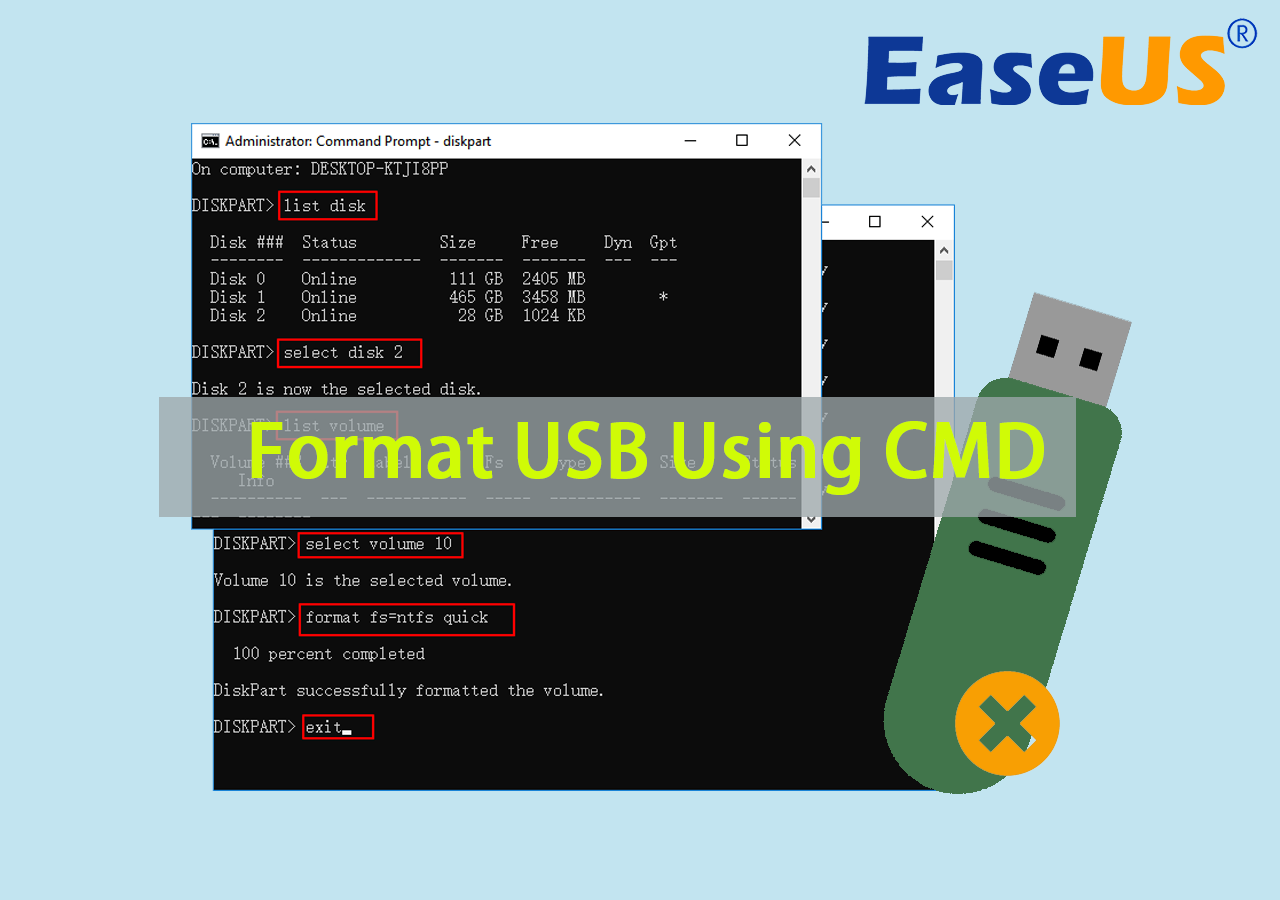
To create an NTFS file system, run: format fs=ntfs quick
Wait for the formatting process to finish.
Step 4. Assign a drive letter.
Enter:
- assign letter=E
- exit
Replace E with an available drive letter. Open File Explorer to check whether the newly formatted drive is accessible.
Method 5. Use EaseUS Partition Master to Check and Repair Disk Errors
If you find command-line operations difficult, a graphical disk management tool can provide a simpler way to check partitions and troubleshoot disk problems. EaseUS Partition Master offers file system checking and disk surface testing features to help identify common disk issues.
Follow these steps:
- Download and install EaseUS Partition Master.
- Launch the program and locate the problematic hard drive.
- Right-click the target partition and select "Check File System".

- Follow the on-screen instructions to check for file system errors and attempt repairs.
- If you suspect bad sectors, run the disk surface test to inspect the drive.
Note: A surface test can help identify bad sectors, but it cannot repair physical hardware damage. Back up important data before attempting repairs on an unstable drive.
How to Prevent Hard Drive Corruption in the Future
Once your hard drive becomes accessible again, take a few precautions to reduce the chance of encountering the same problem.
- Safely eject external drives: Use the Safely Remove Hardware option before disconnecting USB hard drives.
- Avoid sudden power loss: Unexpected shutdowns can interrupt disk write operations and damage file system structures.
- Monitor disk health: Check SMART information and watch for warning signs such as increasing bad sectors or frequent read/write errors.
- Keep regular backups: Store important files on another physical drive or a separate backup location.
- Check cables and connections: Loose SATA cables, damaged USB ports, and unstable power connections can cause disk access problems.
If a drive repeatedly develops errors, do not rely on software repairs alone. Consider replacing it before it fails completely.
Frequently Asked Questions
1. Can DiskPart repair a corrupted hard drive?
DiskPart can help troubleshoot disk-related problems by managing disk status, attributes, partitions, and volumes. For example, you can use it to bring an offline disk online, clear a read-only attribute, or assign a drive letter.
However, DiskPart cannot directly repair physical hard drive damage or perform general file system repairs. For logical file system errors, CHKDSK is usually more appropriate.
2. How do I fix a corrupted hard drive without formatting it?
Start by checking whether Windows detects the disk correctly. You can use DiskPart to inspect its status, bring it online if necessary, clear an unintended read-only attribute, and assign a drive letter.
If Windows recognizes the file system, you can try chkdsk E: /f to correct logical file system errors.
If the drive appears as RAW, avoid formatting it if you need the existing files. Consider data recovery before attempting further repairs.
3. Does DiskPart clean delete all data?
The clean command removes partition and volume formatting information from the selected disk. It makes existing partitions inaccessible through their previous structure.
Although it does not overwrite every data sector like clean all, you should treat it as a destructive operation. Do not use it on a disk containing files you want to keep.
4. What is the difference between CHKDSK and DiskPart?
DiskPart is a disk management utility used to manage disks, partitions, and volumes. CHKDSK is a file system checking utility that can detect and correct logical file system errors.
For example, use DiskPart to bring an offline disk online or assign a drive letter. Use CHKDSK to check and repair supported file system errors.
5. Can CHKDSK repair a RAW hard drive?
Generally, no. CHKDSK cannot perform its normal file system repair operations when Windows identifies a volume as RAW because it cannot recognize a supported file system structure.
If you need the data, do not format the drive immediately. Try data recovery first. If the files are no longer needed, you can consider reformatting the volume.
6. How do I know if my hard drive is physically damaged?
Common warning signs include clicking or grinding noises, repeated disconnections, extremely slow read/write speeds, frequent I/O errors, and SMART warnings.
These symptoms do not always prove physical damage, but they should not be ignored. Stop unnecessary repair attempts, back up or recover important files if possible, and consider replacing the drive if hardware failure is confirmed.
Conclusion
You can use DiskPart to troubleshoot several common hard drive problems, including offline status, read-only attributes, and missing drive letters. However, it is important to choose the right command for the actual problem.
For file system errors, CHKDSK is generally a better choice. If the drive appears as RAW or contains important inaccessible files, prioritize data recovery instead of immediately running clean or format.
Most importantly, always verify the selected disk before executing any command that changes its partitions or file system. This simple precaution can help prevent accidental data loss.
How Can We Help You
About the Author

Sherly joined EaseUS in 2022 and she has always loved writing articles and enjoys the fun they bring. She receives professional training here, focusing on product performance and other relative knowledge. She has written over 200 articles to help people overcome computing issues.
Product Reviews
-
I love that the changes you make with EaseUS Partition Master Free aren't immediately applied to the disks. It makes it way easier to play out what will happen after you've made all the changes. I also think the overall look and feel of EaseUS Partition Master Free makes whatever you're doing with your computer's partitions easy.
Read More -
Partition Master Free can Resize, Move, Merge, Migrate, and Copy disks or partitions; convert to local, change label, defragment, check and explore partition; and much more. A premium upgrade adds free tech support and the ability to resize dynamic volumes.
Read More -
It won't hot image your drives or align them, but since it's coupled with a partition manager, it allows you do perform many tasks at once, instead of just cloning drives. You can move partitions around, resize them, defragment, and more, along with the other tools you'd expect from a cloning tool.
Read More
Related Articles
-
[Solved] How to Fix 'Format FS=NTFS Take So Long'
![Tracy King]() Tracy King/2026/10/30
-
How to Format NVMe SSD in Windows 10/11 [Full Guide]
![Tracy King]() Tracy King/2026/10/30
-
Windows 11 Low Disk Space: Causes and Solutions
![Sherly]() Sherly/2026/10/30
-
How to Convert ReFS to NTFS Safely🔥
![Cici]() Cici/2026/10/30
 Tracy King/2026/10/30
 Cici/2026/10/30