







Content
Page Table of Contents
About the Author
Hot Topics
Is your SSD getting slower, freezing randomly, or taking longer to open files? These symptoms can sometimes point to an SSD health problem, but performance issues alone do not necessarily mean that your drive is failing.
Checking your SSD health can help you understand the condition of your drive, including its wear level, temperature, remaining life, and potential errors. Windows 11 provides several built-in ways to check an SSD, while dedicated disk health tools can provide more detailed information.
In this guide, you'll learn how to check SSD health on Windows 11 using EaseUS Partition Master, Windows Settings, CMD, PowerShell, and other SSD health check tools. Feel free to share this post and help more people.

What Does SSD Health Mean?
SSD health describes the overall condition and reliability of a solid-state drive. Unlike free storage space, SSD health is related to factors such as NAND flash wear, operating temperature, errors, and the drive's estimated remaining life.
SSD Health vs. SSD Storage Space
- Storage space tells you how much data the SSD can still hold. For example, a 1 TB SSD with 300 GB of free space still has plenty of available capacity.
- SSD health indicates the condition of the drive itself. It can be affected by NAND wear, total data written, temperature, errors, and other reliability indicators.
Therefore, having plenty of free space does not necessarily mean that an SSD is healthy. Likewise, an SSD with a good health status can still experience an unexpected hardware or controller failure.
What Factors Affect SSD Health?
Several factors can affect the health and lifespan of an SSD:
- NAND flash wear: SSD cells have a limited number of program/erase cycles. Frequent writing gradually wears them down.
- Total data written: The amount of data written to an SSD is an important indicator of its endurance.
- Temperature: Prolonged exposure to high temperatures can affect SSD performance and reliability.
- Read/write errors: Increasing errors may indicate a potential problem with the drive.
- Available spare: SSDs reserve spare NAND capacity to replace worn or failed blocks.
- Power-on hours: The amount of time an SSD has been powered on can provide useful context when evaluating its condition.
- Firmware and controller condition: Firmware problems or controller failures can also affect SSD reliability.
NVMe and SATA SSDs may report different health information depending on the drive model, firmware, and supported monitoring features.
What Is SMART and Why Does It Matter?
SMART stands for Self-Monitoring, Analysis and Reporting Technology. It is a monitoring system built into many storage devices that records information about the drive's condition.
Depending on the SSD, SMART or NVMe health information may include:
- Temperature
- Percentage used or wear level
- Total host writes
- Power-on hours
- Available spare
- Critical warnings
- Read/write errors
Windows may expose only some of this information. Dedicated SSD health software can often display more detailed SMART attributes, making it easier to monitor changes over time.
How to Check SSD Health on Windows 11
There are several ways to check SSD health in Windows 11. The best method depends on how much information you need and whether you prefer a graphical interface or command-line tools.
#1. Use EaseUS Partition Master
If you want a simple way to check SSD health without dealing with commands, EaseUS Partition Master provides a more accessible graphical interface.
Compared with some basic Windows health checks, it can provide more detailed information about your drive in one place. You don't need to remember CMD or PowerShell commands, making it a convenient option for users who want to quickly check SSD health, temperature, and related drive information.
Pros:
- Easy-to-use graphical interface
- No command-line knowledge required
- Provides more detailed drive health information
- Convenient for checking SSD condition and temperature
- Supports common SSD configurations, including NVMe and SATA drives
Steps to Check SSD Health with EaseUS Partition Master
- Download and install EaseUS Partition Master on your Windows 11 PC.
- Launch the program and click the top-right corner of the target SSD to launch the Disk Health Feature.
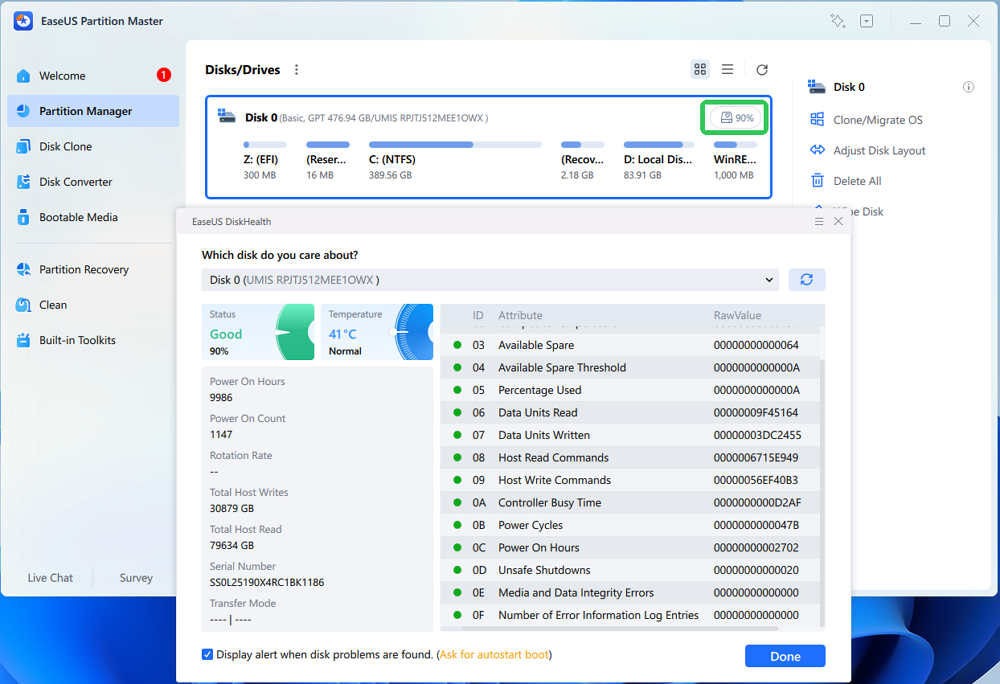
- Review the available SSD health information, such as health status, temperature, and SMART-related data.
- Check for any warnings or abnormal values and take action if necessary.
This SSD health checking software is particularly useful if you want more information than a basic Windows health status while avoiding command-line operations.
#2. Check SSD Health in Windows 11 Settings
Windows 11 includes a built-in drive health feature, so you can perform a basic SSD health check without installing third-party software.
However, the information displayed depends on your hardware and Windows configuration. Some health details are primarily available for supported NVMe SSDs, while SATA drives may provide more limited information.
Pros:
- Built into Windows 11
- No additional software required
- Simple graphical interface
- Good for a quick SSD health check
Limitations:
- Available health information varies by drive
- Some health details may not be available for all SSDs
- Provides less SMART information than dedicated diagnostic tools
Steps to Check SSD Health in Windows 11 Settings
- Press Windows + I to open Settings.
- Go to System > Storage.
- Select Advanced storage settings.
- Click Disks & volumes.
- Select your SSD and click Properties.
- Look for the Drive health section.
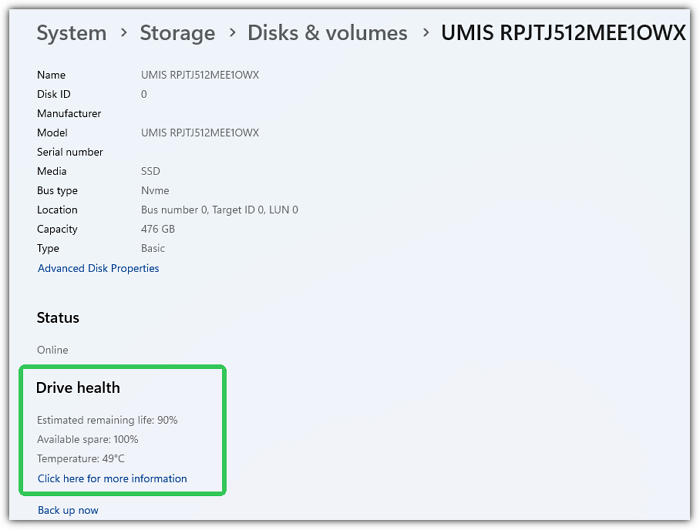
These values can give you a quick overview of your SSD's condition without installing additional software.
#3. Check SSD Health Status with CMD
Command Prompt provides another built-in way to check the basic status of a physical drive. It is useful when you want a quick answer without installing software. However, CMD provides much less information than a dedicated SSD health checker. It generally cannot show detailed wear, temperature, remaining lifespan, or SMART attributes.
Pros:
- Built into Windows
- Quick to run
- No third-party software required
- Useful for a basic health check
Limitations:
- Provides only a basic status
- Does not show detailed SSD health information
- Cannot provide a reliable remaining lifespan estimate
- The commonly used WMIC command is deprecated in newer Windows versions
Steps to Check SSD Health with wmic:
- Press Windows + S, type Command Prompt, and open it.
- Enter the following command: wmic diskdrive get status
- Press Enter.
- Check the result under Status.
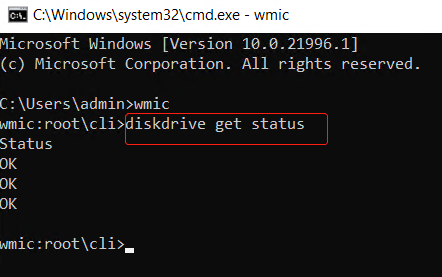
If Windows returns OK, it means the drive is currently reported as OK by this basic check.
However, don't treat an OK result as proof that your SSD is completely healthy. The command does not provide detailed SMART or wear information, and an SSD can still have problems that this check does not detect.
#4. Run an SSD Health Check via PowerShell
PowerShell provides more advanced storage commands than the basic CMD check. Windows Storage cmdlets can report the health status of physical disks and, on supported drives, provide additional reliability information.
This makes PowerShell a useful option if you want to check SSD health without installing third-party software.
Pros:
- Built into Windows 11
- Provides more information than a basic CMD status check
- Can retrieve reliability data on supported drives
- Useful for advanced users
Limitations:
- Requires command-line knowledge
- Results can be harder for beginners to interpret
- Available information depends on the SSD and driver support
Steps to Check SSD Health with PowerShell
Step 1. Search for PowerShell in Windows Search and select Run as administrator.
Step 2. To check the physical disk health, enter: Get-PhysicalDisk
Press Enter and look for the HealthStatus field.
Common results include:
- Healthy: Windows reports that the physical disk is healthy.
- Warning: Windows has detected a potential issue.
- Unhealthy: Windows reports a health problem.
- Unknown: Windows cannot determine the health status.
Step 3. For additional information, run: Get-PhysicalDisk | Get-StorageReliabilityCounter
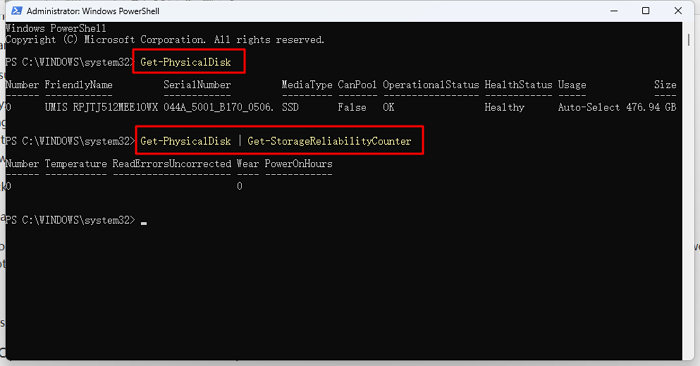
Depending on your SSD and system support, the results may include information related to temperature, wear, read errors, write errors, power-on hours, and other reliability counters.
PowerShell is therefore a better built-in option when you want more than a simple "healthy" or "not healthy" result.
#5. Other Options: Manufacturer and Third-Party Tools
If you need detailed SMART information or drive-specific diagnostics, you can also use an SSD manufacturer's utility or a third-party SSD health checker.
For example, Samsung provides Samsung Magician for its SSDs, while Seagate offers SeaTools for storage diagnostics. CrystalDiskInfo is another popular third-party tool that can display SMART attributes, health status, temperature, and other drive information.
These tools can be particularly useful when Windows does not expose enough information about your SSD or when you want to monitor specific SMART attributes.
How to Tell If Your SSD Is Healthy
After running an SSD health check, you need to understand what the results actually mean. A single percentage or "Good" label does not tell the whole story.
| SSD Health Information | What It May Mean |
|---|---|
| Healthy/Good | No obvious health problem has been detected |
| High temperature | The SSD may be running hotter than expected |
| High wear/percentage used | The SSD has experienced significant NAND wear |
| Low available spare | Reserved spare capacity may be running low |
| Read/write errors | A potential reliability problem may exist |
| Warning/Unhealthy | Further investigation and data backup are recommended |
Keep in mind that SSD manufacturers may use different health metrics and thresholds. A health percentage should therefore be treated as an indicator rather than an exact prediction of how long the SSD will continue working.
Most importantly, 100% or "Good" SSD health does not guarantee that a drive cannot fail. Hardware failures, controller problems, firmware issues, power problems, and other faults can occur without a clear warning from a health percentage.
Feel free to share this post and help more people to learn if their SSDs are going to fail.
Signs That Your SSD May Be Failing
SSD health values are useful, but real-world symptoms can sometimes provide an even stronger warning that something is wrong.
Watch for signs such as:
- The SSD suddenly becomes much slower
- Files take unusually long to open or copy
- Windows frequently freezes or crashes
- Files become corrupted or cannot be opened
- Windows fails to boot normally
- The SSD randomly disappears from File Explorer or Disk Management
- Read/write errors occur repeatedly
- SMART warnings appear
- The SSD frequently runs at unusually high temperatures
- The drive repeatedly disconnects and reconnects
These symptoms do not automatically mean that your SSD is failing. Similar problems can be caused by insufficient free space, overheating, faulty connections, drivers, or other Windows issues. Check the SSD health information and investigate other possible causes before replacing the drive.
For more ways to check a new drive before regular use, see our guide to [new disk health and diagnostics].
What to Do If Your SSD Health Is Bad
If an SSD health check shows a warning or abnormal condition, don't wait until the drive stops working.
1. Back Up Your Important Data
Back up important documents, photos, videos, and other files as soon as possible. If the SSD is already showing signs of failure, prioritize data protection over troubleshooting.
2. Check SMART and Error Information
Look for critical warnings, excessive wear, read/write errors, or other abnormal reliability counters. More detailed SMART information can help you determine whether the problem is related to SSD wear or another hardware issue.
3. Check the SSD Temperature
If the SSD is running unusually hot, check your PC's airflow, heatsink, cooling system, and dust buildup. High temperature can also cause thermal throttling and reduced performance.
4. Update the SSD Firmware
Check the SSD manufacturer's utility for available firmware updates. Firmware updates can address compatibility, stability, or performance issues, although you should always follow the manufacturer's instructions before updating.
5. Replace the SSD When Necessary
Consider replacing the drive if it consistently reports a bad or unhealthy status, develops repeated errors, frequently disconnects, corrupts files, or approaches the limits of its rated endurance.
If an SSD is showing clear signs of failure, replacing it is generally safer than relying on it for important data.
Conclusion
Checking SSD health on Windows 11 is a useful way to monitor your drive before a serious problem occurs. Windows Settings, CMD, and PowerShell provide built-in options, while dedicated SSD health software can expose more detailed SMART and reliability information.
If you want a simpler way to monitor SSD health without dealing with command-line tools, EaseUS Partition Master provides an accessible interface for checking your drive's condition and related health information.
Remember that SSD health is an indicator, not a guarantee. Regular health checks can help you spot potential problems early, but maintaining a reliable backup is still the best protection against unexpected SSD failure.
FAQs About Checking SSD Health on Windows 11
1. How do I check SSD health on Windows 11?
You can check SSD health using Windows 11 Settings, CMD, or PowerShell. For more detailed health and SMART information, you can also use EaseUS Partition Master, CrystalDiskInfo, or your SSD manufacturer's diagnostic utility.
2. Does Windows 11 have a built-in SSD health checker?
Yes. Windows 11 provides a built-in Drive Health feature under Settings > System > Storage > Advanced storage settings > Disks & volumes. You can also use PowerShell storage commands to check physical disk health and reliability information.
3. How do I check SSD health without software?
You can use Windows 11's built-in Settings, CMD, or PowerShell. Settings provides an easy graphical check, while PowerShell can provide more detailed reliability information on supported SSDs.
4. What is a good SSD health percentage?
There is no universal percentage that applies to every SSD. Health metrics and their definitions vary between manufacturers and drive models. Instead of relying on one number, consider wear, temperature, available spare capacity, errors, and other SMART information together.
5. How do I know if my SSD is failing?
Common warning signs include sudden slowdowns, corrupted files, frequent crashes, boot problems, disappearing drives, repeated read/write errors, SMART warnings, and unusual temperatures. If you notice these symptoms, back up your important data and check the SSD's health and reliability information.
How Can We Help You
About the Author

Sherly joined EaseUS in 2022 and she has always loved writing articles and enjoys the fun they bring. She receives professional training here, focusing on product performance and other relative knowledge. She has written over 200 articles to help people overcome computing issues.
Product Reviews
-
I love that the changes you make with EaseUS Partition Master Free aren't immediately applied to the disks. It makes it way easier to play out what will happen after you've made all the changes. I also think the overall look and feel of EaseUS Partition Master Free makes whatever you're doing with your computer's partitions easy.
Read More -
Partition Master Free can Resize, Move, Merge, Migrate, and Copy disks or partitions; convert to local, change label, defragment, check and explore partition; and much more. A premium upgrade adds free tech support and the ability to resize dynamic volumes.
Read More -
It won't hot image your drives or align them, but since it's coupled with a partition manager, it allows you do perform many tasks at once, instead of just cloning drives. You can move partitions around, resize them, defragment, and more, along with the other tools you'd expect from a cloning tool.
Read More
Related Articles
-
How to Migrate Only OS to SSD with a Few Simple Clicks
![author icon]() Jerry/2026/08/21
Jerry/2026/08/21 -
How to Transfer Windows from SATA HDD to NVMe M.2 SSD🔥
![author icon]() Jerry/2026/08/04
Jerry/2026/08/04 -
How to Clone NVMe to NVMe SSD Without Losing Data
![author icon]() Jean/2026/08/28
Jean/2026/08/28 -
How to Clone SSD to SSD Windows 11 Without Losing Data
![author icon]() Jerry/2026/08/21
Jerry/2026/08/21
 Jerry/2026/08/21
  Jean/2026/08/28









