





 About the Author
 Reviews and Awards
 Mac SD Card Recovery
How to create TXT on Mac? If you've recently switched from Windows to macOS, one of the first questions you might find yourself searching for is how to create a TXT file on Mac—a simple task that isn't quite as obvious on Apple's operating system without a built-in "right-click → New Text Document" option. Here are some workable ways you may be interested in:
Quick Overview on Create a TXT File on Mac
The quickest way to create a plain-text file on a Mac is through TextEdit:
-
Open TextEdit and start a new document.
-
Use Shift + Command + T to switch to plain text mode.
-
Go to File > Save, name your file, and choose a location.
If you prefer a right-click option to create a text file directly in Finder, third-party tools like iBoysoft MagicMenu can add that functionality.
A TXT file is a plain text document without formatting. It's commonly used for coding, note-taking, or any situation where clean, unformatted text is needed. This guide walks you through several methods to create TXT files on Mac—using both built-in tools and third-party applications.
| Method | Difficulty | Notes |
|---|---|---|
| iBoysoft MagicMenu | Easy | Adds a right-click option to create TXT files instantly without opening an app |
| TextEdit | Easy | Built-in app; requires switching from rich text to plain text |
| Terminal | Advanced | Command-line method; incorrect commands may lead to data loss |
| Automator | Advanced | Creates a custom right-click service; setup is more involved |
Method 1. Create a TXT File on Mac with TextEdit
TextEdit is Apple's free, pre-installed word processor. It's beginner-friendly and handles plain text files well once configured.
Step 1. Open TextEdit from Launchpad, the Dock, or Applications > Utilities. In the new document window, click Format in the menu bar and select Make Plain Text.
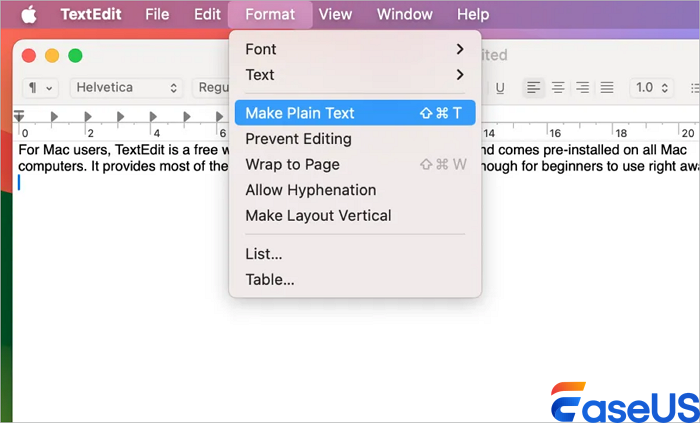
Step 2. Alternatively, go to "TextEdit" > "Settings" > "New Document", and choose Plain text under Format to set it as the default.
Step 3. Type or paste your content.
Step 4. Go to "File" > "Save", enter a name, choose a location, and click Save.
Method 2. Create a TXT File on Mac Using Terminal
Terminal offers a fast, command-line way to create text files. However, incorrect commands can accidentally delete or overwrite data, so proceed with caution. Here is how you can create
Step 1. Open Terminal from Applications > Utilities.
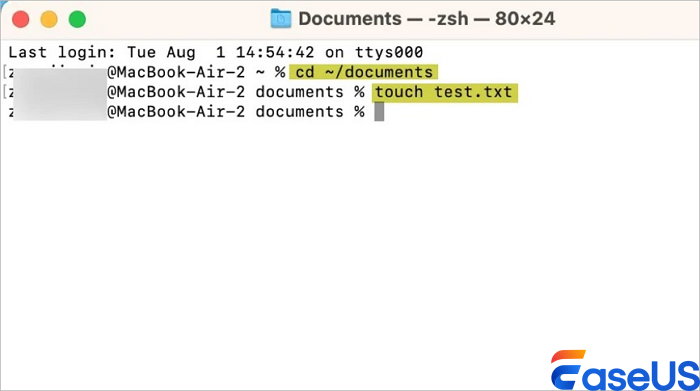
Step 2. Navigate to the folder where you want the file:
(or drag and drop a folder into Terminal after typing cd).
Step 3. Create the file using the command:
⚠️ Important: Because Terminal commands can lead to unintended data loss—especially if files are accidentally deleted or overwritten—it's wise to have a reliable recovery tool on hand. If you ever need to restore lost or deleted files on your Mac, [EaseUS Data Recovery Wizard for Mac] is a trusted solution that can recover documents, photos, and other data from internal drives, external disks, or SD cards.
Method 3. Create a TXT File Using Automator
Automator lets you build a custom "Quick Action" to create text files directly from Finder's right-click menu.
Step 1. Open Automator and select Quick Action as the document type.
Step 2. Search for "AppleScript" and drag Run AppleScript into the workflow.
Step 3. Replace the default script with:
-
Save the Quick Action with a name like "Create New Text File".
-
To use it: right-click inside any Finder folder, go to Services, and choose your new action.
💡Bonus Tip: How to Open a TXT File on Mac
Once you've created or received a TXT file, you can open it in several ways:
-
Double-click the file—it will open in TextEdit by default.
-
Right-click the file, choose Open With, and select TextEdit or another text editor.
-
If you use iBoysoft MagicMenu, you can right-click and choose Launch With > TextEdit.
Data Safety Note: Protect Your Files During Creation
When working with text files—especially using Terminal or Automator—there's always a small risk of accidentally deleting important files or formatting the wrong drive. For peace of mind, having a dependable data recovery tool for Mac installed can be a lifesaver. EaseUS Data Recovery Wizard for Mac is a powerful recovery solution designed specifically for macOS.
Whether you've accidentally deleted a crucial TXT file, lost data due to a Terminal command mistake, or experienced a system crash, this software helps you recover lost files quickly and safely. Its deep scan capability works on internal drives, external disks, USB drives, and memory cards—ensuring your important documents are never permanently lost.
Conclusion
Creating a text file on a Mac is straightforward, with multiple flexible options to suit different workflows. Whether you prefer the simplicity of TextEdit, the speed of Terminal commands, or the convenience of Automator for right-click creation, macOS offers reliable methods to generate plain text files in seconds. For users who frequently need text files, setting up a custom service or using keyboard shortcuts can save significant time in the long run. Choose the method that best fits your habits, and you'll never be more than a few clicks or keystrokes away from a new .txt file.
FAQs on How to Open a TXT File on Mac
Here are some frequnetly asked questions on how to open a TXT file on Mac:
1. Can I create a .txt file on Mac without opening any application?
Yes, you can create a .txt file directly from Finder using Automator or Terminal. With Automator, you can set up a "New Text File" service that adds a right-click option in Finder. Alternatively, open Terminal and use the command touch filename.txt to create an empty text file instantly in the current directory.
2. What's the difference between creating a .txt file in TextEdit vs. Terminal?
TextEdit is a graphical app that lets you create, edit, and format text files. By default, TextEdit saves in rich text format (RTF), so you'll need to go to Format > Make Plain Text or press Shift + Command + T to save as plain .txt. Terminal, on the other hand, creates empty .txt files instantly without opening any interface—ideal for quick file generation or scripting.
3. Can I create a text file and save it to a specific folder directly?
Absolutely. In TextEdit, simply choose File > Save and navigate to your desired folder. In Terminal, first navigate to your target folder using cd /path/to/folder, then run touch filename.txt. If you've set up an Automator service, you can right-click inside any Finder folder and select your "New Text File" option to create the file directly in that location.
Was This Page Helpful?

Finley is interested in reading and writing articles about technical knowledge. Her articles mainly focus on file repair and data recovery.
-
EaseUS Data Recovery Wizard is a powerful system recovery software, designed to enable you to recover files you’ve deleted accidentally, potentially lost to malware or an entire hard drive partition.
Read More -
EaseUS Data Recovery Wizard is the best we have seen. It's far from perfect, partly because today's advanced disk technology makes data-recovery more difficult than it was with the simpler technology of the past.
Read More -
EaseUS Data Recovery Wizard Pro has a reputation as one of the best data recovery software programs on the market. It comes with a selection of advanced features, including partition recovery, formatted drive restoration, and corrupted file repair.
Read More
Related Articles
-
APFS Not Showing in Disk Utility? 3 Ways to Fix in 2026
![author icon]() Brithny/Sep 20, 2026
Brithny/Sep 20, 2026 -
Top 7 Solutions - An Unknown Error Occured in iMessage on a Mac
![author icon]() Brithny/Sep 20, 2026
Brithny/Sep 20, 2026 -
Delete Files Mac But Still No Space: 4 Fixes
![author icon]() Jean/Sep 20, 2026
Jean/Sep 20, 2026 -
Updated to Sonoma, QuickBooks Keeps Crashing [with 6 Methods]
![author icon]() Brithny/Sep 20, 2026
Brithny/Sep 20, 2026
 Brithny/Sep 20, 2026
  Jean/Sep 20, 2026

