







Content
Page Table of Contents
About the Author
Hot Topics

Updated on Oct 29, 2026
BitLocker is one of Windows' best built-in security features. It protects your data with drive encryption and helps prevent unauthorized access. However, managing BitLocker is not always simple. Many users struggle with tasks like checking encryption status, unlocking encrypted drives, backing up recovery keys, or disabling BitLocker when needed.
A dedicated BitLocker manager software makes these tasks much easier. Instead of switching between different Windows utilities, you can manage everything from one interface. Among the available options, EaseUS Partition Master stands out as an all-in-one solution for BitLocker management on Windows 11 and Windows 10.
What Is BitLocker Manager Software?
Disk managing tool? Trying to wipe a drive locked by bitlocker
by u/Asolusolas in techsupport
BitLocker manager, also known as BitLocker management software, is a tool that helps you control BitLocker-encrypted drives more efficiently. It simplifies encryption management without requiring complex command-line operations.
A good BitLocker management tool should let you:
- Turn BitLocker encryption on or off
- Lock or unlock encrypted drives
- View the BitLocker status of each drive
- Back up or retrieve BitLocker recovery keys
- Change or remove BitLocker passwords
- Manage multiple encrypted drives from one place
- Permanently disable BitLocker in Windows 11
- Decrypt BitLocker without recovery key
For home users, this means fewer mistakes and faster access to important settings. For IT teams and businesses, it saves time when managing several Windows devices. Instead of remembering commands like manage-bde, you can complete the same tasks with a few clicks.
BitLocker Manager Software Free Download for Windows
If you are looking for reliable BitLocker manager software, EaseUS Partition Master is one of the best choices for Windows users. EaseUS Partition Master, as a reliable disk manager, includes a dedicated BitLocker manager that combines BitLocker controls with powerful disk management features in one place.
Why Choose EaseUS Partition Master as BitLocker Manager Software
EaseUS Partition Master helps simplify everyday BitLocker management. Its key BitLocker features include:
- Enable/disable BitLocker encryption for supported drives
- Lock and unlock BitLocker drives
- Change BitLocker passwords
- Retrieve BitLocker recovery keys when needed
- View BitLocker status for every drive
- Fix the BitLocker recovery screen or recovery loop
- Resize, move, extend, shrink unlocked BitLocker partition
- Manage multiple encrypted partitions from one interface
- Erase BitLocker drive
BitLocker Manager Software vs Windows BitLocker Features
Windows offers basic BitLocker controls, but they are spread across different tools such as Control Panel, Command Prompt, and PowerShell. This makes routine management more difficult, especially for users without technical experience.
| Feature | Windows Built-in Tools | EaseUS Partition Master |
| BitLocker Management | Settings are spread across multiple Windows tools. | ✔️ Manage all BitLocker functions in one place. |
| Graphical Interface | Basic interface. Some tasks require Command Prompt or PowerShell. | ✔️ Simple and intuitive interface. |
| Enable/Disable BitLocker | ✔️ Supported | ✔️ One-click operation. |
| Lock/Unlock BitLocker Drives | Partial support | ✔️ Easily lock or unlock encrypted drives. |
| View BitLocker Status | Basic information | ✔️ View encryption and protection status at a glance. |
| Recovery Key Management | Limited options | ✔️ Back up and retrieve recovery keys easily. |
| Manage Multiple Drives | Basic support | ✔️ Manage multiple BitLocker drives from one dashboard. |
| Bootable Recovery Media | Limited | ✔️ BitLocker recovery capacity |
Apart from basic BitLocker management, EaseUS Partition Master also helps you with some complex BitLocker issues, such as:
- Checking whether BitLocker is enabled
- Formatting a BitLocker-encrypted drive
- Fixing BitLocker could not be enabled
- Getting rid of some other BitLocker error codes, including 0x80310059, etc.
- Important
- EaseUS Partition Master brings BitLocker management to Windows Home editions. Unlike Windows Home, which does not include native BitLocker management, EaseUS allows users to unlock and decrypt BitLocker-encrypted drives with an intuitive interface. It offers a simple solution for Home users who need to access or remove BitLocker encryption without upgrading Windows.
Common BitLocker Issues EaseUS BitLocker Manager Software Can Solve
BitLocker does a great job of protecting your data, but it can also create challenges when you need to manage an encrypted drive. Dedicated BitLocker manager software - EaseUS Partition Master helps simplify these common tasks.
| Common Problem | How EaseUS Partition Master Helps |
| You can't access a locked BitLocker drive. | Unlock the drive using your BitLocker password or recovery key. |
| You need to disable BitLocker before selling or reusing a drive. | Turn off BitLocker and decrypt the drive with a few clicks. |
| You forgot where your BitLocker recovery key is stored. | Retrieve available BitLocker recovery keys and save them to a secure location. See: BitLocker recovery key missing. |
| The BitLocker recovery screen keeps appearing after a BIOS or hardware change. | Create a WinPE bootable USB to access the drive and resolve BitLocker recovery issues. See: how to bypass BitLocker recovery blue screen. |
| You want to resize or extend a BitLocker partition. | Unlock the drive first, then resize, extend, shrink, or move the partition without switching to another tool. See: how to resize BitLocker partition Windows 11. |
| You manage multiple BitLocker drives. | View the encryption status and manage all BitLocker-protected drives from one interface. |
| You're using Windows Home Edition. | Manage and decrypt BitLocker-protected drives even though Windows Home doesn't include native BitLocker management. See: how to turn on BitLocker on Windows 11 Home. |
Whether you're troubleshooting a BitLocker issue or simply managing encrypted drives, EaseUS Partition Master brings the most common BitLocker tools together in one place. It helps you complete everyday tasks more quickly and with fewer steps.
How to Manage BitLocker Via EaseUS BitLocker Manager on Windows
EaseUS Partition Master makes BitLocker management much easier on Windows 11/10/8/7 and even Windows Server systems. Whether you want to turn off BitLocker, unlock an encrypted drive, can't find BitLocker recovery key, or deal with a recovery screen, you can complete the task in just a few clicks. Read the guides to use this BitLocker management tool:
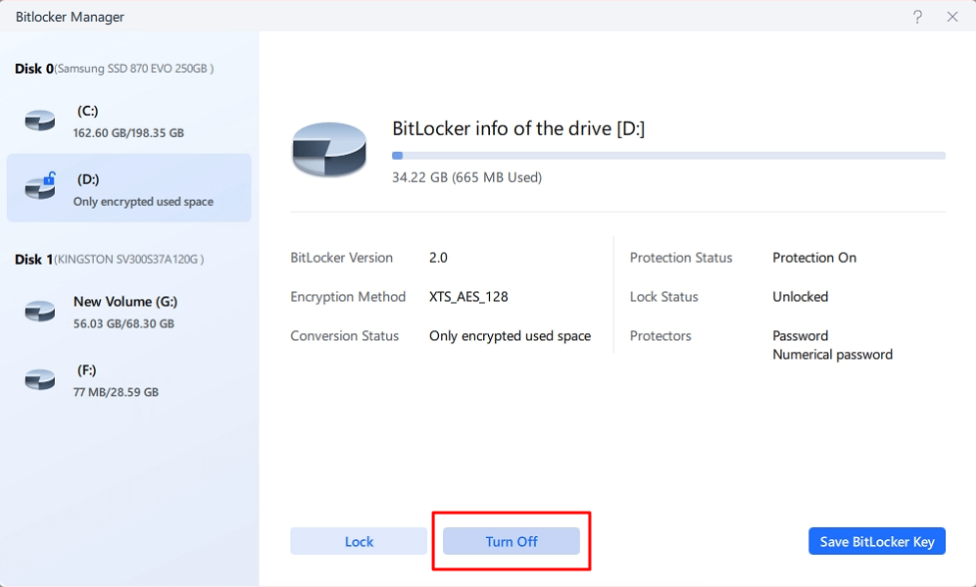
Guide 1. Disable/Turn off BitLocker
If you no longer need drive encryption, you can disable BitLocker without using Command Prompt. EaseUS Partition Master lets you decrypt the drive through a simpler graphical interface.
Step 1. Download and Launch EaseUS Partition Master.
Step 2. Right-click the drive you want to disable and choose "BitLocker Manager."
Step 3. Click "Turn off" and click "Yes" to confirm.
Step 4. Wait for the software to turn off BitLocker.
Guide 2. Find BitLocker Recovery Key
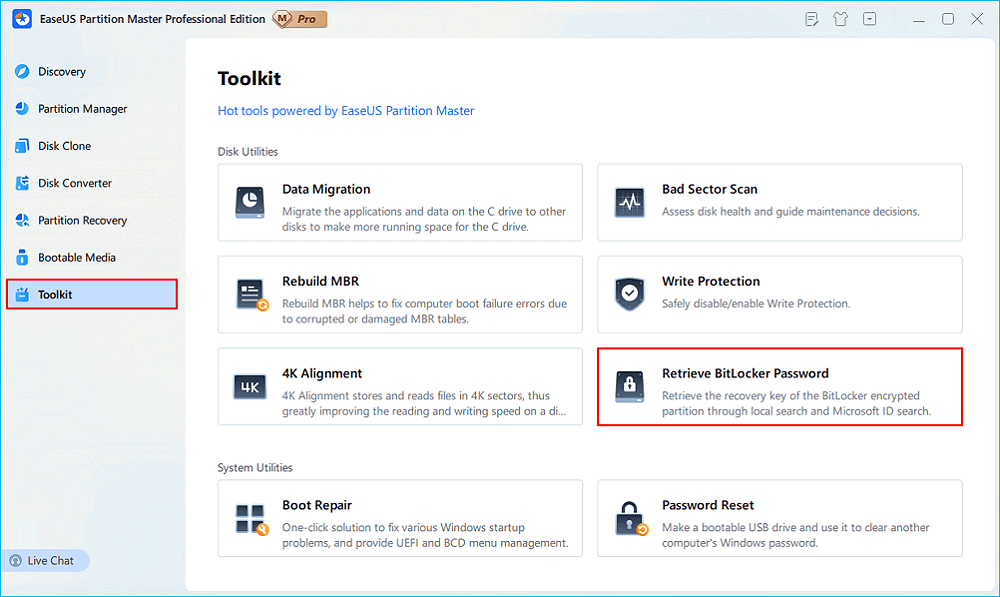
If you cannot remember your recovery key, EaseUS Partition Master can help you locate and manage available BitLocker recovery keys stored on your computer.
Step 1. Install and launch EaseUS Partition Master. Under the Toolkit tab, select the "Retrieve BitLocker Password" option.
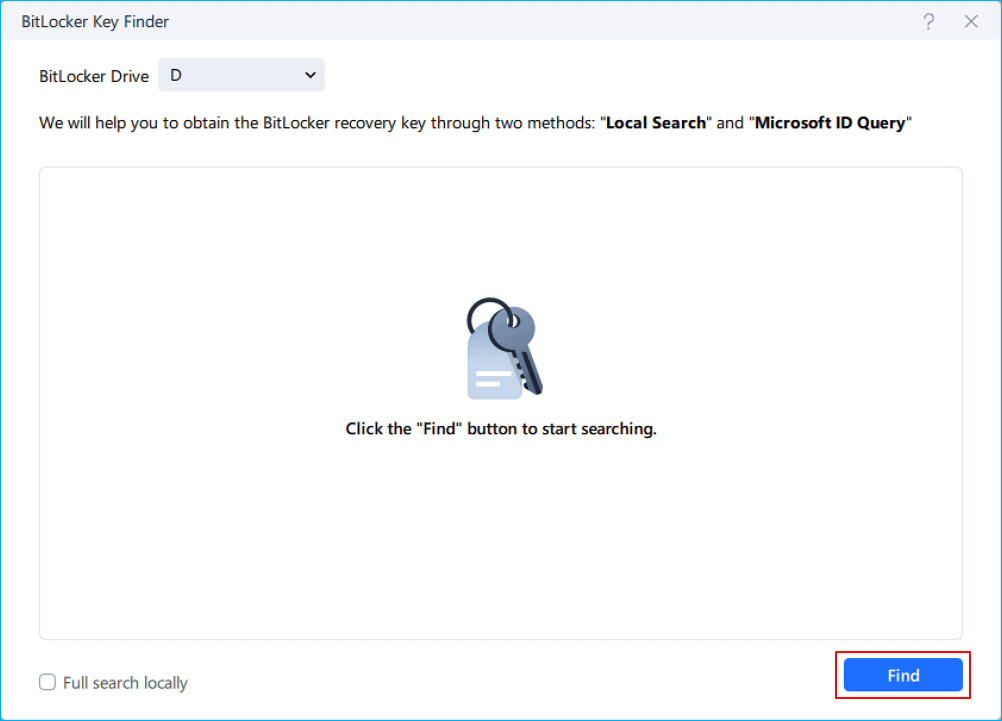
Step 2. It'll automatically detect your encrypted drive. Please click the "Find" button to search the BitLocker recovery key on your encrypted drive.
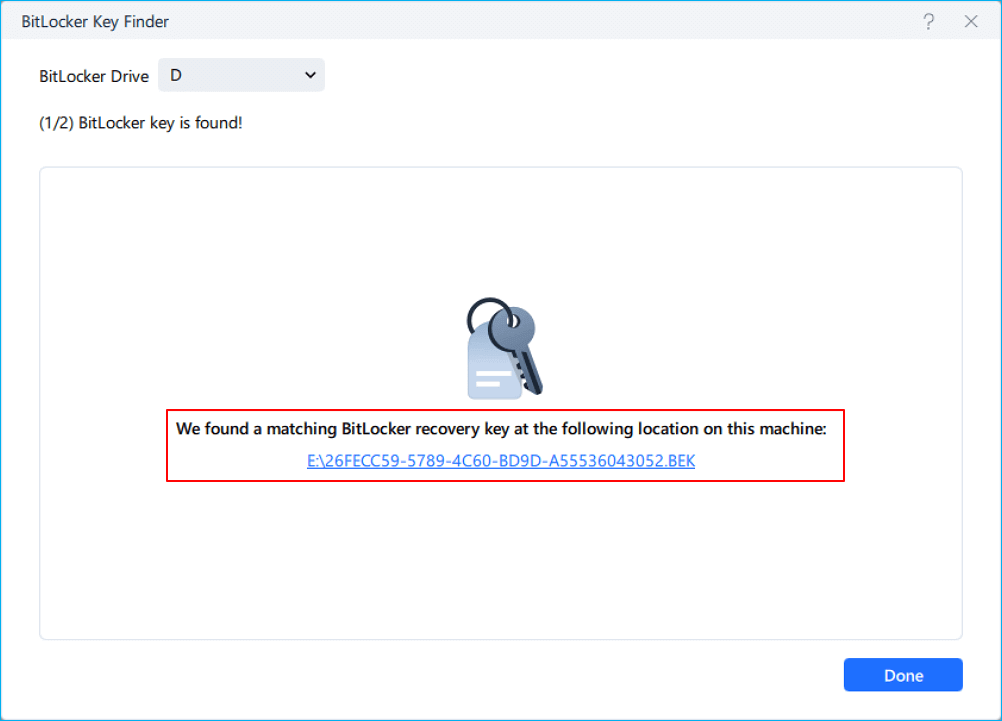
Step 3. In the next window, you'll see the retrieved BitLocker recovery key.
Guide 3. Fix BitLocker Recovery Screen
A BitLocker recovery screen might appear after hardware changes, BIOS updates, or boot configuration changes. If Windows cannot start normally, a bootable environment can help you access and manage your encrypted drive. See how to fix a BitLocker recovery screen:
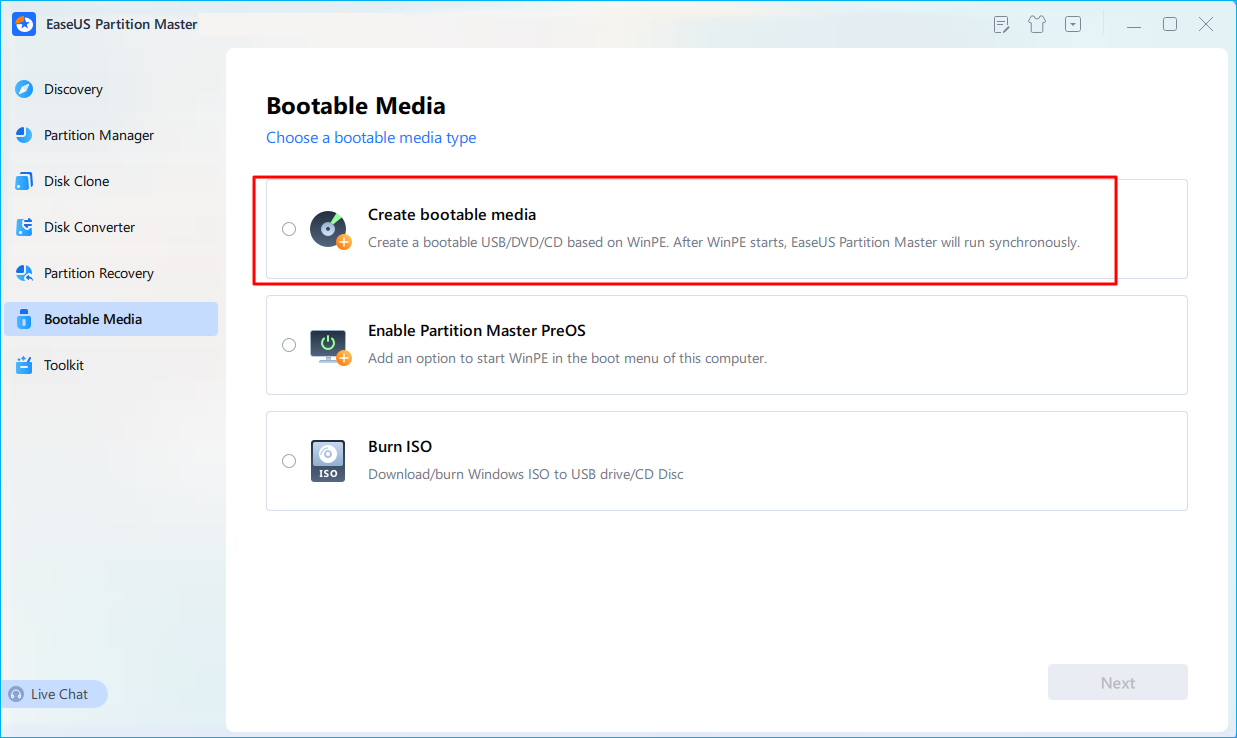
Step 1. First, connect a USB to the PC running properly. Launch EaseUS Partition Master, navigate to "Bootable Media" section, and click "Create bootable media" option. Click "Next" to continue.
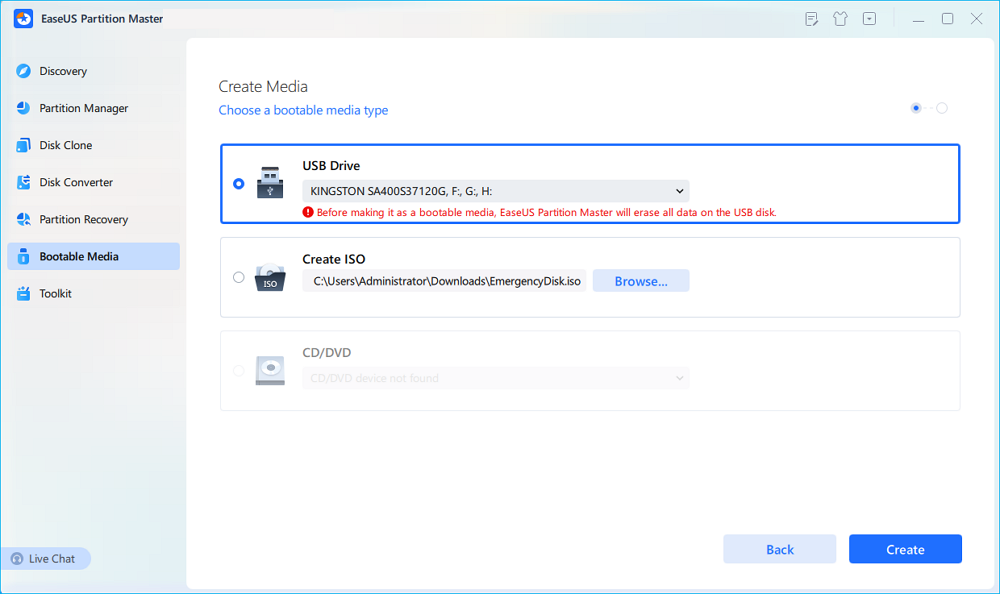
Step 2. Select the target USB drive and click "Create" to continue. Please back up your data in advance since this will erase all data on the USB drive. Then, click "yes" to confirm when you see the warning. Do not exit EaseUS Partition Master until it's done.
Step 3. Connect the bootable USB to the BitLocker encrypted PC and restart PC. During the reboot, press the BIOS key (F2/F8/F12/DEL/ESC) to access BIOS and set the bootable USB as the boot drive. This PC will automatically boot from the USB disk.
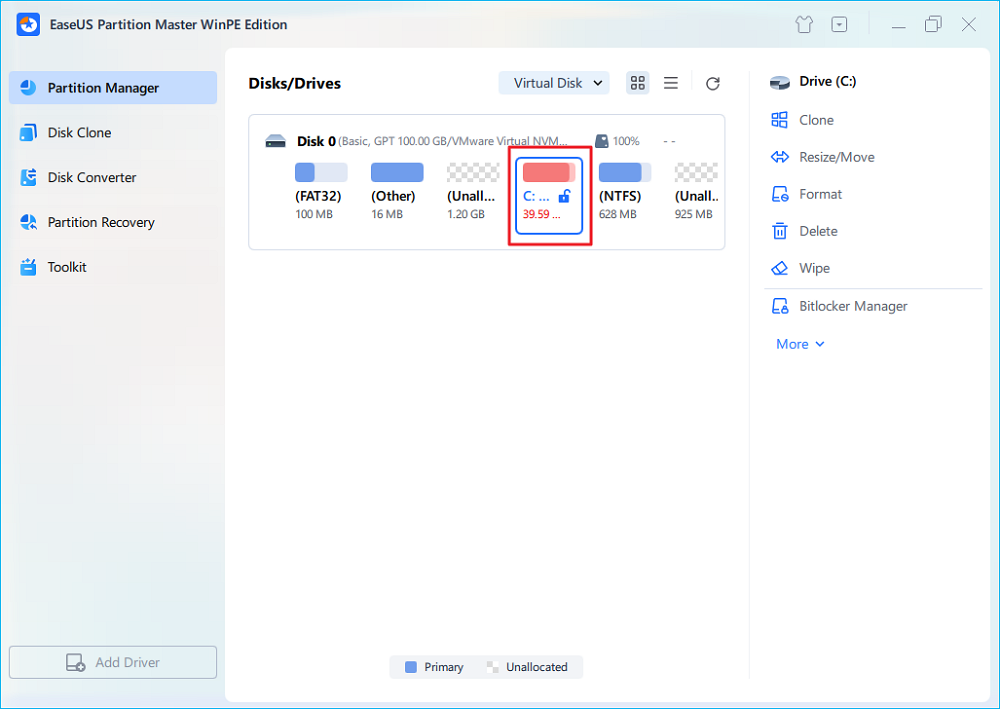
Step 4. EaseUS Partition Master will automatically unlock the BitLocker encrypted drive and you can see a "unlock" icon.
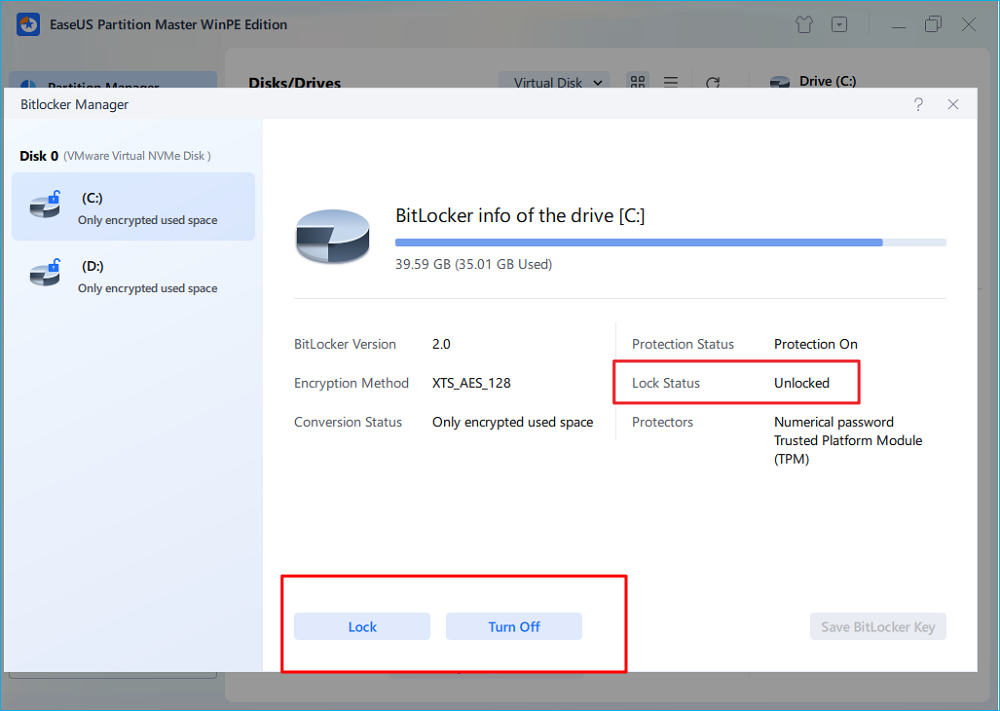
Step 5. Hover the mouse on the BitLocker partition; you can see more info of this partition and manage the BitLocker partition such as locking it or turning off BitLocker.
Alongside turning BitLocker on and off, finding BitLocker recovery key, and fixing BitLocker recovery screen, this BitLocker manager software also supports resolving more complex issues, including:
Conclusion
Managing BitLocker does not have to be difficult. While Windows includes built-in BitLocker tools, they often require multiple utilities or command-line knowledge. A dedicated BitLocker management software provides a much easier solution.
EaseUS Partition Master combines BitLocker management, recovery key handling, and professional disk management into one application. Whether you want to enable encryption, unlock a drive, recover a BitLocker key, or organize your partitions, it offers a simple and reliable workflow for Windows 11 and Windows 10 users.
FAQs
1. Is EaseUS Partition Master free?
EaseUS Partition Master offers a free version with essential disk management features. For example, you can resize or shrink an unlocked BitLocker partition. You can also turn on/off and find BitLocker recovery key using the free version of EaseUS Partition Master.
2. Does Windows have BitLocker management software?
Windows includes BitLocker management through Control Panel, Settings, Command Prompt, and PowerShell. However, these tools might be difficult for beginners. EaseUS Partition Master provides a centralized interface that makes BitLocker management much easier.
3. Can I manage BitLocker without using Command Prompt?
Yes. EaseUS Partition Master lets you manage BitLocker through a graphical interface. You can enable encryption, unlock drives, change passwords, and back up recovery keys without typing commands.
4. Can BitLocker manager software recover my recovery key?
Yes. If the recovery key is available on your computer or has been backed up, EaseUS Partition Master can help you retrieve and manage it more easily.
Share it to help more users know the BitLocker management software:

How Can We Help You
About the Author
Updated by Joey Albert
Joey is an enthusiast of science and technology. With a passion for uncovering the latest tech innovations, she creates clear, engaging how-to guides that make technology accessible and enjoyable for all.
Product Reviews
-
I love that the changes you make with EaseUS Partition Master Free aren't immediately applied to the disks. It makes it way easier to play out what will happen after you've made all the changes. I also think the overall look and feel of EaseUS Partition Master Free makes whatever you're doing with your computer's partitions easy.
Read More -
Partition Master Free can Resize, Move, Merge, Migrate, and Copy disks or partitions; convert to local, change label, defragment, check and explore partition; and much more. A premium upgrade adds free tech support and the ability to resize dynamic volumes.
Read More -
It won't hot image your drives or align them, but since it's coupled with a partition manager, it allows you do perform many tasks at once, instead of just cloning drives. You can move partitions around, resize them, defragment, and more, along with the other tools you'd expect from a cloning tool.
Read More
Related Articles
-
Surface Pro Stuck on Windows Logo - Reasons & Fixes
![Sherly]() Sherly/2026/10/29
Sherly/2026/10/29 -
How to Fix Toshiba Laptop Black Screen | 100% Working
![Cici]() Cici/2026/10/29
Cici/2026/10/29 -
How to Wipe Hard Drive From BIOS - 4 Safe Ways 💡
![Sherly]() Sherly/2026/10/29
Sherly/2026/10/29 -
How to Create EaseUS Partition Master Bootable USB
![Daisy]() Daisy/2026/10/29
Daisy/2026/10/29
 Sherly/2026/10/29
  Cici/2026/10/29
  Daisy/2026/10/29









