







Content
Page Table of Contents
About the Author
Hot Topics
Quick Answer: To disable BitLocker in Command Prompt, open Command Prompt as administrator and use "manage-bde -off C:" to start decrypting it. After the process is complete, run "manage-bde -status" to confirm that BitLocker is disabled.
BitLocker is a built-in encryption feature in Windows that protects data by encrypting entire volumes. Users may choose to turn off BitLocker encryption due to system performance maintenance, software compatibility issues, or operational flexibility. In this article, EaseUS will discuss disabling BitLocker encryption using the Command Prompt (CMD). Additionally, we will introduce an easy alternative tool - EaseUS Partition Master - to help novices and beginners smoothly turn off BitLocker encryption.
| Comparison | One-click to Disable BitLocker | Disable BitLocker Manually |
|---|---|---|
| 🛠️Tool | Command Prompt | |
| ⏱️Time duration | About 1 minute | About 10 minutes |
| 🧩Complexity | Easy👍🏻 | Difficult |
| 🪜Features |
|
|
How to Disable BitLocker Using Command Line
If you need to disable BitLocker, running CMD is a common option. However, it requires administrative privileges and a higher skill level. Before jumping into the specific steps, you should pay attention to:
- Backup Your Data: Before disabling BitLocker, ensure you have backed up your important data.
- Security Risks: Disabling BitLocker exposes your data to potential unauthorized access. Ensure that your system is secure before proceeding with this operation.
For a complete overview of BitLocker command lines, see our [BitLocker Management and Operations Guide].
Stick to the guide below and be careful when typing commands:
Option 1. Manage CMD
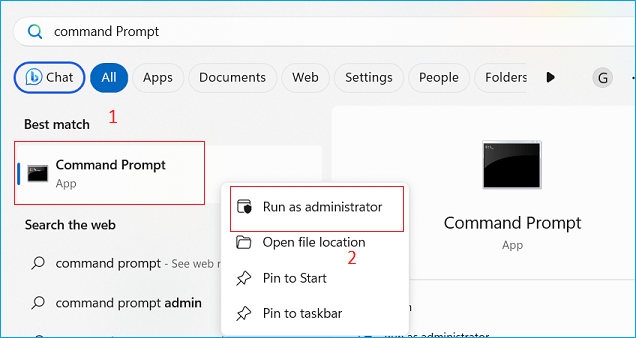
Step 1. In the Windows Search box, type cmd or Command Prompt.
Step 2. Right-click on Command Prompt and select Run as administrator.
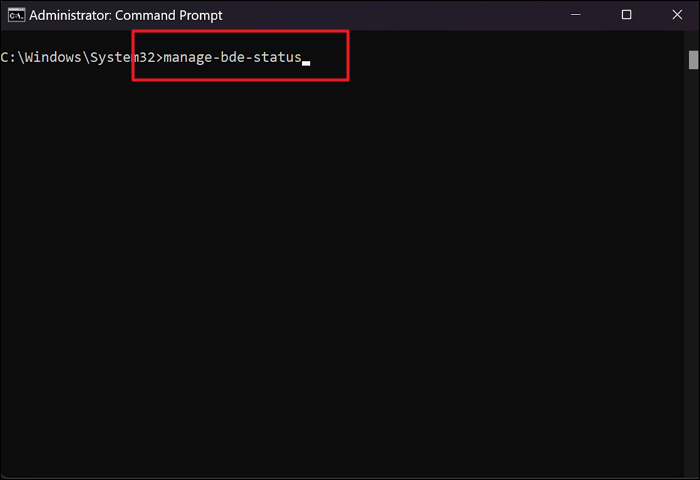
Step 3. Before turning off BitLocker, you can check its status by typing the command and hitting "Enter":
- manage-bde -status
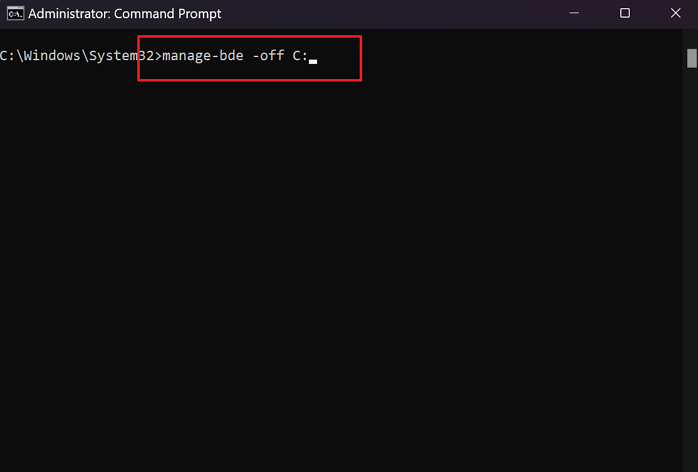
Step 4. If your BitLocker is turned on, use this command and press "Enter" to disable it:
manage-bde -off X(Replace X with your drive letter)
Step 5. Verify the BitLocker encryption using the manage-bde -status command again. You should see that the encryption status for the specified drive is now marked as "Fully decrypted."
|
Learn more about BitLocker status - check if BitLocker is enabled or disabled. |
Option 2. Format CMD
Step 1. Run Command Prompt as administrator.
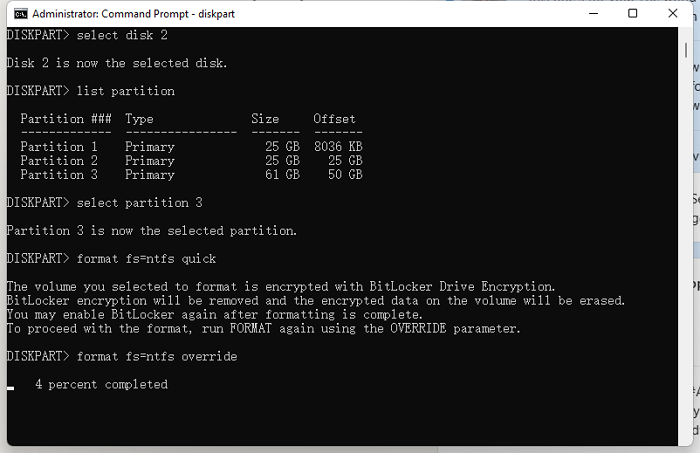
Step 2. Type diskpart > list disk > select disk > list partition > select partition > format fs=ntfs quick
(You can replace NTFS with another file system)
|
Learn everything about BitLocker in one place—start with our BitLocker guide. |
Free Alternative to Turn Off BitLocker
While using CMD is effective, some users may prefer a more intuitive method without needing to remember commands or navigate through technical settings. EaseUS Partition Master Free offers an excellent alternative for managing disk partitions and disabling BitLocker with ease. It simplifies not only disabling BitLocker but also offers various disk management functionalities that enhance the overall user experience.
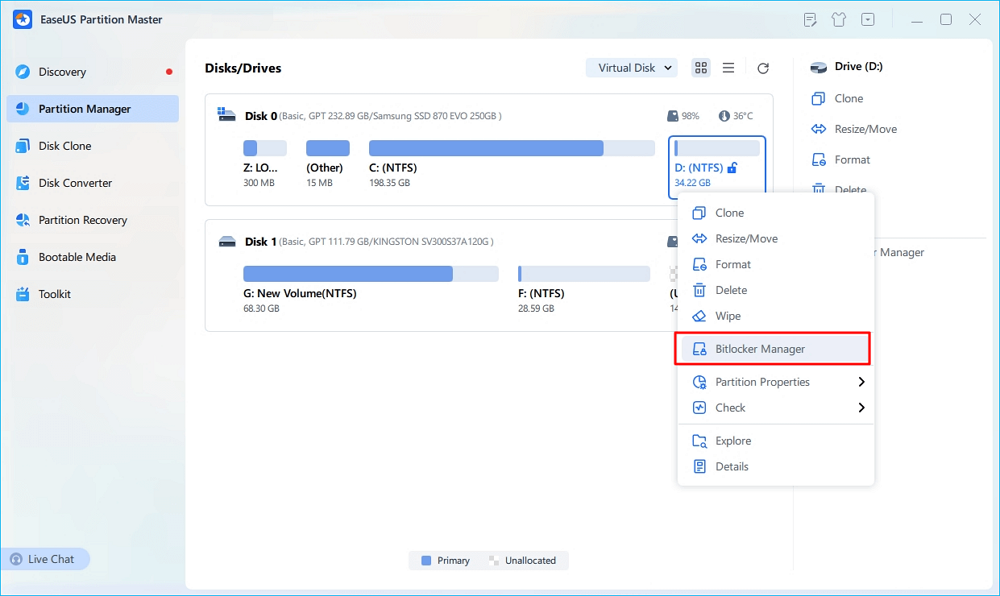
Step 1. Open EaseUS Partition Master and right-click on the BitLocker-encrypted drive.
Step 2. Select "BitLocker Manager," and you will see a new window that allows you to perform BitLocker-relevant ops.
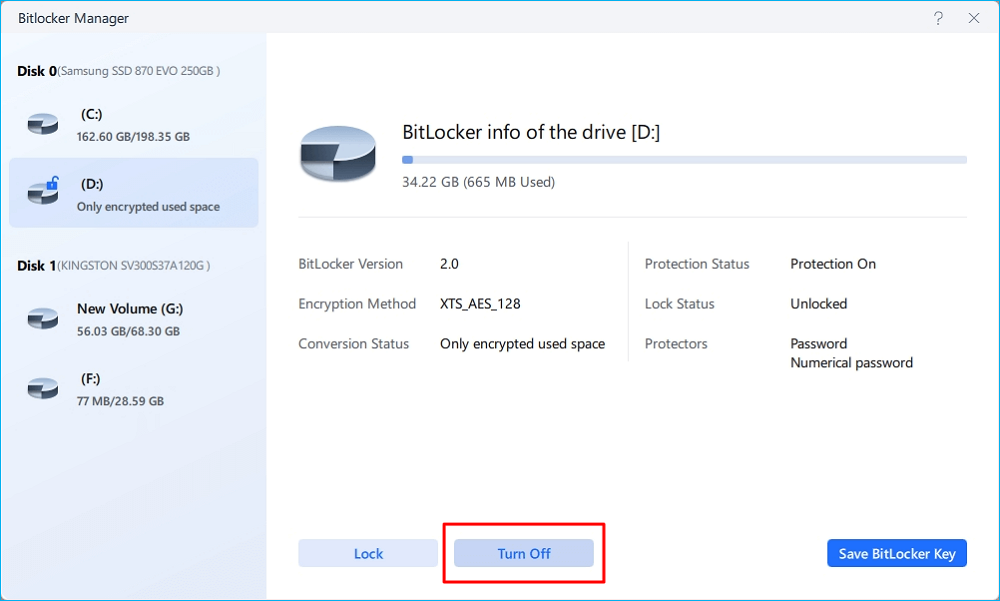
Step 3. Click "Turn Off" for your target drive, click "Yes" to confirm you want to turn off BitLocker on your partition, and wait patiently until it's done.
Other Prominent Features of EaseUS Partition Master
- Remove BitLocker from the external hard drive
- Solve no option to turn off BitLocker Windows 11
- Unlock the BitLocker drive Without a Recovery Key and Password
- Resize/move, extend, shrink unlocked Bitlocker partition free
- Disable/turn off BitLocker on Windows Home systems free
- Fix and resolve BitLocker Recovery Blue Screen error
- Manage ReFS partitions (create, delete, format, merge, resize/move)free
Now, install this tool and effectively manage your BitLocker:
Troubleshooting: Common Problems When Disabling BitLocker in CMD
Disabling BitLocker with Command Prompt is usually straightforward, but some users may run into issues during the process. In most cases, the problem is caused by an incorrect drive letter, insufficient permissions, or decryption still in progress. The following troubleshooting tips can help you fix the most common errors when using CMD.
1. "manage-bde" is not recognized
Make sure you are running Command Prompt as an administrator. If you use the wrong terminal or a non-elevated window, Windows may not recognize the command correctly.
2. The command does not affect the target drive
If BitLocker is still enabled after running the command, the most common reason is that the wrong drive letter was used. Make sure the drive letter matches the encrypted partition exactly.
3. Decryption seems stuck or takes too long
The "manage-bde -off" command does not turn off BitLocker instantly. Instead, it starts decrypting the selected drive, and the process may take some time depending on the drive size and the amount of data stored on it.
4. BitLocker still asks for a recovery key
If your PC still prompts for a recovery key after you run the command, the drive may not have finished decrypting yet, or the protection status may still be active. In this case, recheck the encryption state and wait until the decryption process is fully completed.
If you find this post helpful, share it to help more users:

Conclusion
While it provides robust security for protecting sensitive data, disabling BitLocker encryption can be necessary in certain situations. Using the Command Prompt is one way to accomplish this task. However, if you are looking for a solid alternative tool to turn off BitLocker encryption, EaseUS Partition Master Free is a great option. With its user-friendly interface and comprehensive disk management features, EaseUS Partition Master Free makes it easy to disable BitLocker encryption on your computer. Try it today and make managing your hard drives and partitions a breeze.
FAQs of How to Disable BitLocker Encryption in CMD
1. How do I disable BitLocker in BIOS?
To disable BitLocker in BIOS, follow these steps:
- Power off your computer and then turn it back on.
- As the manufacturer's logo appears, press the appropriate key (often F1, F2, F10, or Del) to enter the BIOS setup.
- Use the arrow keys to find the "Security" menu.
- Locate the option "BitLocker Drive Encryption."
- Select this option and choose "Suspend Protection" to disable BitLocker temporarily.
2. Is BitLocker safe to use?
BitLocker is generally considered a safe and robust encryption solution for protecting data on Windows devices. Here are some key points regarding its safety:
- Strong Encryption: BitLocker uses advanced encryption standards (AES) with either 128-bit or 256-bit keys, making it difficult for unauthorized users to access encrypted data without the proper credentials.
- TPM Dependency: BitLocker relies on a Trusted Platform Module (TPM) for secure key storage. While this enhances security, it can also introduce vulnerabilities if the TPM is compromised.
3. How do you check BitLocker status in Windows 11?
To check the status of BitLocker in Windows 11, follow these steps:
- Click on the Start Menu and select Settings.
- In the left sidebar, select Privacy & security.
- Scroll down and find the Device encryption option. If you do not see this option, your device may not support it or enable it.
- Here, you can see if BitLocker is turned on or off for your device.
Alternatively, you can use Command Prompt to check the status:
- Open Command Prompt as an administrator.
- Type the following command: manage-bde -status (This command will display detailed information about all drives and their encryption status)
How Can We Help You
About the Author

Sherly joined EaseUS in 2022 and she has always loved writing articles and enjoys the fun they bring. She receives professional training here, focusing on product performance and other relative knowledge. She has written over 200 articles to help people overcome computing issues.

Cici is the junior editor of the writing team of EaseUS. She accepted the systematic training on computers at EaseUS for over one year. Now, she wrote a lot of professional articles to help people resolve the issues of hard drive corruption, computer boot errors, and disk partition problems.
Product Reviews
-
I love that the changes you make with EaseUS Partition Master Free aren't immediately applied to the disks. It makes it way easier to play out what will happen after you've made all the changes. I also think the overall look and feel of EaseUS Partition Master Free makes whatever you're doing with your computer's partitions easy.
Read More -
Partition Master Free can Resize, Move, Merge, Migrate, and Copy disks or partitions; convert to local, change label, defragment, check and explore partition; and much more. A premium upgrade adds free tech support and the ability to resize dynamic volumes.
Read More -
It won't hot image your drives or align them, but since it's coupled with a partition manager, it allows you do perform many tasks at once, instead of just cloning drives. You can move partitions around, resize them, defragment, and more, along with the other tools you'd expect from a cloning tool.
Read More
Related Articles
-
Solved: Can't Create Windows 10 Password Reset Disk
![author icon]() Sherly/2026/06/17
Sherly/2026/06/17 -
Set Up the Boot Mode in MBR for BIOS, Legacy or UEFI - EaseUS
![author icon]() Tracy King/2026/08/14
Tracy King/2026/08/14 -
Windows Password Reset Tool USB Free Download without Disk
![author icon]() Cici/2026/08/13
Cici/2026/08/13 -
Fixed: Default Boot Device Missing or Boot Failed on Windows 10/11
![author icon]() Cici/2026/08/13
Cici/2026/08/13
 Tracy King/2026/08/14









