







Content
Page Table of Contents
About the Author
Hot Topics
Do you need to check BitLocker? Maybe you want to reset your PC, update the BIOS, or move files to another drive. The first question is: Is BitLocker enabled or disabled?
You may feel stuck because you do not know where to look or what the BitLocker status words actually mean. In this guide, I will show you five easy ways to see whether BitLocker is enabled or disabled on your Windows PC.
What BitLocker Does
BitLocker is Windows' built-in drive encryption feature. When enabled, BitLocker helps protect your files by encrypting the drive. This matters most if your laptop is lost, stolen, or repaired by someone else.
If BitLocker is off, your drive is not encrypted. That does not always mean your data is unsafe. But it means BitLocker is not adding an extra layer of protection. So before you make changes, it is worth checking the current status first.
How to Check if BitLocker Is Enabled or Disabled
There are five ways to check if BitLocker is enabled or disabled. Some methods are quick and simple, while others give you more detailed information about each drive.
| Method | Best for | Key advantage |
| Beginners who want a fast answer | Simple and easy to read | |
| Users who prefer the standard Windows menu | Quick access without commands | |
| Users who want more detailed results | Shows the exact drive status | |
| Users who are comfortable with commands | Clear encryption and protection of data | |
| Users who want a visual and guided tool | Shows detailed BitLocker status in one place |
Method 1. Check BitLocker in Control Panel
The quickest way to check BitLocker is to use Control Panel. This method is simple and works well if you want a direct answer without using commands. Here is how to check BitLocker status with Control Panel.
Step 1. Open the Start menu.
Step 2. Type BitLocker.
Step 3. Click Manage BitLocker or BitLocker Drive Encryption.
Step 4. Look at the drive list.
- If BitLocker is enabled, you will usually see something like "On", "Turn off BitLocker", or "BitLocker on" next to the drive.
- If it is disabled, you will usually see "Off" or an option to "Turn on BitLocker".
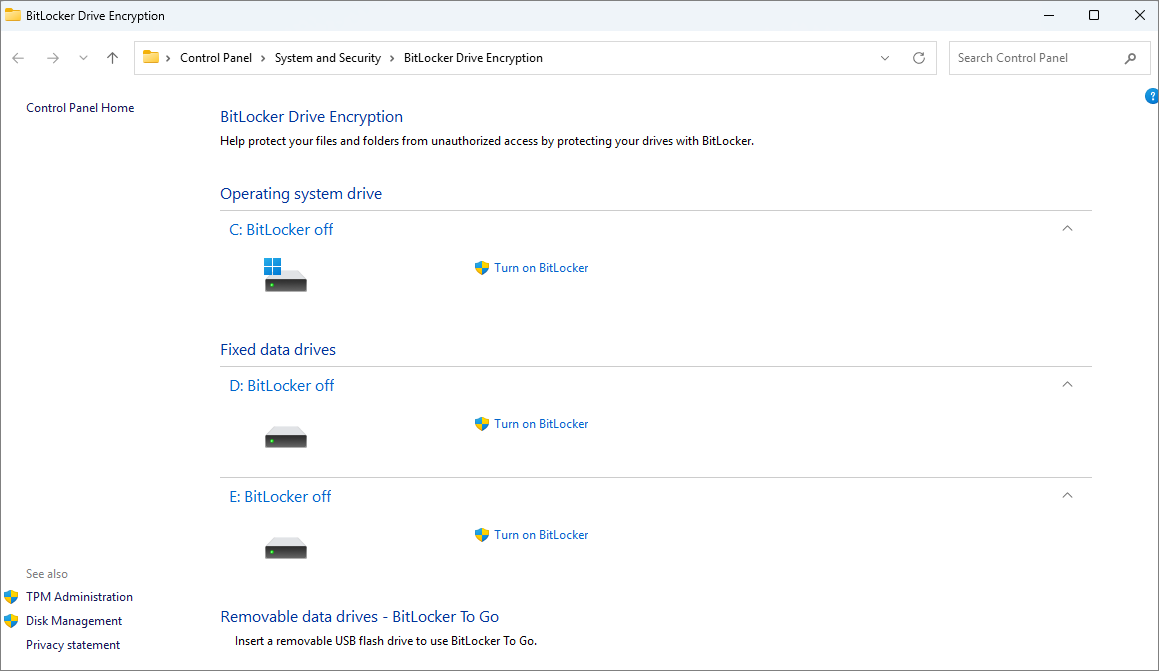
This is often the easiest method for most users because the status is shown in plain language. It is also a good first check before using more detailed tools.
For a complete overview of BitLocker management, see our [BitLocker Management and Operations Guide].
Method 2. Check BitLocker in Windows Settings
You can also check BitLocker through the Windows Settings app. This is useful if you prefer a standard menu to the classic Control Panel view.
Step 1. Open Settings.
Step 2. Search for Device encryption or BitLocker.
Step 3. Open the related page and check the status.
- If it says encryption is on, your drive is protected.
- If it says off, encryption is not active.
One thing to keep in mind is that not every Windows edition shows the same options. Some devices only support device encryption, while others show the full BitLocker controls.
Method 3. Check BitLocker with Command Prompt
If you want a more exact answer, the command line is one of the best ways to check. This method shows detailed drive status and is useful when the normal interface is unclear.
Step 1. Open the Start menu.
Step 2. Type cmd.
Step 3. Right-click Command Prompt and choose Run as administrator.
Step 4. Type this command:
manage-bde -status
Step 5. Press Enter.
You will see a list of drives and their encryption state. Look for these lines:
- Conversion Status
- Percentage Encrypted
- Protection Status
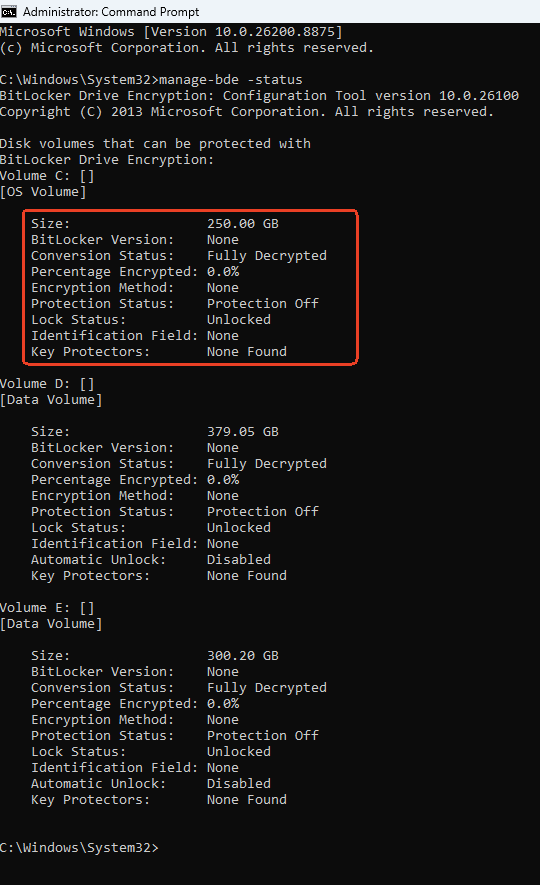
- If the drive is fully protected, you will usually see that encryption is complete and protection is on.
- If BitLocker is disabled, the output will show that the drive is not encrypted or that protection is off.
This method is very useful because it gives you more detail than a simple on/off label. It also helps if you want to know whether a drive is still encrypting or decrypting.
Method 4. Check BitLocker with PowerShell
PowerShell is another good option, especially if you are comfortable using Windows tools. It gives you a clean view of BitLocker status and can be easier to read for some users.
Step 1. Open Start.
Step 2. Search for PowerShell.
Step 3. Right-click and choose Run as administrator.
Step 4. Enter this command:
Get-BitLockerVolume
Step 5. Press Enter.
This command shows the BitLocker status for each volume. Pay attention to fields like:
- VolumeStatus
- ProtectionStatus
- EncryptionPercentage
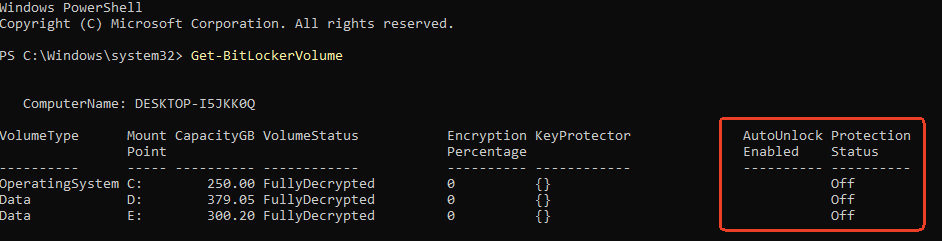
How to tell if BitLocker is enabled or disabled:
- If ProtectionStatus says "On", BitLocker is enabled.
- If it says "Off", BitLocker is disabled.
- If the encryption percentage is still changing, the drive may still be in the middle of the process.
Method 5. Check BitLocker with EaseUS Partition Master
If you want a more visual way to check BitLocker, EaseUS Partition Master can also help. It gives you a simple interface to view disk status, which is useful if you do not want to rely on Windows menus or commands. This tool offers complete BitLocker management features to help you manage or resolve BitLocker-related issues.
Here is how to check if BitLocker is enabled or disabled with EaseUS Partition Master.
Step 1. Download and open EaseUS Partition Master on your computer.
Step 2. Check the drive list. If the drive is protected by BitLocker, the software will clearly show the encryption status.
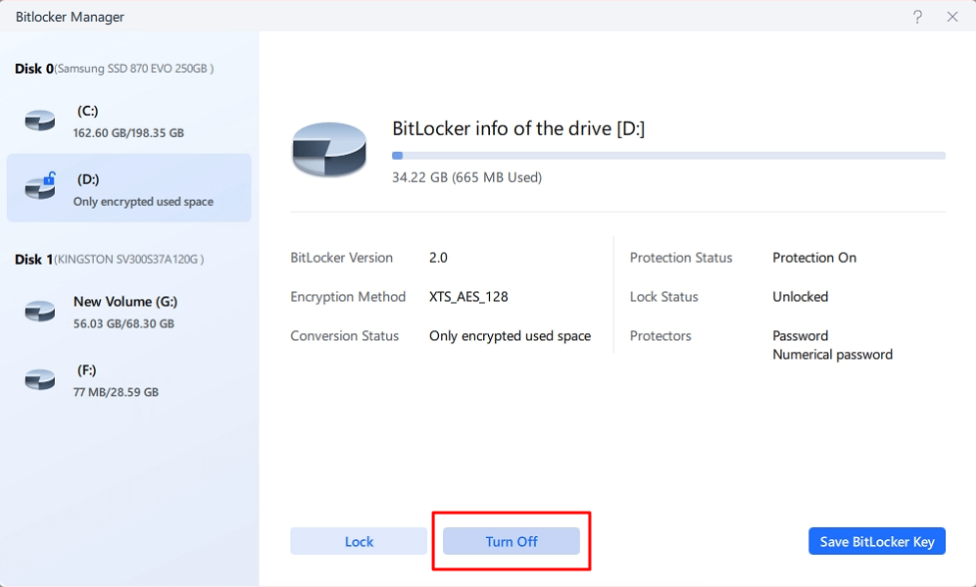
Step 3. You can also right-click the drive and choose "BitLocker Manager." Here, you can check the detailed BitLocker status of all your drives. The BitLocker status includes:
- ✔️BitLocker version
- ✔️Encryption method
- ✔️Conversion status
- ✔️Protection status
- ✔️Lock staus
- ✔️Protectors
You can also turn off BitLocker here.
How to Enable Or Disable BitLocker Encryption
If you need to change BitLocker settings, the process is usually simple.
The steps below show how to turn BitLocker on or off and what to do after that.
1️⃣How to enable BitLocker:
Step 1. Open Manage BitLocker from the Start menu.
Step 2. Find the drive you want to protect.
Step 3. Click "Turn on BitLocker."
Step 4. Follow the on-screen steps.
Step 5. Choose the encryption options you want.
Step 6. Start the encryption process.
2️⃣How to disable BitLocker:
Step 1. Open Manage BitLocker again.
Step 2. Find the drive that is currently protected.
Step 3. Click Turn off BitLocker.
Step 4. Wait for Windows to begin decrypting the drive.
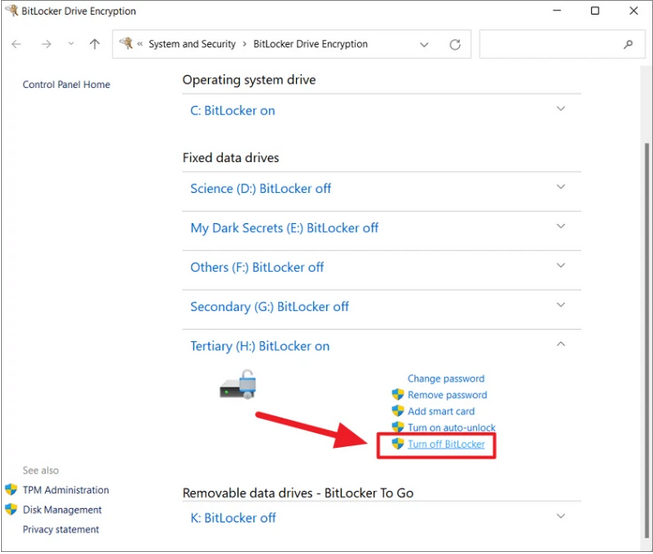
After you turn BitLocker off, the drive does not decrypt immediately. You should wait until the process is fully finished before shutting down the PC or making any major changes. It is also a good idea to save the recovery key before you change anything.
Conclusion
If you want to check if BitLocker is enabled or disabled, you can use Control Panel, Windows Settings, Command Prompt, PowerShell, or a tool like EaseUS Partition Master.
If BitLocker is already on, make sure your recovery key is saved somewhere safe.
If you turn BitLocker off, remember that Windows needs time to decrypt the drive, and protection is only fully removed after that process finishes.
Moreover, if you prefer a comprehensive BitLocker manager software to take control of your BitLocker drive on your PC, EaseUS Partition Master is the utility that deserves your trust.
FAQs
1. Can I check BitLocker without using commands?
Yes. You can open Manage BitLocker from the Start menu or check Device encryption in Windows Settings. These methods are simple and easy to use. They are good for most people who want a quick answer without commands.
2. What does it mean if BitLocker is off?
If BitLocker is off, the drive is not encrypted. That means Windows is not using BitLocker to protect your files on that drive. BitLocker does not provide additional protection at that time.
3. Should I save my recovery key before changing BitLocker?
Yes. The recovery key is very important if Windows asks for it later. If you turn BitLocker on or off, you can keep the key in a safe place. This can save you trouble if the system prompts you to recover.
Share this post if you find it helpful!

How Can We Help You
About the Author

Updated by Tracy King
Tracy became a member of the EaseUS content team in 2013. Being a technical writer for over 10 years, she is enthusiastic about sharing tips to assist readers in resolving complex issues in disk management, file transfer, PC & Mac performance optimization, etc., like an expert.

Written by Joey Albert
Joey is an enthusiast of science and technology. With a passion for uncovering the latest tech innovations, she creates clear, engaging how-to guides that make technology accessible and enjoyable for all.
Product Reviews
-
I love that the changes you make with EaseUS Partition Master Free aren't immediately applied to the disks. It makes it way easier to play out what will happen after you've made all the changes. I also think the overall look and feel of EaseUS Partition Master Free makes whatever you're doing with your computer's partitions easy.
Read More -
Partition Master Free can Resize, Move, Merge, Migrate, and Copy disks or partitions; convert to local, change label, defragment, check and explore partition; and much more. A premium upgrade adds free tech support and the ability to resize dynamic volumes.
Read More -
It won't hot image your drives or align them, but since it's coupled with a partition manager, it allows you do perform many tasks at once, instead of just cloning drives. You can move partitions around, resize them, defragment, and more, along with the other tools you'd expect from a cloning tool.
Read More
Related Articles
-
Windows 11 Blue Screen After 24H2 Upgrade? How to Fix
![Sherly]() Sherly/2026/10/29
Sherly/2026/10/29 -
Samsung Magician Clone Boot Drive | Step-by-Step Tutorial
![Sherly]() Sherly/2026/10/29
Sherly/2026/10/29 -
Best Bootable Manager Software for Windows 2026 Recommend
![Tracy King]() Tracy King/2026/10/29
Tracy King/2026/10/29 -
How to Create EaseUS WinPE Bootable Disk in Windows 10/8/7
![Daisy]() Daisy/2026/10/29
Daisy/2026/10/29
 Sherly/2026/10/29
  Daisy/2026/10/29









