







Content
Page Table of Contents
About the Author
Hot Topics
- Method 1. Reset Password Using Security Questions
- Method 2. Unlock Windows 11 Using Another Administrator Account
- Method 3. Use Other Sign-in Options
- Method 4. Reset Windows 11 Password Using Command Prompt
- Method 5. Use Windows Installation Disk
- Method 6. Reset Windows 11 Password via Microsoft Account
- Create a Password Reset USB on Another PC - Beginner's Choice
Forgot your Windows 11 password and locked out of your computer? No worry. In this guide, you'll learn six practical ways to reset a Windows 11 password for free, including methods using security questions, administrator accounts, Microsoft account recovery, and unlocking Windows 11 via Command Prompt.
While Microsoft recommends using a password reset USB, most people never create one until it's already too late. The good news is that it is still possible to reset a Windows 11 password without a USB or password reset disk using several built-in recovery options.
Can I Reset Windows 11 Password Without a USB or a Disk?
So can I reset Windows 11 password without a password reset disk? Yes, you can. Windows includes several built-in recovery options that let you reset, bypass, or change your login password even when a password reset disk is unavailable.
A password reset disk does work well, but it must be created before the password is forgotten. Once your computer is locked and you have never prepared the disk in advance, it no longer helps.
|
How do I reset my Windows password without the need for a USB flash drive? - From LearnMicrosoft |
|
Reset password for the account in Windows 11 without a disk - From r/Winsides 11 on Reddit |
|
How to create a password reset disk after forgetting Windows 11 password? - From Techcommunity |
Fortunately, Windows still provides other recovery options. Depending on your account type and system settings, you can reset a PC password without a USB, unlock the computer, or change the password through built-in administrative tools.
How to Reset Windows 11 Password Without USB
If you're locked out of your computer, there are several methods that may allow you to reset your Windows 11 password without a password reset disk.
Some solutions require another administrator account, while others rely on built-in system recovery tools like Command Prompt or Microsoft account recovery. Before trying these methods, make sure you understand their requirements and limitations.
Method 1. Reset Password Using Security Questions
If you created a local account in Windows 11, you may have set up security questions when you created the account. These questions let you reset the password directly from the login screen, without a USB drive or additional software.
This method is one of the fastest ways to reset Windows 11 password without a USB if the questions were configured earlier.
|
Requirements
|
Here is how to reset Windows 11 password via security questions:
Step 1. Enter an incorrect password on the login screen.
Step 2. Click Reset password when the option appears.
Step 3. Answer the security questions and create a new password.
After completing the process, you can immediately unlock your Windows 11 PC. If this method helps you regain access, consider sharing this guide to help other users who need to reset their PC password without USB.

Method 2. Unlock Windows 11 Using Another Administrator Account
If another administrator account exists on the computer, that account can be used to reset the locked user's password. This situation is common in shared computers, office environments, or family PCs where multiple administrator accounts were created.
|
Requirements
|
Here is how to reset the Windows 11 password using another administrator account:
Step 1. Log in to the computer using another administrator account.
Step 2. Open the Control Panel and go to: User Accounts > Manage another account.
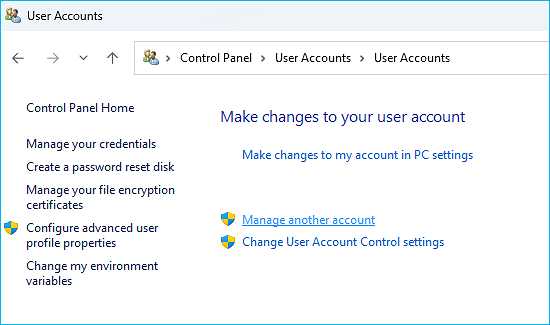
Step 3. Select the locked account and click Change the password, then enter a new password.
Once completed, you can log in using the newly created password.
Method 3. Use Other Sign-in Options
In many cases, the password is not the only login method configured in Windows 11. If other sign-in methods are available, you may still be able to access the system and then change the password from the settings panel.
Windows 11 may support alternative authentication methods such as:
- PIN
- Windows Hello
- Fingerprint recognition
- Picture password
If any of these options are enabled, they can help you unlock the computer without resetting the password immediately.
Step 1. On the login screen, click Sign-in options.
Step 2. Select an alternative method, such as PIN or fingerprint.
Step 3. After logging in, go to Settings > Accounts > Sign-in options to change your password.
This method is helpful when you still have access to other authentication methods but forgot the primary password.
Method 4. Reset Windows 11 Password Using Command Prompt
If you are completely locked out and no other sign-in options are available, you can unlock Windows 11 via Command Prompt, which works by accessing Command Prompt in Windows Recovery Environment before login and using system commands to reset the account password.
|
Important This method temporarily modifies system files and should be used with care. It is recommended for advanced users who are comfortable working with system commands. Requirements
|
Step 1. Enter the Windows Recovery Environment
From the login screen:
- Hold Shift + Restart
- Then select: Troubleshoot > Advanced Options > Command Prompt
Step 2. Replace the Utility Manager
Run the following commands:
- move c:\windows\system32\utilman.exe c:\windows\system32\utilman.exe.bak (Replace C with the drive letter of your system drive)
- copy c:\windows\system32\cmd.exe c:\windows\system32\utilman.exe
Step 3. Reset the Password
- Restart the PC and click the Ease of Access icon on the login screen. Command Prompt will open.
- Run: net user (This will list all accounts on your PC, and you need to identify the locked account.)
- Then reset the password by typing the command line: net user username newpassword (For example: net user Sherly 123456)
After executing the command, you should be able to log in with the new password. If this guide helped you reset Windows 11 password without USB, consider sharing it with others facing the same problem.
Method 5. Use Windows Installation Disk
Another way to reset Windows 11 password without password reset disk is by using Windows installation media.
Although this method requires a USB or DVD installer, it does not require a previously created password reset disk, making it useful when the computer is already locked.
|
Requirements
|
Step 1. Insert the Windows installation media and boot Windows from it.
Step 2. Click Repair your computer on the Windows installation window instead of Install.
Step 3. Navigate to: Troubleshoot > Advanced Options > Command Prompt.
From there, you can follow the CMD password reset method described earlier.
Run the following commands:
- move c:\windows\system32\utilman.exe c:\windows\system32\utilman.exe.bak (Replace C with the drive letter of your system drive)
- copy c:\windows\system32\cmd.exe c:\windows\system32\utilman.exe
After that, restart the PC and click the Ease of Access icon on the login screen. This will open Command Prompt.
Run: net user username newpassword (For example: net user Sherly 123456)
After that, you can login Windows 11 with the new password you just set.
Method 6. Reset Windows 11 Password via Microsoft Account
If your Windows 11 account is linked to a Microsoft account, resetting the password is actually very simple and can be done online. This method works even if your computer is locked, because the password is verified through Microsoft's online account system.
|
Requirements
|
Step 1. Use another device (phone or computer) to open the Microsoft password reset page: https://account.live.com/password/reset
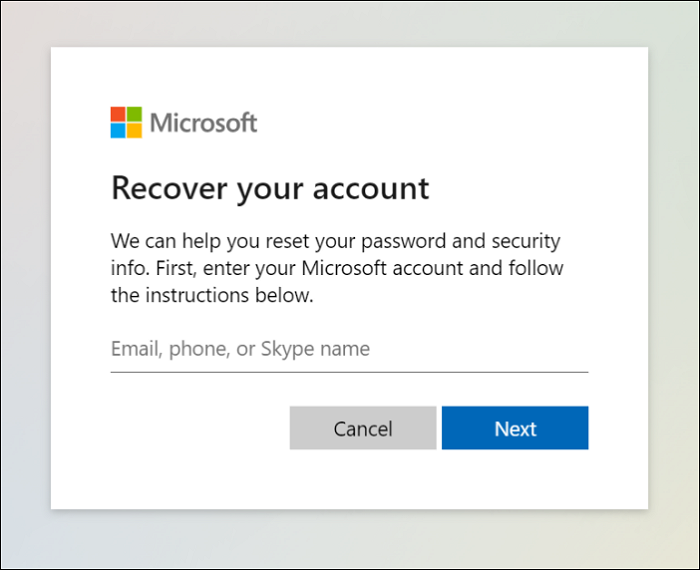
Step 2. Enter the email associated with your Microsoft account and follow the identity verification steps. You may receive a verification code through email, SMS, or authentication apps.
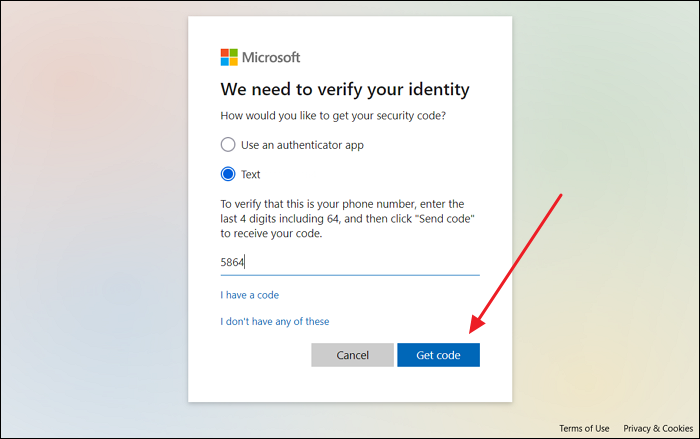
After verification, create a new password and return to your Windows 11 computer to log in.
The methods above can help reset Windows 11 password without any third-party software. However, for beginners, using a third-party password recovery tool is an easier and safer option.
Create a Password Reset USB on Another PC - Beginner's Choice
Don't have a password reset disk prepared earlier? That's okay. EaseUS Partition Master lets you create a Windows password reset USB drive on another working computer, even if your locked PC never had a reset disk.
Once created, the bootable reset disk can help you unlock the locked Windows 11 computer quickly. The process does not require complex command-line operations, making it especially beginner-friendly.
Advantages
- No need to create a password reset disk in advance. It works even if the computer is already locked.
- Breaking the limit of the Windows built-in Password reset USB, it works for any unlocked PCs.
- Supports Windows 11, 10, 8, 7, XP, and Vista
Preparation
- USB flash drive
- Another PC that works normally
Follow the steps below to create a password reset USB for Windows 11:
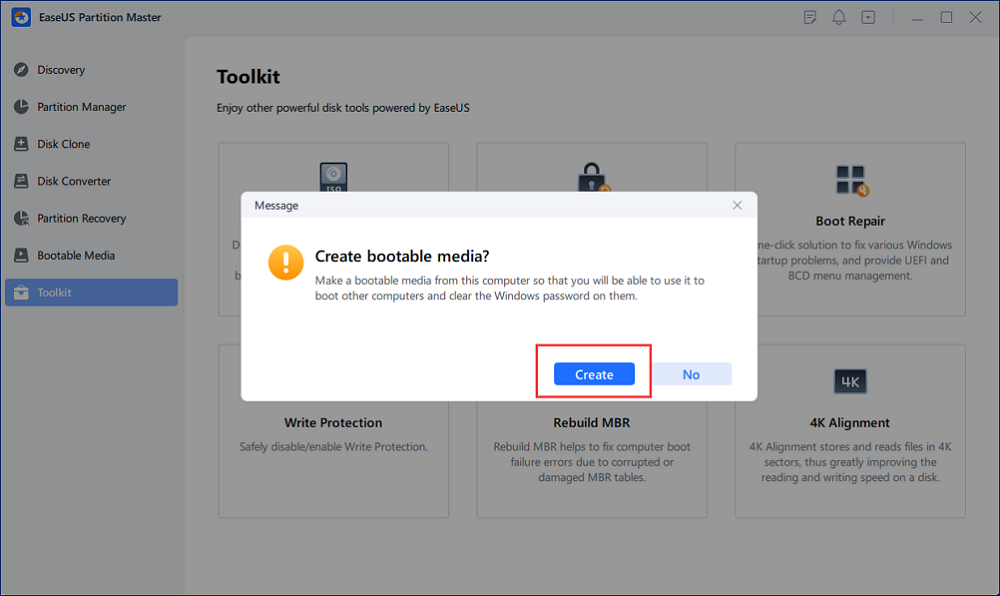
Step 1. Insert the target USB disk into the computer, download and run EaseUS Partition Master, and click "Toolkit" > "Password Reset."
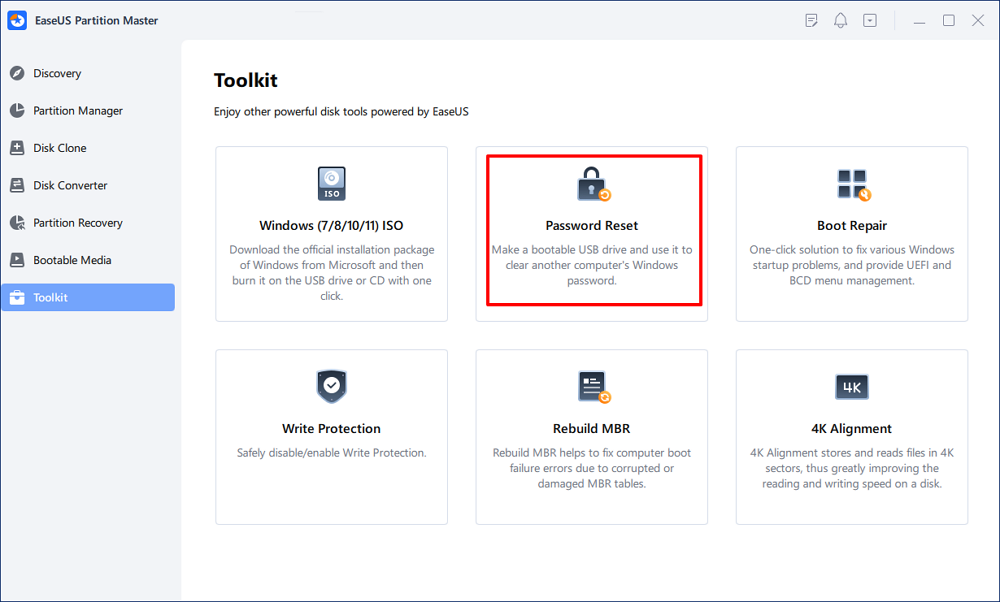
Step 2. A small window will pop up. After reading it carefully, click "Create".
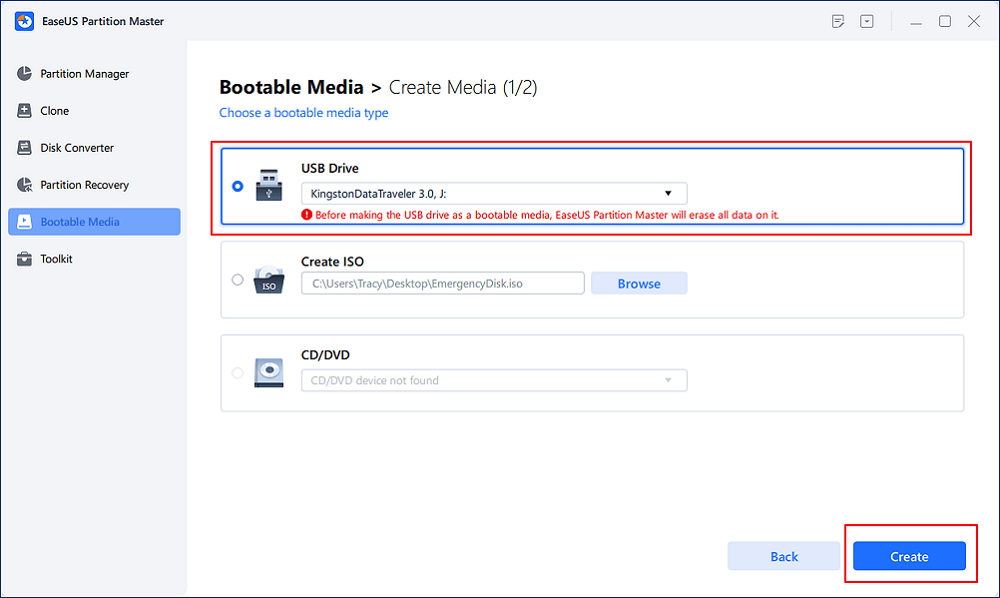
Step 3. Select the correct USB flash drive or external mobile hard disk and click "Create" again. Wait patiently. After the password reset USB flash drive is created, click "Finish."
Step 4. Remove the password reset USB, insert it into the locked PC, and restart. You will be asked to change the boot drive to boot the PC from USB. Once completed, the system will automatically boot from USB.
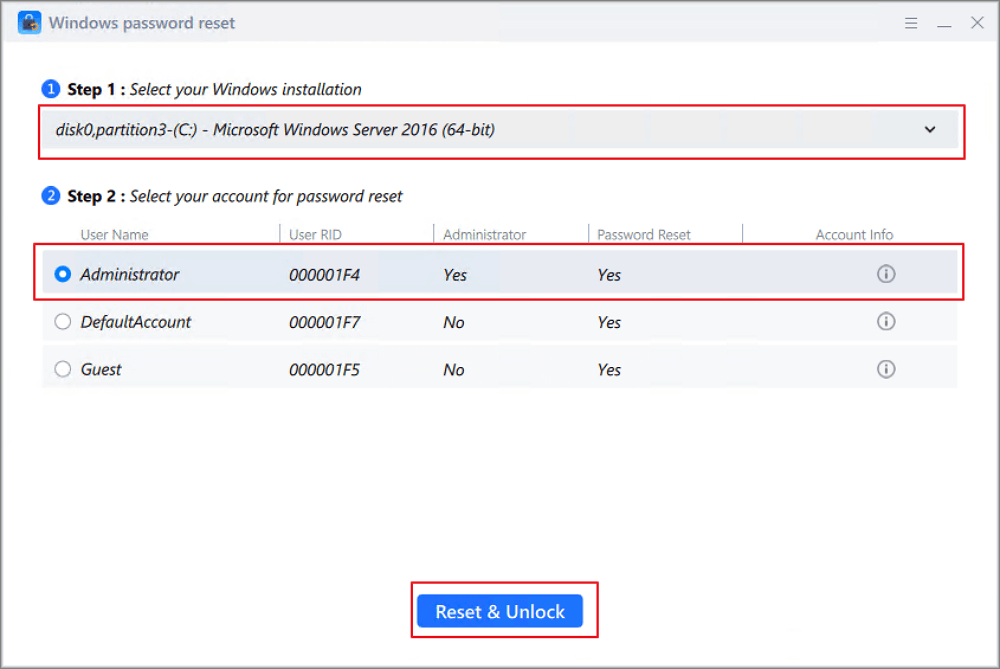
Step 5. After restarting, find EaseUS Partition Master again and go to "Password Reset." All accounts on the PC will be displayed in the interface; click on the target account and check "Reset & Unlock."
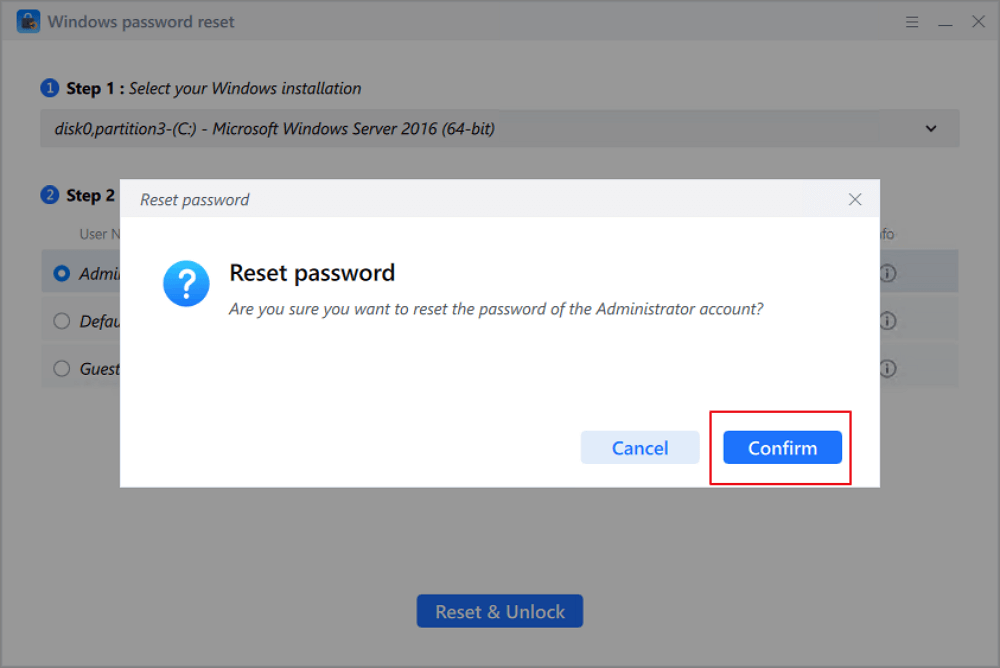
Step 6. When you receive this prompt, click "Confirm" to continue. Your password will be erased.
FAQs About Windows 11 Password Reset Without USB
1. Can I reset Windows 11 password without USB?
Yes. It is possible to reset Windows 11 password without USB or a password reset disk using several built-in recovery options. For example, if you configured security questions when creating a local account, you can reset the password directly from the login screen. Other solutions include using another administrator account, Microsoft account password recovery, or accessing Command Prompt from the Windows Recovery Environment to reset the password.
2. How can I reset Windows 11 password for free?
You can reset Windows 11 password for free using the built-in tools already included in the operating system. Common methods include answering security questions, changing the password from another administrator account, resetting a Microsoft account password online, or using Command Prompt commands to change the password from recovery mode. These options allow users to regain access without installing additional software.
3. Can I reset Windows 11 password without a password reset disk?
Yes. A password reset disk only works if it was created before the password was forgotten. If you never prepared one, you can still reset Windows 11 password without a password reset disk using alternative methods such as security questions, administrator account access, Microsoft account recovery, or command-line tools available in Windows Recovery Environment.
4. How do I unlock Windows 11 via CMD?
To unlock Windows 11 via CMD, you need to access the Windows Recovery Environment (WinRE) first. From there, open Command Prompt and use the net user command to change the account password. After setting a new password, restart the computer and log in normally with the updated credentials.
How Can We Help You
About the Author

Updated by Tracy King
Tracy became a member of the EaseUS content team in 2013. Being a technical writer for over 10 years, she is enthusiastic about sharing tips to assist readers in resolving complex issues in disk management, file transfer, PC & Mac performance optimization, etc., like an expert.

Sherly joined EaseUS in 2022 and she has always loved writing articles and enjoys the fun they bring. She receives professional training here, focusing on product performance and other relative knowledge. She has written over 200 articles to help people overcome computing issues.
Product Reviews
-
I love that the changes you make with EaseUS Partition Master Free aren't immediately applied to the disks. It makes it way easier to play out what will happen after you've made all the changes. I also think the overall look and feel of EaseUS Partition Master Free makes whatever you're doing with your computer's partitions easy.
Read More -
Partition Master Free can Resize, Move, Merge, Migrate, and Copy disks or partitions; convert to local, change label, defragment, check and explore partition; and much more. A premium upgrade adds free tech support and the ability to resize dynamic volumes.
Read More -
It won't hot image your drives or align them, but since it's coupled with a partition manager, it allows you do perform many tasks at once, instead of just cloning drives. You can move partitions around, resize them, defragment, and more, along with the other tools you'd expect from a cloning tool.
Read More
Related Articles
-
How to Fix GPU Missing from Task Manager [Solved]
![author icon]() Dany/2026/09/20
Dany/2026/09/20 -
How to Reset Administrator Password on Windows 10
![author icon]() Sherly/2026/09/13
Sherly/2026/09/13 -
Windows 11 Not Accepting Password? How to Fix?
![author icon]() Sherly/2026/06/17
Sherly/2026/06/17 -
Data Recovery Software Full Version Free Download
![author icon]() Tracy King/2026/07/23
Tracy King/2026/07/23
 Dany/2026/09/20









